steering RAM 1500 2021 Service Manual
[x] Cancel search | Manufacturer: RAM, Model Year: 2021, Model line: 1500, Model: RAM 1500 2021Pages: 496, PDF Size: 20.89 MB
Page 226 of 496

224STARTING AND OPERATING
Adjusting GAIN
NOTE:
This should only be performed in a traffic free
environment at speeds of approximately
20–25 mph (30–40 km/h).
1. Make sure the trailer brakes are in good
working condition, functioning normally
and properly adjusted. See your trailer
dealer if necessary.
2. Hook up the trailer and make the electrical connections according to the trailer
manufacturer's instructions.
3. When a trailer is plugged in with electric or EOH brakes, the trailer connected message
should appear in the instrument cluster
display (if the connection is not recognized by the ITBM, braking functions will not be
available), the GAIN setting will illuminate
and the correct type of trailer must be
selected from the instrument cluster display
options.
4. Push the UP or DOWN button on the steering wheel until “TRAILER TOW”
appears on the screen.
5. Push the RIGHT arrow on the steering wheel to enter “TRAILER TOW”.
6. Push the UP or DOWN buttons until the Trailer Brake Type appears on the screen.
7. Push the RIGHT arrow and then push the UP or DOWN buttons until the proper Trailer
Brake Type appears on the screen. 8. In a traffic-free environment, tow the trailer
on a dry, level surface at a speed of
20–25 mph (30–40 km/h) and squeeze
the manual brake control lever completely.
9. If the trailer wheels lockup (indicated by squealing tires), reduce the GAIN setting; if
the trailer wheels turn freely, increase the
GAIN setting.
Repeat steps 8 and 9 until the GAIN setting is at
a point just below trailer wheel lockup. If towing
a heavier trailer, trailer wheel lockup may not be
attainable even with the maximum GAIN setting
of 10.
*The suggested selection may change depending on the customer preferences for braking performance. Condition of the trailer brakes, driving and road state may also affect the
selection.
Light Electric Heavy Electric Light EOHHeavy EOH
Type of Trailer Brakes Electric Trailer Brakes Electric Trailer Brakes Electric over Hydraulic
Trailer BrakesElectric over Hydraulic
Trailer Brakes
Load *Under 10,000 lbs *Above 10,000 lbs *Under 10,000 lbs *Above 10,000 lbs
21_DT_OM_EN_USC_t.book Page 224
Page 237 of 496
STARTING AND OPERATING235
OFF-ROAD DRIVING TIPS
Care should be taken when attempting to climb
steep hills or driving diagonally across a hill or
slope. If natural obstacles force you to travel
diagonally up or down a hill, choose a mild angle
and keep as little side tilt as possible. Keep the
vehicle moving and make turns slowly and
cautiously. If you must back down a hill, back straight down
using REVERSE gear. Never back down in
NEUTRAL or diagonally across the hill.
When driving over sand, mud, and other soft
terrain, shift to low gear and drive steadily.
Apply the accelerator slowly to avoid spinning
the wheels.
Do not reduce the tire pressures for this type of
driving.
After Driving Off-Road
Off-road operation puts more stress on your
vehicle than does most on-road driving. After
going off-road, it is always a good idea to check
for damage. That way you can get any problems
taken care of right away and have your vehicle
ready when you need it.
Completely inspect the underbody of your
vehicle. Check tires, body structure, steering,
suspension, and exhaust system for damage.
Inspect the radiator for mud and debris and
clean as required.
Check threaded fasteners for looseness,
particularly on the chassis, drivetrain compo
-
nents, steering, and suspension. Retighten
them, if required, and torque to the values
specified in the Service Manual.
Check for accumulations of plants or brush.
These things could be a fire hazard. They
might hide damage to fuel lines, brake hoses,
axle pinion seals, and propeller shafts.
After extended operation in mud, sand,
water, or similar dirty conditions, have the
radiator, fan, brake rotors, wheels, brake
linings, and axle yokes inspected and
cleaned as soon as possible.
If you experience unusual vibration after
driving in mud, slush or similar conditions,
check the wheels for impacted material.
Impacted material can cause a wheel imbal-
ance and freeing the wheels of it will correct
the situation.
Driving through standing water may cause
damage to your vehicle’s drivetrain compo -
nents. Always inspect your vehicle’s fluids
(i.e., engine oil, transmission, axle, etc.) for
signs of contamination (i.e., fluid that is
milky or foamy in appearance) after driving
through standing water. Do not continue to
operate the vehicle if any fluid appears
contaminated, as this may result in further
damage. Such damage is not covered by
the New Vehicle Limited Warranty.
Getting water inside your vehicle’s engine
can cause it to lock up and stall out, and
cause serious internal damage to the
engine. Such damage is not covered by the
New Vehicle Limited Warranty.
CAUTION! (Continued)
WARNING!
Abrasive material in any part of the brakes
may cause excessive wear or unpredictable
braking. You might not have full braking
power when you need it to prevent a collision.
If you have been operating your vehicle in
dirty conditions, get your brakes checked and
cleaned as necessary.
4
21_DT_OM_EN_USC_t.book Page 235
Page 245 of 496
MULTIMEDIA243
LaneSense Warning This setting will change the distance at which the steering wheel will
provide lane departure feedback. The available settings are “Early”,
“Medium”, and “Late”.
LaneSense Strength
This setting will change the strength of the steering wheel feedback
during a lane departure. The available setting are “Low”, “Medium”, and
“High”.
ParkSense This setting will change the type of ParkSense alert when a close object is
detected. The “Sound Only” setting will provide an audible chime when
an object is detected. The “Sound and Display” setting will provide both
an audible chime and a visual display when an object is detected.
Front ParkSense Volume This setting adjusts the volume of the Front ParkSense system. The
available settings are “Low”, “Medium”, and “High”.
Rear ParkSense Volume This setting adjusts the volume of the Rear ParkSense system. The
available settings are “Low”, “Medium”, and “High”.
Rear ParkSense Braking Assist This setting will turned the Rear ParkSense Braking Assist on or off.
Blind Spot Alert This setting will change the type of alert provided when an object is
detected in a vehicle’s blind spot. The “Off” setting will turn off Blind Spot
Alert. The “Lights” setting will activate the Blind Spot Alert lights on the
outside mirrors. The “Lights & Chime” setting will activate both the lights
on the outside mirrors and an audible chime.
Trailer Length For Blind Spot Alert This setting will auto detect the length of an attached trailer. The “Auto”
setting will have the system automatically set the trailer length. The
“Max” setting will always set the length to the maximum 39.5 ft (12 m).
Hill Start Assist This setting will turn the Hill Start Assist system on or off.
Setting NameDescription
5
21_DT_OM_EN_USC_t.book Page 243
Page 248 of 496
246MULTIMEDIA
Doors & Locks
When the Doors & Locks button is pressed on the touchscreen, the system displays the options related to locking and unlocking the vehicle’s doors.Auto Dim High Beams — If Equipped
This setting will allow you to turn the Auto Dim High Beams on or off.
Steering Directed Lights — If Equipped This setting will turn the headlights with the steering wheel. The available
options are “On” or “Off”.
Setting Name
Description
Setting NameDescription
Auto Door Locks This setting will allow you to change if the doors lock automatically when
the vehicle reaches 12 mph (19 km/h).
Auto Unlock On Exit This setting will unlock the doors when any of the doors are opened from
the inside.
Flash Lights With Lock This setting will allow you to turn the flashing of the lights when the Lock
button is pushed on the key fob on or off.
Sound Horn With Lock This setting will sound the horn when the Lock button is pushed on the
key fob. The “Off” setting will not sound the horn when the Lock button is
pushed. The “1st Press” setting will sound the horn when the Lock button
is pushed once. The “2nd Press” setting will sound the horn when the
Lock button is pushed twice.
Sound Horn With Remote Start This setting will sound the horn when the remote start is activated from
the key fob.
21_DT_OM_EN_USC_t.book Page 246
Page 250 of 496

248MULTIMEDIA
Seats & Comfort/Auto-On Comfort Systems — If Equipped
When Seats & Comfort/Auto-On Comfort Systems button is pressed on the touchscreen, the system displays the options related to the vehicle’s comfort
systems when remote start has been activated or the vehicle has been started.
Key Off Options/Engine Off Options
When the Key Off Options/Engine Off Options button is pressed on the touchscreen, the system displays the options related to vehicle shutoff. These
settings will only activate when the ignition is set to OFF.
Setting Name Description
Auto-On Driver Heated/Ventilated Seat & Heated Steering Wheel With
Vehicle Start This setting will activate the vehicle’s comfort systems and heated seats
(if equipped) or heated steering wheel (if equipped) when the vehicle is
remote started or ignition is started. The “Off” setting will not activate the
comfort systems. The “Remote Start” setting will only activate the
comfort systems when using Remote Start. The “All Start” setting will
activate the comfort systems whenever the vehicle is started.
Easy Exit Seats This setting will automatically move the driver seat rearward when the
engine is shut off. The available settings are “On” and “Off”.
Setting Name
Description
Easy Exit Seat This setting adjusts the seats to make exiting the vehicle easier.
Engine Off Power Delay This setting will keep certain electrical features running after the engine
is turned off. When any door is opened, the electronics will deactivate.
The available settings are “0 sec”, “45 sec”, “5 min”, and “10 min”.
21_DT_OM_EN_USC_t.book Page 248
Page 256 of 496
254MULTIMEDIA
HEAD-UP DISPLAY (HUD)
The Head-Up Display layout on the instrument
cluster can be customized through the
Uconnect touchscreen. Each customized layout
can be saved to the Driver Profiles that are
created by the different drivers.
This feature is only accessed through the
instrument cluster display once the “Custom”
option is selected through the “Content &
Layout” tab. To begin customizing the HUD
layout through the instrument cluster display,
follow these steps:
1. Through the instrument cluster display,
using the Up and Down Arrow buttons on
the steering wheel, select the Content &
Layout option by pressing the OK button on
the steering wheel.
NOTE:
This option will not be available if the vehicle is
going more than 5 mph (8 km/h). 2. Select the Custom option by pushing the
Right Arrow button on the steering wheel.
NOTE:
A message will appear on the instrument cluster
display stating “Set Custom Layout in Radio”.
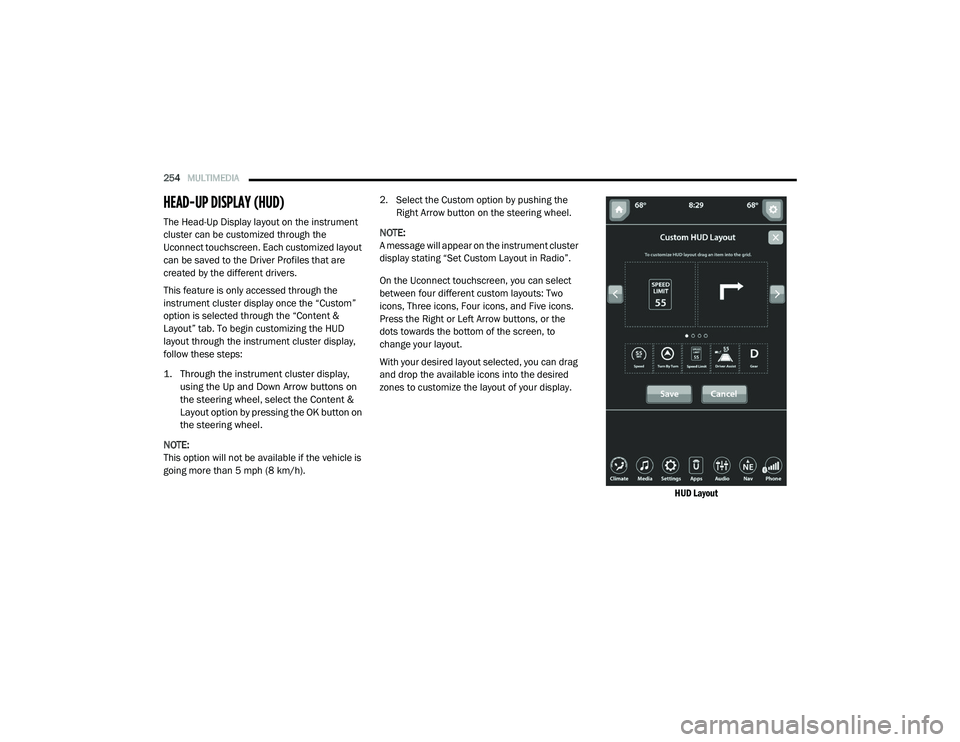
On the Uconnect touchscreen, you can select
between four different custom layouts: Two
icons, Three icons, Four icons, and Five icons.
Press the Right or Left Arrow buttons, or the
dots towards the bottom of the screen, to
change your layout.
With your desired layout selected, you can drag
and drop the available icons into the desired
zones to customize the layout of your display.
HUD Layout
21_DT_OM_EN_USC_t.book Page 254
Page 260 of 496
258MULTIMEDIA
SAFETY AND GENERAL INFORMATION
Safety Guidelines
Please read this manual carefully before using
the system. It contains instructions on how to
use the system in a safe and effective manner.
Do NOT attach any object to the touchscreen.
Doing so can result in damage to the
touchscreen.
Please read and follow these safety
precautions. Failure to do so may result in injury
or property damage.
Glance at the screen only when safe to do so.
If prolonged viewing of the screen is required,
park in a safe location and set the parking
brake.
Stop use immediately if a problem occurs.
Failure to do so may cause injury or damage
to the product. See an authorized dealer for
repair.
Ensure the volume level of the system is set
to a level that still allows you to hear outside
traffic and emergency vehicles.
Safe Usage Of The Uconnect System
The Uconnect system is a sophisticated elec -
tronic device. Do not let young children use
the system.
Permanent hearing loss may occur if you play
your music or sound system at loud volumes.
Exercise caution when setting the volume on
the system.
Keep drinks, rain and other sources of mois -
ture away from the system. Besides damage
to the system, moisture can cause electric
shocks as with any electronic device. NOTE:
Many features of this system are speed depen
-
dent. For your own safety, it is not possible to
use some of the touchscreen features while the
vehicle is in motion.
Care And Maintenance
Do not press the touchscreen with any hard
or sharp objects (pen, USB stick, jewelry,
etc.), which could scratch the surface.
Do not spray any liquid or chemicals directly
on the screen! Use a clean and dry microfiber
lens cleaning cloth in order to clean the
touchscreen.
If necessary, use a lint-free cloth dampened
with a cleaning solution, such as isopropyl
alcohol or an isopropyl alcohol and water
solution ratio of 50:50. Be sure to follow the
solvent manufacturer's precautions and
directions Ú page 482.
WARNING!
ALWAYS drive safely with your hands on the
steering wheel. You have full responsibility
and assume all risks related to the use of the
Uconnect features and applications in this
vehicle. Only use Uconnect when it is safe to
do so. Failure to do so may result in an
accident involving serious injury or death.
21_DT_OM_EN_USC_t.book Page 258
Page 261 of 496

MULTIMEDIA259
UCONNECT MODES
STEERING WHEEL AUDIO CONTROLS
The remote sound system controls are located
on the rear surface of the steering wheel at the
three and nine o’clock positions.
Remote Sound System Controls
The right-hand control is a rocker-type switch
with a push button in the center and controls
the volume and mode of the sound system.
Pushing the top of the rocker switch will
increase the volume, and pushing the bottom of
the rocker switch will decrease the volume.
Pushing the center button will make the radio
switch between the various modes available
(AM/FM/SXM or Media, etc.). The left-hand control is a rocker-type switch with
a push button in the center. The function of the
left-hand control is different depending on
which mode you are in.
The following describes the left-hand control
operation in each mode:
Radio Operation
Pushing the top of the switch will Seek Up for
the next available station and pushing the
bottom of the switch will Seek Down for the next
available station.
The button located in the center of the left-hand
control will tune to the next preset station that
you have programmed in the radio presets.
Media Mode
Pushing the top of the switch skips to the next
track on the selected media (AUX/USB/
Bluetooth®). Pushing the switch up twice will go
forward two tracks. Pushing the bottom switch
goes to the beginning of the current track, or the
beginning of the previous track if it is within
eight seconds after the current track begins to
play. Double pressing the bottom button switch
will skip to the previous track if it is after eight
seconds into the current track.
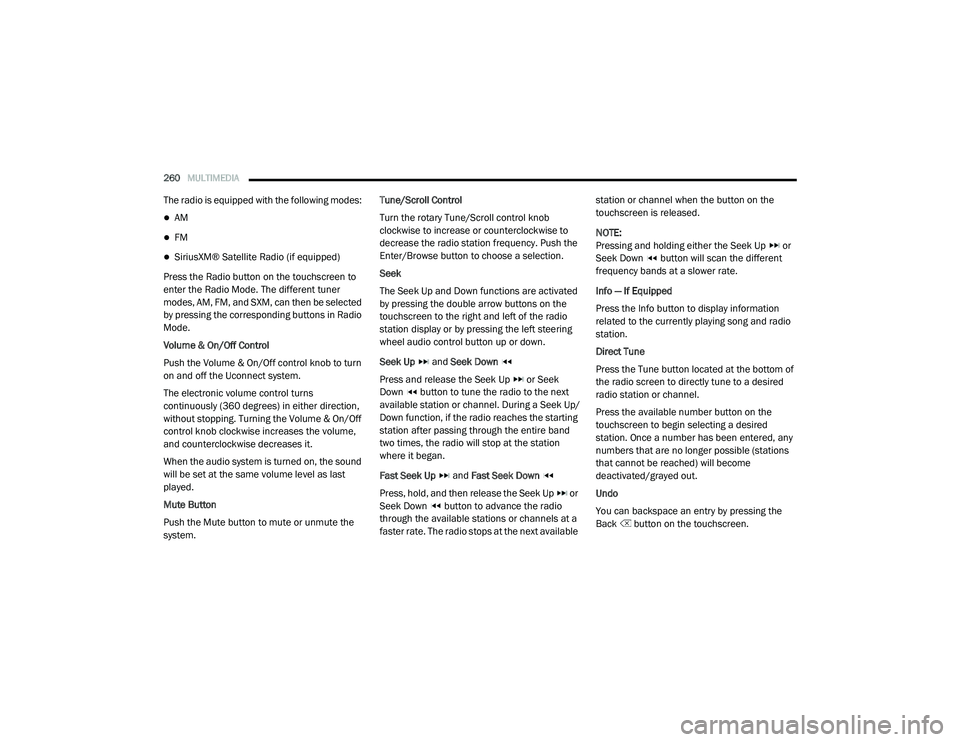
RADIO MODE
Radio Controls
Uconnect 3 With 5-inch Display
1 — Preset Radio Stations
2 — All Preset Radio Stations
3 — Seek Up
4 — Audio Settings
5 — Station Info
6 — Tune
7 — Radio Band (AM/FM)
8 — Seek Down
5
21_DT_OM_EN_USC_t.book Page 259
Page 262 of 496
260MULTIMEDIA
The radio is equipped with the following modes:
AM
FM
SiriusXM® Satellite Radio (if equipped)
Press the Radio button on the touchscreen to
enter the Radio Mode. The different tuner
modes, AM, FM, and SXM, can then be selected
by pressing the corresponding buttons in Radio
Mode.
Volume & On/Off Control
Push the Volume & On/Off control knob to turn
on and off the Uconnect system.
The electronic volume control turns
continuously (360 degrees) in either direction,
without stopping. Turning the Volume & On/Off
control knob clockwise increases the volume,
and counterclockwise decreases it.
When the audio system is turned on, the sound
will be set at the same volume level as last
played.
Mute Button
Push the Mute button to mute or unmute the
system. Tune/Scroll Control
Turn the rotary Tune/Scroll control knob
clockwise to increase or counterclockwise to
decrease the radio station frequency. Push the
Enter/Browse button to choose a selection.
Seek
The Seek Up and Down functions are activated
by pressing the double arrow buttons on the
touchscreen to the right and left of the radio
station display or by pressing the left steering
wheel audio control button up or down.
Seek Up
and Seek Down
Press and release the Seek Up or Seek
Down button to tune the radio to the next
available station or channel. During a Seek Up/
Down function, if the radio reaches the starting
station after passing through the entire band
two times, the radio will stop at the station
where it began.
Fast Seek Up and Fast Seek Down
Press, hold, and then release the Seek Up or
Seek Down button to advance the radio
through the available stations or channels at a
faster rate. The radio stops at the next available station or channel when the button on the
touchscreen is released.
NOTE:
Pressing and holding either the Seek Up or
Seek Down button will scan the different
frequency bands at a slower rate.
Info — If Equipped
Press the Info button to display information
related to the currently playing song and radio
station.
Direct Tune
Press the Tune button located at the bottom of
the radio screen to directly tune to a desired
radio station or channel.
Press the available number button on the
touchscreen to begin selecting a desired
station. Once a number has been entered, any
numbers that are no longer possible (stations
that cannot be reached) will become
deactivated/grayed out.
Undo
You can backspace an entry by pressing the
Back button on the touchscreen.
21_DT_OM_EN_USC_t.book Page 260
Page 263 of 496
MULTIMEDIA261
GO
Once the last digit of a station has been
entered, press “GO”. The Direct Tune screen will
close, and the system will automatically tune to
that station.
Radio Voice Commands
Use your voice to quickly get to the AM, FM, or
SiriusXM® Satellite Radio stations you would
like to hear. (Subscription or included
SiriusXM® Satellite Radio trial required.)
Push the VR button on the steering wheel
and wait for the beep to say a command. See
some examples below.
“Tune to ninety-five-point-five FM”
“Tune to Satellite Channel Hits 1”
Did You Know: At any time, if you are not sure of
what to say or want to learn a Voice Command,
push the VR button and say “ Help”. The
system provides you with a list of commands.
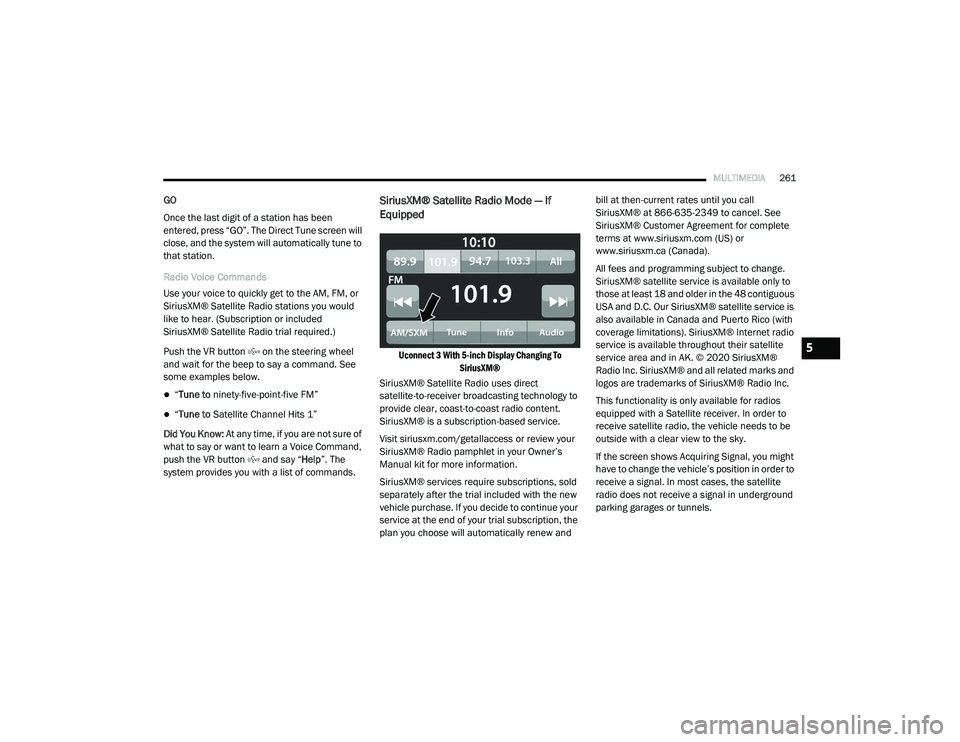
SiriusXM® Satellite Radio Mode — If
Equipped
Uconnect 3 With 5-inch Display Changing To SiriusXM®
SiriusXM® Satellite Radio uses direct
satellite-to-receiver broadcasting technology to
provide clear, coast-to-coast radio content.
SiriusXM® is a subscription-based service.
Visit siriusxm.com/getallaccess or review your
SiriusXM® Radio pamphlet in your Owner’s
Manual kit for more information.
SiriusXM® services require subscriptions, sold
separately after the trial included with the new
vehicle purchase. If you decide to continue your
service at the end of your trial subscription, the
plan you choose will automatically renew and bill at then-current rates until you call
SiriusXM® at 866-635-2349 to cancel. See
SiriusXM® Customer Agreement for complete
terms at www.siriusxm.com (US) or
www.siriusxm.ca (Canada).
All fees and programming subject to change.
SiriusXM® satellite service is available only to
those at least 18 and older in the 48 contiguous
USA and D.C. Our SiriusXM® satellite service is
also available in Canada and Puerto Rico (with
coverage limitations). SiriusXM® Internet radio
service is available throughout their satellite
service area and in AK. © 2020 SiriusXM®
Radio Inc. SiriusXM® and all related marks and
logos are trademarks of SiriusXM® Radio Inc.
This functionality is only available for radios
equipped with a Satellite receiver. In order to
receive satellite radio, the vehicle needs to be
outside with a clear view to the sky.
If the screen shows Acquiring Signal, you might
have to change the vehicle’s position in order to
receive a signal. In most cases, the satellite
radio does not receive a signal in underground
parking garages or tunnels.5
21_DT_OM_EN_USC_t.book Page 261