audio RAM 1500 2022 Owner's Manual
[x] Cancel search | Manufacturer: RAM, Model Year: 2022, Model line: 1500, Model: RAM 1500 2022Pages: 496, PDF Size: 18.03 MB
Page 277 of 496

MULTIMEDIA275
Uconnect 3 With 5-inch Display
NOTE:
You must have Bluetooth® enabled on your
phone to complete this procedure.
The vehicle must be in PARK or at a standstill.
Follow the steps below to pair your phone:
1. Place the ignition in the ACC or ON/RUN position.
2. Press the Phone button.
NOTE:
If there are no phones currently connected
with the system, a pop-up will appear asking
if you would like to pair a mobile phone.
This pop-up only appears when the user
enters Phone Mode and no other device(s)
have previously been paired. If the system
has a phone previously paired, even if no
phone is currently connected with the
system, this pop-up will not appear.
3. Select “Yes” to begin the pairing process.
4. Search for available devices on your Bluetooth®-enabled mobile phone.
Press the Settings button on your mobile
phone.
Select “Bluetooth®” and ensure it is
enabled. Once enabled, the mobile phone
will begin to search for Bluetooth® connec -
tions.
NOTE:During the pairing procedure, you may receive a
pop-up on your touchscreen asking you to make
sure the PIN on the touchscreen matches the PIN
from the pop-up on your mobile phone.
5. If “No” is selected, and you still would like to pair a mobile phone, press the Phone Pairing
or Settings button from the Uconnect Phone
main screen.
Press the Paired Phones button or the Add
Device button.
Search for available devices on your Blue -
tooth®-enabled mobile phone (see below).
When prompted on the phone, select
“Uconnect” and accept the connection
request.
6. Uconnect Phone will display an in-progress screen while the system is connecting.
7. When your mobile phone finds the Uconnect system, select “Uconnect.”
8. When prompted on the mobile phone, accept the connection request from Uconnect.
9. When the pairing process has successfully completed, the system will prompt you to
choose whether or not this is your favorite
phone. Selecting “Yes” will make this phone
the highest priority. This phone will take
precedence over other paired phones within
range and will connect to the Uconnect system
automatically when entering the vehicle. Only
one mobile phone and/or one Bluetooth®
audio device can be connected to the
Uconnect system at a time. If “No” is selected,
simply select “Uconnect” from the mobile
phone/audio device Bluetooth® screen, and
the Uconnect system will reconnect to the
Bluetooth® device.
5
22_DT_OM_EN_USC_t.book Page 275
Page 278 of 496

276MULTIMEDIA
NOTE:For phones which are not made a favorite, the
phone priority is determined by the order in which
it was paired. The most recent phone paired will
have the higher priority.
NOTE:During the pairing procedure, you may receive a
pop-up on your mobile phone for the Uconnect
system to access your “messages” and “contacts”.
Selecting “Ok” or “Allow” will sync your contacts
with the Uconnect system.
You can also use the following VR command to
bring up the Paired Phone screen from any screen
on the radio:
“Show Paired Phones”
NOTE:Software updates on your phone or the Uconnect
system may interfere with the Bluetooth®
connection. If this happens, simply repeat the
pairing process. However, first make sure to delete
the device from the list of phones on your
Uconnect system. Next, be sure to remove
Uconnect from the list of devices in your phone’s
Bluetooth® settings.
CONNECTING TO A PARTICULAR MOBILE
PHONE OR AUDIO DEVICE AFTER PAIRING
Uconnect Phone will automatically connect to the
highest priority paired phone and/or Audio Device
within range. If you need to choose a particular
phone or audio device follow these steps:
1. Press the
Settings
button on the touchscreen.
2. Press the Paired Phones or Audio Sources button.
3. Press to select the particular phone or the particular audio device. A pop-up menu will
appear; press “Connect Phone”.
4. Press the X to exit out of the Settings screen.
DISCONNECTING OR DELETING A PHONE OR
AUDIO DEVICE
Uconnect 3 With 5-inch Display
1. Press the Uconnect Phone Pairing or Settings
button.
2. Press the Paired Phones or Audio Sources button.
3. Press the Settings button located to the right of the device name for a different phone or
audio device than the currently connected
device or press the preferred Connected
Phone from the list.
4. The option’s pop-up will be displayed.
5. Press the Disconnect Device or the Delete Device button on the touchscreen.
6. Press the X to exit out of the Settings screen.
MAKING A PHONE OR AUDIO DEVICE A
FAVORITE
1. On the Paired Phone/Audio Sources screen, press the Settings button located to the right
of the device name for a different phone or
audio device than the currently connected
device or press the preferred “Connected
Phone” from the list.
2. The option’s pop-up will be displayed.
3. Press the Make Favorite button on the touchscreen; you will see the chosen device
move to the top of the list.
4. Press the X to exit out of the Settings screen.
22_DT_OM_EN_USC_t.book Page 276
Page 281 of 496
MULTIMEDIA279
ANSWER OR IGNORE AN INCOMING CALL — NO
CALL CURRENTLY IN PROGRESS
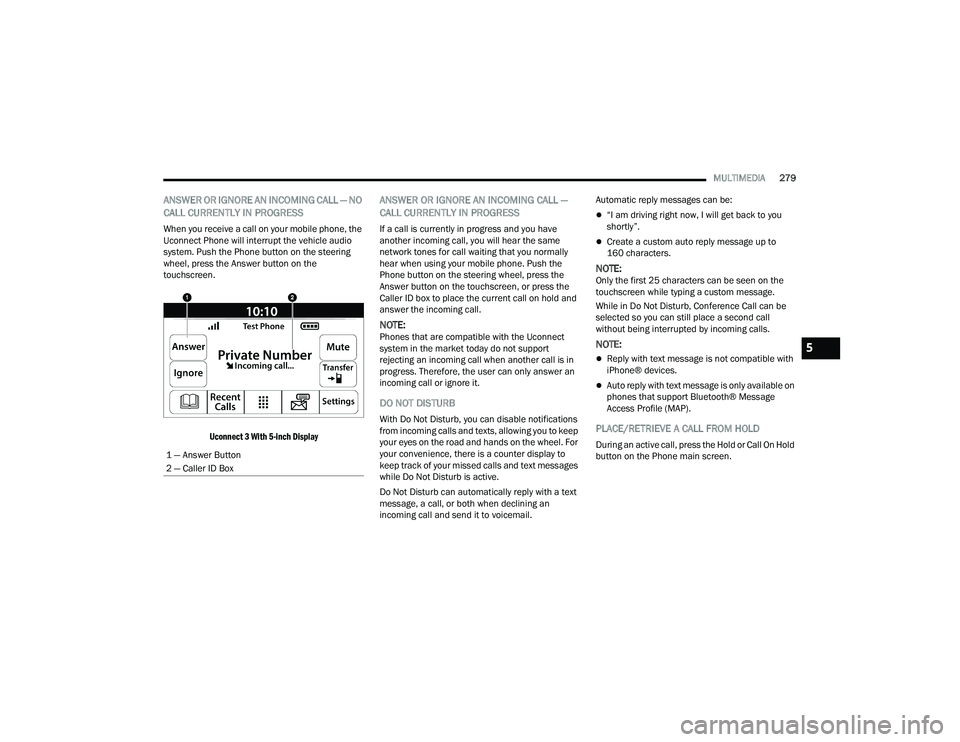
When you receive a call on your mobile phone, the
Uconnect Phone will interrupt the vehicle audio
system. Push the Phone button on the steering
wheel, press the Answer button on the
touchscreen.
Uconnect 3 With 5-inch Display
ANSWER OR IGNORE AN INCOMING CALL —
CALL CURRENTLY IN PROGRESS
If a call is currently in progress and you have
another incoming call, you will hear the same
network tones for call waiting that you normally
hear when using your mobile phone. Push the
Phone button on the steering wheel, press the
Answer button on the touchscreen, or press the
Caller ID box to place the current call on hold and
answer the incoming call.
NOTE:Phones that are compatible with the Uconnect
system in the market today do not support
rejecting an incoming call when another call is in
progress. Therefore, the user can only answer an
incoming call or ignore it.
DO NOT DISTURB
With Do Not Disturb, you can disable notifications
from incoming calls and texts, allowing you to keep
your eyes on the road and hands on the wheel. For
your convenience, there is a counter display to
keep track of your missed calls and text messages
while Do Not Disturb is active.
Do Not Disturb can automatically reply with a text
message, a call, or both when declining an
incoming call and send it to voicemail. Automatic reply messages can be:
“I am driving right now, I will get back to you
shortly”.
Create a custom auto reply message up to
160 characters.
NOTE:Only the first 25 characters can be seen on the
touchscreen while typing a custom message.
While in Do Not Disturb, Conference Call can be
selected so you can still place a second call
without being interrupted by incoming calls.
NOTE:
Reply with text message is not compatible with
iPhone® devices.
Auto reply with text message is only available on
phones that support Bluetooth® Message
Access Profile (MAP).
PLACE/RETRIEVE A CALL FROM HOLD
During an active call, press the Hold or Call On Hold
button on the Phone main screen.
1 — Answer Button
2 — Caller ID Box
5
22_DT_OM_EN_USC_t.book Page 279
Page 282 of 496
280MULTIMEDIA
MAKING A SECOND CALL WHILE CURRENT
CALL IS IN PROGRESS
You can place a call on hold by pressing the Hold
button on the Phone main screen, then dial a
number from the keypad (if supported by your
mobile phone), recent calls, SMS Inbox or from the
phonebooks.
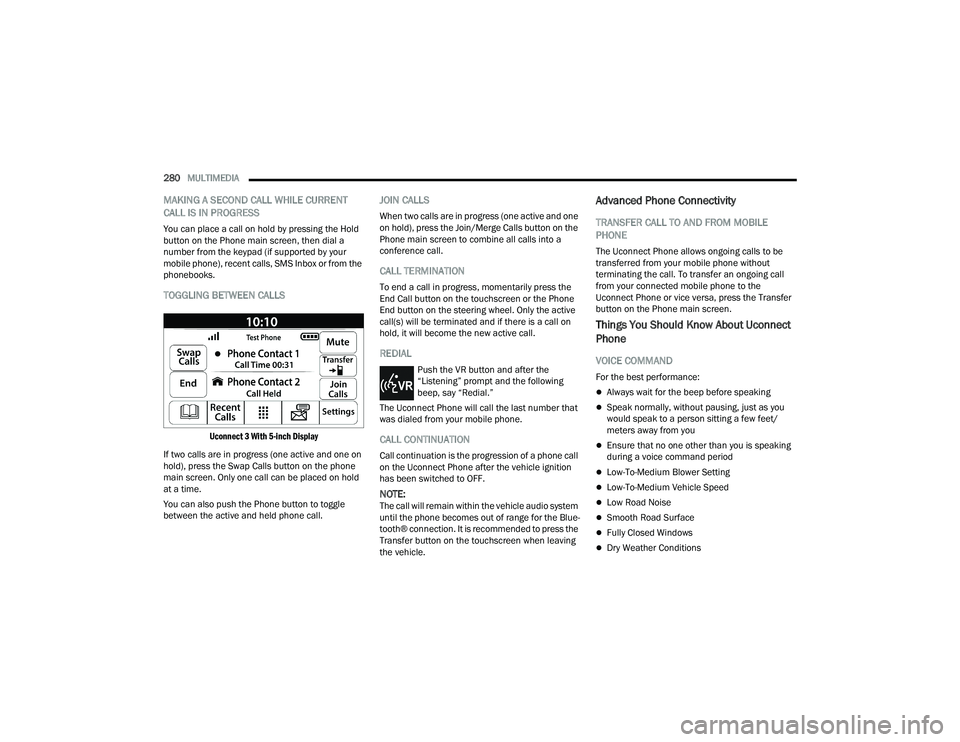
TOGGLING BETWEEN CALLS
Uconnect 3 With 5-inch Display
If two calls are in progress (one active and one on
hold), press the Swap Calls button on the phone
main screen. Only one call can be placed on hold
at a time.
You can also push the Phone button to toggle
between the active and held phone call.
JOIN CALLS
When two calls are in progress (one active and one
on hold), press the Join/Merge Calls button on the
Phone main screen to combine all calls into a
conference call.
CALL TERMINATION
To end a call in progress, momentarily press the
End Call button on the touchscreen or the Phone
End button on the steering wheel. Only the active
call(s) will be terminated and if there is a call on
hold, it will become the new active call.
REDIAL
Push the VR button and after the
“Listening” prompt and the following
beep, say “Redial.”
The Uconnect Phone will call the last number that
was dialed from your mobile phone.
CALL CONTINUATION
Call continuation is the progression of a phone call
on the Uconnect Phone after the vehicle ignition
has been switched to OFF.
NOTE:The call will remain within the vehicle audio system
until the phone becomes out of range for the Blue -
tooth® connection. It is recommended to press the
Transfer button on the touchscreen when leaving
the vehicle.
Advanced Phone Connectivity
TRANSFER CALL TO AND FROM MOBILE
PHONE
The Uconnect Phone allows ongoing calls to be
transferred from your mobile phone without
terminating the call. To transfer an ongoing call
from your connected mobile phone to the
Uconnect Phone or vice versa, press the Transfer
button on the Phone main screen.
Things You Should Know About Uconnect
Phone
VOICE COMMAND
For the best performance:
Always wait for the beep before speaking
Speak normally, without pausing, just as you
would speak to a person sitting a few feet/
meters away from you
Ensure that no one other than you is speaking
during a voice command period
Low-To-Medium Blower Setting
Low-To-Medium Vehicle Speed
Low Road Noise
Smooth Road Surface
Fully Closed Windows
Dry Weather Conditions
22_DT_OM_EN_USC_t.book Page 280
Page 283 of 496
MULTIMEDIA281
Even though the system is designed for many
languages and accents, the system may not always
work for some.
NOTE:It is recommended that you do not store names in
your Favorites phonebook while the vehicle is in
motion.
Number and name recognition rate is optimized
when the entries are not similar. You can say “O”
(letter “O”) for “0” (zero).
Even though international dialing for most number
combinations is supported, some shortcut dialing
number combinations may not be supported.
Audio Performance
Audio quality is maximized under:
Low-To-Medium Blower Setting
Low-To-Medium Vehicle Speed
Low Road Noise
Smooth Road Surface
Fully Closed Windows
Dry Weather Conditions
Operation From The Driver's Seat
Performance such as audio clarity, echo, and
loudness to a large degree rely on the phone and
network, and not the Uconnect Phone.
Echo at the far end can sometimes be reduced by
lowering the in-vehicle audio volume.
Phone Voice Commands
Making and answering hands-free phone calls is
easy with Uconnect. When the Phonebook button
is illuminated on your touchscreen, your system is
ready. Check
UconnectPhone.com for mobile
phone compatibility and pairing instructions.
Push the Phone button and wait for the beep to
say a command. See some examples below:
“ Call John Smith”
“Dial 123 456 7890”
“Redial ” (call previous outgoing phone number)
“Call back ” (call previously answered incoming
phone number) Did You Know:
When providing a Voice Command,
push the Phone button and say “ Call”, then
pronounce the name exactly as it appears in your
phonebook. When a contact has multiple phone
numbers, you can say “ Call John Smith work”.
Voice Text Reply — If Equipped
Uconnect can announce incoming text messages.
Push the VR button or Phone button and
say:
1. “
Listen
” to have the system read an incoming
text message. (Must have compatible mobile
phone paired to Uconnect system.)
2. “ Reply ” after an incoming text message has
been read.
Listen to the Uconnect prompts. After the
beep, repeat one of the predefined messag -
es and follow the system prompts.
WARNING!
ALWAYS drive safely with your hands on the
wheel. You have full responsibility and assume
all risks related to the use of the Uconnect
features and applications in this vehicle. Only
use Uconnect when it is safe to do so. Failure to
do so may result in an accident involving serious
injury or death.
5
22_DT_OM_EN_USC_t.book Page 281
Page 289 of 496
MULTIMEDIA287
(Continued)
2. Once a connection between the vehicle and a
SiriusXM Guardian™ Customer Care agent is
made, the agent will stay on the line with you.
NOTE:Calls between the vehicle occupants and the
SiriusXM Guardian™ Customer Care center may be
recorded or monitored for quality assurance
purposes. Through your enrollment in and use of
the SiriusXM Guardian™ connected services, you
consent to being recorded.
SOS Call System Limitations
Vehicles that have been purchased in the US and
that travel into Mexico and Canada may have
limited services. In particular, responses to SOS
calls or other emergency services may be
unavailable or very limited. Vehicles purchased
outside the United States and Canada are unable
to receive SiriusXM Guardian™ connected
services.
If the SOS Call system detects a malfunction, any
of the following may occur at the time the
malfunction is detected:
The light will continuously be illuminated red.
The screen will display the following message
“Vehicle phone requires service. Please contact
your dealer.”
An in-vehicle audio message will state “Vehicle
phone requires service. Please contact your
dealer.”
Even if the SOS Call system is fully functional,
factors beyond FCA US LLC’s control may prevent
or stop SOS Call system operation. These include,
but are not limited to, the following factors:
The ignition key is in OFF position.
The vehicle’s electrical systems are not intact.
The vehicle battery loses power or becomes
disconnected during a vehicle crash.
The SOS Call system software and/or hardware
is damaged during a vehicle crash.
LTE (voice/data) or 3G or 4G (data) coverage
and/or GPS signals are unavailable or
obstructed.
Network congestion.
Weather conditions.
Buildings, structures, geographic terrain, or
tunnels.
If your vehicle loses battery power for any reason
(including during or after an accident), the SOS Call
system, among other vehicle systems, will not
operate. Requirements
This feature is available only on vehicles sold in
the US or Canada.
Vehicle must be properly equipped with the Siri
-
usXM Guardian™ system. Vehicle must be regis -
tered with SiriusXM Guardian™ and have an
active subscription that includes the applicable
feature.
Vehicle must have an operable LTE (voice/data)
or 3G or 4G (data) network connection compat -
ible with your device.
Vehicle must be powered in the ON/RUN or ACC
(Accessory) position with a properly functioning
electrical system.
WARNING!
Never place anything on or near the vehicle’s
LTE (voice/data) or 3G or 4G (data) and GPS
antennas. You could prevent LTE (voice/data)
or 4G (data) and GPS signal reception, which
can prevent your vehicle from placing an
emergency call.
5
22_DT_OM_EN_USC_t.book Page 287
Page 374 of 496

372IN CASE OF EMERGENCY
ASSIST AND SOS SYSTEM — IF EQUIPPED
Assist And SOS Buttons
If equipped, the overhead console contains an
ASSIST and a SOS button.
NOTE:
Your vehicle may be transmitting data as autho -
rized by the subscriber Ú page 480.
The ASSIST and SOS buttons will only function if
you are connected to an operable LTE (voice/
data) or 4G (data) network, which comes as a
built in function. Other Uconnect services will
only be operable if your SiriusXM Guardian™
service is active and connected to an operable
LTE (voice/data) or 4G (data) network.
ASSIST Call
The ASSIST Button is used to automatically
connect you to any one of the following support
centers:
Roadside Assistance – If you get a flat tire, or
need a tow, just push the ASSIST button and
you’ll be connected to someone who can help.
Roadside Assistance will know what vehicle
you’re driving and its location. Additional fees
may apply for roadside assistance.
SiriusXM Guardian™ Customer Care – In-vehicle
support for SiriusXM Guardian™.
Vehicle Customer Care – Total support for all
other vehicle issues.
Uconnect Customer Care - Total support for
Radio, Phone and NAV issues. SOS Call
1. Push the SOS Call button on the overhead
console.
NOTE:In case the SOS Call button is pushed in error,
there will be a ten second delay before the SOS
Call system initiates a call to a SOS operator. To
cancel the SOS Call connection, push the SOS call
button on the overhead console or press the
cancellation button on the Device Screen. Termi -
nation of the SOS Call will turn off the green LED
light on the overhead console.
2. The LED lights located within the ASSIST and SOS buttons on the overhead console will turn
green once a connection to a SOS operator has
been made.
3. Once a connection between the vehicle and a SOS operator is made, the SOS Call system
may transmit the following important vehicle
information to a SOS operator:
Indication that the occupant placed a SOS
Call
The vehicle brand
The last known GPS coordinates of the
vehicle
4. You should be able to speak with the SOS operator through the vehicle audio system to
determine if additional help is needed.
1 — ASSIST Button
2 — SOS Button
WARNING!
ALWAYS obey traffic laws and pay attention to
the road. ALWAYS drive safely with your hands on
the steering wheel. You have full responsibility
and assume all risks related to the use of the
features and applications in this vehicle. Only
use the features and applications when it is safe
to do so. Failure to do so may result in an
accident involving serious injury or death.
22_DT_OM_EN_USC_t.book Page 372
Page 376 of 496

374IN CASE OF EMERGENCY
SOS Call System Limitations
Vehicles sold in Mexico DO NOT have SOS Call
system capabilities.
SOS or other emergency line operators in Mexico
may not answer or respond to SOS system calls.
If the SOS Call system detects a malfunction, any
of the following may occur at the time the
malfunction is detected, and at the beginning of
each ignition cycle:
The overhead console lights located within the
ASSIST and SOS buttons will continuously illumi -
nate red.
The Device Screen will display the following
message: “Vehicle device requires service.
Please contact an authorized dealer.”
An In-Vehicle Audio message will state “Vehicle
device requires service. Please contact an
authorized dealer.” Even if the SOS Call system is fully functional,
factors beyond FCA US LLC’s control may prevent
or stop the SOS Call system operation. These
include, but are not limited to, the following
factors:
The ignition is in the OFF position
The vehicle’s electrical systems are not intact
The SOS Call system software and/or hardware
are damaged during a crash
The vehicle battery loses power or becomes
disconnected during a vehicle crash
LTE (voice/data) or 4G (data) network and/or
Global Positioning Satellite signals are unavail
-
able or obstructed
Equipment malfunction at the SOS operator
facility
Operator error by the SOS operator
LTE (voice/data) or 4G (data) network conges -
tion
Weather
Buildings, structures, geographic terrain, or
tunnels
WARNING!
Ignoring the overhead console light could
mean you will not have SOS Call services. If
the overhead console light is illuminated, have
an authorized dealer service the SOS Call
system immediately.
The Occupant Restraint Control module turns
on the air bag Warning Light on the instrument
panel if a malfunction in any part of the
system is detected. If the Air Bag Warning
Light is illuminated, have an authorized dealer
service the Occupant Restraint Control system
immediately.
WARNING!
ALWAYS obey traffic laws and pay attention to
the road. ALWAYS drive safely with your hands on
the steering wheel. You have full responsibility
and assume all risks related to the use of the
features and applications in this vehicle. Only
use the features and applications when it is safe
to do so. Failure to do so may result in an
accident involving serious injury or death.
22_DT_OM_EN_USC_t.book Page 374
Page 436 of 496

434SERVICING AND MAINTENANCE
Internal Fuse Chart
Cavity Cartridge Fuse Micro Fuse Description
* If Equipped
F01 30 Amp Pink –Trailer Tow Receptacle
F02 ––Spare
F03 –20 Amp Yellow Module Seat Heater Front (Pass)
F04 ––Spare
F05 –20 Amp Yellow Module PPU Cooling Fan *
F06 ––Spare
F07 40 Amp Green –Mod CBC 3 PWR Locks
F08 ––Spare
F09 ––Spare
F10 40 Amp Green –HVAC Blower Motor
F11 –5 Amp TanOutput to Under-hood Power Distribution Center (UPDC) Run
Coil
F12 –25 Amp Clear Mod Audio Amplifier / Active Noise Cancellation
F13 –20 Amp Yellow Mod Seat Heater Front (Driver)
F14 –15 Amp Blue Mod Seat Heater Front (Steering Wheel)
F15 ––Spare
F16 ––Spare
F17 –20 Amp Yellow LT Spot Lamp *
F18 30 Amp Pink –Motor Sunshade Sunroof
22_DT_OM_EN_USC_t.book Page 434
Page 483 of 496

481
INDEX
A
Accessory Drive Belt Inspection..................... 418Adaptive Cruise Control (ACC)
(Cruise Control).........131, 136, 137, 176, 178Adding Engine Coolant (Antifreeze)............... 422Adding Fuel.......................................... 207, 208Additives, Fuel............................................... 468AdjustDown........................................................... 38Forward....................................................... 38Rearward..................................................... 38Up................................................................ 38Adjustable Pedals............................................ 44Advance Phone Connectivity......................... 280Air BagAir Bag Operation...................................... 344Air Bag Warning Light...................... 342, 344Enhanced Accident Response......... 352, 392Event Data Recorder (EDR)....................... 392Front Air Bag............................................. 344If Deployment Occurs................................ 351Knee Impact Bolsters................................ 349Maintaining Your Air Bag System.............. 353Maintenance............................................. 353Redundant Air Bag Warning Light.............342Transporting Pets...................................... 368
Air Bag Light................................ 128, 342, 368Air Cleaner, Engine
(Engine Air Cleaner Filter)............................. 410Air Conditioner Maintenance........................ 415Air Conditioner Refrigerant........................... 415Air Conditioner System................................. 415Air Conditioning......................................... 62, 65Air Conditioning Filter..............................68, 416Air Conditioning System................................... 67Air Conditioning, Operating Tips....................... 68Air Filter............................................... 410, 412Air PressureTires......................................................... 452Air Suspension......... 131, 134, 135, 165, 169AlarmSecurity Alarm....................................27, 131Alterations/ModificationsVehicle......................................................... 13Antifreeze (Engine Coolant)................. 422, 472Disposal................................................... 423Anti-Lock Brake System (ABS)...................... 312Anti-Lock Warning Light................................ 131Assist, Hill Start............................................. 318Audio Settings............................................... 268Audio Systems (Radio).................................. 233Auto Down Power Windows............................. 80
Automatic Door Locks......................................32Automatic Headlights.......................................56Automatic High Beams.....................................55Automatic Tailgate Release.............................86Automatic Temperature Control (ATC)..............67Automatic Transmission....................... 154, 426Adding Fluid.............................................. 426Fluid And Filter Change............................. 426Fluid Change............................................. 426Fluid Level Check...................................... 426Fluid Type........................................ 426, 476Special Additives...................................... 426Automatic Transmission Limp Home Mode... 158AutoPark....................................................... 142AUX Camera.................................................. 203Auxiliary Driving Systems.............................. 319Axle Fluid.............................................. 427, 476Axle Locker System....................................... 172Axle Lubrication............................................ 427
B
Back-Up Camera........................................... 199Battery................................................. 129, 408Charging System Light.............................. 129Keyless Key Fob Replacement....................21Battery Saver Feature......................................59
11
22_DT_OM_EN_USC_t.book Page 481