steering RAM 1500 2023 User Guide
[x] Cancel search | Manufacturer: RAM, Model Year: 2023, Model line: 1500, Model: RAM 1500 2023Pages: 416, PDF Size: 20.59 MB
Page 51 of 416
GETTING TO KNOW YOUR VEHICLE49
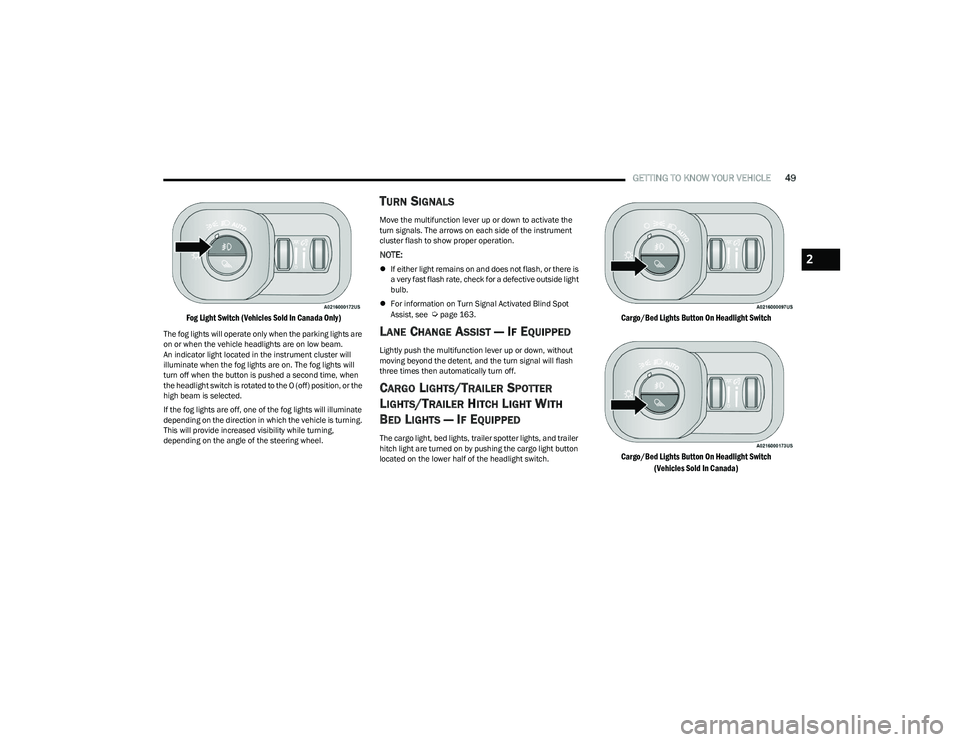
Fog Light Switch (Vehicles Sold In Canada Only)
The fog lights will operate only when the parking lights are
on or when the vehicle headlights are on low beam.
An indicator light located in the instrument cluster will
illuminate when the fog lights are on. The fog lights will
turn off when the button is pushed a second time, when
the headlight switch is rotated to the O (off) position, or the
high beam is selected.
If the fog lights are off, one of the fog lights will illuminate
depending on the direction in which the vehicle is turning.
This will provide increased visibility while turning,
depending on the angle of the steering wheel.
TURN SIGNALS
Move the multifunction lever up or down to activate the
turn signals. The arrows on each side of the instrument
cluster flash to show proper operation.
NOTE:
If either light remains on and does not flash, or there is
a very fast flash rate, check for a defective outside light
bulb.
For information on Turn Signal Activated Blind Spot
Assist, see
Úpage 163.
LANE CHANGE ASSIST — IF EQUIPPED
Lightly push the multifunction lever up or down, without
moving beyond the detent, and the turn signal will flash
three times then automatically turn off.
CARGO LIGHTS/TRAILER SPOTTER
L
IGHTS/TRAILER HITCH LIGHT WITH
B
ED LIGHTS — IF EQUIPPED
The cargo light, bed lights, trailer spotter lights, and trailer
hitch light are turned on by pushing the cargo light button
located on the lower half of the headlight switch.
Cargo/Bed Lights Button On Headlight Switch
Cargo/Bed Lights Button On Headlight Switch
(Vehicles Sold In Canada)
2
23_DT_OM_EN_USC_t.book Page 49
Page 54 of 416
52GETTING TO KNOW YOUR VEHICLE
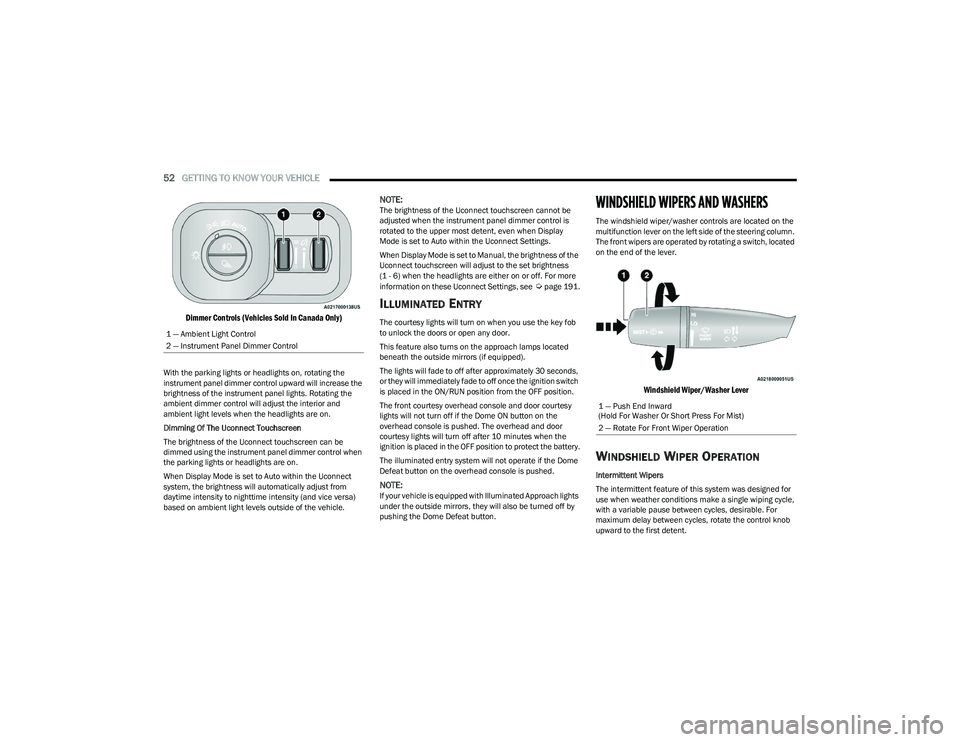
Dimmer Controls (Vehicles Sold In Canada Only)
With the parking lights or headlights on, rotating the
instrument panel dimmer control upward will increase the
brightness of the instrument panel lights. Rotating the
ambient dimmer control will adjust the interior and
ambient light levels when the headlights are on.
Dimming Of The Uconnect Touchscreen
The brightness of the Uconnect touchscreen can be
dimmed using the instrument panel dimmer control when
the parking lights or headlights are on.
When Display Mode is set to Auto within the Uconnect
system, the brightness will automatically adjust from
daytime intensity to nighttime intensity (and vice versa)
based on ambient light levels outside of the vehicle.
NOTE:The brightness of the Uconnect touchscreen cannot be
adjusted when the instrument panel dimmer control is
rotated to the upper most detent, even when Display
Mode is set to Auto within the Uconnect Settings.
When Display Mode is set to Manual, the brightness of the
Uconnect touchscreen will adjust to the set brightness
(1 - 6) when the headlights are either on or off. For more
information on these Uconnect Settings, see
Úpage 191.
ILLUMINATED ENTRY
The courtesy lights will turn on when you use the key fob
to unlock the doors or open any door.
This feature also turns on the approach lamps located
beneath the outside mirrors (if equipped).
The lights will fade to off after approximately 30 seconds,
or they will immediately fade to off once the ignition switch
is placed in the ON/RUN position from the OFF position.
The front courtesy overhead console and door courtesy
lights will not turn off if the Dome ON button on the
overhead console is pushed. The overhead and door
courtesy lights will turn off after 10 minutes when the
ignition is placed in the OFF position to protect the battery.
The illuminated entry system will not operate if the Dome
Defeat button on the overhead console is pushed.
NOTE:If your vehicle is equipped with Illuminated Approach lights
under the outside mirrors, they will also be turned off by
pushing the Dome Defeat button.
WINDSHIELD WIPERS AND WASHERS
The windshield wiper/washer controls are located on the
multifunction lever on the left side of the steering column.
The front wipers are operated by rotating a switch, located
on the end of the lever.
Windshield Wiper/Washer Lever
WINDSHIELD WIPER OPERATION
Intermittent Wipers
The intermittent feature of this system was designed for
use when weather conditions make a single wiping cycle,
with a variable pause between cycles, desirable. For
maximum delay between cycles, rotate the control knob
upward to the first detent.
1 — Ambient Light Control
2 — Instrument Panel Dimmer Control
1 — Push End Inward
(Hold For Washer Or Short Press For Mist)
2 — Rotate For Front Wiper Operation
23_DT_OM_EN_USC_t.book Page 52
Page 61 of 416
GETTING TO KNOW YOUR VEHICLE59
AUTOMATIC TEMPERATURE CONTROL
(ATC) — I
F EQUIPPED
Automatic Operation
1. Push the AUTO button on the faceplate, or the AUTO
button on the touchscreen on the Automatic
Temperature Control (ATC) Panel.
2. Next, adjust the temperature that you would like the system to maintain by adjusting the driver and
passenger temperature control buttons. Once the
desired temperature is displayed, the system will
achieve and automatically maintain that
temperature.
3. When the system is set up for your comfort level, it is not necessary to change the settings. You will
experience the greatest efficiency by simply allowing
the system to function automatically.
NOTE:
It is not necessary to move the temperature settings for
cold or hot vehicles. The system automatically adjusts
the temperature, mode, and blower speed to provide
comfort as quickly as possible.
The temperature can be displayed in US or Metric units
by selecting the US/Metric customer-programmable
feature within Uconnect Settings
Úpage 191.
To provide you with maximum comfort in the Automatic
mode during cold start-ups, the blower fan will remain on
low until the engine warms up. The blower will increase in
speed and transition into Auto mode.
Manual Operation Override
This system offers a full complement of manual override
features. The AUTO symbol in the front ATC display will be
turned off when the system is being used in the manual
mode.
CLIMATE VOICE RECOGNITION —
I
F EQUIPPED
Adjust vehicle temperatures hands-free and keep
everyone comfortable while you keep moving ahead.
Push the VR button on the steering wheel. After the beep,
say one of the following commands:
“Set driver temperature to 70 degrees”
“Set passenger temperature to 70 degrees”
Did you know: Voice Command for Climate may only be
used to adjust the interior temperature of your vehicle.
Voice Command will not work to adjust the heated seats
or steering wheel if equipped.
OPERATING TIPS
Refer to the chart at the end of this section for suggested
control settings for various weather conditions.
Summer Operation
The engine cooling system must be protected with a
high-quality antifreeze coolant to provide proper corrosion
protection and to protect against engine overheating. OAT
coolant (conforming to MS.90032) is recommended.
Winter Operation
To ensure the best possible heater and defroster
performance, make sure the engine cooling system is
functioning properly and the proper amount, type, and
concentration of coolant is used. Use of the Air
Recirculation mode during Winter months is not
recommended, because it may cause window fogging.
Vacation/Storage
For information on maintaining the Climate Control system
when the vehicle is being stored for an extended period of
time, see
Úpage 387.
Window Fogging
Vehicle windows tend to fog on the inside in mild, rainy,
and/or humid weather. To clear the windows, select
Defrost or Mix mode and increase the front blower speed.
Do not use the Recirculation mode without A/C for long
periods, as fogging may occur.
Outside Air Intake
Make sure the air intake, located directly in front of the
windshield, is free of obstructions, such as leaves. Leaves
collected in the air intake may reduce airflow, and if they
enter the air distribution box, they could plug the water
drains. In Winter months, make sure the air intake is clear
of ice, slush, and snow.
Cabin Air Filter
The Climate Control system filters out dust and pollen
from the air. Contact an authorized dealer to service your
cabin air filter, and to have it replaced when needed.
2
23_DT_OM_EN_USC_t.book Page 59
Page 76 of 416
74GETTING TO KNOW YOUR VEHICLE
HOOD
TO OPEN THE HOOD
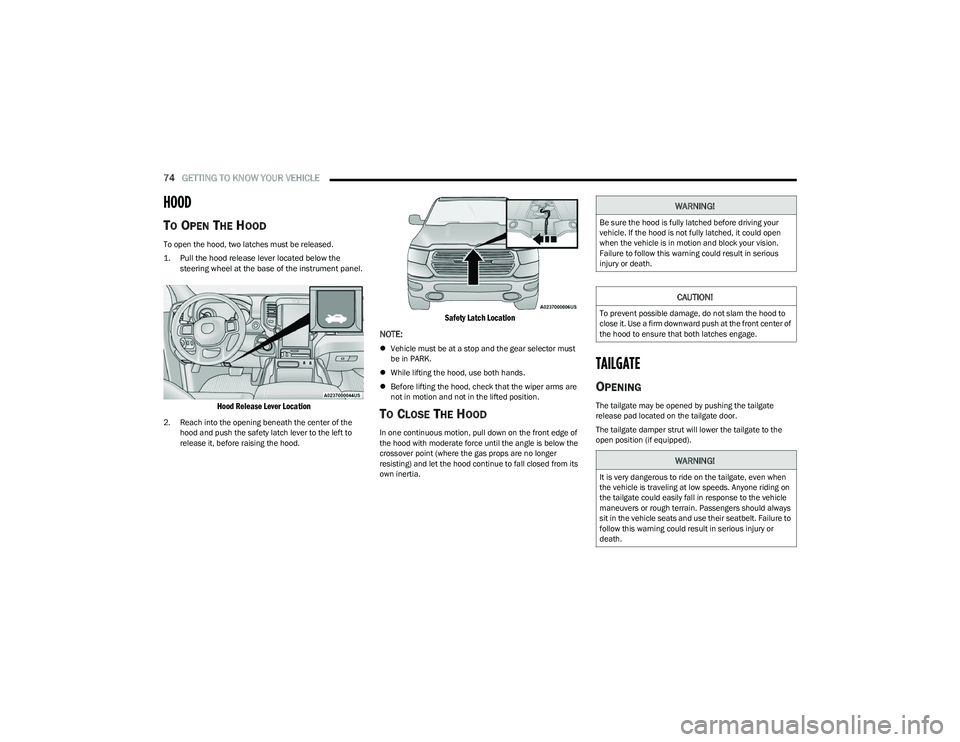
To open the hood, two latches must be released.
1. Pull the hood release lever located below the
steering wheel at the base of the instrument panel.
Hood Release Lever Location
2. Reach into the opening beneath the center of the hood and push the safety latch lever to the left to
release it, before raising the hood.
Safety Latch Location
NOTE:
Vehicle must be at a stop and the gear selector must
be in PARK.
While lifting the hood, use both hands.
Before lifting the hood, check that the wiper arms are
not in motion and not in the lifted position.
TO CLOSE THE HOOD
In one continuous motion, pull down on the front edge of
the hood with moderate force until the angle is below the
crossover point (where the gas props are no longer
resisting) and let the hood continue to fall closed from its
own inertia.
TAILGATE
OPENING
The tailgate may be opened by pushing the tailgate
release pad located on the tailgate door.
The tailgate damper strut will lower the tailgate to the
open position (if equipped).
WARNING!
Be sure the hood is fully latched before driving your
vehicle. If the hood is not fully latched, it could open
when the vehicle is in motion and block your vision.
Failure to follow this warning could result in serious
injury or death.
CAUTION!
To prevent possible damage, do not slam the hood to
close it. Use a firm downward push at the front center of
the hood to ensure that both latches engage.
WARNING!
It is very dangerous to ride on the tailgate, even when
the vehicle is traveling at low speeds. Anyone riding on
the tailgate could easily fall in response to the vehicle
maneuvers or rough terrain. Passengers should always
sit in the vehicle seats and use their seatbelt. Failure to
follow this warning could result in serious injury or
death.
23_DT_OM_EN_USC_t.book Page 74
Page 85 of 416
GETTING TO KNOW YOUR VEHICLE83
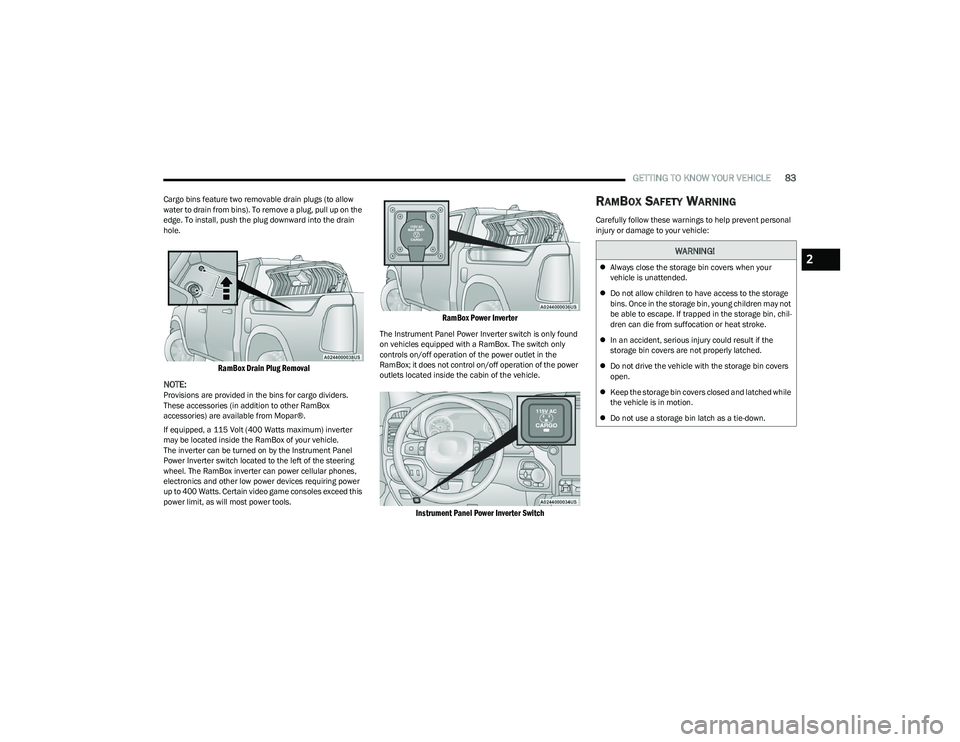
Cargo bins feature two removable drain plugs (to allow
water to drain from bins). To remove a plug, pull up on the
edge. To install, push the plug downward into the drain
hole.
RamBox Drain Plug Removal
NOTE:
Provisions are provided in the bins for cargo dividers.
These accessories (in addition to other RamBox
accessories) are available from Mopar®.
If equipped, a 115 Volt (400 Watts maximum) inverter
may be located inside the RamBox of your vehicle.
The inverter can be turned on by the Instrument Panel
Power Inverter switch located to the left of the steering
wheel. The RamBox inverter can power cellular phones,
electronics and other low power devices requiring power
up to 400 Watts. Certain video game consoles exceed this
power limit, as will most power tools.
RamBox Power Inverter
The Instrument Panel Power Inverter switch is only found
on vehicles equipped with a RamBox. The switch only
controls on/off operation of the power outlet in the
RamBox; it does not control on/off operation of the power
outlets located inside the cabin of the vehicle.
Instrument Panel Power Inverter Switch
RAMBOX SAFETY WARNING
Carefully follow these warnings to help prevent personal
injury or damage to your vehicle:
WARNING!
Always close the storage bin covers when your
vehicle is unattended.
Do not allow children to have access to the storage
bins. Once in the storage bin, young children may not
be able to escape. If trapped in the storage bin, chil -
dren can die from suffocation or heat stroke.
In an accident, serious injury could result if the
storage bin covers are not properly latched.
Do not drive the vehicle with the storage bin covers
open.
Keep the storage bin covers closed and latched while
the vehicle is in motion.
Do not use a storage bin latch as a tie-down.2
23_DT_OM_EN_USC_t.book Page 83
Page 99 of 416
GETTING TO KNOW YOUR INSTRUMENT PANEL97
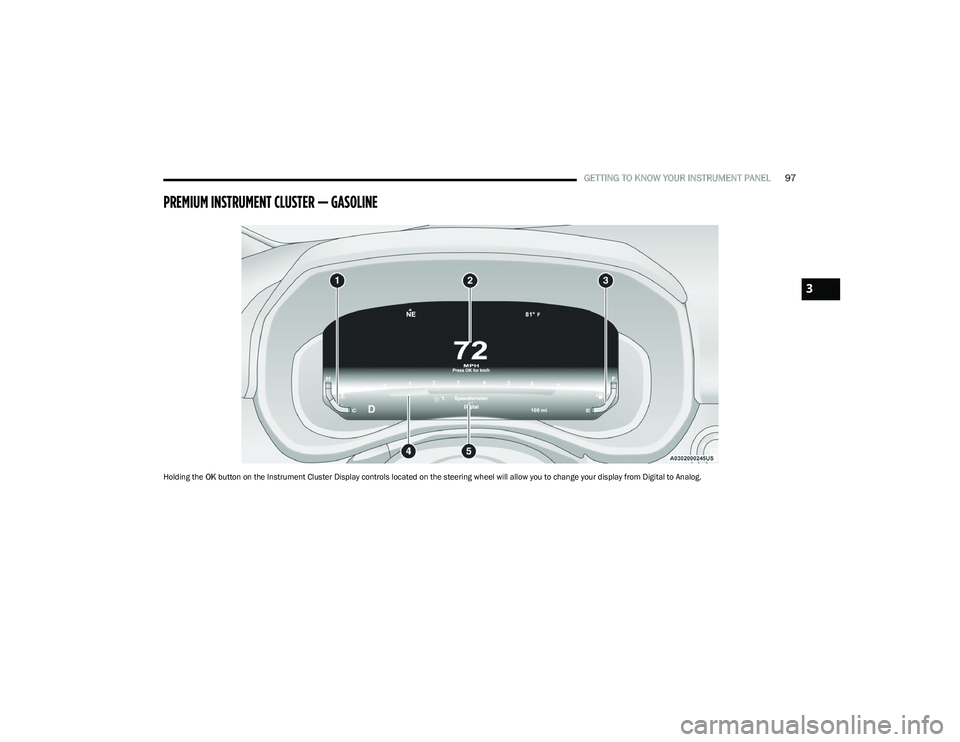
PREMIUM INSTRUMENT CLUSTER — GASOLINE
Holding the OK button on the Instrument Cluster Display controls located on the steering wheel will allow you to change your display from Digital to Analog.
3
23_DT_OM_EN_USC_t.book Page 97
Page 100 of 416
98GETTING TO KNOW YOUR INSTRUMENT PANEL
PREMIUM INSTRUMENT CLUSTER
D
ESCRIPTIONS — GASOLINE
1. Temperature Gauge
The temperature gauge shows engine coolant
temperature. Any reading within 203°F - 230°F
(95°C - 110°C) indicates that the engine cooling
system is operating satisfactorily.
The pointer will likely indicate a higher tempera -
ture when driving in hot weather, up mountain
grades, or when towing a trailer. It should not be
allowed to exceed the upper limits of the normal
operating range. 2. Speedometer
Indicates vehicle speed.
3. Fuel Gauge The pointer shows the level of fuel in the fuel tank
when the Keyless Push Button Ignition is in the
ON/RUN position.
The fuel pump symbol points to the
side of the vehicle where the fuel door
is located.
4. Tachometer Indicates the engine speed in revolutions per
minute (RPM x 1000).
5. Instrument Cluster Display The instrument cluster display features a driver
interactive display
Úpage 98.
NOTE:The hard telltales will illuminate for a bulb check when the
ignition is first cycled.
INSTRUMENT CLUSTER DISPLAY
Depending on your vehicles trim level, features and
options may vary.
Your vehicle will be equipped with an instrument cluster
display, which offers useful information to the driver. With
the ignition in the OFF mode, opening/closing of a door will
activate the display for viewing, and display the total miles,
or kilometers, in the odometer. Your instrument cluster
display is designed to display important information about
your vehicle’s systems and features. Using a driver interactive display located on the
instrument panel, your instrument cluster display can
show you how systems are working and give you warnings
when they are not. The steering wheel mounted controls
allow you to scroll through the main menus and
submenus. You can access the specific information you
want and make selections and adjustments.
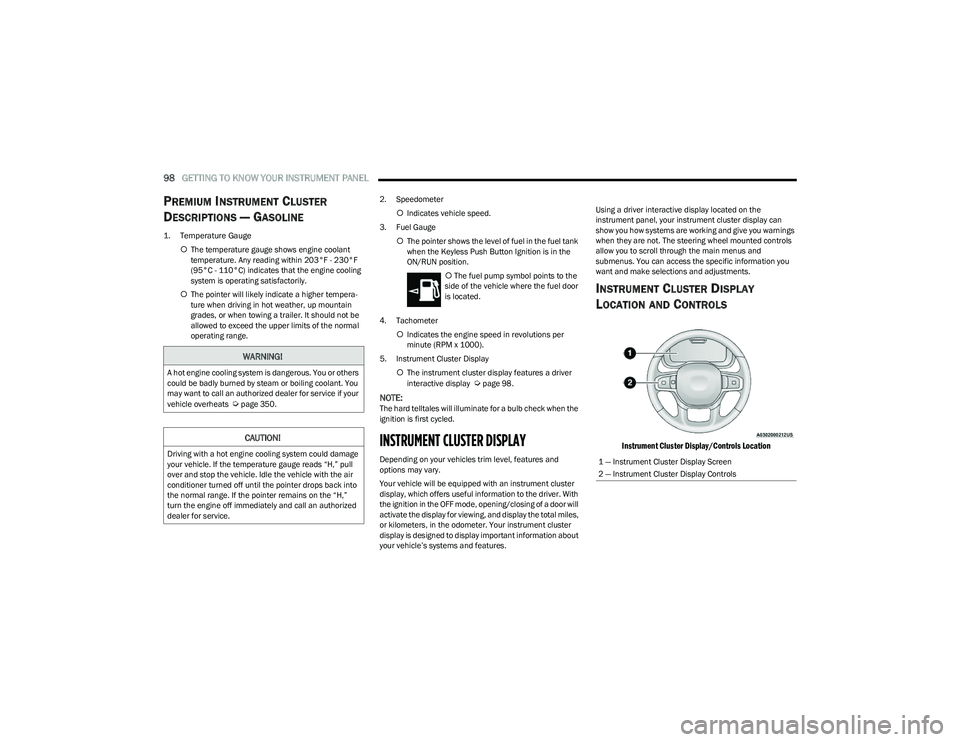
INSTRUMENT CLUSTER DISPLAY
L
OCATION AND CONTROLS
Instrument Cluster Display/Controls Location
WARNING!
A hot engine cooling system is dangerous. You or others
could be badly burned by steam or boiling coolant. You
may want to call an authorized dealer for service if your
vehicle overheats
Úpage 350.
CAUTION!
Driving with a hot engine cooling system could damage
your vehicle. If the temperature gauge reads “H,” pull
over and stop the vehicle. Idle the vehicle with the air
conditioner turned off until the pointer drops back into
the normal range. If the pointer remains on the “H,”
turn the engine off immediately and call an authorized
dealer for service.1 — Instrument Cluster Display Screen
2 — Instrument Cluster Display Controls
23_DT_OM_EN_USC_t.book Page 98
Page 101 of 416
GETTING TO KNOW YOUR INSTRUMENT PANEL99
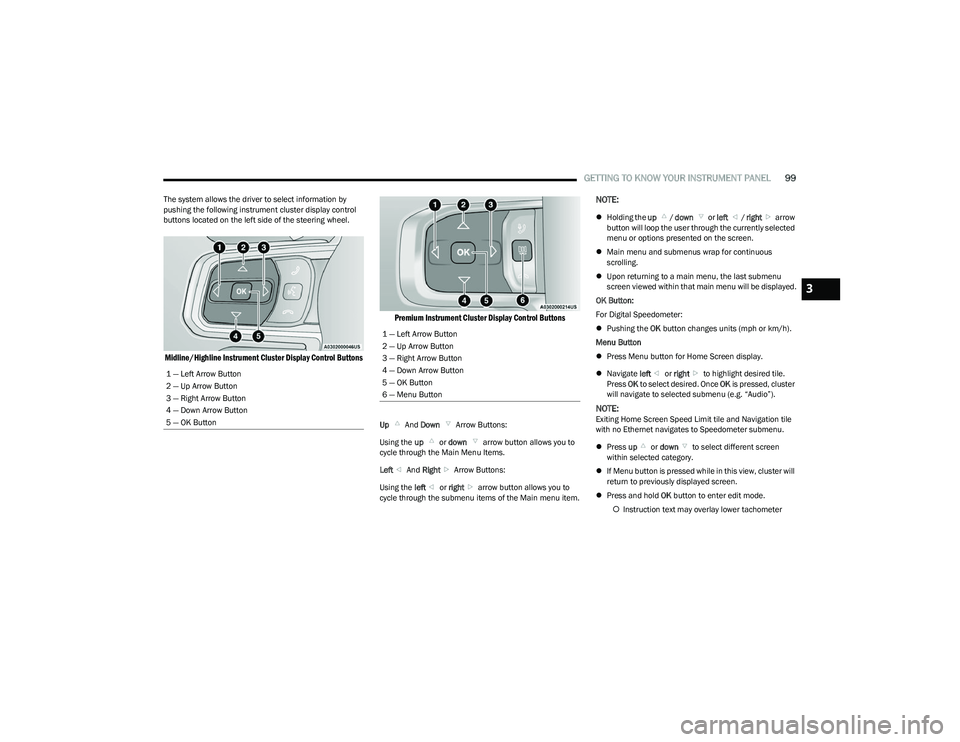
The system allows the driver to select information by
pushing the following instrument cluster display control
buttons located on the left side of the steering wheel.
Midline/Highline Instrument Cluster Display Control Buttons Premium Instrument Cluster Display Control Buttons
Up
And Down Arrow Buttons:
Using the up or down arrow button allows you to
cycle through the Main Menu Items.
Left And Right Arrow Buttons:
Using the left or right arrow button allows you to
cycle through the submenu items of the Main menu item.
NOTE:
Holding the up / down or left / right arrow
button will loop the user through the currently selected
menu or options presented on the screen.
Main menu and submenus wrap for continuous
scrolling.
Upon returning to a main menu, the last submenu
screen viewed within that main menu will be displayed.
OK Button:
For Digital Speedometer:
Pushing the OK button changes units (mph or km/h).
Menu Button
Press Menu button for Home Screen display.
Navigate left or right to highlight desired tile.
Press OK to select desired. Once OK is pressed, cluster
will navigate to selected submenu (e.g. “Audio”).
NOTE:Exiting Home Screen Speed Limit tile and Navigation tile
with no Ethernet navigates to Speedometer submenu.
Press up or down to select different screen
within selected category.
If Menu button is pressed while in this view, cluster will
return to previously displayed screen.
Press and hold OK button to enter edit mode.
Instruction text may overlay lower tachometer
1 — Left Arrow Button
2 — Up Arrow Button
3 — Right Arrow Button
4 — Down Arrow Button
5 — OK Button
1 — Left Arrow Button
2 — Up Arrow Button
3 — Right Arrow Button
4 — Down Arrow Button
5 — OK Button
6 — Menu Button
3
23_DT_OM_EN_USC_t.book Page 99
Page 102 of 416
100GETTING TO KNOW YOUR INSTRUMENT PANEL
For Screen Setup:
OK button allows user to enter menu and submenus.
Within each submenu layer, the left and Right
arrow buttons will allow the user to select the item of
interest.
Pushing the OK button makes the selection and a
confirmation screen will appear (returning the user to
the first page of the submenu).
Pushing the up arrow button will exit each submenu
layer and return to the main menu.
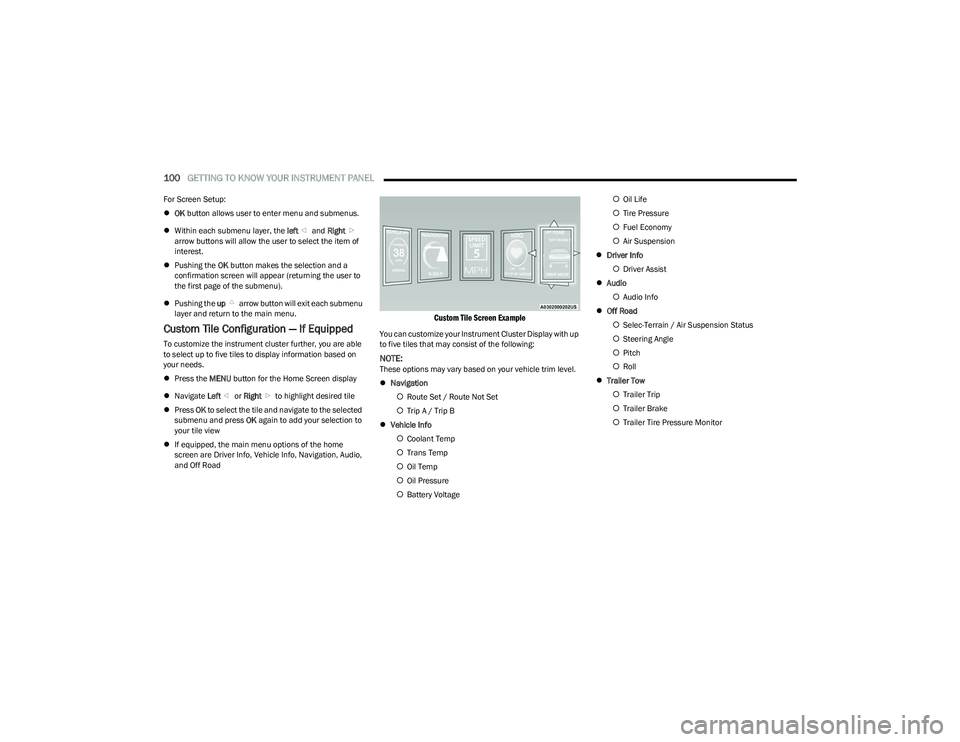
Custom Tile Configuration — If Equipped
To customize the instrument cluster further, you are able
to select up to five tiles to display information based on
your needs.
Press the MENU button for the Home Screen display
Navigate Left or Right to highlight desired tile
Press OK to select the tile and navigate to the selected
submenu and press OK again to add your selection to
your tile view
If equipped, the main menu options of the home
screen are Driver Info, Vehicle Info, Navigation, Audio,
and Off Road
Custom Tile Screen Example
You can customize your Instrument Cluster Display with up
to five tiles that may consist of the following:
NOTE:These options may vary based on your vehicle trim level.
Navigation
Route Set / Route Not Set
Trip A / Trip B
Vehicle Info
Coolant Temp
Trans Temp
Oil Temp
Oil Pressure
Battery Voltage
Oil Life
Tire Pressure
Fuel Economy
Air Suspension
Driver Info
Driver Assist
Audio
Audio Info
Off Road
Selec-Terrain / Air Suspension Status
Steering Angle
Pitch
Roll
Trailer Tow
Trailer Trip
Trailer Brake
Trailer Tire Pressure Monitor
23_DT_OM_EN_USC_t.book Page 100
Page 103 of 416

GETTING TO KNOW YOUR INSTRUMENT PANEL101
OIL LIFE RESET
Use this QR code to access your digital
experience.
Your vehicle is equipped with an
engine oil change indicator system.
The “Oil Change Required” message
will display in the instrument cluster
display for five seconds after a single
chime has sounded, to indicate the
next scheduled oil change interval. The engine oil change
indicator system is duty cycle based, which means the
engine oil change interval may fluctuate, dependent upon
your personal driving style.
Unless reset, this message will continue to display each
time you place the ignition in the ON/RUN position. To turn
off the message temporarily, push and release the OK or
arrow buttons. To reset the oil change indicator system
(after performing the scheduled maintenance), refer to
the following procedure:
1. Without pressing the brake pedal, push the ENGINE START/STOP button and place the ignition in the
ON/RUN position (do not start the engine).
2. Push and release the down arrow button to scroll
downward through the main menu to “Vehicle Info.”
3. Push and release the right arrow button to access
the ”Oil Life” screen. 4. Push and hold the
OK button to reset oil life. If
conditions are met, the gauge and numeric display
will update to show 100%. If conditions are not met a
pop-up message of “To reset oil life engine must be
off with ignition in run” will be displayed (for five
seconds), and the user will remain at the Oil Life
screen.
5. Push and release the up or down arrow button
to exit the submenu screen.
NOTE:If the indicator message illuminates when you start the
vehicle, the oil change indicator system did not reset. If
necessary, repeat this procedure.
DISPLAY MENU ITEMS
Push and release the up or down arrow button until
the desired selectable menu icon is highlighted in the
instrument cluster display.
Speedometer
Push and release the up or down arrow button
until the speedometer menu item is highlighted in the
instrument cluster display. Push and release the OK
button to cycle the display between mph and km/h.
Driver Assist — If Equipped
The Driver Assist menu displays the status of the ACC and
LaneSense systems.
Push and release the up or down arrow button
until the Driver Assist menu is displayed in the instrument
cluster display. Adaptive Cruise Control (ACC) Feature
The instrument cluster display displays the current ACC
system settings. The information displayed depends on
ACC system status.
Push the ACC on/off button (located on the steering
wheel) until one of the following displays in the instrument
cluster display:
Adaptive Cruise Control Off
When ACC is deactivated, the display will read “Adaptive
Cruise Control Off.”
Adaptive Cruise Control Ready
When ACC is activated but the vehicle speed setting has
not been selected, the display will read “Adaptive Cruise
Control Ready.”
Push the SET + or the SET- button (located on the steering
wheel) and the following will display in the instrument
cluster display:
ACC SET
When ACC is set, the set speed will display in the
instrument cluster
Úpage 145.
The ACC screen may display once again if any ACC activity
occurs, which may include any of the following:
Distance Setting Change
System Cancel
Driver Override
System Off
ACC Proximity Warning
ACC Unavailable Warning
3
23_DT_OM_EN_USC_t.book Page 101