ad blue RAM 1500 2023 Owner's Manual
[x] Cancel search | Manufacturer: RAM, Model Year: 2023, Model line: 1500, Model: RAM 1500 2023Pages: 416, PDF Size: 20.59 MB
Page 246 of 416
244MULTIMEDIA
Assist — If Equipped
Description
Vehicles equipped with the SiriusXM Guardian™
connected services feature may contain an ASSIST button
in the vehicle. Once your SiriusXM Guardian™ connected
services have been activated, the ASSIST button can
connect you directly to the Customer Care call center
(if equipped). You will be directed to one of the following
four services:
Roadside Assistance — If you get a flat tire or need a
tow, you’ll be connected to someone who can help
anytime.
Connected Services — Contact the SiriusXM
Guardian™ Customer Care call center to activate your
services, renew after your trial has expired, for
in-vehicle support for your SiriusXM Guardian™
connected services, or help answering any general
questions surrounding your connected services.
Uconnect Care — In-vehicle support for all
non-connected Uconnect system features, such as
radio and Bluetooth® connections.
Vehicle Care — Total support for your vehicle.
SiriusXM Guardian™ In-Vehicle Assistance Features —
If Equipped
With SiriusXM Guardian™, your vehicle has onboard
assistance features located on the rearview mirror or
overhead console designed to enhance your driving
experience if you should ever need assistance or support. How It Works
Simply push the ASSIST button in the vehicle and you will
be presented with your ASSIST options on the
touchscreen. Make your selection by pressing the
touchscreen.
Requirements
This feature is available only on vehicles sold in the US
and Canada.
Vehicle must be properly equipped with the SiriusXM
Guardian™ connected services.
Vehicle must have an operable LTE (voice/data) or 4G
(data) network connection.
Vehicle must be registered with SiriusXM Guardian™
and have an active subscription that includes the appli -
cable feature.
Vehicle must be powered in the ON/RUN or ACC
(Accessory) position with a properly functioning elec -
trical system.
Disclaimers
If Roadside Assistance Call is provided to your vehicle, you
agree to be responsible for any additional roadside
assistance service costs that you may incur. In order to
provide SiriusXM Guardian™ connected services to you,
we may record and monitor your conversations with
Roadside Assistance Call, Vehicle Care, Uconnect Care, or
SiriusXM Guardian™ Customer Care, whether such
conversations are initiated through the SiriusXM
Guardian™ connected services in your vehicle, or via a
landline or mobile device, and may share information
obtained through such recording and monitoring in
accordance with regulatory requirements. You acknowledge, agree and consent to any recording,
monitoring or sharing of information obtained through any
such call recordings.
Send & Go — If Equipped
Description
The Send & Go feature allows you to search for a
destination on your mobile device, and then send the
route to your vehicle’s Navigation system.
How It Works
1. There are multiple ways to find a destination. After
selecting the Location tab at the bottom of the App,
browse through one of the categories provided, or
type the name or keyword in the search box. You can
also select categories such as “Favorites” or
“Contact List”.
2. Select your destination from the list that appears. Location information will then be displayed on the
map.
From this screen, you will be able to:
View the location on a map.
See the distance from your current location.
Send the destination to the vehicle (Send & Go).
3. Send the destination to the Uconnect Navigation in your vehicle. You can also call the destination by
pressing the Call button.
4. Confirm your destination in the vehicle through a notification or in the Navigation system.
23_DT_OM_EN_USC_t.book Page 244
Page 250 of 416
248MULTIMEDIA
Family Drive Alerts — If Equipped
Description
Family Drive Alerts help promote safer driving and give you
peace of mind when your loved ones are out on the road.
You can set boundary limits, monitor driving speed, and
pinpoint your vehicle’s location any time, any place. Use
the Vehicle Branded App to set alerts:
Boundary Alert
Receive a notification the moment your vehicle is
driven either out of or into a geographic boundary that
you set.
Curfew Alert
Receive a notification when your car is being driven
outside of the curfew time.
Speed Alert
Receive a notification whenever your car exceeds a
speed limit you set.
Valet Alert
Receive a notification if and when your vehicle is driven
outside a quarter-mile radius of a valet drop-off zone.
SmartWatch Integration — If Equipped
Description
SmartWatch Integration puts the Vehicle Branded App
right on your Apple® Watch or Android™ Wear. To get
started, follow these steps:
1. Download the Vehicle Branded App from the App
Store® or Google Play.
2. Log onto the app from your smartphone using the username and password you created when you first
set up your account.
3. Make sure your watch and smartphone are connected through Bluetooth®.
4. The Vehicle Branded App should appear on your SmartWatch.
Once the app is downloaded on your SmartWatch, you can
enjoy these features:
Lock or unlock your vehicle by tapping the remote lock
button in the app and entering your security PIN.
Remote start or stop your vehicle.
View important vehicle stats, such as fuel level, vehicle
location, tire pressure warning, and more.
MANAGE MY SIRIUSXM GUARDIAN™
A
CCOUNT
To manage your SiriusXM Guardian™ account, press the
ASSIST button in your vehicle, or call SiriusXM Guardian™
Customer Care.
NOTE:It is recommended, when selling your vehicle, or turning in
your lease, to call SiriusXM Guardian™ Care to remove
your personal data.
CONNECTED SERVICES FAQS
For additional information about SiriusXM Guardian™,
active subscribers can push the ASSIST button (if
equipped) and then select SiriusXM Guardian™ Call on
your in-vehicle touchscreen to contact SiriusXM
Guardian™. Your call will be directed to a SiriusXM
Guardian™ agent or held in a queue until an agent is
available. If you do not have an active subscription, push
the ASSIST button and press the Activate button on the
touchscreen to activate services.
CONNECTED SERVICES SOS FAQS —
I
F EQUIPPED
1.
What happens if I accidentally push the SOS Call
button on the mirror or overhead console?
You have
10 seconds after pushing the SOS Call button to
cancel the call. To cancel the call, either push the
SOS Call button again, or press the Cancel button on
the in-vehicle touchscreen.
2. What type of information is sent when I use the SOS
Call button from my vehicle? Certain vehicle
information, such as make and model, is transmitted
along with the last known GPS location.
3. When could I use the SOS Call button? You can use
the SOS Call button to make a call if you or someone
else needs emergency assistance.
23_DT_OM_EN_USC_t.book Page 248
Page 257 of 416

MULTIMEDIA255
The friction circle display shows instantaneous G-Force as
a highlight and previous G-Force as dots within the circle.
The system records previous G-Force for three minutes.
If there are multiple samples at a given point, the color of
the dot will darken from blue to red. Vectors more frequent
will show in red; infrequent vectors will show in blue.
Pitch & Roll
The G-Force page displays the vehicle’s current pitch
(angle up and down) and roll (angle side to side) in
degrees. The Pitch & Roll gauges provide a visualization of
the current vehicle angle.
DYNAMOMETER (DYNO)/ENGINE
Dynamometer (Dyno)
The system will start drawing graphs for Power and Torque
(top chart) and Engine Speed (bottom chart). The graph
will fill from the left side of the x-axis and fill to the right
side of the x-axis (based on History time selected). Once
the right side of the page is reached, the graph will scroll
with the right side always being the most recent recorded
sample. The following options can be selected:
Pressing the STOP button will freeze the graph.
Selecting “Play” will clear the graph and restart the
process.
Press the + or - button to change the history of the
graph. The selectable options are “30”, “60”, “90”, and
“120” seconds. The graph will expand or constrict
depending on the setting selected.
Select the “Gear” display setting to turn the graph gear
markers on or off.
NOTE:The Gear On/Off feature will only display if your vehicle is
equipped with an Automatic Transmission.
Engine
Press the Left and Right Arrow buttons on the bottom of
the touchscreen to cycle between the Dyno and Engine
pages.
When selected, this screen displays the following values:
Vehicle Speed : Shows the actual vehicle speed.
Engine Power : Shows the instantaneous power.
Engine Torque: Shows the instantaneous torque.
Boost Pressure : Shows the actual engine boost pres -
sure.
Gear : Shows the current (or pending) operating gear of
the vehicle.
VEHICLE DYNAMICS
The Vehicle Dynamics page displays information
concerning the vehicle’s drivetrain.
Steering Angle — If Equipped
Steering Angle utilizes the steering angle sensor to
calculate the degree of the steering relative to zero
(straight ahead) reference angle. The zero degree
reference angle measurement indicates the actual front
tire steering angle.
Transfer Case
This feature will be active when the vehicle is in 4WD
HIGH, 4WD AUTO, Neutral, or 4WD LOW.
NOTE:A lock symbol will only be present on the Transfer Case
button when the vehicle is in 4WD LOW.
Rear Axle Locker
This feature will allow you to lock and unlock the rear axle.
To change the status, push the AXLE LOCK button.
5
23_DT_OM_EN_USC_t.book Page 255
Page 359 of 416

SERVICING AND MAINTENANCE357
CavityCartridge Fuse Micro Fuse Description
* If Equipped
F01 –25 Amp ClearFuel Pump Motor / Assy Fuel Tank
F02 ––Spare *
F03 –5 Amp TanMGU *
F04 ––Spare *
F05 ––Spare *
F06 –10 Amp RedOUTPUT TO UPFITTER PDC *
F07 ––Spare *
F08 20 Amp Blue –Trailer Tow Backup
F09 –20 Amp Yellow Trailer Stop / Turn Lamp Left
F10 –20 Amp Yellow Trailer Stop / Turn Lamp Right
F11 –15 Amp BlueID/CLEARANCE LIGHTS *
F12 20 Amp Blue –Trailer Tow Park Lamp
F13 ––Spare *
F14 –10 Amp RedAC Clutch
F15 –5 Amp TanIntelligent Battery Sensor (IBS)
F16 ––Spare *
F17 –20 Amp Yellow Air Suspension
F18 –15 Amp BlueAGS / Rear Axle Cooling Valve / Active Air Dam
F19 ––Spare *
8
23_DT_OM_EN_USC_t.book Page 357
Page 360 of 416
358SERVICING AND MAINTENANCE
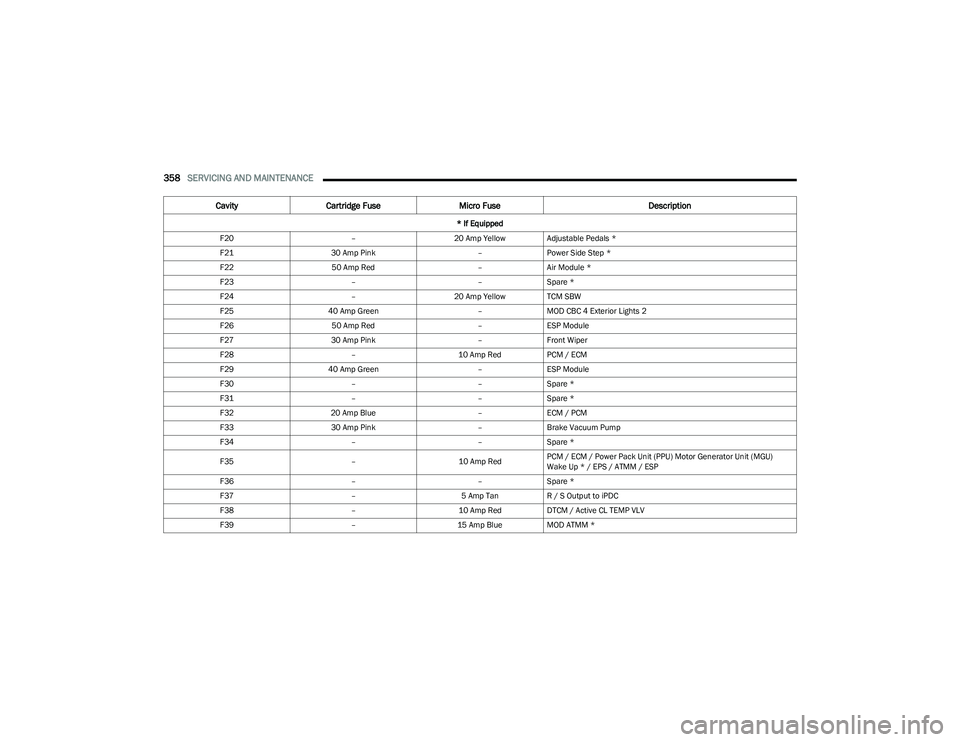
F20 –20 Amp Yellow Adjustable Pedals *
F21 30 Amp Pink –Power Side Step *
F22 50 Amp Red –Air Module *
F23 ––Spare *
F24 –20 Amp Yellow TCM SBW
F25 40 Amp Green –MOD CBC 4 Exterior Lights 2
F26 50 Amp Red –ESP Module
F27 30 Amp Pink –Front Wiper
F28 –10 Amp RedPCM / ECM
F29 40 Amp Green –ESP Module
F30 ––Spare *
F31 ––Spare *
F32 20 Amp Blue –ECM / PCM
F33 30 Amp Pink –Brake Vacuum Pump
F34 ––Spare *
F35 –10 Amp RedPCM / ECM / Power Pack Unit (PPU) Motor Generator Unit (MGU)
Wake Up * / EPS / ATMM / ESP
F36 ––Spare *
F37 –5 Amp TanR / S Output to iPDC
F38 –10 Amp RedDTCM / Active CL TEMP VLV
F39 –15 Amp BlueMOD ATMM *
Cavity Cartridge Fuse Micro Fuse Description
* If Equipped
23_DT_OM_EN_USC_t.book Page 358
Page 361 of 416
SERVICING AND MAINTENANCE359
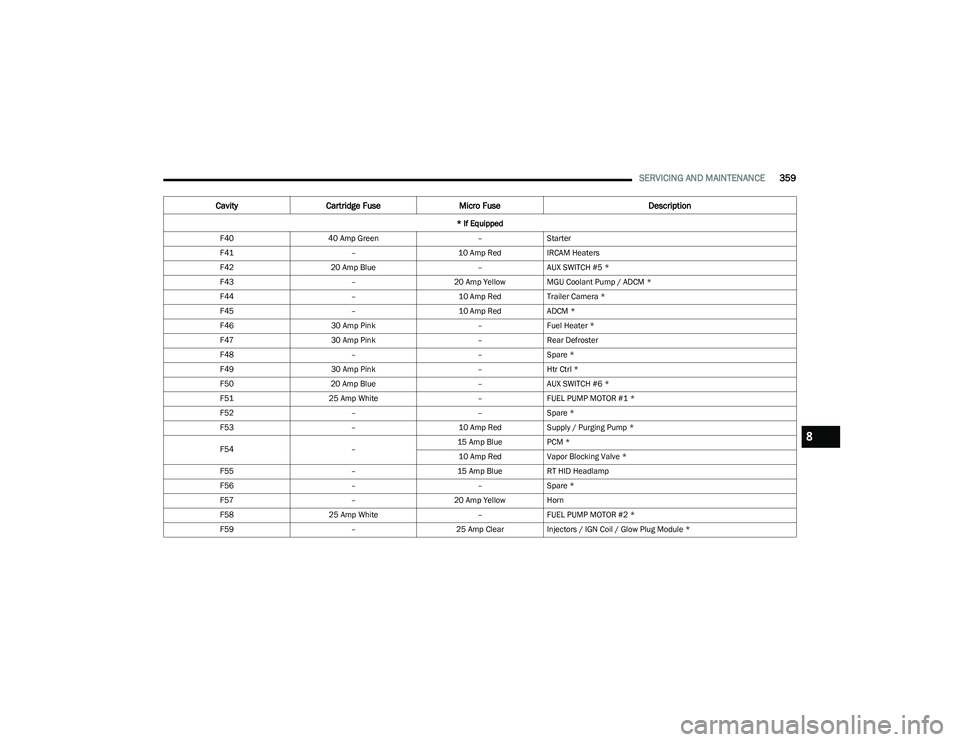
F4040 Amp Green –Starter
F41 –10 Amp RedIRCAM Heaters
F42 20 Amp Blue –AUX SWITCH #5 *
F43 –20 Amp Yellow MGU Coolant Pump / ADCM *
F44 –10 Amp RedTrailer Camera *
F45 –10 Amp RedADCM *
F46 30 Amp Pink –Fuel Heater *
F47 30 Amp Pink –Rear Defroster
F48 ––Spare *
F49 30 Amp Pink –Htr Ctrl *
F50 20 Amp Blue –AUX SWITCH #6 *
F51 25 Amp White –FUEL PUMP MOTOR #1 *
F52 ––Spare *
F53 –10 Amp RedSupply / Purging Pump *
F54 –15 Amp Blue
PCM *
10 Amp Red Vapor Blocking Valve *
F55 –15 Amp BlueRT HID Headlamp
F56 ––Spare *
F57 –20 Amp Yellow Horn
F58 25 Amp White –FUEL PUMP MOTOR #2 *
F59 –25 Amp ClearInjectors / IGN Coil / Glow Plug Module *
Cavity Cartridge Fuse Micro Fuse Description
* If Equipped
8
23_DT_OM_EN_USC_t.book Page 359
Page 362 of 416
360SERVICING AND MAINTENANCE
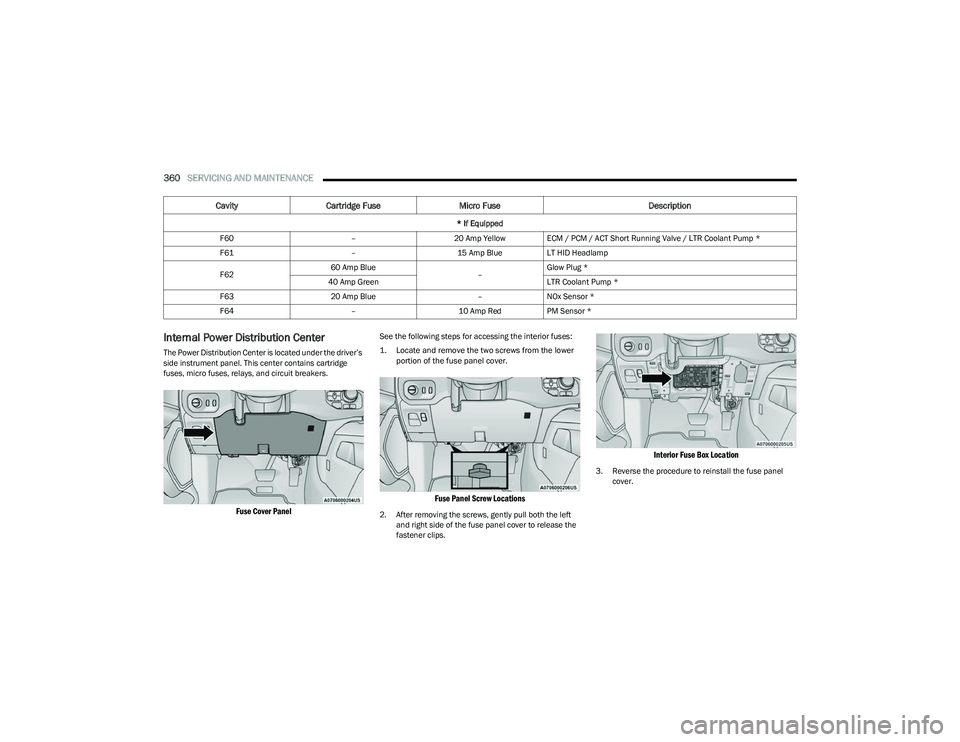
Internal Power Distribution Center
The Power Distribution Center is located under the driver’s
side instrument panel. This center contains cartridge
fuses, micro fuses, relays, and circuit breakers.
Fuse Cover Panel
See the following steps for accessing the interior fuses:
1. Locate and remove the two screws from the lower
portion of the fuse panel cover.
Fuse Panel Screw Locations
2. After removing the screws, gently pull both the left and right side of the fuse panel cover to release the
fastener clips.
Interior Fuse Box Location
3. Reverse the procedure to reinstall the fuse panel cover.
F60
–20 Amp Yellow ECM / PCM / ACT Short Running Valve / LTR Coolant Pump *
F61 –15 Amp BlueLT HID Headlamp
F62 60 Amp Blue
–Glow Plug *
40 Amp Green LTR Coolant Pump *
F63 20 Amp Blue –NOx Sensor *
F64 –10 Amp RedPM Sensor *
Cavity Cartridge Fuse Micro Fuse Description
* If Equipped
23_DT_OM_EN_USC_t.book Page 360
Page 363 of 416
SERVICING AND MAINTENANCE361
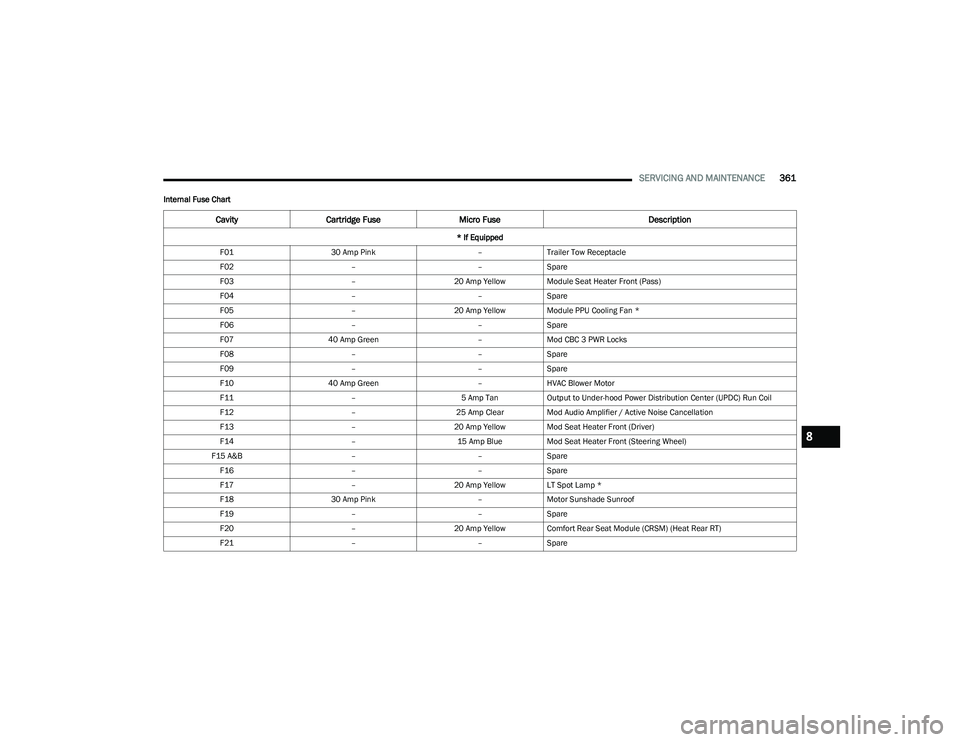
Internal Fuse Chart
CavityCartridge Fuse Micro Fuse Description
* If Equipped
F01 30 Amp Pink –Trailer Tow Receptacle
F02 ––Spare
F03 –20 Amp Yellow Module Seat Heater Front (Pass)
F04 ––Spare
F05 –20 Amp Yellow Module PPU Cooling Fan *
F06 ––Spare
F07 40 Amp Green –Mod CBC 3 PWR Locks
F08 ––Spare
F09 ––Spare
F10 40 Amp Green –HVAC Blower Motor
F11 –5 Amp TanOutput to Under-hood Power Distribution Center (UPDC) Run Coil
F12 –25 Amp ClearMod Audio Amplifier / Active Noise Cancellation
F13 –20 Amp Yellow Mod Seat Heater Front (Driver)
F14 –15 Amp BlueMod Seat Heater Front (Steering Wheel)
F15 A&B ––Spare
F16 ––Spare
F17 –20 Amp Yellow LT Spot Lamp *
F18 30 Amp Pink –Motor Sunshade Sunroof
F19 ––Spare
F20 –20 Amp Yellow Comfort Rear Seat Module (CRSM) (Heat Rear RT)
F21 ––Spare
8
23_DT_OM_EN_USC_t.book Page 361
Page 364 of 416
362SERVICING AND MAINTENANCE
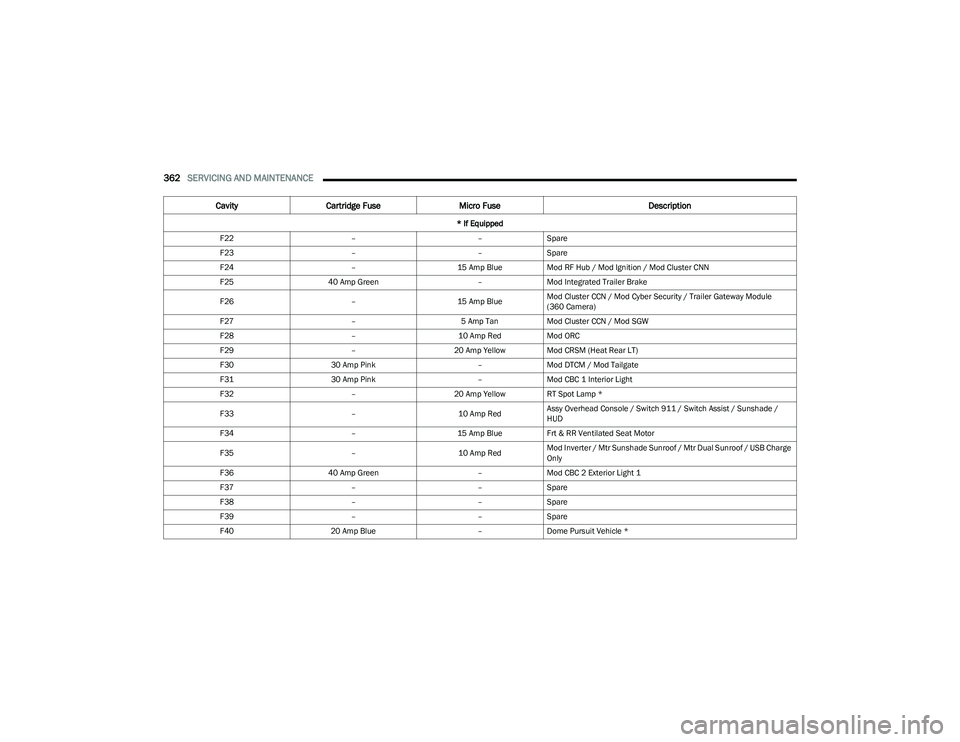
F22 ––Spare
F23 ––Spare
F24 –15 Amp BlueMod RF Hub / Mod Ignition / Mod Cluster CNN
F25 40 Amp Green –Mod Integrated Trailer Brake
F26 –15 Amp BlueMod Cluster CCN / Mod Cyber Security / Trailer Gateway Module
(360 Camera)
F27 –5 Amp TanMod Cluster CCN / Mod SGW
F28 –10 Amp RedMod ORC
F29 –20 Amp Yellow Mod CRSM (Heat Rear LT)
F30 30 Amp Pink –Mod DTCM / Mod Tailgate
F31 30 Amp Pink –Mod CBC 1 Interior Light
F32 –20 Amp Yellow RT Spot Lamp *
F33 –10 Amp RedAssy Overhead Console / Switch 911 / Switch Assist / Sunshade /
HUD
F34 –15 Amp BlueFrt & RR Ventilated Seat Motor
F35 –10 Amp RedMod Inverter / Mtr Sunshade Sunroof / Mtr Dual Sunroof / USB Charge
Only
F36 40 Amp Green –Mod CBC 2 Exterior Light 1
F37 ––Spare
F38 ––Spare
F39 ––Spare
F40 20 Amp Blue –Dome Pursuit Vehicle *
Cavity Cartridge Fuse Micro Fuse Description
* If Equipped
23_DT_OM_EN_USC_t.book Page 362
Page 365 of 416

SERVICING AND MAINTENANCE363
F41 A&B –15 Amp BlueLumbar Support & Pass SW / Steering Column Control Module / HVAC
Control Module / ICS Switch Bank / Upper Switch Bank
F42 A&B –10 Amp RedMod Transfer Case Switch Module (TCSM) / SBW / Electric Park Brake
SW / Module TPM Trailer / Module Gateway Can-C Trailer TPM / Seat
LT & RT Vent
F43 A&B –10 Amp RedPort Diagnostics / Front & Rear USB
F44 –20 Amp Yellow Radio / DCSD / Telematics Box Mod / Trailer Gateway Module (360)
F45 30 Amp Pink –Mod Door MUX Driver
F46 30 Amp Pink –Mod Door MUX Passenger
F47 ––Spare
F48A –10 Amp RedRear View Mirror / SW Window Passenger / Rear USB / Wireless
Charging Pad Mod
F49 –15 Amp BlueMod CVPM / SNSR Blind Spot / HDLP Adaptive Front Lighting Sensor
(AFLS)
F50A –10 Amp RedBattery PACK Control Mod (BPCM) *
F51 A&B ––Spare
F52 20 Amp Blue –Direct Battery Feed *
F53 –10 Amp RedTrailer Reverse Steering Control / Trailer Steering Control Knob
F54 A&B –20 Amp YellowPower Outlet Center Seat Battery Feed Position
Power Outlet Center Seat Ignition Feed Position
F55 25 Amp White –Upfitter *
F56 30 Amp Pink –Mod Network Interface *
F57 20 Amp Blue –Direct Battery Feed *
Cavity Cartridge Fuse Micro Fuse Description
* If Equipped
8
23_DT_OM_EN_USC_t.book Page 363