buttons RAM 1500 2023 Owner's Manual
[x] Cancel search | Manufacturer: RAM, Model Year: 2023, Model line: 1500, Model: RAM 1500 2023Pages: 416, PDF Size: 20.59 MB
Page 148 of 416
146STARTING AND OPERATING
Adaptive Cruise Control (ACC) Operation
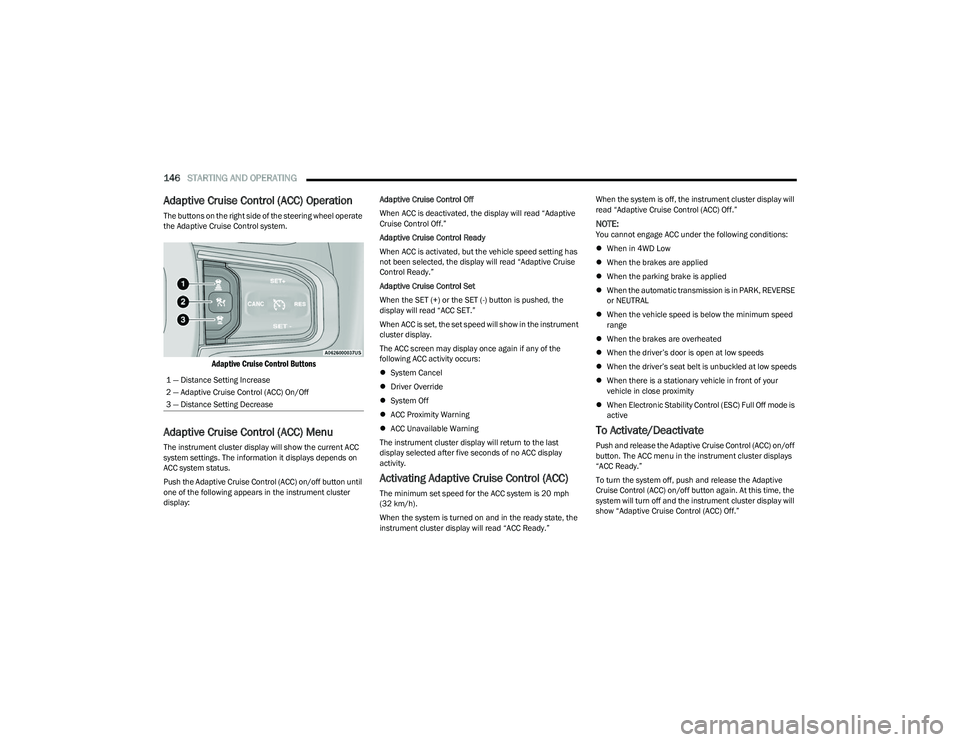
The buttons on the right side of the steering wheel operate
the Adaptive Cruise Control system.
Adaptive Cruise Control Buttons
Adaptive Cruise Control (ACC) Menu
The instrument cluster display will show the current ACC
system settings. The information it displays depends on
ACC system status.
Push the Adaptive Cruise Control (ACC) on/off button until
one of the following appears in the instrument cluster
display: Adaptive Cruise Control Off
When ACC is deactivated, the display will read “Adaptive
Cruise Control Off.”
Adaptive Cruise Control Ready
When ACC is activated, but the vehicle speed setting has
not been selected, the display will read “Adaptive Cruise
Control Ready.”
Adaptive Cruise Control Set
When the SET (+) or the SET (-) button is pushed, the
display will read “ACC SET.”
When ACC is set, the set speed will show in the instrument
cluster display.
The ACC screen may display once again if any of the
following ACC activity occurs:
System Cancel
Driver Override
System Off
ACC Proximity Warning
ACC Unavailable Warning
The instrument cluster display will return to the last
display selected after five seconds of no ACC display
activity.
Activating Adaptive Cruise Control (ACC)
The minimum set speed for the ACC system is 20 mph
(32 km/h).
When the system is turned on and in the ready state, the
instrument cluster display will read “ACC Ready.” When the system is off, the instrument cluster display will
read “Adaptive Cruise Control (ACC) Off.”
NOTE:You cannot engage ACC under the following conditions:
When in 4WD Low
When the brakes are applied
When the parking brake is applied
When the automatic transmission is in PARK, REVERSE
or NEUTRAL
When the vehicle speed is below the minimum speed
range
When the brakes are overheated
When the driver’s door is open at low speeds
When the driver’s seat belt is unbuckled at low speeds
When there is a stationary vehicle in front of your
vehicle in close proximity
When Electronic Stability Control (ESC) Full Off mode is
active
To Activate/Deactivate
Push and release the Adaptive Cruise Control (ACC) on/off
button. The ACC menu in the instrument cluster displays
“ACC Ready.”
To turn the system off, push and release the Adaptive
Cruise Control (ACC) on/off button again. At this time, the
system will turn off and the instrument cluster display will
show “Adaptive Cruise Control (ACC) Off.”
1 — Distance Setting Increase
2 — Adaptive Cruise Control (ACC) On/Off
3 — Distance Setting Decrease
23_DT_OM_EN_USC_t.book Page 146
Page 150 of 416

148STARTING AND OPERATING
Resume can be used at any speed above 0 mph (0 km/h)
when ACC is active.
NOTE:
If your vehicle is at a standstill for longer than two
seconds, then the driver will either have to push the
RES (resume) button, or apply the accelerator pedal to
reengage the Adaptive Cruise Control (ACC) to the
existing set speed.
ACC cannot be resumed if there is a stationary vehicle
in front of your vehicle in close proximity.
To Vary The Speed Setting
To Increase Or Decrease The Set Speed
After setting a speed, you can increase the set speed by
pushing the SET (+) button, or decrease speed by pushing
the SET (-) button. U.S. Speed (mph)
Pushing the SET (+), or SET (-) button once will result in
a 1 mph speed adjustment. Each subsequent tap of
the button results in an adjustment of 1 mph.
If the button is continually pushed, the set speed will
continue to adjust in 5 mph increments until the button
is released. The new set speed is reflected in the instru -
ment cluster display.
Metric Speed (km/h)
Pushing the SET (+), or SET (-) button once will result in
a 1 km/h speed adjustment. Each subsequent tap of
the button results in an adjustment of 1 km/h.
If the button is continually pushed, the set speed will
continue to adjust in 10 km/h increments until the
button is released. The new set speed is reflected in
the instrument cluster display.
NOTE:When you override and push the SET (+) button or SET (-)
buttons, the new set speed will be the current speed of the
vehicle.
When ACC Is Active
When you use the SET (-) button to decelerate, if the
engine’s braking power does not slow the vehicle suffi -
ciently to reach the set speed, the brake system will
automatically slow the vehicle.
The ACC system decelerates the vehicle to a full stop
when following the vehicle in front. If your vehicle
follows the vehicle in front to a standstill, after two
seconds the driver will either have to push the RES
(resume) button, or apply the accelerator pedal to reen -
gage the ACC to the existing set speed.
The ACC system maintains set speed when driving
uphill and downhill. However, a slight speed change on
moderate hills is normal. In addition, downshifting may
occur while climbing uphill or descending downhill. This
is normal operation and necessary to maintain set
speed. When driving uphill and downhill, the ACC
system will cancel if the braking temperature exceeds
normal range (overheated).
Setting The Following Distance In ACC
The specified following distance for Adaptive Cruise
Control (ACC) can be set by varying the distance setting
between four bars (longest), three bars (long), two bars
(medium) and one bar (short). Using this distance setting
and the vehicle speed, ACC calculates and sets the
distance to the vehicle ahead. This distance setting
displays in the instrument cluster display.
WARNING!
The Resume function should only be used if traffic and
road conditions permit. Resuming a set speed that is
too high or too low for prevailing traffic and road
conditions could cause the vehicle to accelerate or
decelerate too sharply for safe operation. Failure to
follow these warnings can result in a collision and death
or serious personal injury.
23_DT_OM_EN_USC_t.book Page 148
Page 168 of 416
166STARTING AND OPERATING
Top View
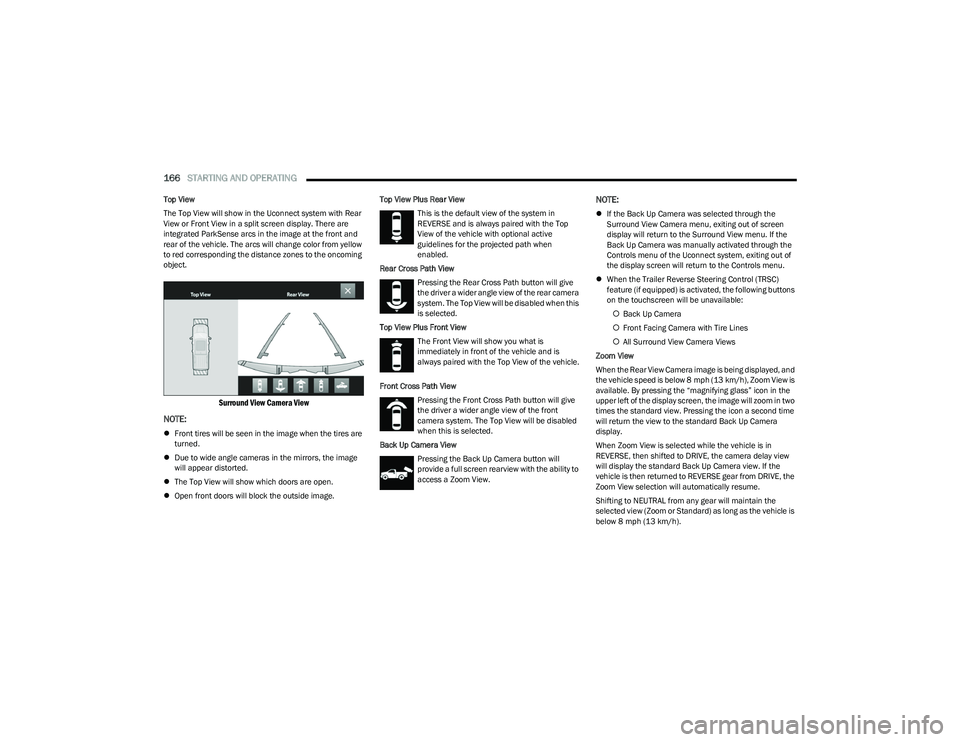
The Top View will show in the Uconnect system with Rear
View or Front View in a split screen display. There are
integrated ParkSense arcs in the image at the front and
rear of the vehicle. The arcs will change color from yellow
to red corresponding the distance zones to the oncoming
object.
Surround View Camera View
NOTE:
Front tires will be seen in the image when the tires are
turned.
Due to wide angle cameras in the mirrors, the image
will appear distorted.
The Top View will show which doors are open.
Open front doors will block the outside image. Top View Plus Rear View
This is the default view of the system in
REVERSE and is always paired with the Top
View of the vehicle with optional active
guidelines for the projected path when
enabled.
Rear Cross Path View Pressing the Rear Cross Path button will give
the driver a wider angle view of the rear camera
system. The Top View will be disabled when this
is selected.
Top View Plus Front View The Front View will show you what is
immediately in front of the vehicle and is
always paired with the Top View of the vehicle.
Front Cross Path View Pressing the Front Cross Path button will give
the driver a wider angle view of the front
camera system. The Top View will be disabled
when this is selected.
Back Up Camera View Pressing the Back Up Camera button will
provide a full screen rearview with the ability to
access a Zoom View.
NOTE:
If the Back Up Camera was selected through the
Surround View Camera menu, exiting out of screen
display will return to the Surround View menu. If the
Back Up Camera was manually activated through the
Controls menu of the Uconnect system, exiting out of
the display screen will return to the Controls menu.
When the Trailer Reverse Steering Control (TRSC)
feature (if equipped) is activated, the following buttons
on the touchscreen will be unavailable:
Back Up Camera
Front Facing Camera with Tire Lines
All Surround View Camera Views
Zoom View
When the Rear View Camera image is being displayed, and
the vehicle speed is below 8 mph (13 km/h), Zoom View is
available. By pressing the “magnifying glass” icon in the
upper left of the display screen, the image will zoom in two
times the standard view. Pressing the icon a second time
will return the view to the standard Back Up Camera
display.
When Zoom View is selected while the vehicle is in
REVERSE, then shifted to DRIVE, the camera delay view
will display the standard Back Up Camera view. If the
vehicle is then returned to REVERSE gear from DRIVE, the
Zoom View selection will automatically resume.
Shifting to NEUTRAL from any gear will maintain the
selected view (Zoom or Standard) as long as the vehicle is
below 8 mph (13 km/h).
23_DT_OM_EN_USC_t.book Page 166
Page 172 of 416
170STARTING AND OPERATING
The system is deactivated in the following conditions if it
was activated manually from the Uconnect controls menu
via the Trailer Surround Camera button:
The touchscreen X button is pressed
Vehicle is shifted into PARK
Ignition is placed in the OFF position
Vehicle speed is over 8 mph (13 km/h) for 10 seconds
NOTE:If the Trailer Surround Camera is activated manually, and
the vehicle is shifted into REVERSE, deactivation methods
for automatic activation are assumed.
The camera delay system is turned off manually through
the Uconnect system
Úpage 191.
NOTE:
If snow, ice, mud, or any foreign substance builds up on
the camera lenses, clean the lenses, rinse with water,
and dry with a soft cloth. Do not cover the lenses.
If a malfunction with the system has occurred, see an
authorized dealer.
AUX CAMERA — IF EQUIPPED
Your vehicle may be equipped with one or two AUX
Cameras, which display rearview and side view images
from the trailer on the touchscreen.
NOTE:Two Aux Cameras are only available on vehicles with NAV
equipped radios if the vehicle is not equipped with a
Center High Mounted Stop Lamp (CHMSL) and Surround
View Camera system.
Activation
The AUX Camera is activated by first pressing the Back Up
Camera or Cargo Camera (if equipped) button on the
touchscreen, followed by the AUX button located in the
upper left corner of the rearview display. On vehicles with
Surround View Camera (if equipped), the AUX Camera can
be activated when the vehicle is in REVERSE by first
pressing the More Cams button in the Surround View
screen, followed by the AUX tab. The AUX camera can also be activated when the vehicle is
in REVERSE by pressing the AUX button.
If equipped with two AUX Cameras, you can switch
between each camera by pressing the AUX 1 or AUX 2
buttons on the Trailer Camera display.
Deactivation
The AUX Camera is deactivated by pressing the
touchscreen X button. This will return the display back to
the previously displayed screen.NOTE:
If the AUX button is pressed and no AUX Camera is
connected, the touchscreen will display a blue screen
along with the message “Camera System Unavailable.”
The screen can be exited out by pressing the touch -
screen X button. This will return the display back to the
previously displayed screen.
Zoom View is not available with the AUX Camera
feature.
The display will always default to the Trailer Camera
display AUX 1.
WARNING!
Drivers must be careful when backing up even when
using the Trailer Surround View Camera. Always check
carefully behind your vehicle, and be sure to check for
pedestrians, animals, other vehicles, obstructions, or
blind spots before backing up. You are responsible for
the safety of your surroundings and must continue to
pay attention while backing up. Failure to do so can
result in serious injury or death.
CAUTION!
To avoid vehicle damage, Trailer Surround View
should only be used as a parking aid. The Trailer
Surround View Camera is unable to view every
obstacle or object in your drive path.
To avoid vehicle damage, the vehicle must be driven
slowly when using Trailer Surround View to be able to
stop in time when an obstacle is seen. It is recom -
mended that the driver look frequently over his/her
shoulder when using Trailer Surround View.
AUX 1 Camera Button
AUX 2 Camera Button
23_DT_OM_EN_USC_t.book Page 170
Page 182 of 416
180STARTING AND OPERATING
Towing Requirements — Trailer Brakes
Do not interconnect the hydraulic brake system or
vacuum system of your vehicle with that of the trailer.
An electronically actuated trailer brake controller is
required when towing a trailer with electronically actu -
ated brakes. When towing a trailer equipped with a
hydraulic surge actuated brake system, an electronic
brake controller is not required.
Trailer brakes are recommended for trailers over
1,000 lb (453 kg) and required for trailers in excess of
2,000 lb (907 kg).
Integrated Trailer Brake Module (ITBM) —
If Equipped
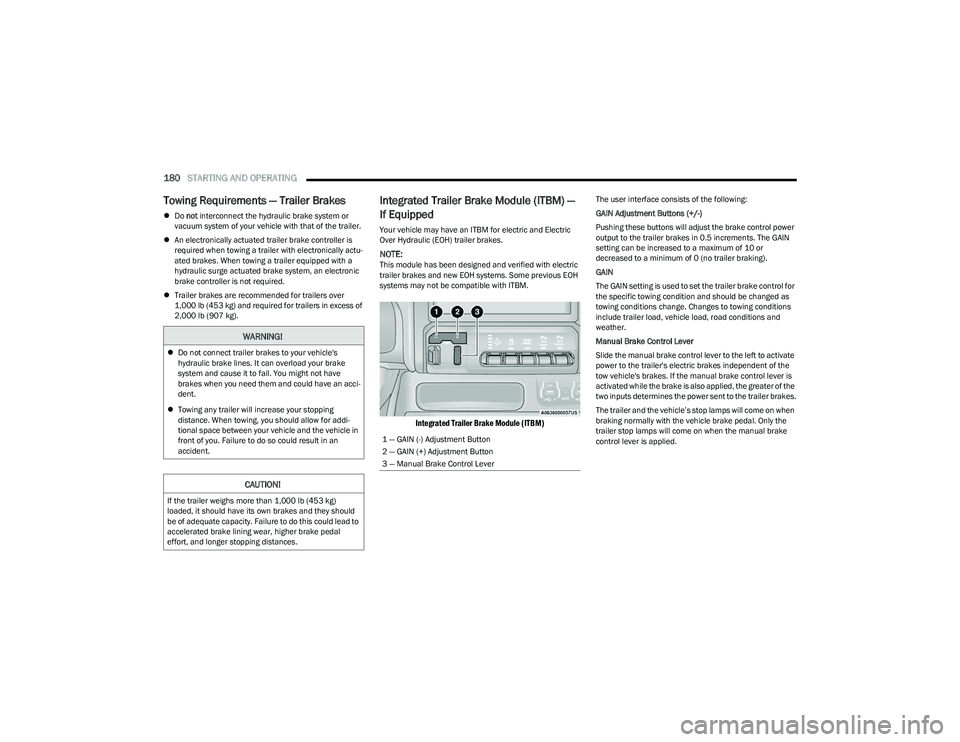
Your vehicle may have an ITBM for electric and Electric
Over Hydraulic (EOH) trailer brakes.
NOTE:This module has been designed and verified with electric
trailer brakes and new EOH systems. Some previous EOH
systems may not be compatible with ITBM.
Integrated Trailer Brake Module (ITBM)
The user interface consists of the following:
GAIN Adjustment Buttons (+/-)
Pushing these buttons will adjust the brake control power
output to the trailer brakes in 0.5 increments. The GAIN
setting can be increased to a maximum of 10 or
decreased to a minimum of 0 (no trailer braking).
GAIN
The GAIN setting is used to set the trailer brake control for
the specific towing condition and should be changed as
towing conditions change. Changes to towing conditions
include trailer load, vehicle load, road conditions and
weather.
Manual Brake Control Lever
Slide the manual brake control lever to the left to activate
power to the trailer's electric brakes independent of the
tow vehicle's brakes. If the manual brake control lever is
activated while the brake is also applied, the greater of the
two inputs determines the power sent to the trailer brakes.
The trailer and the vehicle’s stop lamps will come on when
braking normally with the vehicle brake pedal. Only the
trailer stop lamps will come on when the manual brake
control lever is applied.
WARNING!
Do not connect trailer brakes to your vehicle's
hydraulic brake lines. It can overload your brake
system and cause it to fail. You might not have
brakes when you need them and could have an acci -
dent.
Towing any trailer will increase your stopping
distance. When towing, you should allow for addi -
tional space between your vehicle and the vehicle in
front of you. Failure to do so could result in an
accident.
CAUTION!
If the trailer weighs more than 1,000 lb (453 kg)
loaded, it should have its own brakes and they should
be of adequate capacity. Failure to do this could lead to
accelerated brake lining wear, higher brake pedal
effort, and longer stopping distances.
1 — GAIN (-) Adjustment Button
2 — GAIN (+) Adjustment Button
3 — Manual Brake Control Lever
23_DT_OM_EN_USC_t.book Page 180
Page 183 of 416
STARTING AND OPERATING181
Trailer Brake Status Indicator Light
This light indicates the trailer electrical connection status.
If no electrical connection is detected after the ignition is
turned on, pushing the GAIN adjustment button or sliding
the manual brake control lever will display the GAIN
setting for 10 seconds and the Trailer Brake Status
Indicator Light will not be displayed.
If a fault is detected in the trailer wiring or the Integrated
Trailer Brake Module (ITBM), the Trailer Brake Status
Indicator Light will flash.
Adjusting GAIN
NOTE:This should only be performed in a traffic free environment
at speeds of approximately 20–25 mph (30–40 km/h).
1. Make sure the trailer brakes are in good working
condition, functioning normally and properly
adjusted. See your trailer dealer if necessary.
2. Hook up the trailer and make the electrical connections according to the trailer manufacturer's
instructions.
3. When a trailer is plugged in with electric or EOH brakes, the trailer connected message should appear
in the instrument cluster display (if the connection is
not recognized by the ITBM, braking functions will not
be available), the GAIN setting will illuminate and the
correct type of trailer must be selected from the
instrument cluster display options.
4. Push the UP or DOWN button on the steering wheel until “TRAILER TOW” appears on the screen.
5. Push the RIGHT arrow on the steering wheel to enter “TRAILER TOW”. 6. Push the UP or DOWN buttons until the Trailer Brake
Type appears on the screen.
7. Push the RIGHT arrow and then push the UP or DOWN buttons until the proper Trailer Brake Type appears
on the screen.
8. In a traffic-free environment, tow the trailer on a dry, level surface at a speed of 20–25 mph
(30–40 km/h) and squeeze the manual brake
control lever completely.
9. If the trailer wheels lockup (indicated by squealing tires), reduce the GAIN setting; if the trailer wheels
turn freely, increase the GAIN setting.
Repeat steps 8 and 9 until the GAIN setting is at a point
just below trailer wheel lockup. If towing a heavier trailer,
trailer wheel lockup may not be attainable even with the
maximum GAIN setting of 10.
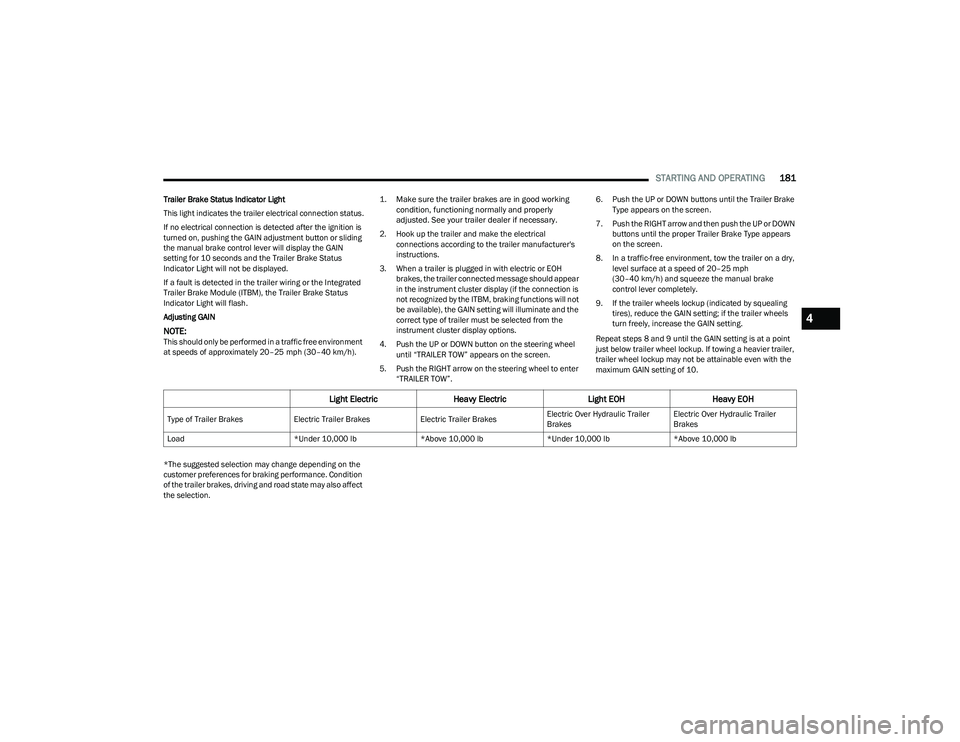
*The suggested selection may change depending on the
customer preferences for braking performance. Condition
of the trailer brakes, driving and road state may also affect
the selection.
Light Electric Heavy Electric Light EOHHeavy EOH
Type of Trailer Brakes Electric Trailer BrakesElectric Trailer BrakesElectric Over Hydraulic Trailer
BrakesElectric Over Hydraulic Trailer
Brakes
Load *Under 10,000 lb*Above 10,000 lb*Under 10,000 lb*Above 10,000 lb
4
23_DT_OM_EN_USC_t.book Page 181
Page 193 of 416
191
MULTIMEDIA
UCONNECT SYSTEMS
For detailed information about your Uconnect 3 With
5-inch Display Úpage 215.
For detailed information about your Uconnect 5/5 NAV
With 8.4-inch Display system or your Uconnect 5 NAV With
12-inch Display system, refer to your Uconnect Radio
Instruction Manual.
NOTE:Uconnect screen images are for illustration purposes only
and may not reflect exact software for your vehicle.
CYBERSECURITY
Depending on applicability, your vehicle may be able to
send or receive information from a wired or wireless
network. This information allows systems and features in
your vehicle to function properly.
Your vehicle may be equipped with certain security
features to reduce the risk of unauthorized and unlawful
access to vehicle systems and wireless communications.
Vehicle software technology continues to evolve over time
and FCA US LLC, working with its suppliers, evaluates and
takes appropriate steps as needed. As always, if you
experience unusual behavior, contact an authorized
dealer immediately
Úpage 398, or refer to your
Uconnect Radio Instruction Manual for additional contact
information. The risk of unauthorized and unlawful access to your
vehicle systems may still exist, even if the most recent
version of vehicle software (such as Uconnect software) is
installed.
NOTE:To help further improve user experience, features,
stability, etc., and minimize the potential risk of a security
breach, vehicle owners should routinely check
www.driveuconnect.com (US Residents) or www.driveuco
-
nnect.ca (Canadian Residents) to learn about available
Uconnect software updates.
UCONNECT SETTINGS
The Uconnect system uses a combination of buttons on
the touchscreen and buttons on the faceplate located on
the center of the instrument panel. These buttons allow
you to access and change the Customer Programmable
Features. Many features can vary by vehicle.
Buttons on the faceplate are located below and/or beside
the Uconnect system in the center of the instrument
panel. In addition, there is a SCROLL/ENTER control knob
located on the right side. Turn the control knob to scroll
through menus and change settings. Push the center of
the control knob one or more times to select or change a
setting.
Your Uconnect system may also have SCREEN OFF and
MUTE buttons on the faceplate.
Push the SCREEN OFF button on the faceplate to turn off
the Uconnect screen. Push the button again or tap the
screen to turn the screen on.
Press the Back Arrow button to exit out of a Menu or
certain option on the Uconnect system.
For the Uconnect 5 systems, push and hold the
Power button on the radio’s faceplate for a minimum of
15 seconds to reset the radio.
WARNING!
ONLY insert trusted devices/components into your
vehicle. Media of unknown origin could possibly
contain malicious software, and if installed in your
vehicle, it may increase the possibility for vehicle
systems to be breached.
As always, if you experience unusual vehicle
behavior, take your vehicle to an authorized dealer
immediately.
5
23_DT_OM_EN_USC_t.book Page 191
Page 194 of 416
192MULTIMEDIA
CUSTOMER PROGRAMMABLE FEATURES
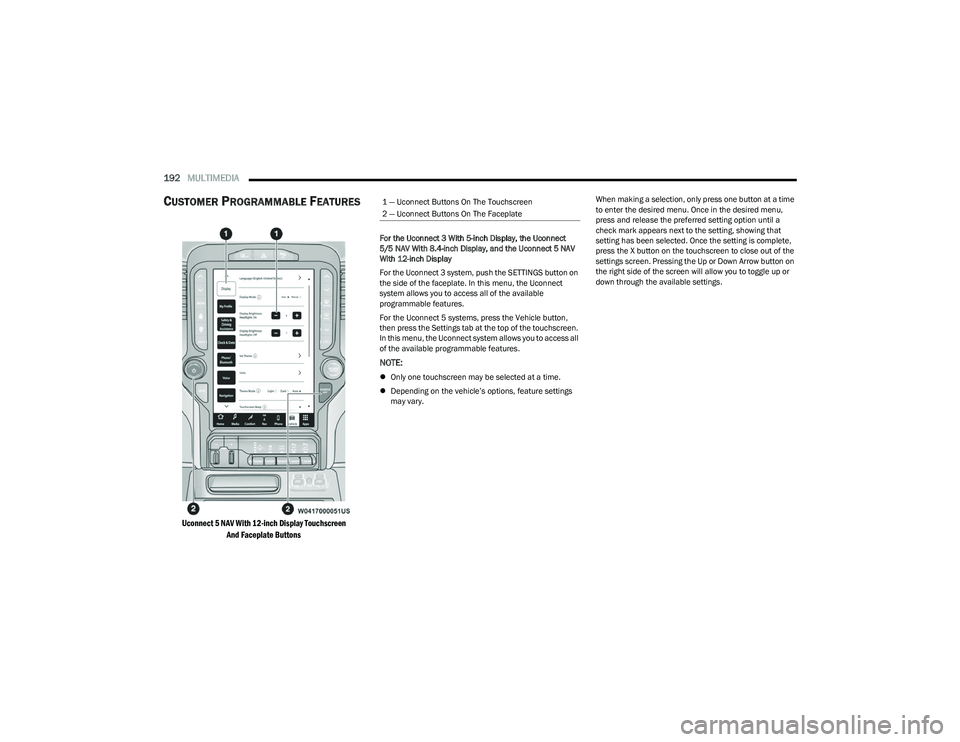
Uconnect 5 NAV With 12-inch Display Touchscreen
And Faceplate Buttons
For the Uconnect 3 With 5-inch Display, the Uconnect
5/5 NAV With 8.4-inch Display, and the Uconnect 5 NAV
With 12-inch Display
For the Uconnect 3 system, push the SETTINGS button on
the side of the faceplate. In this menu, the Uconnect
system allows you to access all of the available
programmable features.
For the Uconnect 5 systems, press the Vehicle button,
then press the Settings tab at the top of the touchscreen.
In this menu, the Uconnect system allows you to access all
of the available programmable features.
NOTE:
Only one touchscreen may be selected at a time.
Depending on the vehicle’s options, feature settings
may vary. When making a selection, only press one button at a time
to enter the desired menu. Once in the desired menu,
press and release the preferred setting option until a
check mark appears next to the setting, showing that
setting has been selected. Once the setting is complete,
press the X button on the touchscreen to close out of the
settings screen. Pressing the Up or Down Arrow button on
the right side of the screen will allow you to toggle up or
down through the available settings.
1 — Uconnect Buttons On The Touchscreen
2 — Uconnect Buttons On The Faceplate
23_DT_OM_EN_USC_t.book Page 192
Page 221 of 416
MULTIMEDIA219
The radio is equipped with the following modes:
AM
FM
SiriusXM® Satellite Radio (If Equipped)
Press the Radio button on the touchscreen to enter the
Radio Mode. The different tuner modes, AM, FM, and SXM,
can then be selected by pressing the corresponding
button in Radio Mode.
Volume & On/Off Control
Push the VOLUME & On/Off control knob to turn on and off
the Uconnect system.
The electronic volume control turns continuously
(360 degrees) in either direction, without stopping.
Turning the VOLUME & On/Off control knob clockwise
increases the volume, and counterclockwise decreases it.
When the audio system is turned on, the sound will be set
at the same volume level as last played.
Mute Button
Push the MUTE button to mute or unmute the system.
Tune/Scroll Control
Turn the rotary TUNE/SCROLL control knob clockwise to
increase or counterclockwise to decrease the radio station
frequency. Push the ENTER/BROWSE button to choose a
selection.
Seek
The Seek Up and Down functions are activated by pressing
the double arrow buttons on the touchscreen to the right
and left of the radio station display or by pushing the left
steering wheel audio control button up or down. Seek Up
and Seek Down
Press and release the Seek Up or Seek Down
button to tune the radio to the next available station or
channel. During a Seek Up/Down function, if the radio
reaches the starting station after passing through the
entire band two times, the radio will stop at the station
where it began.
Fast Seek Up and Fast Seek Down
Press and hold, and then release the Seek Up or
Seek Down button to advance the radio through the
available stations or channels at a faster rate. The radio
stops at the next available station or channel when the
button on the touchscreen is released.
NOTE:
Pressing and holding either the Seek Up or
Seek Down button will scan the different
frequency bands at a slower rate.
Info — If Equipped
Press the Info button to display information related to the
currently playing song and radio station.
Direct Tune
Press the Tune button located at the bottom of the radio
screen to directly tune to a desired radio station or
channel. Press the available number button on the touchscreen to
begin selecting a desired station. Once a number has
been entered, any numbers that are no longer possible
(stations that cannot be reached) will become
deactivated/grayed out.
Undo
You can backspace an entry by pressing the
Back button on the touchscreen.
GO
Once the last digit of a station has been entered, press
“Ok”. The Direct Tune screen will close, and the system will
automatically tune to that station.
RADIO VOICE COMMANDS
Use your voice to quickly get to the AM, FM, or SiriusXM®
Satellite Radio stations you would like to hear.
(Subscription or included SiriusXM® Satellite Radio trial
required.)
Push the VR button on the steering wheel and wait for
the beep to say a command. See an example:
“Tune to ninety-five-point-five FM”
“Tune to Satellite Channel Hits 1”
Did You Know: At any time, if you are not sure of what to
say or want to learn a Voice Command, push the VR button
and say “ Help”. The system provides you with a list of
commands.
5
23_DT_OM_EN_USC_t.book Page 219
Page 223 of 416
MULTIMEDIA221
No Subscription
Radios equipped with a Satellite receiver require a
subscription to the SiriusXM® Service. When the radio
does not have the necessary subscription, the radio is
able to receive the Preview channel only.
Acquiring SiriusXM® Subscription
To activate the SiriusXM® Satellite Radio subscription, US
residents visit https://www.siriusxm.com/phx/getlogin or
call: 1-800-643-2112
Canadian residents visit https://www.siriusxm.ca/ or call:
1-888-539-7474.
NOTE:You will need to provide the SiriusXM® ID (RID) located at
the bottom of the Channel 0 screen.
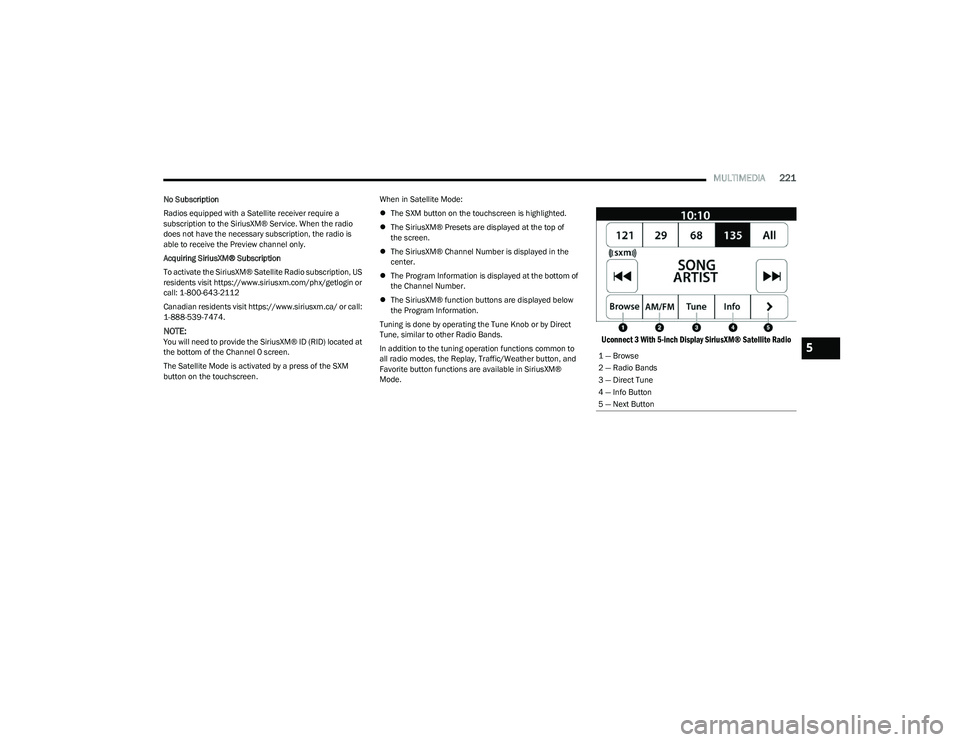
The Satellite Mode is activated by a press of the SXM
button on the touchscreen. When in Satellite Mode:
The SXM button on the touchscreen is highlighted.
The SiriusXM® Presets are displayed at the top of
the screen.
The SiriusXM® Channel Number is displayed in the
center.
The Program Information is displayed at the bottom of
the Channel Number.
The SiriusXM® function buttons are displayed below
the Program Information.
Tuning is done by operating the Tune Knob or by Direct
Tune, similar to other Radio Bands.
In addition to the tuning operation functions common to
all radio modes, the Replay, Traffic/Weather button, and
Favorite button functions are available in SiriusXM®
Mode.
Uconnect 3 With 5-inch Display SiriusXM® Satellite Radio
1 — Browse
2 — Radio Bands
3 — Direct Tune
4 — Info Button
5 — Next Button5
23_DT_OM_EN_USC_t.book Page 221