park assist RAM 1500 2023 Owner's Manual
[x] Cancel search | Manufacturer: RAM, Model Year: 2023, Model line: 1500, Model: RAM 1500 2023Pages: 416, PDF Size: 20.59 MB
Page 187 of 416
STARTING AND OPERATING185
BEFORE PLOWING
Check the hydraulic system for leaks and proper fluid
level.
Check the mounting bolts and nuts for proper tight -
ness.
Check the runners and cutting edge for excessive wear.
The cutting edge should be ¼ to ½ inches
(6 cm to 1.2 cm) above ground in snow plowing
position.
Check that snowplow lighting is connected and
functioning properly.
SNOWPLOW PREP PACKAGE MODEL
A
VAILABILITY
For Information about snowplow applications visit
www.ramtrucks.com or refer to the current Body Builder’s
Guide.
1. The maximum number of occupants in the truck
should not exceed one.
2. The total GVWR, Front GAWR or the Rear GAWR should never be exceeded.
3. Cargo capacity will be reduced by the addition of options or passengers, etc.
The loaded vehicle weight, including the snowplow
system, all aftermarket accessories, driver, passengers,
options, and cargo, must not exceed either the Gross
Vehicle Weight (GVWR) or Gross Axle Weight (GAWR)
ratings. These weights are specified on the Safety Compliance Certification Label on the driver's side door
opening.
NOTE:Detach the snowplow when transporting passengers.
Vehicle front end wheel alignment was set to
specifications at the factory without consideration for the
weight of the plow. Front end toe-in should be checked
and reset if necessary at the beginning and end of the
snowplow season. This will help prevent uneven tire wear.
The blade should be lowered whenever the vehicle is
parked.
Maintain and operate your vehicle and snowplow
equipment following the recommendations provided by
the specific snowplow manufacturer.
OVER THE ROAD OPERATION WITH
S
NOWPLOW ATTACHED
The blade restricts air flow to the radiator and causes the
engine to operate at higher than normal temperatures.
Therefore, when transporting the plow, angle the blade
completely and position it as low as road or surface
conditions permit. Do not exceed 40 mph (64 km/h). The
operator should always maintain a safe stopping distance
and allow adequate passing clearance.
NOTE:Lane Departure Warning / Lane Keep Assist is not
available when a snow plow is attached.
OPERATING TIPS
Under ideal snow plowing conditions, 20 mph (32 km/h)
should be maximum operating speed. The operator should
be familiar with the area and surface to be cleaned.
Reduce speed and use extreme caution when plowing
unfamiliar areas or under poor visibility.
GENERAL MAINTENANCE
Snowplows should be maintained in accordance with the
plow manufacturer's instructions.
Keep all snowplow electrical connections and battery
terminals clean and free of corrosion.
When plowing snow, to avoid transmission and drivetrain
damage, the following precautions should be observed:
Operate with transfer case in 4WD LOW when plowing
small or congested areas where speeds are not likely to
exceed 15 mph (24 km/h). At higher speeds operate in
4WD HIGH.
Vehicles with automatic transmissions should use
4WD LOW when plowing deep or heavy snow for
extended periods of time to avoid transmission over -
heating.
Do not shift the transmission unless the engine has
returned to idle and wheels have stopped. Make a
practice of stepping on the brake pedal while shifting
the transmission.
4
23_DT_OM_EN_USC_t.book Page 185
Page 200 of 416
198MULTIMEDIA
LaneSense Warning This setting will change the distance at which the steering wheel will provide lane
departure feedback. The available settings are “Early”, “Medium”, and “Late”.
LaneSense Strength This setting will change the strength of the steering wheel feedback during a lane
departure. The available settings are “Low”, “Medium”, and “High”.
ParkSense This setting will change the type of ParkSense alert when a close object is detected and
can provide both an audible chime and a visual display.
Front ParkSense Volume This setting adjusts the volume of the Front ParkSense system. The available settings are
“Low”, “Medium”, and “High”.
Rear ParkSense Volume This setting adjusts the volume of the Rear ParkSense system. The available settings are
“Low”, “Medium”, and “High”.
Rear ParkSense Braking Assist This setting will turn the Rear ParkSense Braking Assist on or off.
Blind Spot Alert This setting will change the type of alert provided when an object is detected in a
vehicle’s blind spot. The “Off” setting will turn off Blind Spot Alert. The “Lights” setting will
activate the Blind Spot Alert lights on the outside mirrors. The “Lights & Chime” setting
will activate both the lights on the outside mirrors and an audible chime.
Trailer Length For Blind Spot Alert This setting will auto detect the length of an attached trailer. The “Auto” setting will have
the system automatically set the trailer length. The “Max” setting will always set the
length to the maximum 39.5 ft (12 m).
Hill Start Assist This setting will turn the Hill Start Assist system on or off.
ParkView Backup Camera Delay This setting will add a timed delay to the ParkView Backup Camera when shifting
out of REVERSE.
ParkView Backup Camera Active Guidelines This setting will turn the ParkView Backup Camera Active Guidelines on or off.
ParkView Backup Camera Fixed Guidelines This setting will turn the ParkView Backup Camera Fixed Guidelines on or off.
Tire Fill Assist This setting will turn Tire Fill Assist on or off.
Power Side Steps This setting will raise and lower or stow the power side steps. The available options are
“Automatic” to raise and lower the power side steps and “Stow” to deactivate the power
side steps.
Setting Name
Description
23_DT_OM_EN_USC_t.book Page 198
Page 232 of 416
230MULTIMEDIA
HELP COMMAND
If you need assistance at any prompt, or if you want to
know your options at any prompt, say “Help” following the
beep.
To activate the Uconnect Phone from idle, simply push the
Phone button (if active) on your steering wheel and say a
command or say “Help”. All Phone sessions begin with a
push of the VR button or the Phone button.
CANCEL COMMAND
At any prompt, after the beep, you can say “Cancel” and
you will be returned to the main menu.
You can also push the VR button or Phone button on your
steering wheel when the system is listening for a
command and be returned to the main or previous menu.
PAIR (LINK) UCONNECT PHONE TO A MOBILE
PHONE
Use this QR code to access your digital
experience.
To begin using your Uconnect Phone,
you must pair your compatible
Bluetooth®-enabled mobile phone.
Mobile phone pairing is the process of
establishing a wireless connection
between a cellular phone and the
Uconnect system.
To complete the pairing process, you will need to
reference your mobile phone’s manual. Please visit
UconnectPhone.com for complete mobile phone
compatibility information.
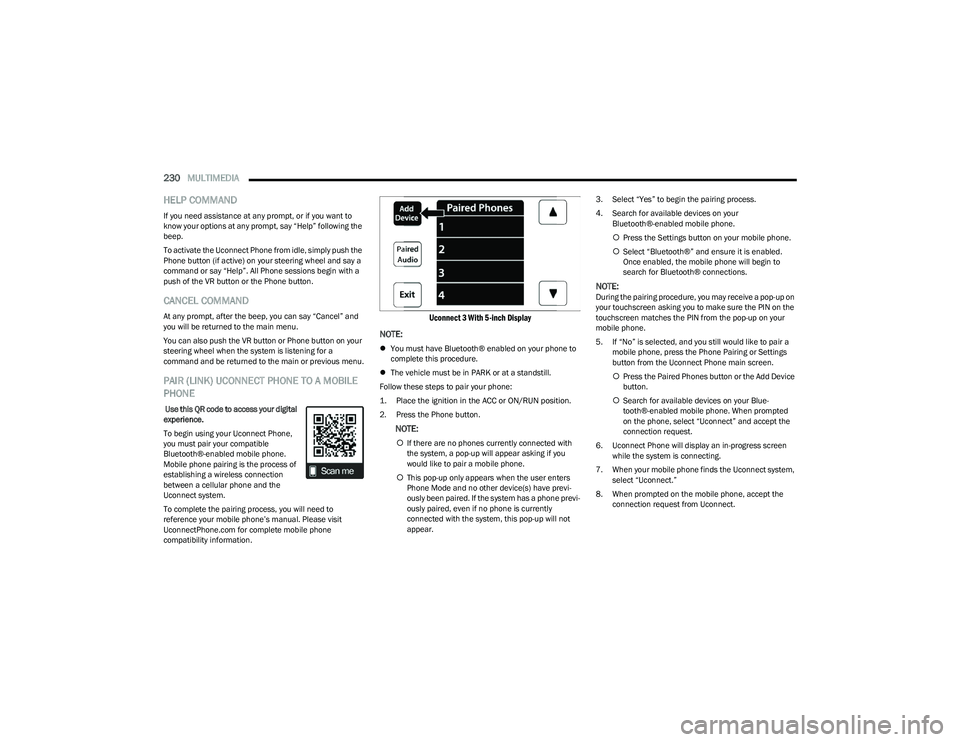
Uconnect 3 With 5-inch Display
NOTE:
You must have Bluetooth® enabled on your phone to
complete this procedure.
The vehicle must be in PARK or at a standstill.
Follow these steps to pair your phone:
1. Place the ignition in the ACC or ON/RUN position.
2. Press the Phone button.
NOTE:
If there are no phones currently connected with
the system, a pop-up will appear asking if you
would like to pair a mobile phone.
This pop-up only appears when the user enters
Phone Mode and no other device(s) have previ -
ously been paired. If the system has a phone previ -
ously paired, even if no phone is currently
connected with the system, this pop-up will not
appear. 3. Select “Yes” to begin the pairing process.
4. Search for available devices on your
Bluetooth®-enabled mobile phone.
Press the Settings button on your mobile phone.
Select “Bluetooth®” and ensure it is enabled.
Once enabled, the mobile phone will begin to
search for Bluetooth® connections.
NOTE:During the pairing procedure, you may receive a pop-up on
your touchscreen asking you to make sure the PIN on the
touchscreen matches the PIN from the pop-up on your
mobile phone.
5. If “No” is selected, and you still would like to pair a
mobile phone, press the Phone Pairing or Settings
button from the Uconnect Phone main screen.
Press the Paired Phones button or the Add Device
button.
Search for available devices on your Blue -
tooth®-enabled mobile phone. When prompted
on the phone, select “Uconnect” and accept the
connection request.
6. Uconnect Phone will display an in-progress screen while the system is connecting.
7. When your mobile phone finds the Uconnect system, select “Uconnect.”
8. When prompted on the mobile phone, accept the connection request from Uconnect.
23_DT_OM_EN_USC_t.book Page 230
Page 239 of 416
MULTIMEDIA237
INTRODUCTION TO CONNECTED VEHICLE
S
ERVICES
One of the many benefits of your vehicle’s Uconnect
system is that you can now take advantage of SiriusXM
Guardian™ connected services. To unlock the full
potential of SiriusXM Guardian™ in your vehicle, you first
need to activate SiriusXM Guardian™ connected services.
NOTE:SiriusXM Guardian™ involves the collection, transmission
and use of data from your vehicle Úpage 252.
SiriusXM Guardian™ Contact Information
SiriusXM Guardian™/Care
US residents visit: https://www.driveuconnect.com/
sirius-xm-guardian.html or call 1-844-796-4827
Canadian residents visit: https://www.driveucon -
nect.ca/en/sirius-xm-guardian or call 1-877-324-9091
What Is SiriusXM Guardian™?
SiriusXM Guardian™ uses an embedded device in the
Uconnect system installed in your vehicle, which receives
GPS signals and communicates with the SiriusXM
Guardian™ Customer Care center via wireless and
landline communications networks. Depending on the
type of device in your vehicle, some SiriusXM Guardian™
connected services require an operable LTE (voice/data)
or 4G (data) network compatible with your device.
SiriusXM Guardian™ is available only on equipped
vehicles purchased within the continental United States,
Alaska, Hawaii, Puerto Rico and Canada.
NOTE:
Certain SiriusXM Guardian™ connected services are
dependent upon an operative telematics device, a
cellular connection, navigation map data, and GPS
satellite signal reception, which can limit the ability to
reach the response center or reach emergency
support.
Not all features of SiriusXM Guardian™ are available
everywhere at all times, particularly in remote or
enclosed areas.
Other factors outside the control of SiriusXM
Guardian™ that may limit or prevent service delivery
are hills, structures, buildings, tunnels, weather,
damage to the electrical system or other important
parts of your vehicle, network congestion, civil distur -
bances, actions of third parties or the government,
Internet failure, and/or the physical location of your
vehicle, such as in an underground parking structure or
under a bridge. Not all SiriusXM Guardian™ features are available for all
models.
SiriusXM Guardian™ provides:
The ability to remotely lock/unlock and remote start
your vehicle from virtually anywhere by using the
Vehicle Branded App or your computer.
If equipped — Send & Go capability with the Vehicle
Branded App. Use the Vehicle Branded App to easily
search, map and send your locations directly to your
Uconnect Navigation.
The ability to locate your vehicle, when you forget
where you parked, using the Vehicle Finder function of
the Vehicle Branded App.
Before you drive, familiarize yourself with the easy-to-use
Uconnect system and SiriusXM Guardian™ connected
services.
The ASSIST and SOS Call Buttons On Your Rearview Mirror
Or Overhead Console
If equipped, the ASSIST Button is used for contacting
Roadside Assistance, Vehicle Care, Uconnect Care, and
SiriusXM Guardian™ Customer Care. The SOS Call button
connects you directly to SiriusXM Guardian™ Customer
Care for assistance in an emergency.
WARNING!
ALWAYS obey traffic laws and pay attention to the road.
Your complete attention is always required while driving
to maintain safe control of your vehicle. Only use and
interact with the features and applications when it is
safe to do so. Failure to follow these warnings can
result in a collision and death or serious personal
injury.
5
23_DT_OM_EN_USC_t.book Page 237
Page 245 of 416

MULTIMEDIA243
Requirements
Vehicle must be properly equipped with SiriusXM
Guardian™.
Vehicle must have an operable LTE (voice/data) or 4G
(data) network connection. If using the Vehicle
Branded App to command your vehicle, your device
must be compatible and be connected to an operable
LTE (voice/data) or 4G (data) network connection.
Vehicle must be registered with SiriusXM Guardian™
and have an active subscription that includes the appli -
cable feature.
An ignition cycle is required for some remote
commands, such as Remote Vehicle Start and Remote
Door Lock/Unlock if following a Remote Horn & Lights
activation.
Your Remote Door Lock/Unlock request will not be
processed if the vehicle is in motion, the ignition key is
on or during an emergency call.
NOTE:All other remote services should be performed via your
Owner’s Site or through the Vehicle Branded App on your
compatible device.
Remote Vehicle Start
Description
The Remote Vehicle Start feature provides you with the
ability to start the engine on your vehicle without the keys
and from virtually any distance. Once started, the preset
climate controls in your vehicle can warm up or cool down
the interior. You can also send a command to turn off an engine that
has been started using Remote Vehicle Start. After
15 minutes, if you have not entered your vehicle with the
key, the engine will shut off automatically.
This remote function requires your vehicle to be equipped
with a factory-installed Remote Start system.
You can set up push notifications every time a command
is sent to activate or cancel Remote Start.
Working Vehicle Conditions
The vehicle must be off or in ACC mode.
The vehicle has been started with the key fob within the
last 14 days.
The vehicle must be in PARK or at a standstill.
The vehicle’s security system has been armed and not
triggered since the last vehicle start.
The doors, hood, and trunk/liftgate are closed.
The vehicle’s check engine light must be off.
The vehicle must have at least a quarter tank of fuel,
along with oil and battery power.
The vehicle’s hazard lights must be off.
If equipped, the vehicle must have an automatic trans -
mission.
The vehicle must be in an open area with cell tower
reception.
Your mobile device must have a cellular or Wi-Fi
connection.
If the Panic button has been pressed, the vehicle must
be started at least once after alarming the system.
NOTE:The SiriusXM Guardian™ Customer Care agents are not
authorized for Remote Vehicle Start services. Contact the
Uconnect Care Team for assistance.
Remote Horn & Lights
Description
It is easy to locate a vehicle in a dark, crowded or noisy
parking area by activating the horn and lights. It may also
help if you need to draw attention to your vehicle for any
reason.
If you want, you can set up push notifications every time a
command is sent to turn on the horn and lights.
Working Vehicle Conditions
The vehicle must in PARK or at a standstill.
The vehicle must be in an open area with cell tower
reception.
Your mobile device must have a cellular or Wi-Fi
connection.
NOTE:The Remote Horn & Lights feature is designed to be loud
and get noticed. Please keep in mind the surroundings
when using this feature. You are responsible for
compliance with local laws, rules and ordinances in the
location of your vehicle when using Remote Horn & Lights.
5
23_DT_OM_EN_USC_t.book Page 243
Page 265 of 416
SAFETY263
REAR SEAT REMINDER ALERT (RSRA)
RSRA alerts of the possible presence of an object,
passenger, or pet in the rear seats through a visual and
auditory notification. When the system is activated, it
displays the message “Check Rear Seat” on the
instrument cluster display and sounds an auditory alert
upon the driver placing the ignition in the OFF position to
exit the vehicle. The system will activate automatically if a
rear door is opened within 10 minutes of the ignition being
placed in the ON/RUN position. RSRA should be used as a
reminder to check the rear seats, it does not directly
detect objects, passengers, or pets and is only activated
when the previous conditions are met.
To enable or disable RSRA, see
Úpage 191.
ELECTRONIC BRAKE CONTROL (EBC)
S
YSTEM
Your vehicle is equipped with an advanced Electronic
Brake Control (EBC) system. This system includes
Anti-Lock Brake System (ABS), Brake Assist System (BAS),
Electronic Brake Force Distribution (EBD), Electronic Roll
Mitigation (ERM), Electronic Stability Control (ESC), Hill
Start Assist (HSA), and Traction Control System (TCS).
These systems work together to enhance both vehicle
stability and control in various driving conditions.
Your vehicle may also be equipped with Trailer Sway
Control (TSC) and Hill Descent Control (HDC).
Brake Assist System (BAS)
The BAS is designed to optimize the vehicle’s braking
capability during emergency braking maneuvers. The
system detects an emergency braking situation by sensing
the rate and amount of brake application, and then
applies optimum pressure to the brakes. This can help
reduce braking distances. The BAS complements the
Anti-Lock Brake System (ABS). Applying the brakes very
quickly results in the best BAS assistance. To receive the
benefit of the system, you must apply continuous braking
pressure during the stopping sequence (do not “pump”
the brakes). Do not reduce brake pedal pressure unless
braking is no longer desired. Once the brake pedal is
released, the BAS is deactivated.
Brake System Warning Light
The red Brake System Warning Light will turn on when the
ignition is placed in the ON/RUN mode and may stay on for
as long as four seconds.
If the Brake System Warning Light remains on or comes on
while driving, it indicates that the brake system is not
functioning properly and that immediate service is
required. If the Brake System Warning Light does not
come on when the ignition is placed in the ON/RUN mode,
have the light repaired as soon as possible.
Electronic Brake Force Distribution (EBD)
EBD manages the distribution of the braking torque
between the front and rear axles by limiting braking
pressure to the rear axle. This is done to prevent overslip
of the rear wheels to avoid vehicle instability, and to
prevent the rear axle from entering the Anti-Lock Brake
System (ABS) before the front axle.
WARNING!
Before exiting a vehicle, always come to a complete
stop, then shift the automatic transmission into
PARK and apply the parking brake.
Always make sure the keyless ignition node is in the
OFF position, key fob is removed from the vehicle
and vehicle is locked.
Never leave children alone in a vehicle, or with
access to an unlocked vehicle. Leaving children in a
vehicle unattended is dangerous for a number of
reasons. A child or others could be seriously or fatally
injured. Children should be warned not to touch the
parking brake, brake pedal or the gear selector.
Do not leave children or animals inside parked vehi -
cles in hot weather. Interior heat buildup may cause
serious injury or death.
WARNING!
The Brake Assist System (BAS) cannot prevent the
natural laws of physics from acting on the vehicle, nor
can it increase the traction afforded by prevailing road
conditions. BAS cannot prevent collisions, including
those resulting from excessive speed in turns, driving
on very slippery surfaces, or hydroplaning. The
capabilities of a BAS-equipped vehicle must never be
exploited in a reckless or dangerous manner, which
could jeopardize the user's safety or the safety of
others.
6
23_DT_OM_EN_USC_t.book Page 263
Page 268 of 416
266SAFETY
The ESC Activation/Malfunction Indicator Light starts to
flash as soon as the tires lose traction and the ESC system
becomes active. The ESC Activation/Malfunction Indicator
Light also flashes when TCS is active. If the ESC
Activation/Malfunction Indicator Light begins to flash
during acceleration, ease up on the accelerator and apply
as little throttle as possible. Be sure to adapt your speed
and driving to the prevailing road conditions.
The ESC OFF Indicator Light indicates that the
Electronic Stability Control (ESC) is in a reduced
mode.
NOTE:
The ESC Activation/Malfunction Indicator Light and the
ESC OFF Indicator Light come on momentarily each
time the ignition is placed in the ON/RUN mode.
Each time the ignition is placed in the ON/RUN mode,
the ESC system will be on even if it was turned off previ -
ously.
The ESC system will make buzzing or clicking sounds
when it is active. This is normal; the sounds will stop
when ESC becomes inactive following the maneuver
that caused the ESC activation.
Hill Start Assist (HSA)
HSA is designed to mitigate roll back from a complete stop
while on an incline. If the driver releases the brake while
stopped on an incline, HSA will continue to hold the brake
pressure for a short period. If the driver does not apply the
throttle before this time expires, the system will release
brake pressure and the vehicle will roll down the hill as
normal. The following conditions must be met in order for HSA to
activate:
The feature must be enabled.
The vehicle must be stopped.
The parking brake must be off.
The driver door must be closed.
The vehicle must be on a sufficient grade.
The gear selection must match vehicle uphill direction
(i.e., vehicle facing uphill is in forward gear; vehicle
backing uphill is in REVERSE gear).
HSA will work in REVERSE gear and all forward gears.
The system will not activate if the transmission is in
PARK or NEUTRAL.
Disabling And Enabling HSA
This feature can be turned on or turned off. To change the
current setting, proceed as follows:
If disabling HSA using Uconnect Settings
Úpage 191.
Towing With HSA
HSA will also provide assistance to mitigate roll back while
towing a trailer.
WARNING!
There may be situations where the Hill Start Assist
(HSA) will not activate and slight rolling may occur, such
as on minor hills or with a loaded vehicle, or while
pulling a trailer. HSA is not a substitute for active driving
involvement. It is always the driver’s responsibility to be
attentive to distance to other vehicles, people, and
objects, and most importantly brake operation to
ensure safe operation of the vehicle under all road
conditions. Your complete attention is always required
while driving to maintain safe control of your vehicle.
Failure to follow these warnings can result in a collision
or serious personal injury.
WARNING!
If you use a trailer brake controller with your trailer,
the trailer brakes may be activated and deactivated
with the brake switch. If so, there may not be enough
brake pressure to hold both the vehicle and the
trailer on a hill when the brake pedal is released. In
order to avoid rolling down an incline while resuming
acceleration, manually activate the trailer brake or
apply more vehicle brake pressure prior to releasing
the brake pedal.
HSA is not a parking brake. Always apply the parking
brake fully when exiting your vehicle. Also, be certain
to place the transmission in PARK.
Failure to follow these warnings can result in a colli -
sion or serious personal injury.
23_DT_OM_EN_USC_t.book Page 266
Page 270 of 416

268SAFETY
Driver Override
The driver may override SSC activation with throttle or
brake application at any time.
Deactivating SSC
SSC will be deactivated but remain available if any of the
following conditions occur:
The driver overrides SSC set speed with throttle or
brake application.
The vehicle speed exceeds 20 mph (32 km/h) but
remains below 40 mph (64 km/h).
The vehicle is shifted into PARK.
Disabling SSC
SSC will deactivate and be disabled if any of the following
conditions occur:
The driver pushes the SSC switch.
The driveline is shifted out of the 4WD Low.
The parking brake is applied.
The driver door opens.
The vehicle is driven greater than 20 mph (32 km/h)
for greater than 70 seconds.
The vehicle is driven greater than 40 mph (64 km/h).
SSC will exist immediately. Feedback To The Driver
The instrument cluster has an SSC icon and the SSC
switch has a lamp which offers feedback to the driver
about the state SSC is in.
The cluster icon and switch lamp will illuminate and
remain on solid when SSC is enabled or activated.
These are the normal operating conditions for SSC.
The cluster icon and switch lamp will flash for several
seconds then extinguish when the driver pushes the
SSC switch but enabled conditions are not met.
The cluster icon and switch lamp will flash for several
seconds then extinguish when SSC disables due to
excess speed.
The cluster icon and switch lamp will flash then extin -
guish when SSC deactivates due to overheated brakes.
Traction Control System (TCS)
The TCS monitors the amount of wheel spin of each of the
driven wheels. If wheel spin is detected, the TCS may apply
brake pressure to the spinning wheel(s) and/or reduce
engine power to provide enhanced acceleration and
stability. A feature of the TCS, Brake Limited Differential (BLD)
functions similarly to a limited slip differential and controls
the wheel spin across a driven axle. If one wheel on a
driven axle is spinning faster than the other, the system
will apply the brake of the spinning wheel. This will allow
more engine torque to be applied to the wheel that is not
spinning. BLD may remain enabled even if TCS and
Electronic Stability Control (ESC) are in reduced modes.
Trailer Sway Control (TSC)
TSC uses sensors in the vehicle to recognize an
excessively swaying trailer and will take the appropriate
actions to attempt to stop the sway.
NOTE:TSC cannot stop all trailers from swaying. Always use
caution when towing a trailer and follow the trailer tongue
weight recommendations
Úpage 173.
When TSC is functioning, the ESC Activation/Malfunction
Indicator Light will flash, the engine power may be reduced
and you may feel the brakes being applied to individual
wheels to attempt to stop the trailer from swaying. TSC is
disabled when the ESC system is in the “Partial Off” or
“Full Off” modes.
WARNING!
SSC is only intended to assist the driver in controlling
vehicle speed when driving in off road conditions. The
driver must remain attentive to the driving conditions
and is responsible for maintaining a safe vehicle speed.
WARNING!
If TSC activates while driving, slow the vehicle down,
stop at the nearest safe location, and adjust the trailer
load to eliminate trailer sway.
23_DT_OM_EN_USC_t.book Page 268
Page 274 of 416

272SAFETY
When RCP is on and the vehicle is in REVERSE (R), the
driver is alerted using both the visual and audible alarms,
including reducing the radio volume.
NOTE:In a parking lot situation, oncoming vehicles can be
blocked by vehicles parked on either side. If the sensors
are blocked by other structures or vehicles, the system will
not be able to alert the driver.
Blind Spot Modes
Blind Spot has three selectable modes of operation that
are available in the Uconnect system.
Blind Spot Alert Lights Only
When operating in Blind Spot Alert mode, the BSM system
will provide a visual alert in the appropriate side view
mirror based on a detected object. However, when the
system is operating in Rear Cross Path (RCP) mode, the
system will respond with both visual and audible alerts
when a detected object is present. Whenever an audible
alert is requested, the radio is muted. Blind Spot Alert Lights/Chime
When operating in Blind Spot Alert Lights/Chime mode,
the BSM system will provide a visual alert in the
appropriate side view mirror based on a detected object.
If the turn signal is then activated, and it corresponds to
an alert present on that side of the vehicle, an audible
chime will also be sounded. Whenever a turn signal and
detected object are present on the same side at the same
time, both the visual and audible alerts will be issued. In
addition to the audible alert the radio (if on) will also be
muted.
NOTE:Whenever an audible alert is requested by the BSM
system, the radio is also muted.
When the system is in RCP, the system shall respond with
both visual and audible alerts when a detected object is
present. Whenever an audible alert is requested, the radio
is also muted. Turn/hazard signal status is ignored; the
RCP state always requests the chime.
Blind Spot Alert Off
When the BSM system is turned off there will be no visual
or audible alerts from either the BSM, RCP, or Trailer
Merge Assist systems.
NOTE:The BSM system will store the current operating mode
when the vehicle is shut off. Each time the vehicle is
started the previously stored mode will be recalled and
used.
Trailer Merge Assist — If Equipped
Trailer Merge Assist is a function of the Blind Spot
Monitoring (BSM) system that extends the blind spot zone
to work while pulling a trailer.
NOTE:When Trailer Merge Assist is activated, Rear Cross Path is
disabled.
Trailer Merge Assist consists of three sub functions:
Automatic Trailer Detection
Trailer Length Detection
Trailer Merge Warning
Blind Spot Zones With Trailer Merge Assist
WARNING!
Rear Cross Path Detection (RCP) is not a backup aid
system. It is intended to be used to help a driver detect
an oncoming vehicle in a parking lot situation. Drivers
must be careful when backing up, even when using
RCP. Always check carefully behind your vehicle, look
behind you, and be sure to check for pedestrians,
animals, other vehicles, obstructions, and blind spots
before backing up. Failure to do so can result in serious
injury or death.
1 — Vehicle
2 — Trailer
23_DT_OM_EN_USC_t.book Page 272
Page 275 of 416

SAFETY273
Automatic Trailer Detection
There are two modes of operation for the detection of the
trailer length:
Automatic Mode — When “Auto Mode” is selected, the
system will use the blind spot sensors to automatically
determine the presence and length of a trailer. The
presence of a trailer will be detected using the blind
spot radar within 90 seconds of forward movement of
the vehicle. The vehicle must be moving above 6 mph
(10 km/h) to activate the feature. Once the trailer has
been detected, the system will default to the maximum
blind spot zone until the length has been verified. You
will see “Auto” in the instrument panel cluster .
Maximum Mode — When “Max Mode” is selected, the
system will default to the maximum blind spot zone
regardless of what size trailer is attached .
NOTE:Selected setting is stored when the ignition is placed in the
OFF position. To change this setting, it must be selected
through the Uconnect Settings
Úpage 191.
Trailer Length Detection
Once the trailer presence has been established, the trailer
length will be established (by making a 90 degree turn)
and then the trailer length category (example 10-20 ft
(3 m to 6 m)) will be displayed. This can take up to
30 seconds after completing the turn.
NOTE:During the same ignition cycle, if the vehicle is at a
standstill for a minimum of 90 seconds, a new “trailer
detection request” is enabled by the system once the
vehicle resumes motion.
The maximum trailer length supported by the Trailer
Merge Assist feature is 39.5 ft (12 m). Trailer length is
considered the forward most portion of the trailer hitch to
the rearward most portion of the body, fascia/bumper, or
ramp of the trailer.
The maximum width supported by the Trailer Merge Assist
feature is 8.5 ft (2.59 m). Trailer width is measured at the
widest portion of the trailer and may include wheels, tires,
finders, or rails.
NOTE:Fifth wheel or gooseneck trailers are not supported by
Trailer Merge Assist.
NOTE:The ability to detect a trailer may be degraded in crowded
or busy environments. Busy parking lots, narrow areas
surrounded with trees, or any other crowded area may
prevent the radar sensors from being able to adequately
detect the trailer. The system will try to detect a trailer at
every ignition cycle or 90 seconds of standstill.
Trailer Length Detection
Trailer length will be identified and placed into one of the
following categories:
Trailer length up to 10 ft (3 m) — Blind spot zone will be
adjusted to 10 ft (3 m) .
Trailer length between 10 ft to 20 ft
(3 m to 6 m) — Blind spot zone will be adjusted to
20 ft (6 m) .
Trailer length between 20 ft to 30 ft
(6 m to 9 m) — Blind spot zone will be adjusted to
30 ft (9 m) .
Trailer length between 30 ft and 39.5 ft
(9 m to 12 m) — Blind spot zone will be adjusted to
Max distance .
1 — Trailer Length
2 — Trailer Hitch
3 — Trailer Width
6
23_DT_OM_EN_USC_t.book Page 273