lights RAM 1500 2023 Service Manual
[x] Cancel search | Manufacturer: RAM, Model Year: 2023, Model line: 1500, Model: RAM 1500 2023Pages: 416, PDF Size: 20.59 MB
Page 195 of 416
MULTIMEDIA193
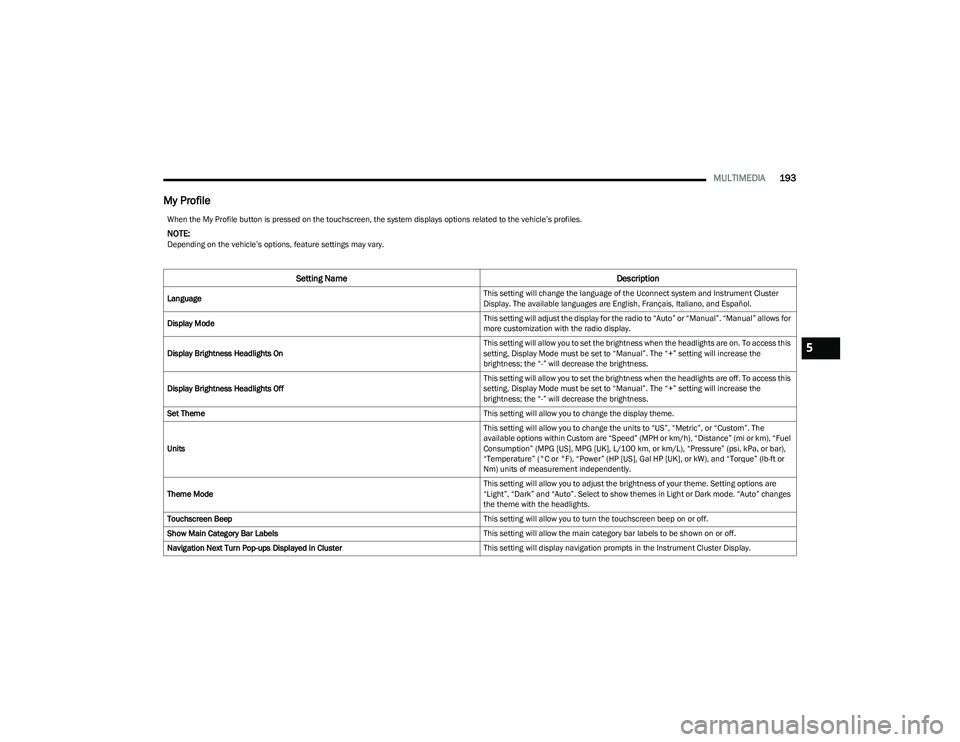
My Profile
When the My Profile button is pressed on the touchscreen, the system displays options related to the vehicle’s profiles.
NOTE:Depending on the vehicle’s options, feature settings may vary.
Setting Name Description
Language This setting will change the language of the Uconnect system and Instrument Cluster
Display. The available languages are English, Français, Italiano, and Español.
Display Mode This setting will adjust the display for the radio to “Auto” or “Manual”. “Manual” allows for
more customization with the radio display.
Display Brightness Headlights On This setting will allow you to set the brightness when the headlights are on. To access this
setting, Display Mode must be set to “Manual”. The “+” setting will increase the
brightness; the “-” will decrease the brightness.
Display Brightness Headlights Off This setting will allow you to set the brightness when the headlights are off. To access this
setting, Display Mode must be set to “Manual”. The “+” setting will increase the
brightness; the “-” will decrease the brightness.
Set Theme This setting will allow you to change the display theme.
Units This setting will allow you to change the units to “US”, “Metric”, or “Custom”. The
available options within Custom are “Speed” (MPH or km/h), “Distance” (mi or km), “Fuel
Consumption” (MPG [US], MPG [UK], L/100 km, or km/L), “Pressure” (psi, kPa, or bar),
“Temperature” (°C or °F), “Power” (HP [US], Gal HP [UK], or kW), and “Torque” (lb-ft or
Nm) units of measurement independently.
Theme Mode This setting will allow you to adjust the brightness of your theme. Setting options are
“Light”, “Dark” and “Auto”. Select to show themes in Light or Dark mode. “Auto” changes
the theme with the headlights.
Touchscreen Beep This setting will allow you to turn the touchscreen beep on or off.
Show Main Category Bar Labels This setting will allow the main category bar labels to be shown on or off.
Navigation Next Turn Pop-ups Displayed in Cluster This setting will display navigation prompts in the Instrument Cluster Display.
5
23_DT_OM_EN_USC_t.book Page 193
Page 198 of 416

196MULTIMEDIA
Display
When the Display button is pressed on the touchscreen, the system will display the options related to the theme (if equipped), brightness, and color of the touchscreen. The available
settings are:
NOTE:Depending on the vehicle’s options, feature settings may vary.
Setting Name Description
Language This setting will change the language of the Uconnect system and Instrument Cluster
Display. The available languages are English, Français, Italiano, and Español.
Display Mode This setting will allow you to set the brightness manually or have the system set
it automatically. The “Auto” setting has the system automatically adjust the
display brightness. The “Manual” setting will allow the user to adjust the brightness
of the display.
Display Brightness With Headlights ON/Brightness This setting will allow you to set the brightness when the headlights are on. To access this
setting, Display Mode must be set to Manual. The “+” setting will increase the brightness;
the “-” will decrease the brightness.
Display Brightness With Headlights OFF/Brightness This setting will allow you to set the brightness when the headlights are off. To access this
setting, Display Mode must be set to Manual. The “+” setting will increase the brightness;
the “-” will decrease the brightness.
Set Theme This setting will allow you to change the display theme.
Units This setting will allow you to change the units. The available options are “Speed” (MPH or
km/h), “Distance” (mi or km), “Fuel Consumption” (MPG [US], MPG [UK], L/100 km, or
km/L), “Pressure” (psi, kPa, or bar), “Temperature” (°C or °F), “Power” (HP [US], Gal HP
[UK], or kW), and “Torque” (lb-ft or Nm) units of measurement independently.
Theme Mode This setting will allow you to adjust the brightness of your theme. Setting options are
“Light”, “Dark” and “Auto”. Select to show themes in Light or Dark mode. “Auto” changes
the theme with the headlights.
Touchscreen Beep This setting will allow you to turn the touchscreen beep on or off.
23_DT_OM_EN_USC_t.book Page 196
Page 200 of 416
198MULTIMEDIA
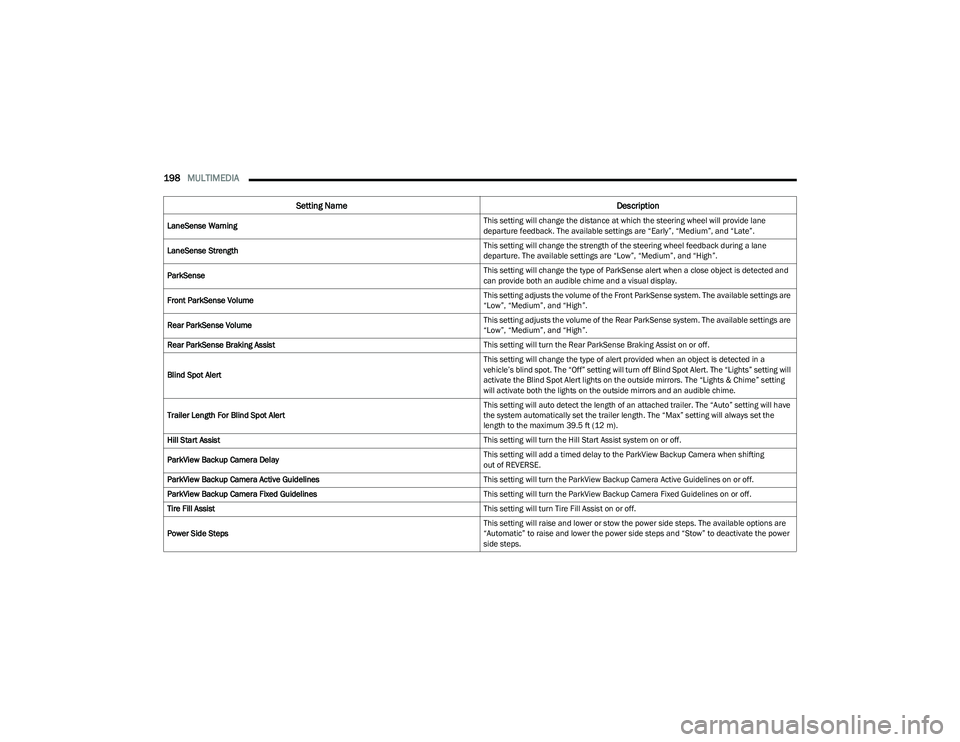
LaneSense Warning This setting will change the distance at which the steering wheel will provide lane
departure feedback. The available settings are “Early”, “Medium”, and “Late”.
LaneSense Strength This setting will change the strength of the steering wheel feedback during a lane
departure. The available settings are “Low”, “Medium”, and “High”.
ParkSense This setting will change the type of ParkSense alert when a close object is detected and
can provide both an audible chime and a visual display.
Front ParkSense Volume This setting adjusts the volume of the Front ParkSense system. The available settings are
“Low”, “Medium”, and “High”.
Rear ParkSense Volume This setting adjusts the volume of the Rear ParkSense system. The available settings are
“Low”, “Medium”, and “High”.
Rear ParkSense Braking Assist This setting will turn the Rear ParkSense Braking Assist on or off.
Blind Spot Alert This setting will change the type of alert provided when an object is detected in a
vehicle’s blind spot. The “Off” setting will turn off Blind Spot Alert. The “Lights” setting will
activate the Blind Spot Alert lights on the outside mirrors. The “Lights & Chime” setting
will activate both the lights on the outside mirrors and an audible chime.
Trailer Length For Blind Spot Alert This setting will auto detect the length of an attached trailer. The “Auto” setting will have
the system automatically set the trailer length. The “Max” setting will always set the
length to the maximum 39.5 ft (12 m).
Hill Start Assist This setting will turn the Hill Start Assist system on or off.
ParkView Backup Camera Delay This setting will add a timed delay to the ParkView Backup Camera when shifting
out of REVERSE.
ParkView Backup Camera Active Guidelines This setting will turn the ParkView Backup Camera Active Guidelines on or off.
ParkView Backup Camera Fixed Guidelines This setting will turn the ParkView Backup Camera Fixed Guidelines on or off.
Tire Fill Assist This setting will turn Tire Fill Assist on or off.
Power Side Steps This setting will raise and lower or stow the power side steps. The available options are
“Automatic” to raise and lower the power side steps and “Stow” to deactivate the power
side steps.
Setting Name
Description
23_DT_OM_EN_USC_t.book Page 198
Page 204 of 416
202MULTIMEDIA
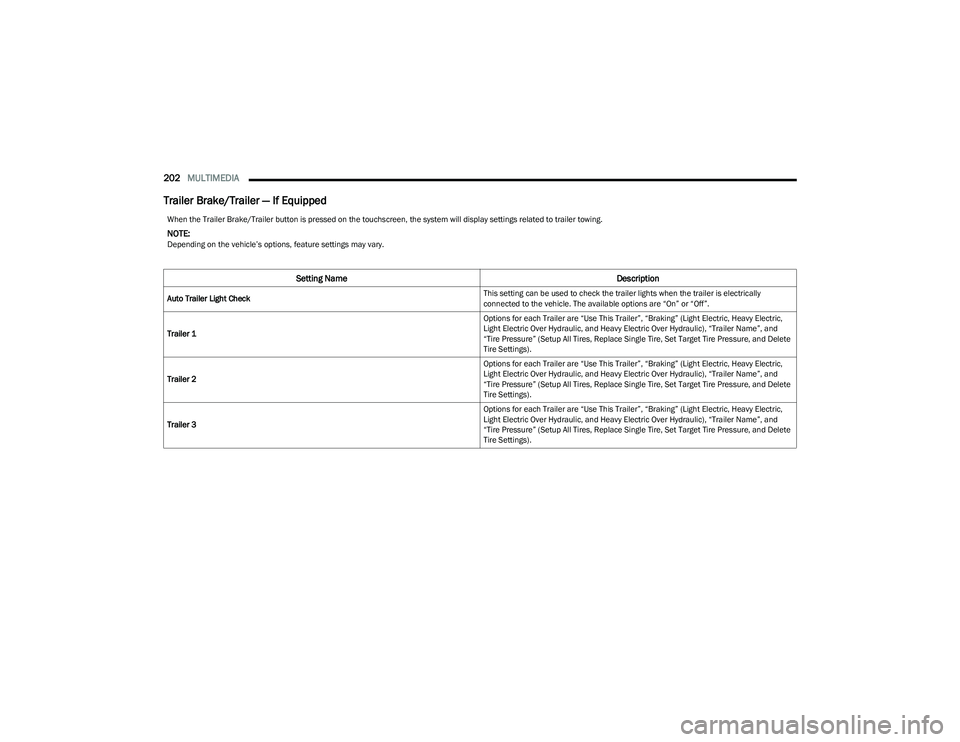
Trailer Brake/Trailer — If Equipped
When the Trailer Brake/Trailer button is pressed on the touchscreen, the system will display settings related to trailer towing.
NOTE:Depending on the vehicle’s options, feature settings may vary.
Setting Name Description
Auto Trailer Light Check This setting can be used to check the trailer lights when the trailer is electrically
connected to the vehicle. The available options are “On” or “Off”.
Trailer 1 Options for each Trailer are “Use This Trailer”, “Braking” (Light Electric, Heavy Electric,
Light Electric Over Hydraulic, and Heavy Electric Over Hydraulic), “Trailer Name”, and
“Tire Pressure” (Setup All Tires, Replace Single Tire, Set Target Tire Pressure, and Delete
Tire Settings).
Trailer 2 Options for each Trailer are “Use This Trailer”, “Braking” (Light Electric, Heavy Electric,
Light Electric Over Hydraulic, and Heavy Electric Over Hydraulic), “Trailer Name”, and
“Tire Pressure” (Setup All Tires, Replace Single Tire, Set Target Tire Pressure, and Delete
Tire Settings).
Trailer 3 Options for each Trailer are “Use This Trailer”, “Braking” (Light Electric, Heavy Electric,
Light Electric Over Hydraulic, and Heavy Electric Over Hydraulic), “Trailer Name”, and
“Tire Pressure” (Setup All Tires, Replace Single Tire, Set Target Tire Pressure, and Delete
Tire Settings).
23_DT_OM_EN_USC_t.book Page 202
Page 207 of 416
MULTIMEDIA205
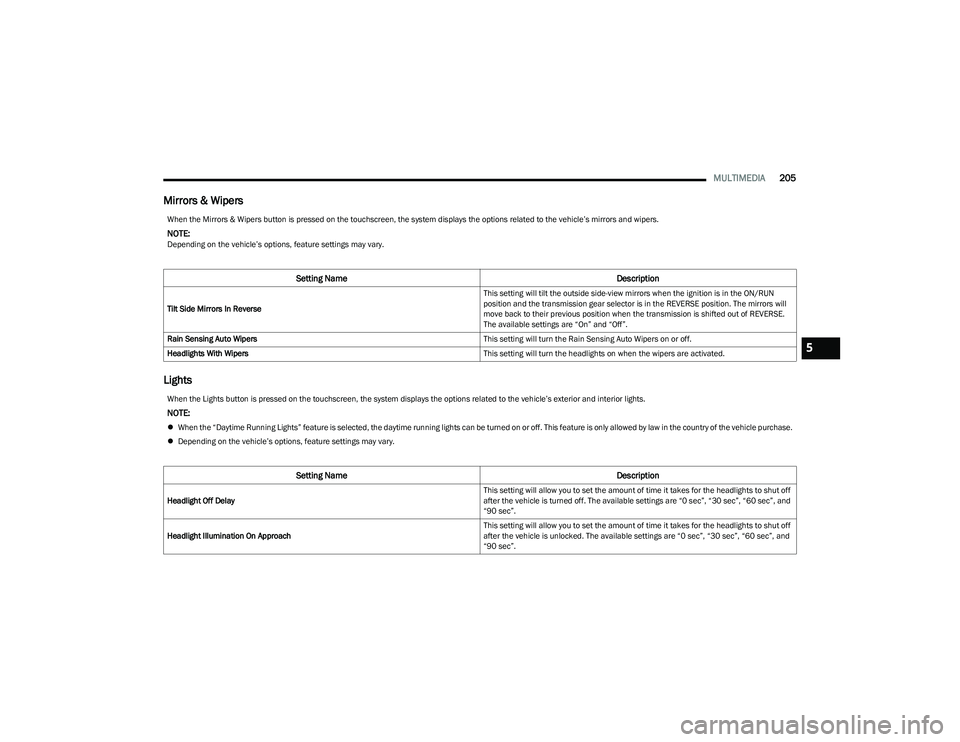
Mirrors & Wipers
Lights
When the Mirrors & Wipers button is pressed on the touchscreen, the system displays the options related to the vehicle’s mirrors and wipers.
NOTE:Depending on the vehicle’s options, feature settings may vary.
Setting Name Description
Tilt Side Mirrors In Reverse This setting will tilt the outside side-view mirrors when the ignition is in the ON/RUN
position and the transmission gear selector is in the REVERSE position. The mirrors will
move back to their previous position when the transmission is shifted out of REVERSE.
The available settings are “On” and “Off”.
Rain Sensing Auto Wipers This setting will turn the Rain Sensing Auto Wipers on or off.
Headlights With Wipers This setting will turn the headlights on when the wipers are activated.
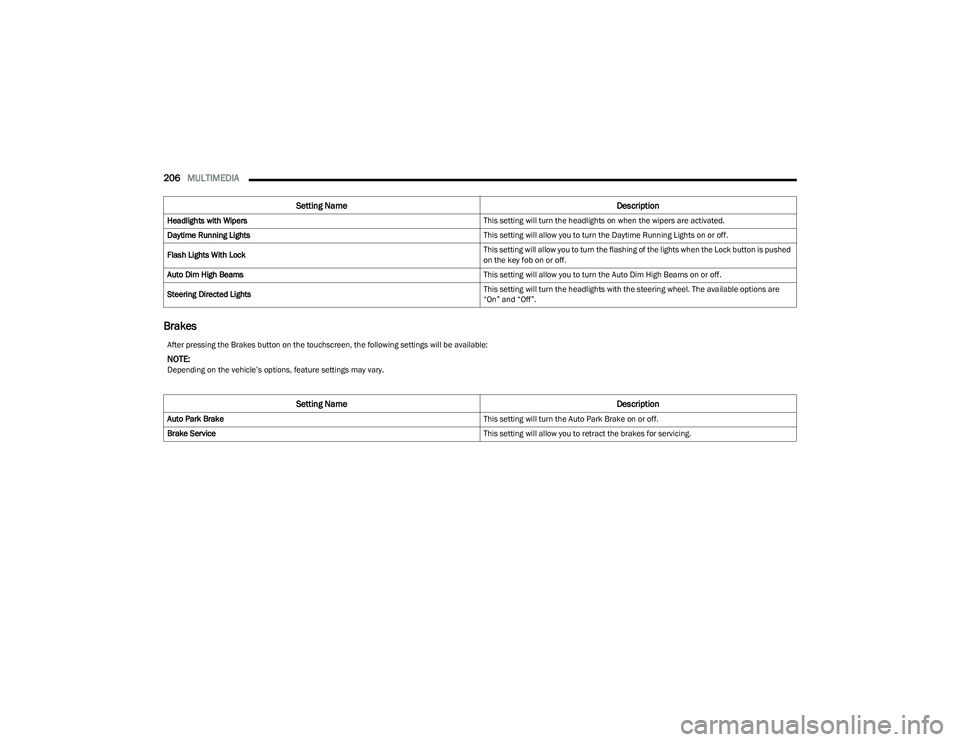
When the Lights button is pressed on the touchscreen, the system displays the options related to the vehicle’s exterior and interior lights.
NOTE:
When the “Daytime Running Lights” feature is selected, the daytime running lights can be turned on or off. This feature is only allowed by law in the country of the vehicle purchase.
Depending on the vehicle’s options, feature settings may vary.
Setting Name Description
Headlight Off Delay This setting will allow you to set the amount of time it takes for the headlights to shut off
after the vehicle is turned off. The available settings are “0 sec”, “30 sec”, “60 sec”, and
“90 sec”.
Headlight Illumination On Approach This setting will allow you to set the amount of time it takes for the headlights to shut off
after the vehicle is unlocked. The available settings are “0 sec”, “30 sec”, “60 sec”, and
“90 sec”.
5
23_DT_OM_EN_USC_t.book Page 205
Page 208 of 416
206MULTIMEDIA
Brakes
Headlights with Wipers This setting will turn the headlights on when the wipers are activated.
Daytime Running Lights This setting will allow you to turn the Daytime Running Lights on or off.
Flash Lights With Lock This setting will allow you to turn the flashing of the lights when the Lock button is pushed
on the key fob on or off.
Auto Dim High Beams This setting will allow you to turn the Auto Dim High Beams on or off.
Steering Directed Lights This setting will turn the headlights with the steering wheel. The available options are
“On” and “Off”.
Setting Name
Description
After pressing the Brakes button on the touchscreen, the following settings will be available:
NOTE:Depending on the vehicle’s options, feature settings may vary.
Setting NameDescription
Auto Park Brake This setting will turn the Auto Park Brake on or off.
Brake Service This setting will allow you to retract the brakes for servicing.
23_DT_OM_EN_USC_t.book Page 206
Page 209 of 416
MULTIMEDIA207
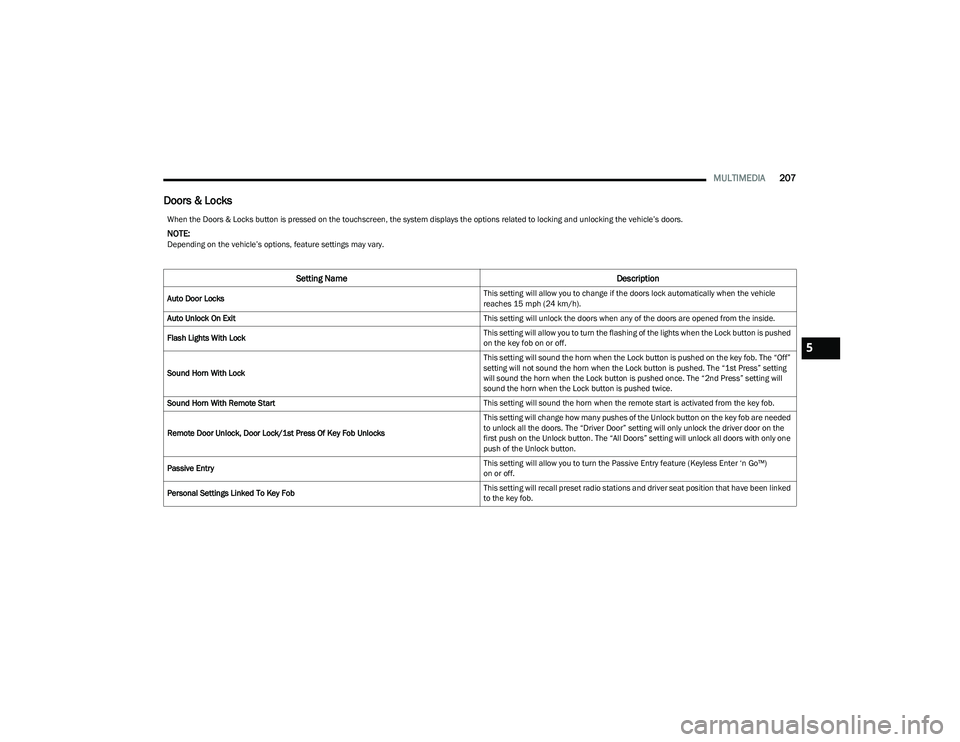
Doors & Locks
When the Doors & Locks button is pressed on the touchscreen, the system displays the options related to locking and unlocking the vehicle’s doors.
NOTE:Depending on the vehicle’s options, feature settings may vary.
Setting Name Description
Auto Door Locks This setting will allow you to change if the doors lock automatically when the vehicle
reaches 15 mph (24 km/h).
Auto Unlock On Exit This setting will unlock the doors when any of the doors are opened from the inside.
Flash Lights With Lock This setting will allow you to turn the flashing of the lights when the Lock button is pushed
on the key fob on or off.
Sound Horn With Lock This setting will sound the horn when the Lock button is pushed on the key fob. The “Off”
setting will not sound the horn when the Lock button is pushed. The “1st Press” setting
will sound the horn when the Lock button is pushed once. The “2nd Press” setting will
sound the horn when the Lock button is pushed twice.
Sound Horn With Remote Start This setting will sound the horn when the remote start is activated from the key fob.
Remote Door Unlock, Door Lock/1st Press Of Key Fob Unlocks This setting will change how many pushes of the Unlock button on the key fob are needed
to unlock all the doors. The “Driver Door” setting will only unlock the driver door on the
first push on the Unlock button. The “All Doors” setting will unlock all doors with only one
push of the Unlock button.
Passive Entry This setting will allow you to turn the Passive Entry feature (Keyless Enter ‘n Go™)
on or off.
Personal Settings Linked To Key Fob This setting will recall preset radio stations and driver seat position that have been linked
to the key fob.
5
23_DT_OM_EN_USC_t.book Page 207
Page 211 of 416
MULTIMEDIA209
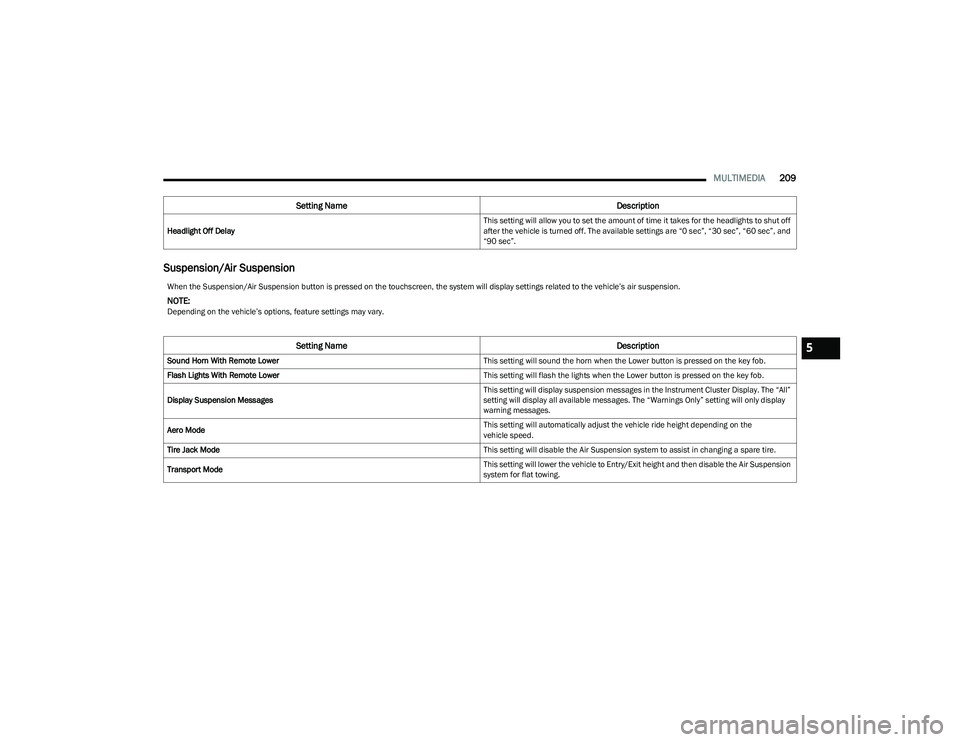
Suspension/Air Suspension
Headlight Off Delay This setting will allow you to set the amount of time it takes for the headlights to shut off
after the vehicle is turned off. The available settings are “0 sec”, “30 sec”, “60 sec”, and
“90 sec”.
Setting Name
Description
When the Suspension/Air Suspension button is pressed on the touchscreen, the system will display settings related to the vehicle’s air suspension.
NOTE:Depending on the vehicle’s options, feature settings may vary.
Setting NameDescription
Sound Horn With Remote Lower This setting will sound the horn when the Lower button is pressed on the key fob.
Flash Lights With Remote Lower This setting will flash the lights when the Lower button is pressed on the key fob.
Display Suspension Messages This setting will display suspension messages in the Instrument Cluster Display. The “All”
setting will display all available messages. The “Warnings Only” setting will only display
warning messages.
Aero Mode This setting will automatically adjust the vehicle ride height depending on the
vehicle speed.
Tire Jack Mode This setting will disable the Air Suspension system to assist in changing a spare tire.
Transport Mode This setting will lower the vehicle to Entry/Exit height and then disable the Air Suspension
system for flat towing.5
23_DT_OM_EN_USC_t.book Page 209
Page 240 of 416
238MULTIMEDIA
Activation — If Equipped
To unlock the full potential of SiriusXM Guardian™ in your
vehicle, you must activate your SiriusXM Guardian™
connected services.
1. Press the Apps icon on the bottom of your in-vehicle
touchscreen.
2. Select the Activate Services icon from your list of apps.
3. For customers in the United States , select “Customer
Care” to speak with a SiriusXM Guardian™ Customer
Care agent who will activate services in your vehicle,
or select “Enter Email” to activate on the web.
For customers in Canada , enter your email address to
activate services in your vehicle.
Included Trial Period For New Vehicles
Your new vehicle may come with an included trial* period
for use of SiriusXM Guardian™ connected services
starting on the date of vehicle purchase. To get started
with your trial, enrollment in SiriusXM Guardian™ is
required.
* Included trial applies to new vehicles only.
Features And Packages
After the trial period, you must purchase a subscription to
continue your services by calling a SiriusXM Guardian™
Customer Care agent.
GETTING STARTED WITH CONNECTED
V
EHICLE SERVICES
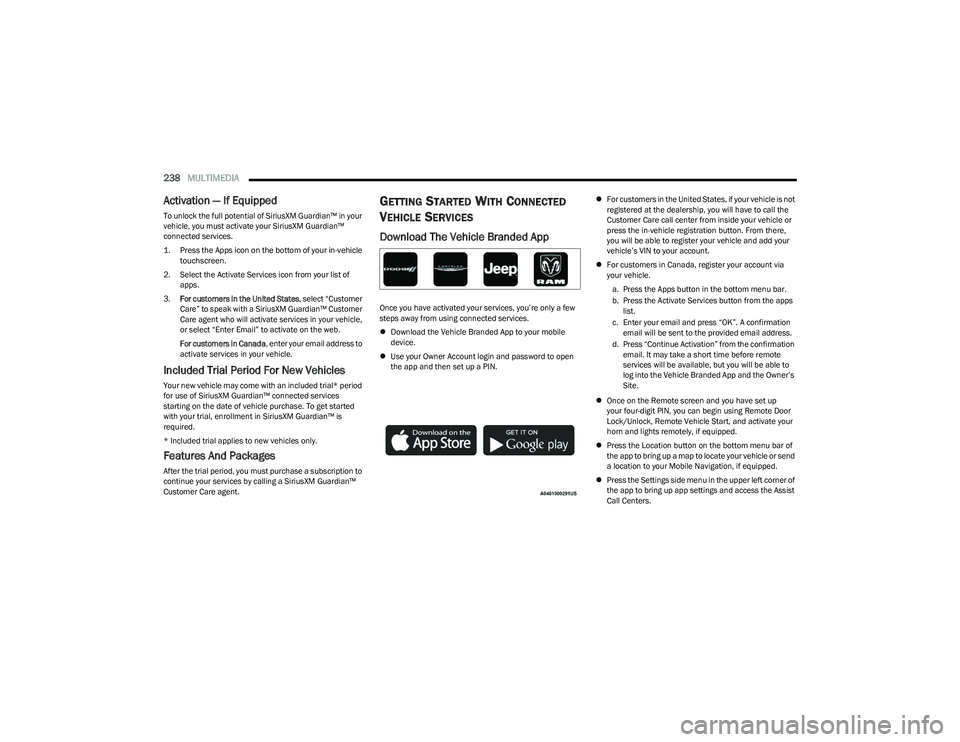
Download The Vehicle Branded App
Once you have activated your services, you’re only a few
steps away from using connected services.
Download the Vehicle Branded App to your mobile
device.
Use your Owner Account login and password to open
the app and then set up a PIN.
For customers in the United States, if your vehicle is not
registered at the dealership, you will have to call the
Customer Care call center from inside your vehicle or
press the in-vehicle registration button. From there,
you will be able to register your vehicle and add your
vehicle’s VIN to your account.
For customers in Canada, register your account via
your vehicle.
a. Press the Apps button in the bottom menu bar.
b. Press the Activate Services button from the apps list.
c. Enter your email and press “OK”. A confirmation email will be sent to the provided email address.
d. Press “Continue Activation” from the confirmation email. It may take a short time before remote
services will be available, but you will be able to
log into the Vehicle Branded App and the Owner’s
Site.
Once on the Remote screen and you have set up
your four-digit PIN, you can begin using Remote Door
Lock/Unlock, Remote Vehicle Start, and activate your
horn and lights remotely, if equipped.
Press the Location button on the bottom menu bar of
the app to bring up a map to locate your vehicle or send
a location to your Mobile Navigation, if equipped.
Press the Settings side menu in the upper left corner of
the app to bring up app settings and access the Assist
Call Centers.
23_DT_OM_EN_USC_t.book Page 238
Page 241 of 416

MULTIMEDIA239
Using Your Owner’s Site
Your Owner’s Site website https://www.mopar.com/
en-us.html (US Residents), or www.mopar.ca (Canadian
Residents) provides you with all the information you need,
all in one place. You can track your service history, find
recommended accessories for your vehicle, watch videos
about your vehicle's features, and easily access your
manuals. It is also where you can manage your SiriusXM
Guardian™ account. This section will familiarize you with
the key elements of the website that will help you get the
most of your SiriusXM Guardian™ connected services.
For customers in the United States, press the Sign
In/Register button and enter your email address and
password.
For customers in Canada, press the My Vehicle button.
Select from “Dashboard”, “Vehicle Health Report”, and
“Recalls”. The website will then prompt you to log in using
your email address and password.
Edit/Edit Profile:
To manage the details of your SiriusXM Guardian™
account, such as your contact information, password
and SiriusXM Guardian™ PIN, click on the Edit/Edit
Profile button to access the details of your account.
Connected Services Status:
This statement will indicate your SiriusXM
Guardian™-equipped vehicle.
Remote Commands:
For vehicles with an active SiriusXM Guardian™
subscription, press one of these icons and enter your
four-digit SiriusXM Guardian™ Security PIN to remotely
start (if equipped), lock/unlock doors or sound the horn
and flash the lights. Editing Your Notifications
Notifications are an important element of your SiriusXM
Guardian™ account. For example, any time you use your
remote services (such as Remote Door Unlock), you can
elect to receive a text message, push notification, and/or
E-mail to notify you of the event. To set up the
notifications, please follow these instructions.
1. Log on to your Owner’s Account at
https://
www.mopar.com/en-us.html (US Residents) and
select “Dashboard”, or www.mopar.ca
(Canadian
Residents), select “My Vehicle” and then
“Dashboard”.
2. Click the Edit/Edit Profile button.
3. Once there, select “SiriusXM Guardian™” where you can edit Notification Preferences.
4. You can enter a mobile phone and/or email address to notify you, and you can customize the types of
messages.
USING SIRIUSXM GUARDIAN™
SOS Call — If Equipped
Access To Emergency Services At The Push Of A Button
SiriusXM Guardian™ In-Vehicle Assistance Features
With SiriusXM Guardian™, your vehicle has onboard
assistance features located on the rearview mirror or
overhead console designed to enhance your driving
experience if you should ever need assistance or support.
Description
SOS Call offers a convenient way to get in contact with a
SiriusXM Guardian™ Customer Care agent in the event of
an emergency. When the connection between the vehicle
and the live agent is made, your vehicle will automatically
transmit location information. In the event of a minor
collision, medical or any other emergency, press the SOS
button to be connected to a call center agent who can
send emergency assistance to your vehicle’s location.
NOTE:Certain SiriusXM Guardian™ connected services are
dependent on an operational Uconnect system, cellular
network availability that is compatible with the device in
your vehicle, and GPS network availability. Not all features
of SiriusXM Guardian™ are available everywhere at all
times, particularly in remote or enclosed areas.WARNING!
Some SiriusXM Guardian™ connected services,
including SOS Call and Roadside Assistance Call, will
NOT work without a network connection compatible
with your device.
Center Light Status Description
Off No call activated
Green Active call in progress
Red System error
5
23_DT_OM_EN_USC_t.book Page 239