tow RAM 1500 2023 Manual PDF
[x] Cancel search | Manufacturer: RAM, Model Year: 2023, Model line: 1500, Model: RAM 1500 2023Pages: 416, PDF Size: 20.59 MB
Page 204 of 416
202MULTIMEDIA
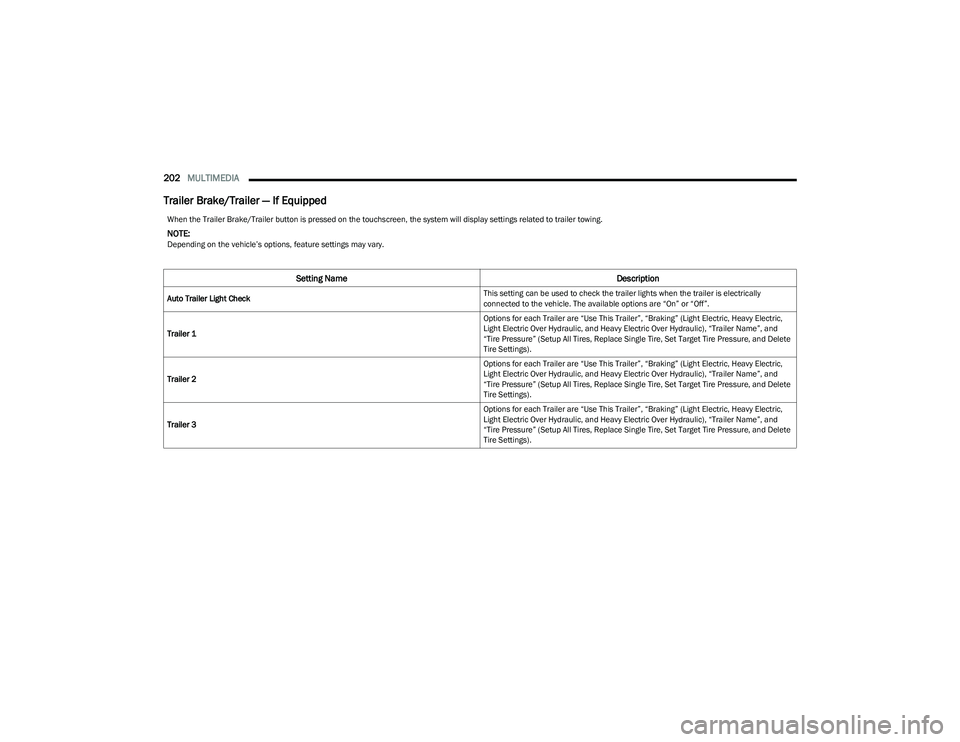
Trailer Brake/Trailer — If Equipped
When the Trailer Brake/Trailer button is pressed on the touchscreen, the system will display settings related to trailer towing.
NOTE:Depending on the vehicle’s options, feature settings may vary.
Setting Name Description
Auto Trailer Light Check This setting can be used to check the trailer lights when the trailer is electrically
connected to the vehicle. The available options are “On” or “Off”.
Trailer 1 Options for each Trailer are “Use This Trailer”, “Braking” (Light Electric, Heavy Electric,
Light Electric Over Hydraulic, and Heavy Electric Over Hydraulic), “Trailer Name”, and
“Tire Pressure” (Setup All Tires, Replace Single Tire, Set Target Tire Pressure, and Delete
Tire Settings).
Trailer 2 Options for each Trailer are “Use This Trailer”, “Braking” (Light Electric, Heavy Electric,
Light Electric Over Hydraulic, and Heavy Electric Over Hydraulic), “Trailer Name”, and
“Tire Pressure” (Setup All Tires, Replace Single Tire, Set Target Tire Pressure, and Delete
Tire Settings).
Trailer 3 Options for each Trailer are “Use This Trailer”, “Braking” (Light Electric, Heavy Electric,
Light Electric Over Hydraulic, and Heavy Electric Over Hydraulic), “Trailer Name”, and
“Tire Pressure” (Setup All Tires, Replace Single Tire, Set Target Tire Pressure, and Delete
Tire Settings).
23_DT_OM_EN_USC_t.book Page 202
Page 206 of 416
204MULTIMEDIA
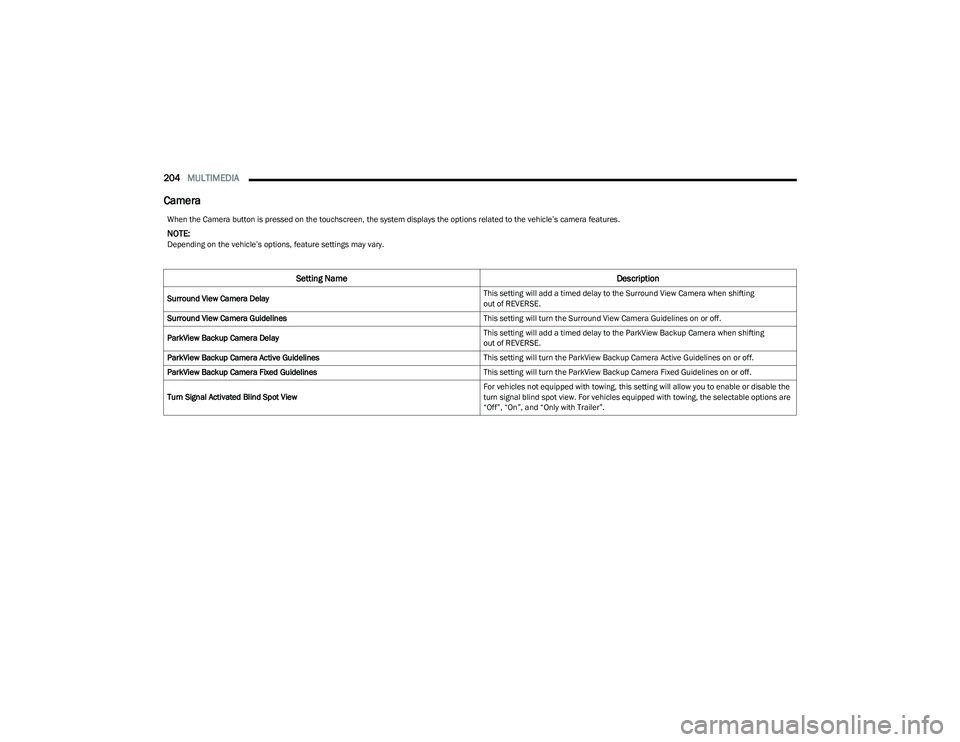
Camera
When the Camera button is pressed on the touchscreen, the system displays the options related to the vehicle’s camera features.
NOTE:Depending on the vehicle’s options, feature settings may vary.
Setting Name Description
Surround View Camera Delay This setting will add a timed delay to the Surround View Camera when shifting
out of REVERSE.
Surround View Camera Guidelines This setting will turn the Surround View Camera Guidelines on or off.
ParkView Backup Camera Delay This setting will add a timed delay to the ParkView Backup Camera when shifting
out of REVERSE.
ParkView Backup Camera Active Guidelines This setting will turn the ParkView Backup Camera Active Guidelines on or off.
ParkView Backup Camera Fixed Guidelines This setting will turn the ParkView Backup Camera Fixed Guidelines on or off.
Turn Signal Activated Blind Spot View For vehicles not equipped with towing, this setting will allow you to enable or disable the
turn signal blind spot view. For vehicles equipped with towing, the selectable options are
“Off”, “On”, and “Only with Trailer”.
23_DT_OM_EN_USC_t.book Page 204
Page 211 of 416
MULTIMEDIA209
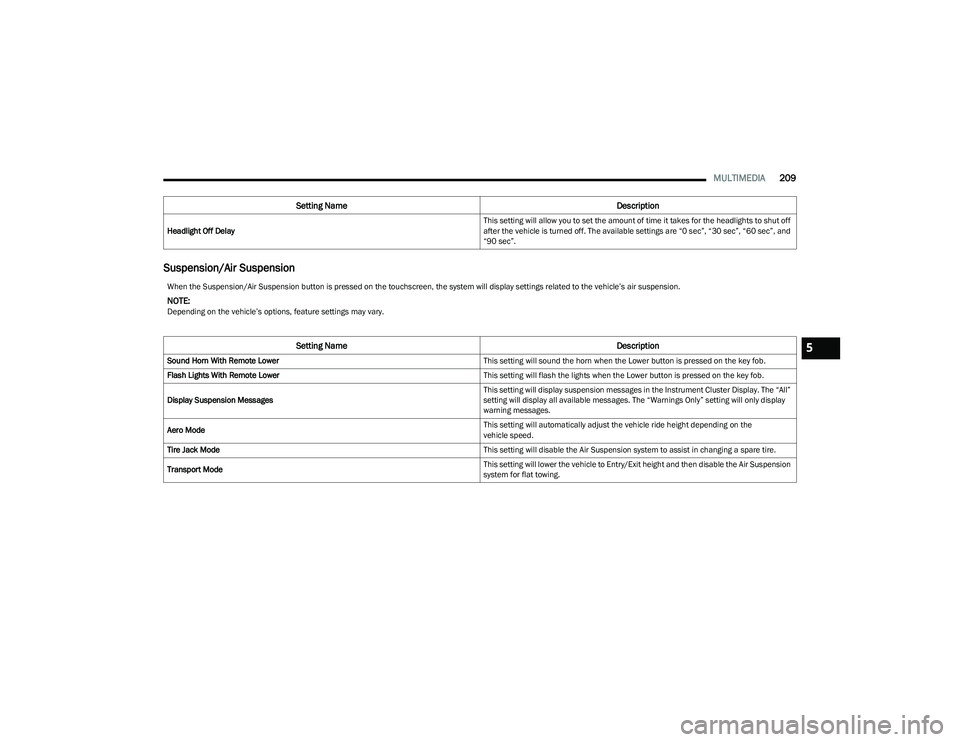
Suspension/Air Suspension
Headlight Off Delay This setting will allow you to set the amount of time it takes for the headlights to shut off
after the vehicle is turned off. The available settings are “0 sec”, “30 sec”, “60 sec”, and
“90 sec”.
Setting Name
Description
When the Suspension/Air Suspension button is pressed on the touchscreen, the system will display settings related to the vehicle’s air suspension.
NOTE:Depending on the vehicle’s options, feature settings may vary.
Setting NameDescription
Sound Horn With Remote Lower This setting will sound the horn when the Lower button is pressed on the key fob.
Flash Lights With Remote Lower This setting will flash the lights when the Lower button is pressed on the key fob.
Display Suspension Messages This setting will display suspension messages in the Instrument Cluster Display. The “All”
setting will display all available messages. The “Warnings Only” setting will only display
warning messages.
Aero Mode This setting will automatically adjust the vehicle ride height depending on the
vehicle speed.
Tire Jack Mode This setting will disable the Air Suspension system to assist in changing a spare tire.
Transport Mode This setting will lower the vehicle to Entry/Exit height and then disable the Air Suspension
system for flat towing.5
23_DT_OM_EN_USC_t.book Page 209
Page 212 of 416
210MULTIMEDIA
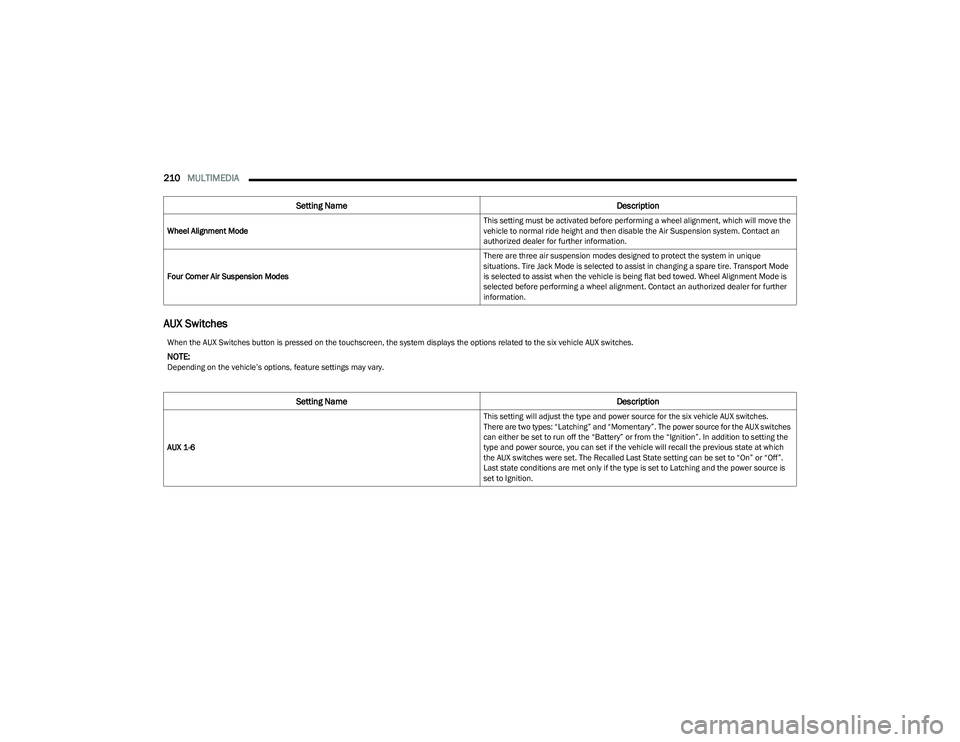
AUX Switches
Wheel Alignment Mode This setting must be activated before performing a wheel alignment, which will move the
vehicle to normal ride height and then disable the Air Suspension system. Contact an
authorized dealer for further information.
Four Corner Air Suspension Modes There are three air suspension modes designed to protect the system in unique
situations. Tire Jack Mode is selected to assist in changing a spare tire. Transport Mode
is selected to assist when the vehicle is being flat bed towed. Wheel Alignment Mode is
selected before performing a wheel alignment. Contact an authorized dealer for further
information.
Setting Name
Description
When the AUX Switches button is pressed on the touchscreen, the system displays the options related to the six vehicle AUX switches.
NOTE:Depending on the vehicle’s options, feature settings may vary.
Setting NameDescription
AUX 1-6 This setting will adjust the type and power source for the six vehicle AUX switches.
There are two types: “Latching” and “Momentary”. The power source for the AUX switches
can either be set to run off the “Battery” or from the “Ignition”. In addition to setting the
type and power source, you can set if the vehicle will recall the previous state at which
the AUX switches were set. The Recalled Last State setting can be set to “On” or “Off”.
Last state conditions are met only if the type is set to Latching and the power source is
set to Ignition.
23_DT_OM_EN_USC_t.book Page 210
Page 244 of 416

242MULTIMEDIA
Remote Commands
On the Remote Commands screen, you have access to
several vehicle features that can be controlled remotely
from your mobile device. These features include locking/
unlocking, remote starting, and activating the horn and
lights of the vehicle.
Remote Commands lets you send a request to your
vehicle in one of three ways:
Anywhere using your mobile device and Vehicle
Branded App
From your computer on the Owner’s Site (not available
on all functions)
Contacting SiriusXM Guardian™ Customer Care (not
available on all functions) Using A Remote Command Through Your Mobile Device
And The Vehicle Branded App
1. Press the desired Remote Command icon on your
mobile device.
2. A pop-up screen will appear asking for your SiriusXM Guardian™ Security PIN (this is the same four-digit
code established when you activated your SiriusXM
Guardian™ connected services). Enter the SiriusXM
Guardian™ Security PIN on the keypad.
3. It may take 30 seconds or more for the command to go through to your vehicle.
4. A message will let you know if the command was received by your vehicle.
Using A Remote Command Through Your Owner’s Site
1. Log on to your Owner’s Site using the username and password you used when activating your SiriusXM
Guardian™ connected services in your vehicle.
NOTE:If you forgot your username or password, links are
provided on the website to help you retrieve them.
2. If you have more than one vehicle registered into your Owner’s Site, select the vehicle you want to send the
command to by clicking on its image along the top.
3. On your dashboard, you will see remote commands. Press the desired icon to activate that feature.
4. You will then be asked to enter your SiriusXM Guardian™ Security PIN (this is the same four-digit
code established when you activated your SiriusXM
Guardian™ connected services). Please enter your
SiriusXM Guardian™ Security PIN. 5. A message will appear on the screen to let you know
if the command was received by your vehicle.
Contacting SiriusXM Guardian™ Customer Care (for
example, in case of an accidental lock-out):
1. Contact SiriusXM Guardian™ Customer Care if you are unable to lock your vehicle through the Vehicle
Branded App or your key fob.
2. For security purposes, the SiriusXM Guardian™ Customer Care agent will verify your identity by asking
for your four-digit SiriusXM Guardian™ Security PIN.
3. After providing your SiriusXM Guardian™ Security PIN, you can ask them to perform a remote
command.
NOTE:Anyone with access to your PIN may request Remote Door
Lock/Unlock. It is your responsibility to protect your PIN
appropriately.
Remote Door Lock/Unlock
Description
The Remote Door Lock/Unlock feature provides you the
ability to lock or unlock the door on your vehicle without
the keys and from virtually any distance.
Working Vehicle Conditions
The vehicle must in PARK or at a standstill.
The vehicle must be in an open area with cell tower
reception.
Your mobile device must have a cellular or Wi-Fi
connection.
Lock
Press this button to lock
your vehicle.
Vehicle Start Press this button to start
your vehicle.
Horn & Lights Press this button to sound
the horn and activate your lights.
Unlock Press this button to unlock
your vehicle.
Cancel Vehicle Start Press this button to cancel
remote start.
23_DT_OM_EN_USC_t.book Page 242
Page 245 of 416

MULTIMEDIA243
Requirements
Vehicle must be properly equipped with SiriusXM
Guardian™.
Vehicle must have an operable LTE (voice/data) or 4G
(data) network connection. If using the Vehicle
Branded App to command your vehicle, your device
must be compatible and be connected to an operable
LTE (voice/data) or 4G (data) network connection.
Vehicle must be registered with SiriusXM Guardian™
and have an active subscription that includes the appli -
cable feature.
An ignition cycle is required for some remote
commands, such as Remote Vehicle Start and Remote
Door Lock/Unlock if following a Remote Horn & Lights
activation.
Your Remote Door Lock/Unlock request will not be
processed if the vehicle is in motion, the ignition key is
on or during an emergency call.
NOTE:All other remote services should be performed via your
Owner’s Site or through the Vehicle Branded App on your
compatible device.
Remote Vehicle Start
Description
The Remote Vehicle Start feature provides you with the
ability to start the engine on your vehicle without the keys
and from virtually any distance. Once started, the preset
climate controls in your vehicle can warm up or cool down
the interior. You can also send a command to turn off an engine that
has been started using Remote Vehicle Start. After
15 minutes, if you have not entered your vehicle with the
key, the engine will shut off automatically.
This remote function requires your vehicle to be equipped
with a factory-installed Remote Start system.
You can set up push notifications every time a command
is sent to activate or cancel Remote Start.
Working Vehicle Conditions
The vehicle must be off or in ACC mode.
The vehicle has been started with the key fob within the
last 14 days.
The vehicle must be in PARK or at a standstill.
The vehicle’s security system has been armed and not
triggered since the last vehicle start.
The doors, hood, and trunk/liftgate are closed.
The vehicle’s check engine light must be off.
The vehicle must have at least a quarter tank of fuel,
along with oil and battery power.
The vehicle’s hazard lights must be off.
If equipped, the vehicle must have an automatic trans -
mission.
The vehicle must be in an open area with cell tower
reception.
Your mobile device must have a cellular or Wi-Fi
connection.
If the Panic button has been pressed, the vehicle must
be started at least once after alarming the system.
NOTE:The SiriusXM Guardian™ Customer Care agents are not
authorized for Remote Vehicle Start services. Contact the
Uconnect Care Team for assistance.
Remote Horn & Lights
Description
It is easy to locate a vehicle in a dark, crowded or noisy
parking area by activating the horn and lights. It may also
help if you need to draw attention to your vehicle for any
reason.
If you want, you can set up push notifications every time a
command is sent to turn on the horn and lights.
Working Vehicle Conditions
The vehicle must in PARK or at a standstill.
The vehicle must be in an open area with cell tower
reception.
Your mobile device must have a cellular or Wi-Fi
connection.
NOTE:The Remote Horn & Lights feature is designed to be loud
and get noticed. Please keep in mind the surroundings
when using this feature. You are responsible for
compliance with local laws, rules and ordinances in the
location of your vehicle when using Remote Horn & Lights.
5
23_DT_OM_EN_USC_t.book Page 243
Page 246 of 416
244MULTIMEDIA
Assist — If Equipped
Description
Vehicles equipped with the SiriusXM Guardian™
connected services feature may contain an ASSIST button
in the vehicle. Once your SiriusXM Guardian™ connected
services have been activated, the ASSIST button can
connect you directly to the Customer Care call center
(if equipped). You will be directed to one of the following
four services:
Roadside Assistance — If you get a flat tire or need a
tow, you’ll be connected to someone who can help
anytime.
Connected Services — Contact the SiriusXM
Guardian™ Customer Care call center to activate your
services, renew after your trial has expired, for
in-vehicle support for your SiriusXM Guardian™
connected services, or help answering any general
questions surrounding your connected services.
Uconnect Care — In-vehicle support for all
non-connected Uconnect system features, such as
radio and Bluetooth® connections.
Vehicle Care — Total support for your vehicle.
SiriusXM Guardian™ In-Vehicle Assistance Features —
If Equipped
With SiriusXM Guardian™, your vehicle has onboard
assistance features located on the rearview mirror or
overhead console designed to enhance your driving
experience if you should ever need assistance or support. How It Works
Simply push the ASSIST button in the vehicle and you will
be presented with your ASSIST options on the
touchscreen. Make your selection by pressing the
touchscreen.
Requirements
This feature is available only on vehicles sold in the US
and Canada.
Vehicle must be properly equipped with the SiriusXM
Guardian™ connected services.
Vehicle must have an operable LTE (voice/data) or 4G
(data) network connection.
Vehicle must be registered with SiriusXM Guardian™
and have an active subscription that includes the appli -
cable feature.
Vehicle must be powered in the ON/RUN or ACC
(Accessory) position with a properly functioning elec -
trical system.
Disclaimers
If Roadside Assistance Call is provided to your vehicle, you
agree to be responsible for any additional roadside
assistance service costs that you may incur. In order to
provide SiriusXM Guardian™ connected services to you,
we may record and monitor your conversations with
Roadside Assistance Call, Vehicle Care, Uconnect Care, or
SiriusXM Guardian™ Customer Care, whether such
conversations are initiated through the SiriusXM
Guardian™ connected services in your vehicle, or via a
landline or mobile device, and may share information
obtained through such recording and monitoring in
accordance with regulatory requirements. You acknowledge, agree and consent to any recording,
monitoring or sharing of information obtained through any
such call recordings.
Send & Go — If Equipped
Description
The Send & Go feature allows you to search for a
destination on your mobile device, and then send the
route to your vehicle’s Navigation system.
How It Works
1. There are multiple ways to find a destination. After
selecting the Location tab at the bottom of the App,
browse through one of the categories provided, or
type the name or keyword in the search box. You can
also select categories such as “Favorites” or
“Contact List”.
2. Select your destination from the list that appears. Location information will then be displayed on the
map.
From this screen, you will be able to:
View the location on a map.
See the distance from your current location.
Send the destination to the vehicle (Send & Go).
3. Send the destination to the Uconnect Navigation in your vehicle. You can also call the destination by
pressing the Call button.
4. Confirm your destination in the vehicle through a notification or in the Navigation system.
23_DT_OM_EN_USC_t.book Page 244
Page 251 of 416

MULTIMEDIA249
CONNECTED SERVICES REMOTE DOOR
L
OCK/UNLOCK FAQS
1.
How long does it take to unlock or lock the door?
Depending on various conditions, it can take up to
three minutes or more for the request to get to your
vehicle.
2. Which is faster, my key fob or the Vehicle Branded
App? Your key fob will lock/unlock the door more
quickly, however its range is limited and your Vehicle
Branded App comes in handy for these and other
situations.
3. Will my vehicle be safe if I lose my device? People
sometimes lose their mobile devices, which is why
security measures have been engineered into the
Vehicle Branded App. Asking for your username,
password and SiriusXM Guardian™ Security PIN are
required for the activation of Remote services
through your mobile device. It is your responsibility to
protect your passwords and PINs.
4. Why can’t all mobile devices use the Vehicle Branded
App? The Vehicle Branded App is compatible with
most devices with the Apple® and Android™
operating systems. The capabilities of these devices
allow us to remotely command your vehicle. Other
operating systems may be supported in the future. 5.
Why is the Vehicle Branded App running slow? The
Vehicle Branded App relies on a mobile network
connection from your device to send commands to
your vehicle which must have an operable LTE (voice/
data), 4G (data), or 5G (data) network connection. If
either your device or your vehicle is in an area with
below average coverage, it may take longer to log in
and send commands.
CONNECTED SERVICES ROADSIDE
A
SSISTANCE FAQS
1.
What is the phone number for roadside assistance
call? The phone number is:
US: 1-800-521-2779
Canada: 1-800-363-4869
2. If I am subscribed to SiriusXM Guardian™, does it
cover towing or other expenses incurred by using
roadside assistance? No, however your new vehicle
may include Roadside Assistance Call services.
CONNECTED SERVICES SEND & GO
FAQ
S — IF EQUIPPED
1.
How long does it take to send the route and
destination to my vehicle?
Depending on various
conditions, it can take up to three minutes for the
request to get through to your vehicle.
2. Can I cancel a route I sent to my vehicle? Yes, once
you enter your vehicle, and start the engine, the
pop-up message stating that you have a new route
will appear. There is an exit button on the pop-up that
will cancel the route if selected. 3.
Can I select a different route than the most recent
one I sent to my vehicle? Yes, once you enter the
vehicle, and start the engine, the pop-up message
offers a “Locations” option. Once “Locations” is
selected, you can choose from a list of recently sent
destinations.
CONNECTED SERVICES VEHICLE FINDER
FAQ
S
1.
Can someone else locate my vehicle?
Your vehicle
may be located by anyone who has your PIN and
access to your account. It is your responsibility to
guard your PIN accordingly. See the Uconnect and
SiriusXM Guardian™ terms of service for more
information.
2. How long does it take to sound my horn and flash the
lights? Depending on various conditions, it can take
three minutes or more for the request to get through
to your vehicle.
3. How do I turn off the horn and lights after I turn them
on? If you are close enough to the vehicle, you can
use the key fob to turn off the horn and lights by
pushing the red Panic button.
5
23_DT_OM_EN_USC_t.book Page 249
Page 268 of 416
266SAFETY
The ESC Activation/Malfunction Indicator Light starts to
flash as soon as the tires lose traction and the ESC system
becomes active. The ESC Activation/Malfunction Indicator
Light also flashes when TCS is active. If the ESC
Activation/Malfunction Indicator Light begins to flash
during acceleration, ease up on the accelerator and apply
as little throttle as possible. Be sure to adapt your speed
and driving to the prevailing road conditions.
The ESC OFF Indicator Light indicates that the
Electronic Stability Control (ESC) is in a reduced
mode.
NOTE:
The ESC Activation/Malfunction Indicator Light and the
ESC OFF Indicator Light come on momentarily each
time the ignition is placed in the ON/RUN mode.
Each time the ignition is placed in the ON/RUN mode,
the ESC system will be on even if it was turned off previ -
ously.
The ESC system will make buzzing or clicking sounds
when it is active. This is normal; the sounds will stop
when ESC becomes inactive following the maneuver
that caused the ESC activation.
Hill Start Assist (HSA)
HSA is designed to mitigate roll back from a complete stop
while on an incline. If the driver releases the brake while
stopped on an incline, HSA will continue to hold the brake
pressure for a short period. If the driver does not apply the
throttle before this time expires, the system will release
brake pressure and the vehicle will roll down the hill as
normal. The following conditions must be met in order for HSA to
activate:
The feature must be enabled.
The vehicle must be stopped.
The parking brake must be off.
The driver door must be closed.
The vehicle must be on a sufficient grade.
The gear selection must match vehicle uphill direction
(i.e., vehicle facing uphill is in forward gear; vehicle
backing uphill is in REVERSE gear).
HSA will work in REVERSE gear and all forward gears.
The system will not activate if the transmission is in
PARK or NEUTRAL.
Disabling And Enabling HSA
This feature can be turned on or turned off. To change the
current setting, proceed as follows:
If disabling HSA using Uconnect Settings
Úpage 191.
Towing With HSA
HSA will also provide assistance to mitigate roll back while
towing a trailer.
WARNING!
There may be situations where the Hill Start Assist
(HSA) will not activate and slight rolling may occur, such
as on minor hills or with a loaded vehicle, or while
pulling a trailer. HSA is not a substitute for active driving
involvement. It is always the driver’s responsibility to be
attentive to distance to other vehicles, people, and
objects, and most importantly brake operation to
ensure safe operation of the vehicle under all road
conditions. Your complete attention is always required
while driving to maintain safe control of your vehicle.
Failure to follow these warnings can result in a collision
or serious personal injury.
WARNING!
If you use a trailer brake controller with your trailer,
the trailer brakes may be activated and deactivated
with the brake switch. If so, there may not be enough
brake pressure to hold both the vehicle and the
trailer on a hill when the brake pedal is released. In
order to avoid rolling down an incline while resuming
acceleration, manually activate the trailer brake or
apply more vehicle brake pressure prior to releasing
the brake pedal.
HSA is not a parking brake. Always apply the parking
brake fully when exiting your vehicle. Also, be certain
to place the transmission in PARK.
Failure to follow these warnings can result in a colli -
sion or serious personal injury.
23_DT_OM_EN_USC_t.book Page 266
Page 270 of 416

268SAFETY
Driver Override
The driver may override SSC activation with throttle or
brake application at any time.
Deactivating SSC
SSC will be deactivated but remain available if any of the
following conditions occur:
The driver overrides SSC set speed with throttle or
brake application.
The vehicle speed exceeds 20 mph (32 km/h) but
remains below 40 mph (64 km/h).
The vehicle is shifted into PARK.
Disabling SSC
SSC will deactivate and be disabled if any of the following
conditions occur:
The driver pushes the SSC switch.
The driveline is shifted out of the 4WD Low.
The parking brake is applied.
The driver door opens.
The vehicle is driven greater than 20 mph (32 km/h)
for greater than 70 seconds.
The vehicle is driven greater than 40 mph (64 km/h).
SSC will exist immediately. Feedback To The Driver
The instrument cluster has an SSC icon and the SSC
switch has a lamp which offers feedback to the driver
about the state SSC is in.
The cluster icon and switch lamp will illuminate and
remain on solid when SSC is enabled or activated.
These are the normal operating conditions for SSC.
The cluster icon and switch lamp will flash for several
seconds then extinguish when the driver pushes the
SSC switch but enabled conditions are not met.
The cluster icon and switch lamp will flash for several
seconds then extinguish when SSC disables due to
excess speed.
The cluster icon and switch lamp will flash then extin -
guish when SSC deactivates due to overheated brakes.
Traction Control System (TCS)
The TCS monitors the amount of wheel spin of each of the
driven wheels. If wheel spin is detected, the TCS may apply
brake pressure to the spinning wheel(s) and/or reduce
engine power to provide enhanced acceleration and
stability. A feature of the TCS, Brake Limited Differential (BLD)
functions similarly to a limited slip differential and controls
the wheel spin across a driven axle. If one wheel on a
driven axle is spinning faster than the other, the system
will apply the brake of the spinning wheel. This will allow
more engine torque to be applied to the wheel that is not
spinning. BLD may remain enabled even if TCS and
Electronic Stability Control (ESC) are in reduced modes.
Trailer Sway Control (TSC)
TSC uses sensors in the vehicle to recognize an
excessively swaying trailer and will take the appropriate
actions to attempt to stop the sway.
NOTE:TSC cannot stop all trailers from swaying. Always use
caution when towing a trailer and follow the trailer tongue
weight recommendations
Úpage 173.
When TSC is functioning, the ESC Activation/Malfunction
Indicator Light will flash, the engine power may be reduced
and you may feel the brakes being applied to individual
wheels to attempt to stop the trailer from swaying. TSC is
disabled when the ESC system is in the “Partial Off” or
“Full Off” modes.
WARNING!
SSC is only intended to assist the driver in controlling
vehicle speed when driving in off road conditions. The
driver must remain attentive to the driving conditions
and is responsible for maintaining a safe vehicle speed.
WARNING!
If TSC activates while driving, slow the vehicle down,
stop at the nearest safe location, and adjust the trailer
load to eliminate trailer sway.
23_DT_OM_EN_USC_t.book Page 268