trailer Ram 2500 2019 Owner's Guide
[x] Cancel search | Manufacturer: RAM, Model Year: 2019, Model line: 2500, Model: Ram 2500 2019Pages: 696, PDF Size: 13.89 MB
Page 361 of 696

STARTING AND OPERATING 359
Adaptive Cruise Control (ACC) Operation
The speed control buttons (located on the right side of the
steering wheel) operate the ACC system.Adaptive Cruise Control Buttons
NOTE:
Any chassis/suspension or tire size modifications to the
vehicle will effect the performance of the Adaptive Cruise
Control and Forward Collision Warning System.
• Will bring the vehicle to a complete stop while
following a target vehicle and hold the vehicle for
approximately two seconds in the stop position. At
this point, there will be an “ACC may cancel soon”
chime and warning to the driver. When ACC is
cancelled, the system will release the brakes and the
driver must take over braking. The system can be
resumed when the target vehicle drives off by
releasing the brake and pushing the resume button
on the steering wheel.
You should switch off the ACC system:
• When driving in fog, heavy rain, heavy snow, sleet, heavy traffic, and complex driving situations (i.e., in
highway construction zones).
• When entering a turn lane or highway off ramp; when driving on roads that are winding, icy, snow-covered,
slippery, or have steep uphill or downhill slopes.
• When towing a trailer up or down steep slopes.
• When circumstances do not allow safe driving at a constant speed.
WARNING! (Continued)
1 — Adaptive Cruise Control On/Off Button
2 — Distance Button
5
Page 364 of 696

362 STARTING AND OPERATING
To Cancel
The following conditions cancel the system:
• The brake pedal is applied.
• The CANC (cancel) button is pushed.
• An Anti-Lock Brake System (ABS) event occurs.
• The gear selector is removed from the DRIVE position.
• The Electronic Stability Control/Traction Control System(ESC/TCS) activates.
• The vehicle parking brake is applied.
• Driver seatbelt is unbuckled at low speeds.
• Driver door is opened at low speeds.
• A Trailer Sway Control (TSC) event occurs.
• The driver switches ESC to full-off mode.
• The braking temperature exceeds normal range (overheated).
To Turn Off
The system will turn off and clear the set speed in memory if:
• The Adaptive Cruise Control (ACC) on/off button is pushed. • The Normal (Fixed Speed) Cruise Control on/off button is
pushed.
• The ignition is turned OFF.
• You switch to Four-Wheel Drive Low.
To Resume
If there is a set speed in memory push the RES (+) button and
then remove your foot from the accelerator pedal. The instru-
ment cluster display will display the last set speed.
NOTE:
• If your vehicle stays at standstill for longer than two seconds, the driver will have to push the RES (+) button to
reengage the ACC to the existing set speed.
• ACC cannot be resumed if there is a stationary vehicle in-front of your vehicle in close proximity.
WARNING!
The Resume function should only be used if traffic and road
conditions permit. Resuming a set speed that is too high or
too low for prevailing traffic and road conditions could
cause the vehicle to accelerate or decelerate too sharply for
safe operation. Failure to follow these warnings can result in
a collision and death or serious personal injury.
Page 369 of 696

STARTING AND OPERATING 367
Brake Alert
NOTE:
The “Brake!” Screen in the instrument cluster display is a
warning for the driver to take action and does not necessarily
mean that the Forward Collision Warning system is
applying the brakes autonomously.
Trailer Detect — If Equipped
When a trailer is detected, the ACC system automatically
defaults to the longest setting (four bars). The setting can be
overridden by pushing the Distance Button on the steering
wheel.
Overtake Aid
When driving with ACC engaged and following a vehicle,
the system will provide an additional acceleration up to the
ACC set speed to assist in passing the vehicle. This addi -
tional acceleration is triggered when the driver utilizes the
left turn signal and will only be active when passing on the
left hand side.
ACC Operation At Stop
In the event that the ACC system brings your vehicle to a
standstill while following a target vehicle, if the target
vehicle starts moving within two seconds of your vehicle
coming to a standstill, your vehicle will resume motion
without the need for any driver action.
If the target vehicle does not start moving within two
seconds of your vehicle coming to a standstill, then ACC will
cancel and the driver must take over braking. When the
target vehicle drives off, ACC can be resumed by releasing
the brake and pushing the RES (+) button.5
Page 374 of 696
372 STARTING AND OPERATING
• Do not put stickers or easy passes over the camera/radarfield of view.
• Any modifications to the vehicle that may obstruct the field of view of the radar/camera are not recommended.
Cleaning Instructions
Dust and dirt can accumulate on the cover and block the
camera lens. Clean the camera lens with a soft microfiber
cloth, being careful not to damage or scratch the module.
Towing A Trailer
ACC while towing a trailer is recommended only with an
Integrated Trailer Brake Controller. Aftermarket trailer
brake controllers will not activate the trailer brakes when
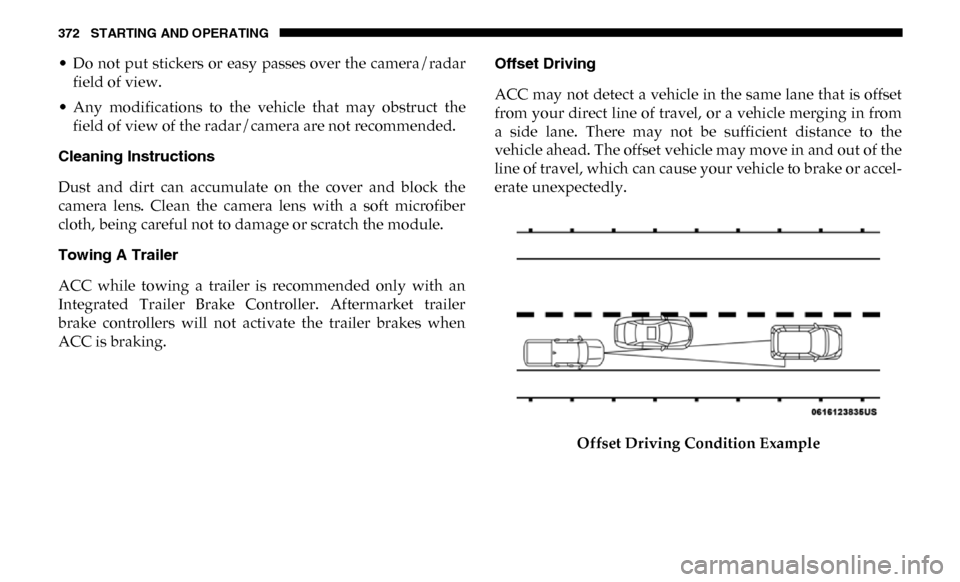
ACC is braking. Offset Driving
ACC may not detect a vehicle in the same lane that is offset
from your direct line of travel, or a vehicle merging in from
a side lane. There may not be sufficient distance to the
vehicle ahead. The offset vehicle may move in and out of the
line of travel, which can cause your vehicle to brake or accel
-
erate unexpectedly.
Offset Driving Condition Example
Page 387 of 696

STARTING AND OPERATING 385
Enabling And Disabling ParkSense
ParkSense can be enabled and disabled with the ParkSense
switch.When the gear selector is moved to REVERSE and
the system is disabled, the instrument cluster
display will show the vehicle graphic with “Off”
over the arcs for as long as the vehicle is in REVERSE.
NOTE:
The ParkSense system will automatically disable when the
system detects that a trailer with trailer brakes has been
connected to the Integrated Trailer Brake Module. The
instrument cluster display will show an “Off” message over
the arcs if the ParkSense system is off, or a “Trailer” message
if the system is on, for as long as the vehicle is in REVERSE.
The ParkSense switch LED will be on when ParkSense is
disabled or defective. The ParkSense switch LED will be off
when the system is enabled.
If the ParkSense switch is pushed, and the system is disabled
or requires service, the ParkSense switch LED will blink
momentarily, and then the LED will be on.
Service The ParkSense Rear Park Assist System
During vehicle start up, when the Rear ParkSense System
has detected a faulted condition, the instrument cluster
display will show the "Rear ParkSense Unavailable Service
Required" or the "Rear ParkSense Unavailable Wipe Sensors"
message.
When the gear selector is moved into REVERSE, a vehicle
graphic will show in the instrument cluster display, along
with the display overlay “Rear ParkSense Unavailable Wipe
Sensors.” If the system needs service, the display overlay will
read “Rear ParkSense Unavailable Service Required” Under
this condition, ParkSense will not operate.
If "Rear ParkSense Unavailable Wipe Sensors" appears in the
instrument cluster display make sure the outer surface and
the underside of the rear fascia/bumper is clean and clear of
snow, ice, mud, dirt or other obstruction, and then cycle the
ignition. If the message continues to appear, see an autho -
rized dealer.
If "Rear ParkSense Unavailable Service Required" appears in
the instrument cluster display, see an authorized dealer.
5
Page 388 of 696

386 STARTING AND OPERATING
(Continued)
Cleaning The ParkSense System
Clean the ParkSense sensors with water, car wash soap and
a soft cloth. Do not use rough or hard cloths. Do not scratch
or poke the sensors. Otherwise, you could damage the
sensors.
ParkSense System Usage Precautions
NOTE:
• Ensure that the rear bumper is free of snow, ice, mud, dirtand debris to keep the ParkSense system operating prop -
erly.
• Jackhammers, large trucks, and other vibrations could affect the performance of ParkSense.
• When you move the gear selector into REVERSE with ParkSense turned off, the instrument cluster display will
show "Off" on the vehicle graphic arcs for as long as the
vehicle is in REVERSE.
• ParkSense, when on, will reduce the volume of the radio when it is sounding a tone.
• Clean the ParkSense sensors regularly, taking care not to scratch or damage them. The sensors must not be covered
with ice, snow, slush, mud, dirt or debris. Failure to do so
can result in the system not working properly. The Park -Sense system might not detect an obstacle behind the
fascia/bumper, or it could provide a false indication that
an obstacle is behind the fascia/bumper.
• Ensure the ParkSense system is OFF if objects such as bicycle carriers, trailer hitches, etc., are placed within
18 inches (45 cm) of the rear fascia/bumper while driving
the vehicle. Failure to do so can result in the system misin -
terpreting a close obstacle as a sensor problem, causing the
"Rear ParkSense Unavailable Service Required" message
to appear in the instrument cluster display.
• On vehicles equipped with a tailgate, ParkSense should be disabled when the tailgate is in the lowered or open posi -
tion and the vehicle is in REVERSE. A lowered tailgate
could provide a false indication that an obstacle is behind
the vehicle.
WARNING!
• Drivers must be careful when backing up even when using ParkSense. Always check carefully behind your
vehicle, look behind you, and be sure to check for
pedestrians, animals, other vehicles, obstructions, and
blind spots before backing up. You are responsible for
safety and must continue to pay attention to your
surroundings. Failure to do so can result in serious
injury or death.
Page 397 of 696

STARTING AND OPERATING 395
Cleaning The ParkSense System
Clean the ParkSense sensors with water, car wash soap and
a soft cloth. Do not use rough or hard cloths. Do not scratch
or poke the sensors. Otherwise, you could damage the
sensors.
ParkSense System Usage Precautions
NOTE:
• Ensure that the front and rear bumpers are free of snow,ice, mud, dirt and debris to keep the ParkSense system
operating properly.
• Jackhammers, large trucks, and other vibrations could affect the performance of ParkSense.
• When you move the gear selector to the REVERSE position and Front or Rear ParkSense is turned off, the instrument
cluster display will show "Off" on the vehicle graphic arcs.
This vehicle graphic will be displayed for as long as the
vehicle is in REVERSE.
• ParkSense, when on, will reduce the volume of the radio when it is sounding a tone. • Clean the ParkSense sensors regularly, taking care not to
scratch or damage them. The sensors must not be covered
with ice, snow, slush, mud, dirt or debris. Failure to do so
can result in the system not working properly. The Park -
Sense system might not detect an obstacle behind or in
front of the fascia/bumper, or it could provide a false indi -
cation that an obstacle is behind or in front of the fascia/
bumper.
• Use the ParkSense switch to turn the ParkSense system off if obstacles such as bicycle carriers, trailer hitches, etc. are
placed within 18 inches (45 cm) from the rear fascia/
bumper. Failure to do so can result in the system misinter -
preting a close obstacle as a sensor problem, causing the
“Front/Rear ParkSense Unavailable Service Required”
message to be appear in the instrument cluster display.
• On vehicles equipped with a tailgate, ParkSense should be disabled when the tailgate is in the lowered or open posi -
tion. A lowered tailgate could provide a false indication
that an obstacle is behind the vehicle.
5
Page 402 of 696

400 STARTING AND OPERATING
AUX Camera — If Equipped
Your vehicle may be equipped with one or two AUX
Cameras, which display rearview and side view images from
the trailer on the touchscreen.
Activating AUX Camera
Backup Camera Only: The AUX Camera is activated by first
pressing the Backup Camera button on the touchscreen,
followed by the AUX button located in the upper left corner
of the rearview display. The AUX camera can also be acti -
vated when the vehicle is in REVERSE by pressing the AUX
button.
If equipped with two AUX Cameras, you can switch between
each camera by then pressing the AUX 1 or AUX 2 buttons
on the Trailer Camera display.
Backup And Cargo Camera: The AUX Camera is activated
by first pressing either the Backup Camera or Cargo Camera
button on the touchscreen, followed by the AUX button
located in the upper left corner of the rearview display.
If equipped with two AUX Cameras, you can switch between
each camera by pressing the AUX 1 or AUX 2 buttons on the
Trailer Camera display. Surround View Camera:
The AUX Camera is activated by
first pressing the Cargo Camera button on the touchscreen,
followed by the AUX button located in the upper left corner
of the rearview display. The AUX Camera can also be acti -
vated by pressing the Backup Camera button or Surround
View Camera button on the touchscreen, followed by the
AUX button.
If equipped with two AUX Cameras, you can switch between
each camera by pressing the AUX 1 or AUX 2 buttons on the
Trailer Camera display.
Deactivation
The AUX Camera is deactivated by pressing the “X” in the
upper right corner of the touchscreen. This will return the
display back to the previously displayed screen.
NOTE:
• If the AUX button is pressed and no AUX Camera is connected, the touchscreen will display a blue screen along
with the message “Camera System Unavailable.” The
screen can be exited out by pressing the “X” in the upper
right hand corner. This will return the display back to the
previously displayed screen.
• Zoom View is not available with the AUX Camera feature.
Page 403 of 696

STARTING AND OPERATING 401
• The display will always default to the Trailer Cameradisplay (AUX 1).
• The “X” button is not available when the vehicle is in REVERSE unless it is acting as a back button within
camera views. The camera image must always be
displayed when the vehicle is in REVERSE.
SURROUND VIEW CAMERA SYSTEM — IF EQUIPPED
Your vehicle may be equipped with the Surround View Camera
System that allows you to see an on-screen image of the surround -
ings and top view of your vehicle whenever the gear selector is put
into REVERSE or a different view is selected through the "on screen
soft buttons". The top view of the vehicle will show which doors are
open. The image will be displayed on the touchscreen display along
with a caution note “Check Entire Surroundings” across the top of
the screen. After five seconds, this note will disappear. The
Surround View Camera System is comprised of four sequential
cameras located in the front grille, rear tailgate and side mirrors.
NOTE:
• The Surround View Camera System has programmable settings that may be selected through the Uconnect
System. Refer to “Uconnect Settings” in “Multimedia” for
further information. When the vehicle is shifted into REVERSE, the rear camera
view and top view is the default view of the system (Auto
-
matic Activation).
When the vehicle is shifted out of REVERSE (with camera
delay turned on), the camera image will continue to be
displayed for up to 10 seconds after shifting out of REVERSE
unless the vehicle speed exceeds 8 mph (13 km/h), the
vehicle is shifted into PARK or the ignition is switched to the
OFF position. There is a touch screen button (X) to disable the
display of the camera image.
When the vehicle is shifted out of REVERSE (with camera
delay turned off), the surround view camera mode is exited
and the last known screen appears again.
While the “rear view” is displayed, and if enabled, active
guide lines are overlaid on the image to illustrate the width
of the vehicle, including the side view mirrors and its
projected backup path based on the steering wheel position.
Different colored zones indicate the distance to the rear of
the vehicle.
5
Page 404 of 696

402 STARTING AND OPERATING
The following table shows the approximate distances for each zone:
Modes Of Operation
Standard Backup Camera view can be manually activated by
selecting “Backup Camera” through the Controls menu
within the Uconnect screen.
Refer to “Parkview Rear Back Up Camera” in this section for
more information on activation conditions.
Top View
The Top view will show in the Uconnect System with Rear
View and Front View in a split view display. There are inte-
grated ParkSense arcs in the image at the front and rear of the
vehicle. The arcs will change color from yellow to red corre -
sponding the distance zones to the oncoming object. The fifth button of the ParkSense Camera View screen will be
changed based on the cameras present in the vehicle. If not
equipped with a Cargo Camera or Trailer Reverse Guidance,
the Backup Camera soft button will be displayed. If
equipped with a Cargo Camera but no Trailer Reverse Guid
-
ance, the Cargo Camera soft button will be displayed, and if
equipped with both a Cargo Camera and Trailer Reverse
Zone
Distance To The Rear Of The Vehicle
Red 0 - 1 ft (0 - 30 cm)
Yellow 1 ft - 6.5 ft (30 cm - 2 m)
Green 6.5 ft or greater (2 m or greater)