instrument panel Ram 2500 2020 Owners Manual
[x] Cancel search | Manufacturer: RAM, Model Year: 2020, Model line: 2500, Model: Ram 2500 2020Pages: 553, PDF Size: 21.99 MB
Page 446 of 553
444
TECHNICAL SPECIFICATIONS
IDENTIFICATION DATA
Vehicle Identification Number
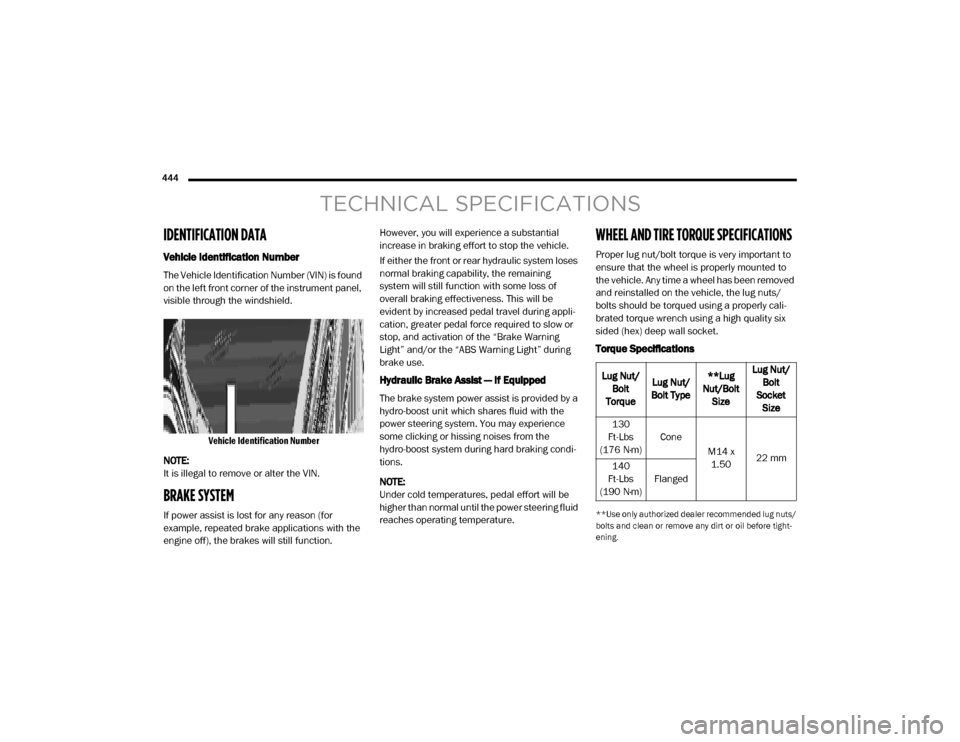
The Vehicle Identification Number (VIN) is found
on the left front corner of the instrument panel,
visible through the windshield.
Vehicle Identification Number
NOTE:
It is illegal to remove or alter the VIN.
BRAKE SYSTEM
If power assist is lost for any reason (for
example, repeated brake applications with the
engine off), the brakes will still function. However, you will experience a substantial
increase in braking effort to stop the vehicle.
If either the front or rear hydraulic system loses
normal braking capability, the remaining
system will still function with some loss of
overall braking effectiveness. This will be
evident by increased pedal travel during appli
-
cation, greater pedal force required to slow or
stop, and activation of the “Brake Warning
Light” and/or the “ABS Warning Light” during
brake use.
Hydraulic Brake Assist — If Equipped
The brake system power assist is provided by a
hydro-boost unit which shares fluid with the
power steering system. You may experience
some clicking or hissing noises from the
hydro-boost system during hard braking condi -
tions.
NOTE:
Under cold temperatures, pedal effort will be
higher than normal until the power steering fluid
reaches operating temperature.
WHEEL AND TIRE TORQUE SPECIFICATIONS
Proper lug nut/bolt torque is very important to
ensure that the wheel is properly mounted to
the vehicle. Any time a wheel has been removed
and reinstalled on the vehicle, the lug nuts/
bolts should be torqued using a properly cali -
brated torque wrench using a high quality six
sided (hex) deep wall socket.
Torque Specifications
**Use only authorized dealer recommended lug nuts/
bolts and clean or remove any dirt or oil before tight -
ening.
Lug Nut/ Bolt
Torque Lug Nut/
Bolt Type **Lug
Nut/Bolt Size Lug Nut/
Bolt
Socket Size
130
Ft-Lbs
(176 N·m) Cone
M14 x 1.50 22 mm
140
Ft-Lbs
(190 N·m) Flanged
20_DJD2_OM_EN_USC_t.book Page 444
Page 461 of 553
MULTIMEDIA459
NOTE:
FCA US LLC or your dealer may contact you
directly regarding software updates.
To help further improve vehicle security and
minimize the potential risk of a security
breach, vehicle owners should:
Routinely check www.driveuconnect.com
(US Residents) or www.driveuconnect.ca
(Canadian Residents) to learn about
available Uconnect software updates.
Only connect and use trusted media devices (e.g. personal mobile phones,
USBs, CDs).
Privacy of any wireless and wired communica -
tions cannot be assured. Third parties may
unlawfully intercept information and private
communications without your consent. For
further information, refer to “Data Collection &
Privacy” in your Uconnect Owner’s Manual
Supplement or “Onboard Diagnostic System
(OBD II) Cybersecurity” in “Getting To Know Your
Instrument Panel”.
UCONNECT SETTINGS
The Uconnect system uses a combination of
buttons on the touchscreen and buttons on the
faceplate located on the center of the instru -
ment panel. These buttons allow you to access
and change the customer programmable
features. Many features can vary by vehicle.
Buttons on the faceplate are located below
and/or beside the Uconnect system in the
center of the instrument panel. In addition,
there is a Scroll/Enter control knob located on
the right side. Turn the control knob to scroll
through menus and change settings. Push the
center of the control knob one or more times to
select or change a setting.
Your Uconnect system may also have Screen
Off and Mute buttons on the faceplate.
Push the Screen Off button on the faceplate to
turn off the Uconnect screen. Push the button
again or tap the screen to turn the screen on.
Push the Back Arrow button to exit out of a
Menu or certain option on the Uconnect system.
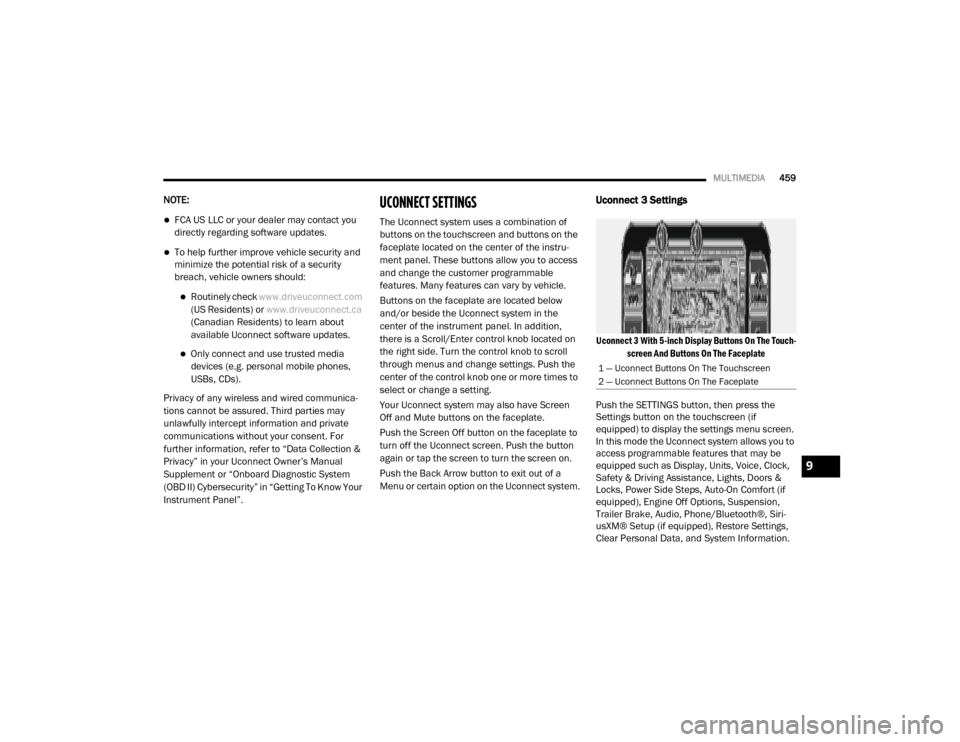
Uconnect 3 Settings
Uconnect 3 With 5-inch Display Buttons On The Touch -
screen And Buttons On The Faceplate
Push the SETTINGS button, then press the
Settings button on the touchscreen (if
equipped) to display the settings menu screen.
In this mode the Uconnect system allows you to
access programmable features that may be
equipped such as Display, Units, Voice, Clock,
Safety & Driving Assistance, Lights, Doors &
Locks, Power Side Steps, Auto-On Comfort (if
equipped), Engine Off Options, Suspension,
Trailer Brake, Audio, Phone/Bluetooth®, Siri -
usXM® Setup (if equipped), Restore Settings,
Clear Personal Data, and System Information.
1 — Uconnect Buttons On The Touchscreen
2 — Uconnect Buttons On The Faceplate
9
20_DJD2_OM_EN_USC_t.book Page 459
Page 526 of 553

524MULTIMEDIA
Managing Two Phone Calls
If two calls are in progress (one active and one
on hold), it is possible to switch between them
pressing the Call On Hold button or to merge the
two calls in a conference pressing the Merge
Calls button.
NOTE:
Check whether the mobile phone in use
supports the management of a second call and
the "Conference" mode.
Transferring/Call Continuation
Transferring
The ongoing calls can be transferred from the
mobile phone to the system and vice versa
without ending the call.
To transfer the call, press the Transfer button.
Call Continuation
After the engine is switched off, it is still possible
to continue a phone call.
The call continues until it is ended manually or
for a maximum period of about 20 minutes.
When the system is switched off, the call is
transferred to the mobile phone.
Ending A Call
Press the End button on the touchscreen or the
PHONE button on the steering wheel controls to
end a call in progress.
Only the ongoing call is ended and any call on
hold becomes the new active call.
Depending on the type of mobile phone, if the
ongoing call is ended by the caller, the call on
hold may not be activated automatically.
Uconnect Phone Features
Mute/Unmute
1. During a call, push the VOICE COMMAND
button on the steering wheel.
2. After the beep, say “mute” or “mute off”.
Reading Messages
The system can read the messages received by
the mobile phone.
To use this function, the mobile phone must
support the SMS exchange function via Blue -
tooth®.
If this function is not supported by the phone,
the corresponding message button is deacti -
vated (greyed out) or may only accept incoming
messages. When a text message is received, the display
will show a screen where the options "Listen",
"Call" or "Ignore" can be selected.
Press the Message button to access the list of
SMS messages received by the mobile phone.
The list displays a maximum of 60 messages
received.
Browsing SMS
Using the steering wheel commands, you can
view and manage the last 10 SMS messages
received on the instrument panel. To use this
function, the mobile phone must support the
SMS exchange function through Bluetooth®.
Select the PHONE button on the instrument
panel menu, and then select “SMS Reader”
using the arrow keys on the steering wheel
controls.
The “SMS Reader” submenu allows the last
10 SMS messages to be displayed.
20_DJD2_OM_EN_USC_t.book Page 524
Page 527 of 553
MULTIMEDIA525
STEERING WHEEL AUDIO CONTROLS — IF
EQUIPPED
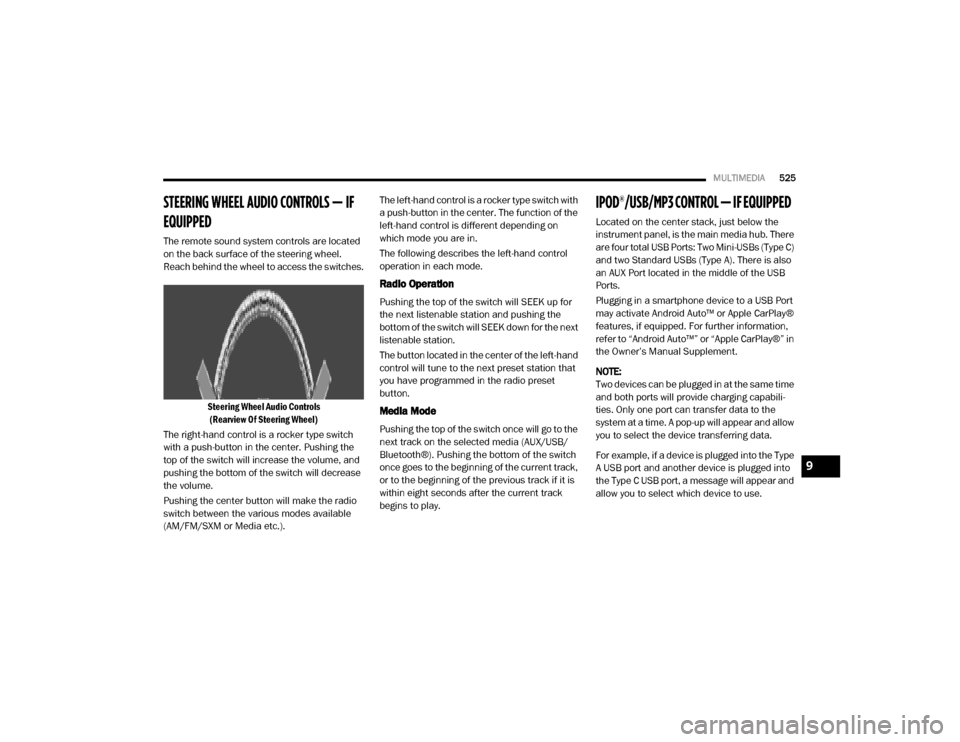
The remote sound system controls are located
on the back surface of the steering wheel.
Reach behind the wheel to access the switches.
Steering Wheel Audio Controls(Rearview Of Steering Wheel)
The right-hand control is a rocker type switch
with a push-button in the center. Pushing the
top of the switch will increase the volume, and
pushing the bottom of the switch will decrease
the volume.
Pushing the center button will make the radio
switch between the various modes available
(AM/FM/SXM or Media etc.). The left-hand control is a rocker type switch with
a push-button in the center. The function of the
left-hand control is different depending on
which mode you are in.
The following describes the left-hand control
operation in each mode.
Radio Operation
Pushing the top of the switch will SEEK up for
the next listenable station and pushing the
bottom of the switch will SEEK down for the next
listenable station.
The button located in the center of the left-hand
control will tune to the next preset station that
you have programmed in the radio preset
button.
Media Mode
Pushing the top of the switch once will go to the
next track on the selected media (AUX/USB/
Bluetooth®). Pushing the bottom of the switch
once goes to the beginning of the current track,
or to the beginning of the previous track if it is
within eight seconds after the current track
begins to play.
IPOD®/USB/MP3 CONTROL — IF EQUIPPED
Located on the center stack, just below the
instrument panel, is the main media hub. There
are four total USB Ports: Two Mini-USBs (Type C)
and two Standard USBs (Type A). There is also
an AUX Port located in the middle of the USB
Ports.
Plugging in a smartphone device to a USB Port
may activate Android Auto™ or Apple CarPlay®
features, if equipped. For further information,
refer to “Android Auto™” or “Apple CarPlay®” in
the Owner’s Manual Supplement.
NOTE:
Two devices can be plugged in at the same time
and both ports will provide charging capabili
-
ties. Only one port can transfer data to the
system at a time. A pop-up will appear and allow
you to select the device transferring data.
For example, if a device is plugged into the Type
A USB port and another device is plugged into
the Type C USB port, a message will appear and
allow you to select which device to use.
9
20_DJD2_OM_EN_USC_t.book Page 525
Page 545 of 553

543
Forward Collision Warning
............................. 160
Four Wheel Drive........................................... 244
Four-Way Hazard Flasher............................... 338
Freeing A Stuck Vehicle................................. 367
Front Axle (Differential).................................. 418
Fuel..................................................... 446, 448
Adding............................................. 312, 313Additives................................................... 446
Capacity.................................................... 451
Clean Air.................................................... 446Diesel.............................................. 448, 454
Ethanol...................................................... 446
Filler Cap (Gas Cap)................................... 313
Filter.......................................................... 403
Gasoline.................................................... 446Light.......................................................... 135
Materials Added........................................ 446
Methanol................................................... 446
Octane Rating................................. 446, 452Requirements........................ 446, 448, 451
Specifications............................................ 448
Tank Capacity............................................ 451
Fueling........................................................... 313
Fuses............................................................. 353
G
Garage Door Opener (HomeLink)
.................... 76
Gas Cap (Fuel Filler Cap)............................... 313
Gasoline, Clean Air........................................ 446
Gasoline, Reformulated................................. 446
Gauges Voltage
..................................................... 221
Gear Ranges................................................. 238
Gear Selector Override................................. 365
Glass Cleaning.............................................. 443
Gross Axle Weight Rating.............................. 319
Gross Vehicle Weight Rating......................... 318GuideBody Builders
.............................................. 12
GVWR............................................................ 317
H
HazardDriving Through Flowing, Rising, Or Shallow Standing Water
.................................... 335
Hazard Warning Flashers.............................. 338
Head Restraints............................................... 39
Head Rests...................................................... 39
Headlights.................................................... 374
Automatic High Beam.................................. 50
Cleaning................................................... 439
High Beam................................................... 50
Lights On Reminder..................................... 52
Passing........................................................ 51Switch.......................................................... 49
Heated Mirrors................................................. 47
Heater, Engine Block.................................... 227
Hill Descent Control...................................... 149
Hill Descent Control Indicator....................... 149
Hill Start Assist.............................................. 151
HitchesTrailer Towing
........................................... 322
Hoisting......................................................... 422
HomeLink (Garage Door Opener).....................76
Hood Prop........................................................74
Hood Release...................................................74
Hub Caps...................................................... 352
I
Idle-Up Feature
............................................. 224Ignition.............................................................18
Switch..........................................................18
Illuminated Entry..............................................55
In Vehicle HelpVehicle User Guide
......................................13
Inside Rearview Mirror.................... 43, 44, 338
Instrument Cluster............ 113, 114, 116, 117
Descriptions.............................................. 140
Display...................................................... 117
Engine Oil Reset....................................... 119
Instrument Panel Lens Cleaning................... 443
Integrated Trailer Brake Control.................... 325
Interior Appearance Care.............................. 442
Interior Lights...................................................53Intermittent Wipers (Delay Wipers)..................55
Intervention Regeneration Strategy..... 124, 407
Inverter Outlet (115V)......................................90
iPod/USB/MP3 Control................................. 52511
20_DJD2_OM_EN_USC_t.book Page 543