wheel Ram 3500 2020 Manual Online
[x] Cancel search | Manufacturer: RAM, Model Year: 2020, Model line: 3500, Model: Ram 3500 2020Pages: 568
Page 286 of 568

284STARTING AND OPERATING
NOTE:
Any chassis/suspension or tire size modifica -
tions to the vehicle will affect the performance
of the Adaptive Cruise Control and Forward
Collision Warning System.
ACTIVATING ADAPTIVE CRUISE CONTROL
(ACC)
You can only engage ACC if the vehicle speed is
above 0 mph (0 km/h).
The minimum set speed for the ACC system is
20 mph (32 km/h).
When the system is turned on and in the ready
state, the instrument cluster display will read
“ACC Ready.”
When the system is off, the instrument cluster
display will read “Adaptive Cruise Control (ACC)
Off.”
NOTE:
You cannot engage ACC under the following
conditions:
When in Four-Wheel Drive Low.
When you apply the brakes.
When the parking brake is applied.
When the automatic transmission is in PARK,
REVERSE or NEUTRAL.
When the vehicle speed is outside of the
speed range.
When the brakes are overheated.
When the driver door is open at low speed.
When the driver seat belt is unbuckled at low
speed.
Electronic Stability Control (ESC) Full Off
mode is active.
TO ACTIVATE/DEACTIVATE
Push and release the Adaptive Cruise Control
(ACC) on/off button. The ACC menu in the
instrument cluster displays “ACC Ready.”
Adaptive Cruise Control Ready
To turn the system off, push and release the
Adaptive Cruise Control (ACC) on/off button
again. At this time, the system will turn off and
the instrument cluster display will show
“Adaptive Cruise Control (ACC) Off.”
Adaptive Cruise Control Off
WARNING!
Leaving the Adaptive Cruise Control (ACC)
system on when not in use is dangerous. You
could accidentally set the system or cause it
to go faster than you want. You could lose
control and have a collision. Always leave the
system off when you are not using it.
20_DJD2_OM_EN_USC_t.book Page 284
Page 287 of 568

STARTING AND OPERATING285
TO SET A DESIRED ACC SPEED
When the vehicle reaches the speed desired,
push the SET (-) button and release. The
instrument cluster display will show the set
speed.
If the system is set when the vehicle speed is
below 20 mph (32 km/h), the set speed shall
be defaulted to 20 mph (32 km/h). If the
system is set when the vehicle speed is above
20 mph (32 km/h), the set speed shall be the
current speed of the vehicle.
NOTE:
ACC cannot be set if there is a stationary vehicle
in front of your vehicle in close proximity.
Remove your foot from the accelerator pedal
after the ACC has been set. If you do not, the
vehicle may continue to accelerate beyond the
set speed. If this occurs:
The message “ACC DRIVER OVERRIDE” will
display in the instrument cluster display.
The system will not be controlling the
distance between your vehicle and the
vehicle ahead. The vehicle speed will only be
determined by the position of the accelerator
pedal.
TO CANCEL
The following conditions cancel the system:
The brake pedal is applied.
The CANCEL button is pushed.
An Anti-Lock Brake System (ABS) event
occurs.
The gear selector is removed from the DRIVE
position.
The Electronic Stability Control/Traction
Control System (ESC/TCS) activates.
The vehicle parking brake is applied.
Driver seat belt is unbuckled at low speeds.
Driver door is opened at low speeds.
A Trailer Sway Control (TSC) event occurs.
The driver switches ESC to Full Off mode.
The braking temperature exceeds normal
range (overheated).
The trailer brake is applied manually (if
equipped).
TO TURN OFF
The system will turn off and clear the set speed
in memory if:
The Adaptive Cruise Control (ACC) on/off
button is pushed.
The Normal (Fixed Speed) Cruise Control on/
off button is pushed.
The ignition is placed in the OFF position.
You switch to Four-Wheel Drive Low.
TO RESUME
If there is a set speed in memory push the RES
(+) button and then remove your foot from the
accelerator pedal. The instrument cluster
display will display the last set speed.
NOTE:
If your vehicle stays at standstill for longer
than two seconds, the driver will have to push
the RES (+) button to reengage the ACC to the
existing set speed.
ACC cannot be resumed if there is a
stationary vehicle in front of your vehicle in
close proximity.
5
20_DJD2_OM_EN_USC_t.book Page 285
Page 290 of 568
288STARTING AND OPERATING
The system automatically defaults to the
longest distance setting. To decrease the
distance setting, push the Distance Button and
release. Each time the button is pushed, the
distance setting decreases by one bar. Once the
shortest setting is reached, if the button is
pushed again it will reset to the default setting
(longest).
If there is no vehicle ahead, the vehicle will
maintain the set speed. If a slower moving
vehicle is detected in the same lane, the
instrument cluster displays the ACC Set With
Target Indicator Light, and the system adjusts
vehicle speed automatically to maintain the
distance setting, regardless of the set speed.
The vehicle will then maintain the set distance
until:
The vehicle ahead accelerates to a speed
above the set speed.
The vehicle ahead moves out of your lane or
view of the sensor.
The distance setting is changed.
The system disengages. (Refer to “Activating
Adaptive Cruise Control (ACC)” in this
chapter. The maximum braking applied by ACC is limited;
however, the driver can always apply the brakes
manually, if necessary.
NOTE:
The brake lights will illuminate whenever the
ACC system applies the brakes.
A Proximity Warning will alert the driver if ACC
predicts that its maximum braking level is not
sufficient to maintain the set distance. If this
occurs, a visual alert “BRAKE” will flash in the
instrument cluster display and a chime will
sound while ACC continues to apply its
maximum braking capacity.
Brake Alert
NOTE:
The “BRAKE!” Screen in the instrument cluster
display is a warning for the driver to take action
and does not necessarily mean that the
Forward Collision Warning system is applying
the brakes autonomously.
Trailer Detect — If Equipped
When a trailer is detected, the ACC system
automatically defaults to the longest setting (four
bars). The setting can be overridden by pushing
the Distance Button on the steering wheel.
OVERTAKE AID
When driving with ACC engaged and following a
vehicle, the system will provide an additional
acceleration up to the ACC set speed to assist in
passing the vehicle. This additional acceleration
is triggered when the driver utilizes the left turn
signal and will only be active when passing on
the left hand side.
20_DJD2_OM_EN_USC_t.book Page 288
Page 291 of 568
STARTING AND OPERATING289
ACC OPERATION AT STOP
If your ACC system brings your vehicle to a
standstill while following a vehicle ahead, your
vehicle will resume motion, without any driver
interaction, if the vehicle ahead starts moving
within two seconds.
If the target vehicle does not start moving within
two seconds of your vehicle coming to a
standstill, then ACC will cancel and the driver
must take over braking. When the target vehicle
drives off, ACC can be resumed by releasing the
brake and pushing the RES (+) button.
NOTE:
After the ACC system holds your vehicle at a
standstill for approximately two seconds, a
chime will sound and an “ACC may cancel soon”
warning will display. The brakes will release
when ACC is canceled and the driver must take
over braking.
While ACC is holding your vehicle at a standstill,
if the driver seat belt is unbuckled or the driver
door is opened, the ACC system will cancel and
the brakes will release. Driver intervention will
be required at this moment.
ADAPTIVE CRUISE CONTROL (ACC)
M
ENU
The instrument cluster display will show the
current ACC system settings. The instrument
cluster display is located in the center of the
instrument cluster. The information it displays
depends on ACC system status.
Push the Adaptive Cruise Control (ACC) on/off
button (located on the steering wheel) until one
of the following appears in the instrument
cluster display:
Adaptive Cruise Control Off
When ACC is deactivated, the display will read
“Adaptive Cruise Control Off.” Adaptive Cruise Control Ready
When ACC is activated, but the vehicle speed
setting has not been selected, the display will
read “Adaptive Cruise Control Ready.”
Adaptive Cruise Control Set
When the RES (+) or the SET(-) button (located
on the steering wheel) is pushed, the display will
read “ACC SET.”
When ACC is set, the set speed will show in the
instrument cluster display.
The ACC screen may display once again if any of
the following ACC activity occurs:
System Cancel
Driver Override
System Off
ACC Proximity Warning
ACC Unavailable Warning
The instrument cluster display will return to
the last display selected after five seconds of
no ACC display activity.
WARNING!
When the ACC system is resumed, the driver
must ensure that there are no pedestrians,
vehicles or objects in the path of the vehicle.
Failure to follow these warnings can result in
a collision and death or serious personal
injury.
5
20_DJD2_OM_EN_USC_t.book Page 289
Page 298 of 568

296STARTING AND OPERATING
The vehicle parking brake is applied.
The braking temperature exceeds normal
range (overheated).
The gear selector is removed from the DRIVE
position.
The driver switches ESC to Full Off mode.
To Resume Speed
To resume a previously set speed, push the RES
(+) button and release. Resume can be used at
any speed above 20 mph (32 km/h).
To Turn Off
The system will turn off and erase the set speed
in memory if:
The Normal (Fixed Speed) Cruise Control on/
off button is pushed.
The ignition is placed in the OFF position.
You engage Four-Wheel Drive Low.
The Adaptive Cruise Control (ACC) on/off
button is pushed.
PARKSENSE REAR PARK ASSIST — IF
EQUIPPED
The ParkSense Rear Park Assist system
provides visual and audible indications of the
distance between the rear fascia and a
detected obstacle when backing up (e.g. during
a parking maneuver). Refer to “ParkSense
System Usage Precautions” in this section for
limitations of this system and
recommendations.
ParkSense will retain the system state (enabled
or disabled) from the previous ignition cycle
when the ignition is placed in the ON/RUN
position.
ParkSense can be active only when the gear
selector is in REVERSE. If ParkSense is enabled
at this gear selector position, the system will
remain active until the vehicle speed is
increased to approximately 7 mph (11 km/h) or
above. When in REVERSE and above the
system's operating speed, a warning will appear
within the instrument cluster display indicating
the vehicle speed is too fast. The system will
become active again if the vehicle speed is
decreased to speeds less than approximately
6 mph (9 km/h).
PARKSENSE SENSORS
The four ParkSense sensors, located in the rear
fascia/bumper, monitor the area behind the
vehicle that is within the sensors’ field of view.
The sensors can detect obstacles from
approximately 12 inches (30 cm) up to
79 inches (200 cm) from the rear fascia/
bumper in the horizontal direction, depending
on the location, type and orientation of the
obstacle.
NOTE:
If equipped as a dually, the ParkSense system
has six rear sensors to assist in detection
around the dually flares.
PARKSENSE WARNING DISPLAY
The ParkSense Warning screen is located within
the instrument cluster display. It provides visual
warnings to indicate the distance between the
rear fascia/bumper and the detected obstacle.
Refer to “Instrument Cluster Display” in
“Getting To Know Your Instrument Panel” for
further information.
20_DJD2_OM_EN_USC_t.book Page 296
Page 309 of 568
STARTING AND OPERATING307
applied turn signal (if the left turn signal is
applied and the vehicle departs to the right), the
LaneSense system provides a haptic warning in
the form of torque applied to the steering wheel
to prompt the driver to remain within the lane
boundaries. The LaneSense system will also
provide a visual warning through the instrument
cluster display to prompt the driver to remain
within the lane boundaries.
The driver may manually override the haptic
warning by applying torque into the steering
wheel at any time.
When only a single lane marking is detected
and the driver unintentionally drifts across that
lane marking (no turn signal applied), the
LaneSense system provides a visual warning
through the instrument cluster display to
prompt the driver to remain within the lane.
When only a single lane marking is detected, a
haptic (torque) warning will not be provided.
NOTE:
When operating conditions have been met, the
LaneSense system will monitor if the driver’s
hands are on the steering wheel and provides
an audible and visual warning to the driver when the driver’s hands are not detected on the
steering wheel. The system will cancel if the
driver does not return their hands to the wheel.
TURNING LANESENSE ON OR OFF
The LaneSense button is located on
the switch panel below the Uconnect
display.
NOTE:
If your vehicle is equipped with a 12–inch Ucon -
nect Display screen, the LaneSense button is
located above the display.
To turn the LaneSense system on, push the
LaneSense button (LED turns off). A
“LaneSense On” message is shown in the
instrument cluster display.
Lane Sense On Message
To turn the LaneSense system off, push the
LaneSense button again (LED turns on).
NOTE:
The LaneSense system will retain the last system
state (on or off) from the last ignition cycle when
the ignition is placed in the ON/RUN position.
LANESENSE WARNING MESSAGE
The LaneSense system will indicate the current
lane drift condition through the instrument
cluster display.
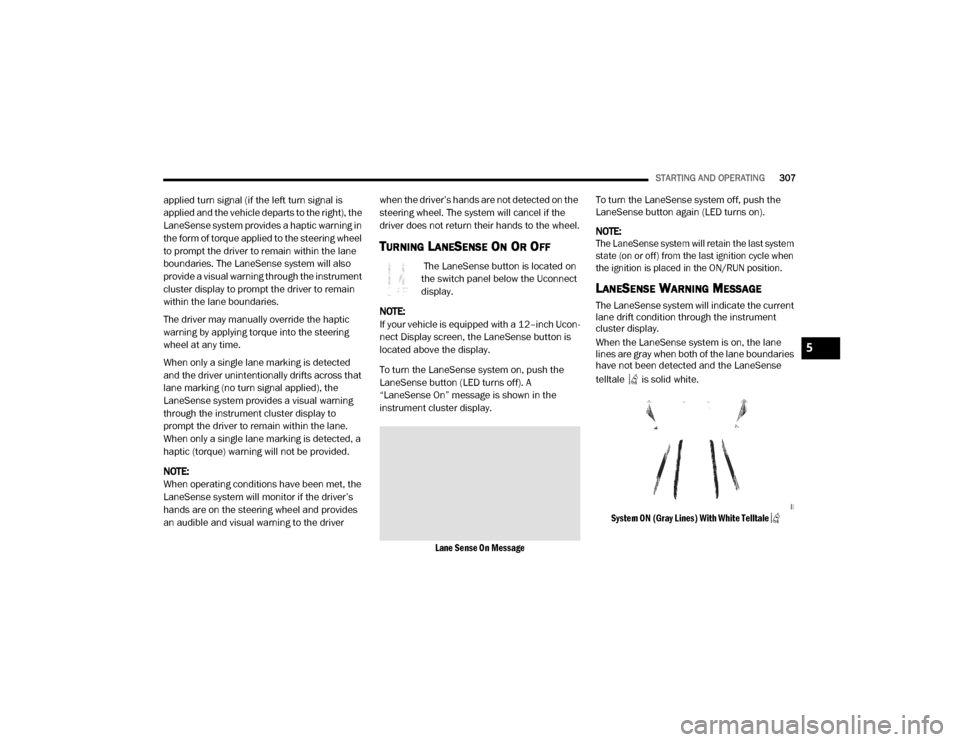
When the LaneSense system is on, the lane
lines are gray when both of the lane boundaries
have not been detected and the LaneSense
telltale is solid white.
System ON (Gray Lines) With White Telltale
5
20_DJD2_OM_EN_USC_t.book Page 307
Page 310 of 568

308STARTING AND OPERATING
Left Lane Departure — Only Left Lane Detected
When the LaneSense system is on, the Lane -
Sense Telltale is solid white when only the
left lane marking has been detected and the
system is ready to provide visual warnings in
the instrument cluster display if an uninten -
tional lane departure occurs on the left side.
When the LaneSense system senses the lane
has been approached and is in a lane depar -
ture situation, the visual warning in the
instrument cluster display will show the left
lane line flashing yellow (on/off). The Lane -
Sense telltale changes from solid white to
flashing yellow.
Lane Crossed (Flashing Yellow Lane Line) With Yellow Telltale
NOTE:
The LaneSense system operates with similar
behavior for a right lane departure when only
the right lane marking has been detected.
Left Lane Departure — Both Lane Lines
Detected
When the LaneSense system is on and both
the lane markings have been detected, the
system is "armed" to provide visual warnings
in the instrument cluster display and a torque
warning in the steering wheel if an uninten -
tional lane departure occurs. The lane lines
turn from gray to white and the LaneSense
telltale is solid green.
Lanes Sensed (White Lines) With Green Telltale
When the LaneSense system senses a lane
drift situation, the left lane line turns solid
yellow. The LaneSense telltale changes
from solid green to solid yellow. At this time
torque is applied to the steering wheel in the
opposite direction of the lane boundary.
For example: If approaching the left side of
the lane the steering wheel will turn to the
right.
Lane Approached (Solid Yellow Lane Line) With Solid Yellow Telltale
20_DJD2_OM_EN_USC_t.book Page 308
Page 311 of 568
STARTING AND OPERATING309
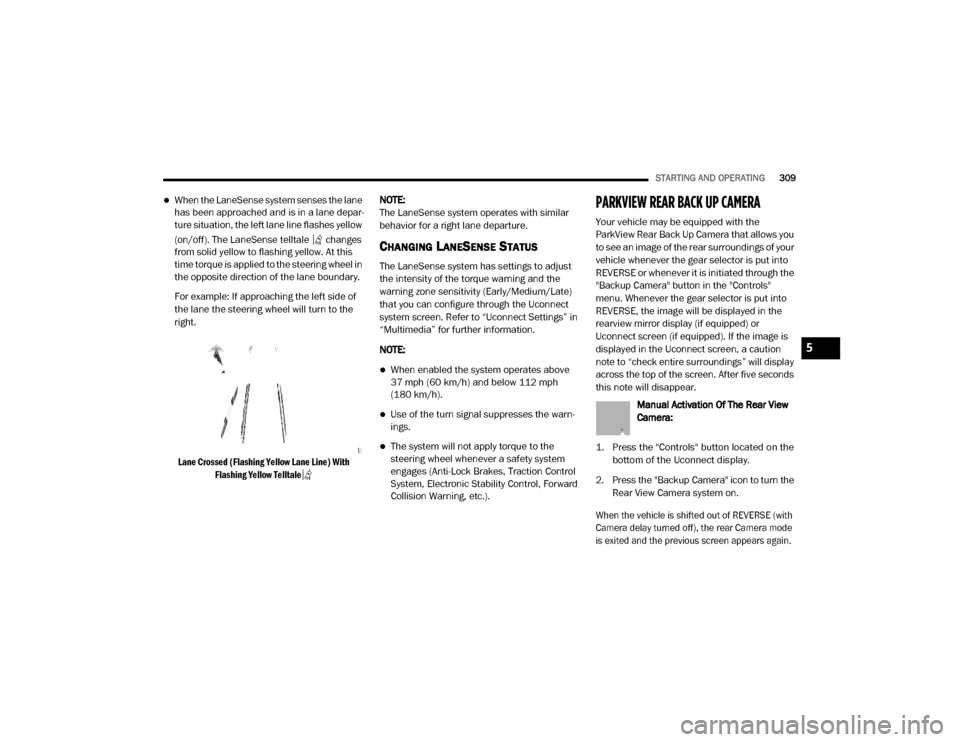
When the LaneSense system senses the lane
has been approached and is in a lane depar -
ture situation, the left lane line flashes yellow
(on/off). The LaneSense telltale changes
from solid yellow to flashing yellow. At this
time torque is applied to the steering wheel in
the opposite direction of the lane boundary.
For example: If approaching the left side of
the lane the steering wheel will turn to the
right.
Lane Crossed (Flashing Yellow Lane Line) With Flashing Yellow Telltale
NOTE:
The LaneSense system operates with similar
behavior for a right lane departure.
CHANGING LANESENSE STATUS
The LaneSense system has settings to adjust
the intensity of the torque warning and the
warning zone sensitivity (Early/Medium/Late)
that you can configure through the Uconnect
system screen. Refer to “Uconnect Settings” in
“Multimedia” for further information.
NOTE:
When enabled the system operates above
37 mph (60 km/h) and below 112 mph
(180 km/h).
Use of the turn signal suppresses the warn -
ings.
The system will not apply torque to the
steering wheel whenever a safety system
engages (Anti-Lock Brakes, Traction Control
System, Electronic Stability Control, Forward
Collision Warning, etc.).
PARKVIEW REAR BACK UP CAMERA
Your vehicle may be equipped with the
ParkView Rear Back Up Camera that allows you
to see an image of the rear surroundings of your
vehicle whenever the gear selector is put into
REVERSE or whenever it is initiated through the
"Backup Camera" button in the "Controls"
menu. Whenever the gear selector is put into
REVERSE, the image will be displayed in the
rearview mirror display (if equipped) or
Uconnect screen (if equipped). If the image is
displayed in the Uconnect screen, a caution
note to “check entire surroundings” will display
across the top of the screen. After five seconds
this note will disappear.
Manual Activation Of The Rear View
Camera:
1. Press the "Controls" button located on the bottom of the Uconnect display.
2. Press the "Backup Camera" icon to turn the Rear View Camera system on.
When the vehicle is shifted out of REVERSE (with
Camera delay turned off), the rear Camera mode
is exited and the previous screen appears again.
5
20_DJD2_OM_EN_USC_t.book Page 309
Page 312 of 568
310STARTING AND OPERATING
When the vehicle is shifted out of REVERSE
(with Camera delay turned on), the rear Camera
image will be displayed for up to 10 seconds
after shifting to another gear, unless the vehicle
speed exceeds 8 mph (13 km/h), the
transmission is shifted into PARK, the ignition is
placed in the OFF position, or the touchscreen
button “X” to disable display of the Rear View
Camera image is pressed.
Whenever the Rear View Camera image is
activated through the "Backup Camera" button
in the "Controls" menu, and the vehicle speed is
greater than, or equal to, 8 mph (13 km/h), a
display timer for the image is initiated. The
image will continue to be displayed until the
display timer exceeds 10 seconds.
NOTE:
If the vehicle speed remains below 8 mph
(13 km/h), the Rear View Camera image will
be displayed continuously until deactivated
via the touchscreen button "X", the transmis -
sion is shifted into PARK, or the ignition is
placed in the OFF position.
The touchscreen button "X" to disable display
of the camera image is made available ONLY
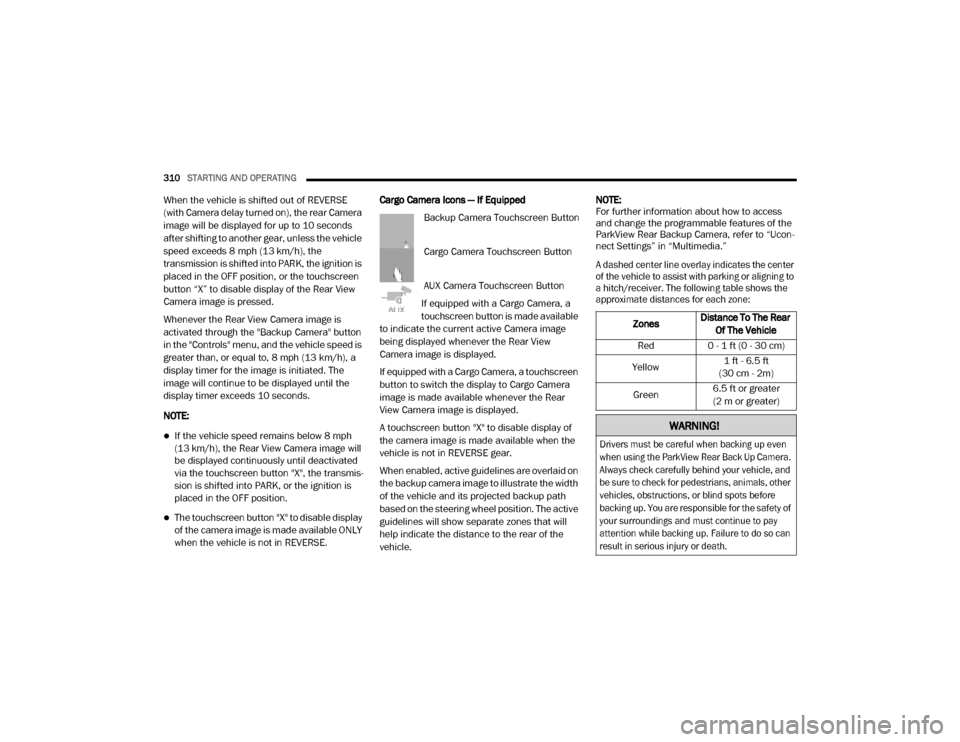
when the vehicle is not in REVERSE. Cargo Camera Icons — If Equipped
Backup Camera Touchscreen Button
Cargo Camera Touchscreen Button
AUX Camera Touchscreen Button
If equipped with a Cargo Camera, a
touchscreen button is made available
to indicate the current active Camera image
being displayed whenever the Rear View
Camera image is displayed.
If equipped with a Cargo Camera, a touchscreen
button to switch the display to Cargo Camera
image is made available whenever the Rear
View Camera image is displayed.
A touchscreen button "X" to disable display of
the camera image is made available when the
vehicle is not in REVERSE gear.
When enabled, active guidelines are overlaid on
the backup camera image to illustrate the width
of the vehicle and its projected backup path
based on the steering wheel position. The active
guidelines will show separate zones that will
help indicate the distance to the rear of the
vehicle. NOTE:
For further information about how to access
and change the programmable features of the
ParkView Rear Backup Camera, refer to “Ucon
-
nect Settings” in “Multimedia.”
A dashed center line overlay indicates the center
of the vehicle to assist with parking or aligning to
a hitch/receiver. The following table shows the
approximate distances for each zone:
Zones Distance To The Rear
Of The Vehicle
Red 0 - 1 ft (0 - 30 cm)
Yellow 1 ft - 6.5 ft
(30 cm - 2m)
Green 6.5 ft or greater
(2 m or greater)
WARNING!
Drivers must be careful when backing up even
when using the ParkView Rear Back Up Camera.
Always check carefully behind your vehicle, and
be sure to check for pedestrians, animals, other
vehicles, obstructions, or blind spots before
backing up. You are responsible for the safety of
your surroundings and must continue to pay
attention while backing up. Failure to do so can
result in serious injury or death.
20_DJD2_OM_EN_USC_t.book Page 310
Page 314 of 568

312STARTING AND OPERATING
Deactivation
The AUX Camera is deactivated by pressing the
“X” in the upper right corner of the touchscreen.
This will return the display back to the
previously displayed screen.
NOTE:
If the AUX button is pressed and no AUX
Camera is connected, the touchscreen will
display a blue screen along with the message
“Camera System Unavailable.” The screen
can be exited out by pressing the “X” in the
upper right hand corner. This will return the
display back to the previously displayed
screen.
Zoom View is not available with the AUX
Camera feature.
The display will always default to the Trailer
Camera display (AUX 1).
SURROUND VIEW CAMERA SYSTEM — IF
EQUIPPED
Your vehicle may be equipped with the
Surround View Camera system that allows you
to see an on-screen image of the surroundings
and Top View of your vehicle whenever the gear
selector is put into REVERSE or manually
activated via the Uconnect system. The Top
View of the vehicle will show which doors are
open. The image will be displayed on the
touchscreen display along with a caution note
“Check Entire Surroundings” across the top of
the screen. After five seconds, this note will
disappear. The Surround View Camera system
is comprised of four sequential cameras
located in the front grille, rear tailgate and side
mirrors.
NOTE:
The Surround View Camera system has
programmable settings that may be selected
through the Uconnect System. Refer to “Ucon -
nect Settings” in “Multimedia” for further infor -
mation. When the vehicle is shifted into REVERSE, the
Rear View and Top View is the default view of
the system (Automatic Activation).
When the vehicle is shifted out of REVERSE (with
camera delay turned on), the Rear View will
continue to be displayed for up to 10 seconds,
unless the vehicle speed exceeds 8 mph
(13 km/h), the vehicle is shifted into PARK or the
ignition is placed in the OFF position. There is a
touchscreen button “X” to disable the display of
the camera image.
When the vehicle is shifted out of REVERSE
(with camera delay turned off), the Surround
View system is exited and the last known screen
appears again.
While the Rear View is displayed and guidelines
are enabled, active guidelines are overlaid on
the image to illustrate the width of the vehicle,
including the side view mirrors and its projected
backup path based on the steering wheel
position.
Different colored zones indicate the distance to
the rear of the vehicle.
20_DJD2_OM_EN_USC_t.book Page 312