radio Ram 3500 Chassis Cab 2019 Service Manual
[x] Cancel search | Manufacturer: RAM, Model Year: 2019, Model line: 3500 Chassis Cab, Model: Ram 3500 Chassis Cab 2019Pages: 607, PDF Size: 10.72 MB
Page 512 of 607

510 MULTIMEDIA
Language
After pressing the “Language” button on the touchscreen, the following settings will be available:
Display
After pressing the “Display” button on the touchscreen, the following settings will be available:Setting Name
Selectable Options
Set Language EnglishFrançaisEspañol
NOTE:
When the “Set Language” feature is selected, you may select one of multiple languages (English / Français / Español) for all
display nomenclature, including the trip functions and the navigation system (if equipped). Press the “Set Language” button
on the touchscreen, then press the desired language button on the touchscreen until a check-mark appears next to the
language, showing that setting has been selected.
Setting Name Selectable Options
Display Mode AutoManual
NOTE:
When Day or Night is selected for the Display Mode, the usage of the Parade Mode feature will cause the radio to activate
the Display Brightness Day control even though the headlights are on.
Display Brightness With Headlights
ON –
+
NOTE:
To make changes to the "Display Brightness with Headlights ON" setting, the headlights must be on and the interior dimmer
switch must not be in the "party" or "parade" positions.
Page 516 of 607

514 MULTIMEDIA
Safety & Driving Assistance
After pressing the “Safety & Driving Assistance” button on the touchscreen, the following settings will be available:Setting Name Selectable Options
Surround View Camera — If
Equipped On
Off
NOTE:
The “Surround View Camera” feature displays a complete 360 degree view of the vehicle's exterior environment while
backing up.
Surround View Camera
Delay — If Equipped On
Off
NOTE:
The “Surround View Camera Delay” setting determines whether or not the screen will display the 360 degree view image
with guidelines for up to ten seconds after the vehicle is shifted out of REVERSE. This delay will be canceled if the vehicle’s
speed exceeds 8 mph (13 km/h), the transmission is shifted into PARK, or the ignition is switched to the OFF position.
Surround View Camera
Guidelines — If Equipped On
Off
NOTE:
The “Surround View Rear Back Up Camera Active Guidelines” feature allows you to see active guidelines over the Surround
View camera display whenever the gear selector is put into REVERSE or the Surround View button on the touchscreen is
pressed. The image will be displayed on the radio touchscreen display.
ParkView Backup Camera
Delay On
Off
Page 524 of 607

522 MULTIMEDIA
Auto Comfort Systems — If Equipped
After pressing the “Auto-On Comfort” button on the touchscreen, the following settings will be available:
Engine Off Options
After pressing the “Engine Off Options” button on the touchscreen, the following settings will be available:Setting Name
Selectable Options
Auto-On Driver Heated/
Ventilated Seat & Steering
Wheel With Vehicle Start — If Equipped Off
Remote Start All Starts
NOTE:
When the “Auto-On Driver Heated/Ventilated Seat & Steering Wheel With Vehicle Start” feature is selected the driver's
heated seat and heated steering wheel will automatically turn on when temperatures are below 40° F (4.4° C). When tempera -
tures are above 80° F (26.7° C), the driver vented seat will turn on.
Setting Name Selectable Options
Engine Off Power Delay –+
NOTE:
When the “Engine Off Power Delay” feature is selected, the power window switches, radio, Uconnect phone system (if
equipped), power sunroof (if equipped), and power outlets will remain active for up to ten minutes after the ignition is cycled
to OFF. Opening either front door will cancel this feature.
Page 529 of 607

MULTIMEDIA 527
SiriusXM Setup — If Equipped
After pressing the “SiriusXM Setup” button on the touchscreen, the following settings will be available:Setting Name Selectable Options
Tune Start OnOff
NOTE:
The “Tune Start” feature begins playing the current song from the beginning when you tune to a music channel using one
of the twelve presets, so you can enjoy the complete song. This feature occurs the first time the preset is selected during that
current song. Tune Start works in the background, so you will not even realize it's on, except that you will miss the experience
of joining your favorite song with only a few seconds left to play. Channel Skip List of Channels
NOTE:
SiriusXM can be programmed to designate a group of channels that are the most desirable to listen to or to exclude undesir -
able channels while scanning. This feature allows you to select the channels you would like to skip.
Subscription Info Sirius ID
NOTE:
New vehicle purchasers or lessees will receive a free limited time subscription to SiriusXM Satellite Radio with your radio.
Following the expiration of the free services, it will be necessary to access the information on the Subscription Information
screen to re-subscribe.
1. Press the “Subscription Info” button on the touchscreen to access the Subscription Information screen.
2. Write down the Sirius ID numbers for your receiver. To reactivate your service, either call the number listed on the screen or visit the provider online.
SiriusXM Travel Link is a separate subscription.
9
Page 536 of 607

534 MULTIMEDIA
NOTE:
The “Surround View Camera Delay” setting determines whether or not the screen will display the 360 degree view image
with guidelines for up to ten seconds after the vehicle is shifted out of REVERSE. This delay will be canceled if the vehicle’s
speed exceeds 8 mph (13 km/h), the transmission is shifted into PARK, or the ignition is switched to the OFF position.Surround View Camera Guidelines — If Equipped On
Off
NOTE:
The “Surround View Rear Back Up Camera Active Guidelines” feature allows you to see active guidelines over the Surround
View camera display whenever the gear selector is put into REVERSE or the Surround View button on the touchscreen is
pressed. The image will be displayed on the radio touchscreen display. Parkview Backup Camera Delay OnOff
NOTE:
The “ParkView Backup Camera Delay” setting determines whether or not the screen will display the rear view image with
dynamic grid lines for up to ten seconds after the vehicle is shifted out of REVERSE. This delay will be canceled if the
vehicle’s speed exceeds 8 mph (13 km/h), the transmission is shifted into PARK, or the ignition is switched to the OFF posi -
tion.
Parkview Camera Delay OnOff
NOTE:
The “Parkview Camera Delay” setting determines whether or not the screen will display the rear view image with dynamic
grid lines for up to ten seconds after the vehicle is shifted out of REVERSE. This delay will be canceled if the vehicle’s speed
exceeds 8 mph (13 km/h), the transmission is shifted into PARK, or the ignition is switched to the OFF position. Active Backup Camera Guidelines OnOff
Setting Name
Selectable Options
Page 544 of 607

542 MULTIMEDIA
Engine Off Options
After pressing the “Engine Off Options” button on the touchscreen, the following settings will be available:
Suspension — If Equipped
After pressing the “Suspension” button on the touchscreen, the following settings will be available:Setting Name
Selectable Options
Engine Off Power Delay +–
NOTE:
When the “Engine Off Power Delay” feature is selected, the power window switches, radio, Uconnect phone system (if
equipped), power sunroof (if equipped), and power outlets will remain active for up to ten minutes after the ignition is cycled
to OFF. Opening either front door will cancel this feature. Headlight Off Delay +–
NOTE:
When the “Headlight Off Delay” feature is selected, the driver can choose to have the headlights remain on for 0, 30, 60, or
90 seconds when exiting the vehicle.
Setting Name Selectable Options
Display Suspension Messages All
Warning Only
Tire Jack Mode On Off
NOTE:
When the “Tire Jack Mode” feature is selected, the air suspension system is disabled to assist with changing a spare tire. Transport Mode On Off
Page 549 of 607

MULTIMEDIA 547
SiriusXM Setup — If Equipped
After pressing the “SiriusXM Setup” button on the touchscreen, the following settings will be available:Smartphone Device
Mirroring On
Off
Enable CarPlay Projections OnOff
Automatically Display Pop-Ups in Cluster On
Off
Set as Default Device
On Off
Projection Manager Smartphone Device Mirroring On Smartphone Device Mirroring
Off
Setting Name
Selectable Options
Setting NameSelectable Options
Sirius All Access Choose a Subscription Package
Add Listener Add up to five profiles
NOTE:
The “Add Listener” feature allows you to add up to five different profiles for customizing personal music or satellite radio
choices. Listener Items Listening History List Of Options
Tune Start OnOff
9
Page 550 of 607

548 MULTIMEDIA
NOTE:
The “Tune Start” feature begins playing the current song from the beginning when you tune to a music channel using one
of the twelve presets, so you can enjoy the complete song. This feature occurs the first time the preset is selected during that
current song. Tune Start works in the background, so you will not even realize it's on, except that you will miss the experience
of joining your favorite song with only a few seconds left to play.Channel Skip List of Channels
NOTE:
SiriusXM can be programmed to designate a group of channels that are the most desirable to listen to or to exclude undesir -
able channels while scanning. This feature allows you to select the channels you would like to skip.
Subscription Info Sirius ID
NOTE:
New vehicle purchasers or lessees will receive a free limited time subscription to SiriusXM Satellite Radio with your radio.
Following the expiration of the free services, it will be necessary to access the information on the Subscription Information
screen to re-subscribe.
1. Press the “Subscription Info” button on the touchscreen to access the Subscription Information screen.
2. Write down the Sirius ID numbers for your receiver. To reactivate your service, either call the number listed on the screen or visit the provider online.
SiriusXM Travel Link is a separate subscription. Setting Name
Selectable Options
Page 552 of 607
550 MULTIMEDIA
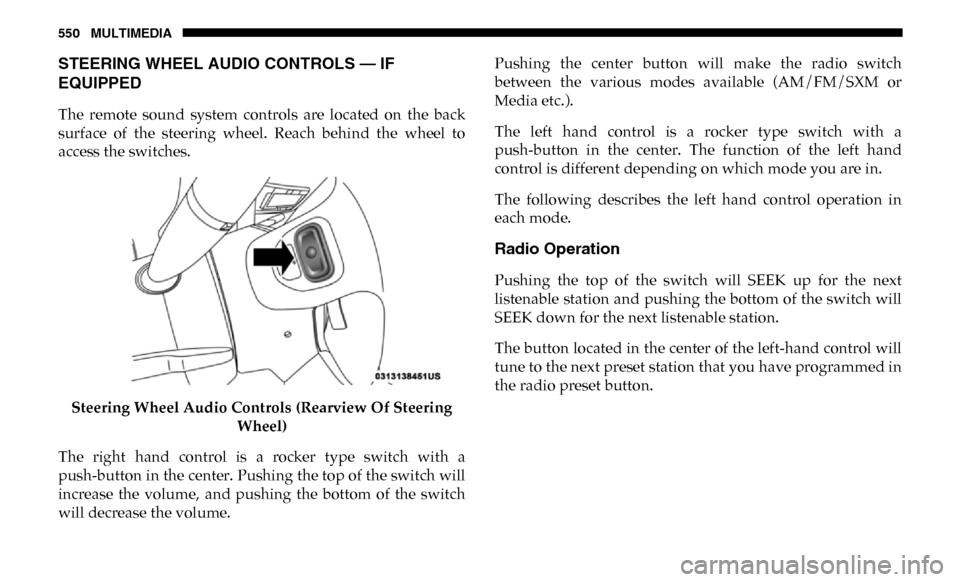
STEERING WHEEL AUDIO CONTROLS — IF
EQUIPPED
The remote sound system controls are located on the back
surface of the steering wheel. Reach behind the wheel to
access the switches.Steering Wheel Audio Controls (Rearview Of Steering Wheel)
The right hand control is a rocker type switch with a
push-button in the center. Pushing the top of the switch will
increase the volume, and pushing the bottom of the switch
will decrease the volume. Pushing the center button will make the radio switch
between the various modes available (AM/FM/SXM or
Media etc.).
The left hand control is a rocker type switch with a
push-button in the center. The function of the left hand
control is different depending on which mode you are in.
The following describes the left hand control operation in
each mode.
Radio Operation
Pushing the top of the switch will SEEK up for the next
listenable station and pushing the bottom of the switch will
SEEK down for the next listenable station.
The button located in the center of the left-hand control will
tune to the next preset station that you have programmed in
the radio preset button.
Page 553 of 607

MULTIMEDIA 551
Media Mode
Pushing the top of the switch once will go to the next track
on the selected media (AUX/USB/Bluetooth/CD). Pushing
the bottom of the switch once goes to the beginning of the
current track, or to the beginning of the previous track if it is
within eight seconds after the current track begins to play.
IPOD/USB/MP3 CONTROL — IF EQUIPPED
Located on the center stack, just below the instrument panel,
is the main media hub. There are four total USB Ports : Two
Mini-USBs (Type C) and two Standard USBs (Type A). There
is also an AUX Port located in the middle of the USB Ports.
All four of the USB Ports include a USB Trident and a numer-
ical value one through three, which indicates that the vehicle
can support three fully-functioning USB Ports at a time. Each
USB Port will support media and charging simultaneously.
NOTE:
• The Type C USB port is the primary media port for the radio. Two devices can be plugged in at the same time and
both ports provide charging capabilities, but only one port
can transfer data to the head unit at a time.
• Both ports share a single data connection. However, the user cannot switch between Type A or Type C. For example, if a device is plugged into the Type A USB port
and another device is plugged into the Type C port, connec
-
tion to the Type A port will be lost. Alternatively, if a device
is plugged into the Type C port and another device is
plugged into the Type A port, the Type C device maintains
primary connection.
Center Stack USB/AUX Media Hub
1 — Standard USB Type A Port #1
2 — AUX Port
3 — Standard USB Type A Port #2
9