instrument panel Ram 5500 Chassis Cab 2015 Manual Online
[x] Cancel search | Manufacturer: RAM, Model Year: 2015, Model line: 5500 Chassis Cab, Model: Ram 5500 Chassis Cab 2015Pages: 599, PDF Size: 4.51 MB
Page 236 of 599
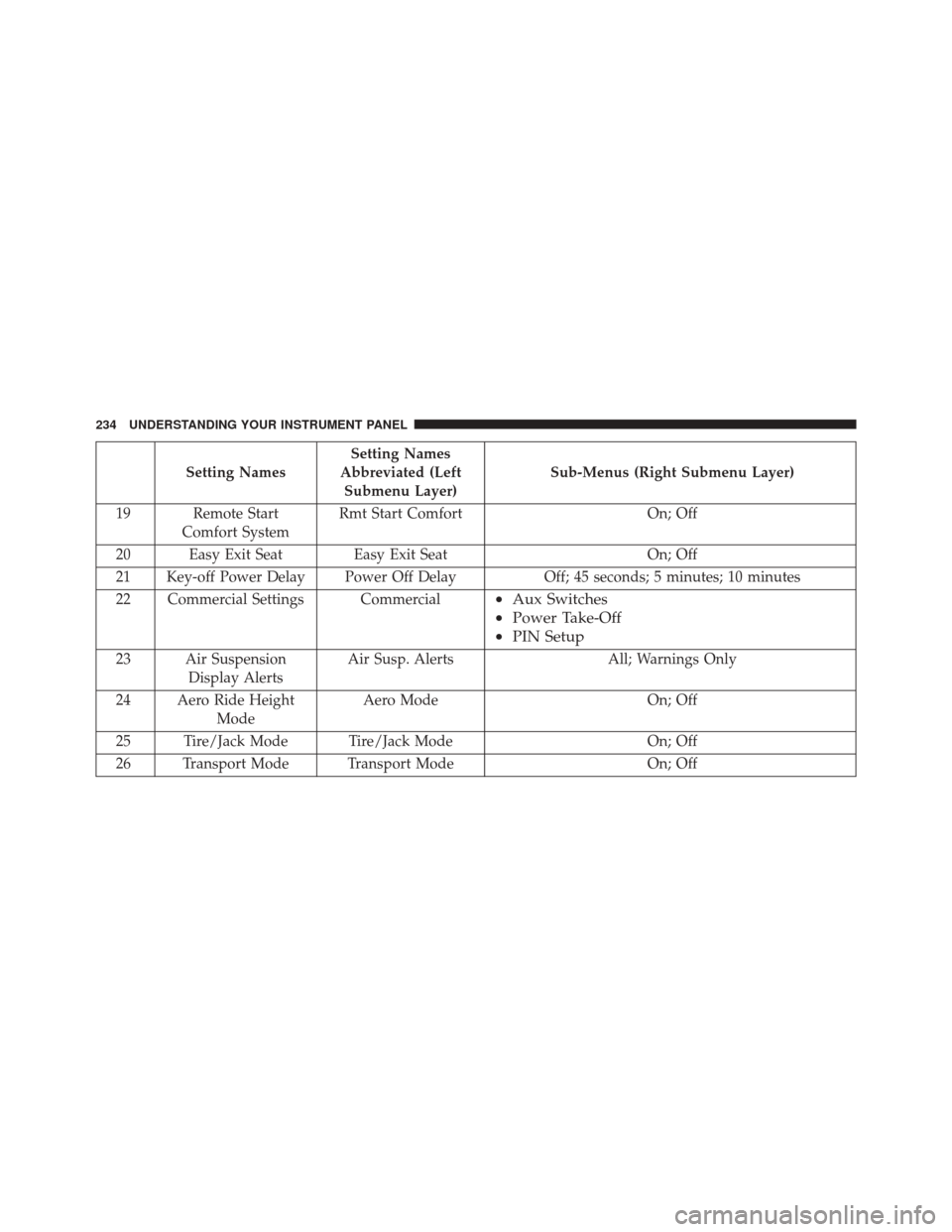
Setting NamesSetting Names
Abbreviated (Left Submenu Layer) Sub-Menus (Right Submenu Layer)
19 Remote Start Comfort System Rmt Start Comfort
On; Off
20 Easy Exit Seat Easy Exit Seat On; Off
21 Key-off Power Delay Power Off Delay Off; 45 seconds; 5 minutes; 10 minutes
22 Commercial Settings Commercial
• Aux Switches
• Power Take-Off
• PIN Setup
23 Air Suspension
Display Alerts Air Susp. Alerts All; Warnings Only
24 Aero Ride Height Mode Aero Mode On; Off
25 Tire/Jack Mode Tire/Jack Mode On; Off
26 Transport Mode Transport Mode On; Off
234 UNDERSTANDING YOUR INSTRUMENT PANEL
Page 237 of 599

Setting NamesSetting Names
Abbreviated (Left Submenu Layer) Sub-Menus (Right Submenu Layer)
27 Wheel Alignment Mode Wheel Alignment
On; Off
28 Horn w/ Remote Lower Horn w/ Rmt Lwr
On; Off
29 Lights w/ Remote Lower Lights w/ Rmt Lwr
On; Off
30 Trailer Select Trailer SelectTrailer 1; Trailer 2; Trailer 3; Trailer 4
31 Brake Type Brake TypeLight Electric; Heavy Electric; Light EOH;
Heavy EOH
4
UNDERSTANDING YOUR INSTRUMENT PANEL 235
Page 238 of 599
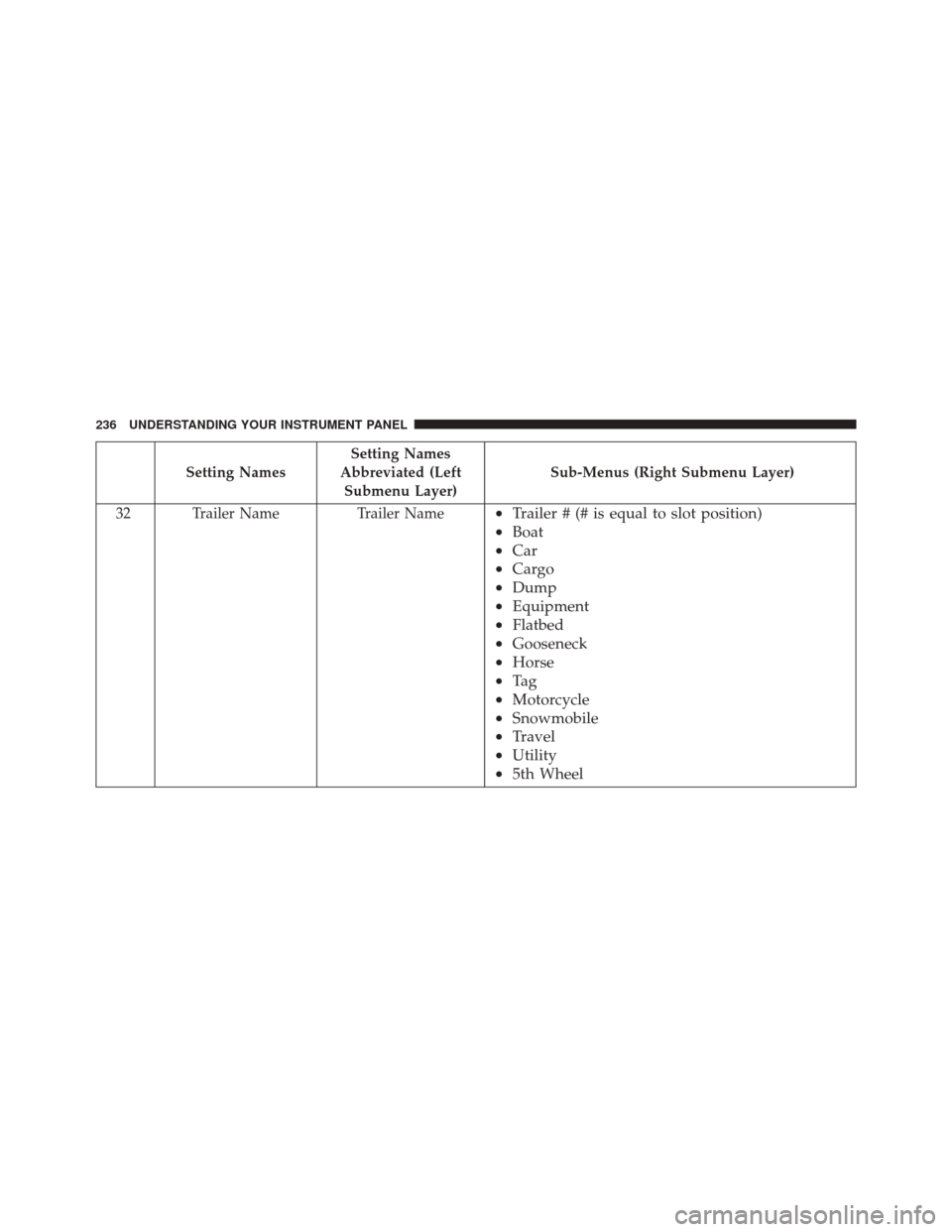
Setting NamesSetting Names
Abbreviated (Left Submenu Layer) Sub-Menus (Right Submenu Layer)
32 Trailer Name Trailer Name
•Trailer # (# is equal to slot position)
• Boat
• Car
• Cargo
• Dump
• Equipment
• Flatbed
• Gooseneck
• Horse
• Ta g
• Motorcycle
• Snowmobile
• Travel
• Utility
• 5th Wheel
236 UNDERSTANDING YOUR INSTRUMENT PANEL
Page 239 of 599

Setting NamesSetting Names
Abbreviated (Left Submenu Layer) Sub-Menus (Right Submenu Layer)
33 Compass Variance Compass Var 1-15 increments of 1
34 Calibrate Compass Compass Cal Cancel; Calibrate
35 Fuel Saver Display Fuel Saver On; Off
Turn Menu OFF
Push and release theRIGHTarrow button to exit the
main menu.
Push and release any EVIC control button to enter the
EVIC main menu again.
4
UNDERSTANDING YOUR INSTRUMENT PANEL 237
Page 240 of 599
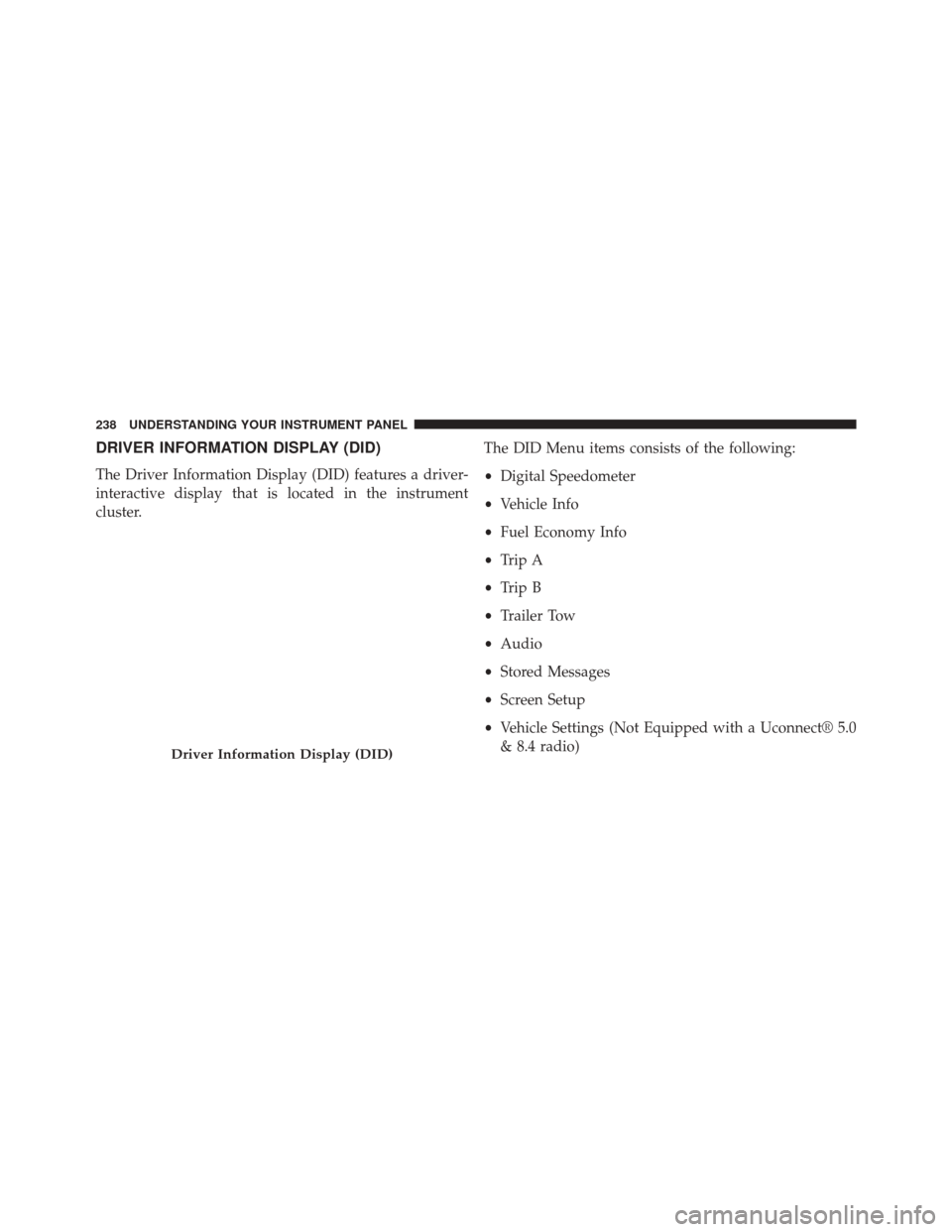
DRIVER INFORMATION DISPLAY (DID)
The Driver Information Display (DID) features a driver-
interactive display that is located in the instrument
cluster.The DID Menu items consists of the following:
•
Digital Speedometer
• Vehicle Info
• Fuel Economy Info
• Trip A
• Trip B
• Trailer Tow
• Audio
• Stored Messages
• Screen Setup
• Vehicle Settings (Not Equipped with a Uconnect® 5.0
& 8.4 radio)
Driver Information Display (DID)
238 UNDERSTANDING YOUR INSTRUMENT PANEL
Page 241 of 599
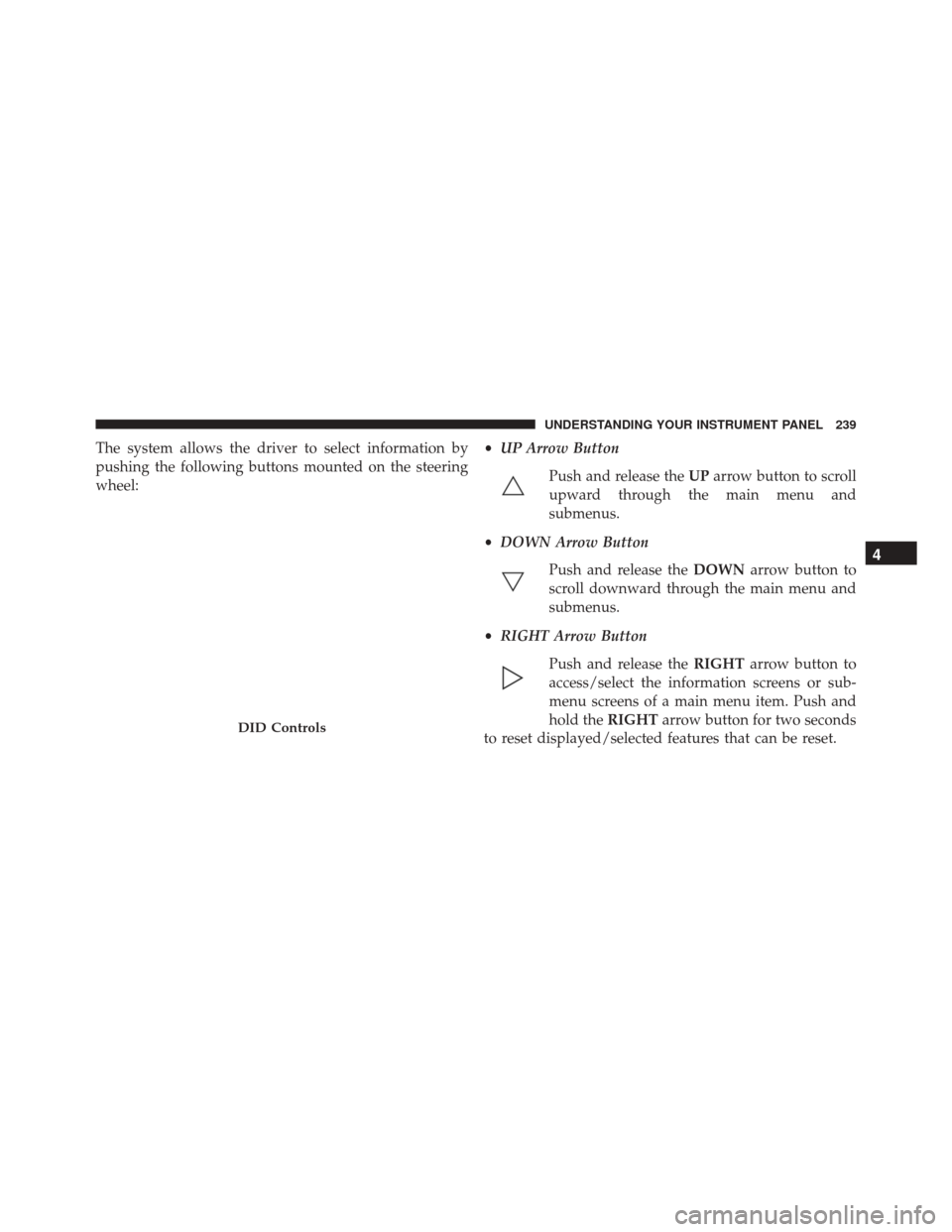
The system allows the driver to select information by
pushing the following buttons mounted on the steering
wheel:•
UP Arrow Button
Push and release the UParrow button to scroll
upward through the main menu and
submenus.
• DOWN Arrow Button
Push and release the DOWNarrow button to
scroll downward through the main menu and
submenus.
• RIGHT Arrow Button
Push and release the RIGHTarrow button to
access/select the information screens or sub-
menu screens of a main menu item. Push and
hold the RIGHTarrow button for two seconds
to reset displayed/selected features that can be reset.
DID Controls
4
UNDERSTANDING YOUR INSTRUMENT PANEL 239
Page 242 of 599
•LEFT Arrow Button
Push and release the LEFTarrow button to
return to the main menu from an info screen or
submenu item.Driver Information Display (DID) Displays
The DID displays are located in the center portion of the
cluster and consists of eight sections:
240 UNDERSTANDING YOUR INSTRUMENT PANEL
Page 243 of 599
1. Main Screen — The inner ring of the display willilluminate in grey under normal conditions, yellow for
non critical warnings, red for critical warnings, and
white for on demand information.
2. Audio / Phone Information and Sub-menu Informa- tion — Whenever there are sub-menus available, the
position within the sub-menus is shown here.
3. Selectable Information (Compass, Temp, Range to Empty, Trip A, Trip B, Average MPG, Trailer Trip
(distance only), Trailer Brake Gain)
4. Telltales/Indicators
5. Shift Lever Status (PRNDL)
6. Selectable Menu Icons
7. Air Suspension Status – If Equipped
8. 4WD Status 9. Selectable Gauge 2 (Trans Temp, Oil Temp, Oil Life,
Trailer Brake, Current MPG)
10. Selectable Gauge 1 (Trans Temp, Oil Temp, Oil Life, Trailer Brake, Current MPG)
The main display area will normally display the main
menu or the screens of a selected feature of the main
menu. The main display area also displays “pop up”
messages that consist of approximately 60 possible warn-
ing or information messages. These pop up messages fall
into several categories:
• Five Second Stored Messages
When the appropriate conditions occur, this type of
message takes control of the main display area for five
seconds and then returns to the previous screen. Most of
the messages of this type are then stored (as long as the
condition that activated it remains active) and can be
reviewed from the “Messages” main menu item. As long
4
UNDERSTANDING YOUR INSTRUMENT PANEL 241
Page 244 of 599
as there is a stored message, an “i” will be displayed in
the DID’s compass/outside temp line. Examples of this
message type are “Right Front Turn Signal Lamp Out”
and “Low Tire Pressure.”
•Unstored Messages
This message type is displayed indefinitely or until the
condition that activated the message is cleared. Examples
of this message type are “Turn Signal On” (if a turn signal
is left on) and “Lights On” (if driver leaves the vehicle).
• Unstored Messages Until RUN
These messages deal primarily with the Remote Start
feature. This message type is displayed until the ignition
is in the RUN state. Examples of this message type are
“Remote Start Aborted - Door Ajar” and “Press Brake
Pedal and Push Button to Start.” •
Five Second Unstored Messages
When the appropriate conditions occur, this type of mes-
sage takes control of the main display area for five seconds
and then returns to the previous screen. An example of this
message type is “Automatic High Beams On.”
Oil Life Reset
Your vehicle is equipped with an engine oil change
indicator system. The “Oil Change Required” message
will flash in the DID display for approximately 10
seconds after a single chime has sounded, to indicate the
next scheduled oil change interval. The engine oil change
indicator system is duty cycle based, which means the
engine oil change interval may fluctuate, dependent
upon your personal driving style.
NOTE: Use the steering wheel DID controls for the
following procedure(s).
242 UNDERSTANDING YOUR INSTRUMENT PANEL
Page 245 of 599

Vehicles Equipped With Passive Entry
1. Without pushing the brake pedal, push the ENGINESTART/STOP button and cycle the ignition to the
ON/RUN position (do not start the engine).
2. Push and release the DOWNarrow button to scroll
downward through the main menu to “ Vehicle Info.”
3. Push and release the RIGHTarrow button to access
the “ Oil Life” screen.
4. Push and hold the RIGHTarrow button for one
second to access the “ Oil Life Reset” screen.
5. Push and release the DOWNarrow button to select “
Ye s ,” then push and release the RIGHTarrow button
to select reset of the Oil Life.
6. Push and release the Uparrow button to exit the DID
screen. Vehicles Not Equipped With Passive Entry
1. Without pushing the brake pedal, cycle the ignition to
the ON/RUN position (do not start the engine).
2. Push and release the DOWNarrow button to scroll
downward through the main menu to “ Vehicle Info.”
3. Push and release the RIGHTarrow button to access
the “ Oil Life” screen.
4. Push and hold the RIGHTarrow button for one
second to access the “ Oil Life Reset” screen.
5. Push and release the DOWNarrow button to select “
Ye s ,” then push and release the RIGHTarrow button
to select reset of the Oil Life.
6. Push and release the Uparrow button to exit the DID
screen.
4
UNDERSTANDING YOUR INSTRUMENT PANEL 243