TURN Ram 5500 Chassis Cab 2017 Owner's Manual
[x] Cancel search | Manufacturer: RAM, Model Year: 2017, Model line: 5500 Chassis Cab, Model: Ram 5500 Chassis Cab 2017Pages: 534, PDF Size: 4.74 MB
Page 260 of 534
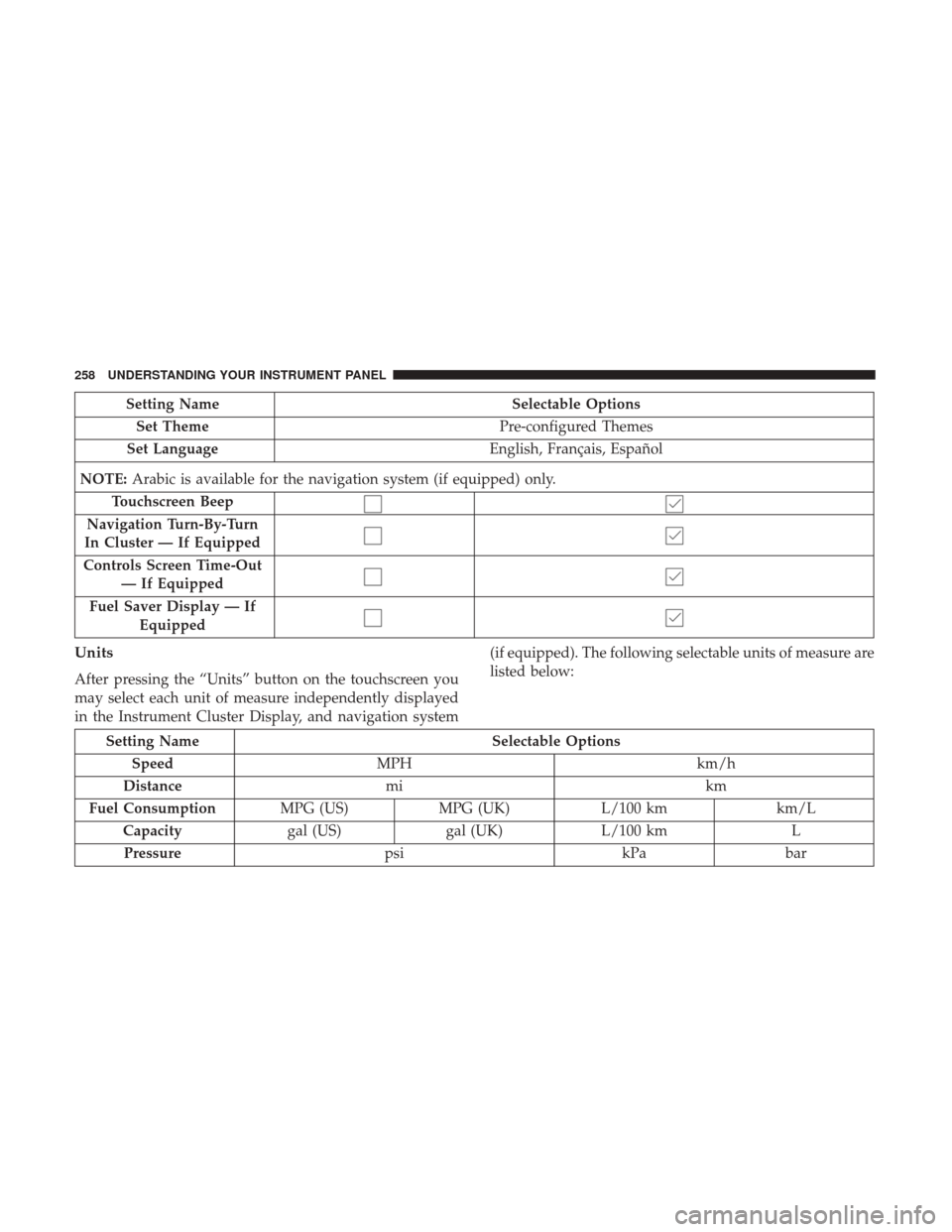
Setting NameSelectable Options
Set Theme Pre-configured Themes
Set Language English, Français, Español
NOTE: Arabic is available for the navigation system (if equipped) only.
Touchscreen Beep
Navigation Turn-By-Turn
In Cluster — If Equipped
Controls Screen Time-Out — If Equipped
Fuel Saver Display — If Equipped
Units
After pressing the “Units” button on the touchscreen you
may select each unit of measure independently displayed
in the Instrument Cluster Display, and navigation system (if equipped). The following selectable units of measure are
listed below:
Setting Name
Selectable Options
Speed MPH km/h
Distance mi km
Fuel Consumption MPG (US)MPG (UK) L/100 km km/L
Capacity gal (US)gal (UK)L/100 km L
Pressure psikPabar
258 UNDERSTANDING YOUR INSTRUMENT PANEL
Page 261 of 534
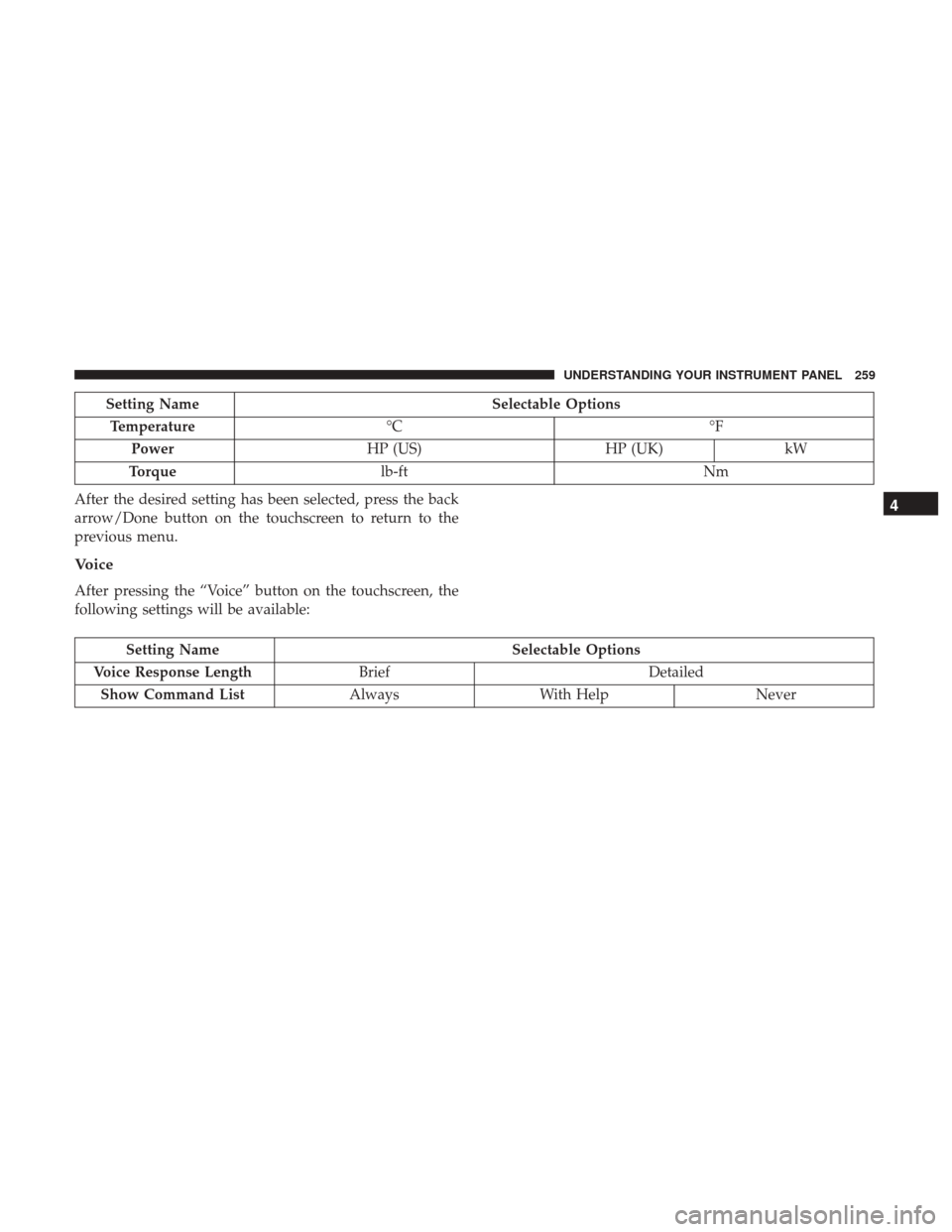
Setting NameSelectable Options
Temperature °C °F
Power HP (US) HP (UK)kW
Torque lb-ft Nm
After the desired setting has been selected, press the back
arrow/Done button on the touchscreen to return to the
previous menu.
Voice
After pressing the “Voice” button on the touchscreen, the
following settings will be available:
Setting Name Selectable Options
Voice Response Length Brief Detailed
Show Command List AlwaysWith Help Never
4
UNDERSTANDING YOUR INSTRUMENT PANEL 259
Page 262 of 534
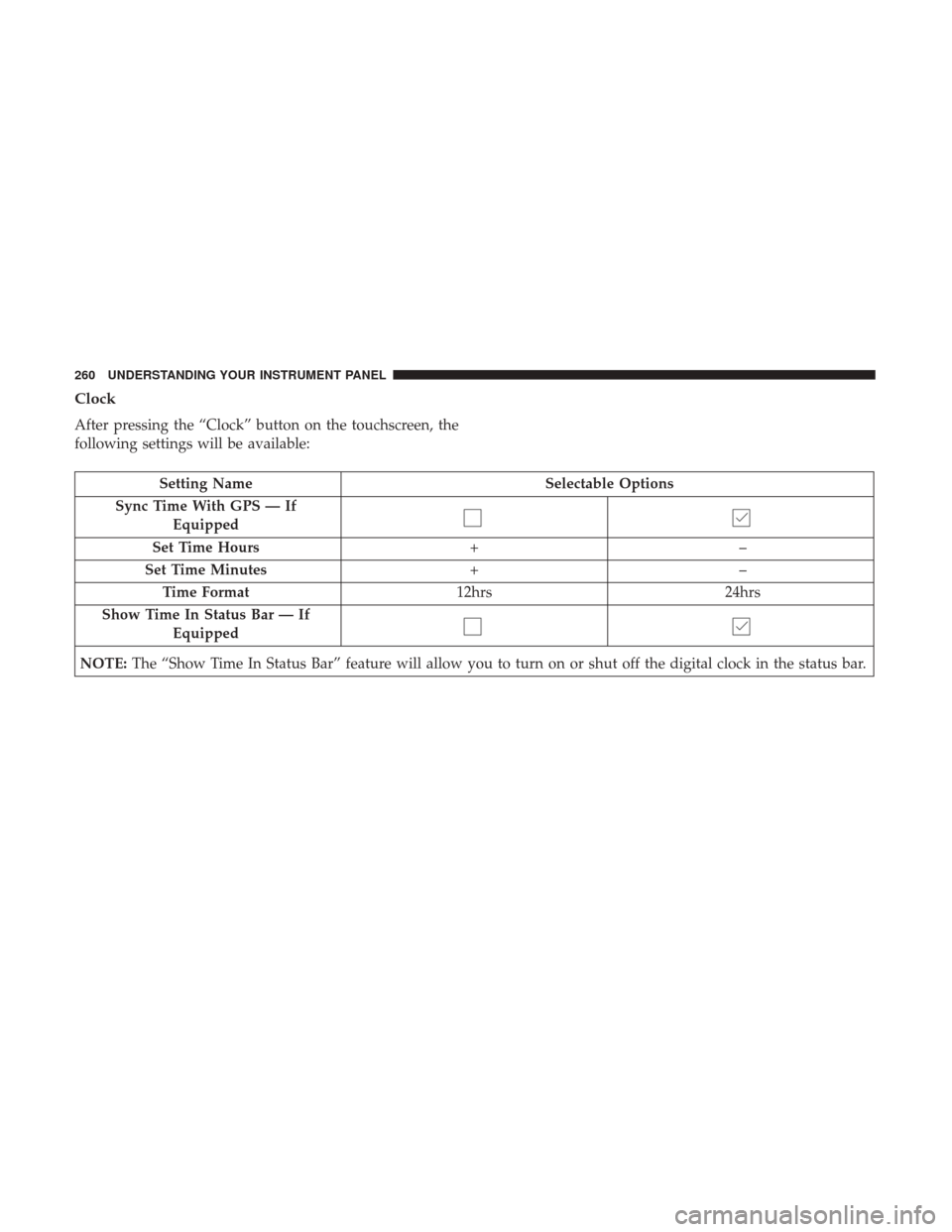
Clock
After pressing the “Clock” button on the touchscreen, the
following settings will be available:
Setting NameSelectable Options
Sync Time With GPS — If Equipped
Set Time Hours +–
Set Time Minutes +–
Time Format 12hrs24hrs
Show Time In Status Bar — If Equipped
NOTE: The “Show Time In Status Bar” feature will allow you to turn on or shut off the digital clock in the status bar.
260 UNDERSTANDING YOUR INSTRUMENT PANEL
Page 265 of 534
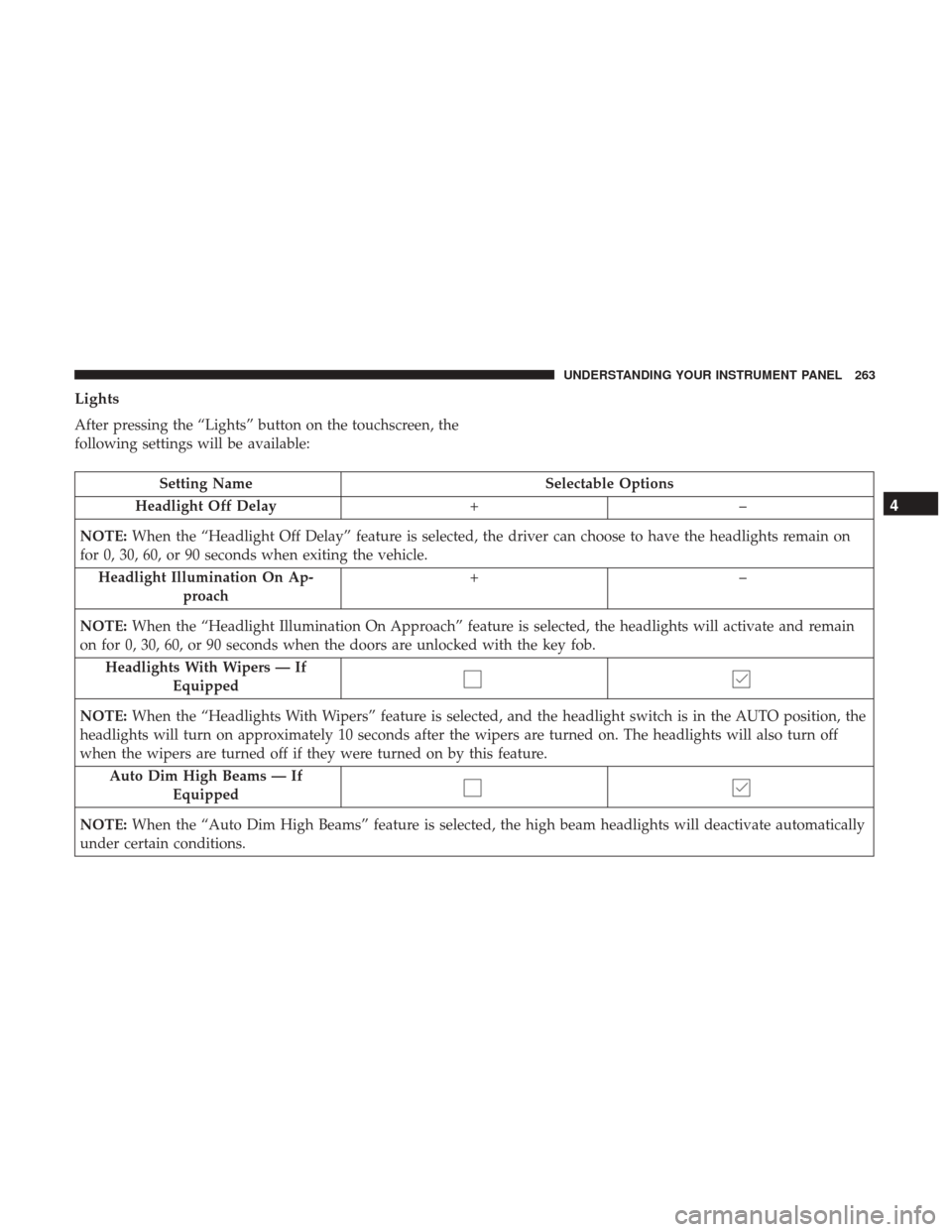
Lights
After pressing the “Lights” button on the touchscreen, the
following settings will be available:
Setting NameSelectable Options
Headlight Off Delay +–
NOTE: When the “Headlight Off Delay” feature is selected, the driver can choose to have the headlights remain on
for 0, 30, 60, or 90 seconds when exiting the vehicle.
Headlight Illumination On Ap- proach +–
NOTE: When the “Headlight Illumination On Approach” feature is selected, the headlights will activate and remain
on for 0, 30, 60, or 90 seconds when the doors are unlocked with the key fob.
Headlights With Wipers — If Equipped
NOTE: When the “Headlights With Wipers” feature is selected, and the headlight switch is in the AUTO position, the
headlights will turn on approximately 10 seconds after the wipers are turned on. The headlights will also turn off
when the wipers are turned off if they were turned on by this feature.
Auto Dim High Beams — If Equipped
NOTE: When the “Auto Dim High Beams” feature is selected, the high beam headlights will deactivate automatically
under certain conditions.
4
UNDERSTANDING YOUR INSTRUMENT PANEL 263
Page 266 of 534
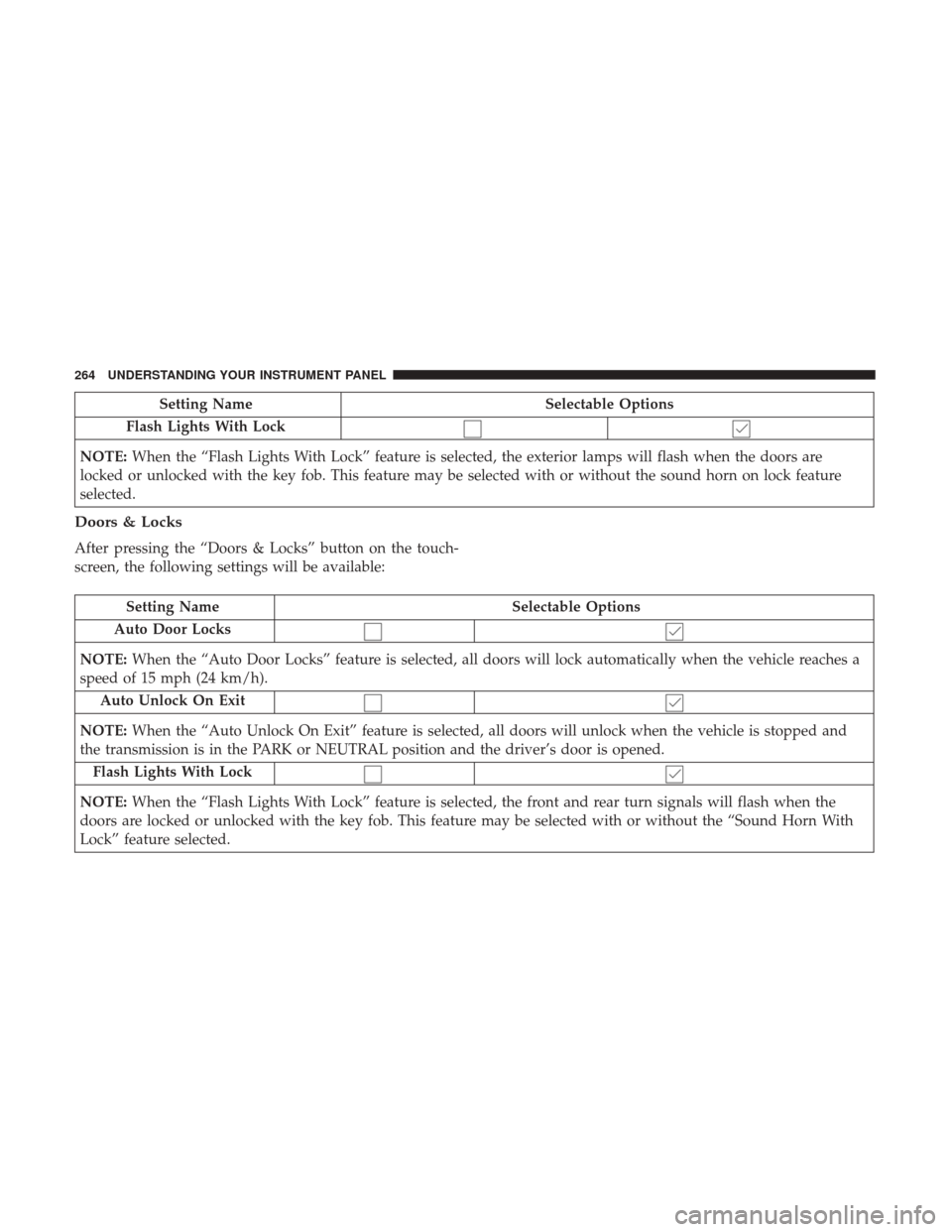
Setting NameSelectable Options
Flash Lights With Lock
NOTE: When the “Flash Lights With Lock” feature is selected, the exterior lamps will flash when the doors are
locked or unlocked with the key fob. This feature may be selected with or without the sound horn on lock feature
selected.
Doors & Locks
After pressing the “Doors & Locks” button on the touch-
screen, the following settings will be available:
Setting Name Selectable Options
Auto Door Locks
NOTE: When the “Auto Door Locks” feature is selected, all doors will lock automatically when the vehicle reaches a
speed of 15 mph (24 km/h).
Auto Unlock On Exit
NOTE: When the “Auto Unlock On Exit” feature is selected, all doors will unlock when the vehicle is stopped and
the transmission is in the PARK or NEUTRAL position and the driver’s door is opened.
Flash Lights With Lock
NOTE: When the “Flash Lights With Lock” feature is selected, the front and rear turn signals will flash when the
doors are locked or unlocked with the key fob. This feature may be selected with or without the “Sound Horn With
Lock” feature selected.
264 UNDERSTANDING YOUR INSTRUMENT PANEL
Page 268 of 534
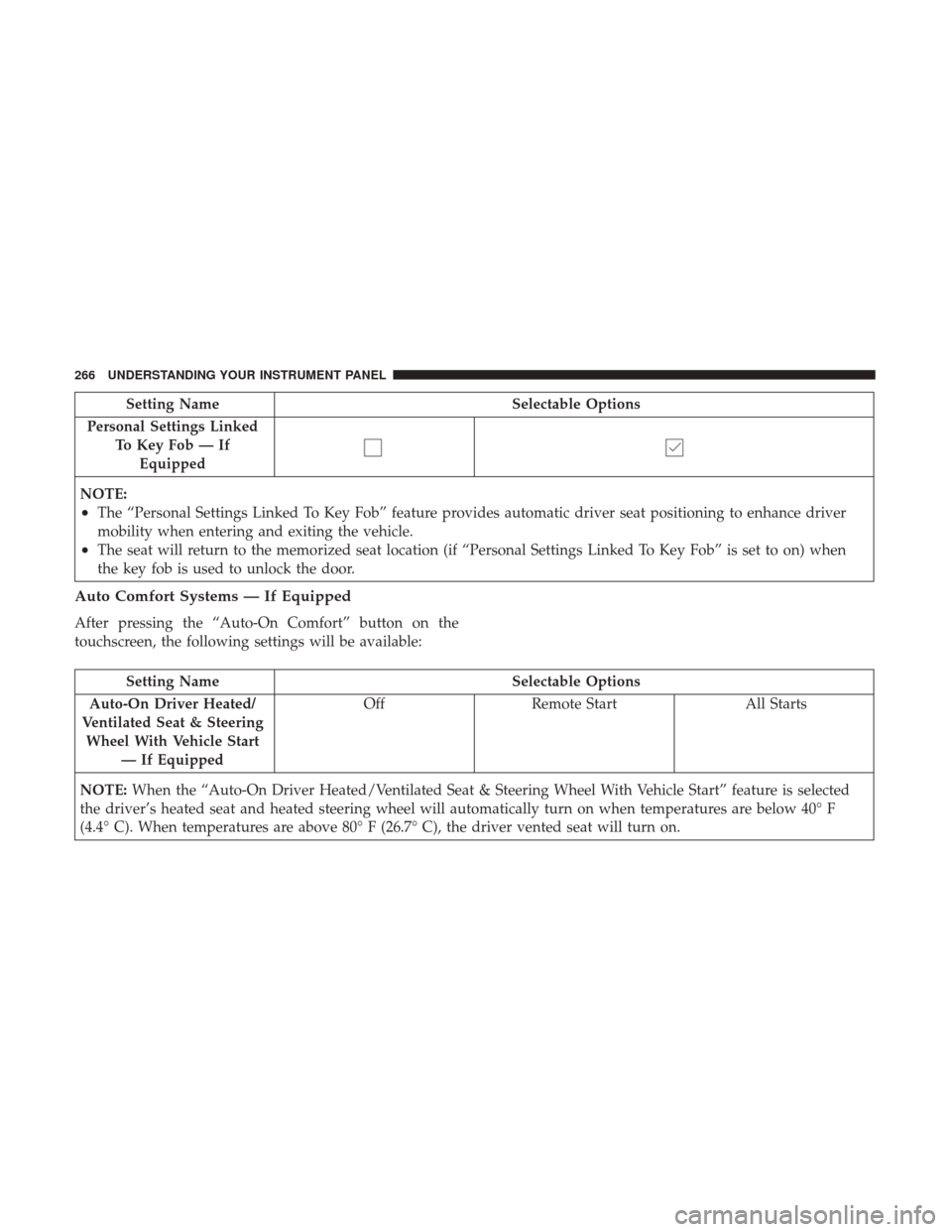
Setting NameSelectable Options
Personal Settings Linked To Key Fob — IfEquipped
NOTE:
•The “Personal Settings Linked To Key Fob” feature provides automatic driver seat positioning to enhance driver
mobility when entering and exiting the vehicle.
•The seat will return to the memorized seat location (if “Personal Settings Linked To Key Fob” is set to on) when
the key fob is used to unlock the door.
Auto Comfort Systems — If Equipped
After pressing the “Auto-On Comfort” button on the
touchscreen, the following settings will be available:
Setting Name Selectable Options
Auto-On Driver Heated/
Ventilated Seat & Steering Wheel With Vehicle Start — If Equipped Off
Remote Start All Starts
NOTE: When the “Auto-On Driver Heated/Ventilated Seat & Steering Wheel With Vehicle Start” feature is selected
the driver’s heated seat and heated steering wheel will automatically turn on when temperatures are below 40° F
(4.4° C). When temperatures are above 80° F (26.7° C), the driver vented seat will turn on.
266 UNDERSTANDING YOUR INSTRUMENT PANEL
Page 277 of 534
If you push the switch up or down twice, it plays the
second track. If you push the switch up or down three
times, it will play the third, etc.
CD/DVD DISC MAINTENANCE
To keep a CD/DVD in good condition, take the following
precautions:
1. Handle the disc by its edge; avoid touching the surface.
2. If the disc is stained, clean the surface with a soft cloth,wiping from center to edge.
3. Do not apply paper or tape to the disc; avoid scratching the disc.
4. Do not use solvents such as benzene, thinner, cleaners, or anti-static sprays.
5. Store the disc in its case after playing.
6. Do not expose the disc to direct sunlight.
7. Do not store the disc where temperatures may become too high. NOTE:
If you experience difficulty in playing a particular
disc, it may be damaged (e.g., scratched, reflective coating
removed, a hair, moisture or dew on the disc) oversized, or
have protection encoding. Try a known good disc before
considering disc player service.RADIO OPERATION AND MOBILE DEVICES
Under certain conditions, an “on” mobile device in your
vehicle can cause erratic or noisy performance from your
radio. This condition may be lessened or eliminated by
relocating the mobile device antenna. This condition is not
harmful to the radio. If your radio performance does not
satisfactorily “clear” by the repositioning of the antenna, it
is recommended that the radio volume be turned down or
off during mobile device operation when not using
Uconnect (if equipped).
Regulatory And Safety Information
USA/CANADA
Exposure to Radio Frequency Radiation
The radiated output power of the internal wireless radio is
far below the FCC radio frequency exposure limits. Nev-
ertheless, the wireless radio will be used in such a manner
that the radio is 20 cm or further from the human body.
4
UNDERSTANDING YOUR INSTRUMENT PANEL 275
Page 278 of 534

The internal wireless radio operates within guidelines
found in radio frequency safety standards and recommen-
dations, which reflect the consensus of the scientific com-
munity.
The radio manufacturer believes the internal wireless radio
is safe for use by consumers. The level of energy emitted is
far less than the electromagnetic energy emitted by wire-
less devices such as mobile phones. However, the use of
wireless radios may be restricted in some situations or
environments, such as aboard airplanes. If you are unsure
of restrictions, you are encouraged to ask for authorization
before turning on the wireless radio.
This device complies with Part 15 of the FCC Rules and
with Industry Canada license-exempt RSS standard(s).
Operation is subject to the following two conditions:
1. This device may not cause harmful interference.
2. This device must accept any interference received, in-cluding interference that may cause undesired opera-
tion. NOTE:
•
This equipment has been tested and found to comply
with the limits for a Class B digital device, pursuant to
Part 15 of the FCC Rules. These limits are designed to
provide reasonable protection against harmful interfer-
ence in a residential installation. This equipment gener-
ates, uses and can radiate radio frequency energy and, if
not installed and used in accordance with the instruc-
tions, may cause harmful interference to radio commu-
nications. However, there is no guarantee that interfer-
ence will not occur in a particular installation.
• If this equipment does cause harmful interference to
radio or television reception, which can be determined
by turning the equipment off and on, the user is encour-
aged to try to correct the interference by one or more of
the following measures:
• Increase the separation between the equipment and
receiver.
• Consult the dealer or an experienced radio technician for
help.
276 UNDERSTANDING YOUR INSTRUMENT PANEL
Page 281 of 534
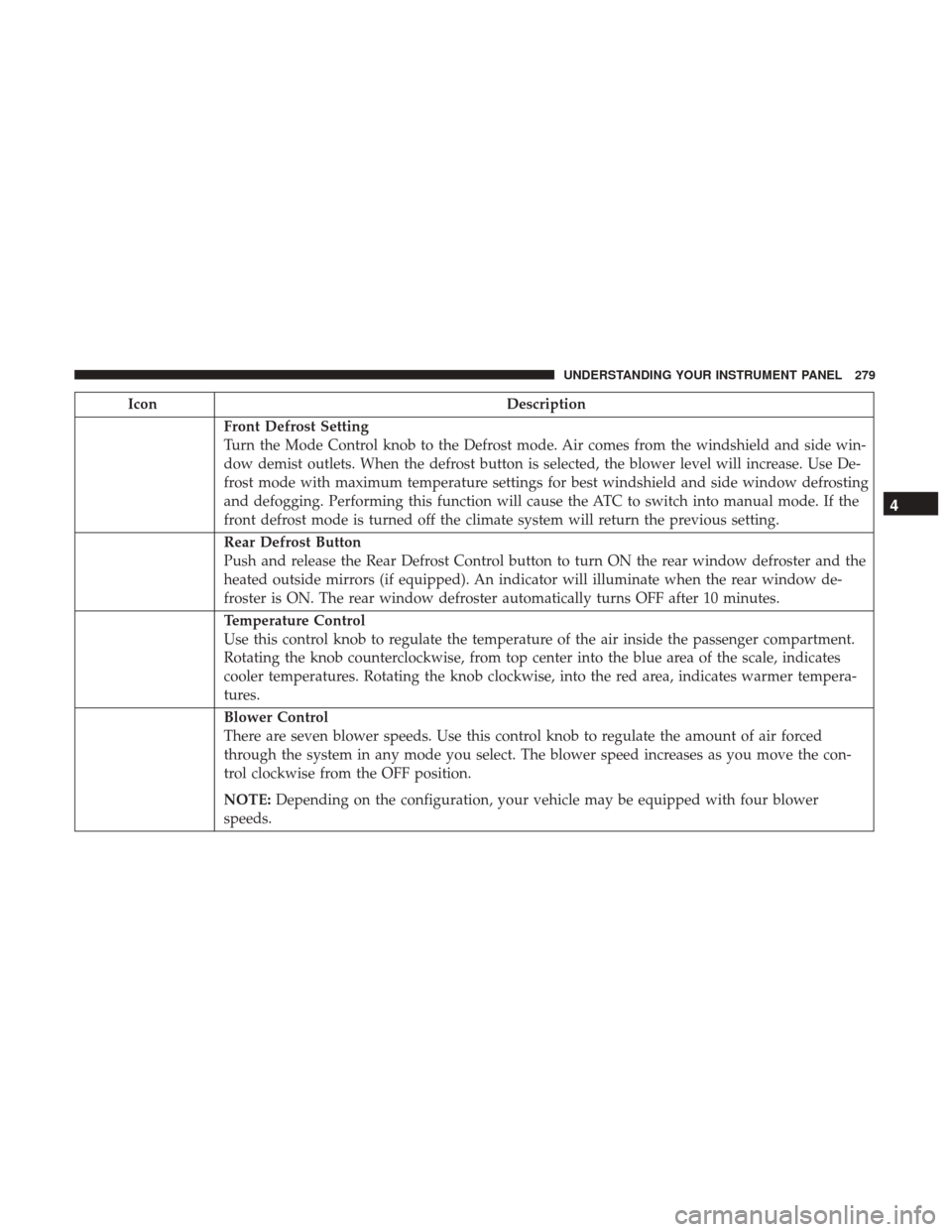
IconDescription
Front Defrost Setting
Turn the Mode Control knob to the Defrost mode. Air comes from the windshield and side win-
dow demist outlets. When the defrost button is selected, the blower level will increase. Use De-
frost mode with maximum temperature settings for best windshield and side window defrosting
and defogging. Performing this function will cause the ATC to switch into manual mode. If the
front defrost mode is turned off the climate system will return the previous setting.
Rear Defrost Button
Push and release the Rear Defrost Control button to turn ON the rear window defroster and the
heated outside mirrors (if equipped). An indicator will illuminate when the rear window de-
froster is ON. The rear window defroster automatically turns OFF after 10 minutes.
Temperature Control
Use this control knob to regulate the temperature of the air inside the passenger compartment.
Rotating the knob counterclockwise, from top center into the blue area of the scale, indicates
cooler temperatures. Rotating the knob clockwise, into the red area, indicates warmer tempera-
tures.
Blower Control
There are seven blower speeds. Use this control knob to regulate the amount of air forced
through the system in any mode you select. The blower speed increases as you move the con-
trol clockwise from the OFF position.
NOTE:Depending on the configuration, your vehicle may be equipped with four blower
speeds.
4
UNDERSTANDING YOUR INSTRUMENT PANEL 279
Page 283 of 534
Economy Mode
If ECONOMY mode is desired, push the A/C button to
turn off the LED indicator and the A/C compressor. Rotate
the temperature control knob to the desired temperature.
Also, make sure to select only Panel, Bi-Level or Floor
modes.
Stop/Start System — If Equipped
While in an Autostop, the Climate Controls system may
automatically adjust airflow to maintain cabin comfort.
Customer settings will be maintained upon return to an
engine running condition.CAUTION!
Failure to follow these cautions can cause damage to
the heating elements:
•Use care when washing the inside of the rear win-
dow. Do not use abrasive window cleaners on the
interior surface of the window. Use a soft cloth and a
mild washing solution, wiping parallel to the heat-
ing elements. Labels can be peeled off after soaking
with warm water.
• Do not use scrapers, sharp instruments, or abrasive
window cleaners on the interior surface of the win-
dow.
• Keep all objects a safe distance from the window.
4
UNDERSTANDING YOUR INSTRUMENT PANEL 281