ad blue RAM CHASSIS CAB 2021 Owners Manual
[x] Cancel search | Manufacturer: RAM, Model Year: 2021, Model line: CHASSIS CAB, Model: RAM CHASSIS CAB 2021Pages: 463, PDF Size: 21.5 MB
Page 5 of 463
3
EXTERIOR LIGHTS.................................................50 Headlight Switch .......................................... 50
Multifunction Lever ...................................... 51
Daytime Running Lights (DRLs) ................. 51
High/Low Beam Switch ............................... 51
Automatic High Beam Headlamp
Control — If Equipped .................................. 52 Flash-To-Pass ............................................... 52
Automatic Headlights — If Equipped ......... 52
Directional LED Headlamp
System — If Equipped .................................. 52 Parking Lights And Panel Lights ................. 53
Automatic Headlights With Wipers ............. 53
Headlight Delay ............................................ 53
Lights-On Reminder ..................................... 53
Front Fog Lights — If Equipped .................. 53
Turn Signals ................................................. 54
Lane Change Assist — If Equipped ............. 54
Cargo Lights/Trailer Spotter Lights — If
Equipped ...................................................... 54 Battery Saver................................................ 54
INTERIOR LIGHTS ................................................55
Courtesy Lights ............................................ 55
Illuminated Entry ......................................... 56
WINDSHIELD WIPERS AND WASHERS .............56
Windshield Wiper Operation ...................... 57
Rain Sensing Wipers — If Equipped ........... 58 CLIMATE CONTROLS ........................................... 58
Automatic Climate Control Descriptions
And Functions .............................................. 59 Manual Climate Control Descriptions And
Functions...................................................... 62 Automatic Temperature
Control (ATC) ................................................ 64 Climate Voice Recognition .......................... 65
Operating Tips ............................................. 65
INTERIOR STORAGE AND EQUIPMENT ............. 66
Storage ......................................................... 66
USB/AUX Control ........................................ 72
Electrical Power Outlets .............................. 73
Power Inverter — If Equipped ..................... 74
Wireless Charging Pad — If Equipped ........ 76
WINDOWS ............................................................ 76
Power Windows — If Equipped .................... 76
Automatic Window Features —
If Equipped ................................................... 77 Reset Auto-Up ............................................. 77
Window Lockout Switch — If Equipped....... 78
Power Sliding Rear Window —
If Equipped .................................................. 78 Manual Sliding Rear Window —
If Equipped ................................................... 78 Wind Buffeting ............................................ 78
HOOD ..................................................................... 79
To Open The Hood ...................................... 79
To Close The Hood ....................................... 79
GETTING TO KNOW YOUR
INSTRUMENT PANEL
BASE / MIDLINE INSTRUMENT CLUSTER —
GASOLINE ..............................................................80
Base / Midline Instrument Cluster
Descriptions ................................................. 81
PREMIUM INSTRUMENT CLUSTER —
GASOLINE ..............................................................83
Premium Instrument Cluster
Descriptions ................................................. 84
BASE / MIDLINE INSTRUMENT CLUSTER —
DIESEL....................................................................85
Diesel Instrument Cluster .......................... 86
PREMIUM INSTRUMENT CLUSTER — DIESEL ..... 88
Diesel Instrument Cluster .......................... 89
INSTRUMENT CLUSTER DISPLAY .......................90
Instrument Cluster Display Controls .......... 90
Oil Life Reset ............................................... 91
Display Menu Items ..................................... 92
Diesel Messages And Warnings ............... 101 Battery Saver On/Battery Saver Mode
Message — Electrical Load Reduction
Actions — If Equipped ............................... 105
WARNING LIGHTS AND MESSAGES ............... 107
Red Warning Lights ................................... 107
Yellow Warning Lights ............................... 110Yellow Indicator Lights .............................. 113
Green Indicator Lights ............................... 115White Indicator Lights ............................... 115Blue Indicator Lights ................................. 116
21_DPF_OM_EN_USC_t.book Page 3
Page 16 of 463
14
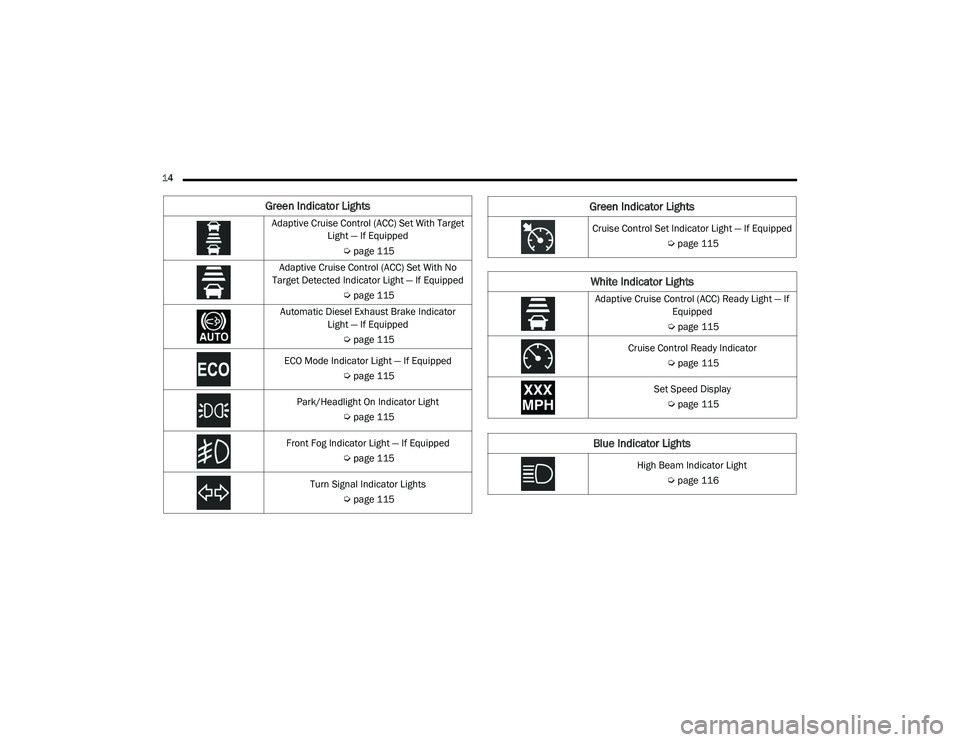
Green Indicator Lights
Adaptive Cruise Control (ACC) Set With Target Light — If Equipped
Úpage 115
Adaptive Cruise Control (ACC) Set With No
Target Detected Indicator Light — If Equipped
Úpage 115
Automatic Diesel Exhaust Brake Indicator Light — If Equipped
Úpage 115
ECO Mode Indicator Light — If Equipped Úpage 115
Park/Headlight On Indicator Light Úpage 115
Front Fog Indicator Light — If Equipped Úpage 115
Turn Signal Indicator Lights Úpage 115Cruise Control Set Indicator Light — If Equipped
Úpage 115
White Indicator Lights
Adaptive Cruise Control (ACC) Ready Light — If
Equipped
Ú page 115
Cruise Control Ready Indicator Úpage 115
Set Speed Display Ú page 115
Blue Indicator Lights
High Beam Indicator Light
Úpage 116
Green Indicator Lights
21_DPF_OM_EN_USC_t.book Page 14
Page 62 of 463

60GETTING TO KNOW YOUR VEHICLE
(Continued)
Auto Button
Set your desired temperature and
press AUTO. AUTO will achieve and
maintain your desired temperature by
automatically adjusting the blower
speed and air distribution. AUTO mode is highly
recommended for efficiency.
You can turn AUTO on in one of two ways:
Press and release this button on the touch -
screen.
Push the button on the faceplate.
Toggling this function will cause the system to
switch between manual mode and automatic
mode Ú page 64.
Front Defrost Button
Press and release the Front Defrost
button on the touchscreen, or push and
release the button on the faceplate,
to change the current airflow setting
to Defrost mode. The Front Defrost indicator
illuminates when Front Defrost is on. Air comes from
the windshield and side window demist outlets.
When the defrost button is selected, the blower
level may increase. Use Defrost mode with
maximum temperature settings for best windshield and side window defrosting and defogging. When
toggling the front defrost mode button, the climate
system will return to the previous setting.
Rear Defrost Button
Press and release the Rear Defrost
button on the touchscreen, or push
and release the button on the
faceplate, to turn on the rear window
defroster and the heated outside mirrors
(if equipped). The Rear Defrost indicator
illuminates when the rear window defroster
is on. The rear window defroster automatically
turns off after 10 minutes.
Driver And Passenger Temperature Up And
Down Buttons
These buttons provide the driver and passenger
with independent temperature control.
Push the red button (or rotate knob
if equipped) on the faceplate or
touchscreen, or press and slide the
temperature bar towards the red
arrow button on the touchscreen for warmer
temperature settings.
Push the blue button (or rotate knob if
equipped) on the faceplate or
touchscreen, or press and slide the
temperature bar towards the blue
arrow button on the touchscreen for cooler
temperature settings.
CAUTION!
Failure to follow these cautions can cause
damage to the heating elements:
Use care when washing the inside of the
rear window. Do not use abrasive window
cleaners on the interior surface of the
window. Use a soft cloth and a mild
washing solution, wiping parallel to the
heating elements. Labels can be peeled off
after soaking with warm water.
Do not use scrapers, sharp instruments, or
abrasive window cleaners on the interior
surface of the window.
Keep all objects a safe distance from the
window.
CAUTION! (Continued)
21_DPF_OM_EN_USC_t.book Page 60
Page 118 of 463

116GETTING TO KNOW YOUR INSTRUMENT PANEL
BLUE INDICATOR LIGHTS
High Beam Indicator Light
This indicator light will illuminate
to indicate that the high beam
headlights are on. With the low beams
activated, push the multifunction
lever forward (toward the front of the vehicle) to
turn on the high beams. Pull the multifunction
lever rearward (toward the rear of the vehicle) to
turn off the high beams. If the high beams are
off, pull the lever toward you for a temporary
high beam on, "flash to pass" scenario.
ONBOARD DIAGNOSTIC SYSTEM — OBD II
Your vehicle is equipped with a sophisticated
Onboard Diagnostic system called OBD II.
This system monitors the performance of the
emissions, engine, and transmission control
systems. When these systems are operating
properly, your vehicle will provide excellent
performance and fuel economy, as well as
engine emissions well within current
government regulations. If any of these systems require service, the OBD
II system will turn on the Malfunction Indicator
Light (MIL). It will also store diagnostic codes
and other information to assist your service
technician in making repairs. Although your
vehicle will usually be drivable and not need
towing, see an authorized dealer for service as
soon as possible.
ONBOARD DIAGNOSTIC SYSTEM
(OBD II) C
YBERSECURITY
Your vehicle is required to have an OBD II and a
connection port to allow access to information
related to the performance of your emissions
controls. Authorized service technicians may
need to access this information to assist with
the diagnosis and service of your vehicle and
emissions system Ú page 220.
CAUTION!
Prolonged driving with the MIL on could
cause further damage to the emission
control system. It could also affect fuel
economy and driveability. The vehicle must
be serviced before any emissions tests can
be performed.
If the MIL is flashing while the vehicle is
running, severe catalytic converter damage
and power loss will soon occur. Immediate
service is required.
WARNING!
ONLY an authorized service technician
should connect equipment to the OBD II
connection port in order to read the VIN,
diagnose, or service your vehicle.
If unauthorized equipment is connected to
the OBD II connection port, such as a
driver-behavior tracking device, it may:
Be possible that vehicle systems,
including safety related systems, could
be impaired or a loss of vehicle control
could occur that may result in an acci -
dent involving serious injury or death.
Access, or allow others to access, infor -
mation stored in your vehicle systems,
including personal information.
21_DPF_OM_EN_USC_t.book Page 116
Page 190 of 463
188STARTING AND OPERATING
NOTE:
If snow, ice, mud, or any foreign substance
builds up on the camera lens, clean the lens,
rinse with water, and dry with a soft cloth.
Do not cover the lens.
Zoom View
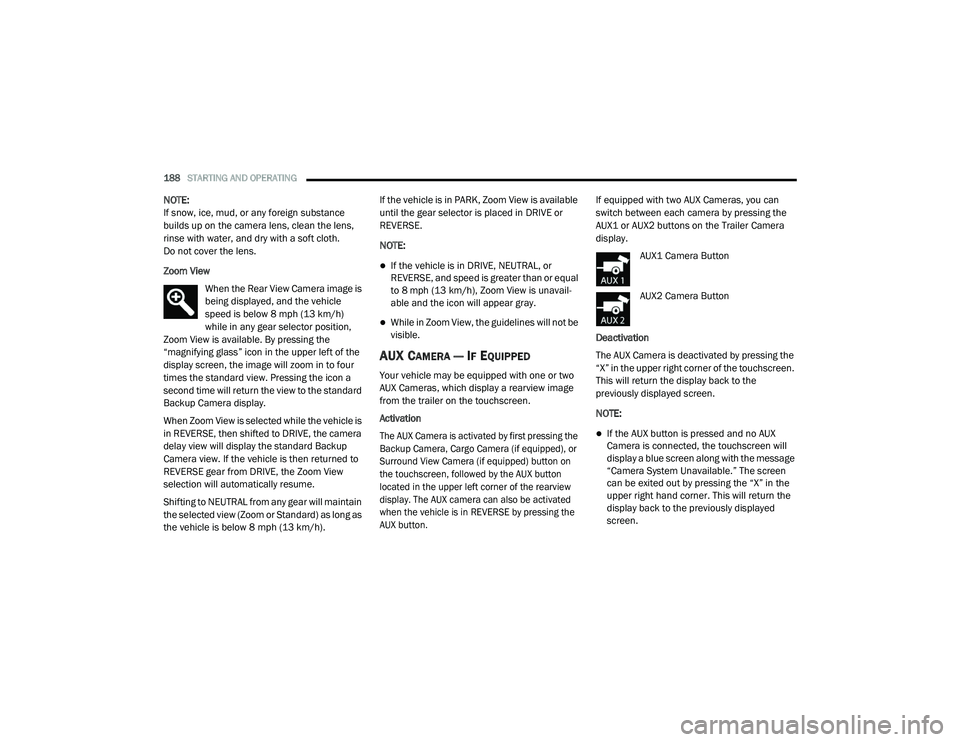
When the Rear View Camera image is
being displayed, and the vehicle
speed is below 8 mph (13 km/h)
while in any gear selector position,
Zoom View is available. By pressing the
“magnifying glass” icon in the upper left of the
display screen, the image will zoom in to four
times the standard view. Pressing the icon a
second time will return the view to the standard
Backup Camera display.
When Zoom View is selected while the vehicle is
in REVERSE, then shifted to DRIVE, the camera
delay view will display the standard Backup
Camera view. If the vehicle is then returned to
REVERSE gear from DRIVE, the Zoom View
selection will automatically resume.
Shifting to NEUTRAL from any gear will maintain
the selected view (Zoom or Standard) as long as
the vehicle is below 8 mph (13 km/h). If the vehicle is in PARK, Zoom View is available
until the gear selector is placed in DRIVE or
REVERSE.
NOTE:
If the vehicle is in DRIVE, NEUTRAL, or
REVERSE, and speed is greater than or equal
to 8 mph (13 km/h), Zoom View is unavail
-
able and the icon will appear gray.
While in Zoom View, the guidelines will not be
visible.
AUX CAMERA — IF EQUIPPED
Your vehicle may be equipped with one or two
AUX Cameras, which display a rearview image
from the trailer on the touchscreen.
Activation
The AUX Camera is activated by first pressing the
Backup Camera, Cargo Camera (if equipped), or
Surround View Camera (if equipped) button on
the touchscreen, followed by the AUX button
located in the upper left corner of the rearview
display. The AUX camera can also be activated
when the vehicle is in REVERSE by pressing the
AUX button.
If equipped with two AUX Cameras, you can
switch between each camera by pressing the
AUX1 or AUX2 buttons on the Trailer Camera
display.
AUX1 Camera Button
AUX2 Camera Button
Deactivation
The AUX Camera is deactivated by pressing the
“X” in the upper right corner of the touchscreen.
This will return the display back to the
previously displayed screen.
NOTE:
If the AUX button is pressed and no AUX
Camera is connected, the touchscreen will
display a blue screen along with the message
“Camera System Unavailable.” The screen
can be exited out by pressing the “X” in the
upper right hand corner. This will return the
display back to the previously displayed
screen.
21_DPF_OM_EN_USC_t.book Page 188
Page 196 of 463
194STARTING AND OPERATING
NOTE:
If the vehicle is not equipped with a Pickup Box:
The bottom wedge of the Top View will be
displayed in black.
The Rear Cross Path soft button will be
grayed out.
The guidelines will not be overlaid on Top
View/Rear View and Full Screen of Rear View.
Black video will be displayed for the right side
of the Top and Rear View, and full screen of
the Rear View when the Rear View Camera is
not connected.
AUX CAMERA — IF EQUIPPED
Your vehicle may be equipped with one or two
AUX Cameras, which display a rearview image
from the trailer on the touchscreen.
Activation
The AUX Camera is activated by first pressing the
Backup Camera, Cargo Camera (if equipped), or
Surround View Camera (if equipped) button on
the touchscreen, followed by the AUX button
located in the upper left corner of the rearview
display. The AUX camera can also be activated
when the vehicle is in REVERSE by pressing the
AUX button.
If equipped with two AUX Cameras, you can
switch between each camera by pressing the
AUX1 or AUX2 buttons on the Trailer Camera
display.
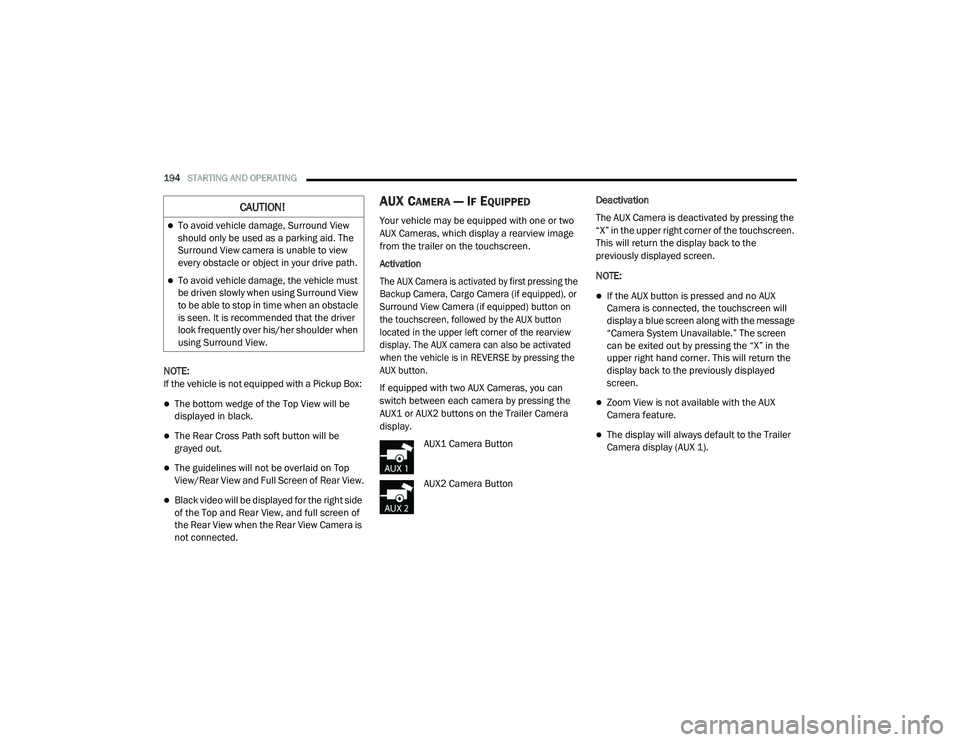
AUX1 Camera Button
AUX2 Camera Button Deactivation
The AUX Camera is deactivated by pressing the
“X” in the upper right corner of the touchscreen.
This will return the display back to the
previously displayed screen.
NOTE:
If the AUX button is pressed and no AUX
Camera is connected, the touchscreen will
display a blue screen along with the message
“Camera System Unavailable.” The screen
can be exited out by pressing the “X” in the
upper right hand corner. This will return the
display back to the previously displayed
screen.
Zoom View is not available with the AUX
Camera feature.
The display will always default to the Trailer
Camera display (AUX 1).
CAUTION!
To avoid vehicle damage, Surround View
should only be used as a parking aid. The
Surround View camera is unable to view
every obstacle or object in your drive path.
To avoid vehicle damage, the vehicle must
be driven slowly when using Surround View
to be able to stop in time when an obstacle
is seen. It is recommended that the driver
look frequently over his/her shoulder when
using Surround View.
21_DPF_OM_EN_USC_t.book Page 194
Page 226 of 463
224MULTIMEDIA
Audio
Push Audio button. Turning the Tune/Scroll
knob highlights the desired selection.
The Audio Menu shows the following options for
you to customize the audio settings:
Treble, Mid, Bass, Fade And Balance — Select
the desired setting to adjust, then push the
Enter/Browse button. Turn the Tune/Scroll
knob to adjust the setting + or – 9. Push the
BACK button on the faceplate when done.
Speed Adjusted Volume (if equipped) —
Select Speed Adjusted Volume and push the
Enter/Browse button. Turn the Tune/Scroll
knob to adjust the setting to Off, 1, 2, or 3.
Push the Back button on the faceplate when
done.
Loudness (if equipped) — Select Loudness
and push the Enter/Browse button to mark
the check box on or off. Push the Back button
on the faceplate when done.
AUX Volume Offset (if equipped) — Select AUX
Volume Offset and push the Enter/Browse
button. Turn the Tune/Scroll knob to adjust
the setting + or – 3. Push the Back button on
the faceplate when done.
Clock Setting
1. Push the Menu button at the bottom of the
radio, and push the Enter/Browse button
for System Settings. Next, select the Time
and Format setting and then select Set
Time by pushing the Enter/Browse button.
2. Adjust the hours or minutes by turning the Tune/Scroll knob, then pushing the
Enter/Browse button to move to the next
entry. You can also select 12 hr or 24 hr
format by turning the Tune/Scroll knob,
then pushing the Enter/Browse button on
the desired selection.
3. Once the time is set, press the Back button to exit the time screen.
MEDIA MODE
Operating Media Mode
Media Mode is entered by pushing the Media
button on the faceplate located to the left of the
display. Once in Media Mode, press the Media
button in order to select the desired media
source. Audio Source Selection
Push the Media button on the faceplate to
select the desired audio source, AUX, USB or
Bluetooth® audio device.
Seek Up/Seek Down
Push and release the Seek Up button on the
faceplate for the next selection.
Push and release the Seek Down button on
the faceplate to return to the beginning of the
current selection, or return to the beginning of
the previous selection if the Media is within the
first three seconds of the current selection.
Fast Seek Up
Push and hold the Seek Up button on the
faceplate and the desired mode will begin to
fast forward through the current track until the
button on the faceplate is released.
Fast Seek Down
Push and hold the Seek Down button on the
faceplate and the desired mode will begin to
rewind through the current track until the
button on the faceplate is released.
21_DPF_OM_EN_USC_t.book Page 224
Page 227 of 463
MULTIMEDIA225
USB Mode
USB Mode is entered by either inserting a USB
device into the USB port, or by pushing the
Media button. Once in Media Mode, push the
Media button and select USB. The display will
show the track number, and track time in
minutes and seconds. Play will begin at the start
of track one.
Bluetooth® Mode
Bluetooth® Streaming Audio (BTSA) or
Bluetooth® Mode is entered by pairing a
Bluetooth® device containing music to the
Uconnect system.
Before proceeding, the Bluetooth® device
must be paired with the Uconnect Phone to
communicate with the Uconnect system.
Once the Bluetooth® device is paired to the
Uconnect system, push the Media button
located on the faceplate. Once in Media Mode,
push the Media button and then select
Bluetooth®.
For mobile phone compatibility and pairing
instructions, please visit UconnectPhone.com.
AUX Mode
AUX Mode is entered by inserting an AUX device
using a cable with a 3.5 mm stereo audio jack
into the AUX port, or by pushing Media button.
Once in Media Mode, push the Media button
and select AUX.
If you insert an auxiliary device with the ignition
ON/RUN and the radio On, the unit will switch to
AUX Mode and begin to play when you insert the
device cable.
Controlling The Auxiliary Device
The control of the auxiliary device (e.g.,
selecting playlists, play, fast forward, etc.)
cannot be provided by the radio. Use the device
controls instead. Adjust the volume with the
On/Off Volume rotary knob or with the volume
of the attached device.
NOTE:
The vehicle radio unit is acting as the amplifier
for audio output from the auxiliary device.
Therefore, if the volume control on the auxiliary
device is set too low, there will be insufficient
audio signal for the radio unit to play music from
the device.
PHONE MODE
Operating Phone Mode
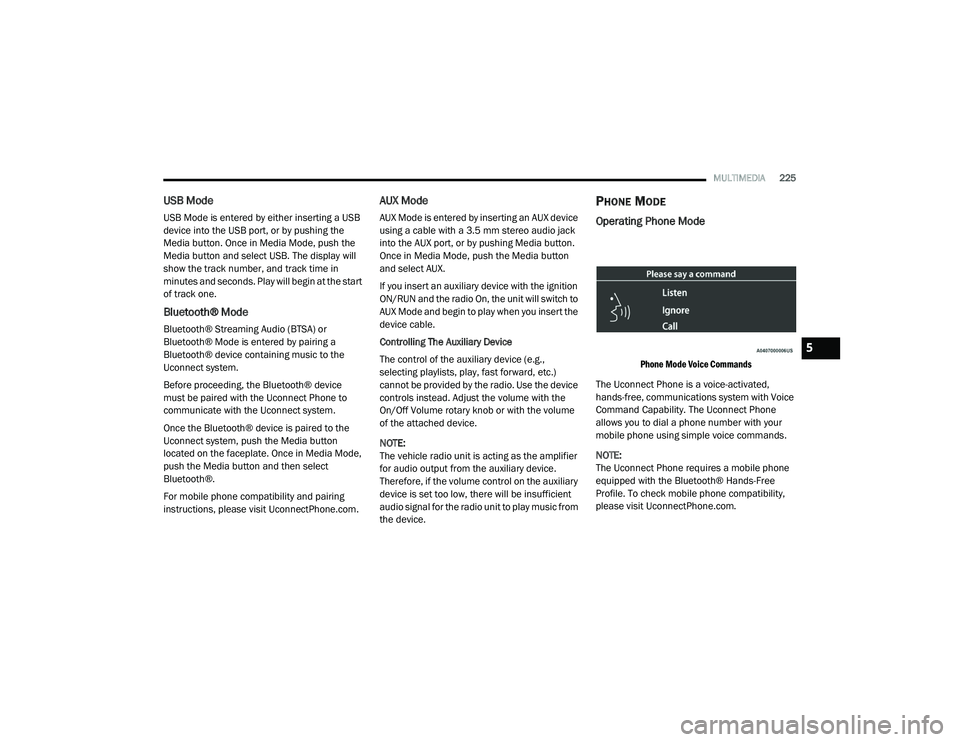
Phone Mode Voice Commands
The Uconnect Phone is a voice-activated,
hands-free, communications system with Voice
Command Capability. The Uconnect Phone
allows you to dial a phone number with your
mobile phone using simple voice commands.
NOTE:
The Uconnect Phone requires a mobile phone
equipped with the Bluetooth® Hands-Free
Profile. To check mobile phone compatibility,
please visit UconnectPhone.com.
5
21_DPF_OM_EN_USC_t.book Page 225
Page 228 of 463
226MULTIMEDIA
Uconnect System Support:
US residents visit
DriveUconnect.com
or call
1-877-855-8400 (24 hours a day, 7 days a week)
Canadian residents visit DriveUconnect.ca or
call 1-800-465-2001 (English) or
1-800-387-9983 (French)
Monday–Friday: 8:00 am – 8:00 pm, ET
Saturday: 9:00 am – 5:00 pm, ET
Sunday: Closed
Changing The Volume
1. Start a call by pushing the Phone button, then
adjust the volume during a normal call.
2. Use the radio On/Volume rotary knob to adjust the volume to a comfortable level. Please note the volume setting for
Uconnect phone is different than the
audio system volume setting.
Making A Phone Call
1. Push the Phone button on the steering wheel.
2. After the beep, say “dial” or “call” and then
the full name or phone number.
NOTE:
A phone call can also be made by pushing the Phone
button on the radio, and selecting a particular
contact in the phonebook or recent calls.
Mute (Or Unmute) Microphone During Call
Push the “Play/Pause/Mute” button on
the radio or during a call, push the Voice
Recognition button on the steering wheel.
After the beep, say “mute” (or “mute off”).
Pairing A Phone
To begin using your Uconnect Phone, you must
pair your compatible Bluetooth®-enabled mobile
phone. Mobile phone pairing is the process of
establishing a wireless connection between a
cellular phone and the Uconnect system. To complete the pairing process, you will need to
reference your mobile phone Owner's Manual.
Please visit
UconnectPhone.com
for complete
mobile phone compatibility information.
NOTE:
You must have Bluetooth® enabled on your
phone to complete this procedure.
The vehicle must be in PARK.
1. Place the ignition in the ACC or ON/RUN position.
2. Push the Phone button.
NOTE:
If there are no phones currently connected with
the system, a pop-up will appear asking if you
would like to pair a mobile phone.
3. Select “Yes” to begin the pairing process.
4. Search for available devices on your Bluetooth®-enabled mobile phone.
Press the Settings button on your mobile
phone.
Select “Bluetooth®” and ensure it is
enabled. Once enabled, the mobile
phone will begin to search for Bluetooth®
connections.
WARNING!
ALWAYS drive safely with your hands on the
wheel. You have full responsibility and
assume all risks related to the use of the
Uconnect features and applications in this
vehicle. Only use Uconnect when it is safe
to do so. Failure to do so may result in an
accident involving serious injury or death.
21_DPF_OM_EN_USC_t.book Page 226
Page 229 of 463
MULTIMEDIA227
5. If “No” is selected, and you still would like to
pair a mobile phone, press the Settings
button from the Uconnect Phone main
screen.
Select “Paired Phones”, and then select
“Add Device”.
Search for available devices on your
Bluetooth®-enabled mobile phone (see
below). When prompted on the phone,
select “Uconnect” and accept the
connection request.
6. Uconnect Phone will display an in-progress screen while the system is connecting.
7. When your mobile phone finds the Uconnect system, select “Uconnect”.
8. When prompted on the mobile phone, accept the connection request from
Uconnect Phone.
NOTE:
Some mobile phones will require you to enter
the PIN. 9. When the pairing process has successfully
completed, the system will prompt you to
choose whether or not this is your favorite
phone. Selecting “Yes” will make this phone
the highest priority. This phone will take
precedence over other paired phones within
range and will connect to the Uconnect
system automatically when entering the
vehicle. Only one mobile phone and/or one
Bluetooth® audio device can be connected
to the Uconnect system at a time. If “No” is
selected, simply select “Uconnect” from the
mobile phone/audio device Bluetooth®
screen, and the Uconnect system
reconnects to the Bluetooth® device.
NOTE:
Software updates on your phone or the
Uconnect system may interfere with the
Bluetooth® connection. If this happens, simply
repeat the pairing process. However, first, make
sure to delete the device from the list of phones
on your Uconnect system. Next, be sure to
remove Uconnect from the list of devices in your
phone’s Bluetooth® settings.
Phonebook Download — Phonebook
Transfer From Mobile Phone
If equipped and specifically supported by your
phone, Uconnect Phone will ask you if you want
to download names (text names) and number
entries from your mobile phone’s phonebook.
Specific Bluetooth® Phones with Phonebook
Access Profile may support this feature. See
UconnectPhone.com for supported phones.
Receiving A Call — Accept (And End)
1. When an incoming call rings or is announced on Uconnect, push the
Phone button on the faceplate.
2. To end a call, push the Phone button on the steering wheel or the Phone button on the
faceplate.
NOTE:
A phone call can also be accepted and ended by
pushing the steering wheel Phone button.
Transfer Ongoing Call Between Handset
And Vehicle
With a call in progress, use the Browse/Enter
knob to select “transfer” then push the enter
button or push the Phone Pick Up button on the
5
21_DPF_OM_EN_USC_t.book Page 227