ad blue RAM CHASSIS CAB 2021 Owner's Manual
[x] Cancel search | Manufacturer: RAM, Model Year: 2021, Model line: CHASSIS CAB, Model: RAM CHASSIS CAB 2021Pages: 463, PDF Size: 21.5 MB
Page 264 of 463
262MULTIMEDIA
NOTE:
Software updates on your phone or the
Uconnect system may interfere with the
Bluetooth® connection. If this happens, simply
repeat the pairing process. However, first make
sure to delete the device from the list of phones
on your Uconnect system. Next, be sure to
remove Uconnect from the list of devices in your
phone’s Bluetooth® settings.
Connecting To A Particular Mobile Phone Or
Audio Device After Pairing
Uconnect Phone will automatically connect to
the highest priority paired phone and/or Audio
Device within range. If you need to choose a
particular phone or audio device follow these
steps:
1. Press the
Settings
button on the
touchscreen.
2. Press the Paired Phones/Audio Sources buttons.
3. Press to select the particular phone or the particular audio device. A pop-up menu will
appear; press “Connect Phone”.
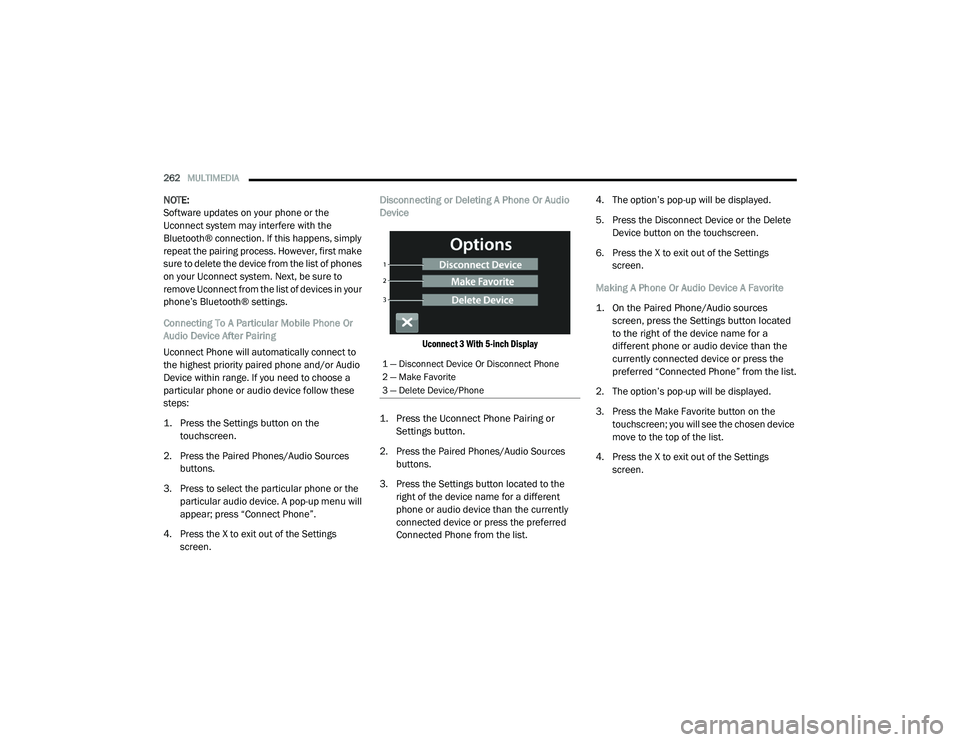
4. Press the X to exit out of the Settings screen. Disconnecting or Deleting A Phone Or Audio
Device
Uconnect 3 With 5-inch Display
1. Press the Uconnect Phone Pairing or Settings button.
2. Press the Paired Phones/Audio Sources buttons.
3. Press the Settings button located to the right of the device name for a different
phone or audio device than the currently
connected device or press the preferred
Connected Phone from the list. 4. The option’s pop-up will be displayed.
5. Press the Disconnect Device or the Delete
Device button on the touchscreen.
6. Press the X to exit out of the Settings screen.
Making A Phone Or Audio Device A Favorite
1. On the Paired Phone/Audio sources screen, press the Settings button located
to the right of the device name for a
different phone or audio device than the
currently connected device or press the
preferred “Connected Phone” from the list.
2. The option’s pop-up will be displayed.
3. Press the Make Favorite button on the touchscreen; you will see the chosen device
move to the top of the list.
4. Press the X to exit out of the Settings screen.
1 — Disconnect Device Or Disconnect Phone
2 — Make Favorite
3 — Delete Device/Phone
21_DPF_OM_EN_USC_t.book Page 262
Page 265 of 463
MULTIMEDIA263
Phonebook Download (Automatic Phonebook
Transfer From Mobile Phone) — If Equipped
If supported by your phone, Uconnect Phone
has the ability to download contact names and
number entries from the mobile phone’s
phonebook. Specific Bluetooth® Phones with
Phonebook Access Profile may support this
feature. Your mobile phone may receive a
pop-up asking for permission for the Uconnect
system to access your messages and contacts.
Selecting “Ok” or “Allow” will sync your contacts
with the Uconnect system.
See the Uconnect website,
UconnectPhone.com
,
for supported phones.
To call a name from a downloaded mobile
phonebook, follow the procedure in the
“Voice Command” in this section.
Automatic download and update of a phone -
book, if supported, begins as soon as the
Bluetooth® wireless phone connection is
made to the Uconnect Phone, for example,
after you start the vehicle.
A maximum of 5,000 contact names with
four numbers per contact will be downloaded
and updated every time a phone is
connected to the Uconnect Phone.
Depending on the maximum number of entries
downloaded, there may be a short delay
before the latest downloaded names can be
used. Until then, if available, the previously
downloaded phonebook is available for use.
Only the phonebook of the currently
connected mobile phone is accessible.
This downloaded phonebook cannot be
edited or deleted on the Uconnect Phone.
These can only be edited on the mobile
phone. The changes are transferred and
updated to Uconnect Phone on the next
phone connection.
Managing Your Favorites — If Equipped
There are two ways you can add an entry to your
favorites:
1. After loading the mobile phonebook, press the Favorites button on the touchscreen,
and then press one of the +Add Favorite
Contact buttons that appears on the list.
2. After loading the mobile phonebook, select
“Contacts” from the Phone main screen,
and then select the appropriate number.
Press the Down Arrow button next to the
selected number to display the option’s
pop-up. In the pop-up, select “Add to
Favorites”.
NOTE:
If the Favorites list is full, you will be asked to
remove an existing favorite.
To Remove A Favorite — If Equipped
1. To remove a Favorite, select “Favorites” from the Phone main screen.
2. Next, select the Down Arrow icon next to the contact you want to remove from your
favorites. This will bring up the options for
that Favorite contact.
3. Deselect the Star icon to delete the Favorite.
5
21_DPF_OM_EN_USC_t.book Page 263
Page 266 of 463
264MULTIMEDIA
Phone Call Features
The following features can be accessed through
the Uconnect Phone if the feature(s) are
available and supported by Bluetooth® on your
mobile service plan. For example, if your mobile
service plan provides three-way calling, this
feature can be accessed through the Uconnect
Phone. Check with your mobile service provider
for the features that you have.
Listed below are the phone options with
Uconnect:
Redial
Dial by pressing in the number
Voice Commands (Dial by Saying a Name,
Call by Saying a Phonebook Name, Redial or
Call Back)
Favorites
Mobile Phonebook
Recent Call Log
SMS Message Viewer Call Controls
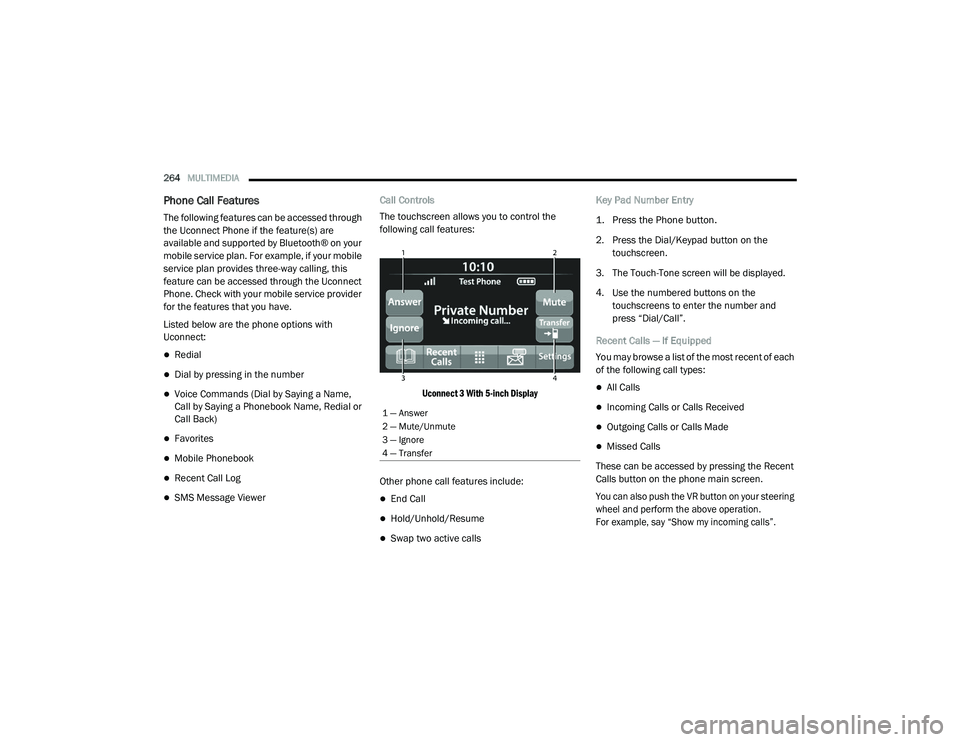
The touchscreen allows you to control the
following call features:
Uconnect 3 With 5-inch Display
Other phone call features include:End Call
Hold/Unhold/Resume
Swap two active calls Key Pad Number Entry
1. Press the Phone button.
2. Press the Dial/Keypad button on the
touchscreen.
3. The Touch-Tone screen will be displayed.
4. Use the numbered buttons on the touchscreens to enter the number and
press “Dial/Call”.
Recent Calls — If Equipped
You may browse a list of the most recent of each
of the following call types:
All Calls
Incoming Calls or Calls Received
Outgoing Calls or Calls Made
Missed Calls
These can be accessed by pressing the Recent
Calls button on the phone main screen.
You can also push the VR button on your steering
wheel and perform the above operation.
For example, say “Show my incoming calls”.
1 — Answer
2 — Mute/Unmute
3 — Ignore
4 — Transfer
21_DPF_OM_EN_USC_t.book Page 264
Page 267 of 463
MULTIMEDIA265
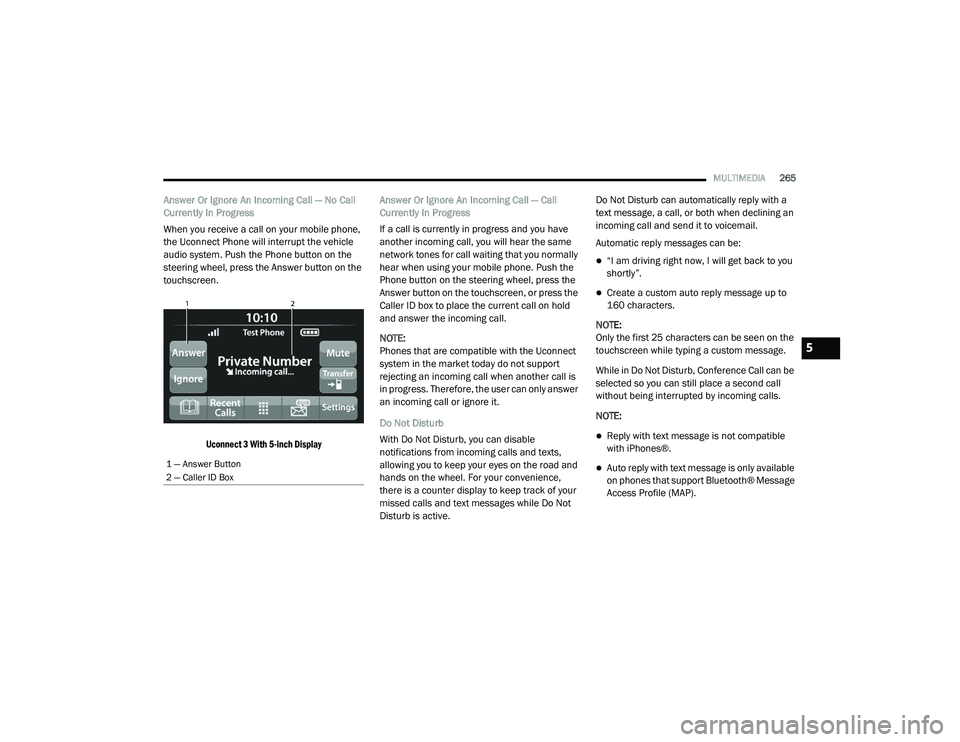
Answer Or Ignore An Incoming Call — No Call
Currently In Progress
When you receive a call on your mobile phone,
the Uconnect Phone will interrupt the vehicle
audio system. Push the Phone button on the
steering wheel, press the Answer button on the
touchscreen.
Uconnect 3 With 5-inch Display
Answer Or Ignore An Incoming Call — Call
Currently In Progress
If a call is currently in progress and you have
another incoming call, you will hear the same
network tones for call waiting that you normally
hear when using your mobile phone. Push the
Phone button on the steering wheel, press the
Answer button on the touchscreen, or press the
Caller ID box to place the current call on hold
and answer the incoming call.
NOTE:
Phones that are compatible with the Uconnect
system in the market today do not support
rejecting an incoming call when another call is
in progress. Therefore, the user can only answer
an incoming call or ignore it.
Do Not Disturb
With Do Not Disturb, you can disable
notifications from incoming calls and texts,
allowing you to keep your eyes on the road and
hands on the wheel. For your convenience,
there is a counter display to keep track of your
missed calls and text messages while Do Not
Disturb is active. Do Not Disturb can automatically reply with a
text message, a call, or both when declining an
incoming call and send it to voicemail.
Automatic reply messages can be:
“I am driving right now, I will get back to you
shortly”.
Create a custom auto reply message up to
160 characters.
NOTE:
Only the first 25 characters can be seen on the
touchscreen while typing a custom message.
While in Do Not Disturb, Conference Call can be
selected so you can still place a second call
without being interrupted by incoming calls.
NOTE:
Reply with text message is not compatible
with iPhones®.
Auto reply with text message is only available
on phones that support Bluetooth® Message
Access Profile (MAP).1 — Answer Button
2 — Caller ID Box
5
21_DPF_OM_EN_USC_t.book Page 265
Page 268 of 463
266MULTIMEDIA
Place/Retrieve A Call From Hold
During an active call, press the Hold or Call On
Hold button on the Phone main screen.
Making A Second Call While Current Call Is In
Progress
You can place a call on hold by pressing the
Hold button on the Phone main screen, then
dial a number from the keypad (if supported by
your mobile phone), recent calls, SMS Inbox or
from the phonebooks.
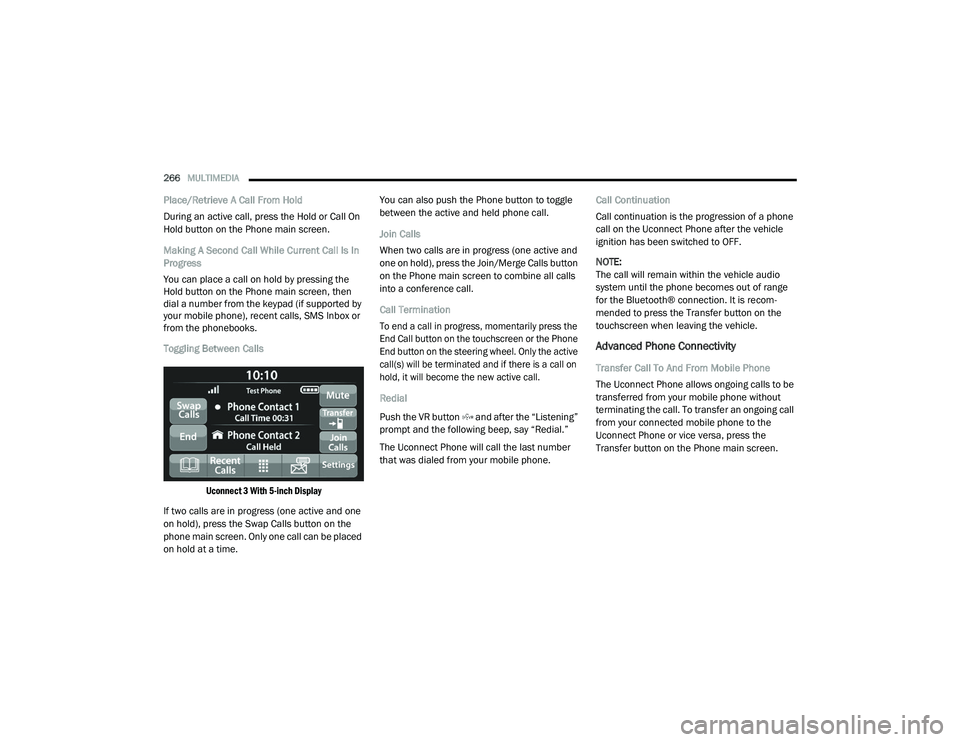
Toggling Between Calls
Uconnect 3 With 5-inch Display
If two calls are in progress (one active and one
on hold), press the Swap Calls button on the
phone main screen. Only one call can be placed
on hold at a time. You can also push the Phone button to toggle
between the active and held phone call.
Join Calls
When two calls are in progress (one active and
one on hold), press the Join/Merge Calls button
on the Phone main screen to combine all calls
into a conference call.
Call Termination
To end a call in progress, momentarily press the
End Call button on the touchscreen or the Phone
End button on the steering wheel. Only the active
call(s) will be terminated and if there is a call on
hold, it will become the new active call.
Redial
Push the VR button and after the “Listening”
prompt and the following beep, say “Redial.”
The Uconnect Phone will call the last number
that was dialed from your mobile phone.
Call Continuation
Call continuation is the progression of a phone
call on the Uconnect Phone after the vehicle
ignition has been switched to OFF.
NOTE:
The call will remain within the vehicle audio
system until the phone becomes out of range
for the Bluetooth® connection. It is recom
-
mended to press the Transfer button on the
touchscreen when leaving the vehicle.
Advanced Phone Connectivity
Transfer Call To And From Mobile Phone
The Uconnect Phone allows ongoing calls to be
transferred from your mobile phone without
terminating the call. To transfer an ongoing call
from your connected mobile phone to the
Uconnect Phone or vice versa, press the
Transfer button on the Phone main screen.
21_DPF_OM_EN_USC_t.book Page 266
Page 270 of 463
268MULTIMEDIA
Push the Phone button and wait for the beep
to say a command. See some examples below:
“Call John Smith”
“Dial 123 456 7890”
“Redial ” (call previous outgoing phone number)
“Call back ” (call previously answered
incoming phone number)
Did You Know: When providing a Voice
Command, push the Phone button and say
“ Call ”, then pronounce the name exactly as it
appears in your phonebook. When a contact
has multiple phone numbers, you can say
“ Call John Smith work”.
Voice Text Reply — If Equipped
Uconnect can announce incoming text
messages. Push the VR button or Phone
button and say:
1. “
Listen
” to have the system read an
incoming text message. (Must have
compatible mobile phone paired to
Uconnect system.)
2. “
Reply ” after an incoming text message has
been read.
Listen to the Uconnect prompts. After the
beep, repeat one of the predefined messag -
es and follow the system prompts. NOTE:
Only use the numbering listed in the provided
table. Otherwise, the system will not transpose
the message.
Did You Know:
Your mobile phone must have the full
implementation of the Message Access Profile
(MAP) to take advantage of this feature. For details
about MAP, visit
UconnectPhone.com
.
Apple® iPhone® iOS 6 or later supports reading
incoming text messages only. For further
information on how to enable this feature on
your Apple® iPhone®, refer to your iPhone’s®
“User Manual”.
Did You Know: Voice Text Reply is not
compatible with iPhone®, but if your vehicle is
equipped with Siri® Eyes Free, you can use your
voice to send a text message.
Siri® Eyes Free — If Equipped
When used with your Apple® iPhone® connected
to your vehicle via Bluetooth®, Siri lets you use
your voice to send text messages, select media,
place phone calls and much more. Siri uses your
natural language to understand what you mean
and responds back to confirm your requests.
PRE-DEFINED VOICE TEXT REPLY RESPONSES
Yes. Stuck in
traffic. See you later.
No. Start without
me. I’ll be late.
Okay. Where are
you? I will be 5
25, 30, 45,
60> minutes late.
Call me.
Are you there
yet?
I’ll call you later. I need
directions. See you in 5
minutes.
I’m on my
way. Can’t talk
right now.
I’m lost. Thanks.
21_DPF_OM_EN_USC_t.book Page 268
Page 271 of 463
MULTIMEDIA269
The system is designed to keep your eyes on the
road and your hands on the wheel by letting Siri
help you perform useful tasks.
To enable Siri, push and hold, then release the
Uconnect Voice Recognition (VR) button on the
steering wheel. After you hear a double beep,
you can ask Siri to play podcasts and music, get
directions, read text messages, and many other
useful requests.
Bluetooth® Communication Link
Mobile phones may lose connection to the Uconnect
Phone. When this happens, the connection can
generally be re-established by restarting the mobile
phone. Your mobile phone is recommended to
remain in Bluetooth® ON mode.
Power-Up
After switching the ignition key from OFF to either
the ON/RUN or ACC position, or after a language
change, you must wait at least 15 seconds prior
to using the system
Ú
page 449.
RADIO OPERATION AND MOBILE PHONES
Under certain conditions, the mobile phone being
on in your vehicle can cause erratic or noisy
performance from your radio. This condition may be
lessened or eliminated by relocating the mobile
phone antenna. This condition is not harmful to
the radio. If your radio performance does not
satisfactorily “clear” by the repositioning of the
antenna, it is recommended that the radio volume
be turned down or off during mobile phone
operation when not using Uconnect (if equipped).
REGULATORY AND SAFETY
I
NFORMATION
USA/CANADA
Exposure to Radio Frequency Radiation
The radiated output power of the internal
wireless radio is far below the FCC and IC radio
frequency exposure limits. Nevertheless, the
wireless radio will be used in such a manner
that the radio is 8 in (20 cm) or further from the
human body. The internal wireless radio operates within
guidelines found in radio frequency safety
standards and recommendations, which reflect
the consensus of the scientific community.
The radio manufacturer believes the internal
wireless radio is safe for use by consumers.
The level of energy emitted is far less than the
electromagnetic energy emitted by wireless
devices such as mobile phones. However, the
use of wireless radios may be restricted in some
situations or environments, such as aboard
airplanes. If you are unsure of restrictions, you
are encouraged to ask for authorization before
turning on the wireless radio Ú
page 449.
5
21_DPF_OM_EN_USC_t.book Page 269
Page 397 of 463

SERVICING AND MAINTENANCE395
Power Distribution Center
The Power Distribution Center is located in the
engine compartment near the battery. This
center contains cartridge fuses, micro fuses,
relays, and circuit breakers. A description of
each fuse and component may be stamped on
the inside cover, otherwise the cavity number of
each fuse is stamped on the inside cover that
corresponds to the following chart.
Power Distribution Center Location
Cavity Cartridge FuseMicro Fuse Description
F01– –Spare
F02 60 Amp Yellow –ABS Pump Motor (HD Only)
F03 60 Amp Yellow –Rad Fan – If Equipped
F04 50 Amp Red 400W Inverter – If Equipped
F05 40 Amp Green –Compressor For Air Suspension – If Equipped
F06 40 Amp Green –Steering Torque Overlay Module (STOM)
F07 40 Amp Green –Starter Solenoid
F08 20 Amp Blue –NOX Sensor – If Equipped
F09 40 Amp Green –Diesel / Fuel Heater – If Equipped
F09 30 Amp Pink –Gas / Brake Vacuum Pump – If Equipped
F10 40 Amp Green –CBC #2 / Ext Lights
F11 40 Amp Green –Brake System Module (ECU and Valves)
8
21_DPF_OM_EN_USC_t.book Page 395
Page 398 of 463

396SERVICING AND MAINTENANCE
F1240 Amp Green –CBC #3 / Pwr Locks
F13 40 Amp Green –Blower Motor
F14 40 Amp Green –CBC #4 / Ext Lights
F15 30 Amp Pink –Power Side Steps — If Equipped
F16 30 Amp Pink –Smart-Bar Module – If Equipped
F17 30 Amp Pink –Winch Control Module – If Equipped
F19 30 Amp Pink –Diesel SCR Feed– If Equipped
F20 30 Amp Pink –Passenger Door Module
F21 30 Amp Pink –Drive Train Control Module
F22 20 Amp Blue –Gas / ECM– If Equipped
F22 25 Amp White –Diesel PCM – If Equipped
F23 30 Amp Pink –CBC #1 / Int Light
F24 30 Amp Pink –Driver Door Module
F25 30 Amp Pink –Front Wiper
F26 — –Spare
F27 — –Spare
F28 20 Amp Blue –Trailer Tow Backup Lights – If Equipped
F29 20 Amp Blue –Trailer Tow Parking Lights – If Equipped
F30 30 Amp Pink –Trailer Tow Receptacle / Trailer Tow (Separate E-Brake) / Trailer Tow
F31 – –Spare
Cavity Cartridge Fuse Micro Fuse Description
21_DPF_OM_EN_USC_t.book Page 396
Page 399 of 463
SERVICING AND MAINTENANCE397
F32– –Spare
F33 20 Amp Blue –Trans Control Module – If Equipped
F34 30 Amp Pink –Vehicle System Interface Module #2 – If Equipped
F35 30 Amp Pink –Sunroof – If Equipped
F36 30 Amp Pink –Electric Back Light – If Equipped
F37 30 Amp Pink –Diesel Frame / Fuel Heater #2– If Equipped
F38 30 Amp Pink –Integrated Trailer Brake Module – If Equipped
F39 – –Spare
F40 –10 Amp Red Ventilated Seats – If Equipped
F41 –10 Amp Red Active Grille Shutter / Active Air Dam – If Equipped
F42 –20 Amp Yellow Horn
F43 –15 Amp Blue Heated Steering Wheel – If Equipped
F44 –10 Amp Red Diagnostic Port
F46 –10 Amp Red Upfitters Relay Coil – If Equipped
F47 – –Spare
F48 – –Spare
F49 –10 Amp Red IP Cluster / CSG
F50 –20 Amp Yellow Air Suspension Control Module – If Equipped
F51 –10 Amp RedIgnition Node Module / Keyless Ignition Node Module, Radio Frequency
Hub Module / Electric Steering Column Lock - If Equipped
F52 –5 Amp Tan Battery Sensor
Cavity Cartridge Fuse Micro Fuse Description
8
21_DPF_OM_EN_USC_t.book Page 397