radio RAM CHASSIS CAB 2023 Owner's Manual
[x] Cancel search | Manufacturer: RAM, Model Year: 2023, Model line: CHASSIS CAB, Model: RAM CHASSIS CAB 2023Pages: 444, PDF Size: 20.51 MB
Page 178 of 444
176STARTING AND OPERATING
(Continued)
AUX CAMERA — IF EQUIPPED
Your vehicle may be equipped with one or two AUX
Cameras, which display a rearview image from the
trailer on the touchscreen.
NOTE:Two Aux Cameras are only available on vehicles
with NAV equipped radios if the vehicle is not
equipped with a Center High Mounted Stop Lamp
(CHMSL) and Surround View Camera system.
Activation
The AUX Camera is activated by first pressing the
Backup Camera or Cargo Camera (if equipped)
button on the touchscreen, followed by the AUX
button located in the upper left corner of the rearview display. On vehicles with Surround View
Camera (if equipped), the AUX Camera can be
activated when the vehicle is in REVERSE by first
pressing the More Cams button in the Surround
view screen, followed by the AUX tab. The AUX
camera can also be activated when the vehicle is
in REVERSE by pressing the AUX button.
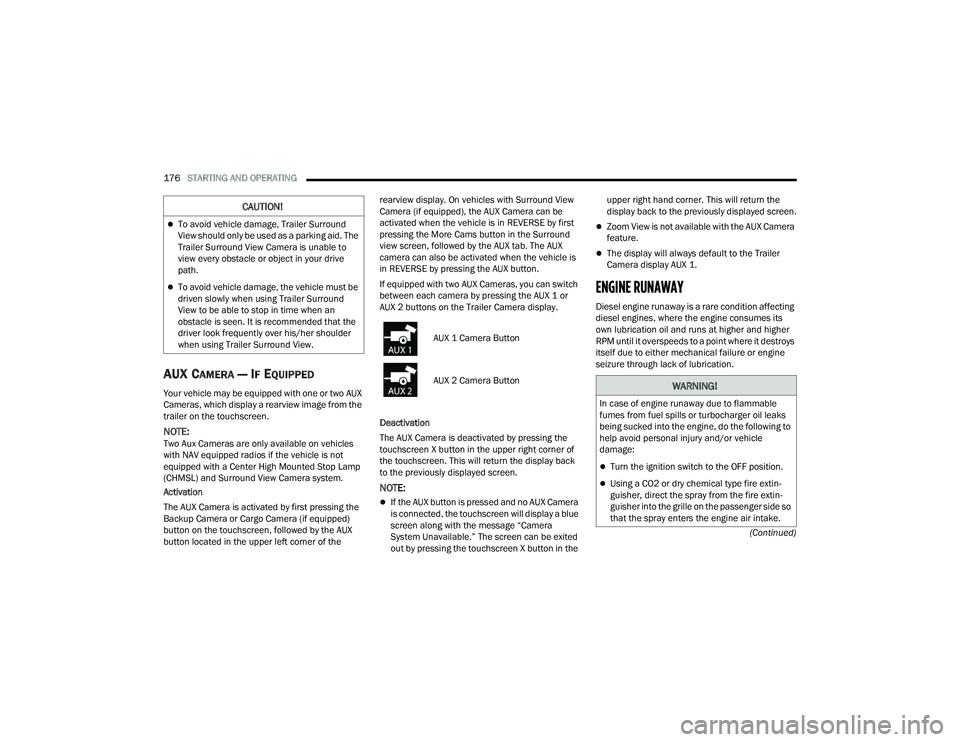
If equipped with two AUX Cameras, you can switch
between each camera by pressing the AUX 1 or
AUX 2 buttons on the Trailer Camera display.
Deactivation
The AUX Camera is deactivated by pressing the
touchscreen X button in the upper right corner of
the touchscreen. This will return the display back
to the previously displayed screen.
NOTE:
If the AUX button is pressed and no AUX Camera
is connected, the touchscreen will display a blue
screen along with the message “Camera
System Unavailable.” The screen can be exited
out by pressing the touchscreen X button in the upper right hand corner. This will return the
display back to the previously displayed screen.
Zoom View is not available with the AUX Camera
feature.
The display will always default to the Trailer
Camera display AUX 1.
ENGINE RUNAWAY
Diesel engine runaway is a rare condition affecting
diesel engines, where the engine consumes its
own lubrication oil and runs at higher and higher
RPM until it overspeeds to a point where it destroys
itself due to either mechanical failure or engine
seizure through lack of lubrication.
CAUTION!
To avoid vehicle damage, Trailer Surround
View should only be used as a parking aid. The
Trailer Surround View Camera is unable to
view every obstacle or object in your drive
path.
To avoid vehicle damage, the vehicle must be
driven slowly when using Trailer Surround
View to be able to stop in time when an
obstacle is seen. It is recommended that the
driver look frequently over his/her shoulder
when using Trailer Surround View.
AUX 1 Camera Button
AUX 2 Camera Button
WARNING!
In case of engine runaway due to flammable
fumes from fuel spills or turbocharger oil leaks
being sucked into the engine, do the following to
help avoid personal injury and/or vehicle
damage:
Turn the ignition switch to the OFF position.
Using a CO2 or dry chemical type fire extin
-
guisher, direct the spray from the fire extin -
guisher into the grille on the passenger side so
that the spray enters the engine air intake.
23_DPF_OM_EN_USC_t.book Page 176
Page 201 of 444
199
MULTIMEDIA
UCONNECT SYSTEMS
For detailed information about your Uconnect 5/
5 NAV With 8.4-inch Display system or your
Uconnect 5 NAV With 12-inch Display system, refer
to your Uconnect Owner’s Manual Supplement.
NOTE:Uconnect screen images are for illustration
purposes only and may not reflect exact software
for your vehicle.
CYBERSECURITY
Depending on applicability, your vehicle may be
able to send or receive information from a wired or
wireless network. This information allows systems
and features in your vehicle to function properly.
Your vehicle may be equipped with certain security
features to reduce the risk of unauthorized and
unlawful access to vehicle systems and wireless
communications. Vehicle software technology
continues to evolve over time and FCA US LLC,
working with its suppliers, evaluates and takes
appropriate steps as needed. As always, if you
experience unusual behavior, contact an
authorized dealer immediately, Úpage 422, or
refer to your Uconnect Owner’s Manual
Supplement for additional contact information. The risk of unauthorized and unlawful access to
your vehicle systems may still exist, even if the
most recent version of vehicle software (such as
Uconnect software) is installed.
NOTE:To help further improve user experience, features,
stability, etc., and minimize the potential risk of a
security breach, vehicle owners should routinely
check
www.driveuconnect.com (US Residents) or www.driveuconnect.ca (Canadian Residents) to
learn about available Uconnect software updates.
UCONNECT SETTINGS
The Uconnect system uses a combination of
buttons on the touchscreen and buttons on the
faceplate located on the center of the instrument
panel. These buttons allow you to access and
change the Customer Programmable Features.
Many features can vary by vehicle.
Buttons on the faceplate are located below and/or
beside the Uconnect system in the center of the
instrument panel. In addition, there is a SCROLL/
ENTER control knob located on the right side. Turn
the control knob to scroll through menus and
change settings. Push the center of the control
knob one or more times to select or change a
setting.
Your Uconnect system may also have SCREEN OFF
and MUTE buttons on the faceplate.
Push the SCREEN OFF button on the faceplate to
turn off the Uconnect screen. Push the button
again or tap the screen to turn the screen on.
Press the Back Arrow button to exit out of a Menu
or certain option on the Uconnect system.
For the Uconnect 5 systems, push and hold the
Power button on the radio’s faceplate for a
minimum of 15 seconds to reset the radio.
WARNING!
ONLY insert trusted media devices/compo -
nents into your vehicle. Media of unknown
origin could possibly contain malicious soft -
ware, and if installed in your vehicle, it may
increase the possibility for vehicle systems to
be breached.
As always, if you experience unusual vehicle
behavior, contact an authorized dealer imme -
diately.
5
23_DPF_OM_EN_USC_t.book Page 199
Page 205 of 444
MULTIMEDIA203
Display Mode This setting will adjust the display for the radio to “Auto” or “Manual”.
“Manual” allows for more customization with the radio display.
Display Brightness Headlights On This setting will allow you to set the brightness when the headlights are on. To
access this setting, Display Mode must be set to “Manual”. The “+” setting will
increase the brightness; the “-” will decrease the brightness.
Display Brightness Headlights Off This setting will allow you to set the brightness when the headlights are off. To
access this setting, Display Mode must be set to “Manual”. The “+” setting will
increase the brightness; the “-” will decrease the brightness.
Set Theme This setting will allow you to change the display theme.
Units The available settings are “Speed” (MPH or km/h), “Distance” (mi or km),
“Fuel Consumption” (MPG [US], MPG [UK], L/100 km, or km/L), “Pressure”
(psi, kPa, or bar), “Temperature” (°C or °F), “Power” (HP [US], Gal HP [UK], or
kW), and “Torque” (lb-ft or Nm) units of measurement independently.
Theme Mode This setting will allow you to adjust the brightness of your theme. Setting
options are “Light”, “Dark” and “Auto”. Select to show themes in Light or Dark
mode. “Auto” changes the theme with the headlights.
Touchscreen Beep This setting will allow you to turn the touchscreen beep on or off.
Show Main Category Bar Labels This setting will allow the main category bar labels to be shown on or off.
Navigation Turn-by-Turn Displayed in Cluster This setting will display navigation prompts in the Instrument Cluster Display.
Phone Pop-ups Displayed In Cluster This setting will display incoming calls in the Instrument Cluster Display.
Time Format This setting will allow you to set the time format (AM/PM). Sync Time With GPS
must be “Off” for this setting to be available. The “12 hrs” setting will set the
time to a 12-hour format. The “24 hrs” setting will set the time to a 24-hour
format.
Setting Name
Description
5
23_DPF_OM_EN_USC_t.book Page 203
Page 206 of 444
204MULTIMEDIA
Voice Options This setting will allow you to change the voice options for the radio to “Male”
or “Female”.
Wake Up Word This setting will allow you to set the system “Wake Up” word. The available
options are “Off”, “Hey, Uconnect”, and “Hey, Ram”.
Voice Barge-in This setting will allow Voice Barge-in to be turned on or off.
Show Command List This setting will allow the Command List to be shown. The options are “On”
and “Off”.
Navigation Settings This setting will redirect to the list of Navigation settings. Refer to your
Uconnect Owner’s Manual Supplement for further information.
Auto-On Driver Heated/Ventilated Seat & Heated Steering Wheel This setting will activate the vehicle’s comfort system and heated seats or
heated steering wheel when the vehicle is remote started or ignition is
started. The “Off” setting will not activate the comfort systems. The “Remote
Start” setting will only activate the comfort systems when using Remote Start.
The “All Start” setting will activate the comfort systems whenever the vehicle
is started.
Radio Power Off This setting will keep certain electrical features running after the engine is
turned off. When any door is opened, the electronics will deactivate. The
available settings are “0 sec”, “45 sec”, “5 min”, and “10 min”.
Radio Off With Door This setting will allow you to determine if the radio shuts off when any of the
doors are opened.
Audio Settings This setting will open the submenu, containing the audio settings
Ú
page 217.
App Drawer Favoriting Pop-ups This setting will allow you to favorite app drawer pop-ups with “On” and “Off”
options.
Setting Name
Description
23_DPF_OM_EN_USC_t.book Page 204
Page 210 of 444
208MULTIMEDIA
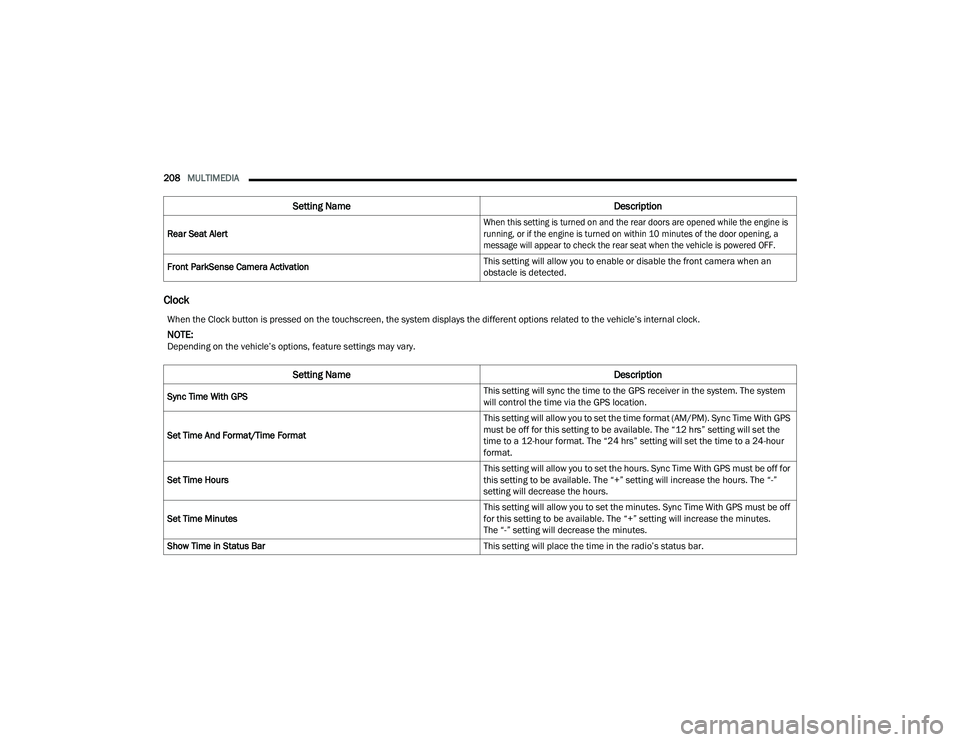
Clock
Rear Seat Alert
When this setting is turned on and the rear doors are opened while the engine is
running, or if the engine is turned on within 10 minutes of the door opening, a
message will appear to check the rear seat when the vehicle is powered OFF.
Front ParkSense Camera Activation This setting will allow you to enable or disable the front camera when an
obstacle is detected.
Setting Name
Description
When the Clock button is pressed on the touchscreen, the system displays the different options related to the vehicle’s internal clock.
NOTE:Depending on the vehicle’s options, feature settings may vary.
Setting NameDescription
Sync Time With GPS This setting will sync the time to the GPS receiver in the system. The system
will control the time via the GPS location.
Set Time And Format/Time Format This setting will allow you to set the time format (AM/PM). Sync Time With GPS
must be off for this setting to be available. The “12 hrs” setting will set the
time to a 12-hour format. The “24 hrs” setting will set the time to a 24-hour
format.
Set Time Hours This setting will allow you to set the hours. Sync Time With GPS must be off for
this setting to be available. The “+” setting will increase the hours. The “-”
setting will decrease the hours.
Set Time Minutes This setting will allow you to set the minutes. Sync Time With GPS must be off
for this setting to be available. The “+” setting will increase the minutes.
The “-” setting will decrease the minutes.
Show Time in Status Bar This setting will place the time in the radio’s status bar.
23_DPF_OM_EN_USC_t.book Page 208
Page 216 of 444
214MULTIMEDIA
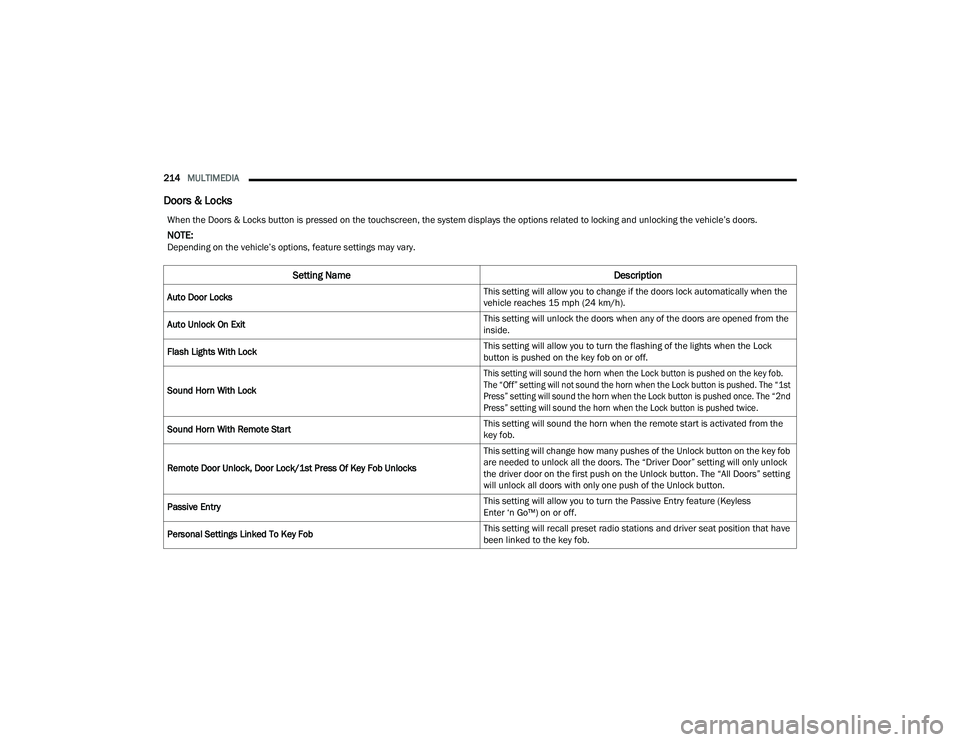
Doors & Locks
When the Doors & Locks button is pressed on the touchscreen, the system displays the options related to locking and unlocking the vehicle’s doors.
NOTE:Depending on the vehicle’s options, feature settings may vary.
Setting Name Description
Auto Door Locks This setting will allow you to change if the doors lock automatically when the
vehicle reaches 15 mph (24 km/h).
Auto Unlock On Exit This setting will unlock the doors when any of the doors are opened from the
inside.
Flash Lights With Lock This setting will allow you to turn the flashing of the lights when the Lock
button is pushed on the key fob on or off.
Sound Horn With Lock
This setting will sound the horn when the Lock button is pushed on the key fob.
The “Off” setting will not sound the horn when the Lock button is pushed. The “1st
Press” setting will sound the horn when the Lock button is pushed once. The “2nd
Press” setting will sound the horn when the Lock button is pushed twice.
Sound Horn With Remote Start This setting will sound the horn when the remote start is activated from the
key fob.
Remote Door Unlock, Door Lock/1st Press Of Key Fob Unlocks This setting will change how many pushes of the Unlock button on the key fob
are needed to unlock all the doors. The “Driver Door” setting will only unlock
the driver door on the first push on the Unlock button. The “All Doors” setting
will unlock all doors with only one push of the Unlock button.
Passive Entry This setting will allow you to turn the Passive Entry feature (Keyless
Enter ‘n Go™) on or off.
Personal Settings Linked To Key Fob This setting will recall preset radio stations and driver seat position that have
been linked to the key fob.
23_DPF_OM_EN_USC_t.book Page 214
Page 220 of 444
218MULTIMEDIA
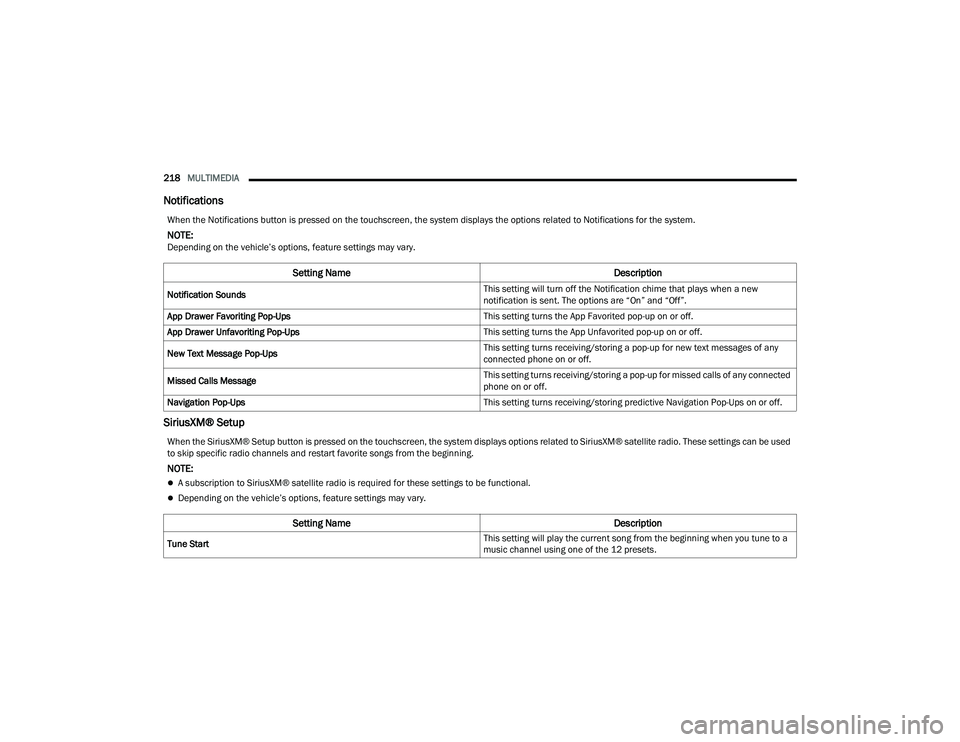
Notifications
SiriusXM® Setup
When the Notifications button is pressed on the touchscreen, the system displays the options related to Notifications for the system.
NOTE:Depending on the vehicle’s options, feature settings may vary.
Setting Name Description
Notification Sounds This setting will turn off the Notification chime that plays when a new
notification is sent. The options are “On” and “Off”.
App Drawer Favoriting Pop-Ups This setting turns the App Favorited pop-up on or off.
App Drawer Unfavoriting Pop-Ups This setting turns the App Unfavorited pop-up on or off.
New Text Message Pop-Ups This setting turns receiving/storing a pop-up for new text messages of any
connected phone on or off.
Missed Calls Message This setting turns receiving/storing a pop-up for missed calls of any connected
phone on or off.
Navigation Pop-Ups This setting turns receiving/storing predictive Navigation Pop-Ups on or off.
When the SiriusXM® Setup button is pressed on the touchscreen, the system displays options related to SiriusXM® satellite radio. These settings can be used
to skip specific radio channels and restart favorite songs from the beginning.
NOTE:
A subscription to SiriusXM® satellite radio is required for these settings to be functional.
Depending on the vehicle’s options, feature settings may vary.
Setting NameDescription
Tune Start This setting will play the current song from the beginning when you tune to a
music channel using one of the 12 presets.
23_DPF_OM_EN_USC_t.book Page 218
Page 221 of 444

MULTIMEDIA219
Software Updates — If Equipped
System Information
Channel Skip This setting allows you to set channels that you wish to skip. A channel list will
display of the skipped channels.
Subscription Information This menu provides SiriusXM® subscription information. SiriusXM® Travel
Link is a separate subscription.
Setting Name
Description
When the Software Updates button is pressed on the touchscreen, the system will display the setting related to updating the Uconnect software.
NOTE:Depending on the vehicle’s options, feature settings may vary.
Setting NameDescription
Software Downloads over Wi-Fi This setting will allow software updates to happen over Wi-Fi. Selectable
options for the setting are “On” and “Off”.
When the System Information button is pressed on the touchscreen, the system displays the Radio system information.
NOTE:Depending on the vehicle’s options, feature settings may vary.
Setting Name
Description
Software Licenses This will display the software licensing information screen.
5
23_DPF_OM_EN_USC_t.book Page 219
Page 222 of 444

220MULTIMEDIA
Reset
When the Reset button is pressed on the touchscreen, the system displays the options related to resetting the Uconnect system back to its default settings.
These settings can clear personal data and reset selected settings from other menus.
NOTE:Depending on the vehicle’s options, feature settings may vary.
Setting Name Description
Restart Radio This setting will reboot the radio.
Reset Apps Drawer To Default Order This setting will return the apps drawer to the default order. The available
options are “Yes” and “Cancel”. The X button can also be pressed to cancel
the screen.
Restore Settings to Default This setting will return all the previously changed settings to their factory
defaults.
Clear Personal Data This setting will display a pop-up that gives you the option to clear all personal
data from the system, including Bluetooth® devices and presets.
Reset Wi-Fi Password For Projection This setting will allow you to reset the vehicle’s Wi-Fi password for smartphone
projection. The available options are “Yes” and “Cancel”. The X button can
also be pressed to cancel the screen.
Reset Performance Values This setting will reset the performance values for your vehicle.
Factory Reset This setting will restore the radio to its factory default settings.
23_DPF_OM_EN_USC_t.book Page 220
Page 223 of 444

MULTIMEDIA221
UCONNECT INTRODUCTION
SYSTEM OVERVIEW
Uconnect 3 With 5-inch Display
1 — RADIO Button 6 — COMPASS Button
2 — MEDIA Button 7 — SETTINGS Button
3 — PHONE Button 8 — MORE Button
4 — VOLUME & On/Off Button 9 — ENTER/BROWSE & TUNE/SCROLL Knob
5 — MUTE Button 10 — SCREEN OFF Button
5
23_DPF_OM_EN_USC_t.book Page 221