radio RAM CHASSIS CAB 2023 Service Manual
[x] Cancel search | Manufacturer: RAM, Model Year: 2023, Model line: CHASSIS CAB, Model: RAM CHASSIS CAB 2023Pages: 444, PDF Size: 20.51 MB
Page 237 of 444
MULTIMEDIA235
Screen Activated Features
Dialing via Keypad using touchscreen.
Viewing and Calling contacts from Phonebooks
displayed on the touchscreen.
Setting Favorite Contact phone numbers so they
are easily accessible on the Main Phone screen.
Viewing and Calling contacts from Recent Call
logs.
Reviewing your recent Incoming SMS
Messages.
Pairing up to 10 phones/audio devices for easy
access to connect to them quickly.
NOTE:Your phone must be capable of SMS messaging via
Bluetooth® for messaging features to work
properly.
Your mobile phone’s audio is transmitted through
your vehicle’s audio system; the system will
automatically mute your radio when using the
Uconnect Phone.
For Uconnect customer support:
US visit UconnectPhone.com or call
877-855-8400
Canada visit UconnectPhone.com or call
800-465-2001 (English) or (French) call
800-387-9983 Uconnect Phone allows you to transfer calls
between the system and your mobile phone as you
enter or exit your vehicle and enables you to mute
the system's microphone for private conversation.
The Phone feature is driven through your
Bluetooth® “Hands-Free Profile” mobile phone.
Uconnect features Bluetooth® technology — the
global standard that enables different electronic
devices to connect to each other without wires or a
docking station. Ensure you phone is turned on
with Bluetooth® active and has been paired to the
Uconnect system. Up to 10 mobile phones or audio
devices are allowed to be linked to the system.
Only one linked (or paired) mobile phone and one
audio device can be used with the system at a
time.
Phone Button
The Phone button on your steering wheel
is used to get into the Phone Mode and
make calls, show recent, incoming or
outgoing calls, view phonebook, etc.
When you push the button you will hear a BEEP.
The BEEP is your signal to give a command.
Voice Command Button
The Voice Command button on your
steering wheel is only used for “barge in”
and when you are already in a call or
want to make another call.
The button on your steering wheel is also used to
access the Voice Commands for the Uconnect
Voice Command features if your vehicle is
equipped.
Phone Operation
OPERATION
Voice commands can be used to operate the
Uconnect Phone and to navigate its menu
structure. Voice commands are required after
most Uconnect Phone prompts. There are two
general methods for how Voice Command works:
1. Say compound commands like “Call John Smith mobile”.
2. Say the individual commands and allow the system to guide you to complete the task.
WARNING!
ALWAYS drive safely with your hands on the
steering wheel. You have full responsibility and
assume all risks related to the use of the
Uconnect features and applications in this
vehicle. Only use Uconnect when it is safe to do
so. Failure to do so may result in an accident
involving serious injury or death.
5
23_DPF_OM_EN_USC_t.book Page 235
Page 240 of 444
238MULTIMEDIA
NOTE:During the pairing procedure, you may receive a
pop-up on your mobile phone for the Uconnect
system to access your “messages” and “contacts”.
Selecting “Ok” or “Allow” will sync your contacts
with the Uconnect system.
You can also use the following VR command “Show
Paired Phones” to bring up the Paired Phone
screen from any screen on the radio:
NOTE:Software updates on your phone or the Uconnect
system may interfere with the Bluetooth®
connection. If this happens, simply repeat the
pairing process. However, first make sure to delete
the device from the list of phones on your
Uconnect system. Next, be sure to remove
Uconnect from the list of devices in your phone’s
Bluetooth® settings.
CONNECTING TO A PARTICULAR MOBILE
PHONE OR AUDIO DEVICE AFTER PAIRING
Uconnect Phone will automatically connect to the
highest priority paired phone and/or Audio Device
within range. If you need to choose a particular
phone or audio device follow these steps:
1. Press the
Settings
button on the touchscreen.
2. Press the Paired Phones or Audio Sources button. 3. Press to select the particular phone or the
particular audio device. A pop-up menu will
appear; press “Connect Phone”.
4. Press the X to exit out of the Settings screen.
DISCONNECTING OR DELETING A PHONE OR
AUDIO DEVICE
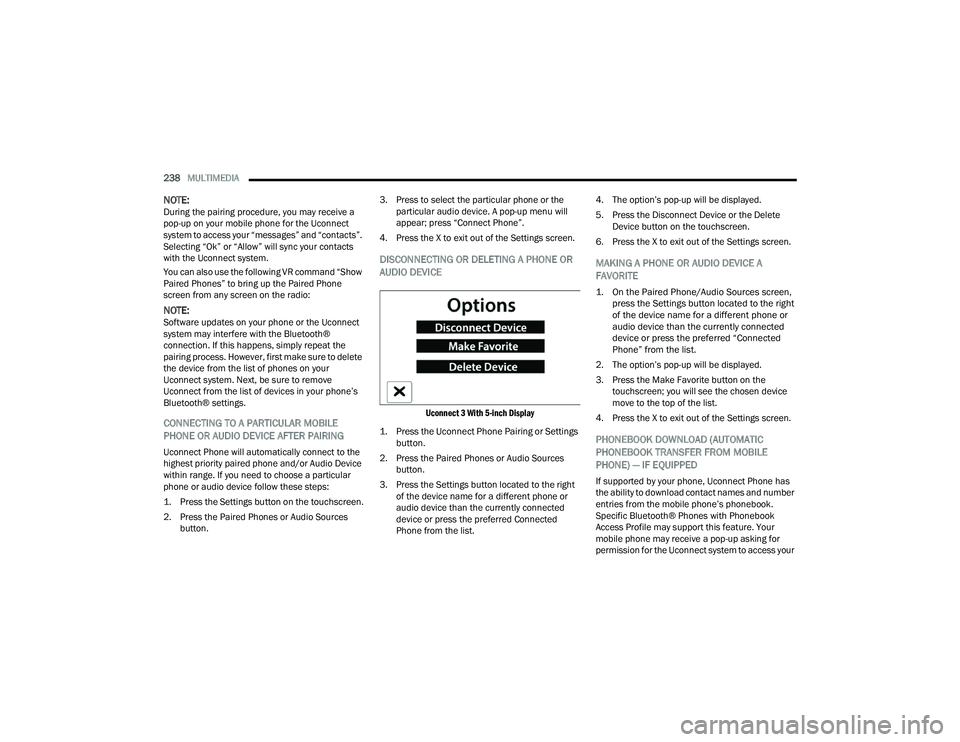
Uconnect 3 With 5-inch Display
1. Press the Uconnect Phone Pairing or Settings button.
2. Press the Paired Phones or Audio Sources button.
3. Press the Settings button located to the right of the device name for a different phone or
audio device than the currently connected
device or press the preferred Connected
Phone from the list. 4. The option’s pop-up will be displayed.
5. Press the Disconnect Device or the Delete
Device button on the touchscreen.
6. Press the X to exit out of the Settings screen.
MAKING A PHONE OR AUDIO DEVICE A
FAVORITE
1. On the Paired Phone/Audio Sources screen, press the Settings button located to the right
of the device name for a different phone or
audio device than the currently connected
device or press the preferred “Connected
Phone” from the list.
2. The option’s pop-up will be displayed.
3. Press the Make Favorite button on the touchscreen; you will see the chosen device
move to the top of the list.
4. Press the X to exit out of the Settings screen.
PHONEBOOK DOWNLOAD (AUTOMATIC
PHONEBOOK TRANSFER FROM MOBILE
PHONE) — IF EQUIPPED
If supported by your phone, Uconnect Phone has
the ability to download contact names and number
entries from the mobile phone’s phonebook.
Specific Bluetooth® Phones with Phonebook
Access Profile may support this feature. Your
mobile phone may receive a pop-up asking for
permission for the Uconnect system to access your
23_DPF_OM_EN_USC_t.book Page 238
Page 246 of 444
244MULTIMEDIA
Did You Know: Voice Text Reply is not compatible
with iPhone®, but if your vehicle is equipped with
Siri® Eyes Free, you can use your voice to send a
text message.
Siri® Eyes Free — If Equipped
When used with your Apple® iPhone® connected
to your vehicle via Bluetooth®, Siri lets you use
your voice to send text messages, select media,
place phone calls and much more. Siri uses your
natural language to understand what you mean
and responds back to confirm your requests. The
system is designed to keep your eyes on the road
and your hands on the wheel by letting Siri help you
perform useful tasks.
To enable Siri, push and hold, then release the
Uconnect Voice Recognition (VR) button on the
steering wheel. After you hear a double beep, you
can ask Siri to play podcasts and music, get
directions, read text messages, and many other
useful requests.
BLUETOOTH® COMMUNICATION LINK
Mobile phones may lose connection to the
Uconnect Phone. When this happens, the
connection can generally be re-established by
restarting the mobile phone. Your mobile phone is
recommended to remain in Bluetooth® ON mode.
POWER-UP
After switching the ignition key from OFF to either
the ON/RUN or ACC position, or after a language
change, you must wait at least 15 seconds prior to
using the system Ú page 427.
CONNECTED VEHICLE SERVICES —
IF EQUIPPED
IS MY VEHICLE CONNECTED?
If equipped, vehicles with an ASSIST and an SOS
button are connected vehicles. These buttons will
be located on either the rearview mirror or
overhead console, depending on the vehicle. If
these buttons are present in your vehicle, you have
a connected radio and can take advantage of the
many connected vehicle features.
For further information about the ASSIST and SOS
buttons Úpage 326.
INTRODUCTION TO CONNECTED VEHICLE
S
ERVICES
One of the many benefits of your vehicle’s
Uconnect system is that you can now take
advantage of SiriusXM Guardian™ connected
services. To unlock the full potential of SiriusXM
Guardian™ in your vehicle, you first need to
activate SiriusXM Guardian™ connected services.
NOTE:SiriusXM Guardian™ involves the collection, trans -
mission and use of data from your vehicle
Ú page 263.
SiriusXM Guardian™ Contact Information
SiriusXM Guardian™/Care
US residents visit: https://www.driveucon -
nect.com/sirius-xm-guardian.html or call
1-844-796-4827
Canadian residents visit: https://www.driveu -
connect.ca/en/sirius-xm-guardian or call
1-877-324-9091
What Is SiriusXM Guardian™?
SiriusXM Guardian™ uses an embedded device in
the Uconnect system installed in your vehicle,
which receives GPS signals and communicates
with the SiriusXM Guardian™ Customer Care
center via wireless and landline communications
WARNING!
ALWAYS obey traffic laws and pay attention to
the road. Your complete attention is always
required while driving to maintain safe control of
your vehicle. Only use and interact with the
features and applications when it is safe to do
so. Failure to follow these warnings can result in
a collision and death or serious personal injury.
23_DPF_OM_EN_USC_t.book Page 244
Page 251 of 444
MULTIMEDIA249
(Continued)
(Continued)
If your vehicle loses battery power for any reason
(including during or after an accident), the SOS Call
system, among other vehicle systems, will not
operate.
Requirements
This feature is available only on vehicles sold in
the US or Canada.
Vehicle must be properly equipped with the Siri
-
usXM Guardian™ connected services. Vehicle
must be registered with SiriusXM Guardian™
and have an active subscription that includes
the applicable feature.
Vehicle must have an operable LTE (voice/data)
or 4G (data) network connection compatible
with your device.
Vehicle must be powered in the ON/RUN or ACC
(Accessory) position with a properly functioning
electrical system.
Automatic SOS — If Equipped
Automatic SOS is a hands-free safety service that
can immediately connect you with help in the event
that your vehicle’s airbags deploy. After an
accident, a live agent will contact you through the
Uconnect system and alert emergency services.
NOTE:An active SiriusXM Guardian™ subscription is
required for this feature to function.
WARNING!
Never place anything on or near the vehicle’s
LTE (voice/data) or 4G (data) and GPS
antennas. You could prevent LTE (voice/data)
or 4G (data) and GPS signal reception, which
can prevent your vehicle from placing an
emergency call.
Do not add any aftermarket electrical equip -
ment to the vehicle’s electrical system. This
may prevent your vehicle from sending a
signal to initiate an emergency call. To avoid
interference that can cause the SOS Call
system to fail, never add aftermarket equip -
ment (e.g., two-way mobile radio, CB radio,
data recorder, etc.) to your vehicle’s electrical
system or modify the antennas on your
vehicle. IF YOUR VEHICLE LOSES POWER FOR
ANY REASON (INCLUDING DURING OR AFTER
AN ACCIDENT), NEITHER THE VEHICLE
BRANDED APPS NOR THE SIRIUSXM
GUARDIAN™ CONNECTED SERVICES WILL
OPERATE.
The Occupant Restraint Controller (ORC) turns
on the Air Bag Warning Light on the instru -
ment panel if a malfunction in any part of the
air bag system is detected. If the Air Bag
Warning Light is illuminated, the air bag
system may not be working properly and the
SOS Call system may not be able to send a
signal to the SiriusXM Guardian™ Customer
Care center. If the Air Bag Warning Light is illu -
minated, have an authorized dealer service
your vehicle immediately.
WARNING!
Ignoring the Rearview Mirror Light could mean
you will not have SOS Call services if needed.
If the Rearview Mirror Light is illuminated,
have an authorized dealer service the SOS
Call system immediately.
If anyone in the vehicle could be in danger
(e.g., fire or smoke is visible, dangerous road
conditions or location), do not wait for voice
contact from a SiriusXM Guardian™
Customer Care agent. All occupants should
exit the vehicle immediately and move to a
safe location.
Failure to perform scheduled maintenance
and regular inspection of your vehicle may
result in vehicle damage, accident or injury.
WARNING!
5
23_DPF_OM_EN_USC_t.book Page 249
Page 255 of 444
MULTIMEDIA253
Connected Services — Contact the SiriusXM
Guardian™ Customer Care call center to acti -
vate your services, renew after your trial has
expired, for in-vehicle support for your SiriusXM
Guardian™ connected services, or help
answering any general questions surrounding
your connected services.
Uconnect Care — In-vehicle support for all
non-connected Uconnect system features, such
as radio and Bluetooth® connections.
Vehicle Care — Total support for your vehicle.
SiriusXM Guardian™ In-Vehicle Assistance
Features — If Equipped
With SiriusXM Guardian™, your vehicle has
onboard assistance features located on the
rearview mirror or overhead console designed to
enhance your driving experience if you should ever
need assistance or support.
How It Works
Simply push the ASSIST button in the vehicle and
you will be presented with your ASSIST options on
the touchscreen. Make your selection by pressing
the touchscreen.
Requirements
This feature is available only on vehicles sold in
the US and Canada.
Vehicle must be properly equipped with the Siri -
usXM Guardian™ connected services.
Vehicle must have an operable LTE (voice/data)
or 4G (data) network connection.
Vehicle must be registered with SiriusXM
Guardian™ and have an active subscription that
includes the applicable feature.
Vehicle must be powered in the ON/RUN or ACC
(Accessory) position with a properly functioning
electrical system.
Disclaimers
If Roadside Assistance Call is provided to your
vehicle, you agree to be responsible for any
additional roadside assistance service costs that
you may incur. In order to provide SiriusXM
Guardian™ connected services to you, we may
record and monitor your conversations with
Roadside Assistance Call, Vehicle Care, Uconnect
Care, or SiriusXM Guardian™ Customer Care,
whether such conversations are initiated through
the SiriusXM Guardian™ connected services in
your vehicle, or via a landline or mobile device, and
may share information obtained through such
recording and monitoring in accordance with
regulatory requirements. You acknowledge, agree
and consent to any recording, monitoring or
sharing of information obtained through any such
call recordings.
Send & Go — If Equipped
Description
The Send & Go feature allows you to search for a
destination on your mobile device, and then send
the route to your vehicle’s Navigation system.
How It Works
1. There are multiple ways to find a destination. After selecting the Location tab at the bottom
of the App, browse through one of the
categories provided, or type the name or
keyword in the search box. You can also
select categories such as “Favorites” or
“Contact List”.
2. Select your destination from the list that appears. Location information will then be
displayed on the map.
From this screen, you will be able to:
View the location on a map.
See the distance from your current location.
Send the destination to the vehicle
(Send & Go).
3. Send the destination to the Uconnect Navigation in your vehicle. You can also call
the destination by pressing the Call button.
4. Confirm your destination in the vehicle through a notification or in the Navigation system.
5
23_DPF_OM_EN_USC_t.book Page 253
Page 256 of 444
254MULTIMEDIA
Requirements
Vehicle must have an operable LTE (voice/data)
or 4G (data) network connection compatible
with your device.
Vehicle must have an active subscription that
includes the applicable feature.
Vehicle Finder
Description
The Vehicle Finder feature allows you to find the
location of your vehicle.
You can also sound the horn and flash the lights to
make finding your vehicle even easier.
How It Works
Select the Vehicle Finder function within the
Vehicle Branded App and select the Location tab at
the bottom of the App. Then, press the Vehicle icon
to find your vehicle.
Requirements
Vehicle must be properly equipped with the
Uconnect system.
Vehicle must have an operable LTE (voice/data)
or 4G (data) network connection compatible
with your device.
Vehicle must have an active subscription that
includes the applicable feature.
Vehicle ignition must have been turned on
within 14 days.
4G Wi-Fi Hotspot — If Equipped
Description
4G Wi-Fi Hotspot is an in-vehicle service that
connects your device to an LTE (voice/data) or 4G
(data) network that is ready to go wherever you are.
After you've made your purchase, turn on your
device’s Wi-Fi and connect your devices.
Enables all your passengers to be simultane -
ously connected to the web.
Connect several devices at one time.
Any Wi-Fi-enabled device — such as a laptop or
any other portable-enabled media — can
connect over your private in-vehicle network.
A high-speed, secured connection lets anyone
on your private network access the Web — great
for working and relaxing. Create A 4G Wi-Fi Hotspot For Use In Your Vehicle
How It Works
The 4G Wi-Fi Hotspot feature provides
the vehicle passengers with an internet
access hotspot in the vehicle, using the
radio as an access point. The hotspot will
allow Wi-Fi-enabled in-vehicle devices (such as a
laptop or any other portable-enabled media
device) to wirelessly connect to the internet.
Uconnect offers a complimentary 3-month trial
period that includes 1GB of total data. The trial can
be activated any time within the first year of new
vehicle ownership.
Use one of these three ways to purchase a
subscription to the 4G Wi-Fi Hotspot:
1. From your vehicle’s touchscreen, select the 4G Wi-Fi Hotspot App, and press the How To
Purchase button and follow the instructions.
2. Log onto your Owner’s Site and click the link to the AT&T portal to get set up.
3. For existing Connected Car customers: Push
the ASSIST button to be routed to an AT&T
Customer Care agent who will assist you.
WARNING!
The driver should NEVER use the 4G Wi-Fi
Hotspot while driving the vehicle as doing so
may result in an accident involving serious injury
or death.
23_DPF_OM_EN_USC_t.book Page 254
Page 265 of 444

MULTIMEDIA263
16. What should I do if I want to sell my vehicle?
Before your vehicle is sold to a new owner,
you’ll want to remove your account
information. This process removes all personal
information, returns the Uconnect system to
its original factory settings, removes all
SiriusXM Guardian™ connected services and
account information. To remove your account
information from the Uconnect system,
contact SiriusXM Guardian™ Customer Care.
17. What if I forgot to remove my account
information before I returned my lease vehicle
or sold it? Contact SiriusXM Guardian™
Customer Care.
18. What will happen if an operable LTE (voice/
data), 4G (data), or 5G (data) network
connection compatible with my device is
temporarily unavailable? The SOS Call and
ASSIST buttons will NOT function if you are not
connected to an operable LTE (voice/data) or
4G (data), 5G (data) network. Services that
required your smartphone only direct calls to
Roadside Assistance Call may be functioning if
you have an operable network.
DATA COLLECTION & PRIVACY
The Uconnect system collects and transmits data
which may include information about your vehicle,
your vehicle’s health and performance, your
vehicle’s location, your utilization of the features in
your vehicle, and other data. The collection, use
and sharing of this information is required to
provide the SiriusXM Guardian™ connected
services and is further described by the Uconnect
Privacy Policy, which can be found at
www.driveuconnect.com/connectedservices/
privacy.html (US Residents) or www.driveuconnect.ca (Canadian Residents).
This information may be collected by SiriusXM®
Connected Vehicle Services Inc. and shared with
FCA US LLC for the purposes stated in the
Uconnect Privacy Policy. Vehicle health and
diagnostic information including location data may
be used by Uconnect to provide a Vehicle Health
Report to you. Even if you cancel your SiriusXM Guardian™
subscription, this vehicle diagnostic health
information, including location data, may still be
transmitted from your vehicle and you may still
have a Vehicle Health Report sent to you.
Use of any of the connected services including
SiriusXM Guardian™ is deemed to be your consent
to the collection, use and disclosure of this
information in accordance with the Uconnect
Privacy Policy. If you do not want this information to
be collected, used, or shared, you must cancel your
Uconnect services in their entirety by contacting us
as referenced in the Uconnect Privacy Policy.
RADIO OPERATION AND MOBILE PHONES
Under certain conditions, the mobile phone being
on in your vehicle can cause erratic or noisy
performance from your radio. This condition may
be lessened or eliminated by repositioning the
mobile phone within the vehicle. This condition is
not harmful to the radio. If your radio performance
does not satisfactorily improve from repositioning
the mobile phone, it is recommended that the
volume be turned down or off during mobile phone
operation when not using the Uconnect system.
5
23_DPF_OM_EN_USC_t.book Page 263
Page 266 of 444

264MULTIMEDIA
REGULATORY AND SAFETY
I
NFORMATION
US/CANADA
Exposure to Radio Frequency Radiation
The radiated output power of the internal wireless
radio is far below the FCC and IC radio frequency
exposure limits. Nevertheless, the wireless radio
will be used in such a manner that the radio is
8 inches (20 cm) or further from the human body.
The internal wireless radio operates within
guidelines found in radio frequency safety
standards and recommendations, which reflect
the consensus of the scientific community.
The radio manufacturer believes the internal
wireless radio is safe for use by consumers. The
level of energy emitted is far less than the
electromagnetic energy emitted by wireless
devices such as mobile phones. However, the use
of wireless radios may be restricted in some
situations or environments, such as aboard
airplanes. If you are unsure of restrictions, you are
encouraged to ask for authorization before turning
on the wireless radio Ú page 427.
OFF-ROAD PAGES — IF EQUIPPED
Your vehicle may be equipped with Off-Road Pages
which display vehicle information related to the
drivetrain, transfer case, and coolant/oil gauges.
To access Off-Road Pages, press the Vehicle
button on the touchscreen, select the Offroad tab,
and then select the OFF ROAD button on the main
screen. Off-Road Pages can also be accessed
through the app drawer.
Off-Road Button
23_DPF_OM_EN_USC_t.book Page 264
Page 272 of 444

270 (Continued)
SAFETY
SAFETY FEATURES
ANTI-LOCK BRAKE SYSTEM (ABS)
The ABS provides increased vehicle stability and
brake performance under most braking conditions.
The system automatically prevents wheel lock and
enhances vehicle control during braking.
The ABS performs a self-check cycle to ensure that
the ABS is working properly each time the vehicle
is started and driven. During this self-check, you
may hear a slight clicking sound as well as some
related motor noises.
The ABS is activated during braking when the
system detects one or more wheels are beginning
to lock. Road conditions such as ice, snow, gravel,
bumps, railroad tracks, loose debris, or panic stops
may increase the likelihood of ABS activation(s).
You also may experience the following normal
characteristics when the ABS activates:
ABS motor noise or clicking sounds (you may
continue to hear for a short time after the stop)
Brake pedal pulsations
A slight drop of the brake pedal at the end of the
stopThe ABS is designed to function with the Original
Equipment Manufacturer (OEM) tires. Modification
may result in degraded ABS performance.
Anti-Lock Brake System (ABS) Warning Light
The yellow ABS Warning Light will turn on when the
ignition is placed in the ON/RUN mode and may
stay on for as long as four seconds.
If the ABS Warning Light remains on or comes on
while driving, it indicates that the anti-lock portion
of the brake system is not functioning and that
service is required. However, the conventional
brake system will continue to operate normally if
the ABS Warning Light is on.
If the ABS Warning Light is on, the brake system
should be serviced as soon as possible to restore
the benefits of anti-lock brakes. If the ABS Warning
Light does not come on when the ignition is placed
in the ON/RUN mode, have the light repaired as
soon as possible.
WARNING!
The ABS contains sophisticated electronic
equipment that may be susceptible to interfer
-
ence caused by improperly installed or high
output radio transmitting equipment. This
interference can cause possible loss of
anti-lock braking capability. Installation of
such equipment should be performed by qual -
ified professionals.
Pumping of the Anti-Lock Brakes will diminish
their effectiveness and may lead to a collision.
Pumping makes the stopping distance longer.
Just press firmly on your brake pedal when you
need to slow down or stop.
The ABS cannot prevent the natural laws of
physics from acting on the vehicle, nor can it
increase braking or steering efficiency beyond
that afforded by the condition of the vehicle
brakes and tires or the traction afforded.
The ABS cannot prevent collisions, including those
resulting from excessive speed in turns, following
another vehicle too closely, or hydroplaning.
The capabilities of an ABS equipped vehicle
must never be exploited in a reckless or
dangerous manner that could jeopardize the
user’s safety or the safety of others.
WARNING!
23_DPF_OM_EN_USC_t.book Page 270
Page 283 of 444

SAFETY281
each tire with the low tire pressure values in a
different color, or the Uconnect radio will display a
TPMS message. When this occurs you must
increase the tire pressure to the recommended
cold placard pressure in order for the TPMS
Warning Light to turn off.
The tire pressure will vary with temperature by
about 1 psi (7 kPa) for every 12°F (6.5°C). This
means that when the outside temperature
decreases, the tire pressure will decrease. Tire
pressure should always be set based on cold
inflation tire pressure. This is defined as the tire
pressure after the vehicle has not been driven for
at least three hours, or driven less than 1 mile
(1.6 km) after a three hour period. The cold tire
inflation pressure must not exceed the maximum
inflation pressure molded into the tire sidewall.
The tire pressure will also increase as the vehicle
is driven — this is normal and there should be no
adjustment for this increased pressure.
See Ú page 389 on how to properly inflate the
vehicle’s tires.
The TPMS will warn the driver of a low tire pressure
if the tire pressure falls below the low-pressure
warning limit for any reason, including low
temperature effects and natural pressure loss
through the tire.
The TPMS will continue to warn the driver of low
tire pressure as long as the condition exists, and
will not turn off until the tire pressure is at or above the recommended cold placard pressure. Once the
low TPMS Warning Light illuminates, you must
increase the tire pressure to the recommended
cold placard pressure in order for the TPMS
Warning Light to turn off. The system will
automatically update and the TPMS Warning Light
will turn off once the system receives the updated
tire pressures. The vehicle may need to be driven
for up to 20 minutes above 15 mph (24 km/h) in
order for the TPMS to receive this information.
NOTE:When filling warm tires, the tire pressure may need
to be increased up to an additional 4 psi (28 kPa)
above the recommended cold placard pressure in
order to turn the TPMS Warning Light off.
For example, your vehicle may have a
recommended cold (parked for more than three
hours) placard pressure of 30 psi (207 kPa). If the
ambient temperature is 68°F (20°C) and the
measured tire pressure is 27 psi (186 kPa), a
temperature drop to 20°F (-7°C) will decrease the
tire pressure to approximately 23 psi (158 kPa).
This tire pressure is sufficiently low enough to turn
on the TPMS Warning Light. Driving the vehicle
may cause the tire pressure to rise to
approximately 27 psi (186 kPa), but the TPMS
Warning Light will still be on. In this situation, the
TPMS Warning Light will turn off only after the tires
are inflated to the vehicle’s recommended cold
placard pressure value Ú
page 427.
CAUTION!
The TPMS has been optimized for the original
equipment tires and wheels. TPMS pressures
and warning have been established for the tire
size equipped on your vehicle. Undesirable
system operation or sensor damage may
result when using replacement equipment
that is not of the same size, type, and/or style.
Aftermarket wheels can cause sensor
damage.
Using aftermarket tire sealants may cause the
Tire Pressure Monitoring System (TPMS)
sensor to become inoperable. After using an
aftermarket tire sealant it is recommended
that you take your vehicle to an authorized
dealership to have your sensor function
checked.
After inspecting or adjusting the tire pressure
always reinstall the valve stem cap. This will
prevent moisture and dirt from entering the
valve stem, which could damage the TPMS
sensor.
6
23_DPF_OM_EN_USC_t.book Page 281