radio RAM CHASSIS CAB 2023 User Guide
[x] Cancel search | Manufacturer: RAM, Model Year: 2023, Model line: CHASSIS CAB, Model: RAM CHASSIS CAB 2023Pages: 444, PDF Size: 20.51 MB
Page 51 of 444
GETTING TO KNOW YOUR VEHICLE49
PROGRAMMING HOMELINK® TO A
M
ISCELLANEOUS DEVICE
The procedure on how to program HomeLink® to a
miscellaneous device follows the same procedure
as programming to a garage door opener
Ú page 48. Be sure to determine if the device has
a rolling code, or non-rolling code before beginning
the programming process.
NOTE:Canadian Radio Frequency (RF) laws require trans -
mitter signals to time-out (or quit) after several
seconds of transmission, which may not be long
enough for HomeLink® to pick up the signal during
programming. Similar to this Canadian law, some
U.S. gate operators are designed to time-out in the
same manner. The procedure may need to be
performed multiple times to successfully pair the
device to your HomeLink® buttons.
REPROGRAMMING A SINGLE
H
OMELINK® BUTTON
To reprogram a single HomeLink® button that has
been previously trained, without erasing all the
channels, proceed as follows. Be sure to
determine whether the new device you want to
program the HomeLink® button to has a rolling
code, or non-rolling code.
1. Place the ignition in the ON/RUN position,
without starting the engine.
2. Push and hold the desired HomeLink® button until the HomeLink® indicator light begins to
flash after 20 seconds. Do not release the
button.
3. Without releasing the button , proceed with
Step 2 in “Programming HomeLink® To A
Garage Door Opener” and follow all remaining
steps.
CANADIAN/GATE OPERATOR
P
ROGRAMMING
For programming transmitters in Canada/United
States that require the transmitter signals to
“time-out” after several seconds of transmission:
Canadian Radio Frequency (RF) laws require
transmitter signals to time-out (or quit) after
several seconds of transmission, which may not be
long enough for HomeLink® to pick up the signal
during programming. Similar to this Canadian law,
some U.S. gate operators are designed to time-out
in the same manner.
It may be helpful to unplug the device during the
cycling process to prevent possible overheating of
the garage door or gate motor.
1. Place the ignition in the ON/RUN position.
NOTE:For vehicles equipped with Keyless Enter ‘n Go™,
place the ignition in the RUN position. Make sure
while programming HomeLink® with the engine on
that your vehicle is outside of your garage, or that
the garage door remains open at all times.
2. Place the hand-held transmitter 1 to 3 inches
(3 to 8 cm) away from the HomeLink® button
you wish to program while keeping the
HomeLink® indicator light in view.
3. Continue to push and hold the HomeLink® button while you push and release (cycle) your
hand-held transmitter every two seconds until
HomeLink® has successfully accepted the
frequency signal. The indicator light will flash
slowly and then rapidly when fully trained.
4. Watch for the HomeLink® indicator to change flash rates. When it changes, it is
programmed. It may take up to 30 seconds or
longer in rare cases. The garage door may
open and close while you are programming.
5. Push and hold the programmed HomeLink® button and observe the indicator light.
2
23_DPF_OM_EN_USC_t.book Page 49
Page 60 of 444

58GETTING TO KNOW YOUR VEHICLE
Mist
When a single wipe to clear off road mist or spray
from a passing vehicle is needed, push the washer
knob, located on the end of the multifunction lever,
inward to the first detent and release. The wipers
will cycle one time and automatically shut off.
NOTE:The mist feature does not activate the washer
pump; therefore, no washer fluid will be sprayed on
the windshield. The washer function must be used
in order to spray the windshield with washer fluid.
For information on wiper care and replacement,
see Ú page 365.
RAIN SENSING WIPERS — IF EQUIPPED
This feature senses rain or snowfall on the
windshield and automatically activates the wipers.
Rotate the end of the multifunction lever to one of
five detent positions to activate this feature. The sensitivity of the system can be adjusted with
the multifunction lever. Wiper delay position 1 is
the least sensitive, and wiper delay position 5 is
the most sensitive. Position 3 should be used for
normal rain conditions. Positions 1 and 2 can be
used if the driver desires less wiper sensitivity.
Positions 4 and 5 can be used if the driver desires
more sensitivity. Place the wiper switch in the O
(off) position when not using the system.
NOTE:
The Rain Sensing feature will not operate when
the wiper switch is in the low or high-speed posi
-
tion.
The Rain Sensing feature may not function prop -
erly when ice, or dried salt water is present on
the windshield.
Use of products containing wax or silicone may
reduce Rain Sensing performance.
The Rain Sensing feature can be turned on and
off using the Uconnect system Ú page 199.
The Rain Sensing system has protection features
for the wiper blades and arms, and will not operate
under the following conditions:
Low Ambient Temperature — When the ignition
is first placed in the ON position, the Rain
Sensing system will not operate until the wiper
switch is moved, vehicle speed is greater than
0 mph (0 km/h), or the outside temperature is
greater than 32°F (0°C).
Transmission In NEUTRAL Position — When the
ignition is ON, and the transmission is in the
NEUTRAL position, the Rain Sensing system will
not operate until the wiper switch is moved,
vehicle speed is greater than 5 mph (8 km/h),
or the gear selector is moved out of the
NEUTRAL position.
Remote Start Mode Inhibit — On vehicles
equipped with the Remote Start system, Rain
Sensing wipers are not operational when the
vehicle is in the Remote Start mode. Once the
operator is in the vehicle and has placed the
ignition switch in the RUN position, Rain Sensing
wiper operation can resume, if it has been
selected, and no other inhibit conditions
(mentioned previously) exist.
CLIMATE CONTROLS
The Climate Control system allows you to regulate
the temperature, air flow, and direction of air
circulating throughout the vehicle. The controls are
located on the touchscreen, on the sides of the
touchscreen (if equipped), or on the instrument
panel below the radio.
WARNING!
Sudden loss of visibility through the windshield
could lead to a collision. You might not see other
vehicles or other obstacles. To avoid sudden
icing of the windshield during freezing weather,
warm the windshield with the defroster before
and during windshield washer use.
23_DPF_OM_EN_USC_t.book Page 58
Page 73 of 444
GETTING TO KNOW YOUR VEHICLE71
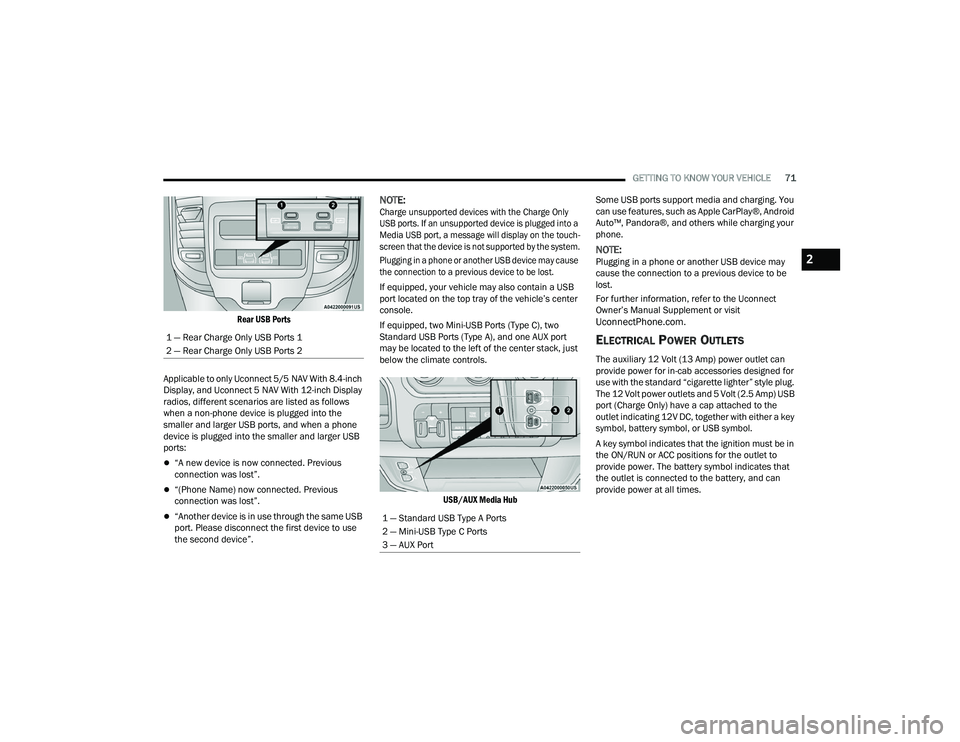
Rear USB Ports
Applicable to only Uconnect 5/5 NAV With 8.4-inch
Display, and Uconnect 5 NAV With 12-inch Display
radios, different scenarios are listed as follows
when a non-phone device is plugged into the
smaller and larger USB ports, and when a phone
device is plugged into the smaller and larger USB
ports:
“A new device is now connected. Previous
connection was lost”.
“(Phone Name) now connected. Previous
connection was lost”.
“Another device is in use through the same USB
port. Please disconnect the first device to use
the second device”.
NOTE:
Charge unsupported devices with the Charge Only
USB ports. If an unsupported device is plugged into a
Media USB port, a message will display on the touch -
screen that the device is not supported by the system.
Plugging in a phone or another USB device may cause
the connection to a previous device to be lost.
If equipped, your vehicle may also contain a USB
port located on the top tray of the vehicle’s center
console.
If equipped, two Mini-USB Ports (Type C), two
Standard USB Ports (Type A), and one AUX port
may be located to the left of the center stack, just
below the climate controls.
USB/AUX Media Hub
Some USB ports support media and charging. You
can use features, such as Apple CarPlay®, Android
Auto™, Pandora®, and others while charging your
phone.
NOTE:Plugging in a phone or another USB device may
cause the connection to a previous device to be
lost.
For further information, refer to the Uconnect
Owner’s Manual Supplement or visit
UconnectPhone.com.
ELECTRICAL POWER OUTLETS
The auxiliary 12 Volt (13 Amp) power outlet can
provide power for in-cab accessories designed for
use with the standard “cigarette lighter” style plug.
The 12 Volt power outlets and 5 Volt (2.5 Amp) USB
port (Charge Only) have a cap attached to the
outlet indicating 12V DC, together with either a key
symbol, battery symbol, or USB symbol.
A key symbol indicates that the ignition must be in
the ON/RUN or ACC positions for the outlet to
provide power. The battery symbol indicates that
the outlet is connected to the battery, and can
provide power at all times.
1 — Rear Charge Only USB Ports 1
2 — Rear Charge Only USB Ports 2
1 — Standard USB Type A Ports
2 — Mini-USB Type C Ports
3 — AUX Port
2
23_DPF_OM_EN_USC_t.book Page 71
Page 98 of 444
96GETTING TO KNOW YOUR INSTRUMENT PANEL
NOTE:Trailer connection status is remembered after the
key cycle. If the trailer connection status has not
changed, no pop-up will appear in your Instrument
Cluster Display.
Audio
Push and release the up or down arrow
button until the Audio Menu icon/title is
highlighted in the instrument cluster display. This
menu will display the audio source information,
including the Song name, Artist name, and audio
source with an accompanying graphic.
Phone Call Status
When a call is incoming, a Phone Call Status
pop-up will display on the screen. The pop-up will
remain until the phone is answered or ignored.
NOTE:The call status will temporarily replace the
previous media source information displayed on
the screen. When the pop-up is no longer
displayed, the display will return to the last used
screen.
Stored Messages
Push and release the up or down arrow
button until the Messages Menu item is
highlighted. This feature shows the number of
stored warning messages. Push and release the
right or left arrow button to cycle through
stored messages.
Settings — If Equipped
Personal Settings allows the driver to set and recall
features when the transmission is in PARK.
Push and release the up or down arrow
button until Settings displays in the instrument
cluster display.
Follow the prompts to display and set any of the
following Vehicle Settings.
NOTE:Your vehicle may be equipped with the following
settings.
If equipped with a base radio (Non-Touch -
screen) Vehicle Settings will be included in the
instrument cluster display.
If equipped with a Touchscreen radio, the
Vehicle Settings will be included in the radio
head unit.
BASE AND MIDLINE CLUSTER
Upper Left or Right
None Time Current Econ
Compass Range Trip A Distance
Outside Temp Average Econ Trip B Distance
Trailer Trip –
If Equipped Trailer Brake Oil Pressure
Coolant Temp Oil Temp Battery
Voltage
Trans Temp Oil Life
Exhaust Brake –
If Equipped
Boost
Pressure –
If Equipped
Fuel Filter Life –
If Equipped
Upper Center
None Compass Outside Temp
Time Range To
EmptyAverage Econ
Current Econ Trip A Distance Trip B Distance
Trailer Trip Audio (show/
hide)Speedometer
Menu Title
23_DPF_OM_EN_USC_t.book Page 96
Page 100 of 444
98GETTING TO KNOW YOUR INSTRUMENT PANEL
Fuel Gauge
Hide Range
Show Range
Defaults (Restores All Settings To Default Settings)
Restore
Cancel
Commercial Settings — If Equipped
Commercial Settings allows the driver to set and
recall additional features when the transmission is
in PARK.
Push and release the up or down arrow
button until Commercial Settings displays in the
instrument cluster display.
Follow the prompts to enter the required PIN and
enter the Commercial Settings submenu.
NOTE:If your vehicle is equipped with a touchscreen
radio, “Commercial Settings” will replace “Vehicle
Settings” in the instrument cluster display. The
Commercial Settings menu will only include the
settings below Ú page 199. Commercial Settings allows you to access the
following features (if equipped):
Power Take Off (PTO)
Remote Ignition
Idle Control
Backup Alarm
ParkSense
Aux Switches
PIN Setup
NOTE:If the vehicle’s PIN is forgotten or not known, see
an authorized dealer to have the PIN reset.
DIESEL MESSAGES AND WARNINGS
Diesel Particulate Filter (DPF) Messages
The Cummins® diesel engine meets all diesel
emissions standards, resulting in one of the lowest
emitting diesel engines ever produced. To achieve
these emissions standards, your vehicle is
equipped with a state-of-the-art engine and
exhaust system. These systems are seamlessly
integrated into your vehicle and managed by the
Powertrain Control Module (PCM). The PCM
manages engine combustion to allow the exhaust
system’s catalyst to trap and burn Particulate
Matter (PM) pollutants, with no input or interaction
on your part.
Your vehicle has the ability to alert you to
additional maintenance required on your vehicle or
engine. The following messages may display in
your instrument cluster display:
Perform Service
— Your vehicle will require emis -
sions maintenance at a set interval. To help
remind you when this maintenance is due, the
instrument cluster display will display “Perform
Service”. When the “Perform Service” message
is displayed in the instrument cluster display it is
necessary to have the emissions maintenance
performed. Emissions maintenance may
include replacing the Closed Crankcase Ventila -
tion (CCV) filter element. The procedure for
clearing and resetting the "Perform Service"
indicator message is located in the appropriate
Service Information.
Favorite Menus
Trip Info Navigation Off Road
Trailer Tow –
If Equipped
(show/hide) Audio (show/
hide)
WARNING!
A hot exhaust system can start a fire if you park
over materials that can burn. Such materials
might be grass or leaves coming into contact
with your exhaust system. Do not park or
operate your vehicle in areas where your
exhaust system can contact anything that can
burn.
23_DPF_OM_EN_USC_t.book Page 98
Page 104 of 444
102GETTING TO KNOW YOUR INSTRUMENT PANEL
NOTE:
The charging system is independent from load
reduction. The charging system performs a diag-
nostic on the charging system continuously.
If the Battery Charge Warning Light is on it may
indicate a problem with the charging system
Ú page 104.
The electrical loads that may be switched off
(if equipped), and vehicle functions which can be
affected by load reduction:
Heated Seats/Vented Seats/Heated Wheel
Rear Defroster And Heated Mirrors
HVAC System
115 Volt AC Power Inverter System
Audio and Telematics System
Loss of the battery charge may indicate one or
more of the following conditions:
The charging system cannot deliver enough
electrical power to the vehicle system because
the electrical loads are larger than the capability
of charging system. The charging system is still
functioning properly.
Turning on all possible vehicle electrical loads
(e.g. HVAC to max settings, exterior and interior
lights, overloaded power outlets +12 Volts, 115
Volt AC, USB ports) during certain driving condi -
tions (city driving, towing, frequent stopping).
Installing options like additional lights, upfitter
electrical accessories, audio systems, alarms
and similar devices.
Unusual driving cycles (short trips separated by
long parking periods).
The vehicle was parked for an extended period
of time (weeks, months).
The battery was recently replaced and was not
charged completely.
The battery was discharged by an electrical load
left on when the vehicle was parked.
The battery was used for an extended period
with the engine not running to supply radio,
lights, chargers, +12 Volt portable appliances
like vacuum cleaners, game consoles and
similar devices.
What to do when an electrical load reduction
action message is present (“Battery Saver On” or
“Battery Saver Mode”)
During a trip:
Reduce power to unnecessary loads if possible:
Turn off redundant lights (interior or exte -
rior).
Check what may be plugged in to power
outlets +12 Volts, 115 Volt AC, USB ports.
Check HVAC settings (blower, temperature).
Check the audio settings (volume). After a trip:
Check if any aftermarket equipment was
installed (additional lights, upfitter electrical
accessories, audio systems, alarms) and review
specifications if any (load and Ignition Off Draw
currents).
Evaluate the latest driving cycles (distance,
driving time and parking time).
The vehicle should have service performed if
the message is still present during consecutive
trips and the evaluation of the vehicle and
driving pattern did not help to identify the cause.
WARNING LIGHTS AND MESSAGES
The warning/indicator lights will illuminate in the
instrument panel together with a dedicated
message and/or acoustic signal when applicable.
These indications are indicative and precautionary
and as such must not be considered as exhaustive.
Always refer to the information in this chapter in
the event of a failure indication. All active telltales
will display first if applicable. The system check
menu may appear different based upon
equipment options and current vehicle status.
Some telltales are optional and may not appear.
23_DPF_OM_EN_USC_t.book Page 102
Page 163 of 444

STARTING AND OPERATING161
If an obstacle is detected in the left and/or right rear region, the display will show a single arc in the left and/or right rear region and the system will produce a
tone. As the vehicle moves closer to the obstacle, the display will show the single arc moving closer to the vehicle and the tone will change from a single
1/2 second tone to slow, to fast, to continuous.
The vehicle is close to the obstacle when the display shows one flashing arc and sounds a continuous tone. The following chart shows the warning alert operation
when the system is detecting an obstacle:
WARNING ALERTS FOR REAR
Rear Distance (inches/cm) Greater than
79 inches(200 cm) 79-59 inches
(200-150 cm) 59-47 inches
(150-120 cm) 47-39 inches
(120-100 cm) 39-25 inches
(100-65 cm) 25-12 inches
(65-30 cm) Less than
12 inches (30 cm)
Audible Alert Chime NoneSingle 1/2
Second Tone Slow
Slow FastFastContinuous
Arcs-Left NoneNoneNoneNoneNone 6th Flashing 5th Flashing
Arcs-Center None 10th Solid 9th Solid 8th Solid 7th Flashing 6th Flashing 5th Flashing
Arcs-Right NoneNoneNoneNoneNone 6th Flashing 5th Flashing
Radio Volume Reduced No
Yes YesYesYesYesYes
WARNING ALERTS FOR FRONT
Front Distance
(inches/cm) Greater than 47 inches
(120 cm) 47-39 inches
(120-100 cm) 39-25 inches
(100-65 cm) 25-12 inches
(65-30 cm) Less than 12 inches
(30 cm)
Audible Alert Chime NoneNoneNone FastContinuous
Arcs-Left NoneNoneNone3rd Flashing 4th Flashing
Arcs-Center None1st Solid2nd Flashing 3rd Flashing4th Flashing
Arcs-Right NoneNoneNone3rd Flashing 4th Flashing
Radio Volume Reduced NoNoNo Yes Yes
4
23_DPF_OM_EN_USC_t.book Page 161
Page 164 of 444

162STARTING AND OPERATING
NOTE:ParkSense will reduce the volume of the radio, if
on, when the system is sounding an audio tone.
ParkSense Camera Activation
If the ParkSense system detects an obstacle, a
camera image will display in the radio. The camera
will continue to display as long as the ParkSense
system continues to detect an object. This can be
turned on or off in the Uconnect system
Úpage 199.
Front Park Assist Audible Alerts
ParkSense will turn off the Front Park Assist
audible alert (chime) after approximately three
seconds when an obstacle has been detected, the
vehicle is stationary, and brake pedal is applied.
Adjustable Chime Volume Settings
The Front and Rear chime volume settings are
programmable through the Uconnect system
Ú page 199.
ENABLING AND DISABLING PARKSENSE
Front ParkSense can be enabled and
disabled with the Front ParkSense
switch.
Rear ParkSense can be enabled and disabled with
the Rear ParkSense switch.
When the gear selector is moved to REVERSE and
the Front or Rear system is disabled, the instrument cluster display will show a vehicle
graphic with an “Off” message overlay over the
system that is off (Front or Rear system). This
vehicle graphic will be displayed for as long as the
vehicle is in REVERSE.
The Front or Rear ParkSense switch LED will be on
when Front or Rear ParkSense is disabled or
requires service. The Front or Rear ParkSense
switch LED will be off when the Front or Rear
system is enabled. If the Front or Rear ParkSense
switch is pushed, and the system requires service,
the Front or Rear ParkSense switch LED will blink
momentarily, and then the LED will be on.
SERVICE THE PARKSENSE PARK ASSIST
S
YSTEM
During vehicle start-up, when the Front/Rear
ParkSense System has detected a faulted
condition, the instrument cluster display will show
the "Front/Rear ParkSense Unavailable Service
Required" or the "Front/Rear ParkSense
Unavailable Wipe Sensors" message.
When the gear selector is moved into REVERSE, a
vehicle graphic will show in the instrument cluster
display, along with the display overlay “Wipe
Sensors.” If the system needs service, the display
overlay will read “Service.” Under this condition,
ParkSense will not operate. If "Front/Rear ParkSense Unavailable Wipe
Sensors" appears in the instrument cluster display
make sure the outer surface and the underside of
the rear fascia/bumper is clean and clear of snow,
ice, mud, dirt or other obstruction, and then cycle
the ignition. If the message continues to appear,
see an authorized dealer.
If "Front/Rear ParkSense Unavailable Service
Required" appears in the instrument cluster
display, see an authorized dealer.
CLEANING THE PARKSENSE SYSTEM
Clean the ParkSense sensors with water, car wash
soap and a soft cloth. Do not use rough or hard
cloths. Do not scratch or poke the sensors.
Otherwise, you could damage the sensors.
PARKSENSE SYSTEM USAGE
P
RECAUTIONS
NOTE:
Ensure that the front and rear bumpers are free
of snow, ice, mud, dirt and debris to keep the
ParkSense system operating properly.
Jackhammers, large trucks, and other vibra -
tions could affect the performance of
ParkSense.
23_DPF_OM_EN_USC_t.book Page 162
Page 165 of 444
STARTING AND OPERATING163
When you move the gear selector to the
REVERSE position and Front or Rear ParkSense
is turned off, the instrument cluster display will
show "Off" on the vehicle graphic arcs. This
vehicle graphic will be displayed for as long as
the vehicle is in REVERSE.
ParkSense, when on, will reduce the volume of
the radio when it is sounding a tone.
Clean the ParkSense sensors regularly, taking
care not to scratch or damage them. The
sensors must not be covered with ice, snow,
slush, mud, dirt or debris. Failure to do so can
result in the system not working properly. The
ParkSense system might not detect an obstacle
behind or in front of the fascia/bumper, or it
could provide a false indication that an obstacle
is behind or in front of the fascia/bumper.
Use the ParkSense switch to turn the ParkSense
system off if obstacles such as bicycle carriers,
trailer hitches, etc. are placed within 18 inches
(45 cm) of the rear fascia/bumper. Failure to do
so can result in the system misinterpreting a
close obstacle as a sensor problem, causing the
“Front/Rear ParkSense Unavailable Service
Required” message to appear in the instrument
cluster display.
LANESENSE — IF EQUIPPED
LANESENSE OPERATION
The LaneSense system is operational at speeds
above 37 mph (60 km/h) and below 112 mph
(180 km/h). It uses a forward looking camera to
detect lane markings and measure vehicle
position within the lane boundaries.
When both lane markings are detected and the
driver drifts out of the lane (no turn signal has been
applied) OR the driver departs the lane on the
opposite side of the applied turn signal (if the left
turn signal is applied and the vehicle departs to the
right), the LaneSense system provides a haptic
WARNING!
Drivers must be careful when backing up even
when using ParkSense. Always check carefully
behind your vehicle, look behind you, and be
sure to check for pedestrians, animals, other
vehicles, obstructions, and blind spots before
backing up. You are responsible for safety and
must continue to pay attention to your
surroundings. Failure to do so can result in
serious injury or death.
Before using ParkSense, it is strongly recom -
mended that the ball mount and hitch ball
assembly be disconnected from the vehicle
when the vehicle is not used for towing.
Failure to do so can result in injury or damage
to vehicles or obstacles because the hitch ball
will be much closer to the obstacle than the
rear fascia when the vehicle sounds the
continuous tone. Also, the sensors could
detect the ball mount and hitch ball assembly,
depending on its size and shape, giving a false
indication that an obstacle is behind the
vehicle.
CAUTION!
ParkSense is only a parking aid and it is
unable to recognize every obstacle, including
small obstacles. Parking curbs might be
temporarily detected or not detected at all.
Obstacles located above or below the sensors
will not be detected when they are in close
proximity.
The vehicle must be driven slowly when using
ParkSense in order to be able to stop in time
when an obstacle is detected. It is recom -
mended that the driver looks over his/her
shoulder when using ParkSense.4
23_DPF_OM_EN_USC_t.book Page 163
Page 168 of 444
166STARTING AND OPERATING
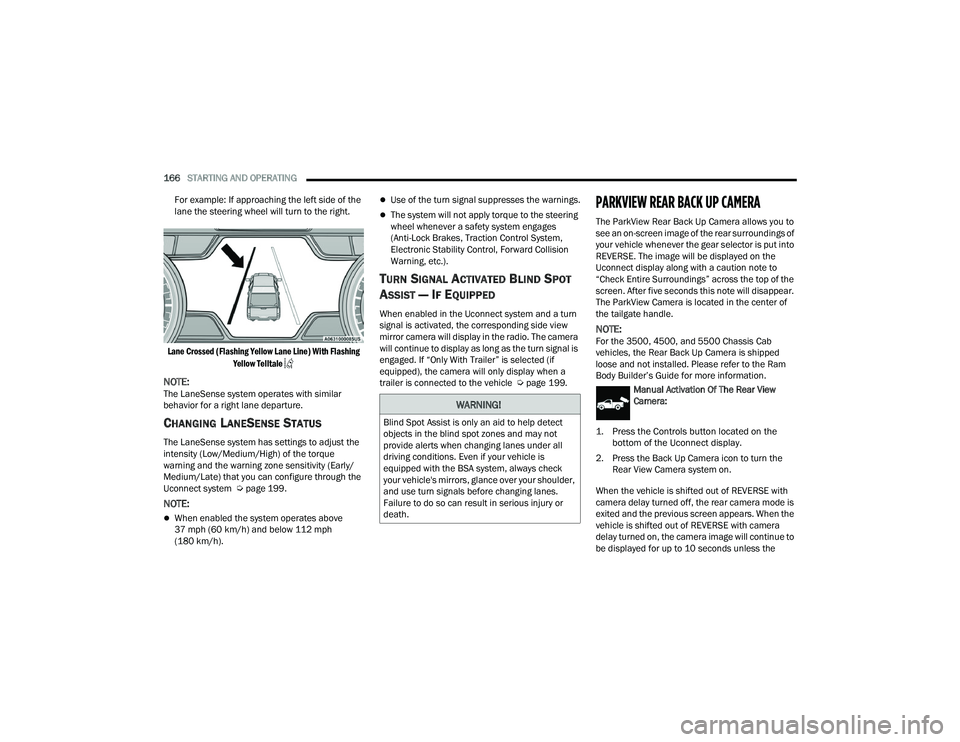
For example: If approaching the left side of the
lane the steering wheel will turn to the right.
Lane Crossed (Flashing Yellow Lane Line) With Flashing Yellow Telltale
NOTE:The LaneSense system operates with similar
behavior for a right lane departure.
CHANGING LANESENSE STATUS
The LaneSense system has settings to adjust the
intensity (Low/Medium/High) of the torque
warning and the warning zone sensitivity (Early/
Medium/Late) that you can configure through the
Uconnect system Ú page 199.
NOTE:
When enabled the system operates above
37 mph (60 km/h) and below 112 mph
(180 km/h).
Use of the turn signal suppresses the warnings.
The system will not apply torque to the steering
wheel whenever a safety system engages
(Anti-Lock Brakes, Traction Control System,
Electronic Stability Control, Forward Collision
Warning, etc.).
TURN SIGNAL ACTIVATED BLIND SPOT
A
SSIST — IF EQUIPPED
When enabled in the Uconnect system and a turn
signal is activated, the corresponding side view
mirror camera will display in the radio. The camera
will continue to display as long as the turn signal is
engaged. If “Only With Trailer” is selected (if
equipped), the camera will only display when a
trailer is connected to the vehicle Ú page 199.
PARKVIEW REAR BACK UP CAMERA
The ParkView Rear Back Up Camera allows you to
see an on-screen image of the rear surroundings of
your vehicle whenever the gear selector is put into
REVERSE. The image will be displayed on the
Uconnect display along with a caution note to
“Check Entire Surroundings” across the top of the
screen. After five seconds this note will disappear.
The ParkView Camera is located in the center of
the tailgate handle.
NOTE:For the 3500, 4500, and 5500 Chassis Cab
vehicles, the Rear Back Up Camera is shipped
loose and not installed. Please refer to the Ram
Body Builder’s Guide for more information.
Manual Activation Of The Rear View
Camera:
1. Press the Controls button located on the bottom of the Uconnect display.
2. Press the Back Up Camera icon to turn the Rear View Camera system on.
When the vehicle is shifted out of REVERSE with
camera delay turned off, the rear camera mode is
exited and the previous screen appears. When the
vehicle is shifted out of REVERSE with camera
delay turned on, the camera image will continue to
be displayed for up to 10 seconds unless the
WARNING!
Blind Spot Assist is only an aid to help detect
objects in the blind spot zones and may not
provide alerts when changing lanes under all
driving conditions. Even if your vehicle is
equipped with the BSA system, always check
your vehicle's mirrors, glance over your shoulder,
and use turn signals before changing lanes.
Failure to do so can result in serious injury or
death.
23_DPF_OM_EN_USC_t.book Page 166