radio RAM PROMASTER 2021 Owner's Manual
[x] Cancel search | Manufacturer: RAM, Model Year: 2021, Model line: PROMASTER, Model: RAM PROMASTER 2021Pages: 288, PDF Size: 15.22 MB
Page 111 of 288
MULTIMEDIA109
Radio Voice Commands
Use your voice to quickly get to the AM, FM, or
SiriusXM® Satellite Radio stations you would
like to hear. (Subscription or included
SiriusXM® Satellite Radio trial required.)
Push the VR button and wait for the beep to
say a command. See some examples below.
“Tune to ninety-five-point-five FM”
“Tune to Satellite Channel Hits 1”
Did You Know: At any time, if you are not sure of
what to say or want to learn a Voice Command,
push the VR button and say “ Help”. The
system provides you with a list of commands.
MEDIA MODE
Operating Media Mode
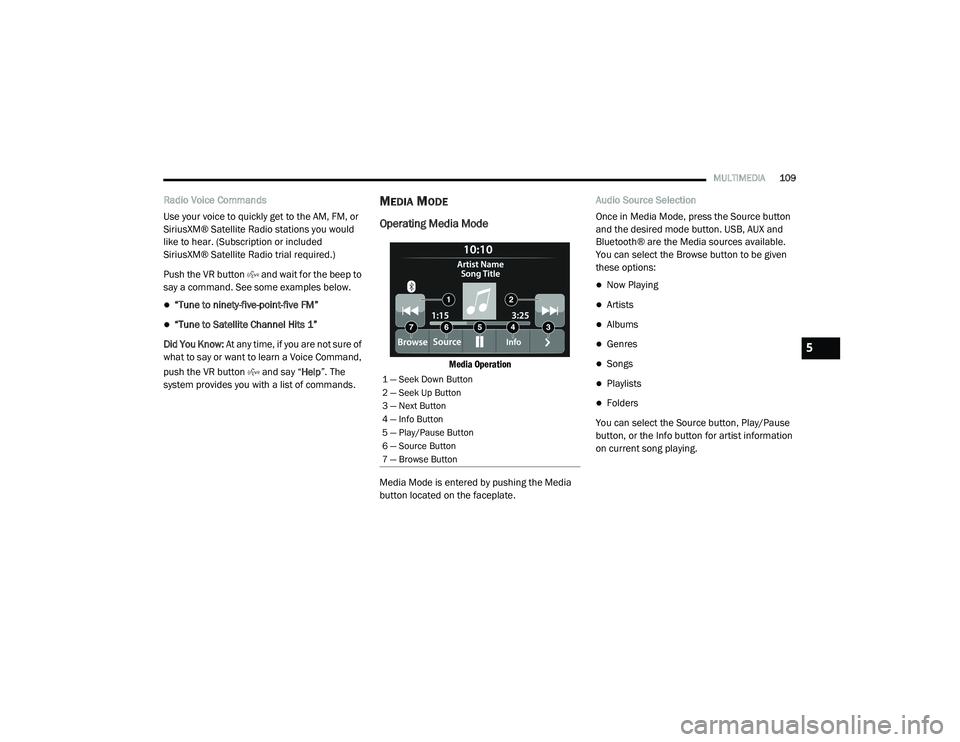
Media Operation
Media Mode is entered by pushing the Media
button located on the faceplate. Audio Source Selection
Once in Media Mode, press the Source button
and the desired mode button. USB, AUX and
Bluetooth® are the Media sources available.
You can select the Browse button to be given
these options:
Now Playing
Artists
Albums
Genres
Songs
Playlists
Folders
You can select the Source button, Play/Pause
button, or the Info button for artist information
on current song playing.
1 — Seek Down Button
2 — Seek Up Button
3 — Next Button
4 — Info Button
5 — Play/Pause Button
6 — Source Button
7 — Browse Button
5
21_VF_OM_EN_USC_t.book Page 109
Page 113 of 288
MULTIMEDIA111
Bluetooth® Mode
Before proceeding, the Bluetooth® device must
be paired with the Uconnect Phone to
communicate with the Uconnect system
Úpage 114.
Once the Bluetooth® device is paired to the
Uconnect system, push the Media button
located on the faceplate. Once in Media Mode,
press the Source button on the touchscreen
and select Bluetooth®.
NOTE:
For mobile phone compatibility and pairing
instructions, please visit UconnectPhone.com.
AUX Mode
AUX Mode is entered by inserting a AUX device
using a stereo cable with a 3.5 mm audio jack
into the AUX port or by pushing the MEDIA
button located on the faceplate. Once in Media
Mode, press the Source button on the
touchscreen and select AUX.
To insert an Auxiliary Device, gently insert the
Auxiliary device cable into the AUX Port. If you
insert an Auxiliary device with the ignition and
the radio on, the unit will switch to AUX mode
and begin to play. Controlling The Auxiliary Device
The control of the Auxiliary device (e.g.,
selecting playlists, play, fast forward, etc.)
cannot be provided by the radio; use the device
controls instead. Adjust the volume with the
Volume rotary knob, or with the volume of the
attached device.
NOTE:
The radio unit is acting as the amplifier for audio
output from the Auxiliary device. Therefore, if
the volume control on the Auxiliary device is set
too low, there will be insufficient audio signal for
the radio unit to play the music on the device.
Voice Commands Media
Uconnect offers connections via USB,
Bluetooth®, and auxiliary ports. Voice operation
is only available for connected USB and AUX
devices.
Push the VR button . After the beep, say one
of the following commands and follow the
prompts to switch your media source or choose
an artist.
“Change source to Bluetooth®”
“Change source to AUX”
“Change source to USB”
“Play artist Beethoven”; “Play album
Greatest Hits”; “Play song Moonlight
Sonata”; “Play genre Classical”
Did You Know: Press the Browse button on the
touchscreen to see all of the music on your USB
device. Your Voice Command must match
exactly how the artist, album, song, and genre
information is displayed.
5
21_VF_OM_EN_USC_t.book Page 111
Page 114 of 288
112MULTIMEDIA
PHONE MODE
Overview
Uconnect Phone is a voice-activated,
hands-free, in-vehicle communications system.
Uconnect Phone allows you to dial a phone
number with your mobile phone.
Uconnect Phone supports the following features:
Voice Activated Features
Hands-Free dialing via Voice (“Call John
Smith Mobile” or “Dial 248-555-1212”).
Hands-Free text-to-speech listening of your
incoming SMS messages.
Hands-Free Text Message Replying: Forward
one of 18 predefined SMS messages to
incoming calls/text messages.
Redialing last dialed numbers (“Redial”).
Calling back the last incoming call number
(“Call Back”).
Viewing call logs on screen (“Show Incoming
Calls,” “Show Outgoing Calls,” “Show Missed
Calls,” or “Show Recent Calls”).
Searching Contacts phone number (“Search
for John Smith Mobile”). Screen Activated Features
Dialing via Keypad using touchscreen.
Viewing and Calling contacts from Phone -
books displayed on the touchscreen.
Setting Favorite Contact phone numbers so
they are easily accessible on the Main Phone
screen.
Viewing and Calling contacts from recent call
logs.
Reviewing your recent Incoming SMS Messages.
Pairing up to 10 phones/audio devices for
easy access to connect to them quickly.
NOTE:
Your phone must be capable of SMS messaging
via Bluetooth® for messaging features to work
properly.
Your mobile phone’s audio is transmitted
through your vehicle’s audio system; the system
will automatically mute your radio when using
the Uconnect Phone.
For Uconnect customer support:
US — visit UconnectPhone.com or call 877-855-8400
Canada — visit UconnectPhone.com or call
800-465-2001 (English)
800-387-9983 (French)
Visit UconnectPhone.com
Uconnect Phone allows you to transfer calls
between the system and your mobile phone as
you enter or exit your vehicle and enables you
to mute the system's microphone for private
conversation.
The Uconnect Phone is driven through your
Bluetooth® “Hands-Free Profile” mobile
phone. Uconnect features Bluetooth®
technology — the global standard that enables
different electronic devices to connect to each
other without wires or a docking station.
WARNING!
ALWAYS drive safely with your hands on the
steering wheel. You have full responsibility
and assume all risks related to the use of the
Uconnect features and applications in this
vehicle. Only use Uconnect when it is safe to
do so. Failure to do so may result in an
accident involving serious injury or death.
21_VF_OM_EN_USC_t.book Page 112
Page 116 of 288
114MULTIMEDIA
The system handles multiple inputs in the same
phrase or sentence such as “make a phone
call” and “to Kelly Smith”. For multiple inputs in
the same phrase or sentence, the system
identifies the topic or context and provides the
associated follow-up prompt such as “Who do
you want to call?” in the case where a phone
call was requested but the specific name was
not recognized.
The system utilizes continuous dialog. When the
system requires more information from the
user, it will ask a question to which the user can
respond without pushing the Voice Recognition
(VR) button on the steering wheel.
Help Command
If you need assistance at any prompt, or if you
want to know your options at any prompt, say
“Help” following the beep.
To activate the Uconnect Phone from idle,
simply push the Phone button (if active) on your
steering wheel and say a command or say
“Help”. All Uconnect Phone sessions begin with
a push of the VR button or Phone button on the
radio faceplate. Cancel Command
At any prompt, after the beep, you can say
“Cancel” and you will be returned to the main
menu.
You can also push the VR button or Phone
button on your steering wheel when the system
is listening for a command and be returned to
the main or previous menu.
Pair (Link) Uconnect Phone To A Mobile Phone
To begin using your Uconnect Phone, you must
pair your compatible Bluetooth®-enabled
mobile phone. Mobile phone pairing is the
process of establishing a wireless connection
between a cellular phone and the Uconnect
system.
To complete the pairing process, you will need
to reference your mobile phone’s manual.
Please visit UconnectPhone.com for complete
mobile phone compatibility information.
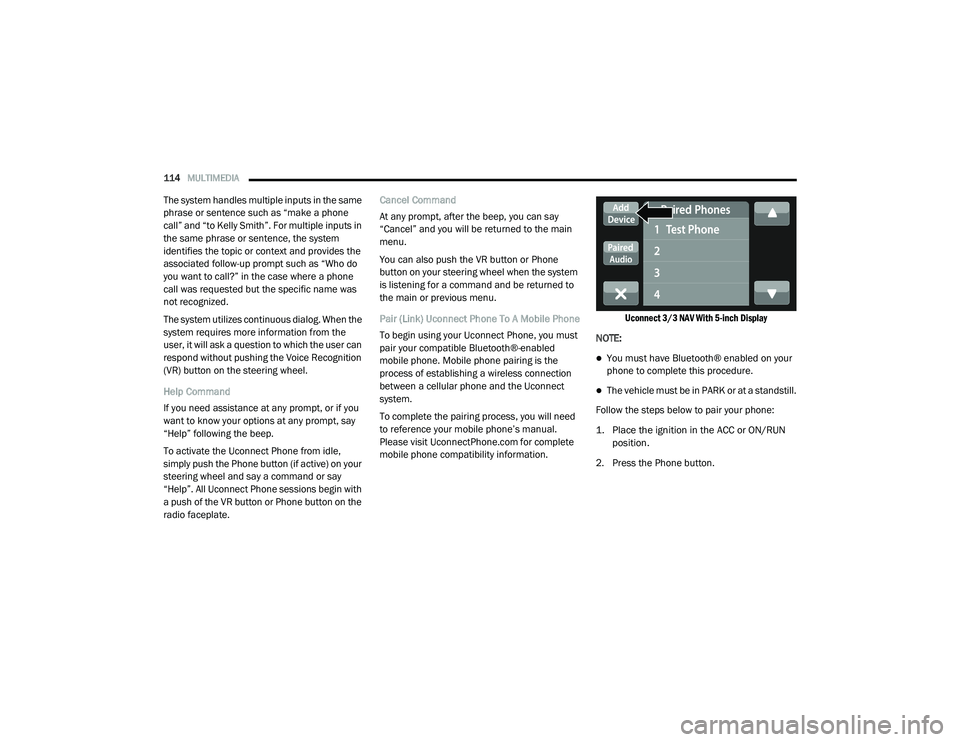
Uconnect 3/3 NAV With 5-inch Display
NOTE:
You must have Bluetooth® enabled on your
phone to complete this procedure.
The vehicle must be in PARK or at a standstill.
Follow the steps below to pair your phone:
1. Place the ignition in the ACC or ON/RUN position.
2. Press the Phone button.
21_VF_OM_EN_USC_t.book Page 114
Page 118 of 288
116MULTIMEDIA
You can also use the following VR command to
bring up the Paired Phone screen from any
screen on the radio:
“Show Paired Phones”
NOTE:
Software updates on your phone or the
Uconnect system may interfere with the Blue -
tooth® connection. If this happens, simply
repeat the pairing process. However, first, make
sure to delete the device from the list of phones
on your Uconnect system. Next, be sure to
remove Uconnect from the list of devices in your
phone’s Bluetooth® settings.
Pair A Bluetooth® Streaming Audio Device
1. Press the Media button on the touchscreen to begin.
2. Change the source to “Bluetooth®”.
3. Press the Bluetooth® button on the touchscreen to display the Paired Audio
Devices screen.
4. Press the Add Device button on the touchscreen. NOTE:
If there is no device currently connected with
the system, a pop-up will appear.
5. Search for available devices on your
Bluetooth®-enabled audio device. When
prompted on the device, or confirm the PIN
shown on the Uconnect screen.
6. Uconnect Phone will display an in-process screen while the system is connecting.
7. When the pairing process has successfully completed, the system will prompt you to
choose whether or not this is your favorite
device. Selecting “Yes” will make this device
the highest priority. This device will take
precedence over other paired devices
within range.
NOTE:
For devices which are not made a favorite, the
device priority is determined by the order in
which it was paired. The latest device paired will
have the higher priority.
You can also use a following VR command to
bring up a list of paired audio devices:
“Show Paired Phones” Connecting To A Particular Mobile Phone Or
Audio Device After Pairing
Uconnect Phone will automatically connect to
the highest priority paired phone and/or Audio
Device within range. If you need to choose a
particular phone or audio device follow these
steps:
1. Press the
Settings
button on the
touchscreen.
2. Press the Paired Phones/Audio Sources buttons.
3. Press to select the particular phone or the particular audio device. A pop-up menu will
appear; press “Connect Phone”.
4. Press the X to exit out of the Settings screen.
21_VF_OM_EN_USC_t.book Page 116
Page 141 of 288
MULTIMEDIA139
Voices
About Voices
Your navigation system uses sound for some or
all of the following:
Driving directions
Warnings that you set
By selecting “Settings” in the main menu, then
selecting “Voices,” you can change the settings
for how voice instructions are given. Instruction
settings include the following:
Read Early Instructions Out Loud : This setting
allows to you to hear early instructions. For
example, an early instruction could be, “After
two miles, take the exit right”.
Read Road Numbers Out Loud (if equipped):
Use this setting to control whether road
numbers are read out loud as part of naviga -
tion instructions.
Read Road Sign Information Out Loud (if
equipped): Use this setting to control whether
road sign information is read out loud as part
of navigation instructions.
Read Street Names Out Loud (if equipped):
Use this setting to control whether street
names are read out loud as part of navigation
instructions.
Read Foreign Street Names Out Loud (if
equipped): Use this setting to control whether
foreign street names are read out loud as
part of navigation instructions.
Changing The Volume Level
To change the volume of your navigation
system, use the Volume knob on the radio when
an instruction is being given.
Settings
About Settings You can change the way your
navigation system looks and behaves.
Most of the settings on your system
can be accessed by pressing the
Settings button in the Main Menu. Appearance
To change how your navigation screen looks,
select “Appearance” in the settings menu. From
here, you can change these features:
Switch To Night Colors When Dark
: Select
this setting to make your system automati -
cally switch to night colors when it gets dark.
Automatic Zoom : Select “Automatic Zoom” to
change how your system zooms in guidance
view when you approach a turn or intersec -
tion. Zooming in can make the turn or inter -
section easier to drive. The following options
are available:
Zoom in to next turn
Based on road type
None
5
21_VF_OM_EN_USC_t.book Page 139
Page 148 of 288

146MULTIMEDIA
STEERING WHEEL AUDIO CONTROLS
The remote sound system controls are located
on the surface of the steering wheel.
Remote Sound System Controls
Pushing the top of the left-hand switch will
increase the volume, and pushing the bottom of
the switch will decrease the volume.
Pushing the Voice Recognition (VR) button
below the volume controls will begin your voice
command functions Ú page 22.
The function of the right-hand control is
different depending on which mode you are in.
The following describes the right-hand control
operation in each mode.
RADIO OPERATION
Pushing the top of the right-hand switch will
“Scan” up for the next listenable station, and
pushing the bottom of the right-hand switch will
“Scan” down for the next listenable station.
Pushing the Phone pick up button on top of the
of the Scan buttons will open a phone call.
Pushing the Phone hang up button below the
Scan buttons will close a phone call.
PLAYER OPERATION
Pushing the switch up once will go to the next
track on the Player. Pushing the switch down
once will go to the beginning of the current track
or to the beginning of the previous track if it is
within one second after the current track begins
to play.
If you push the switch up or down twice, it plays
the second track; three times, it will play the
third, etc.
RAM TELEMATICS - IF EQUIPPED
Ram Telematics is designed to help improve
safety, efficiency, and productivity. It gives you
complete visibility of your fleet options, whether
from behind a desk or on a mobile device while
you are on the go. You can log-in to view near
real-time and historical activity, including
location, vehicle heath, and driver performance.
Activating Ram Telematics In Your Vehicles
Before you get started you will need:
The Vehicle Identification Number (VIN) of
each vehicle you want to activate.
Your main user’s log-in and password; new
customers will be asked to register.
If you are a new customer, you will need
company credit card information or invoice
number as further proof of customer identifi -
cation. Don’t worry, you will not be charged.
21_VF_OM_EN_USC_t.book Page 146
Page 150 of 288
148MULTIMEDIA
RADIO OPERATION AND MOBILE PHONES
Under certain conditions, the mobile phone
being on in your vehicle can cause erratic or
noisy performance from your radio. This
condition may be lessened or eliminated by
relocating the mobile phone. This condition is
not harmful to the radio. If your radio
performance does not satisfactorily “clear”
by the repositioning of the phone, it is
recommended that the radio volume be turned
down or off during mobile phone operation
when not using Uconnect (if equipped).
REGULATORY AND SAFETY
I
NFORMATION
USA/CANADA
Exposure to Radio Frequency Radiation
The radiated output power of the internal
wireless radio is far below the FCC and IC radio
frequency exposure limits. Nevertheless, the
wireless radio will be used in such a manner
that the radio is 8 inch (20 cm) or further from
the human body. The internal wireless radio operates within
guidelines found in radio frequency safety
standards and recommendations, which reflect
the consensus of the scientific community.
The radio manufacturer believes the internal
wireless radio is safe for use by consumers. The
level of energy emitted is far less than the
electromagnetic energy emitted by wireless
devices such as mobile phones. However, the
use of wireless radios may be restricted in some
situations or environments, such as aboard
airplanes. If you are unsure of restrictions, you
are encouraged to ask for authorization before
turning on the wireless radio Ú
page 274.
21_VF_OM_EN_USC_t.book Page 148
Page 151 of 288

149
(Continued)
SAFETY
SAFETY FEATURES
ANTI-LOCK BRAKE SYSTEM (ABS)
The ABS is designed to aid the driver in
maintaining vehicle control under adverse
braking conditions. The system operates with a
separate computer to modulate hydraulic
pressure, to prevent wheel lock-up and to help
avoid skidding on slippery surfaces.
The system's pump motor runs during an ABS
stop to provide regulated hydraulic pressure.
The pump motor makes a low humming noise
during operation, which is normal.
The ABS includes an amber ABS Warning Light.
When the light is illuminated, the ABS is not
functioning. The system reverts to standard
non-anti-lock brakes. Placing the ignition in the
OFF mode and to the ON mode again may reset
the ABS if the fault detected was only
momentary.When you are in a severe braking condition
involving the use of the ABS, you will experience
some pedal drop as the vehicle comes to a stop.
This is the result of the system reverting to the
base brake system.
Engagement of the ABS may be accompanied
by a pulsing sensation. You may also hear a
clicking noise. These occurrences are normal
and indicate that the system is functioning
properly.
WARNING!
The ABS contains sophisticated electronic
equipment that may be susceptible to inter
-
ference caused by improperly installed or
high output radio transmitting equipment.
This interference can cause possible loss of
anti-lock braking capability. Installation of
such equipment should be performed by
qualified professionals.
Pumping of the Anti-Lock Brakes will
diminish their effectiveness and may lead
to a collision. Pumping makes the stopping
distance longer. Just press firmly on your
brake pedal when you need to slow down or
stop.
The ABS cannot prevent the natural laws of
physics from acting on the vehicle, nor can
it increase braking or steering efficiency
beyond that afforded by the condition of the
vehicle brakes and tires or the traction
afforded.
The ABS cannot prevent collisions,
including those resulting from excessive
speed in turns, following another vehicle
too closely, or hydroplaning.
The capabilities of an ABS equipped vehicle
must never be exploited in a reckless or
dangerous manner that could jeopardize
the user’s safety or the safety of others.
WARNING! (Continued)
6
21_VF_OM_EN_USC_t.book Page 149
Page 158 of 288

156SAFETY
The vehicle’s taillights, where the radar sensors
are located, must remain free of snow, ice, and
dirt/road contamination so that the BSM
system can function properly. Do not block the
taillights with foreign objects (bumper stickers,
bicycle racks, etc.).
Radar Sensor Locations
If the system detects degraded performance
due to contamination or foreign objects, a
message will warn you of a blocked sensor and
the warning indicators in the side view mirrors
will be on. The warning indicators will remain
illuminated until blockage clearing conditions
are met. First clear the taillights around the
sensors of the blockage. After removing the
blockage, the following procedure can be used
to reset the system, cycle the ignition from ON
to OFF and then back ON. If the blockage message is still present after
cycling the ignition and driving in traffic, check
again for a blockage.
The BSM system notifies the driver of objects in
the detection zones by illuminating the BSM
Warning Light located in the outside mirrors in
addition to sounding an audible (chime) alert
and reducing the radio volume Ú
page 158.
Warning Light Location
The BSM system monitors the detection zone
from three different entry points (side, rear,
front) while driving to see if an alert is
necessary. The BSM system will issue an alert
during these types of zone entries. Entering From The Side
Vehicles that move into your adjacent lanes
from either side of the vehicle.
Side Monitoring
21_VF_OM_EN_USC_t.book Page 156