AUX RAM PROMASTER 2021 Owners Manual
[x] Cancel search | Manufacturer: RAM, Model Year: 2021, Model line: PROMASTER, Model: RAM PROMASTER 2021Pages: 288, PDF Size: 15.22 MB
Page 4 of 288
2
INTRODUCTION
Symbols Key ............................................................ 7
WARNINGS AND CAUTIONS ................................. 7
VAN CONVERSIONS/CAMPERS ........................... 7
VEHICLE MODIFICATIONS/ALTERATIONS ........... 7
Symbol Glossary ..................................................... 8
GETTING TO KNOW YOUR VEHICLE
KEYS ......................................................................10
Key Fob......................................................... 10
SENTRY KEY ..........................................................12
IGNITION SWITCH .................................................12
VEHICLE SECURITY SYSTEM —
IF EQUIPPED .........................................................13
To Arm The System ...................................... 13
To Disarm The System................................. 13
Rearming Of The System............................. 13
Security System Manual Override .............. 13
DOORS ..................................................................14
Power Door Locks ....................................... 14
Auto Unlock Doors ....................................... 15
Automatic Door Locks ................................. 15
STEERING WHEEL.................................................15
Telescoping Steering Column ..................... 15 SEATS .................................................................... 15
Manual Adjustments ................................... 16
Heated Seats — If Equipped ....................... 19
Fold Down Tray — If Equipped..................... 20
Adjustable Armrests — If Equipped ............ 20
Head Restraints .......................................... 20
UCONNECT VOICE RECOGNITION ....................... 22
Introducing Voice Recognition .................... 22
Basic Voice Commands............................... 22
Get Started ................................................... 22
Additional Information ................................. 22
MIRRORS ............................................................. 23
Inside Rearview Mirror ................................ 23
Outside Mirrors ........................................... 24
Power Mirrors — If Equipped ....................... 24
Power Folding Outside Mirrors —
If Equipped ................................................... 25 Heated Mirrors — If Equipped ..................... 25
EXTERIOR LIGHTS ................................................ 26
Multifunction Lever ..................................... 26
Headlights ................................................... 26
Daytime Running Lights (DRLs) —
If Equipped .................................................. 26 High/Low Beam Switch .............................. 26
Flash-To-Pass .............................................. 26
Parking Lights ............................................. 26
Follow Me Home/Headlight Delay .............. 27
Fog Lights — If Equipped ............................ 27 Turn Signals ................................................. 27
Lane Change Assist ..................................... 27
Battery Saver ............................................... 27
INTERIOR LIGHTS ................................................28
Courtesy Lights ............................................ 28
Illuminated Entry ......................................... 30
WIPERS AND WASHERS .....................................30
Windshield Wiper Operation ...................... 30
CLIMATE CONTROLS ...........................................31
Manual Climate Control Descriptions
And Functions .............................................. 31 Additional Rear Climate Control —
If Equipped ................................................... 34 Operating Tips.............................................. 34
INTERIOR STORAGE AND EQUIPMENT ..............36
Storage ......................................................... 36
USB/AUX Control — If Equipped ................ 37
Power Outlets............................................... 37
Auxiliary Switches — If Equipped ................ 38
WINDOWS ............................................................39
Power Windows .......................................... 39
Window Bar Grates — If Equipped .............. 39
Wind Buffeting ............................................ 40
HOOD......................................................................40
Opening ........................................................ 40
Closing.......................................................... 41
CARGO AREA FEATURES .....................................41
21_VF_OM_EN_USC_t.book Page 2
Page 6 of 288
4
DRIVING TIPS ........................................................86 Driving On Slippery Surfaces ...................... 86
Driving Through Water ................................ 86
MULTIMEDIA
UCONNECT SYSTEMS ..........................................88
CYBERSECURITY ..................................................88UCONNECT SETTINGS ..........................................89 Uconnect 3/3 NAV Settings ........................ 90
UCONNECT INTRODUCTION.................................98
Identifying Your Radio ................................. 98
Safety And General Information ...............100
UCONNECT MODES ........................................... 101
Radio Mode ................................................101
Media Mode ...............................................109Phone Mode ..............................................112
NAVIGATION MODE — IF EQUIPPED ................ 124
Operating Navigation Mode —
If Equipped .................................................124
STEERING WHEEL AUDIO CONTROLS ........... 146
Radio Operation .........................................146
Player Operation ........................................146
RAM TELEMATICS - IF EQUIPPED .................... 146
Ram Telematics General Information ......147
RADIO OPERATION AND MOBILE PHONES ... 148
Regulatory And Safety Information........... 148
SAFETY
SAFETY FEATURES .............................................149Anti-Lock Brake System (ABS) .................. 149Electronic Brake Control (EBC) System ... 150
AUXILIARY DRIVING SYSTEMS.........................155
Blind Spot Monitoring (BSM) —
If Equipped ................................................ 155 Forward Collision Warning (FCW) With
Mitigation — If Equipped............................ 159 Tire Pressure Monitoring
System (TPMS) ........................................... 161
OCCUPANT RESTRAINT SYSTEMS .................. 164
Occupant Restraint Systems Features .... 164
Important Safety Precautions ................... 164
Seat Belt Systems ..................................... 165
Supplemental Restraint
Systems (SRS)............................................ 172 Child Restraints ......................................... 181
SAFETY TIPS ...................................................... 186
Transporting Passengers .......................... 186Transporting Pets ..................................... 187
Safety Checks You Should Make Inside
The Vehicle ................................................ 187 Periodic Safety Checks You Should
Make Outside The Vehicle ........................ 188 Exhaust Gas ............................................... 189Carbon Monoxide Warnings ...................... 189
IN CASE OF EMERGENCY
HAZARD WARNING FLASHERS ....................... 190
JACKING AND TIRE CHANGING ....................... 190 Preparations For Jacking .......................... 191
Jack Location ............................................. 191
Spare Tire Removal ................................... 193
Jacking Instructions................................... 194
Wheel Covers ............................................. 197
TIRE SERVICE KIT — IF EQUIPPED ................... 197
Tire Service Kit Storage............................. 198
Tire Service Kit Components And
Operation ................................................... 198 Tire Service Kit Usage Precautions .......... 198Sealing A Tire With Tire Service Kit .......... 200
JUMP STARTING ................................................ 203
Preparations For Jump Start ..................... 203
Jump Starting Procedure .......................... 204
Battery Location ........................................ 206
IF YOUR ENGINE OVERHEATS ......................... 206
GEAR SELECTOR OVERRIDE ........................... 207
FREEING A STUCK VEHICLE ............................ 208
TOWING A DISABLED VEHICLE ........................ 209
Automatic Transmission............................ 210
ENHANCED ACCIDENT RESPONSE
SYSTEM (EARS).................................................. 210
EVENT DATA RECORDER (EDR) ....................... 210
21_VF_OM_EN_USC_t.book Page 4
Page 39 of 288
GETTING TO KNOW YOUR VEHICLE37
USB/AUX CONTROL — IF EQUIPPED
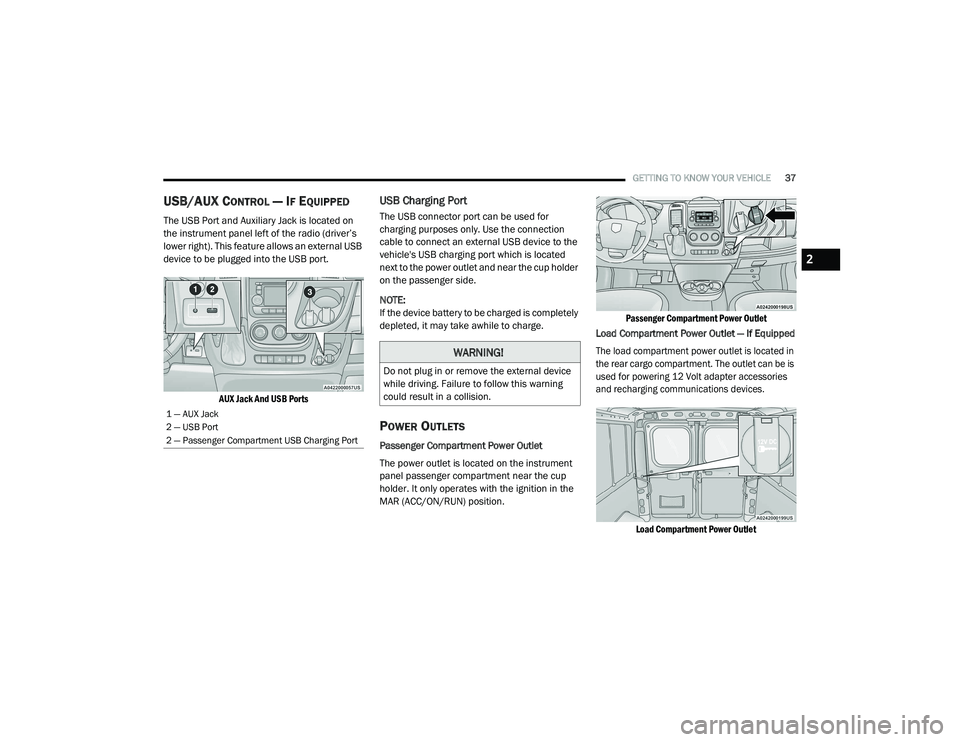
The USB Port and Auxiliary Jack is located on
the instrument panel left of the radio (driver’s
lower right). This feature allows an external USB
device to be plugged into the USB port.
AUX Jack And USB Ports
USB Charging Port
The USB connector port can be used for
charging purposes only. Use the connection
cable to connect an external USB device to the
vehicle's USB charging port which is located
next to the power outlet and near the cup holder
on the passenger side.
NOTE:
If the device battery to be charged is completely
depleted, it may take awhile to charge.
POWER OUTLETS
Passenger Compartment Power Outlet
The power outlet is located on the instrument
panel passenger compartment near the cup
holder. It only operates with the ignition in the
MAR (ACC/ON/RUN) position.
Passenger Compartment Power Outlet
Load Compartment Power Outlet — If Equipped
The load compartment power outlet is located in
the rear cargo compartment. The outlet can be is
used for powering 12 Volt adapter accessories
and recharging communications devices.
Load Compartment Power Outlet
1 — AUX Jack
2 — USB Port
2 — Passenger Compartment USB Charging Port
WARNING!
Do not plug in or remove the external device
while driving. Failure to follow this warning
could result in a collision.
2
21_VF_OM_EN_USC_t.book Page 37
Page 40 of 288

38GETTING TO KNOW YOUR VEHICLE
(Continued)
NOTE:
Do not connect devices with power higher than
180 W to the socket. Do not damage the socket
by using unsuitable adapters.
Power Outlet Fuses — Under Hood
AUXILIARY SWITCHES — IF EQUIPPED
Your vehicle may be equipped with two auxiliary
switches located on the instrument panel to the
left of the steering column which can be used to
power various electronic devices. Connections
to the switches are found in the right central
pillar fuse panel at the base of the passenger
side B-pillar.
Auxiliary Upfitter Switches
Auxiliary Switch 1 is configured to constant
battery feed, while Auxiliary Switch 2 is
configured to ignition feed.
For further information on using the auxiliary
switches, please refer to the Ram Body Builders
Guide by accessing www.rambodybuilder.com
and choosing the appropriate links.
1 — F14 Fuse 20 Amp Yellow Front Power Outlet
2 — F09 Fuse 15 Amp Blue Rear Power Outlet
WARNING!
To avoid serious injury or death:
Only devices designed for use in this type of
outlet should be inserted into any 12 Volt
outlet.
Do not touch with wet hands.
Close the lid when not in use and while
driving the vehicle.
If this outlet is mishandled, it may cause an
electric shock and failure.
CAUTION!
Many accessories that can be plugged in
draw power from the vehicle's battery, even
when not in use (i.e., cellular phones, etc.).
Eventually, if plugged in long enough, the
vehicle's battery will discharge sufficiently
to degrade battery life and/or prevent the
engine from starting.
Accessories that draw higher power (i.e.,
coolers, vacuum cleaners, lights, etc.) will
degrade the battery even more quickly.
Only use these intermittently and with
greater caution.
After the use of high power draw accesso -
ries, or long periods of the vehicle not being
started (with accessories still plugged in),
the vehicle must be driven a sufficient
length of time to allow the generator to
recharge the vehicle's battery.
WARNING! (Continued)
21_VF_OM_EN_USC_t.book Page 38
Page 97 of 288

MULTIMEDIA95
Audio
When the Audio button is pressed on the touchscreen, the system displays options related to the vehicle’s sound system. These settings can change
the audio location within the vehicle, adjust the bass or treble levels, and auto-play music from an audio device or smartphone.
Phone/Bluetooth®
When the Phone/Bluetooth® button is pressed on the touchscreen, the system displays the options related to Bluetooth® connectivity from an external
audio device or smartphone. The list of paired audio devices or smartphones can be accessed from this menu.
Setting Name Description
Equalizer This setting will adjust the “Bass”, “Mid”, and “Treble” ranges of the audio.
Balance This setting will adjust audio levels from specific speakers in the front/back and left/right of the vehicle.
The Speaker icon can be moved to set audio location.
Speed Adjusted Volume This setting will adjust audio volume as speeds increase. At a higher setting, the volume will increase more as
the vehicle speeds up. The available settings are “Off”, “1”, “2”, and “3”.
Surround Sound This setting will turn the Surround Sound system on or off.
Loudness This setting will improve audio quality at lower volumes.
Auto-On Radio This setting will set how the radio behaves when the ignition is switched to ON/RUN. The available settings
are “On”, “Off”, and “Recall Last”.
AUX Volume Offset This setting will tune the audio levels from a device connected through the AUX port. The available settings
are “+” and “-”.
Auto Play This setting will automatically begin playing audio from a connected device.
Setting Name Description
Paired Phones/DevicesThis setting will show which phones are paired to the Phone system.
5
21_VF_OM_EN_USC_t.book Page 95
Page 109 of 288

MULTIMEDIA107
Remove Favorites
Press the Remove Favorites tab at the top of the
screen. Press the Delete All button on the
touchscreen to delete all of the Favorites or
press the Trash Can icon next to the Favorite to
be deleted.
Alert Settings
Press the Alert Settings tab at the top of the
Favorites screen. The Alert Settings menu
allows you to choose from a visual alert or
audible and visual alert when one of your
favorites is airing on any of the SiriusXM®
channels.
Game Zone
Press the Game Zone button, located at the left
of the Browse screen. This feature provides you
with the ability to select teams, edit the
selection, and set alerts.
On Air
Press the On-Air tab at the top of the screen. The
On-Air List provides a list of Channels currently
airing any of the items in the Selections List,
and pressing any of the items in the list tunes
the radio to that channel. Add/Delete — If Equipped
Press the Add/Delete button on the touchscreen
to activate the League Scroll List. Press the
chosen league and a scroll list of all teams within
the league will appear, then you can select a
team by pressing the corresponding box. A check
mark appears for all teams that are chosen.
Remove Selection/Trash Can Icon
Press the Remove Selection tab at the top of
the screen. Press the Delete All button on the
touchscreen to delete all of the selections or
press the Trash Can icon next to the selection
to be deleted.
Alert Settings
Press the Alert Setting tab at the top of the
screen. The Alert Settings menu allows you to
choose from “Alert me to on-air games upon
start” or “Alert upon score update” or both when
one or more of your selections is airing on any
of the SiriusXM® channels.
Tune Start
Tune Start begins playing the current song from
the beginning when you tune to a music
channel using one of the 12 presets. This
feature occurs the first time the preset is
selected during that current song.Audio Settings
Press the Audio button within the settings main
menu to activate the Audio Settings screen.
Uconnect 3/3 NAV With 5-inch Display
1 — Equalizer
2 — Balance/Fade
3 — Speed Adjusted Volume
4 — Loudness
5 — Auto-On Radio
6 — AUX Volume Offset
7 — Auto Play
5
21_VF_OM_EN_USC_t.book Page 107
Page 110 of 288
108MULTIMEDIA
Audio Setting Description
Balance/Fade Press the Balance/Fade button on the touchscreen to balance audio
between the front speakers or fade the audio between the rear and front
speakers. Press the Front, Rear, Left or Right buttons or press and drag
the red Speaker icon to adjust the Balance/Fade.
Equalizer Press the + or – buttons or press and drag the level bar to increase or
decrease each of the equalizer bands. The level value, which spans
between plus or minus nine, is displayed at the top of each of the bands.
Speed Adjusted Volume The Speed Adjusted Volume is adjusted by selecting from “Off”, “1”, “2”,
and “3”. This alters the automatic adjustment of the audio volume with
variation to vehicle speed. Volume increases automatically as speed
increases to compensate for normal road noise.
Loudness — If Equipped When Loudness is on, the sound quality at lower volumes improves.
AUX Volume Offset The AUX Volume Offset is adjusted by pressing + and – buttons. This
alters the AUX input audio volume. The level value, which spans between
plus or minus three, is displayed above the adjustment bar.
Auto Play The Auto Play feature begins playing music as soon as a USB Media
device is connected to one of the vehicle’s Media USB ports, when it is
turned on. Press Off to turn the setting off.
Auto-On Radio Auto-On Radio feature will resume radio playback when the vehicle is
started.
21_VF_OM_EN_USC_t.book Page 108
Page 111 of 288
MULTIMEDIA109
Radio Voice Commands
Use your voice to quickly get to the AM, FM, or
SiriusXM® Satellite Radio stations you would
like to hear. (Subscription or included
SiriusXM® Satellite Radio trial required.)
Push the VR button and wait for the beep to
say a command. See some examples below.
“Tune to ninety-five-point-five FM”
“Tune to Satellite Channel Hits 1”
Did You Know: At any time, if you are not sure of
what to say or want to learn a Voice Command,
push the VR button and say “ Help”. The
system provides you with a list of commands.
MEDIA MODE
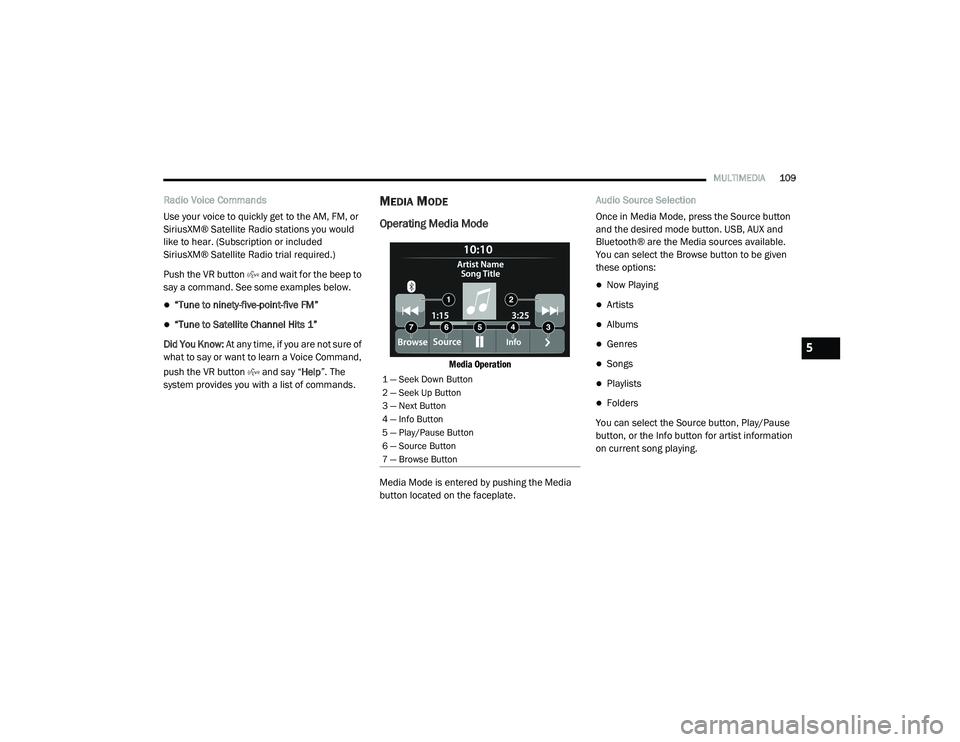
Operating Media Mode
Media Operation
Media Mode is entered by pushing the Media
button located on the faceplate. Audio Source Selection
Once in Media Mode, press the Source button
and the desired mode button. USB, AUX and
Bluetooth® are the Media sources available.
You can select the Browse button to be given
these options:
Now Playing
Artists
Albums
Genres
Songs
Playlists
Folders
You can select the Source button, Play/Pause
button, or the Info button for artist information
on current song playing.
1 — Seek Down Button
2 — Seek Up Button
3 — Next Button
4 — Info Button
5 — Play/Pause Button
6 — Source Button
7 — Browse Button
5
21_VF_OM_EN_USC_t.book Page 109
Page 113 of 288
MULTIMEDIA111
Bluetooth® Mode
Before proceeding, the Bluetooth® device must
be paired with the Uconnect Phone to
communicate with the Uconnect system
Úpage 114.
Once the Bluetooth® device is paired to the
Uconnect system, push the Media button
located on the faceplate. Once in Media Mode,
press the Source button on the touchscreen
and select Bluetooth®.
NOTE:
For mobile phone compatibility and pairing
instructions, please visit UconnectPhone.com.
AUX Mode
AUX Mode is entered by inserting a AUX device
using a stereo cable with a 3.5 mm audio jack
into the AUX port or by pushing the MEDIA
button located on the faceplate. Once in Media
Mode, press the Source button on the
touchscreen and select AUX.
To insert an Auxiliary Device, gently insert the
Auxiliary device cable into the AUX Port. If you
insert an Auxiliary device with the ignition and
the radio on, the unit will switch to AUX mode
and begin to play. Controlling The Auxiliary Device
The control of the Auxiliary device (e.g.,
selecting playlists, play, fast forward, etc.)
cannot be provided by the radio; use the device
controls instead. Adjust the volume with the
Volume rotary knob, or with the volume of the
attached device.
NOTE:
The radio unit is acting as the amplifier for audio
output from the Auxiliary device. Therefore, if
the volume control on the Auxiliary device is set
too low, there will be insufficient audio signal for
the radio unit to play the music on the device.
Voice Commands Media
Uconnect offers connections via USB,
Bluetooth®, and auxiliary ports. Voice operation
is only available for connected USB and AUX
devices.
Push the VR button . After the beep, say one
of the following commands and follow the
prompts to switch your media source or choose
an artist.
“Change source to Bluetooth®”
“Change source to AUX”
“Change source to USB”
“Play artist Beethoven”; “Play album
Greatest Hits”; “Play song Moonlight
Sonata”; “Play genre Classical”
Did You Know: Press the Browse button on the
touchscreen to see all of the music on your USB
device. Your Voice Command must match
exactly how the artist, album, song, and genre
information is displayed.
5
21_VF_OM_EN_USC_t.book Page 111
Page 149 of 288
MULTIMEDIA147
Go to activate.verizonconnect.com/ram/
#login. If you are an existing Verizon Connect
customer, enter your company’s log-in
credentials. New customers will need to
register to create a new account.
Manually enter the VIN(s) or upload a CSV file
with your VIN(s). A vehicle name is optional
and can be added later. Follow online instruc -
tions to complete your vehicle entry.
Create a password and enter billing informa -
tion. An email will be sent to you to complete
the final step. After that, you will be ready to
log-in and access Verizon Connect Fleet!
You are good to go! You will receive an email
confirming your vehicles are now online.
For more information, or to learn more, visit
www.verizonconnect.com/ram/.
RAM TELEMATICS GENERAL
I
NFORMATION
Modification Statement
Magneti Marelli has not approved any changes
or modifications to this device by the user. Any
changes or modifications could void the user’s
authority to operate the equipment.
Magneti Marelli n'approuve aucune
modification apportée à l'appareil par
l'utilisateur, quelle qu'en soit la nature. Tout
changement ou modification peuvent annuler
le droit d'utilisation de l'appareil par l'utilisateur.
Interference Statement
This device complies with Part 15, 22, 24, and
27 of the FCC and Industry Canada
licence-exempt RSS standard(s). Operation is
subject to the following two conditions: (1) This
device may not cause interference, and (2) This
device must accept any interference, including
interference that may cause undesired
operation of the device. RF Exposure
This equipment complies with FCC and IC
radiation exposure limits set forth for an
uncontrolled environment. The antenna should
be installed and operated with minimum
distance of 20 cm between the radiator and
your body.
Cet appareil est conforme aux limites
d'exposition aux rayonnements de la IC pour
environnement non contrôlé. L'antenne doit
être installé de façon à garder une distance
minmale de 20 centimètres entre la source de
rayonnements et votre corps.
5
21_VF_OM_EN_USC_t.book Page 147