instrument cluster RAM PROMASTER 2022 Workshop Manual
[x] Cancel search | Manufacturer: RAM, Model Year: 2022, Model line: PROMASTER, Model: RAM PROMASTER 2022Pages: 268, PDF Size: 13.26 MB
Page 123 of 268
MULTIMEDIA121
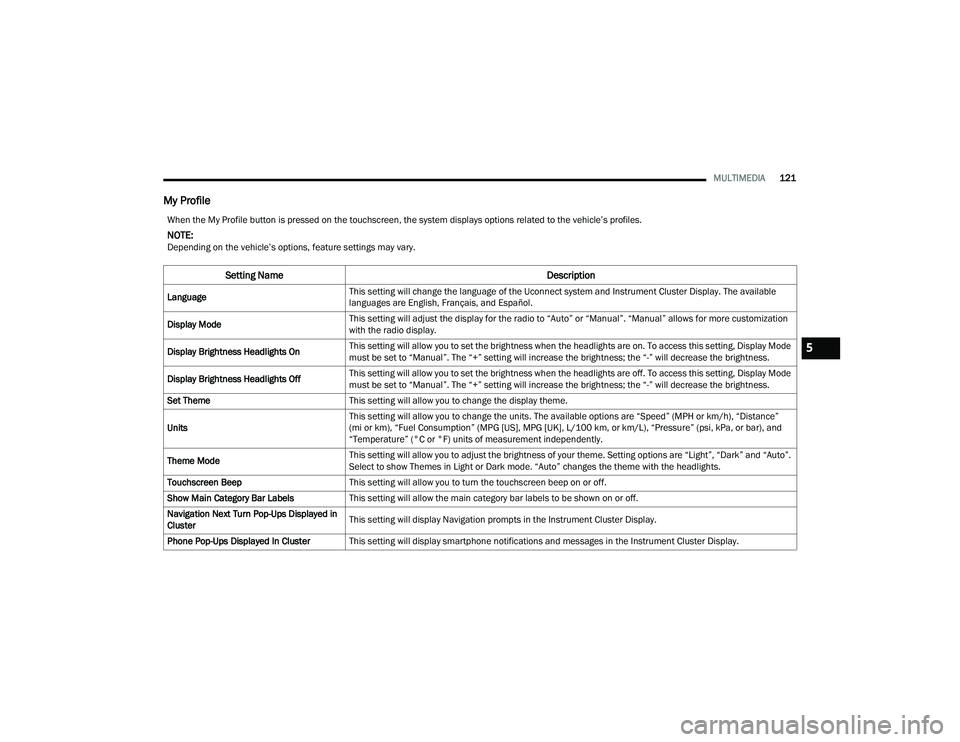
My Profile
When the My Profile button is pressed on the touchscreen, the system displays options related to the vehicle’s profiles.
NOTE:Depending on the vehicle’s options, feature settings may vary.
Setting Name Description
LanguageThis setting will change the language of the Uconnect system and Instrument Cluster Display. The available
languages are English, Français, and Español.
Display Mode This setting will adjust the display for the radio to “Auto” or “Manual”. “Manual” allows for more customization
with the radio display.
Display Brightness Headlights On This setting will allow you to set the brightness when the headlights are on. To access this setting, Display Mode
must be set to “Manual”. The “+” setting will increase the brightness; the “-” will decrease the brightness.
Display Brightness Headlights Off This setting will allow you to set the brightness when the headlights are off. To access this setting, Display Mode
must be set to “Manual”. The “+” setting will increase the brightness; the “-” will decrease the brightness.
Set Theme This setting will allow you to change the display theme.
Units This setting will allow you to change the units. The available options are “Speed” (MPH or km/h), “Distance”
(mi or km), “Fuel Consumption” (MPG [US], MPG [UK], L/100 km, or km/L), “Pressure” (psi, kPa, or bar), and
“Temperature” (°C or °F) units of measurement independently.
Theme Mode This setting will allow you to adjust the brightness of your theme. Setting options are “Light”, “Dark” and “Auto”.
Select to show Themes in Light or Dark mode. “Auto” changes the theme with the headlights.
Touchscreen Beep This setting will allow you to turn the touchscreen beep on or off.
Show Main Category Bar Labels This setting will allow the main category bar labels to be shown on or off.
Navigation Next Turn Pop-Ups Displayed in
Cluster This setting will display Navigation prompts in the Instrument Cluster Display.
Phone Pop-Ups Displayed In Cluster This setting will display smartphone notifications and messages in the Instrument Cluster Display.
5
22_VF_OM_EN_USC_t.book Page 121
Page 125 of 268
MULTIMEDIA123
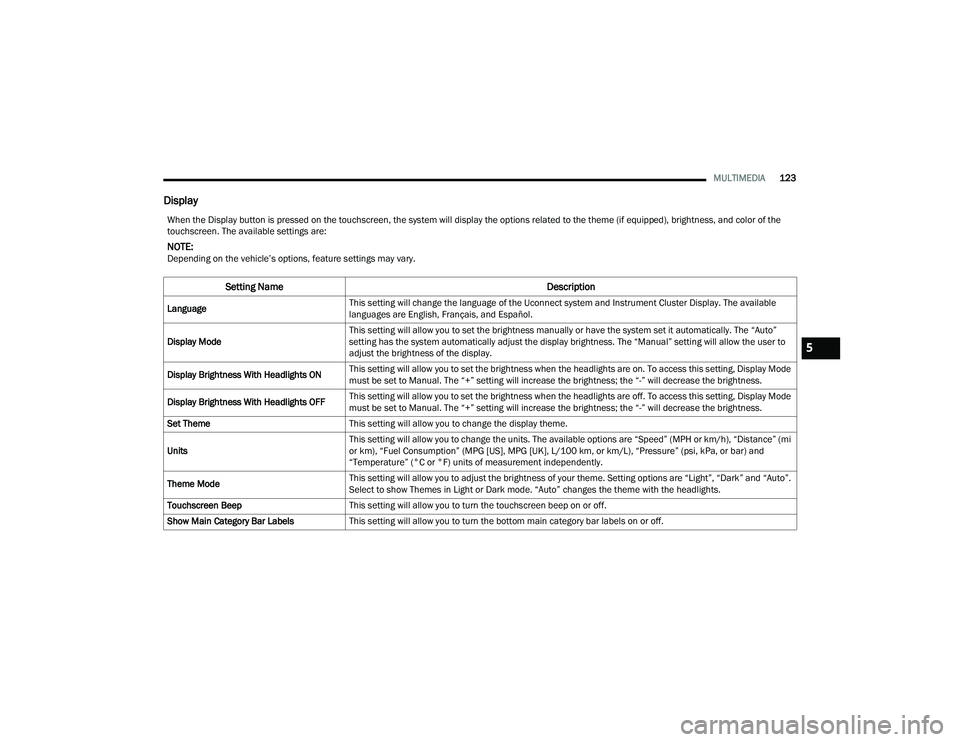
Display
When the Display button is pressed on the touchscreen, the system will display the options related to the theme (if equipped), brightness, and color of the
touchscreen. The available settings are:
NOTE:Depending on the vehicle’s options, feature settings may vary.
Setting Name Description
LanguageThis setting will change the language of the Uconnect system and Instrument Cluster Display. The available
languages are English, Français, and Español.
Display Mode This setting will allow you to set the brightness manually or have the system set it automatically. The “Auto”
setting has the system automatically adjust the display brightness. The “Manual” setting will allow the user to
adjust the brightness of the display.
Display Brightness With Headlights ON This setting will allow you to set the brightness when the headlights are on. To access this setting, Display Mode
must be set to Manual. The “+” setting will increase the brightness; the “-” will decrease the brightness.
Display Brightness With Headlights OFF This setting will allow you to set the brightness when the headlights are off. To access this setting, Display Mode
must be set to Manual. The “+” setting will increase the brightness; the “-” will decrease the brightness.
Set Theme This setting will allow you to change the display theme.
Units This setting will allow you to change the units. The available options are “Speed” (MPH or km/h), “Distance” (mi
or km), “Fuel Consumption” (MPG [US], MPG [UK], L/100 km, or km/L), “Pressure” (psi, kPa, or bar) and
“Temperature” (°C or °F) units of measurement independently.
Theme Mode This setting will allow you to adjust the brightness of your theme. Setting options are “Light”, “Dark” and “Auto”.
Select to show Themes in Light or Dark mode. “Auto” changes the theme with the headlights.
Touchscreen Beep This setting will allow you to turn the touchscreen beep on or off.
Show Main Category Bar Labels This setting will allow you to turn the bottom main category bar labels on or off.
5
22_VF_OM_EN_USC_t.book Page 123
Page 126 of 268
124MULTIMEDIA
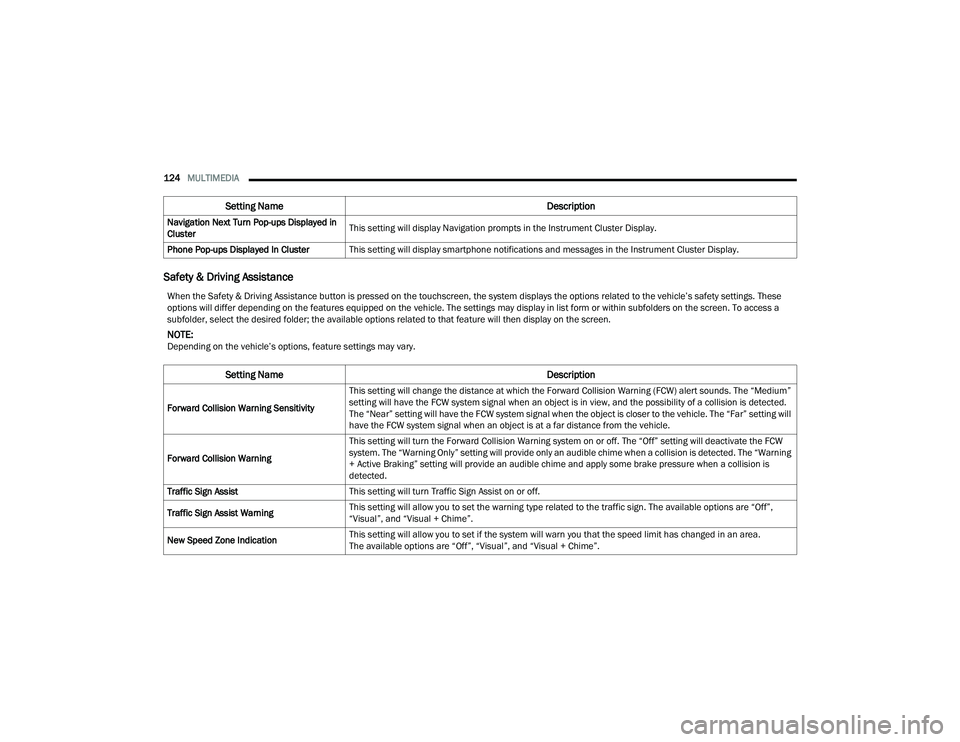
Safety & Driving Assistance
Navigation Next Turn Pop-ups Displayed in
Cluster This setting will display Navigation prompts in the Instrument Cluster Display.
Phone Pop-ups Displayed In Cluster This setting will display smartphone notifications and messages in the Instrument Cluster Display.
Setting Name Description
When the Safety & Driving Assistance button is pressed on the touchscreen, the system displays the options related to the vehicle’s safety settings. These
options will differ depending on the features equipped on the vehicle. The settings may display in list form or within subfolders on the screen. To access a
subfolder, select the desired folder; the available options related to that feature will then display on the screen.
NOTE:Depending on the vehicle’s options, feature settings may vary.
Setting NameDescription
Forward Collision Warning SensitivityThis setting will change the distance at which the Forward Collision Warning (FCW) alert sounds. The “Medium”
setting will have the FCW system signal when an object is in view, and the possibility of a collision is detected.
The “Near” setting will have the FCW system signal when the object is closer to the vehicle. The “Far” setting will
have the FCW system signal when an object is at a far distance from the vehicle.
Forward Collision Warning This setting will turn the Forward Collision Warning system on or off. The “Off” setting will deactivate the FCW
system. The “Warning Only” setting will provide only an audible chime when a collision is detected. The “Warning
+ Active Braking” setting will provide an audible chime and apply some brake pressure when a collision is
detected.
Traffic Sign Assist This setting will turn Traffic Sign Assist on or off.
Traffic Sign Assist Warning This setting will allow you to set the warning type related to the traffic sign. The available options are “Off”,
“Visual”, and “Visual + Chime”.
New Speed Zone Indication This setting will allow you to set if the system will warn you that the speed limit has changed in an area.
The available options are “Off”, “Visual”, and “Visual + Chime”.
22_VF_OM_EN_USC_t.book Page 124
Page 128 of 268
126MULTIMEDIA
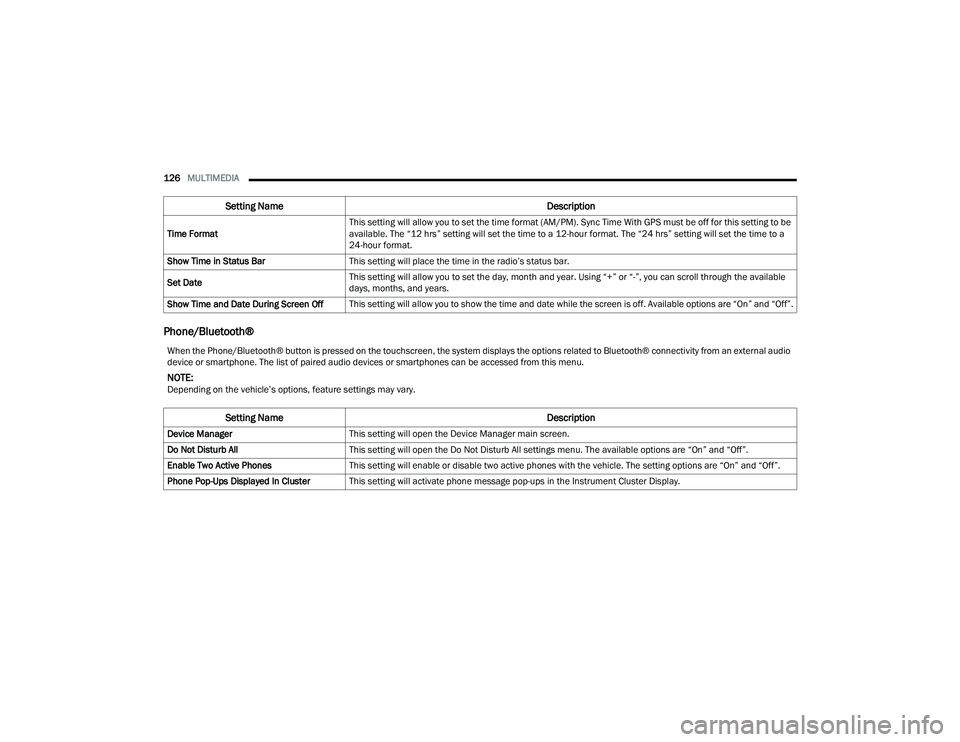
Phone/Bluetooth®
Time Format This setting will allow you to set the time format (AM/PM). Sync Time With GPS must be off for this setting to be
available. The “12 hrs” setting will set the time to a 12-hour format. The “24 hrs” setting will set the time to a
24-hour format.
Show Time in Status Bar This setting will place the time in the radio’s status bar.
Set Date This setting will allow you to set the day, month and year. Using “+” or “-”, you can scroll through the available
days, months, and years.
Show Time and Date During Screen Off This setting will allow you to show the time and date while the screen is off. Available options are “On” and “Off”.
Setting Name Description
When the Phone/Bluetooth® button is pressed on the touchscreen, the system displays the options related to Bluetooth® connectivity from an external audio
device or smartphone. The list of paired audio devices or smartphones can be accessed from this menu.
NOTE:Depending on the vehicle’s options, feature settings may vary.
Setting NameDescription
Device ManagerThis setting will open the Device Manager main screen.
Do Not Disturb All This setting will open the Do Not Disturb All settings menu. The available options are “On” and “Off”.
Enable Two Active Phones This setting will enable or disable two active phones with the vehicle. The setting options are “On” and “Off”.
Phone Pop-Ups Displayed In Cluster This setting will activate phone message pop-ups in the Instrument Cluster Display.
22_VF_OM_EN_USC_t.book Page 126
Page 140 of 268

138SAFETY
ELECTRONIC BRAKE CONTROL (EBC)
S
YSTEM
Your vehicle is equipped with an advanced
Electronic Brake Control (EBC) system that
includes the Brake Assist System (BAS), Crosswind
Assist (CWA), Electronic Stability Control (ESC), Hill
Start Assist (HSA), Traction Control System (TCS),
and Trailer Sway Control (TSC). These systems
complement the Anti-Lock Brake System (ABS) by
optimizing the vehicle braking capability during
emergency braking maneuvers.
Brake Assist System (BAS)
The BAS is designed to optimize the vehicle’s
braking capability during emergency braking
maneuvers. The system detects an emergency
braking situation by sensing the rate and amount
of brake application and then applies optimum
pressure to the brakes. This can help reduce
braking distances. The BAS complements the
Anti-Lock Brake System (ABS). Applying the brakes
very quickly results in the best BAS assistance.
To receive the benefit of the system, you must
apply continuous braking pressure during the
stopping sequence (do not “pump” the brakes).
Do not reduce brake pedal pressure unless
braking is no longer desired. Once the brake pedal
is released, the BAS is deactivated.Crosswind Assist (CWA)
CWA helps keep your vehicle from drifting out of its lane
due to unexpected crosswinds by means of targeted
braking of individual wheels. The system will provide
automatic stability assistance to counteract the effect
of strong side wind. If a strong lateral wind is detected,
front and rear brakes on the affected side are applied,
creating a steering effect that mitigates the crosswind
influence. During system intervention, the driver should
perceive the natural stable handling feel of the vehicle.
Crosswind Assist will activate automatically when
the vehicle reaches speeds above approximately
43 mph (70 km/h). When the system is activated,
the ESC Warning Light in the instrument cluster will
blink to warn the driver.
Electronic Stability Control (ESC)
ESC enhances directional control and stability of
the vehicle under various driving conditions. ESC
corrects for over/under steering of the vehicle by
applying the brake of the appropriate wheel(s) to
counteract the above conditions. Engine power
may also be reduced to help the vehicle maintain
the desired path.
Oversteer – when the vehicle is turning more
than appropriate for the steering wheel position.
Understeer – when the vehicle is turning less
than appropriate for the steering wheel position.
ESC uses sensors in the vehicle to determine the
vehicle path intended by the driver and compares it to
the actual path of the vehicle. When the actual path
does not match the intended path, ESC applies the
brake of the appropriate wheel to assist in
counteracting the oversteer or understeer condition.
WARNING!
The Brake Assist System (BAS) cannot prevent the
natural laws of physics from acting on the vehicle,
nor can it increase the traction afforded by prevailing
road conditions. BAS cannot prevent collisions,
including those resulting from excessive speed in
turns, driving on very slippery surfaces, or
hydroplaning. The capabilities of a BAS-equipped
vehicle must never be exploited in a reckless or
dangerous manner, which could jeopardize the
user's safety or the safety of others.
22_VF_OM_EN_USC_t.book Page 138
Page 142 of 268

140SAFETY
ESC Activation/Malfunction Indicator Light
And ESC OFF Indicator Light
The ESC Activation/Malfunction Indicator
Light in the instrument cluster will come
on when the ignition is turned to the ON
mode. It should go out with the engine
running. If the ESC Activation/Malfunction Indicator
Light comes on continuously with the engine
running, a malfunction has been detected in the ESC
system. If this light remains on after several ignition
cycles, and the vehicle has been driven several
miles (kilometers) at speeds greater than 30 mph
(48 km/h), see an authorized dealer as soon as
possible to have the problem diagnosed and
corrected.
The ESC Activation/Malfunction Indicator Light
starts to flash as soon as the tires lose traction and
the ESC system becomes active. The ESC Activation/
Malfunction Indicator Light also flashes when TCS is
active. If the ESC Activation/Malfunction Indicator
Light begins to flash during acceleration, ease up
on the accelerator and apply as little throttle as
possible. Be sure to adapt your speed and driving to
the prevailing road conditions.
The ESC OFF Indicator Light indicates
that the Electronic Stability Control (ESC)
is in a reduced mode.
NOTE:
The ESC Activation/Malfunction Indicator Light
and the ESC OFF Indicator Light come on
momentarily each time the ignition switch is
placed in the ON position.
Each time the ignition is placed in the ON posi -
tion, the ESC system will be on even if it was
turned off previously.
The ESC system will make buzzing or clicking
sounds when it is active. This is normal; the
sounds will stop when ESC becomes inactive
following the maneuver that caused the ESC
activation.
Hill Start Assist (HSA)
The HSA system is designed to assist the driver
when starting a vehicle from a stop on a hill. HSA
will maintain the level of brake pressure the driver
applied for a short period of time after the driver
takes their foot off of the brake pedal. If the driver
does not apply the throttle during this short period
of time, the system will release brake pressure and
the vehicle will roll down the hill. The system will
release brake pressure in proportion to the
amount of throttle applied as the vehicle starts
to move in the intended direction of travel.
HSA Activation Criteria
The following criteria must be met in order for HSA
to activate:
The vehicle must be stopped.
The vehicle must be on a 6% (approximate)
grade or greater hill.
Gear selection matches vehicle uphill direction
(i.e., vehicle facing uphill is in forward gear;
vehicle backing uphill is in REVERSE gear).
HSA will work in REVERSE and all forward gears
when the activation criteria have been met.
The system will not activate if the vehicle is placed
in NEUTRAL or PARK.
WARNING!
There may be situations on minor hills with a
loaded vehicle, or while pulling a trailer, when
the system will not activate and slight rolling may
occur. This could cause a collision with another
vehicle or object. Always remember the driver is
responsible for braking the vehicle.
22_VF_OM_EN_USC_t.book Page 140
Page 143 of 268

SAFETY141
Towing With HSA
HSA will also provide assistance to mitigate roll
back while towing a trailer.
Traction Control System (TCS)
TCS monitors the amount of wheel spin of each of
the driven wheels. If wheel spin is detected, brake
pressure is applied to the slipping wheel(s) and
engine power is reduced, to provide enhanced
acceleration and stability. A feature of the TCS,
Brake Limited Differential (BLD) functions similarly to a limited slip differential and controls the wheel
spin across a driven axle. If one wheel on a driven
axle is spinning faster than the other, the system
will apply the brake of the spinning wheel. This will
allow more engine torque to be applied to the
wheel that is not spinning. This feature remains
active even if the ESC is in the “Partial Off” mode.
The ESC Activation/Malfunction Indicator Light (in
the instrument cluster) will start to flash as soon as
the tires lose traction and the wheels begin to spin.
This indicates that the TCS is active. If the indicator
light flashes during acceleration, ease up on the
accelerator and apply as little throttle as possible.
Be sure to adapt your speed and driving to the
prevailing road conditions, and do not switch off
the ESC or TCS.
Trailer Sway Control (TSC) — If Equipped
TSC uses sensors in the vehicle to recognize an
excessively swaying trailer and will take the
appropriate actions to attempt to stop the sway.
The system may reduce engine power and apply
the brake of the appropriate wheel(s) to counteract
the sway of the trailer.
NOTE:TSC cannot stop all trailers from swaying. Always
use caution when towing a trailer and follow the
trailer tongue weight recommendations
Ú
page 110.
When TSC is functioning, the ESC Activation/
Malfunction Indicator Light will flash, the engine
power may be reduced, and you may feel the
brakes being applied to individual wheels to
attempt to stop the trailer from swaying. TSC is
disabled when the ESC system is in the “Partial
Off” mode.
WARNING!
If you use a trailer brake controller with your
trailer, the trailer brakes may be activated and
deactivated with the brake switch. If so, there
may not be enough brake pressure to hold
both the vehicle and the trailer on a hill when
the brake pedal is released. In order to avoid
rolling down an incline while resuming accel -
eration, manually activate the trailer brake or
apply more vehicle brake pressure prior to
releasing the brake pedal.
HSA is not a parking brake. Always apply the
parking brake fully when exiting your vehicle. Also,
be certain to place the transmission in PARK.
Failure to follow these warnings can result in a
collision or serious personal injury.
WARNING!
The TCS cannot prevent the natural laws of
physics from acting on the vehicle, nor can it
increase the traction afforded.
The TCS cannot prevent collisions, including
those resulting from excessive speed in turns,
or hydroplaning.
The capabilities of a TCS-equipped vehicle
must never be exploited in a reckless or
dangerous manner, which could jeopardize
the user's safety or the safety of others.
WARNING!
If TSC activates while driving, slow the vehicle
down, stop at the nearest safe location, and
adjust the trailer load to eliminate trailer sway.
6
22_VF_OM_EN_USC_t.book Page 141
Page 148 of 268

146SAFETY
Trailer Merge Assist — If Equipped
Trailer Merge Assist is a function of the Blind Spot
Monitoring (BSM) system that extends the blind
spot zone to work while pulling a trailer.
NOTE:When Trailer Merge Assist is activated, Rear Cross
Path is disabled.
Trailer Merge Assist consists of three sub
functions:
Automatic Trailer Detection
Trailer Length Detection
Trailer Merge Warning
Blind Spot Zones With Trailer Merge Assist
Automatic Trailer Detection
There are two modes of operation for the detection
of the trailer length:
Automatic Mode
— When “Auto Mode” is
selected, the system will use the blind spot
sensors to automatically determine the pres -
ence and length of a trailer. The presence of a
trailer will be detected using the blind spot radar
within 90 seconds of forward movement of the
vehicle. The vehicle must be moving above
6 mph (10 km/h) to activate the feature. Once
the trailer has been detected, the system will
default to the maximum blind spot zone until the
length has been verified. You will see “Auto” in
the instrument panel cluster .
Maximum Mode — When “Max Mode” is
selected, the system will default to the maximum
blind spot zone regardless of what size trailer is
attached .
NOTE:Selected setting is stored when the ignition is
placed in the OFF position. To change this setting,
it must be selected through the Uconnect Settings
Ú page 120. Trailer Length Detection
Once the trailer presence has been established,
the trailer length will be established (by making
a 90 degree turn) and then the trailer length
category (example 10-20 ft (3 m to 6 m)) will be
displayed. This can take up to 30 seconds after
completing the turn.
NOTE:During the same ignition cycle, if the vehicle is at a
standstill for a minimum of 90 seconds, a new
“trailer detection request” is enabled by the
system once the vehicle resumes motion.
The maximum trailer length supported by the
Trailer Merge Assist feature is 39.5 ft (12 m).
Trailer length is considered the forward most
portion of the trailer hitch to the rearward most
portion of the body, fascia/bumper, or ramp of the
trailer.
The maximum width supported by the Trailer
Merge Assist feature is 8.5 ft (2.59 m). Trailer
width is measured at the widest portion of the
trailer and may include wheels, tires, finders,
or rails.
1 — Vehicle
2 — Trailer
22_VF_OM_EN_USC_t.book Page 146
Page 150 of 268

148SAFETY
FORWARD COLLISION WARNING (FCW)
W
ITH MITIGATION — IF EQUIPPED
The FCW with Mitigation system provides the driver
with audible warnings, visual warnings (within the
instrument cluster display), and may apply a brake
jerk to warn the driver when it detects a potential
frontal collision. The warnings and limited braking
are intended to provide the driver with enough time
to react, avoid or mitigate the potential collision.
NOTE:FCW monitors the information from the forward
looking camera as well as the Electronic Brake
Controller (EBC), to calculate the probability of a
forward collision. When the system determines
that a forward collision is probable, the driver will
be provided with audible and visual warnings as
well as a possible brake jerk warning.
If the driver does not take action based upon these
progressive warnings, then the system will provide
a limited level of active braking to help slow the
vehicle and mitigate the potential forward collision.
If the driver reacts to the warnings by braking and
the system determines that the driver intends to
avoid the collision by braking but has not applied
sufficient brake force, the system will compensate
and provide additional brake force as required.
If a FCW with Mitigation event begins at a speed
below 26 mph (42 km/h), the system may provide
the maximum braking possible to mitigate the
potential forward collision. Vehicles With Automatic
Transmission: After the end of the intervention of
automatic braking, the transmission may remain in
last gear stored — therefore the vehicle could lurch
forward, once the brakes release a few seconds
later. If the Forward Collision Warning with Mitigation
event stops the vehicle completely, the system will
hold the vehicle at standstill for two seconds and
then release the brakes.
FCW Message
When the system determines a collision with the
vehicle in front of you is no longer probable, the
warning message will be deactivated.
NOTE:
The minimum speed for FCW activation is
3 mph (5 km/h).
The FCW alerts may be triggered on objects
other than vehicles such as guardrails or sign
posts based on the course prediction. This is
expected and is a part of normal FCW activation
and functionality.
It is unsafe to test the FCW system. To prevent
such misuse of the system the Active Braking
portion of FCW will be deactivated for the first
20 seconds from braking actuation.
The FCW system is intended for on-road use
only. If the vehicle is taken off-road, the FCW
system should be deactivated to prevent unnec -
essary warnings to the surroundings.
FCW may not react to irrelevant objects such as
overhead objects, ground reflections, objects
not in the path of the vehicle, stationary objects
that are far away, oncoming traffic, or leading
vehicles with the same or higher rate of speed.
FCW will be disabled with the unavailable
screens Ú page 256.
22_VF_OM_EN_USC_t.book Page 148
Page 152 of 268

150SAFETY
FCW Limited Warning
If the instrument cluster displays “FCW Limited
Functionality” or “FCW Limited Functionality Clean
Front Windshield” momentarily, there may be a
condition that limits FCW functionality. Although
the vehicle is still drivable under normal
conditions, the active braking may not be fully
available. Once the condition that limited the
system performance is no longer present, the
system will return to its full performance state.
If the problem persists, see an authorized dealer.
Service FCW Warning
If the system turns off, and the instrument cluster
displays: “FCW Unavailable Service Required”,
this indicates there is an internal system fault.
Although the vehicle is still drivable under normal
conditions, have the system checked by an
authorized dealer.
“FCW Temporarily Unavailable” Warning
The “FCW Temporarily Unavailable” warning will be
displayed when conditions temporarily deactivate
the system. This most often occurs at times of poor
visibility, such as in snow or heavy rain. The system
may also become temporarily blinded due to
obstructions, such as mud, dirt or ice. In these
cases, the instrument cluster display will show
“FCW Temporarily Unavailable” and the system will
deactivate. The “FCW Temporarily Unavailable” message can
sometimes be displayed while driving in highly
reflective areas (i.e. tunnels with reflective tiles, or
ice and snow). The system will recover after the
vehicle has left these areas. Under rare conditions,
when the camera is not tracking any vehicles or
objects in its path, this warning may temporarily
occur. If weather conditions are not a factor, the
driver should examine the fascia/bumper where
the camera is located. It may require cleaning or
removal of an obstruction from the fascia/bumper
cover.NOTE:
If the “FCW Temporarily Unavailable” message
occurs frequently (e.g. more than once on every
trip) without any snow, rain, mud, or other
obstruction, have the camera realigned at an
authorized dealer.
Installing a snow plow or front-end protector is
not recommended. Doing so may block the
camera and inhibit FCW operation.
Use only a soft cloth for cleaning. Do not use
solvents or abrasive pastes.
Precautions While Driving With FCW
In certain driving conditions, such as:
Driving in the vicinity of a curve
Small vehicles and/or not aligned to the lane
Lane changing of other vehicles
Passing of vehicles in an oncoming intersection
The intervention of the system could be
unexpected or delayed. The driver must therefore
always pay particular attention, while maintaining
control of the vehicle to drive in complete safety.
Driving In The Vicinity Of A Curve
Entering or exiting a large curve, the system could
detect the presence of a vehicle that is in front of
the vehicle, but that does not preside in the same
lane. In cases such as this, the system might
respond.
Driving In The Vicinity Of A Curve
22_VF_OM_EN_USC_t.book Page 150