ESP RAM PROMASTER CITY 2022 User Guide
[x] Cancel search | Manufacturer: RAM, Model Year: 2022, Model line: PROMASTER CITY, Model: RAM PROMASTER CITY 2022Pages: 260, PDF Size: 8.45 MB
Page 61 of 260
STARTING AND OPERATING59
If the transmission becomes extremely hot, the
Transmission Temperature Warning Light may
illuminate and the transmission may operate
differently until the transmission cools down.
During cold temperatures, transmission
operation may be modified depending on engine
and transmission temperature as well as vehicle
speed. This feature improves warm up time of the
engine and transmission to achieve maximum
efficiency. Engagement of the torque converter
clutch, and shifts into EIGHTH or NINTH gear, are
inhibited until the transmission fluid is warm
Ú
page 59. Normal operation will resume once
the transmission temperature has risen to a
suitable level.
Transmission Limp Home Mode
Transmission function is monitored electronically
for abnormal conditions. If a condition is detected
that could result in transmission damage,
Transmission Limp Home Mode is activated. In this
mode, the transmission may operate only in a fixed
gear, or may remain in NEUTRAL. The Malfunction
Indicator Light (MIL) may be illuminated. Limp
Home Mode may allow the vehicle to be driven to
an authorized dealer for service without damaging
the transmission. In the event of a momentary problem, the
transmission can be reset to regain all forward
gears by performing the following steps:
1. Stop the vehicle.
2. Shift the transmission into PARK.
3. Turn the ignition OFF.
4. Wait approximately 10 seconds.
5. Restart the engine.
6. Shift into the desired gear range. If the
problem is no longer detected, the
transmission will return to normal operation.
NOTE:
Even if the transmission can be reset, we recommend
that you visit an authorized dealer at your earliest
possible convenience. An authorized dealer has diag -
nostic equipment to assess the condition of your
transmission. If the transmission cannot be reset,
authorized dealer service is required.
Torque Converter Clutch
A feature designed to improve fuel economy has
been included in the automatic transmission on
your vehicle. A clutch within the torque converter
engages automatically at calibrated speeds. This
may result in a slightly different feeling or response
during normal operation in the upper gears. When
the vehicle speed drops or during some
accelerations, the clutch automatically
disengages.
NOTE:The torque converter clutch will not engage until
the transmission fluid is warm [usually after 1 to
3 miles (2 to 5 km) of driving]. Because the engine
speed is higher when the torque converter clutch is
not engaged, it may seem as if the transmission is
not shifting properly when cold. This is normal. The
torque converter clutch will function normally once
the transmission is sufficiently warm.
Electronic Range Select (ERS) Operation
The ERS shift control allows the driver to limit the
highest available gear. For example, if you set the
transmission gear limit to FIFTH gear, the
transmission will not shift above FIFTH gear, but
will shift through the lower gears normally.
You can switch between DRIVE and ERS mode at
any vehicle speed. When the gear selector is in the
DRIVE position, the transmission will operate
automatically, shifting between all available gears.
Moving the gear selector to the ERS position (beside
DRIVE) will activate ERS mode, display the current
gear in the instrument cluster, and set that gear as
the top available gear. Once in ERS mode, moving
the gear selector forward “-” or rearward “+” will
change the top available gear, which will be
displayed in the instrument cluster.
To exit ERS mode, simply return the gear selector
to the DRIVE position.4
22_VM_OM_EN_USC_t.book Page 59
Page 62 of 260

60STARTING AND OPERATING
NOTE:To select the proper gear position for maximum
deceleration (engine braking), move the gear
selector into the ERS position, then simply press
and hold it forward “-”. The transmission will shift
to the range from which the vehicle can best be
slowed down.
POWER STEERING
The standard power steering system provides
increased vehicle response and ease of
maneuverability. The system will provide
mechanical steering capability if power assist is
lost.
If for some reason the power assist is interrupted,
it will still be possible to steer your vehicle. Under
these conditions, you will observe a substantial
increase in steering effort, especially at very low
vehicle speeds and during parking maneuvers.
NOTE:
Increased noise levels at the end of the steering
wheel travel are considered normal and do not
indicate that there is a problem with the power
steering system.
Upon initial start-up in cold weather, the power
steering pump may make noise for a short
amount of time. This is due to the cold, thick
fluid in the steering system. This noise should
be considered normal, and it does not in any
way damage the steering system.
POWER STEERING FLUID CHECK
Checking the power steering fluid level at a defined
service interval is not required. The fluid should
only be checked if a leak is suspected, abnormal
noises are apparent, and/or the system is not
functioning as anticipated. Coordinate inspection
efforts through an authorized dealer. If necessary, add fluid to restore to the proper
indicated level. With a clean cloth, wipe any spilled
fluid from all surfaces Ú
page 241.CRUISE CONTROL — IF EQUIPPED
When engaged, the Cruise Control takes over
accelerator operations at speeds greater than
25 mph (40 km/h).
The Cruise Control buttons are located on the right
side of the steering wheel.
WARNING!
Do not downshift for additional engine braking
on a slippery surface. The drive wheels could
lose their grip and the vehicle could skid,
causing a collision or personal injury.
CAUTION!
Prolonged operation of the steering system at
the end of the steering wheel travel will increase
the steering fluid temperature and it should be
avoided when possible. Damage to the power
steering pump may occur.
WARNING!
Fluid level should be checked on a level surface
and with the engine off to prevent injury from
moving parts and to ensure accurate fluid level
reading. Do not overfill. Use only the
manufacturer recommended power steering
fluid.
CAUTION!
Do not use chemical flushes in your power
steering system as the chemicals can damage
your power steering components. Such damage
is not covered by the New Vehicle Limited
Warranty.
22_VM_OM_EN_USC_t.book Page 60
Page 64 of 260

62STARTING AND OPERATING
Using Cruise Control On Hills
The transmission may downshift on hills to
maintain the vehicle set speed.
NOTE:The Cruise Control system maintains speed up and
down hills. A slight speed change on moderate hills
is normal. On steep hills, a greater speed loss or
gain may occur so it may be preferable to drive
without Cruise Control.
TO RESUME SPEED
To resume a previously set speed, push the RES (+)
button and release. Resume can be used at any
speed above 20 mph (32 km/h) up to the
maximum speed of 100 mph (160 km/h).
TO DEACTIVATE
A tap on the brake pedal, pushing the CAN button,
or normal brake pressure will deactivate the Cruise
Control system without erasing the set speed from
memory.
Pushing the on/off button or turning the ignition
switch off erases the set speed from memory.
PARKSENSE REAR PARK ASSIST —
IF EQUIPPED
The ParkSense system provides an audible
indication of the distance between the rear fascia/
bumper and a detected obstacle when backing up
(e.g. during a parking maneuver) Ú page 64.
The ParkSense system is automatically activated
when the transmission is placed into REVERSE. As
the distance from an obstacle behind the vehicle
decreases, the audible alert becomes more frequent.
Interaction With Trailer Towing
The ParkSense system is automatically
deactivated when a trailer equipped by Mopar® is
hitched to the vehicle. The system will be
automatically activated as soon as the trailer is
removed. If it does not happen, turning the key
ignition switch to STOP (OFF/LOCK) position and
then to AVV (START) again would be needed. If a
non-Mopar® trailer hitch is mounted, the sensor
deactivation cannot be guaranteed.
PARKSENSE REAR PARK ASSIST
S
ENSORS
The four ParkSense sensors, located in the rear
fascia/bumper, monitor the area behind the vehicle
that is within the sensors’ field of view. The sensors
can detect obstacles, in the horizontal direction,
from approximately 12 inches (30 cm) up to
55 inches (140 cm) from the center of the rear
fascia/bumper and up to 24 inches (60 cm) from
the corners of the rear fascia/bumper, depending on
the location, type and orientation of the obstacle.
ParkSense Rear Park Assist Sensors Locations
If several obstacles are detected, the ParkSense
system indicates the nearest obstacle.
The minimum height of a detectable obstacle
corresponds to the maximum height of an obstacle
that would clear the underside of the vehicle
during the parking maneuver.
WARNING!
Cruise Control can be dangerous where the
system cannot maintain a constant speed. Your
vehicle could go too fast for the conditions, and
you could lose control and have an accident. Do
not use Cruise Control in heavy traffic or on
roads that are winding, icy, snow-covered or
slippery.
22_VM_OM_EN_USC_t.book Page 62
Page 66 of 260

64STARTING AND OPERATING
PARKSENSE REAR PARK ASSIST
F
AILURE INDICATIONS
A malfunction of the ParkSense sensors
or system is indicated, during REVERSE
gear engagement, by the instrument
panel warning icon.
The warning icon is illuminated and a message is
displayed on the instrument cluster display (if
equipped) Ú page 44.
The sensors and wiring are tested continuously
when the ignition is in the MAR (ACC/ON/RUN)
position. Failures are indicated immediately if they
occur when the system is on.
Even if the system is able to identify that a specific
sensor is in failure condition, the instrument
cluster display shall indicate that the ParkSense
system is unavailable, without reference to the
sensor in failure condition. If even a single sensor
fails, the entire system will be disabled. The system
is turned off automatically.
CLEANING THE PARKSENSE REAR PARK
A
SSIST SYSTEM
Clean the ParkSense sensors with water, car wash
soap and a soft cloth. Do not use rough or hard
cloths. In washing stations, clean sensors quickly
while keeping the vapor jet/high pressure washing
nozzles at least 4 inches (10 cm) from the sensors. Do not scratch or poke the sensors. Otherwise, you
could damage the sensors.
PARKSENSE REAR PARK ASSIST
S
YSTEM USAGE PRECAUTIONS
NOTE:
Ensure that the outer surface and the underside
of the rear fascia/bumper is clean and clear of
snow, ice, mud, dirt or other obstruction to keep
the ParkSense Rear Park Assist system oper -
ating properly.
Jackhammers, large trucks, and other vibra -
tions could affect the performance of the
ParkSense system.
Clean the ParkSense sensors regularly, taking
care not to scratch or damage them. The sensors
must not be covered with ice, snow, slush, mud,
dirt or debris. Failure to do so can result in the
system not working properly. The ParkSense
system might not detect an obstacle behind the
fascia/bumper, or it could provide a false indica -
tion that an obstacle is behind the fascia/bumper.
Objects such as bicycle carriers, etc., must not
be placed within 12 inches (30 cm) from the
rear fascia/bumper while driving the vehicle.
Failure to do so can result in the system misin -
terpreting a close object as a sensor problem,
causing a failure indication to be displayed in
the instrument cluster display.
WARNING!
Drivers must be careful when backing up even
when using ParkSense. Always check carefully
behind your vehicle, look behind you, and be
sure to check for pedestrians, animals, other
vehicles, obstructions, and blind spots before
backing up. You are responsible for safety and
must continue to pay attention to your
surroundings. Failure to do so can result in
serious injury or death.
Before using ParkSense, it is strongly recom -
mended that the ball mount and hitch ball
assembly be disconnected from the vehicle
when the vehicle is not used for towing.
Failure to do so can result in injury or damage
to vehicles or obstacles because the hitch
ball will be much closer to the obstacle than
the rear fascia when the vehicle sounds the
continuous tone. Also, the sensors could
detect the ball mount and hitch ball
assembly, depending on its size and shape,
giving a false indication that an obstacle is
behind the vehicle.
22_VM_OM_EN_USC_t.book Page 64
Page 67 of 260

STARTING AND OPERATING65
If it’s necessary to keep the ball mount and hitch
ball assembly mounted for a long period, it is
possible to filter out the ball mount and hitch ball
assembly presence in the sensor field of view. The
filtering operation must be performed only by an
authorized dealer.
PARKVIEW REAR BACK UP CAMERA
Your vehicle is equipped with the ParkView Rear
Back Up Camera that allows you to see an
on-screen image of the rear surroundings of your
vehicle whenever the gear selector is put into
REVERSE. The image will be displayed on the
touchscreen display along with a caution note to “Check Entire Surroundings” across the top of the
screen. After five seconds this note will disappear.
The ParkView camera is located on the rear of the
vehicle above the rear license plate.
The Rear Back Up Camera can also be activated
when the vehicle is not in REVERSE through the
Uconnect system Ú
page 79.
NOTE:If one of the rear cargo doors is not completely
closed, the Back Up Camera cannot provide an
accurate image of the area behind the vehicle. A
dedicated message will appear on the Uconnect
display indicating the camera is not in the correct
position.
The Camera Delay setting can be set to on/off in
the rear camera settings menu. When the vehicle
is shifted out of REVERSE and the Camera Delay is
turned off, the rear camera mode is exited and the
navigation or audio screen appears on display
again.
When the transmission is shifted out of REVERSE,
and Camera Delay is activated in the menu screen,
the camera image will continue to be displayed for
up to 10 seconds, unless the speed of the vehicle
is greater than 8 mph (13 km/h), the transmission
is in PARK, or the ignition is placed in the STOP
(OFF/LOCK) position. When displayed, static grid lines will illustrate the
width of the vehicle and will show separate zones
that will help indicate the distance to the rear of
the vehicle. The following table shows the
approximate distances for each zone:
CAUTION!
ParkSense is only a parking aid and it is
unable to recognize every obstacle, including
small obstacles. Parking curbs might be
temporarily detected or not detected at all.
Obstacles located above or below the sensors
will not be detected when they are in close
proximity.
The vehicle must be driven slowly when using
ParkSense in order to be able to stop in time
when an obstacle is detected. It is recom
-
mended that the driver looks over his/her
shoulder when using ParkSense.
Zone Distance To The Rear
Of The Vehicle
Red 0 - 1 ft (0 - 30 cm)
Yellow 1 ft - 3 ft (30 cm - 1 m)
Green 3 ft or greater
(1 m or greater)
WARNING!
Drivers must be careful when backing up even
when using the ParkView Rear Back Up Camera.
Always check carefully behind your vehicle, and
be sure to check for pedestrians, animals, other
vehicles, obstructions, or blind spots before
backing up. You are responsible for the safety of
your surroundings and must continue to pay
attention while backing up. Failure to do so can
result in serious injury or death.
4
22_VM_OM_EN_USC_t.book Page 65
Page 82 of 260

80MULTIMEDIA
Language
Display
When the Language button is pressed on the touchscreen, the system displays the different language options. Once an option is selected, the system will
display in the chosen language. The available setting is:
NOTE:Depending on the vehicle’s options, feature settings may vary.
Setting Name Description
Language This setting will change the language of the Uconnect system. The available
languages are English, Français, and Español.
When the Display button is pressed on the touchscreen, the system will display the options related to the theme (if equipped), brightness, and color of the
touchscreen. The available settings are:
NOTE:Depending on the vehicle’s options, feature settings may vary.
Setting Name
Description
Display Mode This setting will allow you to set the brightness manually or have the system
set it automatically. The “Auto” setting has the system automatically adjust
the display brightness. The “Manual” setting will allow the user to adjust the
brightness of the display.
Brightness This setting will allow you to set the brightness when the headlights are on. To
access this setting, Display Mode must be set to Manual. The “With
Headlights On” setting will increase or decrease the brightness with the
headlight on; the “With Headlights Off” will increase or decrease the
brightness with the headlights off.
22_VM_OM_EN_USC_t.book Page 80
Page 84 of 260

82MULTIMEDIA
Voice
Clock & Date
When the Voice button is pressed on the touchscreen, the system displays the options related to the vehicle’s Voice Recognition feature.
NOTE:Depending on the vehicle’s options, feature settings may vary.
Setting Name Description
Voice Response Length This setting will change the response length for the Voice Recognition system.
When set to “Brief”, the system provides a shortened audio description. When
set to “Long”, the system provides the full audio description from the system.
Show Command List This setting will allow you to turn the Command List on or off. The “Always”
setting will always show the Command List. The “w/Help” setting will show the
Command List and provide a brief description of what the command does.
The “Never” setting will turn the Command List off.
When the Clock & Date button is pressed on the touchscreen, the system displays the different options related to the vehicle’s internal clock.
NOTE:Depending on the vehicle’s options, feature settings may vary.
Setting Name
Description
Sync Time This setting will sync the time to the system’s GPS receiver. The system will
control the time via GPS location.
Set Time & Format/Time Format This setting will allow you to set the time format (AM/PM). “Sync Time” must
be off for this setting to be available. The “12 h” setting will set the time to a
12-hour format. The “24 h” setting will set the time to a 24-hour format.
22_VM_OM_EN_USC_t.book Page 82
Page 92 of 260
90MULTIMEDIA
SAFETY AND GENERAL INFORMATION
Safety Guidelines
Please read the manual carefully before using the
system. It contains instructions on how to use the
system in a safe and effective manner.
Please read and follow these safety precautions.
Failure to do so may result in injury or property
damage.
Glance at the screen only when it is safe to do
so. If prolonged viewing of the screen is
required, park in a safe location and set the
parking brake.
Stop use immediately if a problem occurs.
Failure to do so may cause injury or damage to
the product. Return it to an authorized dealer to
repair.
Ensure the volume level of the system is set to a
level that still allows you to hear outside traffic
and emergency vehicles.
Safe Usage Of The Uconnect System
Your system is a sophisticated electronic
device. Do not let young children use your
system.
Permanent hearing loss may occur if you play
your music or sound system at loud volumes.
Exercise caution when setting the volume on
your system.
Keep drinks, rain and other sources of moisture
away from your system. Besides damage to your
system, moisture can cause electric shocks as
with any electronic device.
NOTE:Many features of this system are speed
dependent. For your own safety, it is not possible to
use some of the touchscreen features while the
vehicle is in motion.
Care And Maintenance
Touchscreen
Do not press the touchscreen with any hard or
sharp objects (pen, USB stick, jewelry, etc.)
which could scratch the touchscreen surface!
Do not spray any liquid or caustic chemicals
directly on the screen! Use a clean and dry
microfiber lens cleaning cloth in order to clean
the touchscreen.
If necessary, use a lint-free cloth dampened
with a cleaning solution, such as isopropyl
alcohol or an isopropyl alcohol and water solu -
tion ratio of 50:50. Be sure to follow the solvent
manufacturer's precautions and directions
Ú page 245.
WARNING!
ALWAYS drive safely with your hands on the
steering wheel. You have full responsibility and
assume all risks related to the use of the
Uconnect features and applications in this
vehicle. Only use Uconnect when it is safe to do
so. Failure to do so may result in an accident
involving serious injury or death.
CAUTION!
Do NOT attach any object to the touchscreen,
doing so can result in breaking the touchscreen.
22_VM_OM_EN_USC_t.book Page 90
Page 93 of 260
MULTIMEDIA91
UCONNECT MODES
RADIO MODE
Operating Radio Mode
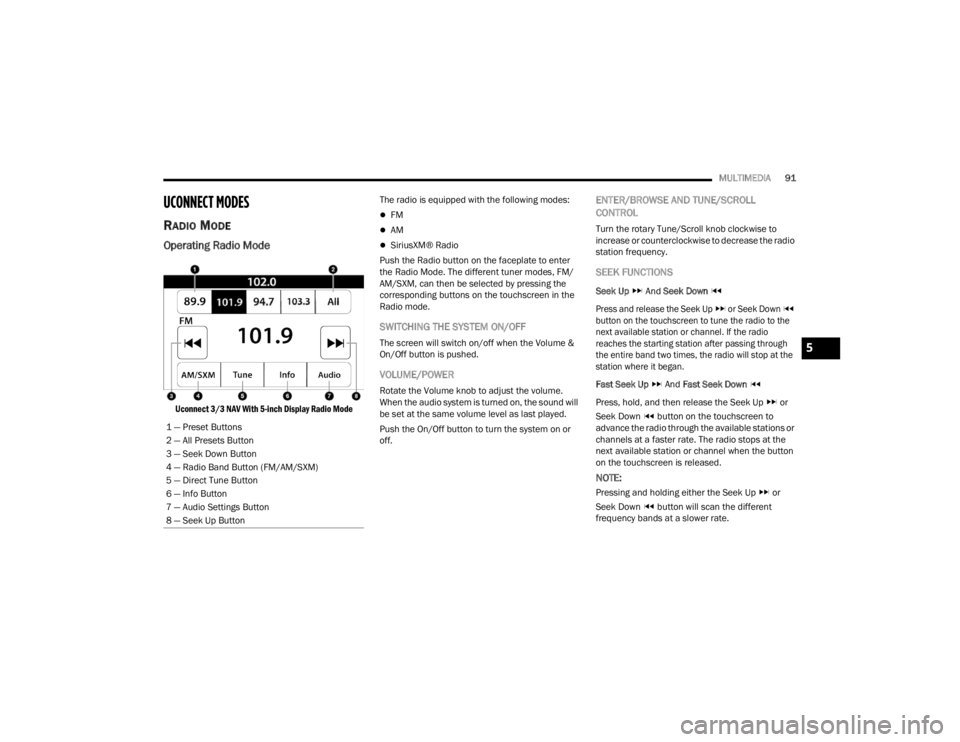
Uconnect 3/3 NAV With 5-inch Display Radio Mode
The radio is equipped with the following modes:
FM
AM
SiriusXM® Radio
Push the Radio button on the faceplate to enter
the Radio Mode. The different tuner modes, FM/
AM/SXM, can then be selected by pressing the
corresponding buttons on the touchscreen in the
Radio mode.
SWITCHING THE SYSTEM ON/OFF
The screen will switch on/off when the Volume &
On/Off button is pushed.
VOLUME/POWER
Rotate the Volume knob to adjust the volume.
When the audio system is turned on, the sound will
be set at the same volume level as last played.
Push the On/Off button to turn the system on or
off.
ENTER/BROWSE AND TUNE/SCROLL
CONTROL
Turn the rotary Tune/Scroll knob clockwise to
increase or counterclockwise to decrease the radio
station frequency.
SEEK FUNCTIONS
Seek Up And Seek Down
Press and release the Seek Up or Seek Down
button on the touchscreen to tune the radio to the
next available station or channel. If the radio
reaches the starting station after passing through
the entire band two times, the radio will stop at the
station where it began.
Fast Seek Up And Fast Seek Down
Press, hold, and then release the Seek Up or
Seek Down button on the touchscreen to
advance the radio through the available stations or
channels at a faster rate. The radio stops at the
next available station or channel when the button
on the touchscreen is released.
NOTE:
Pressing and holding either the Seek Up or
Seek Down button will scan the different
frequency bands at a slower rate.
1 — Preset Buttons
2 — All Presets Button
3 — Seek Down Button
4 — Radio Band Button (FM/AM/SXM)
5 — Direct Tune Button
6 — Info Button
7 — Audio Settings Button
8 — Seek Up Button
5
22_VM_OM_EN_USC_t.book Page 91
Page 98 of 260
96MULTIMEDIA
Game Zone
Press the Game Zone button, located at the left of
the Browse screen. This feature provides you with
the ability to select teams, edit the selection, and
set alerts.
On-Air
Press the On-Air tab at the top of the screen. The
On-Air List provides a list of Channels currently
airing any of the items in the Selections List, and
pressing any of the items in the list tunes the radio
to that channel.
Add/Delete — If Equipped
Press the Add/Delete button on the touchscreen to
activate the League Scroll List. Press the chosen
league and a scroll list of all teams within the
league will appear, then you can select a team by
pressing the corresponding box. A check mark
appears for all teams that are chosen. Remove Selection/Trash Can Icon
Press the Remove Selection tab at the top of the
screen. Press the Delete All button on the
touchscreen to delete all of the selections or press
the Trash Can icon next to the selection to be
deleted.
Alert Settings
Press the Alert Setting tab at the top of the screen.
The Alert Settings menu allows you to choose from
“Alert me to on-air games upon start” or “Alert
upon score update” or both when one or more of
your selections is airing on any of the SiriusXM®
channels.
Tune Start
Tune Start begins playing the current song from
the beginning when you tune to a music channel
using one of the 12 presets. This feature occurs
the first time the preset is selected during that
current song.
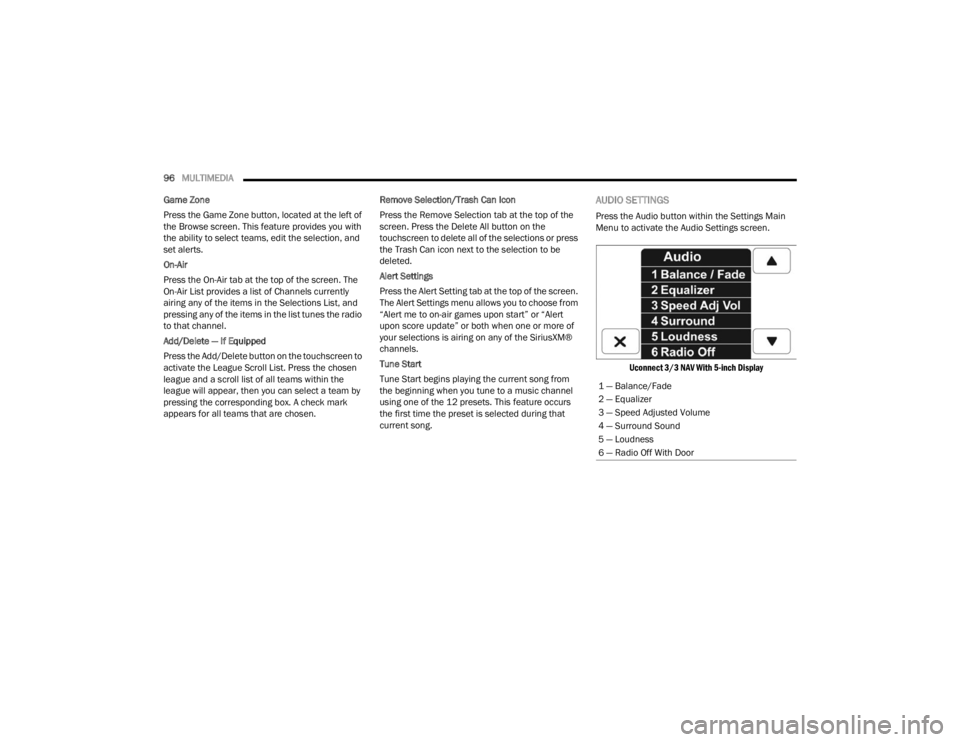
AUDIO SETTINGS
Press the Audio button within the Settings Main
Menu to activate the Audio Settings screen.
Uconnect 3/3 NAV With 5-inch Display
1 — Balance/Fade
2 — Equalizer
3 — Speed Adjusted Volume
4 — Surround Sound
5 — Loudness
6 — Radio Off With Door
22_VM_OM_EN_USC_t.book Page 96