ESP RAM PROMASTER CITY 2022 Owner's Manual
[x] Cancel search | Manufacturer: RAM, Model Year: 2022, Model line: PROMASTER CITY, Model: RAM PROMASTER CITY 2022Pages: 260, PDF Size: 8.45 MB
Page 103 of 260

MULTIMEDIA101
The Uconnect Phone is driven through your
Bluetooth® “Hands-Free Profile” mobile phone.
Uconnect features Bluetooth® technology — the
global standard that enables different electronic
devices to connect to each other without wires or a
docking station. Ensure you phone is turned on
with Bluetooth® active and has been paired to the
vehicle's Uconnect Phone. The Uconnect Phone
allows up to 10 mobile phones or audio devices to
be linked to the system. Only one linked (or paired)
mobile phone and one audio device can be used
with the system at a time.
Uconnect Phone Button
The Uconnect Phone button on your steering wheel
is used to get into the phone mode and make calls,
show recent, incoming or outgoing calls, view
phonebook, etc. When you push the button you will
hear a BEEP. The BEEP is your signal to give a
command. Uconnect Voice Command Button
The Uconnect Voice Command button on your
steering wheel is only used for “barge in” and when
you are already in a call or want to make another
call.
The button on your steering wheel is also used to
access the Voice Commands for the Uconnect
Voice Command features.
Phone Operation
OPERATION
Voice commands can be used to operate the
Uconnect Phone and to navigate through the
Uconnect Phone menu structure. Voice commands
are required after most Uconnect Phone prompts.
There are two general methods for how Voice
Command works:
1. Say compound commands like “Call John
Smith mobile”.
2. Say the individual commands and allow the system to guide you to complete the task.
You will be prompted for a specific command and
then guided through the available options.
Prior to giving a voice command, one must wait
for the beep, which follows the “Listen” prompt
or another prompt.
For certain operations, compound commands
can be used. For example, instead of saying
“Call” and then “John Smith” and then “mobile”,
the following compound command can be said:
“Call John Smith mobile.”
For each feature explanation in this section,
only the compound command form of the voice
command is given. You can also break the
commands into parts and say each part of the
command when you are asked for it. For
example, you can use the compound command
form voice command “Search for John Smith,”
or you can break the compound command form
into two voice commands: “Search Contacts”
and when asked, “John Smith.” Please
remember, the Uconnect Phone works best
when you talk in a normal conversational tone,
as if speaking to someone sitting a few feet/
meters away from you.
HELP COMMAND
If you need assistance at any prompt, or if you want
to know your options at any prompt, say “Help”
following the beep.
To activate the Uconnect Phone from idle, simply
push the Phone button (if active) on your steering
wheel and say a command or say “Help”. All
Uconnect Phone sessions begin with a push of the
VR button or Phone button on the radio faceplate.
WARNING!
ALWAYS drive safely with your hands on the
steering wheel. You have full responsibility and
assume all risks related to the use of the
Uconnect features and applications in this
vehicle. Only use Uconnect when it is safe to do
so. Failure to do so may result in an accident
involving serious injury or death.
5
22_VM_OM_EN_USC_t.book Page 101
Page 110 of 260
108MULTIMEDIA
Even though the system is designed for many
languages and accents, the system may not always
work for some.
NOTE:It is recommended that you do not store names in
your Favorites phonebook while the vehicle is in
motion.
Number and name recognition rate is optimized
when the entries are not similar. You can say “O”
(letter “O”) for “0” (zero).
Even though international dialing for most number
combinations is supported, some shortcut dialing
number combinations may not be supported. Audio Performance
Audio quality is maximized under:
Low-To-Medium Blower Setting
Low-To-Medium Vehicle Speed
Low Road Noise
Smooth Road Surface
Fully Closed Windows
Dry Weather Conditions
Operation From The Driver's Seat
Performance such as audio clarity, echo, and
loudness to a large degree rely on the phone and
network, and not the Uconnect Phone.
Echo at the far end can sometimes be reduced by
lowering the in-vehicle audio volume.
Phone Voice Commands
Making and answering hands-free phone calls is
easy with Uconnect. When the Phonebook button
is illuminated on your touchscreen, your system is
ready. Check
UconnectPhone.com for mobile
phone compatibility and pairing instructions. Push the Phone button and wait for the beep to
say a command. See some examples below:
“
Call John Smith”
“Dial 123 456 7890”
“Redial ” (call previous outgoing phone number)
“Call back ” (call previous incoming phone
number)
Did You Know: When providing a Voice Command,
push the Phone button and say “ Call”, then
pronounce the name exactly as it appears in your
phone book. When a contact has multiple phone
numbers, you can say “ Call John Smith work ”.
Voice Text Reply — If Equipped
Uconnect can announce incoming text messages.
Push the VR button or Phone button and
say:
1. “
Listen
” to have the system read an incoming
text message. (Must have compatible mobile
phone paired to Uconnect system.)
2. “ Reply ” after an incoming text message has
been read.
Listen to the Uconnect prompts. After the
beep, repeat one of the predefined messag -
es and follow the system prompts.
WARNING!
ALWAYS drive safely with your hands on the
wheel. You have full responsibility and assume
all risks related to the use of the Uconnect
features and applications in this vehicle. Only
use Uconnect when it is safe to do so. Failure to
do so may result in an accident involving serious
injury or death.
22_VM_OM_EN_USC_t.book Page 108
Page 111 of 260

MULTIMEDIA109
NOTE:Only use the numbering listed in the provided
table. Otherwise, the system will not transpose the
message. Did You Know:
Your mobile phone must have the
full implementation of the Message Access Profile
(MAP) to take advantage of this feature. For details
about MAP, visit
UconnectPhone.com.
Apple® iPhone® iOS 5 or later supports reading
incoming text messages only. For further
information on how to enable this feature on your
Apple® iPhone®, refer to your iPhone® “User
Manual”.
Did You Know: Voice Text Reply is not compatible
with iPhone®, but if your vehicle is equipped with
Siri® Eyes Free, you can use your voice to send a
text message.
Siri® Eyes Free — If Equipped
When used with your Apple® iPhone® connected
to your vehicle, Siri lets you use your voice to send
text messages, select media, place phone calls
and much more. Siri uses your natural language to
understand what you mean and responds back to
confirm your requests. The system is designed to
keep your eyes on the road and your hands on the
wheel by letting Siri help you perform useful tasks. To enable Siri, push and hold, then release the
Uconnect Voice Recognition (VR) button on the
steering wheel. After you hear a double beep, you
can ask Siri to play podcasts and music, get
directions, read text messages, and many other
useful requests.
BLUETOOTH® COMMUNICATION LINK
Mobile phones may lose connection to the
Uconnect Phone. When this happens, the
connection can generally be re-established by
restarting the mobile phone. Your mobile phone is
recommended to remain in Bluetooth® ON mode.
POWER-UP
After switching the ignition key from OFF to either
the ON/RUN or ACC position, or after a language
change, you must wait at least 15 seconds prior to
using the system Ú
page 245.
PRE-DEFINED VOICE TEXT REPLY
RESPONSES
Yes. Stuck in
traffic. See you later.
No. Start without
me. I’ll be late.
Okay. Where are
you? I will be 5
25, 30, 45,
60> minutes late.
Call me.
Are you there
yet?
I’ll call you later. I need
directions. See you in 5
minutes.
I’m on my way.
Can’t talk right
now.
I’m lost. Thanks.
5
22_VM_OM_EN_USC_t.book Page 109
Page 120 of 260

118MULTIMEDIA
Voice Command — If Equipped
ABOUT VOICE COMMAND
Instead of pressing the touchscreen to control your
Navigation system, you can use your voice to
control navigation.
For example, to switch to 2D view, you can say
“2D view”.
To view a list of available commands, press the
Help button in the Main menu and then press
“What can I say?”.
USING VOICE CONTROLThe following example shows how to use voice
control to plan a journey to your Home address:
1. Push the Voice Recognition button on the
steering wheel to turn on the microphone.
A screen will pop up with examples of com -
mands.
NOTE:
Press the Help button in the Main menu then press
“What can I say?” to see a full list of commands.
2. When you hear a beep, say a command of your choice. For example, you can say “Navigate
home”.
Pay Route or Track Preview
Press button to watch a preview of the planned route or track.
NOTE:This feature is not available while driving.
Stop Route Preview Press button to stop the preview of the planned route.
Route OptionDescription
WARNING!
ALWAYS drive safely with your hands on the
wheel. You have full responsibility and assume
all risks related to the use of the Uconnect
features and applications in this vehicle. Only
use Uconnect when it is safe to do so. Failure to
do so may result in an accident involving serious
injury or death.
22_VM_OM_EN_USC_t.book Page 118
Page 129 of 260

MULTIMEDIA127
Adding A Location Using Search
1. In the Main Menu, press “Search”.
2. Enter the name or address of a location using the touchscreen keyboard.
3. Select the desired location, and then press “Show In Map”.
4. The Map View will show the location. Press the pop-up menu button.
5. Press “Add to My Places”.
6. The name of the location will appear in the edit screen. You can edit the name of the location
for easy recognition.
7. Press “Done” to save your location in the My Places list.
Setting Your Home Location
1. In the Main Menu, press “My Places”.
2. Press “Home” .
3. To select a location for home, do one of the following:
Zoom in on the map at the location you want
to select. Press and hold to select the loca -
tion, then press the home icon next to the
name of the location.
You can also search for a location using the
search function. Select “Set Home Loca -
tion.”
DELETING A LOCATION FROM MY PLACES
Deleting A Recent Destination From My Places
1. In the main menu, select “My Places”.
2. Press “Recent Destinations”.
3. Press “Edit List”.
4. Select the destination(s) you want to delete.
5. Press the Delete button.
Deleting A Location From My Places
1. In the main menu, select “My Places”.
2. Press “Edit List”.
3. Select the destination(s) you want to delete.
4. Press the Delete button.
Getting Help
Press the Help button in the Main menu or from
the Settings menu to see the following information:
About : Press this button to view information about
your Uconnect system. This information includes:
Serial number
Application version
Installed maps
Legal information, such as Copyright and
Licenses for EULA and Open Source
Important Safety Notices And Warnings
GLOBAL POSITIONING SYSTEM
The Global Positioning System (GPS) is a
satellite-based system that provides location and
timing information around the globe. GPS is
operated and controlled under the sole
responsibility of the Government of the United
States of America, which is responsible for its
availability and accuracy. Any changes in GPS
availability and accuracy, or in environmental
conditions, may impact the operation of this
Navigation system. TomTom® does not accept any
liability for the availability and accuracy of GPS.
USE WITH CARE
Use of TomTom® navigation while driving still
means that you need to drive with due care and
attention.
SAFETY SETTINGS
We recommend using the safety settings to make
your driving as safe as possible. These are some of
the options included in the safety settings:
Show safety reminders
Warn when driving faster than allowed
You can also drive more safely by using voice
commands to control navigation Ú page 123.
5
22_VM_OM_EN_USC_t.book Page 127
Page 130 of 260
128MULTIMEDIA
Copyright Notices
© 2021 TomTom®. All rights reserved. TomTom®
and the "two hands" logo are registered
trademarks of TomTom® N.V. or one of its
subsidiaries. Please see
www.tomtom.com/
en_us/legal/ for warranties and end user license
agreements applying to this product.
© 2021 TomTom®. All rights reserved. This
material is proprietary and the subject of copyright
protection and/or database rights protection and/
or other intellectual property rights owned by
TomTom® or its suppliers. The use of this material
is subject to the terms of a license agreement. Any
unauthorized copying or disclosure of this material
will lead to criminal and civil liabilities.
Data Source © 2021 TomTom® All rights reserved.
The software included in this product contains
copyrighted software that is licensed under the
GPL. A copy of that license can be viewed in the
License section. You can obtain the complete
corresponding source code from us for a period of
three years after our last shipment of this product.
For more information, visit
https://
www.tomtom.com/en_gb/opensource or
contact your local TomTom® customer support
team via
us.support.tomtom.com/app/
answers/list. Upon request, we will send you a CD
with the corresponding source code. Linotype, Frutiger and Univers are trademarks of
Linotype GmbH registered in the US Patent and
Trademark Office and may be registered in certain
other jurisdictions. MHei is a trademark of The
Monotype Corporation and may be registered in
certain jurisdictions.
STEERING WHEEL AUDIO CONTROLS —
IF EQUIPPED
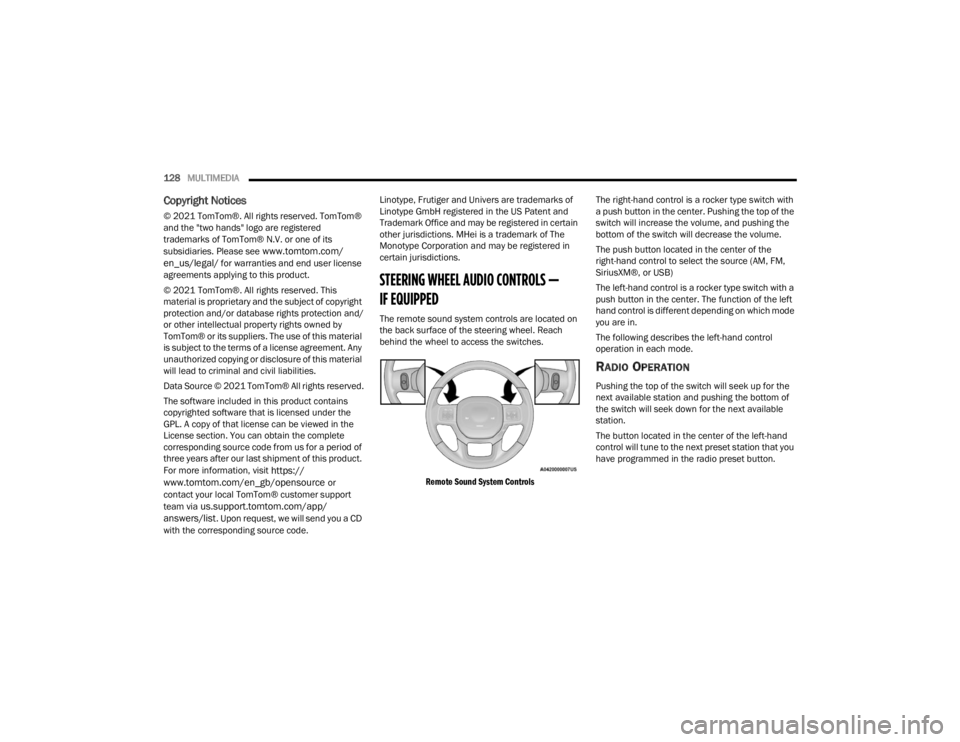
The remote sound system controls are located on
the back surface of the steering wheel. Reach
behind the wheel to access the switches.
Remote Sound System Controls
The right-hand control is a rocker type switch with
a push button in the center. Pushing the top of the
switch will increase the volume, and pushing the
bottom of the switch will decrease the volume.
The push button located in the center of the
right-hand control to select the source (AM, FM,
SiriusXM®, or USB)
The left-hand control is a rocker type switch with a
push button in the center. The function of the left
hand control is different depending on which mode
you are in.
The following describes the left-hand control
operation in each mode.
RADIO OPERATION
Pushing the top of the switch will seek up for the
next available station and pushing the bottom of
the switch will seek down for the next available
station.
The button located in the center of the left-hand
control will tune to the next preset station that you
have programmed in the radio preset button.
22_VM_OM_EN_USC_t.book Page 128
Page 135 of 260
SAFETY133
ESC Activation/Malfunction Indicator Light
And ESC OFF Indicator Light
The ESC Activation/Malfunction
Indicator Light in the instrument cluster
will come on when the ignition switch is
turned to the MAR (ON/RUN) position for
four seconds. If the ESC Activation/Malfunction
Indicator Light comes on continuously with the
engine running, a malfunction has been detected
in the ESC system. If this light remains on after
several ignition cycles, and the vehicle has been driven several miles (km) at speeds greater than
30 mph (48 km/h), see an authorized dealer as
soon as possible to have the problem diagnosed
and corrected.
The ESC Activation/Malfunction Indicator Light
(located in the instrument cluster) starts to flash as
soon as the tires lose traction and the ESC system
becomes active. The ESC Activation/Malfunction
Indicator Light also flashes when TCS is active. If
the ESC Activation/Malfunction Indicator Light
begins to flash during acceleration, ease up on the
accelerator and apply as little throttle as possible.
Be sure to adapt your speed and driving to the
prevailing road conditions.
The ESC OFF Indicator Light indicates
the Electronic Stability Control (ESC) is
in a reduced mode.
NOTE:
The ESC Activation/Malfunction Indicator Light
and the ESC OFF Indicator Light come on
momentarily each time the ignition switch
placed in the ON position.
Each time the ignition is placed in the ON posi -
tion, the ESC system will be on even if it was
turned off previously.
Electronic Roll Mitigation (ERM)
ERM anticipates the potential for wheel lift by
monitoring the driver’s steering wheel input and
the speed of the vehicle. When ERM determines
that the rate of change of the steering wheel angle
and vehicle’s speed are sufficient to potentially
cause wheel lift, it then applies the appropriate
brake and may also reduce engine power to lessen
the chance that wheel lift will occur.
ERM can only reduce the chance of wheel lift
occurring during severe or evasive driving
maneuvers; it cannot prevent wheel lift due to
other factors, such as road conditions, leaving the
roadway, or striking objects or other vehicles.Vehicle modifications, or failure to properly
maintain your vehicle, may change the
handling characteristics of your vehicle, and
may negatively affect the performance of the
ESC system. Changes to the steering system,
suspension, braking system, tire type and size
or wheel size may adversely affect ESC perfor -
mance. Improperly inflated and unevenly worn
tires may also degrade ESC performance. Any
vehicle modification or poor vehicle mainte -
nance that reduces the effectiveness of the
ESC system can increase the risk of loss of
vehicle control, vehicle rollover, personal
injury and death.
WARNING!
WARNING!
Many factors, such as vehicle loading, road
conditions and driving conditions, influence the
chance that wheel lift or rollover may occur. ERM
cannot prevent all wheel lift or rollovers,
especially those that involve leaving the roadway
or striking objects or other vehicles. The
capabilities of an ERM-equipped vehicle must
never be exploited in a reckless or dangerous
manner which could jeopardize the user's safety
or the safety of others.
6
22_VM_OM_EN_USC_t.book Page 133
Page 136 of 260

134SAFETY
Hill Start Assist (HSA)
HSA is designed to assist the driver when starting
a vehicle from a stop on a hill. HSA will maintain
the level of brake pressure the driver applied for a
short period of time after the driver takes their foot
off of the brake pedal. If the driver does not apply
the throttle during this short period of time, the
system will release brake pressure and the vehicle
will roll down the hill. The system will release brake
pressure in proportion to the amount of throttle
applied as the vehicle starts to move in the
intended direction of travel.
HSA ACTIVATION CRITERIA
The following criteria must be met in order for HSA
to activate:
The vehicle must be stopped.
The vehicle must be on a 5% (approximate)
grade or greater hill.
Gear selection matches vehicle uphill direction
(i.e., vehicle facing uphill is in forward gear;
vehicle backing uphill is in REVERSE gear).
HSA will work in REVERSE and all forward gears
when the activation criteria have been met. The
system will not activate if the vehicle is placed in
NEUTRAL or PARK.
Traction Control System (TCS)
TCS monitors the amount of wheel spin of each of
the driven wheels. If wheel spin is detected, brake
pressure is applied to the slipping wheel(s) and
engine power is reduced to provide enhanced
acceleration and stability. A feature of the TCS
system, Brake Limited Differential (BLD) functions
similarly to a limited slip differential and controls
the wheel spin across a driven axle. If one wheel on
a driven axle is spinning faster than the other, the
system will apply the brake of the spinning wheel.
This will allow more engine torque to be applied to
the wheel that is not spinning. This feature remains
active even if TCS and ESC are in the “Partial Off”
mode Ú page 132.
Trailer Sway Control (TSC) — If Equipped
TSC uses sensors in the vehicle to recognize an
excessively swaying trailer and will take the
appropriate actions to attempt to stop the sway.
The system may reduce engine power and apply
the brake of the appropriate wheel(s) to counteract
the sway of the trailer.
NOTE:TSC cannot stop all trailers from swaying. Always
use caution when towing a trailer and follow the
trailer tongue weight recommendations
Úpage 68.
When TSC is functioning, the ESC Activation/
Malfunction Indicator Light will flash, the engine
power may be reduced and you may feel the
brakes being applied to individual wheels to
attempt to stop the trailer from swaying. TSC is
disabled when the ESC system is in the “Partial
Off” mode.
WARNING!
There may be situations on minor hills with a
loaded vehicle, or while pulling a trailer, when
the system will not activate and slight rolling may
occur. This could cause a collision with another
vehicle or object. Always remember the driver is
responsible for braking the vehicle.
WARNING!
If TSC activates while driving, slow the vehicle
down, stop at the nearest safe location, and
adjust the trailer load to eliminate trailer sway.
22_VM_OM_EN_USC_t.book Page 134
Page 138 of 260

136SAFETY
NOTE:
The TPMS is not intended to replace normal tire
care and maintenance or to provide warning of
a tire failure or condition.
The TPMS should not be used as a tire pressure
gauge while adjusting your tire pressure.
Driving on a significantly underinflated tire
causes the tire to overheat and can lead to tire
failure. Underinflation also reduces fuel effi -
ciency and tire tread life, and may affect the
vehicle’s handling and stopping ability.
The TPMS is not a substitute for proper tire
maintenance, and it is the driver’s responsibility
to maintain correct tire pressure using an accu -
rate tire pressure gauge, even if underinflation
has not reached the level to trigger illumination
of the TPMS Warning Light.
Seasonal temperature changes will affect tire
pressure, and the TPMS will monitor the actual
tire pressure in the tire Ú page 245.
Base System
This is the TPMS Warning Light located
in the instrument cluster.
The TPMS uses wireless technology with
wheel rim mounted electronic sensors
to monitor tire pressure levels. Sensors, mounted
to each wheel as part of the valve stem, transmit
tire pressure readings to the receiver module.
NOTE:It is particularly important for you to check the tire
pressure in all of the tires on your vehicle regularly
and to maintain the proper pressure.
The TPMS consists of the following components:
Receiver module
Four TPMS sensors
Tire Pressure Monitoring System Warning Light
Tire Pressure Monitoring System Low
Pressure Warnings
The Tire Pressure Monitoring System Warning Light
will illuminate in the instrument cluster, an audible
chime will be activated, and the “Check tire
pressure” text message will display when one or
more of the four active road tire pressures are low.
Should this occur, you should stop as soon as
possible, check the inflation pressure of each tire
on your vehicle, and inflate each tire to the
vehicle’s recommended cold placard pressure
value. The system will automatically update and
the TPMS Warning Light will extinguish once the
updated tire pressures have been received. The
vehicle may need to be driven for up to 20 minutes
above 15 mph (24 km/h) to receive this
information.
Check TPMS Warnings
The TPMS Warning Light will flash on and off for 75
seconds and remain on solid when a system fault
is detected, an audible chime will be activated and
a proper text message will be displayed. If the
ignition key is cycled, this sequence will repeat
providing the system fault still exists. The TPMS
Warning Light will turn off when the fault condition
no longer exists. A system fault can occur with any
of the following scenarios:
1. Jamming due to electronic devices or driving next to facilities emitting the same radio
frequencies as the TPMS sensors.
2. Installing some form of aftermarket window tinting that affects radio wave signals.
3. Snow or ice around the wheels or wheel housings.
4. Using tire chains on the vehicle.
5. Using wheels/tires not equipped with TPMS sensors.
NOTE:Your vehicle can be equipped with either a Tire
Service Kit, a compact spare tire or a regular size
spare tire (with or without original TPMS sensor).
22_VM_OM_EN_USC_t.book Page 136
Page 150 of 260

148SAFETY
(Continued)
Side Impacts
The Side Air Bags are designed to activate in
certain side impacts. The Occupant Restraint
Controller (ORC) determines whether the
deployment of the Side Air Bags in a particular
impact event is appropriate, based on the severity
and type of collision. The side impact sensors aid
the ORC in determining the appropriate response
to impact events. The system is calibrated to
deploy the Side Air Bags on the impact side of the
vehicle during impacts that require Side Air Bag
occupant protection. In side impacts, the Side Air
Bags deploy independently; a left side impact deploys the left Side Air Bags only and a right-side
impact deploys the right Side Air Bags only. Vehicle
damage by itself is not a good indicator of whether
or not Side Air Bags should have deployed.
The Side Air Bags will not deploy in all side
collisions, including some collisions at certain
angles, or some side collisions that do not impact
the area of the passenger compartment. The Side
Air Bags may deploy during angled or offset frontal
collisions where the front air bags deploy.
Side Air Bags are a supplement to the seat belt
restraint system. Side Air Bags deploy in less time
than it takes to blink your eyes.
WARNING!
Do not mount equipment, or stack luggage or
other cargo up high enough to block the
deployment of the SABICs. The trim covering
above the side windows where the SABIC and
its deployment path are located should
remain free from any obstructions.
In order for the SABICs to work as intended, do
not install any accessory items in your vehicle
which could alter the roof. Do not add an after
-
market sunroof to your vehicle. Do not add
roof racks that require permanent attach -
ments (bolts or screws) for installation on the
vehicle roof. Do not drill into the roof of the
vehicle for any reason.
WARNING!
Occupants, including children, who are up
against or very close to Side Air Bags can be
seriously injured or killed. Occupants,
including children, should never lean on or
sleep against the door, side windows, or area
where the side air bags inflate, even if they are
in an infant or child restraint.
Seat belts (and child restraints where appro -
priate) are necessary for your protection in all
collisions. They also help keep you in position,
away from an inflating Side Air Bag. To get the
best protection from the Side Air Bags, occu -
pants must wear their seat belts properly and
sit upright with their backs against the seats.
Children must be properly restrained in a child
restraint or booster seat that is appropriate for
the size of the child.
WARNING!
Side Air Bags need room to inflate. Do not lean
against the door or window. Sit upright in the
center of the seat.
Being too close to the Side Air Bags during
deployment could cause you to be severely
injured or killed.
Relying on the Side Air Bags alone could lead
to more severe injuries in a collision. The Side
Air Bags work with your seat belt to restrain
you properly. In some collisions, Side Air Bags
won’t deploy at all. Always wear your seat belt
even though you have Side Air Bags.
WARNING!
22_VM_OM_EN_USC_t.book Page 148