battery RENAULT ALASKAN 2017 Owner's Manual
[x] Cancel search | Manufacturer: RENAULT, Model Year: 2017, Model line: ALASKAN, Model: RENAULT ALASKAN 2017Pages: 340, PDF Size: 6.93 MB
Page 117 of 340
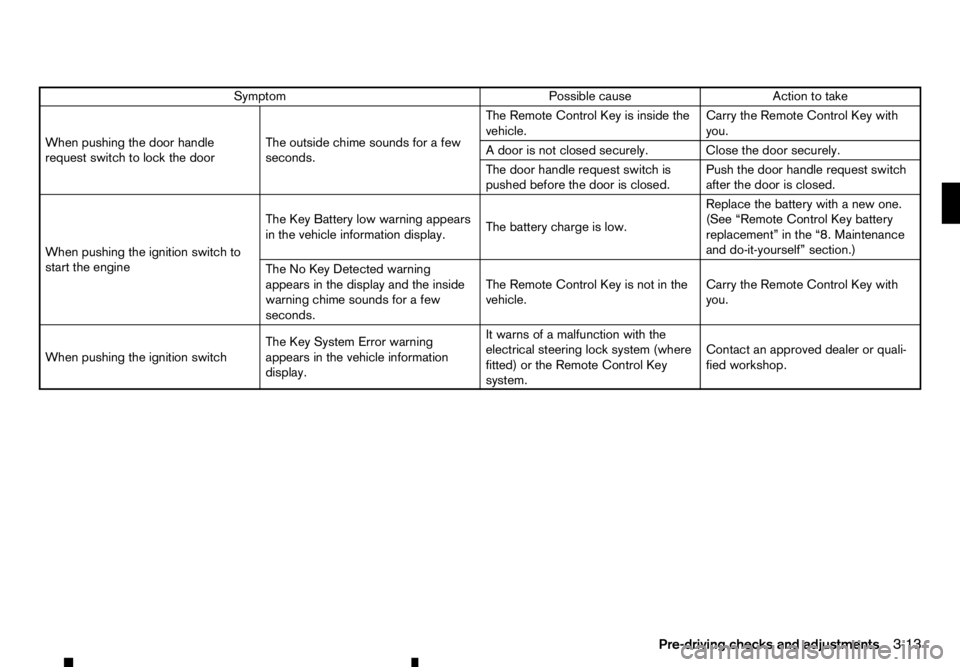
Symptom
Possible cause
Action to take
When pushing the door handle
request switch to lock the door The outside chime sounds for
afew
seconds. The Remote Control Key is inside the
vehicle.
Carry the Remote Control Key with
you.
Ad oor is not closed securely. Close the door securely.
The door handle request switch is
pushed before the door is closed. Push the door handle request switch
after the door is closed.
When pushing the ignition switch to
start the engine The Key Battery low warning appears
in the vehicle information display.
The battery charge is low.Replace the battery with
anew one.
(See “Remote Control Key battery
replacement” in the “8. Maintenance
and do-it-yourself” section.)
The No Key Detected warning
appears in the display and the inside
warning chime sounds for afew
seconds. The Remote Control Key is not in the
vehicle.
Carry the Remote Control Key with
you.
When pushing the ignition switch The Key System Error warning
appears in the vehicle information
display.It warns of
amalfunction with the
electrical steering lock system (where
fitted) or the Remote Control Key
system. Contact an approved dealer or quali-
fied workshop.
Pre-driving checks and adjustments 3-13
Page 118 of 340
USING REMOTE KEYLESS ENTRY
SYSTEM
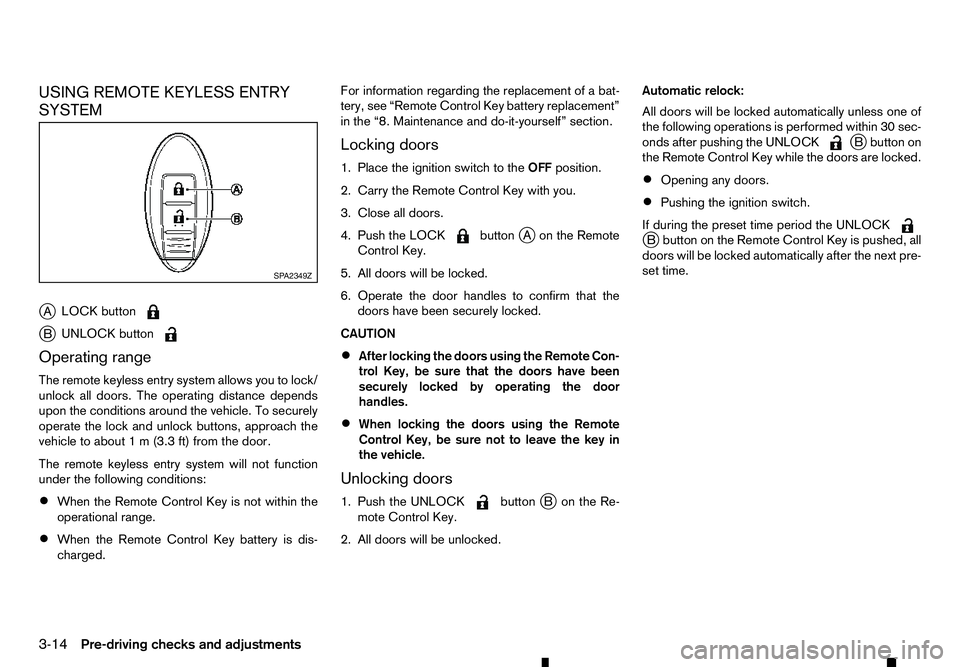
j A LOCK button j
B UNLOCK button
Operating range
The remote keyless entry system allows you to lock/
unlock all doors. The operating distance depends
upon the conditions around the vehicle. To securely
operate the lock and unlock buttons, approach the
vehicle to about 1m(3.3 ft) from the door.
The remote keyless entry system will not function
under the following conditions:
• When the Remote Control Key is not within the
operational range.
• When the Remote Control Key battery is dis-
charged. For information regarding the replacement of
abat-
tery, see “Remote Control Key battery replacement”
in the “8. Maintenance and do-it-yourself” section.
Locking doors
1. Place the ignition switch to the OFFposition.
2. Carry the Remote Control Key with you.
3. Close all doors.
4. Push the LOCK button
jAo nthe Remote
Control Key.
5. All doors will be locked.
6. Operate the door handles to confirm that the doors have been securely locked.
CAUTION
• After locking the doors using the Remote Con-
trol Key, be sure that the doors have been
securely locked by operating the door
handles.
• When locking the doors using the Remote
Control Key, be sure not to leave the key in
the vehicle.
Unlocking doors
1. Push the UNLOCK button
jBo nthe Re-
mote Control Key.
2. All doors will be unlocked. Automatic relock:
All doors will be locked automatically unless one of
the following operations is performed within 30 sec-
onds after pushing the UNLOCK j
Bb utton on
the Remote Control Key while the doors are locked.
• Opening any doors.
• Pushing the ignition switch.
If during the preset time period the UNLOCK j
Bb utton on the Remote Control Key is pushed, all
doors will be locked automatically after the next pre-
set time. SP A2349Z
3-14 Pre-driving checks and adjustments
Page 134 of 340

WARNING
• Do not adjust the heater and air conditioner
controls or audio controls while driving so that full attention may be given to vehicle opera-
tion.
• If you noticed any foreign objects entering the
system hardware, spilled liquid on the sys-
tem, or noticed smoke or fumes coming out
from the system, or any other unusual opera-
tion is observed, stop using the system imme-
diately and contact the nearest approved
dealer or qualified workshop. Ignoring such
conditions may lead to an accident, fire or electric shock.
• Do not disassemble or modify this system. If
you do, it may lead to an accident, fire, or
electric shock.
CAUTION
Do not use the system when the engine is not
running for extended periods of time to prevent
battery discharge.
1.Phone button (P. 4-65)
2. Power/VOL (volume) dial
3. Display screen (P. 4-3)
4.
5.
6. Audio control buttons 7.
8. For navigation system control buttons refer to
the separate Navigation System Owner’s
Manual.
9. Brightness control/display ON·OFF button
(P. 4-3)
10.
SAFETY PRECAUTIONS
CENTRE MULTI-FUNCTION CONTROL PANEL (models with navigation
system)
4-2 Display screen, heater and air conditioner, and audio system
Page 165 of 340

•
Audiobooks may not play in the same order as
they appear on an iPod.
• Large video files cause slow responses in an
iPod. The vehicle centre display may momen-
tarily black out, but will soon recover.
• If an iPod automatically selects large video files
while in the shuffle mode, the vehicle centre dis-
play may momentarily black out, but will soon
recover.
Bluetooth® audio player (where fitted)
• Some Bluetooth® audio devices may not be
used with this system. For detailed information
about Bluetooth® audio devices that are avail-
able for use with this system, contact an ap-
proved dealer or qualified workshop.
• Before using
aBluetooth® audio system, the ini-
tial registration process for the audio device is
necessary.
• Operation of the Bluetooth® audio system may
vary depending on the audio device that is con-
nected. Confirm the operation procedure before
use.
• The playback of Bluetooth® audio will be paused
under the following conditions. The playback will
be resumed after the following conditions are
completed.
–w
hile using ahands-free phone
–w hile checking aconnection with amobile
phone •
The in-vehicle antenna for Bluetooth® communi-
cation is built in the system. Do not place the
Bluetooth® audio device in an area surrounded
by metal, far away from the system or in
anarrow
space where the device closely contacts the
body or the seat. Otherwise, sound degradation
or connection interference may occur.
• While
aBluetooth® audio device is connected
through the Bluetooth® wireless connection, the
battery power of the device may discharge
quicker than usual.
• This system is compatible with the Bluetooth®
AV profile (A2DP and AVRCP).
m Bluetooth®
is
at rademark
owned by Bluetooth SIG, Inc.,
and licensed to Visteon Cor-
poration and Robert Bosch
GmbH.
Compact Disc (CD)/USB device with
MP3/WMA/AAC (where fitted)
Terms:
• MP3
—MP3 is short for Moving Pictures Ex-
perts Group Audio Layer 3. MP3 is the most well
known compressed digital audio file format. This
format allows for near “CD quality” sound, but at
af raction of the size of normal audio files. MP3
conversion of an audio track from CD can re-
duce the file size by approximately 10:1 ratio
(Sampling: 44.1 kHz, Bit rate: 128 kbps) with
virtually no perceptible loss in quality. MP3 com- pression removes the redundant and irrelevant
parts of
asound signal that the human ear
doesn’t hear.
• WMA
—Windows Media Audio (WMA) is a
compressed audio format created by Microsoft
as an alternative to MP3. The WMA codec offers
greater file compression than the MP3 codec,
enabling storage of more digital audio tracks in
the same amount of space when compared to
MP3s at the same level of quality.
• AAC (where fitted)
—Advanced Audio Coding
(AAC) is acompressed audio format. AAC of-
fers greater file compression than MP3 and en-
ables music file creation and storage at the same
quality as MP3.
• Bit rate
—Bit rate denotes the number of bits
per second used by adigital music files. The size
and quality of acompressed digital audio file is
determined by the bit rate used when encoding
the file.
• Sampling frequency
—Sampling frequency is
the rate at which the samples of asignal are con-
verted from analog to digital (A/D conversion)
per second.
• Multisession
—Multisession is one of the meth-
ods for writing data to media. Writing data once
to the media is called asingle session, and writ-
ing more than once is called amultisession.
Display screen, heater and air conditioner, and audio system 4-33
Page 171 of 340
![RENAULT ALASKAN 2017 Owners Manual Preset station buttons
➀➁➂➃➄➅
Pressing apreset button for less than 2seconds will
select the stored radio station.
Pressing apreset button for more than 2seconds
while in the [FM list] or](/img/7/58394/w960_58394-170.png "RENAULT ALASKAN 2017 Owners Manual Preset station buttons
➀➁➂➃➄➅
Pressing apreset button for less than 2seconds will
select the stored radio station.
Pressing apreset button for more than 2seconds
while in the [FM list] or")
Preset station buttons
➀➁➂➃➄➅
Pressing apreset button for less than 2seconds will
select the stored radio station.
Pressing apreset button for more than 2seconds
while in the [FM list] or radio main screen will cause
the station currently being received to be stored
against that preset button.
• Twelve stations (if available) can be stored in the
FM bands. (Six each for FM1 and FM2)
• Twelve stations (if available) can be stored in the
DR bands. (Six each for DR1 and DR2) (where
fitted)
• Six stations (if available) can be set for the AM
band.
If the battery is disconnected, or if the fuse blows,
the radio memory will be erased. In that case, reset
the desired stations after battery connection or fuse
replacement.
DAB and Radio Data System (RDS)
operation (where fitted)
The RDS is asystem through which encoded digital
information is transmitted by FM radio stations in
addition to the normal FM radio broadcasting. The
RDS provides information services such as station
name, traffic information, or news.
DAB (Digital Audio Broadcast) NOTE
• When in DR mode operation is similar to FM
mode but may slightly differ.
• In some countries or regions, some of these
services may not be available.
Alternative Frequency (AF) mode:
The AF mode operates in the FM (radio) mode.
• The AF mode operates in the FM (radio), AUX or
CD mode (if FM was previously selected in the
radio mode).
• The AF function compares signal strengths and
selects the station with the optimum reception
conditions for the currently tuned-in station.
DAB and RDS functions
Programme Service (PS) function (station name
display function):
–F M:
When an RDS station is tuned in with seek or
manual tuning, the RDS data is received and the
PS name is displayed.
–D R:
When astation is tuned in with seek or manual
tuning, the data is received and the PS name is
displayed.
TA Traffic announcement
This function operates in FM/DR (Radio) mode. This
function will still operate in the background if any
media source is selected (CD, USB or MEDIA
mode). •
Pressing the
The TA indicator is displayed while TA mode is
on.
• When
switched off and the TA indicator will disappear
from the display.
Traffic announcement interrupt function:
When atraffic announcement is received, the an-
nouncement is tuned in and the display shows a
notification message with the radio station name e.g.
[TA: Radio 1].
Once the traffic announcement has finished, the unit
returns to the source that was active before the traf-
fic announcement started.
If
the traffic announcement interrupt mode is can-
celled. The TA mode returns to the standby mode
and the audio unit returns to the previous source.
SETUP BUTTON
To configure [Audio], [Clock], [Radio], and [Lan-
guage] settings, perform the following procedure:
1. Press the
4-39
Page 177 of 340
Track details:
Al ong press on the ➄
button will turn the
display into adetailed overview and after afew sec-
onds it returns to the main display, or press ➄
briefly.
iPod PLAYER OPERATION
(where fitted)
Connecting iPod
Open the console lid and connect the iPod cable to
the USB connector. The battery of the iPod will be
charged during the connection to the vehicle. The
display will show the notification message [iPod
reading the data.
If the audio system has been turned off while the
iPod was playing, pressing will start the iPod
operation. During the connection, the iPod can only be operated with the audio controls.
*i Pod and iPhone are trademarks of Apple Inc., reg-
istered in the U.S. and other countries. WARNING
Do not connect, disconnect or operate the USB
device while driving. Doing so can be adistrac-
tion. If distracted you could lose control of your
vehicle and cause an accident or serious injury.
CAUTION
• Do not force the iPod cable into the USB port.
Inserting the iPod cable tilted or upside- down into the port may damage the port. Make sure
that the iPod cable is connected correctly into
the USB port.
• Do not locate objects near the iPod cable to
prevent the objects from leaning on the iPod
cable and the port. Pressure from the objects
may damage the iPod cable and the port.
Refer to your device manufacturer’s owners manual
regarding the proper use and care of the device.
Compatibility:
NOTE
• At the time of publication, this audio system
was tested with the latest iPod players/iPhone
available. Due to the frequent update of con-
sumer devices like MP3 players, RENAULT
cannot guarantee that all new iPod players/
iPhone launched will be compatible with this
audio system.
• Some iPod operations may not be available
with this system.
• Make sure that the iPod/iPhone is updated
with the latest firmware.
• iPod Shuffle and iPod mini cannot be used
with this system.
• Full functionality of iPhone USB and Bluetooth
Audio may not be available to the user if the
same device is connected by USB and Blue-
tooth simultaneously. MEDIA
button
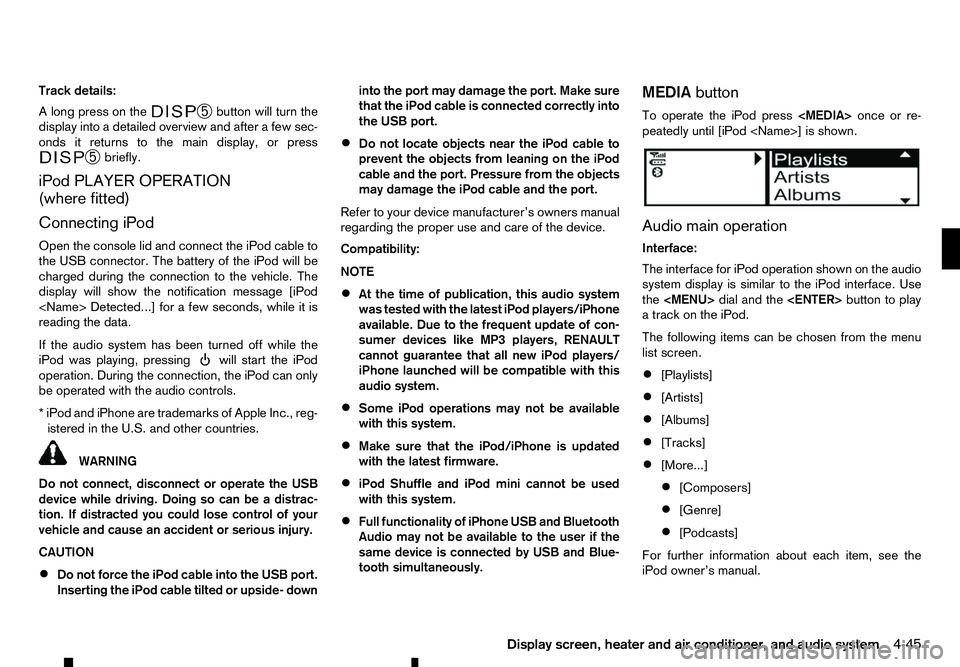
To operate the iPod press
peatedly until [iPod
Audio main operation
Interface:
The interface for iPod operation shown on the audio
system display is similar to the iPod interface. Use
the
Page 178 of 340
The following operations are identical to the audio
main operation of the Compact Disc (CD) opera-
tion. For details, see “Compact Disc (CD)
operation” earlier in this section.
• List view
• ,
•
MIX (Random play)
• RPT (Repeat track)
• Folder browsing button
➄
While atrack with recorded music information tags
(ID3–tags) is being played, the title of the played
track is displayed. If the tags are not provided then
an otification message is displayed.
When the ➄
button is pressed repeatedly,
further information about the track can be displayed
along with the track title as follows:
Track time →Artist name →Album title →Track
time
Track details:
Al ong press on the ➄
button, the screen
displays the song title, artist name, and album title.
After afew seconds it returns to the main display or
press ➄
briefly. BLUETOOTH® OPERATION
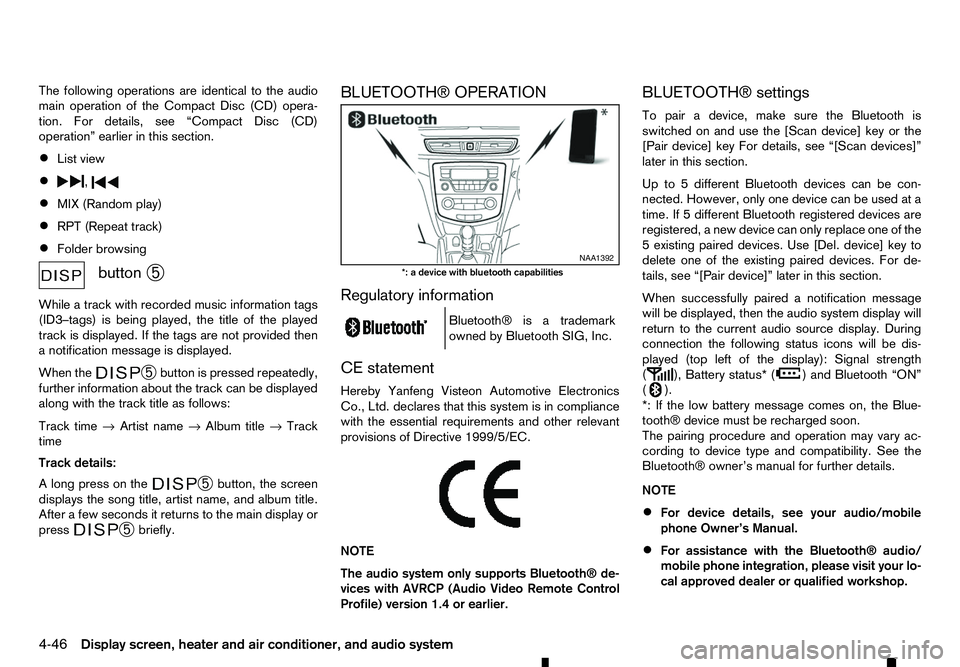
Regulatory information
m Bluetooth®
is
at rademark
owned by Bluetooth SIG, Inc.
CE statement
Hereby Yanfeng Visteon Automotive Electronics
Co., Ltd. declares that this system is in compliance
with the essential requirements and other relevant
provisions of Directive 1999/5/EC.
m NOTE
The
audio system only supports Bluetooth® de-
vices with AVRCP (Audio Video Remote Control
Profile) version 1.4 or earlier. BLUETOOTH® settings
To pair
adevice, make sure the Bluetooth is
switched on and use the [Scan device] key or the
[Pair device] key For details, see “[Scan devices]”
later in this section.
Up to 5different Bluetooth devices can be con-
nected. However, only one device can be used at a
time. If 5different Bluetooth registered devices are
registered, anew device can only replace one of the
5e xisting paired devices. Use [Del. device] key to
delete one of the existing paired devices. For de-
tails, see “[Pair device]” later in this section.
When successfully paired anotification message
will be displayed, then the audio system display will
return to the current audio source display. During
connection the following status icons will be dis-
played (top left of the display): Signal strength
( ), Battery status* (
)a
nd Bluetooth “ON”
( ).
*: If the low battery message comes on, the Blue-
tooth® device must be recharged soon.
The pairing procedure and operation may vary ac-
cording to device type and compatibility. See the
Bluetooth® owner’s manual for further details.
NOTE
• For device details, see your audio/mobile
phone Owner’s Manual.
• For assistance with the Bluetooth® audio/
mobile phone integration, please visit your lo-
cal approved dealer or qualified workshop. NAA1392
*: ad evice with bluetooth capabilities
4-46 Display screen, heater and air conditioner, and audio system
Page 187 of 340
General notes for USB use:
Refer to your device manufacturer’s owner informa-
tion regarding the proper use and care of the de-
vice.
The audio system operates when the ignition switch
is placed in the ONorACC position.
The USB port is located on the lower part of the
instrument panel. See “USB (Universal Serial Bus)
connection port” earlier in this section. Connect a
USB memory device into the connection port. The
USB memory device will be activated automatically.
USB main operation:
If another audio source is playing and aUSB memory
device is inserted, push the AUX button until the
screen on the display changes to the USB memory
mode.
If the system has been turned off while the USB
memory device was playing, push the Power/VOL-
UME dial to restart the USB memory device.
Touch the name of asong on the screen to begin
playing that song.
USB screen operation:
While files on aUSB memory device are playing,
the play pattern can be altered so that songs are
repeated or played randomly. Mix:
Touching the [Mix] key on the screen while aUSB
memory device is playing will alternate the random
play pattern as follows:
(Normal) →Random Folder →Random All →(Nor-
mal)
Repeat:
Touching the [Repeat] key on the screen while a
USB memory device is playing will alternate the re-
peat play pattern as follows:
(Normal) →Repeat Track →Repeat Folder →(Nor-
mal)
Browse:
Touch [Browse] key to display USB interface. Se-
lect the songs you wish to play by touching the item
on the screen. Seek/Track buttons:
Push the Seek/Track (rewind) button while an audio
file on the USB memory device is playing to return
to the beginning of the current track. Push the but-
ton several times to skip backward several tracks.
Push the Seek/Track (fast forward) button while an
audio file on the USB memory device is playing to
advance one track. Push the button several times to
skip forward several tracks. if the last track on the
USB memory device is skipped, the first track of the
next folder is played. iPod player operation
Connecting iPod:
Connect the iPod to the USB connection port using
the USB cable that came with your iPod.
The USB port is located on the lower part of the
instrument panel. See “USB (Universal Serial Bus)
connection port” earlier in this section.
If your iPod supports charging via
aUSB connec-
tion, its battery will be charged while connected to
the vehicle with the ignition switch placed in the ON
or ACC position.
Compatibility:
The following models are compatible:
• iPod 5th Generation (firmware version 1.2.3 or
later)
• iPod Classic (firmware version 1.1.1 or later)
• iPod Touch (firmware version 2.0.0 or later)*
• iPod nano
-1st generation (firmware version
1.3.1 or later)
• iPod nano
-2nd generation (firmware version
1.1.3 or later)
• iPod nano
-3rd generation (firmware version
1.1.3 or later)
• iPod nano
-4th generation (firmware version
1.0.4 or later)
• iPod nano
-5th generation (firmware version
1.0.1 or later)
Display screen, heater and air conditioner, and audio system 4-55
Page 192 of 340
•
For assistance with your mobile phone inte-
gration, please visit your local approved
dealer.
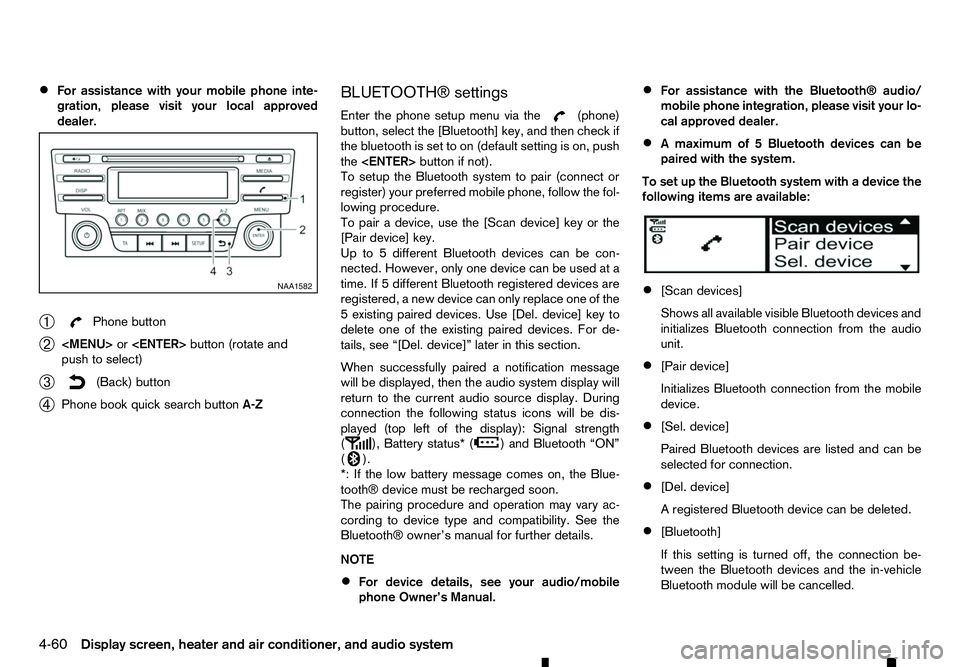
➀ Phone button
➁
Page 197 of 340
WARNING
• Use
aphone after stopping your vehicle in a
safe location. If you have to use aphone while
driving, exercise extreme caution at all times
so full attention may be given to vehicle op-
eration.
• If you are unable to devote full attention to
vehicle operation while talking on the phone,
pull off the road to
asafe location and stop
your vehicle.
CAUTION
To avoid discharging the vehicle battery, use a
phone after starting the engine.
Your vehicle is equipped with the Bluetooth®
Hands-Free Phone System. If you have acompat-
ible Bluetooth® enabled mobile phone, you can set
up the wireless connection between your mobile
phone and the in-vehicle phone module. With Blue-
tooth® wireless technology, you can make or re-
ceive ahands-free telephone call with your mobile
phone in the vehicle.
Once your mobile phone is connected to the in-ve-
hicle phone module, no other phone connecting pro-
cedure is required. Your phone is automatically re-
connected with the in-vehicle phone module when
the ignition switch is placed in the ON position with
the connected mobile phone turned on and carried
in the vehicle. You can register up to
5different Bluetooth® mo-
bile phones to the in-vehicle phone module. How-
ever, you can talk on only one mobile phone at a
time.
Before using the Bluetooth® Hands-Free Phone
System, refer to the following notes.
• Set up the wireless connection between
amo-
bile phone and the in-vehicle phone module be-
fore using the Bluetooth® Hands-Free Phone
System.
• Some Bluetooth® enabled mobile phones may
not be recognised by the in-vehicle phone mod-
ule.
• You will not be able to use
ahands-free phone
under the following conditions:
–Y our vehicle is outside of the mobile service
area.
–Y our vehicle is in an area where it is difficult
to receive mobile signal; such as in atunnel,
in an underground parking garage, near atall
building or in amountainous area.
–Y our mobile phone is locked to prevent it
from being dialled.
• When the radio wave condition is not ideal or
ambient sound is too loud, it may be difficult to
hear the other person’s voice during
acall.
• Immediately after the ignition switch is placed in
the ON position, it may be impossible to receive
ac
all for ashort period of time. •
Do not place the mobile phone in an area sur-
rounded by metal or far away from the in-vehicle
phone module to prevent tone quality degrada-
tion and wireless connection disruption.
• While
amobile phone is connected through the
Bluetooth® wireless connection, the battery
power of the mobile phone may discharge quicker than usual. The Bluetooth® Hands-Free
Phone System cannot charge mobile phones.
• Some mobile phones or other devices may cause
interference or
abuzzing noise to come from the
audio system speakers. Storing the device in a
different location may reduce or eliminate the
noise.
• Refer to the mobile phone owner’s manual re-
garding the telephone charges, mobile phone
antenna and body, etc.
• The signal strength display on the monitor will
not coincide with the signal strength display of
some mobile phones.
REGULATORY INFORMATION
Bluetooth® trademark
m Bluetooth®
is
at rademark
owned by Bluetooth SIG, Inc.
and licensed to Robert Bosch
GmbH.
BLUETOOTH® HANDS-FREE PHONE SYSTEM (with navigation system)
Display screen, heater and air conditioner, and audio system4-65