heater RENAULT ALASKAN 2017 Service Manual
[x] Cancel search | Manufacturer: RENAULT, Model Year: 2017, Model line: ALASKAN, Model: RENAULT ALASKAN 2017Pages: 340, PDF Size: 6.93 MB
Page 166 of 340
•
ID3/WMA Tag
—The ID3/WMA tag is the part
of the encoded MP3 or WMA file that contains
information about the digital music file such as
song title, artist, album title, encoding bit rate,
track time duration, etc. ID3 tag information is
displayed on the Album/Artist/Track title line on
the display.
* Windows® and Windows Media® are
registered trademarks and/or trademarks of
Microsoft Corporation in the United States of
America and/or other countries.
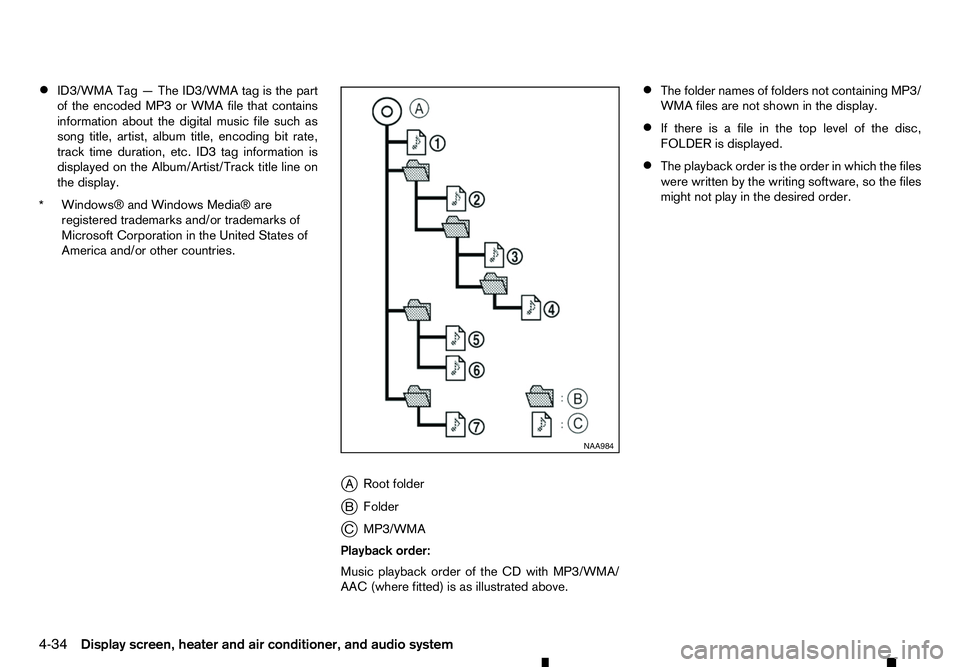
jA Root folder
j B Folder
j C MP3/WMA
Playback order:
Music playback order of the CD with MP3/WMA/
AAC (where fitted) is as illustrated above. •
The folder names of folders not containing MP3/
WMA files are not shown in the display.
• If there is
afile in the top level of the disc,
FOLDER is displayed.
• The playback order is the order in which the files
were written by the writing software, so the files
might not play in the desired order. NAA984
4-34 Display screen, heater and air conditioner, and audio system
Page 167 of 340
ANTENNA
Roof
antenna
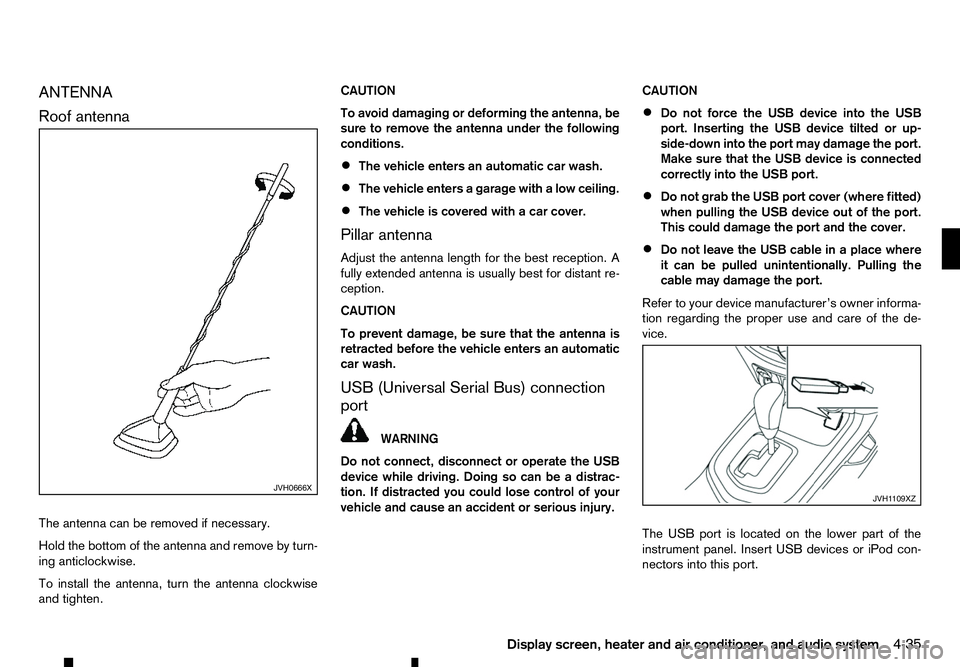
The antenna can be removed if necessary.
Hold the bottom of the antenna and remove by turn-
ing anticlockwise.
To install the antenna, turn the antenna clockwise
and tighten. CAUTION
To avoid damaging or deforming the antenna, be
sure to remove the antenna under the following
conditions.
• The vehicle enters an automatic car wash.
• The vehicle enters
agarage with alow ceiling.
• The vehicle is covered with
acar cover.
Pillar antenna
Adjust the antenna length for the best reception. A
fully extended antenna is usually best for distant re-
ception.
CAUTION
To prevent damage, be sure that the antenna is
retracted before the vehicle enters an automatic
car wash.
USB (Universal Serial Bus) connection
port WARNING
Do not connect, disconnect or operate the USB
device while driving. Doing so can be adistrac-
tion. If distracted you could lose control of your
vehicle and cause an accident or serious injury. CAUTION
• Do not force the USB device into the USB
port. Inserting the USB device tilted or up-
side-down into the port may damage the port.
Make sure that the USB device is connected
correctly into the USB port.
• Do not grab the USB port cover (where fitted)
when pulling the USB device out of the port.
This could damage the port and the cover.
• Do not leave the USB cable in
aplace where
it can be pulled unintentionally. Pulling the
cable may damage the port.
Refer to your device manufacturer’s owner informa-
tion regarding the proper use and care of the de-
vice.
The USB port is located on the lower part of the
instrument panel. Insert USB devices or iPod con-
nectors into this port. JVH0666X
JVH1 109XZ
Display screen, heater and air conditioner, and audio system 4-35
Page 168 of 340
AUX (Auxiliary) INPUT JACK
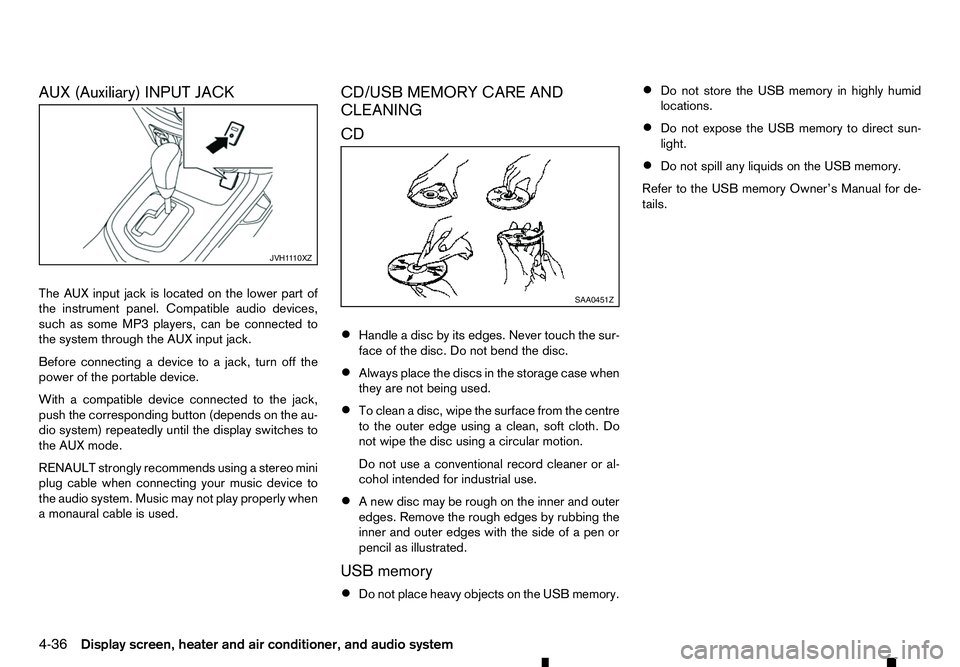
The AUX input jack is located on the lower part of
the instrument panel. Compatible audio devices,
such as some MP3 players, can be connected to
the system through the AUX input jack. Before connecting adevice to ajack, turn off the
power of the portable device.
With acompatible device connected to the jack,
push the corresponding button (depends on the au-
dio system) repeatedly until the display switches to
the AUX mode.
RENAULT strongly recommends using astereo mini
plug cable when connecting your music device to
the audio system. Music may not play properly when
am onaural cable is used. CD/USB MEMORY CARE AND
CLEANING
CD
•
Handle
adisc by its edges. Never touch the sur-
face of the disc. Do not bend the disc.
• Always place the discs in the storage case when
they are not being used.
• To clean
adisc, wipe the surface from the centre
to the outer edge using aclean, soft cloth. Do
not wipe the disc using acircular motion.
Do not use aconventional record cleaner or al-
cohol intended for industrial use.
• An
ew disc may be rough on the inner and outer
edges. Remove the rough edges by rubbing the
inner and outer edges with the side of apen or
pencil as illustrated.
USB memory
• Do not place heavy objects on the USB memory. •
Do not store the USB memory in highly humid
locations.
• Do not expose the USB memory to direct sun-
light.
• Do not spill any liquids on the USB memory.
Refer to the USB memory Owner’s Manual for de-
tails. JVH1
110XZ SAA0451Z
4-36 Display screen, heater and air conditioner, and audio system
Page 169 of 340
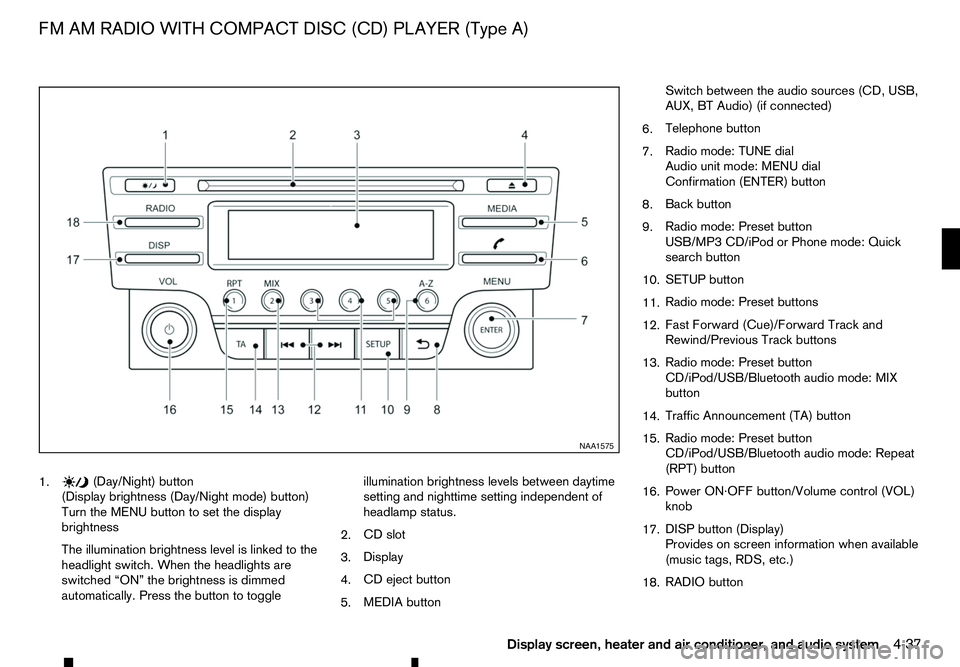
1. (Day/Night) button
(Display brightness (Day/Night mode) button)
Turn the MENU button to set the display
brightness
The illumination brightness level is linked to the
headlight switch. When the headlights are
switched “ON” the brightness is dimmed
automatically. Press the button to toggle illumination brightness levels between daytime
setting and nighttime setting independent of
headlamp status.
2. CD slot
3. Display
4. CD eject button
5. MEDIA button Switch between the audio sources (CD, USB,
AUX, BT Audio) (if connected)
6. Telephone button
7. Radio mode: TUNE dial
Audio unit mode: MENU dial
Confirmation (ENTER) button
8. Back button
9. Radio mode: Preset button
USB/MP3 CD/iPod or Phone mode: Quick
search button
10. SETUP button
11. Radio mode: Preset buttons
12. Fast Forward (Cue)/Forward Track and
Rewind/Previous Track buttons
13. Radio mode: Preset button
CD/iPod/USB/Bluetooth audio mode: MIX
button
14. Traffic Announcement (TA) button
15. Radio mode: Preset button
CD/iPod/USB/Bluetooth audio mode: Repeat
(RPT) button
16. Power ON·OFF button/Volume control (VOL)
knob
17. DISP button (Display)
Provides on screen information when available
(music tags, RDS, etc.)
18. RADIO button NAA1575
FM AM RADIO WITH COMPACT DISC (CD) PLAYER (Type A)
Display screen, heater and air conditioner, and audio system4-37
Page 170 of 340
AUDIO MAIN OPERATION
The audio unit operates when the ignition switch is
in ACC or ON position.
m Power
ON/OFF button
Press the button to switch on the audio unit. If
the audio unit was switched off using the ignition
switch, it can also be switched on with the ignition
switch. The source that was playing immediately
before the unit was switched off will resume playing
and the volume will be set to the previous volume
level.
The audio unit can be switched off by pressing ,
or by turning the ignition switch to the “OFF” or
LOCK position. Volume (VOL) level control
Turn the
adjust the volume level.
The audio unit is equipped with aspeed control vol-
ume function, this means that the audio system au-
tomatically adjusts the volume level in relation to
vehicle speed. For details, see “[Speed Volume]
menu” later in this section.
RADIO OPERATION
When the (power ON/OFF) button is pressed,
the audio unit will switch on with the last received
radio station, if the audio unit was previously
switched off in radio mode. The radio is able to receive multiple kinds of audio
transmissions:
–FM
–D
AB (Digital Audio Broadcasting) indicated as
DR (where fitted)
–AM
Radio band select buttons
Press the
transmission source as follows:
FM1 →FM2 →DR1 →DR2 →AM →FM1
When
come on at the last received radio station. If audio is
already playing using one of the other input sources
(iPod, Bluetooth, CD, USB, AUX-in) pressing the
mode and the last received radio station will be se-
lected.
Setting preset stations
Auto populating the [FM List]: When the
1.5 seconds the six stations with the strongest sig-
nals are stored in the preset (1 to 6) buttons of the
band. During the search, anotification message
[Updating FM List] appears in the display and the
sound is muted until the operation is complete. Once
completed, the radio reverts to the previously se-
lected radio station. Manual tuning
When adjusting the broadcasting station frequency
manually access the [FM List] and turn the
Page 171 of 340
![RENAULT ALASKAN 2017 Service Manual Preset station buttons
➀➁➂➃➄➅
Pressing apreset button for less than 2seconds will
select the stored radio station.
Pressing apreset button for more than 2seconds
while in the [FM list] or](/img/7/58394/w960_58394-170.png "RENAULT ALASKAN 2017 Service Manual Preset station buttons
➀➁➂➃➄➅
Pressing apreset button for less than 2seconds will
select the stored radio station.
Pressing apreset button for more than 2seconds
while in the [FM list] or")
Preset station buttons
➀➁➂➃➄➅
Pressing apreset button for less than 2seconds will
select the stored radio station.
Pressing apreset button for more than 2seconds
while in the [FM list] or radio main screen will cause
the station currently being received to be stored
against that preset button.
• Twelve stations (if available) can be stored in the
FM bands. (Six each for FM1 and FM2)
• Twelve stations (if available) can be stored in the
DR bands. (Six each for DR1 and DR2) (where
fitted)
• Six stations (if available) can be set for the AM
band.
If the battery is disconnected, or if the fuse blows,
the radio memory will be erased. In that case, reset
the desired stations after battery connection or fuse
replacement.
DAB and Radio Data System (RDS)
operation (where fitted)
The RDS is asystem through which encoded digital
information is transmitted by FM radio stations in
addition to the normal FM radio broadcasting. The
RDS provides information services such as station
name, traffic information, or news.
DAB (Digital Audio Broadcast) NOTE
• When in DR mode operation is similar to FM
mode but may slightly differ.
• In some countries or regions, some of these
services may not be available.
Alternative Frequency (AF) mode:
The AF mode operates in the FM (radio) mode.
• The AF mode operates in the FM (radio), AUX or
CD mode (if FM was previously selected in the
radio mode).
• The AF function compares signal strengths and
selects the station with the optimum reception
conditions for the currently tuned-in station.
DAB and RDS functions
Programme Service (PS) function (station name
display function):
–F M:
When an RDS station is tuned in with seek or
manual tuning, the RDS data is received and the
PS name is displayed.
–D R:
When astation is tuned in with seek or manual
tuning, the data is received and the PS name is
displayed.
TA Traffic announcement
This function operates in FM/DR (Radio) mode. This
function will still operate in the background if any
media source is selected (CD, USB or MEDIA
mode). •
Pressing the
The TA indicator is displayed while TA mode is
on.
• When
switched off and the TA indicator will disappear
from the display.
Traffic announcement interrupt function:
When atraffic announcement is received, the an-
nouncement is tuned in and the display shows a
notification message with the radio station name e.g.
[TA: Radio 1].
Once the traffic announcement has finished, the unit
returns to the source that was active before the traf-
fic announcement started.
If
the traffic announcement interrupt mode is can-
celled. The TA mode returns to the standby mode
and the audio unit returns to the previous source.
SETUP BUTTON
To configure [Audio], [Clock], [Radio], and [Lan-
guage] settings, perform the following procedure:
1. Press the
4-39
Page 172 of 340
![RENAULT ALASKAN 2017 Service Manual 2. Turn the
<MENU> dial clockwise or anticlock-
wise, the display will appear in the following or-
der:
[Audio] ⇔[Clock] ⇔[Radio] ⇔[Language]
After the desired levels have been set, press either](/img/7/58394/w960_58394-171.png "RENAULT ALASKAN 2017 Service Manual 2. Turn the
<MENU> dial clockwise or anticlock-
wise, the display will appear in the following or-
der:
[Audio] ⇔[Clock] ⇔[Radio] ⇔[Language]
After the desired levels have been set, press either")
2. Turn the
Page 173 of 340
![RENAULT ALASKAN 2017 Service Manual [Set Time]:
Select [Set Time] then adjust the clock as follows:
1. The hour display will start flashing. Turn the <MENU> dial to adjust the hour.
2. Press the <ENTER>button. The minute display
will st](/img/7/58394/w960_58394-172.png "RENAULT ALASKAN 2017 Service Manual [Set Time]:
Select [Set Time] then adjust the clock as follows:
1. The hour display will start flashing. Turn the <MENU> dial to adjust the hour.
2. Press the <ENTER>button. The minute display
will st")
[Set Time]:
Select [Set Time] then adjust the clock as follows:
1. The hour display will start flashing. Turn the
Page 174 of 340
CAUTION
•
Do not force the CD into the slot. This could
damage the player.
• Do not use
8cm(3.1 in) discs.
CD insert (CD player)
Insert the CD disc into the slot with the label side
facing up. The disc will be guided automatically into
the slot and will start playing. After loading the disc,
track information will be displayed.
NOTE
• The CD player accepts normal audio CD or
CD recorded with MP3/WMA files.
• Inserting
aCDrecorded with MP3/WMA files,
the audio unit will automatically detect and
[MP3CD] will be indicated.
• An error notification message will be
displayed when inserting
awrong disc type
(e.g. DVD), or the player cannot read the CD
disc. Eject the disc and insert another disc.
MEDIA button
Load aCDd isc. After ashort loading period the CD
starts playing.
If the disc was already loaded:
Press the
connected audio sources if necessary multiple
times) to select CD. Playing starts from the track
that was being played when the CD play mode was
switched off. Audio main operation
List view:
While the track is being played, either press the
button or turn the
Page 175 of 340
When the
➄
button is pressed repeatedly,
further information about the track can be displayed
along with the track title as follows:
CD:
Track time →Artist name →Album title →Track
time
CD with MP3/WMA:
Track time →Artist name →Album title →Folder
name →Track time
The track name is always displayed.
Track details:
Al ong press on the ➄
button will turn the
display into adetailed overview and after afew sec-
onds it returns to the main display, or press ➄
briefly.
Quick search:
When aMP3 CD with recorded music information
tags (ID3–text tags) is being played from list view
mode, aquick search can be performed to find a
track from the list.
Push the
➅button then turn the