audio Seat Ibiza 2017 MEDIA SYSTEM PLUS - NAVI SYSTEM
[x] Cancel search | Manufacturer: SEAT, Model Year: 2017, Model line: Ibiza, Model: Seat Ibiza 2017Pages: 88, PDF Size: 2.34 MB
Page 23 of 88
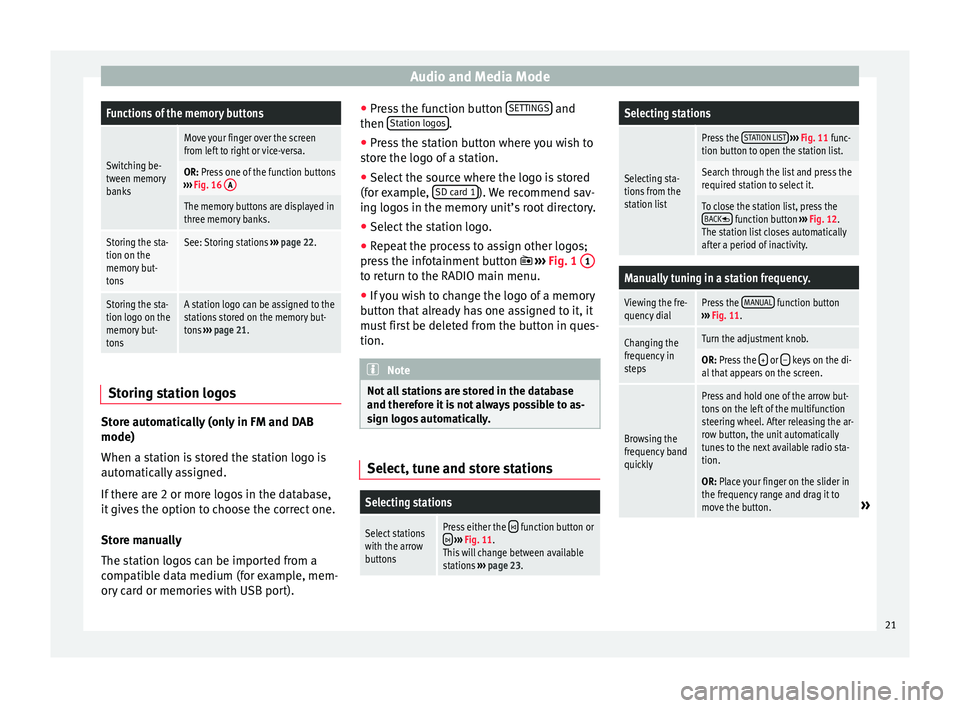
Audio and Media ModeFunctions of the memory buttons
Switching be-
tween memory
banks
Move your finger over the screen
from left to right or vice-versa.
OR: Press one of the function buttons
››› Fig. 16 A
The memory buttons are displayed in
three memory banks.
Storing the sta-
tion on the
memory but-
tonsSee: Storing stations
››› page 22.
Storing the sta-
tion logo on the
memory but-
tonsA station logo can be assigned to the
stations stored on the memory but-
tons ››› page 21. Storing station logos
Store automatically (only in FM and DAB
mode)
When a s
t
ation i
s stored the station logo is
automatically assigned.
If there are 2 or more logos in the database,
it gives the option to choose the correct one.
Store manually
The station logos can be imported from a
compatible data medium (for example, mem-
ory card or memories with USB port). ●
Pres
s the function button SETTINGS and
then St
ation log
o
s .
● Press the station button where you wish to
s t
or
e the logo of a station.
● Select the source where the logo is stored
(for ex
ample, SD card 1 ). We recommend sav-
in g log
o
s in the memory unit’s root directory.
● Select the station logo.
● Repeat the process to assign other logos;
pres
s the infotainment button ››› Fig. 1 1 to return to the RADIO main menu.
●
If you wish to change the logo of a memory
b utt
on th
at already has one assigned to it, it
must first be deleted from the button in ques-
tion. Note
Not all stations are stored in the database
and theref or
e it is not always possible to as-
sign logos automatically. Select, tune and store stations
Selecting stations
Select stations
with the arrow
buttonsPress either the function button or
››› Fig. 11.
This will change between available
stations ››› page 23.
Selecting stations
Selecting sta-
tions from the
station list
Press the STATION LIST
››› Fig. 11 func-
tion button to open the station list.
Search through the list and press the
required station to select it.
To close the station list, press the BACK function button ››› Fig. 12.
The station list closes automatically
after a period of inactivity.
Manually tuning in a station frequency.
Viewing the fre-
quency dialPress the MANUAL function button
››› Fig. 11.
Changing the
frequency in
stepsTurn the adjustment knob.
OR: Press the + or – keys on the di-
al that appears on the screen.
Browsing the
frequency band
quickly
Press and hold one of the arrow but-
tons on the left of the multifunction
steering wheel. After releasing the ar-
row button, the unit automatically
tunes to the next available radio sta-
tion.
OR: Place your finger on the slider in
the frequency range and drag it to
move the button.
» 21
Page 24 of 88
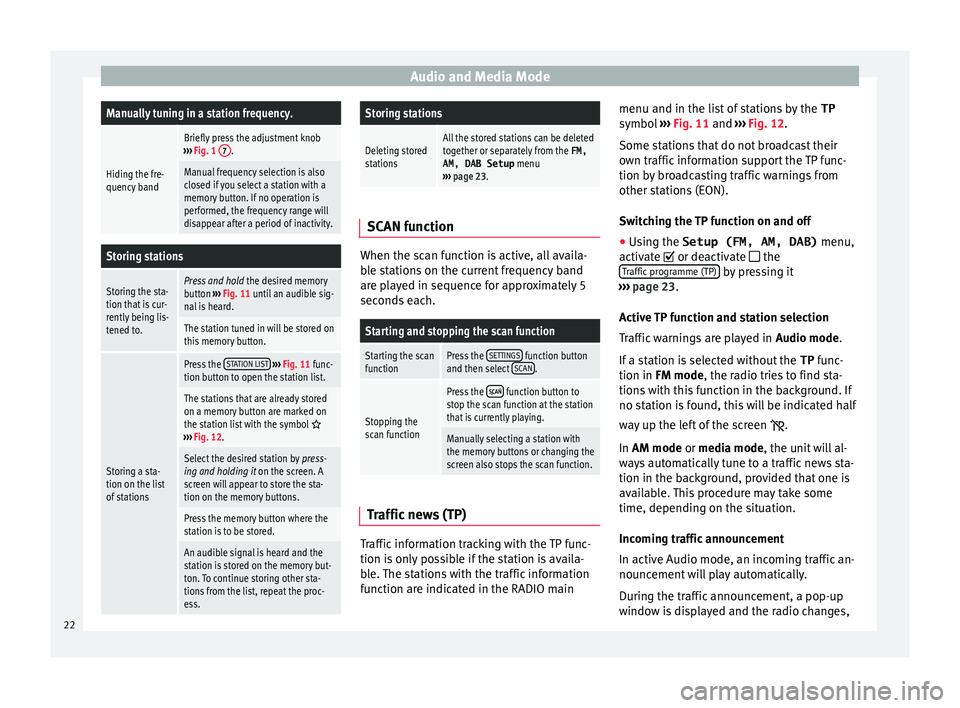
Audio and Media ModeManually tuning in a station frequency.
Hiding the fre-
quency band
Briefly press the adjustment knob
››› Fig. 1 7.
Manual frequency selection is also
closed if you select a station with a
memory button. If no operation is
performed, the frequency range will
disappear after a period of inactivity.
Storing stations
Storing the sta-
tion that is cur-
rently being lis-
tened to.Press and hold
the desired memory
button ››› Fig. 11 until an audible sig-
nal is heard.
The station tuned in will be stored on
this memory button.
Storing a sta-
tion on the list
of stations
Press the STATION LIST
››› Fig. 11 func-
tion button to open the station list.
The stations that are already stored
on a memory button are marked on
the station list with the symbol
››› Fig. 12.
Select the desired station by press-
ing and holding it on the screen. A
screen will appear to store the sta-
tion on the memory buttons.
Press the memory button where the
station is to be stored.
An audible signal is heard and the
station is stored on the memory but-
ton. To continue storing other sta-
tions from the list, repeat the proc-
ess.
Storing stations
Deleting stored
stationsAll the stored stations can be deleted
together or separately from the FM,
AM, DAB Setup menu
››› page 23. SCAN function
When the scan function is active, all availa-
bl
e s
tations on the current frequency band
are played in sequence for approximately 5
seconds each.
Starting and stopping the scan function
Starting the scan
functionPress the SETTINGS function button
and then select SCAN.
Stopping the
scan function
Press the function button to
stop the scan function at the station
that is currently playing.
Manually selecting a station with
the memory buttons or changing the
screen also stops the scan function. Traffic news (TP)
Traffic information tracking with the TP func-
tion i
s
on
ly possible if the station is availa-
ble. The stations with the traffic information
function are indicated in the RADIO main menu and in the list of stations by the
TP
symbol ›
›› Fig. 11 and ››› Fig. 12.
Some stations that do not broadcast their
own traffic information support the TP func-
tion by broadcasting traffic warnings from
other stations (EON).
Switching the TP function on and off
● Using the Setup (FM, AM, DAB) menu,
activate
or deactivate the
Traffic programme (TP) by pressing it
› ›
›
page 23.
Active TP function and station selection
Traffic warnings are played in Audio mode.
If a station is selected without the TP func-
tion in FM mode, the radio tries to find sta-
tions with this function in the background. If
no station is found, this will be indicated half
way up the left of the screen .
In AM mode or media mode, the unit will al-
ways automatically tune to a traffic news sta-
tion in the background, provided that one is
available. This procedure may take some
time, depending on the situation.
Incoming traffic announcement
In active Audio mode, an incoming traffic an-
nouncement will play automatically.
During the traffic announcement, a pop-up
window is displayed and the radio changes,
22
Page 25 of 88
Audio and Media Mode
depending on the case, to the traffic news
s t
ation (E
ON).
The media mode is paused and the volume is
adjusted to the preset level ››› page 76.
The volume of the traffic announcement can
be modified with the volume control . The
adjusted volume setting will be applied to
subsequent announcements.
● Press the Cancel function button to end the
c urr
ent
traffic announcement. The TP function
remains switched on.
● OR: Press the De
activate function button to
end the c urr
ent
traffic warning and perma-
nently deactivate the TP function. This can be
reactivated in the Settings menu.
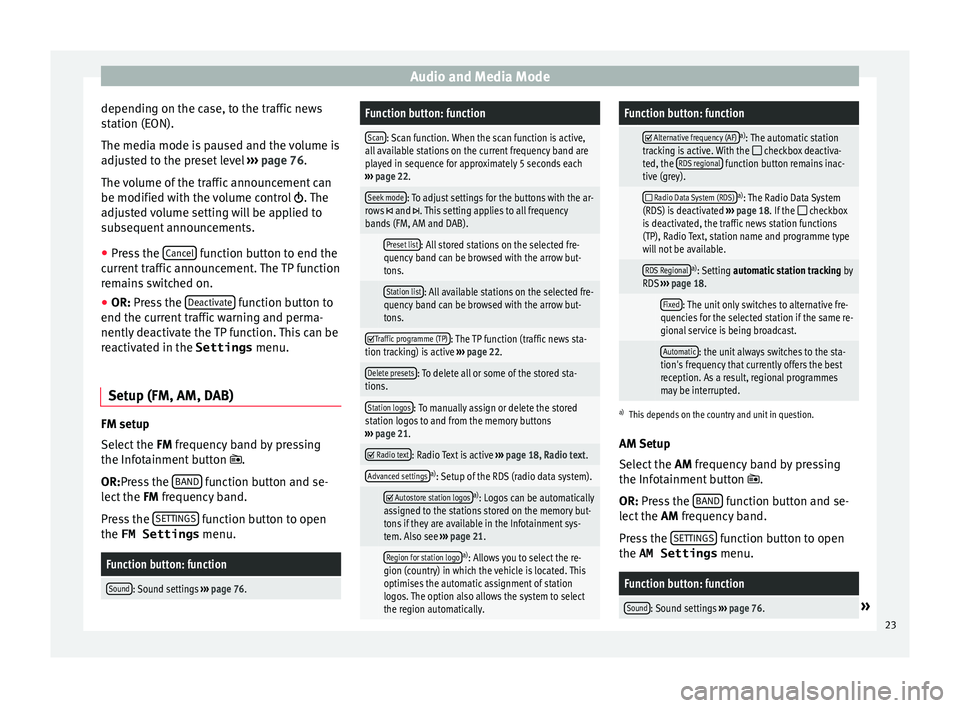
Setup (FM, AM, DAB) FM setup
Sel
ect
the FM
frequency band by pressing
the Infotainment button .
OR:Press the BAND function button and se-
l ect
the FM
frequency band.
Press the SETTINGS function button to open
the FM Settings menu.
Function button: function
Sound: Sound settings ››› page 76.
Function button: function
Scan: Scan function. When the scan function is active,
all available stations on the current frequency band are
played in sequence for approximately 5 seconds each
››› page 22.
Seek mode: To adjust settings for the buttons with the ar-
rows and . This setting applies to all frequency
bands (FM, AM and DAB).
Preset list: All stored stations on the selected fre-
quency band can be browsed with the arrow but-
tons.
Station list: All available stations on the selected fre-
quency band can be browsed with the arrow but-
tons.
Traffic programme (TP): The TP function (traffic news sta-
tion tracking) is active ››› page 22.
Delete presets: To delete all or some of the stored sta-
tions.
Station logos: To manually assign or delete the stored
station logos to and from the memory buttons
››› page 21.
Radio text: Radio Text is active
››› page 18, Radio text.
Advanced settingsa)
: Setup of the RDS (radio data system).
Autostore station logosa)
: Logos can be automatically
assigned to the stations stored on the memory but-
tons if they are available in the Infotainment sys-
tem. Also see ››› page 21.
Region for station logoa)
: Allows you to select the re-
gion (country) in which the vehicle is located. This
optimises the automatic assignment of station
logos. The option also allows the system to select
the region automatically.
Function button: function
Alternative frequency (AF)a)
: The automatic station
tracking is active. With the checkbox deactiva-
ted, the RDS regional function button remains inac-
tive (grey).
Radio Data System (RDS)a)
: The Radio Data System
(RDS) is deactivated ››› page 18. If the checkbox
is deactivated, the traffic news station functions
(TP), Radio Text, station name and programme type
will not be available.
RDS Regionala) : Setting automatic station tracking by
RDS ››› page 18.
Fixed: The unit only switches to alternative fre-
quencies for the selected station if the same re-
gional service is being broadcast.
Automatic: the unit always switches to the sta-
tion's frequency that currently offers the best
reception. As a result, regional programmes
may be interrupted.
a) This depends on the country and unit in question.
AM Setup
Select the AM frequency band by pressing
the Infotainment button .
OR: Press the BAND function button and se-
l ect
the AM
frequency band.
Press the SETTINGS function button to open
the AM Settings menu.
Function button: function
Sound: Sound settings ››› page 76.» 23
Page 26 of 88
Audio and Media ModeFunction button: function
Scan: Scan function. When the scan function is active,
all available stations on the current frequency band are
played in sequence for approximately 5 seconds each
››› page 22.
Seek mode: To adjust settings for the buttons with the ar-
rows and . This setting applies to all frequency
bands (FM, AM and DAB).
Preset list: All stored stations on the selected fre-
quency band can be browsed with the arrow but-
tons.
Station list: All available stations on the selected fre-
quency band can be browsed with the arrow but-
tons.
Traffic programme (TP): The TP function (traffic news sta-
tion tracking) is active ››› page 22.
Delete presets: To delete all or some of the stored sta-
tions.
Station logos: To assign the logos to the stations stored
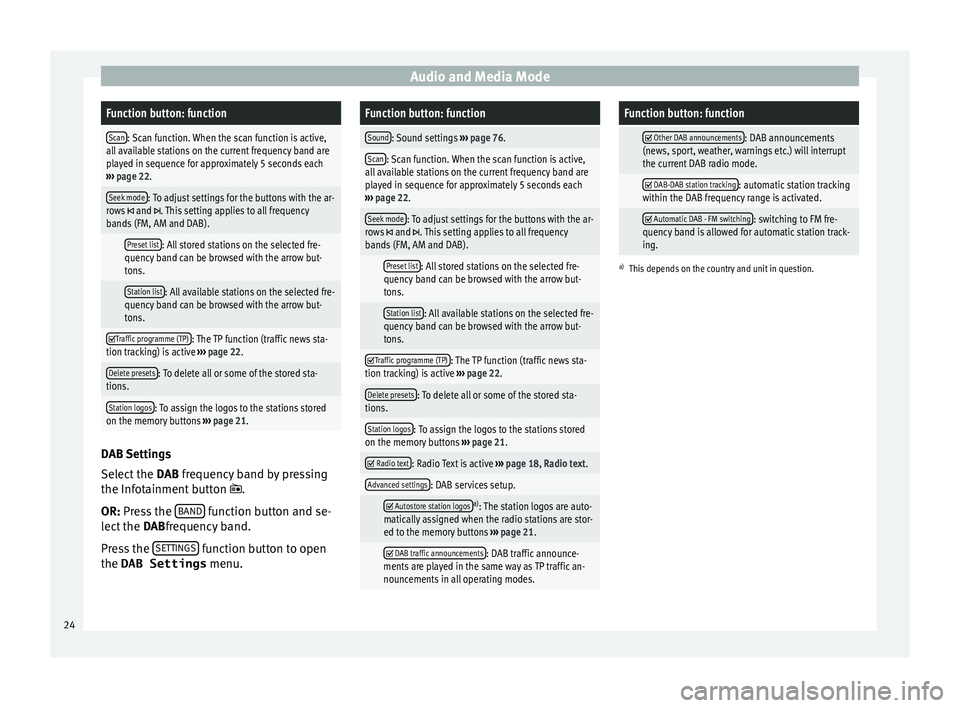
on the memory buttons ››› page 21. DAB Settings
Sel
ect
the D
AB frequency band by pressing
the Infotainment button .
OR: Press the BAND function button and se-
l ect
the D
ABfrequency band.
Press the SETTINGS function button to open
the DAB Settings menu.
Function button: function
Sound: Sound settings ››› page 76.
Scan: Scan function. When the scan function is active,
all available stations on the current frequency band are
played in sequence for approximately 5 seconds each
››› page 22.
Seek mode: To adjust settings for the buttons with the ar-
rows and . This setting applies to all frequency
bands (FM, AM and DAB).
Preset list: All stored stations on the selected fre-
quency band can be browsed with the arrow but-
tons.
Station list: All available stations on the selected fre-
quency band can be browsed with the arrow but-
tons.
Traffic programme (TP): The TP function (traffic news sta-
tion tracking) is active ››› page 22.
Delete presets: To delete all or some of the stored sta-
tions.
Station logos: To assign the logos to the stations stored
on the memory buttons ››› page 21.
Radio text: Radio Text is active
››› page 18, Radio text.
Advanced settings: DAB services setup.
Autostore station logosa)
: The station logos are auto-
matically assigned when the radio stations are stor-
ed to the memory buttons ››› page 21.
DAB traffic announcements: DAB traffic announce-
ments are played in the same way as TP traffic an-
nouncements in all operating modes.
Function button: function
Other DAB announcements: DAB announcements
(news, sport, weather, warnings etc.) will interrupt
the current DAB radio mode.
DAB-DAB station tracking: automatic station tracking
within the DAB frequency range is activated.
Automatic DAB - FM switching: switching to FM fre-
quency band is allowed for automatic station track-
ing.
a) This depends on the country and unit in question. 24
Page 27 of 88
Audio and Media Mode
Media mode Intr oduction Fig. 17
Related video “M
edia sources” are audio sources contain-
in g audio fi
les on various different data stor-
age devices (e.g. CD, memory card, external MP3 player). These audio files can be played
by the Inf
otainment system via their corre-
sponding drives or audio input sockets (inter-
nal CD drive, memory card slot, AUX-IN multi-
media socket etc.).
Copyright
Audio and video files on data storage devices
are usually protected by intellectual property
rights, as per the corresponding national and
international laws. Be aware of the current le-
gal provisions! Note
● MPEG-4 HE -AA
C audio coding technology
and patents are licensed from Fraunhofer IIS.
● This product is subject to certain intellectu-
al pr
operty rights and copyrights owned by
the Microsoft Corporation. The use or distri-
bution of this type of technology outside this
product requires a licence from Microsoft or
an authorised Microsoft company.
● The infotainment system only plays undam-
aged comp
atible audio files; other files are
ignored.
● Consult the list of supported devices on the
SEAT w
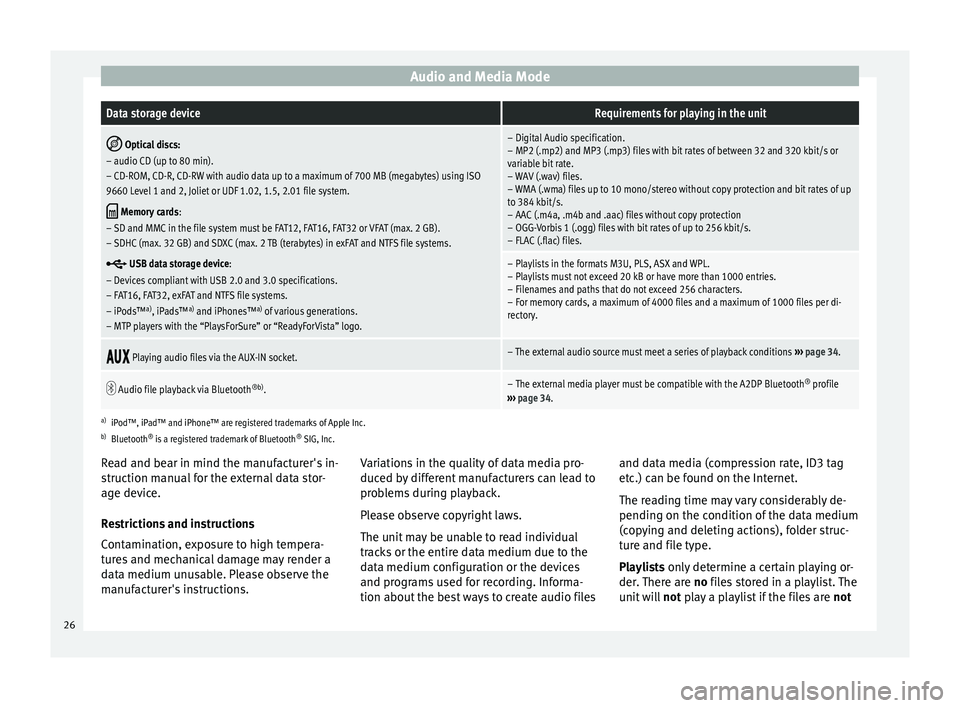
ebsite. Requirements for data storage devices and files
Factory-fitted CD drives conform to safety
c
l
a
ss 1 according to DIN IEC 76 (CO)
6/ VDE 0837.
The infotainment system only accepts stand-
ard 12-cm CDs and memory cards with these dimensions: 32 mm x 24 mm x 2.1 mm or
1.4 mm.
The suppor
ted file formats listed are collec-
tively referred to below as “audio files”. A CD containing audio files of these types is refer-
red to a
s an “audio data CD”. »
25
Page 28 of 88
Audio and Media ModeData storage deviceRequirements for playing in the unit
Optical discs:
– audio CD (up to 80 min).
– CD-ROM, CD-R, CD-RW with audio data up to a maximum of 700 MB (megabytes) using ISO
9660 Level 1 and 2, Joliet or UDF 1.02, 1.5, 2.01 file system.
Memory cards :
– SD and MMC in the file system must be FAT12, FAT16, FAT32 or VFAT (max. 2 GB).
– SDHC (max. 32 GB) and SDXC (max. 2 TB (terabytes) in exFAT and NTFS file systems.
USB data storage device:
– Devices compliant with USB 2.0 and 3.0 specifications.
– FAT16, FAT32, exFAT and NTFS file systems.
– iPods™ a)
, iPads™ a)
and iPhones™ a)
of various generations.
– MTP players with the “PlaysForSure” or “ReadyForVista” logo.
– Digital Audio specification.
– MP2 (.mp2) and MP3 (.mp3) files with bit rates of between 32 and 320 kbit/s or
variable bit rate.
– WAV (.wav) files.
– WMA (.wma) files up to 10 mono/stereo without copy protection and bit rates of up
to 384 kbit/s.
– AAC (.m4a, .m4b and .aac) files without copy protection
– OGG-Vorbis 1 (.ogg) files with bit rates of up to 256 kbit/s.
– FLAC (.flac) files.
– Playlists in the formats M3U, PLS, ASX and WPL.
– Playlists must not exceed 20 kB or have more than 1000 entries.
– Filenames and paths that do not exceed 256 characters.
– For memory cards, a maximum of 4000 files and a maximum of 1000 files per di-
rectory.
Playing audio files via the AUX-IN socket.– The external audio source must meet a series of playback conditions
››› page 34.
Audio file playback via Bluetooth
®b)
.– The external media player must be compatible with the A2DP Bluetooth ®
profile
››› page 34.
a)
iPod™, iPad™ and iPhone™ are registered trademarks of Apple Inc.
b) Bluetooth ®
is a registered trademark of Bluetooth ®
SIG, Inc.
Read and bear in mind the manufacturer's in-
struction manual for the external data stor-
age device.
Restrictions and instructions
Contamination, exposure to high tempera-
tures and mechanical damage may render a
data medium unusable. Please observe the
manufacturer's instructions. Variations in the quality of data media pro-
duced by
different manufacturers can lead to
problems during playback.
Please observe copyright laws.
The unit may be unable to read individual
tracks or the entire data medium due to the
data medium configuration or the devices
and programs used for recording. Informa-
tion about the best ways to create audio files and data media (compression rate, ID3 tag
etc.) c
an be found on the Internet.
The reading time may vary considerably de-
pending on the condition of the data medium
(copying and deleting actions), folder struc-
ture and file type.
Playlists only determine a certain playing or-
der. There are no files stored in a playlist. The
unit will not play a playlist if the files are not
26
Page 29 of 88
Audio and Media Mode
stored on the data medium at the locations
r ef
err
ed to by the playlist (relative file paths).
A cover can only be displayed when the name
starts with “Cover”, “Folder” or “Album”. Note
● Do not u se memor
y card adapters.
● SEAT assumes no liability for any deteriora-
tion or loss
of files on data storage devices. Playing order of files and folders
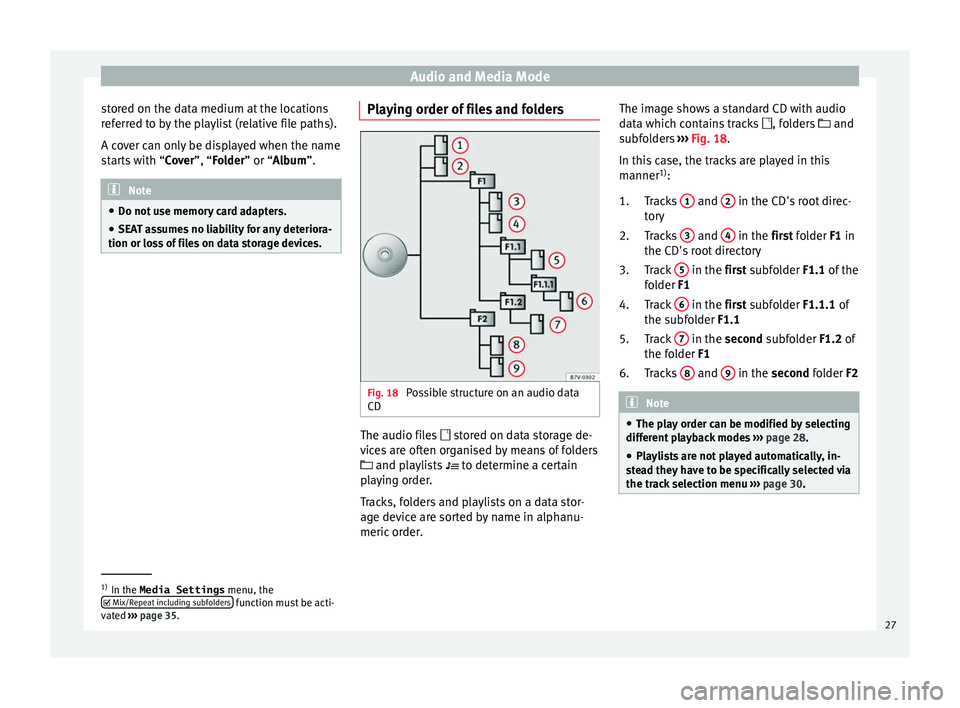
Fig. 18
Possible structure on an audio data
CD The audio files
st
or
ed on data storage de-
vices are often organised by means of folders
and playlists
to determine a certain
playing order.
Tracks, folders and playlists on a data stor-
age device are sorted by name in alphanu-
meric order. The image shows a standard CD with audio
data whic
h contains tracks , folders and
subfolders ››› Fig. 18.
In this case, the tracks are played in this
manner 1)
:
Tracks 1 and
2 in the CD's root direc-
t or
y
T
racks 3 and
4 in the fir
st folder F1 in
the CD's r
oot directory
Track 5 in the fir
st subfolder F1.1 of the
f o
lder F1
Track 6 in the fir
st subfolder F1.1.1 of
the s ubf
older F1.1
Track 7 in the sec
ond subfolder F1.2 of
the f o
lder F1
Tracks 8 and
9 in the sec
ond folder F2 Note
● The pl a
y order can be modified by selecting
different playback modes ››› page 28.
● Playlists are not played automatically, in-
ste
ad they have to be specifically selected via
the track selection menu ››› page 30. 1.
2.
3.
4.
5.
6.
1)
In the Media Settings menu, the
Mix/R epe
at including subfolders function must be acti-
vat ed ›
›› page 35.
27
Page 30 of 88
Audio and Media Mode
MEDIA main menu Fig. 19
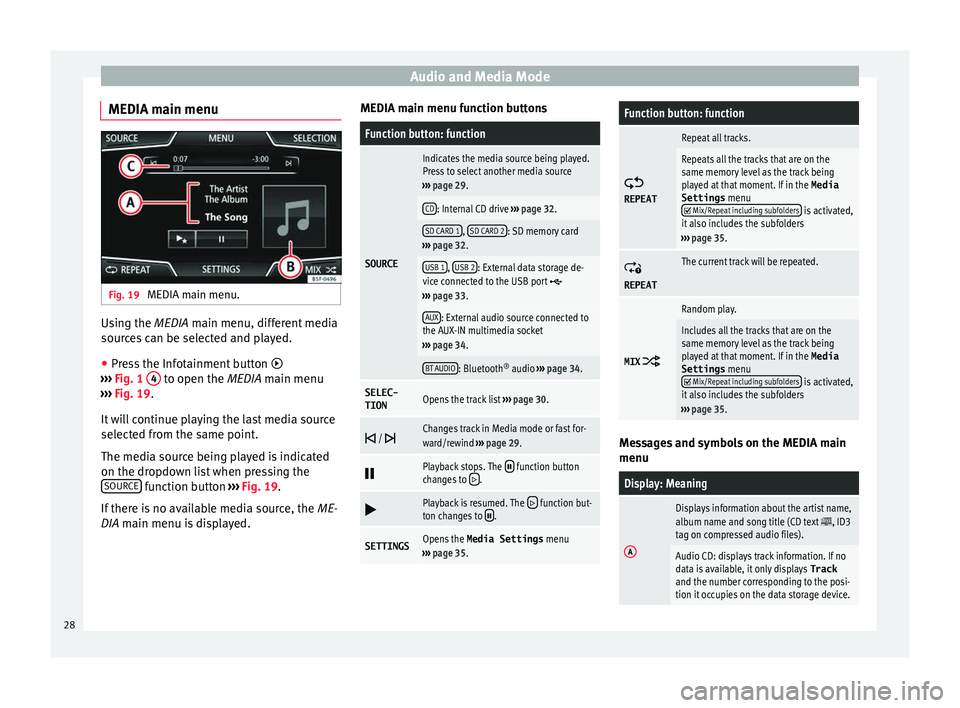
MEDIA main menu. Using the MEDIA m
ain menu, diff
er ent media
sources can be selected and played.
● Press the Infotainment button
›››
Fig. 1 4 to open the MEDIA m
ain menu
› ›
› Fig. 19.
It will continue playing the last media source
selected from the same point.
The media source being played is indicated
on the dropdown list when pressing the SOURCE function button
››
›
Fig. 19.
If there is no available media source, the ME-
DIA main menu is displayed. MEDIA main menu function buttons
Function button: function
SOURCE
Indicates the media source being played.
Press to select another media source
››› page 29.
CD: Internal CD drive ››› page 32.
SD CARD 1, SD CARD 2: SD memory card
››› page 32.
USB 1, USB 2: External data storage de-
vice connected to the USB port ››› page 33.
AUX: External audio source connected to
the AUX-IN multimedia socket
››› page 34.
BT AUDIO: Bluetooth ®
audio ››› page 34.
SELEC-
TIONOpens the track list ››› page 30.
/ Changes track in Media mode or fast for-
ward/rewind
››› page 29.
Playback stops. The function button
changes to .
Playback is resumed. The function but-
ton changes to .
SETTINGSOpens the Media Settings menu
››› page 35.
Function button: function
REPEAT
Repeat all tracks.
Repeats all the tracks that are on the
same memory level as the track being
played at that moment. If in the
Media
Settings menu
Mix/Repeat including subfolders is activated,
it also includes the subfolders
››› page 35.
REPEAT
The current track will be repeated.
MIX
Random play.
Includes all the tracks that are on the
same memory level as the track being
played at that moment. If in the Media
Settings menu
Mix/Repeat including subfolders is activated,
it also includes the subfolders
››› page 35. Messages and symbols on the MEDIA main
menu
Display: Meaning
A
Displays information about the artist name,
album name and song title (CD text , ID3
tag on compressed audio files).
Audio CD: displays track information. If no
data is available, it only displays Track
and the number corresponding to the posi-
tion it occupies on the data storage device. 28
Page 31 of 88
Audio and Media ModeDisplay: Meaning
B
Viewing the album cover: If there are vari-
ous covers within the same folder/album,
the system only displays one of them.
It prioritizes displaying the covers in the fol-
lowing manner:
1. Cover embedded in the file(s).
2. Image in file folder.
3. Default icon for the connected device.
C
The playing time so far and time remaining
in minutes and seconds. In the case of au-
dio files with variable bit rates (VBR) the re-
maining time may vary.
TP
a)The TP function is active and can be tuned
in
››› page 22.
a)There is no traffic news station available
››› page 22.
a)
Depends on the market and unit in question. Note
● When the media sour c
e is inserted, playing
will not start automatically; it is necessary for
the user to select the source. Nor will the me-
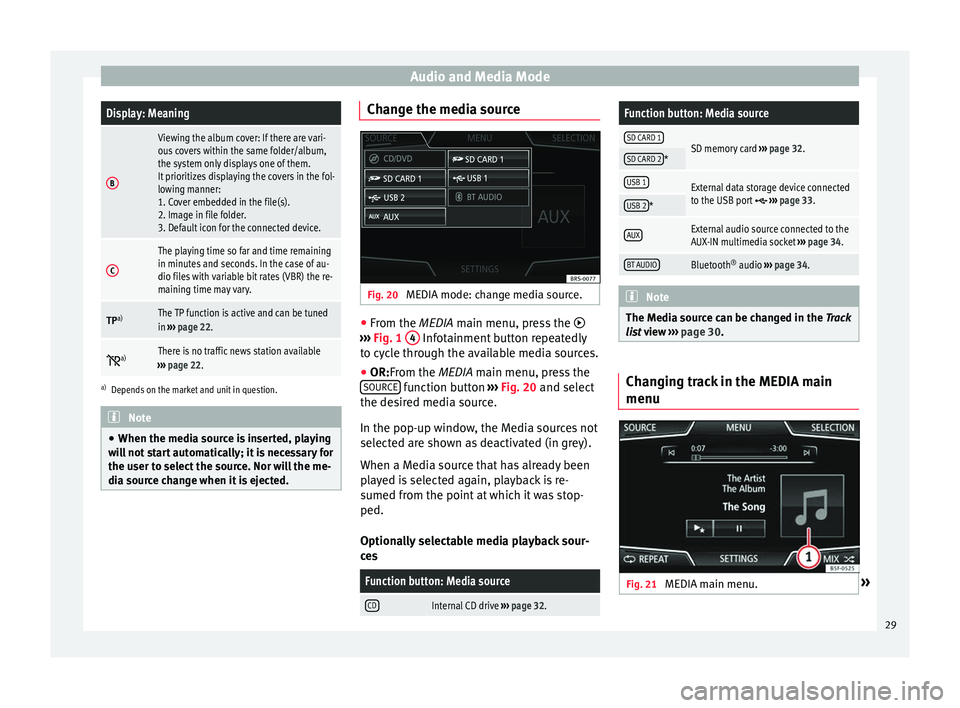
dia source change when it is ejected. Change the media source
Fig. 20
MEDIA mode: change media source. ●
From the MEDIA m ain menu, pr
e
ss the
››› Fig. 1 4 Infotainment button repeatedly
t o cy
c
le through the available media sources.
● OR:From the MEDIA main menu, press the
SOURCE function button
››
›
Fig. 20 and select
the desired media source.
In the pop-up window, the Media sources not
selected are shown as deactivated (in grey).
When a Media source that has already been
played is selected again, playback is re-
sumed from the point at which it was stop-
ped.
Optionally selectable media playback sour-
ces
Function button: Media source
CDInternal CD drive ››› page 32.
Function button: Media source
SD CARD 1SD memory card ››› page 32.SD CARD 2*
USB 1External data storage device connected
to the USB port ››› page 33.USB 2*
AUXExternal audio source connected to the
AUX-IN multimedia socket ››› page 34.
BT AUDIOBluetooth ®
audio ››› page 34. Note
The Media source can be changed in the Tr ac
k
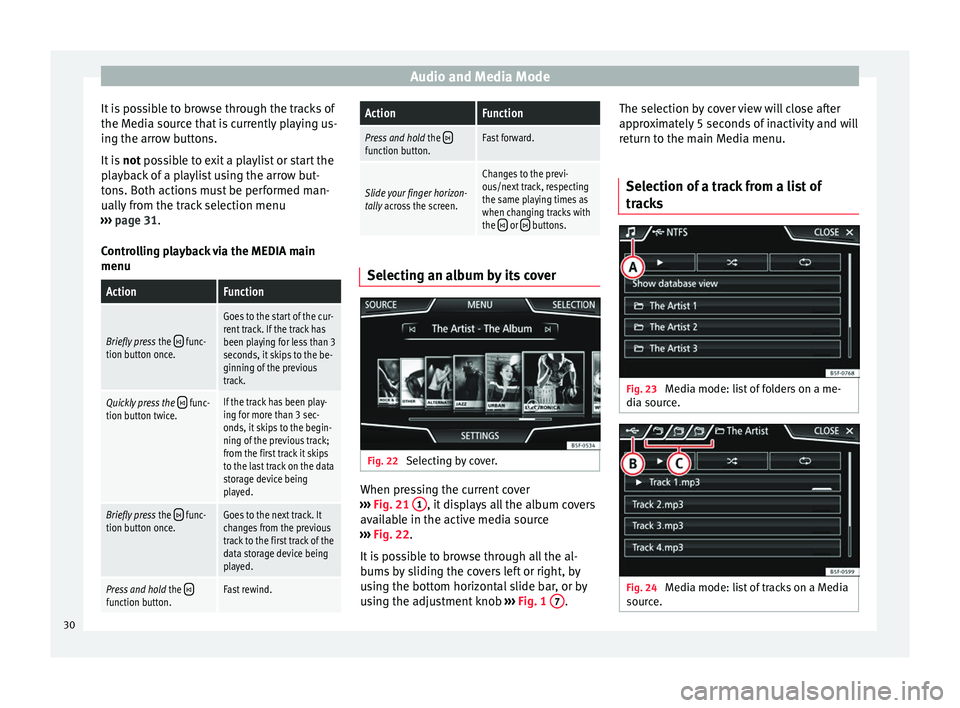
list view ››› page 30. Changing track in the MEDIA main
menu
Fig. 21
MEDIA main menu. » 29
Page 32 of 88
Audio and Media Mode
It is possible to browse through the tracks of
the M edi
a sour
ce that is currently playing us-
ing the arrow buttons.
It is not possible to exit a playlist or start the
playback of a playlist using the arrow but-
tons. Both actions must be performed man-
ually from the track selection menu
››› page 31.
Controlling playback via the MEDIA main
menu
ActionFunction
Briefly press the func-
tion button once.
Goes to the start of the cur-
rent track. If the track has
been playing for less than 3
seconds, it skips to the be-
ginning of the previous
track.
Quickly press the func-
tion button twice.If the track has been play-
ing for more than 3 sec-
onds, it skips to the begin-
ning of the previous track;
from the first track it skips
to the last track on the data
storage device being
played.
Briefly press the func-
tion button once.Goes to the next track. It
changes from the previous
track to the first track of the
data storage device being
played.
Press and hold the function button.Fast rewind.
ActionFunction
Press and hold the function button.Fast forward.
Slide your finger horizon-
tally across the screen.
Changes to the previ-
ous/next track, respecting
the same playing times as
when changing tracks with
the
or buttons. Selecting an album by its cover
Fig. 22
Selecting by cover. When pressing the current cover
› ›
›
Fig. 21 1 , it displays all the album covers
av ai
l
able in the active media source
››› Fig. 22.
It is possible to browse through all the al-
bums by sliding the covers left or right, by
using the bottom horizontal slide bar, or by
using the adjustment knob ›››
Fig. 1 7 .The selection by cover view will close after
ap
pr
o
ximately 5 seconds of inactivity and will
return to the main Media menu.
Selection of a track from a list of
track
s Fig. 23
Media mode: list of folders on a me-
di a sour
c
e. Fig. 24
Media mode: list of tracks on a Media
sour c
e. 30