audio Seat Ibiza 2017 MEDIA SYSTEM PLUS - NAVI SYSTEM
[x] Cancel search | Manufacturer: SEAT, Model Year: 2017, Model line: Ibiza, Model: Seat Ibiza 2017Pages: 88, PDF Size: 2.34 MB
Page 2 of 88

SEAT S.A. is permanently concerned about continuous development of its t\
ypes and models. For this reason we ask you to under-
stand, that at any given time, changes regarding shape, equipment and te\
chnique may take place on the car delivered. For this reason
no right at all may derive based on the data, drawings and descriptions \
in this current handbook.
All texts, illustrations and standards in this handbook are based on the\
status of information at the time of printing. Except for error
or omission, the information included in the current handbook is valid a\
s of the date of closing print.
Re-printing, copying or translating, whether total or partial is not all\
owed unless SEAT allows it in written form.
SEAT reserves all rights in accordance with the “Copyright” Act.
All rights on changes are reserved.
❀This paper has been manufactured using bleached non-chlorine cellulose.
© SEAT S.A. - Reprint: 15.11.17
About this manual
This manual contains information, recommen -
dations, advice and warnings related to your
radio system. The other publications in the
vehicle documentation contain further infor -
mation of which you should be aware for your
own safety and for that of your passengers.
Ensure that the onboard documentation is
kept in the vehicle at all times. This is espe -
cially important when lending or selling the
vehicle to another person.
This manual contains a description of the
equipment supplied with the vehicle at the
time of press. Some of the units described
herein will not be available until a later date or
is only available in certain markets.
The illustrations are intended as a general
guide and may vary from the equipment tted
in your vehicle in some details.
The screen colour and the colour of the infor -
mation displayed on it can vary according to
vehicle model. Directions and positions
of components (e.g.
right, left, front, rear) are always relative to the
direction of travel of the vehicle unless other -
wise stated.
The audiovisual material only is intended to
help users to understand certain car function -
alities better. It does not replace the instruc -
tion manual. Please use the instruction manu -
al to obtain more comprehensive information
and indications.
The equipment marked with an aster -
isk* is tted as standard only in certain
versions, and is only supplied as op -
tional extras for some versions, or are
only offered in certain countries.
® All registered marks are indicated with
®. Although the copyright symbol does
not appear, it is a copyrighted mark.
>> The section is continued on the follow -
ing page.
WARNING
Texts preceded by this symbol contain infor -
mation on safety. They warn you about possi -
ble dangers of accident or injury.
CAUTION
Texts with this symbol draw your attention to
potential sources of damage to your vehicle.
For the sake of the environment
Texts preceded by this symbol contain rele-
vant information concerning environmental
protection.
Note
Texts preceded by this symbol contain additio -
nal information.
Page 5 of 88
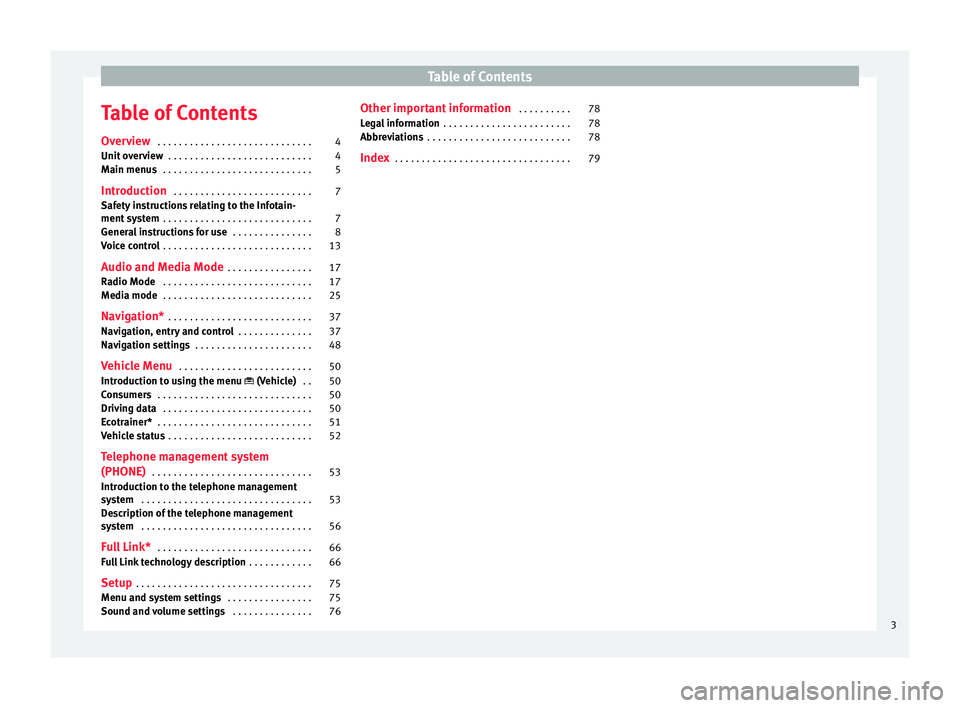
Table of Contents
Table of Contents
Ov er
v
iew . . . . . . . . . . . . . . . . . . . . . . . . . . . . . 4
Unit overview . . . . . . . . . . . . . . . . . . . . . . . . . . . 4
Main menus . . . . . . . . . . . . . . . . . . . . . . . . . . . . 5
Introduction . . . . . . . . . . . . . . . . . . . . . . . . . . 7
Safety instructions relating to the Infotain-
ment sys
tem . . . . . . . . . . . . . . . . . . . . . . . . . . . . 7
General instructions for use . . . . . . . . . . . . . . . 8
Voice control . . . . . . . . . . . . . . . . . . . . . . . . . . . . 13
Audio and Media Mode . . . . . . . . . . . . . . . . 17
Radio Mode . . . . . . . . . . . . . . . . . . . . . . . . . . . . 17
Media mode . . . . . . . . . . . . . . . . . . . . . . . . . . . . 25
Navigation* . . . . . . . . . . . . . . . . . . . . . . . . . . . 37
Navigation, entry and control . . . . . . . . . . . . . . 37
Navigation settings . . . . . . . . . . . . . . . . . . . . . . 48
Vehicle Menu . . . . . . . . . . . . . . . . . . . . . . . . . 50
Introduction to using the menu (Vehicl
e) . . 50
Consumers . . . . . . . . . . . . . . . . . . . . . . . . . . . . . 50
Driving data . . . . . . . . . . . . . . . . . . . . . . . . . . . . 50
Ecotrainer* . . . . . . . . . . . . . . . . . . . . . . . . . . . . . 51
Vehicle status . . . . . . . . . . . . . . . . . . . . . . . . . . . 52
Telephone management system
(PHONE) . . . . . . . . . . . . . . . . . . . . . . . . . . . . . . 53
Introduction to the telephone management
syst
em . . . . . . . . . . . . . . . . . . . . . . . . . . . . . . . . 53
Description of the telephone management
syst
em . . . . . . . . . . . . . . . . . . . . . . . . . . . . . . . . 56
Full Link* . . . . . . . . . . . . . . . . . . . . . . . . . . . . . 66
Full Link technology description . . . . . . . . . . . . 66
Setup . . . . . . . . . . . . . . . . . . . . . . . . . . . . . . . . . 75
Menu and system settings . . . . . . . . . . . . . . . . 75
Sound and volume settings . . . . . . . . . . . . . . . 76 Other important information
. . . . . . . . . . 78
Legal information . . . . . . . . . . . . . . . . . . . . . . . . 78
Abbreviations . . . . . . . . . . . . . . . . . . . . . . . . . . . 78
Index . . . . . . . . . . . . . . . . . . . . . . . . . . . . . . . . . 79
3
Page 8 of 88
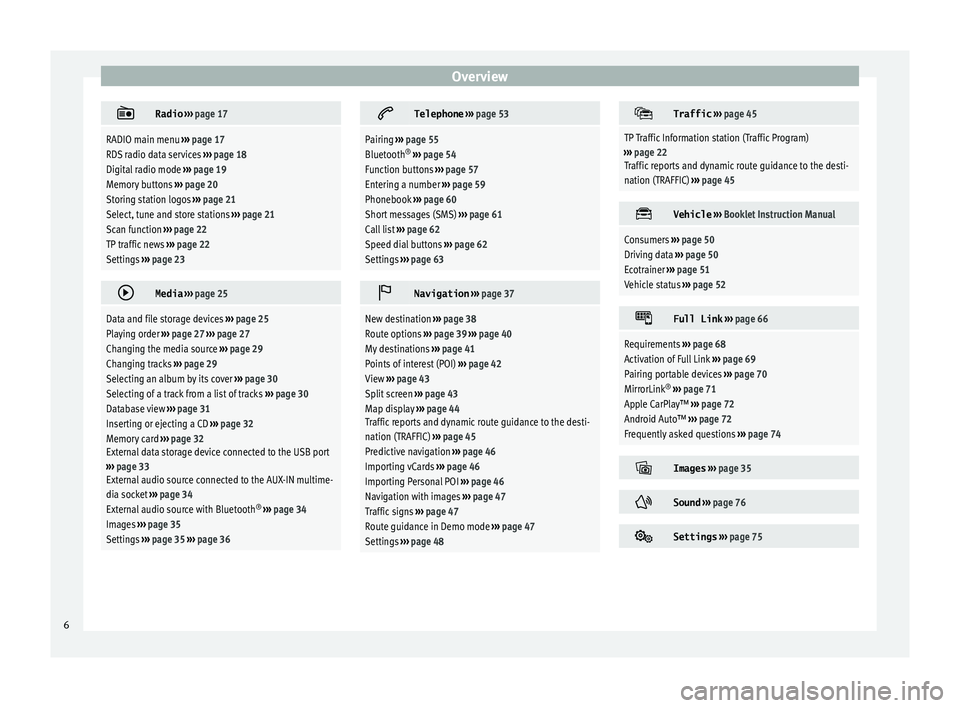
Overview
Radio
››› page 17
RADIO main menu ››› page 17
RDS radio data services ››› page 18
Digital radio mode ››› page 19
Memory buttons ››› page 20
Storing station logos ››› page 21
Select, tune and store stations ››› page 21
Scan function ››› page 22
TP traffic news ››› page 22
Settings ››› page 23
Media
››› page 25
Data and file storage devices ››› page 25
Playing order ››› page 27 ››› page 27
Changing the media source ››› page 29
Changing tracks ››› page 29
Selecting an album by its cover ››› page 30
Selecting of a track from a list of tracks ››› page 30
Database view ››› page 31
Inserting or ejecting a CD ››› page 32
Memory card ››› page 32
External data storage device connected to the USB port
››› page 33
External audio source connected to the AUX-IN multime-
dia socket ››› page 34
External audio source with Bluetooth ®
››› page 34
Images ››› page 35
Settings ››› page 35 ››› page 36
Telephone
››› page 53
Pairing ››› page 55
Bluetooth ®
››› page 54
Function buttons ››› page 57
Entering a number ››› page 59
Phonebook ››› page 60
Short messages (SMS) ››› page 61
Call list ››› page 62
Speed dial buttons ››› page 62
Settings ››› page 63
Navigation
››› page 37
New destination ››› page 38
Route options ››› page 39 ››› page 40
My destinations ››› page 41
Points of interest (POI) ››› page 42
View ››› page 43
Split screen ››› page 43
Map display ››› page 44
Traffic reports and dynamic route guidance to the desti-
nation (TRAFFIC) ››› page 45
Predictive navigation ››› page 46
Importing vCards ››› page 46
Importing Personal POI ››› page 46
Navigation with images ››› page 47
Traffic signs ››› page 47
Route guidance in Demo mode ››› page 47
Settings ››› page 48
Traffic
››› page 45
TP Traffic Information station (Traffic Program)
››› page 22
Traffic reports and dynamic route guidance to the desti-
nation (TRAFFIC) ››› page 45
Vehicle
››› Booklet Instruction Manual
Consumers ››› page 50
Driving data ››› page 50
Ecotrainer ››› page 51
Vehicle status ››› page 52
Full Link
››› page 66
Requirements ››› page 68
Activation of Full Link ››› page 69
Pairing portable devices ››› page 70
MirrorLink ®
››› page 71
Apple CarPlay™ ››› page 72
Android Auto™ ››› page 72
Frequently asked questions ››› page 74
Images
››› page 35
Sound
››› page 76
Settings
››› page 75 6
Page 9 of 88
Introduction
Introduction Saf ety
in
structions relating to the In-
fotainment system Travelling on today's roads requires the driv-
er's f
u
ll attention at all times.
Only operate the radio and its various func-
tions when the traffic situation really permits
this. WARNING
● Bef or
e starting the trip, you should famili-
arise yourself with the different radio func-
tions.
● High audio volume may represent a danger
to y
ou and to others.
● Adjust the volume in a way that you can
distin
guish surrounding noise, for example,
horns and sirens, etc.
● Changes to the Infotainment system set-
tings
should be made when the car is stop-
ped, or by a passenger. WARNING
Distracting the driver in any way can lead to
an acc ident
and cause injuries. Operating the
Infotainment system can distract your atten-
tion from the traffic.
● Always drive carefully and responsibly. ●
Select
volume settings that allow you to
easily hear signals from outside the vehicle
at all times (e.g. emergency services sirens
and horns).
● Hearing may be impaired if using too high a
volume settin
g, even if only for short periods
of time. WARNING
The volume level may suddenly change when
y ou sw it
ch audio source or connect a new au-
dio source.
● Lower the base volume before connecting
or switc
hing audio sources. WARNING
The driving recommendations and traffic indi-
cation s
shown on the navigation system may
differ from the current traffic situation.
● Traffic signs and traffic regulations have
priority ov
er the recommendations and dis-
plays provided by the navigation system.
● Adjust your vehicle speed and driving style
to suit
visibility, weather, road and traffic
conditions. WARNING
Connecting, inserting or removing a data me-
dium whil e driv
ing can distract your attention
from the traffic and cause an accident. WARNING
Connecting leads for external devices may
ob s
truct the driver.
● Arrange the connecting leads so that they
do not ob
struct the driver. WARNING
External devices that are loose or not proper-
ly sec ur
ed could move around the passenger
compartment during a sudden driving or
braking manoeuvre or an accident and cause
damage or injury.
● Never place or fit external devices to the
doors, wind
screen, steering wheel, dash pan-
el, the backs of the seats, on top of or near
the area marked “AIRBAG” or between these
areas and the occupants. External devices
can cause serious injury in an accident, espe-
cially when the airbags inflate. WARNING
The armrest may obstruct the driver's arm
mov ement
s, which could cause an accident
and severe injuries.
● Always keep the armrest closed while the
vehicl
e is in motion. WARNING
Opening a CD player's housing can lead to in-
juries fr
om invisible laser radiation.
● Have CD players repaired only by a quali-
fied workshop
. » 7
Page 10 of 88
Introduction
CAUTION
The Infotainment system can be damaged by
the incorrect in
sertion of a data storage de-
vice or the insertion of an incompatible data
storage device.
● When inserting a data storage device, make
sure it i
s correctly positioned ››› page 25.
● Applying force may irreparably damage the
memory car
d slot locking mechanism.
● Only use compatible memory cards.
● When inserting and removing CDs, always
hold them at right
angles to the front of the
CD drive without tilting so as not to scratch
them.
● If a CD is inserted while another is already
in the unit or being ej
ected, the CD drive may
be irreparably damaged. Always wait until
the data medium is completely ejected. CAUTION
Any foreign objects stuck to a data storage
device and non-r ou
nd media may damage the
CD player.
● Only clean, standard 12-cm CDs should be
used.
– Do not affix
stickers or other items to the
data medium. Stickers may peel off and
damage the drive.
– Do not use printable data media. Printed
labels and coverings may peel off and
damage the CD drive. –
Do not inser t
8-cm single CDs or irregu-
larly shaped CDs.
– Do not insert DVD-Plus discs, Dual Discs
or Flip Discs, as these are thicker than
normal CDs. CAUTION
The vehicle loudspeakers may be damaged if
the volume i
s too high or the sound is distor-
ted. General instructions for use
Intr oduction Fig. 3
Related video If the setup is changed, this may change the
di
s
p l
ay on the screen and in some cases, the
Infotainment system may behave in a manner
different to that described in this manual. Note
● Lightly pre s
sing the buttons or briefly
pressing the touchscreen is sufficient to op-
erate the Infotainment system.
● Not all listed function buttons and func-
tions des
cribed may be available due to the
device software used in your market. The
equipment is not faulty if a function button is
missing from the screen.
● Due to country-specific legislation, certain
functions
may not be available on the screen
when the vehicle is travelling above a certain
speed.
● Using a mobile telephone in the vehicle
may c
ause noise from the vehicle loudspeak-
ers.
● Restrictions on the use of devices using
Bluetooth ®
techno
logy may apply in some
countries. For further information, contact the
local authorities.
● On some vehicles with ParkPilot, the vol-
ume of the audio source i
s automatically low-
ered when reverse gear is selected. You can
change settings for lowering the volume in
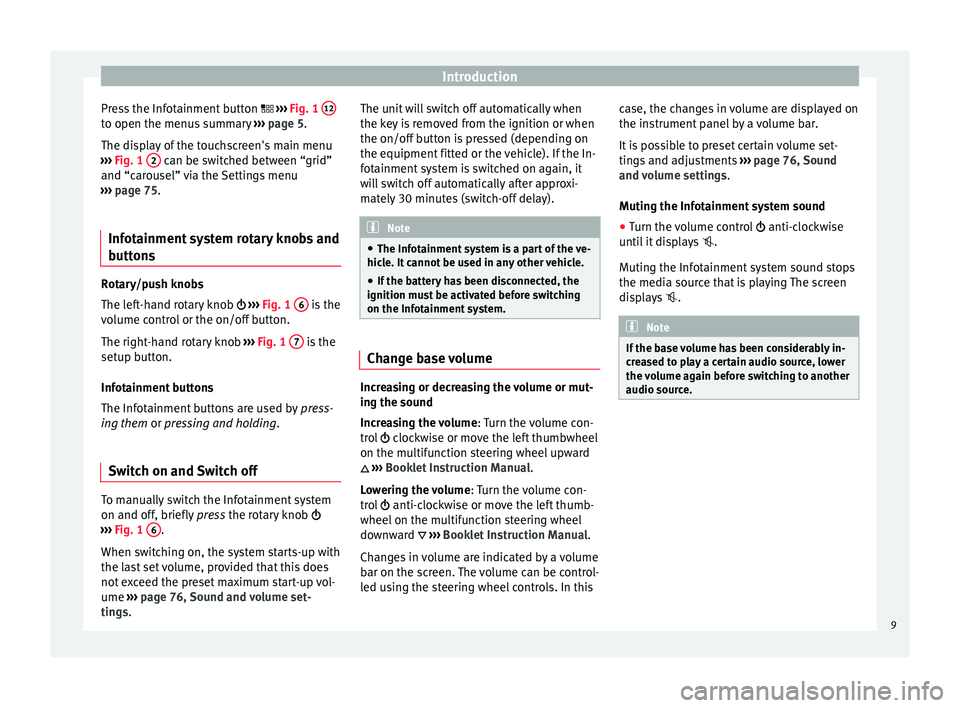
the Sound setup menu ››› page 76. Diagram of the menus
The Infotainment system touchscreen
› ›
›
Fig. 1 2 can be used to select the differ-
ent main menu
s.
8
Page 11 of 88
Introduction
Press the Infotainment button ››
› Fig. 1 12 to open the menus summary
››
› page 5.
The display of the touchscreen's main menu
››› Fig. 1 2 can be switched between “grid”
and “c ar
ou
sel” via the Settings menu
››› page 75.
Infotainment system rotary knobs and
button
s Rotary/push knobs
The l
ef
t
-hand rotary knob ››› Fig. 1 6 is the
v o
lume c
ontrol or the on/off button.
The right-hand rotary knob ››› Fig. 1 7 is the
set up b
utt
on.
Infotainment buttons
The Infotainment buttons are used by press-
ing them or pressing and holding.
Switch on and Switch off To manually switch the Infotainment system
on and off
, briefly
pr
ess the rotary knob
››› Fig. 1 6 .
When sw it
c
hing on, the system starts-up with
the last set volume, provided that this does
not exceed the preset maximum start-up vol-
ume ››› page 76, Sound and volume set-
tings. The unit will switch off automatically when
the key i
s removed from the ignition or when
the on/off button is pressed (depending on
the equipment fitted or the vehicle). If the In-
fotainment system is switched on again, it
will switch off automatically after approxi-
mately 30 minutes (switch-off delay). Note
● The Infot ainment
system is a part of the ve-
hicle. It cannot be used in any other vehicle.
● If the battery has been disconnected, the
ignition must
be activated before switching
on the Infotainment system. Change base volume
Increasing or decreasing the volume or mut-
in
g the sou
nd
Inc
reasing the volume : Turn the volume con-
trol clockwise or move the left thumbwheel
on the multifunction steering wheel upward
›››
Booklet Instruction Manual.
Lowering the volume : Turn the volume con-
trol anti-clockwise or move the left thumb-
wheel on the multifunction steering wheel
downward ›››
Booklet Instruction Manual.
Changes in volume are indicated by a volume
bar on the screen. The volume can be control-
led using the steering wheel controls. In this case, the changes in volume are displayed on
the instrument
panel by a volume bar.
It is possible to preset certain volume set-
tings and adjustments ››› page 76, Sound
and volume settings .
Muting the Infotainment system sound
● Turn the volume control anti-clock
wise
until it displays .
Muting the Infotainment system sound stops
the media source that is playing The screen
displays . Note
If the base volume has been considerably in-
cr e
ased to play a certain audio source, lower
the volume again before switching to another
audio source. 9
Page 19 of 88
Audio and Media Mode
Audio and Media Mode
R a
dio Mode
R
elated video Fig. 10
Radio mode RADIO main menu
Fig. 11
RADIO main menu. Fig. 12
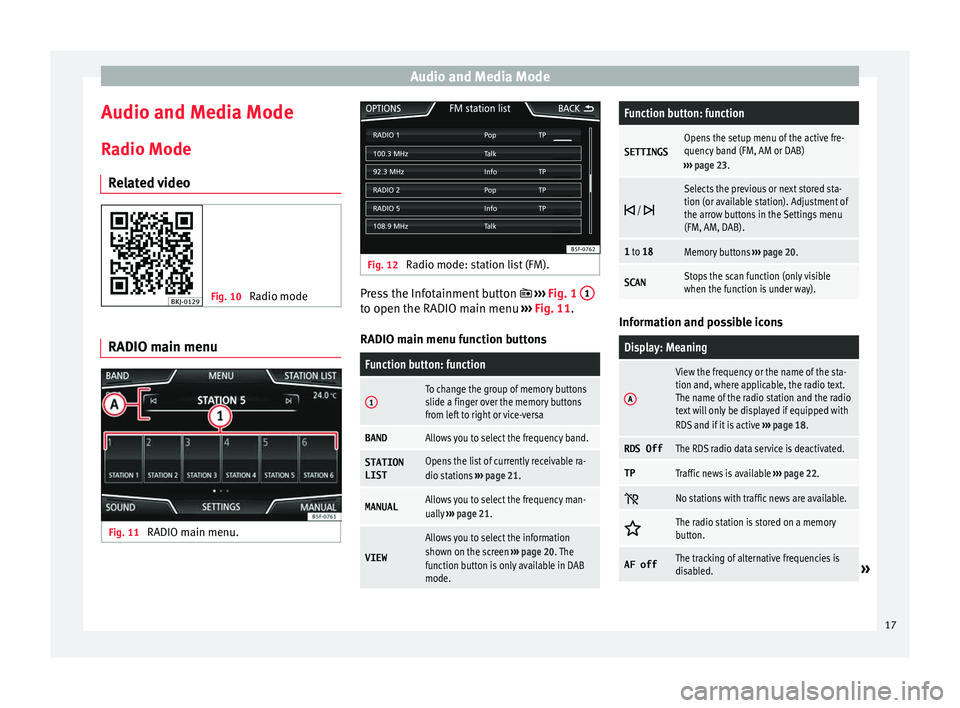
Radio mode: station list (FM). Press the Infotainment button
››
›
Fig. 1 1 to open the RADIO main menu
››
› Fig. 11.
RADIO main menu function buttons
Function button: function
1To change the group of memory buttons
slide a finger over the memory buttons
from left to right or vice-versa
BANDAllows you to select the frequency band.
STATION
LISTOpens the list of currently receivable ra-
dio stations ››› page 21.
MANUALAllows you to select the frequency man-
ually ››› page 21.
VIEW
Allows you to select the information
shown on the screen ››› page 20. The
function button is only available in DAB
mode.
Function button: function
SETTINGSOpens the setup menu of the active fre-
quency band (FM, AM or DAB)
››› page 23.
/
Selects the previous or next stored sta-
tion (or available station). Adjustment of
the arrow buttons in the Settings menu
(FM, AM, DAB).
1 to 18Memory buttons
››› page 20.
SCANStops the scan function (only visible
when the function is under way). Information and possible icons
Display: Meaning
A
View the frequency or the name of the sta-
tion and, where applicable, the radio text.
The name of the radio station and the radio
text will only be displayed if equipped with
RDS and if it is active
››› page 18.
RDS OffThe RDS radio data service is deactivated.
TPTraffic news is available ››› page 22.
No stations with traffic news are available.
The radio station is stored on a memory
button.
AF offThe tracking of alternative frequencies is
disabled.»
17
Page 20 of 88
Audio and Media Mode
Note
● The avai l
ability of AM and DAB bands de-
pends on the country and/or equipment. In
the event that the AM and DAB bands are not
available, the BAND function button text will
not be shown.
● Bear in mind that being underground, in
tunnel
s, in areas with tall buildings or moun-
tains can interfere with radio signals.
● Foil or metal-coated stickers attached to
the window
s may affect reception on vehicles
with a window aerial. RDS radio data services (FM band)
Fig. 13
Standard representation: FM station
li s
t
menu The RDS (Radio Data System) offers addition-
al
inf
orm
ation in FM such as the visualisation
of the station name, automatic station track- ing (AF), text emitted by radio (Radio Text),
traffic r
eports (TP) and station types (PTY).
Depending on the country and the unit in
question, the RDS can be deactivated in the FM setup menu ››› page 23.
Without RDS it is not possible to use radio
data services.
Name of the station and automatic station
tracking
If equipped with the RDS function, the names
of the stations can be displayed in the main
RADIO menu and in the FM station list .
FM radio stations may occasionally or contin-
uously broadcast different content on differ-
ent regional frequencies under the same sta-
tion name (e.g. Station 3).
By default, automatic station tracking always
switches to the currently selected station's
frequency that offers the best reception, as
the vehicle travels from one area to the next.
As a result, this may cause the regional sig-
nal to be lost.
Automatic frequency changing and automatic
station tracking can be deactivated in FM setup ››› page 23.
Setting a station name
In some cases the name of the station is too
long. This text may be blocked/unblocked by
pressing on the station name for 3 seconds until hearing an audible signal (a dot will ap-
pear/dis
appear on the left and right of the
station name).
Radio text
Some RDS-enabled stations also broadcast
additional text information known as radio
text.
Radio Text is displayed in the upper half of
the screen above the memory buttons
››› Fig. 11 A .
The R a
dio
Text display can be deactivated in
FM setup ››› page 23.
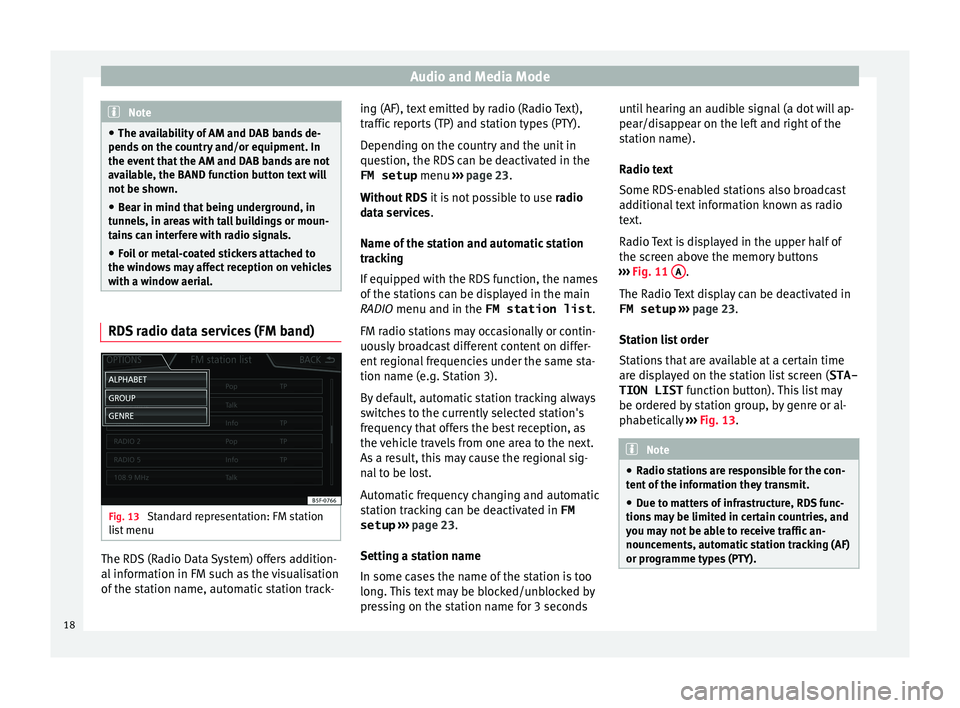
Station list order
Stations that are available at a certain time
are displayed on the station list screen ( STA-
TION LIST function button). This list may
be ordered by station group, by genre or al-
phabetically ››› Fig. 13. Note
● Ra dio s
tations are responsible for the con-
tent of the information they transmit.
● Due to matters of infrastructure, RDS func-
tions m
ay be limited in certain countries, and
you may not be able to receive traffic an-
nouncements, automatic station tracking (AF)
or programme types (PTY). 18
Page 21 of 88
Audio and Media Mode
Digital radio mode (DAB, DAB+ and
audio DMB)* Fig. 14
Display of memory buttons in DAB
mode. Fig. 15
Display of station information in DAB
mode. The DAB radio receiver supports the DAB,
D
AB+ and DMB-Audio br
o
adcasting stand-
ards. In Europe, digital radio is transmitted via
band III frequenc
ies (from 174 MHz to
240 MHz).
The frequencies are referred to as “channels”
and each one has a channel name
(e.g. 12 A ).
Several available DAB stations are combined
into one channel in an “ensemble”.
Starting Digital radio mode ● From the RADIO main menu pre
ss the BAND function button and select
D
AB .
The D AB r
a
dio station that was last selected
will be played if it can still be received at the
current location.
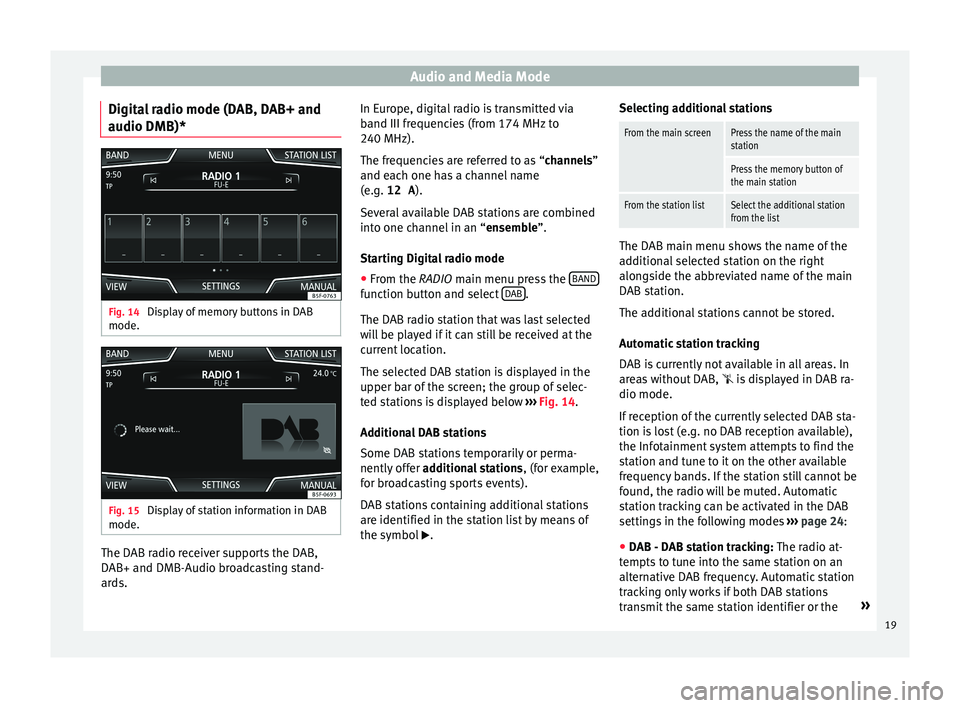
The selected DAB station is displayed in the
upper bar of the screen; the group of selec-
ted stations is displayed below ››› Fig. 14.
Additional DAB stations
Some DAB stations temporarily or perma-
nently offer additional stations , (for example,
for broadcasting sports events).
DAB stations containing additional stations
are identified in the station list by means of
the symbol . Selecting additional stations
From the main screenPress the name of the main
station
Press the memory button of
the main station
From the station listSelect the additional station
from the list
The DAB main menu shows the name of the
ad
dition
al selected station on the right
alongside the abbreviated name of the main
DAB station.
The additional stations cannot be stored.
Automatic station tracking
DAB is currently not available in all areas. In
areas without DAB,
is displayed in DAB ra-
dio mode.
If reception of the currently selected DAB sta-
tion is lost (e.g. no DAB reception available),
the Infotainment system attempts to find the
station and tune to it on the other available
frequency bands. If the station still cannot be
found, the radio will be muted. Automatic
station tracking can be activated in the DAB
settings in the following modes ›››
page 24:
● DAB - DAB station tracking: The ra dio at
-
tempts to tune into the same station on an
alternative DAB frequency. Automatic station
tracking only works if both DAB stations
transmit the same station identifier or the »
19
Page 22 of 88
Audio and Media Mode
DAB signal indicates the corresponding other
D AB s
t
ation.
● Automatic DAB - FM switching: The radio
att
empts to tune into the same station on the
FM frequency band. Automatic station track-
ing only works if the DAB station and the FM
station transmit the same station identifier or
the DAB signal indicates the corresponding
FM station. Once the corresponding FM sta-
tion has been found, “FM” is displayed after
the station name. When reception for the cor-
responding DAB station returns, after a short
time the unit will switch back to DAB mode
and “FM” will no longer be displayed.
● Switch to a similar station: This al
lows
service providers to indicate alternative sta-
tions with similar content. This way, if the ra-
dio loses reception of a DAB station and can-
not find an alternative frequency for it on FM
or DAB, there is a possibility of tuning in to a
station with similar content.
Radio text
Some stations also broadcast additional text
information known as radio text.
Radio text is displayed in the upper half of
the screen above the memory buttons
››› Fig. 14 or on the Station information or Ra-
dio text screens of the Screen view menu
››› page 20.
The radio text display can be deactivated in
DAB settings ››› page 24. Slideshow
Some station
s broadcast images for addi-
tional visual information.
These images are displayed as a slideshow
on the Station information or
Slide
sho
w screens
of the
Screen view menu ›
›
› page 20.
The slideshow can be viewed in full screen by
pressing on the current image.
Screen view menu
The function buttons refer to the menu that
appears when the View button is pressed
› ›
›
Fig. 14.
Function button: function
Preset list: Memory buttons display ››› Fig. 14.
Station information: Simultaneous display of radio text and
slideshows instead of the memory buttons ››› Fig. 15.
Radio text: Radio text is displayed instead of memory
buttons.
Slideshow: The slideshows are displayed in full screen. Note
● Not a l
l DAB stations broadcast radio text
and slideshows. Memory buttons
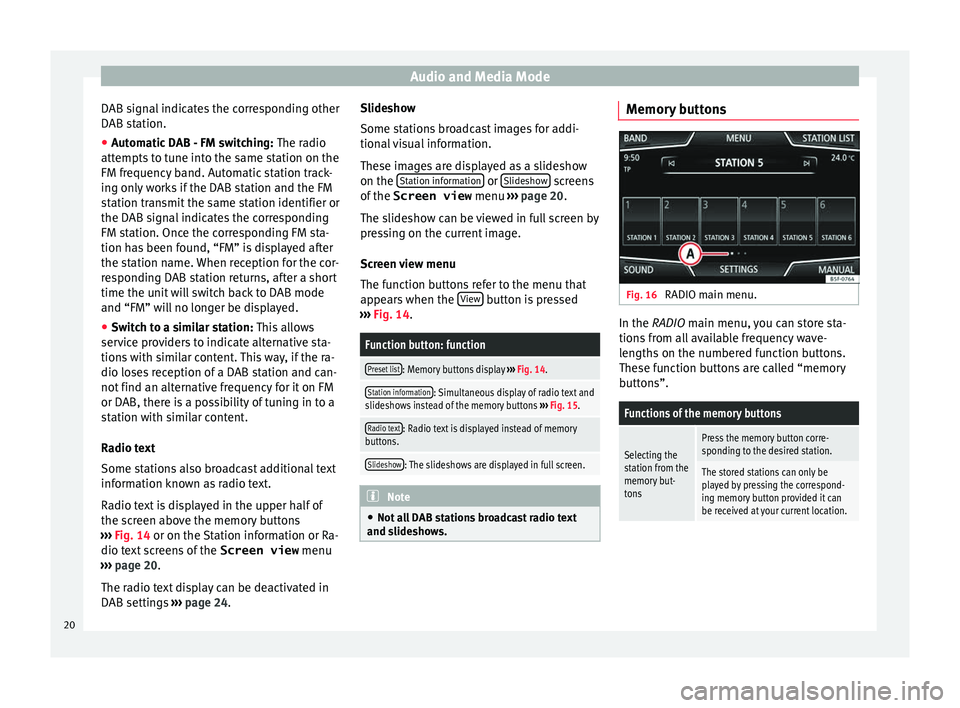
Fig. 16
RADIO main menu. In the RADIO m
ain menu,
y
ou can store sta-
tions from all available frequency wave-
lengths on the numbered function buttons.
These function buttons are called “memory
buttons”.
Functions of the memory buttons
Selecting the
station from the
memory but-
tonsPress the memory button corre-
sponding to the desired station.
The stored stations can only be
played by pressing the correspond-
ing memory button provided it can
be received at your current location. 20