ECO mode Seat Ibiza ST 2016 MEDIA SYSTEM PLUS - NAVI SYSTEM - NAVI SYSTEM PLUS
[x] Cancel search | Manufacturer: SEAT, Model Year: 2016, Model line: Ibiza ST, Model: Seat Ibiza ST 2016Pages: 100, PDF Size: 2.53 MB
Page 31 of 100
Audio and Media Mode
The unit may be unable to read individual
tr ac
ks or the entire data medium due to the
data medium configuration or the devices
and programs used for recording. Informa-
tion about the best ways to create audio files
and data media (compression rate, ID3 tag
etc.) can be found on the Internet.
The reading time may vary considerably de-
pending on the condition of the data medium
(copying and deleting actions), folder struc-
ture and file type.
Playlists only determine a certain playing or-
der. There are no files stored in a playlist. The
unit will not play a playlist if the files are not
stored on the data medium at the locations
referred to by the playlist (relative file paths).
A cover can only be displayed when the name
starts with “Cover”, “Folder” or “Album”. Note
● Do not u
se memory card adapters.
● SEAT assumes no liability for any deteriora-
tion or los
s of files on data storage devices. Playing order of files and folders
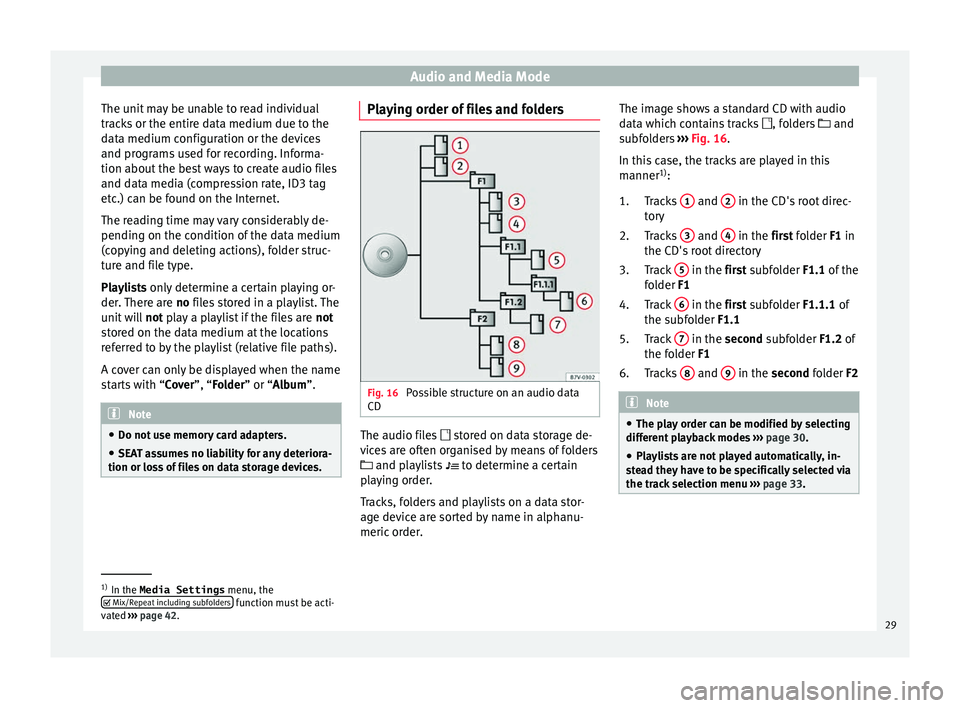
Fig. 16
Possible structure on an audio data
CD The audio files
st
ored on data storage de-
vices are often organised by means of folders
and playlists
to determine a certain
playing order.
Tracks, folders and playlists on a data stor-
age device are sorted by name in alphanu-
meric order. The image shows a standard CD with audio
dat
a which contains tracks , folders and
subfolders ››› Fig. 16.
In this case, the tracks are played in this
manner 1)
:
Tracks 1 and
2 in the CD's root direc-
t or
y
Tracks 3 and
4 in the fir
st folder F1 in
the CD's
root directory
Track 5 in the fir
st subfolder F1.1 of the
f
older F1
Track 6 in the fir
st subfolder F1.1.1 of
the s
ubfolder F1.1
Track 7 in the sec
ond subfolder F1.2 of
the f
older F1
Tracks 8 and
9 in the sec
ond folder F2 Note
● The p l
ay order can be modified by selecting
different playback modes ››› page 30.
● Playlists are not played automatically, in-
st
ead they have to be specifically selected via
the track selection menu ››› page 33. 1.
2.
3.
4.
5.
6.
1)
In the Media Settings menu, the
Mi x/R
epeat including subfolders function must be acti-
v at
ed ››› page 42.
29
Page 33 of 100
Audio and Media Mode
Messages and symbols on the MEDIA main
menuDisplay: Meaning
A
Displays information about the artist name,
album name and song title (CD text , ID3
tag on compressed audio files).
Audio CD: displays track information if
available via Gracenote ®a)
. If no data is
available, it only displays Track and the
number corresponding to the position it oc-
cupies on the data storage device.
B
Viewing the album cover: If there are vari-
ous covers within the same folder/album,
the system only displays one of them.
It prioritizes displaying the covers in the fol-
lowing manner:
1. Cover embedded in the file(s).
2. Image in file folder.
3. Image provided by the Gracenote ®a)
da-
tabase.
4. Default icon for the connected device.
If playing a video file, by pressing the icon
(cover) it can be played on full screen.
C
The playing time so far and time remaining
in minutes and seconds. In the case of au-
dio files with variable bit rates (VBR) the re-
maining time may vary.
RDS
Off b)The RDS radio data service is deactivated.
The RDS can be activated in the
FM setup
menu ››› page 24.
TP b)The TP function is active and can be tuned
in
››› page 23.
Display: Meaning
b)There is no traffic news station available
››› page 23.
b)DAB not available
››› page 20.
a)
Gracenote ®
is a database available on the Infotainment sys-
tem hard drive that contains information on the tracks of differ-
ent artists and albums. In order for the user to benefit from the
functions offered by Gracenote ®
, the tracks must contain the ar-
tist and/or album data (only available for the model: “Navi Sys-
tem Plus”.
b) Depends on the market and unit in question. Note
● When the medi a sour
ce is inserted, playing
will not start automatically; it is necessary for
the user to select the source. Nor will the me-
dia source change when it is ejected.
● In order to see the different covers inside of
the same a
lbum/folder, make sure that the
tracks contain different information about the
Artist or Album in its metadata. If not, you
will see the same cover for all of tracks con-
tained in the same album/folder. Change the media source
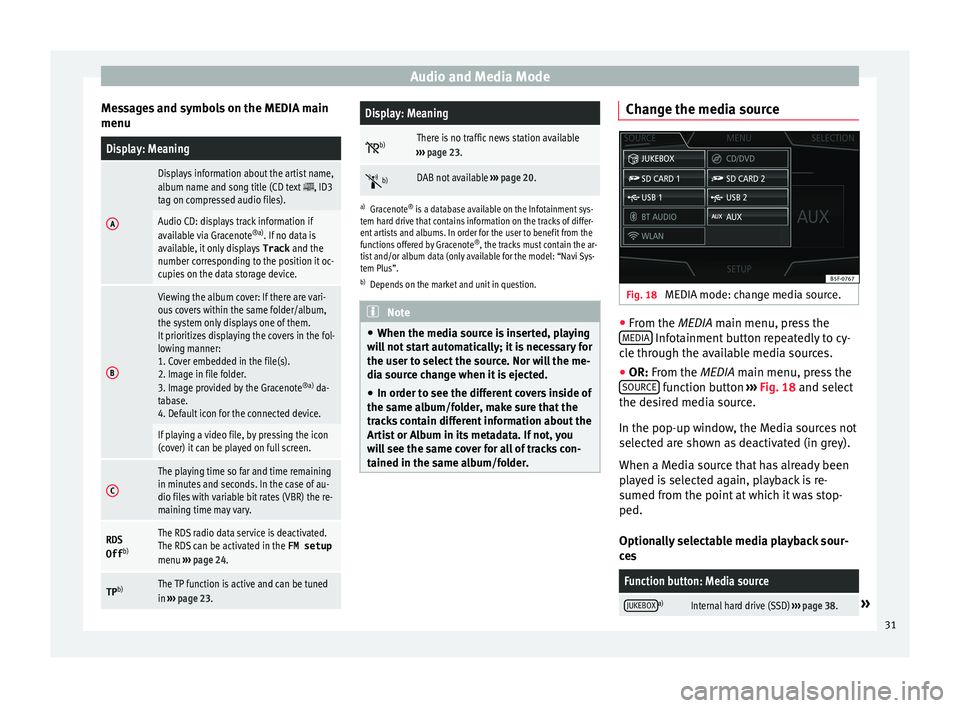
Fig. 18
MEDIA mode: change media source. ●
From the MEDIA m ain menu, pr
ess the
MEDIA Infotainment button repeatedly to cy-
c l
e through the available media sources.
● OR: From the MEDIA main menu, press the
SOURC
E function button
››
› Fig. 18 and select
the desired media source.
In the pop-up window, the Media sources not
selected are shown as deactivated (in grey).
When a Media source that has already been
played is selected again, playback is re-
sumed from the point at which it was stop-
ped.
Optionally selectable media playback sour-
ces
Function button: Media source
JUKEBOXa)Internal hard drive (SSD) ››› page 38.» 31
Page 34 of 100

Audio and Media ModeFunction button: Media source
CD/DVDb)Internal CD/DVD drive
››› page 35.
SD CARD 1SD memory card ››› page 35.SD CARD 2*
USB 1External data storage device connected
to the USB port ››› page 36.USB 2*
AUXExternal audio source connected to the
AUX-IN multimedia socket ››› page 37.
BT AUDIOBluetooth ®
audio ››› page 37.
WLANa)External audio source connected by
WLAN ››› page 40
a)
Only available for the model: “Navi System Plus”.
b) The DVD drive is only available for the model: “Navi System
Plus”. Note
The Media source can be changed in the T r
ack
list view ››› page 33. Changing track in the MEDIA main
menu
Fig. 19
MEDIA main menu. It is possible to browse through the tracks of
the M
edi
a source that is currently playing us-
ing the arrow buttons.
It is not possible to exit a playlist or start the
playback of a playlist using the arrow but-
tons. Both actions must be performed man-
ually from the track selection menu
››› page 33. Controlling playback via the MEDIA main
menu
ActionFunction
Briefly press
the func-
tion button once.
Goes to the start of the cur-
rent track. If the track has
been playing for less than 3
seconds, it skips to the be-
ginning of the previous
track.
Quickly press the func-
tion button twice.If the track has been play-
ing for more than 3 sec-
onds, it skips to the begin-
ning of the previous track;
from the first track it skips
to the last track on the data
storage device being
played.
Briefly press the func-
tion button once.Goes to the next track. It
changes from the previous
track to the first track of the
data storage device being
played.
Press and hold the function button.Fast rewind.
Press and hold the function button.Fast forward.
Slide your finger horizon-
tally across the screen.
Changes to the previ-
ous/next track, respecting
the same playing times as
when changing tracks with
the
or buttons.32
Page 35 of 100
Audio and Media Mode
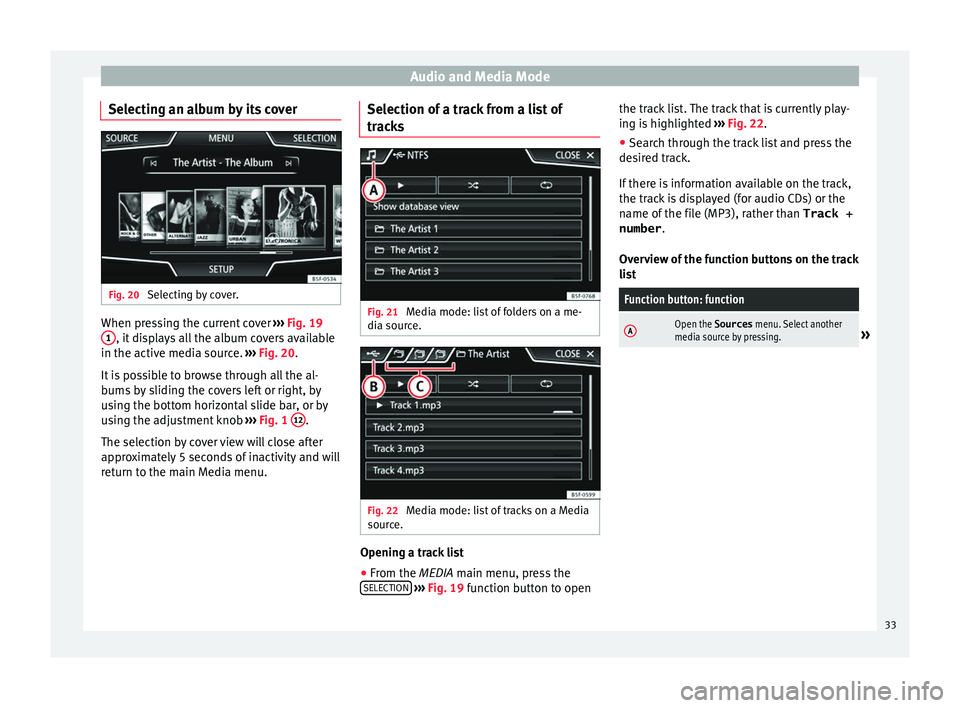
Selecting an album by its cover Fig. 20
Selecting by cover. When pressing the current cover
››
› Fig. 19
1 , it displays all the album covers available
in the activ e medi
a source. ››› Fig. 20.
It is possible to browse through all the al-
bums by sliding the covers left or right, by
using the bottom horizontal slide bar, or by
using the adjustment knob ››› Fig. 1 12 .
The sel ection b
y cover view will close after
approximately 5 seconds of inactivity and will
return to the main Media menu. Selection of a track from a list of
trac
ks Fig. 21
Media mode: list of folders on a me-
di a sour
ce. Fig. 22
Media mode: list of tracks on a Media
sour c
e. Opening a track list
● From the MEDIA m ain menu, pr
ess the
SELECTION
› ››
Fig. 19 function button to open the track list. The track that is currently play-
ing i
s highlighted ››› Fig. 22.
● Search through the track list and press the
des
ired track.
If there is information available on the track,
the track is displayed (for audio CDs) or the
name of the file (MP3), rather than Track +
number .
Overview of the function buttons on the track
list
Function button: function
AOpen the Sources menu. Select another
media source by pressing.» 33
Page 37 of 100
Audio and Media Mode
Insert or eject a CD or DVD 1)Fig. 24
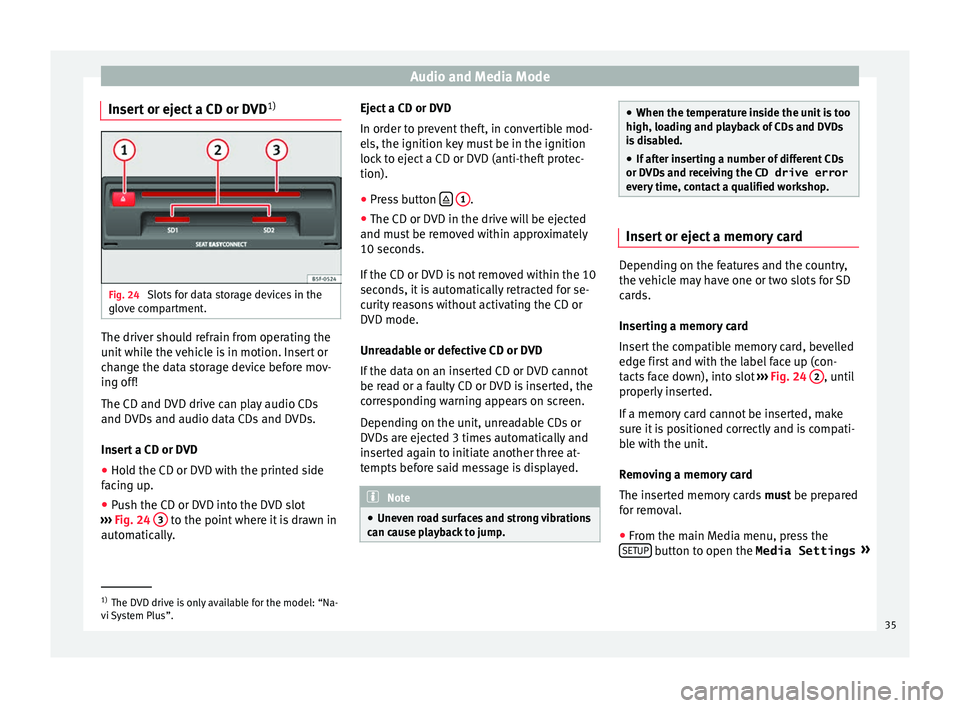
Slots for data storage devices in the
glo v
e compartment. The driver should refrain from operating the
u
nit
while the vehicle is in motion. Insert or
change the data storage device before mov-
ing off!
The CD and DVD drive can play audio CDs
and DVDs and audio data CDs and DVDs.
Insert a CD or DVD
● Hold the CD or DVD with the printed side
fac
ing up.
● Push the CD or DVD into the DVD slot
››
› Fig. 24 3 to the point where it is drawn in
aut om
atically. Eject a CD or DVD
In order t
o prevent theft, in convertible mod-
els, the ignition key must be in the ignition
lock to eject a CD or DVD (anti-theft protec-
tion).
● Press button
1 .
● The CD or DVD in the drive will be ejected
and mu s
t be removed within approximately
10 seconds.
If the CD or DVD is not removed within the 10
seconds, it is automatically retracted for se-
curity reasons without activating the CD or
DVD mode.
Unreadable or defective CD or DVD
If the data on an inserted CD or DVD cannot
be read or a faulty CD or DVD is inserted, the
corresponding warning appears on screen.
Depending on the unit, unreadable CDs or
DVDs are ejected 3 times automatically and
inserted again to initiate another three at-
tempts before said message is displayed. Note
● Unev en r
oad surfaces and strong vibrations
can cause playback to jump. ●
When the t emper
ature inside the unit is too
high, loading and playback of CDs and DVDs
is disabled.
● If after inserting a number of different CDs
or DVD
s and receiving the CD drive error
every time, contact a qualified workshop. Insert or eject a memory card
Depending on the features and the country,
the
v
ehicle may have one or two slots for SD
cards.
Inserting a memory card
Insert the compatible memory card, bevelled
edge first and with the label face up (con-
tacts face down), into slot ››› Fig. 24 2 , until
pr operly
inserted.
If a memory card cannot be inserted, make
sure it is positioned correctly and is compati-
ble with the unit.
Removing a memory card
The inserted memory cards must be prepared
for removal.
● From the main Media menu, press the
SETUP button to open the Media Settings
»1)
The DVD drive is only available for the model: “Na-
v i
System Plus”. 35
Page 39 of 100
Audio and Media Mode
● From the m
ain Media menu, press the
SETUP button to open the Media Settings
menu or pr e
ss the Infotainment MENU button
and then pr e
ss Settings to open the System
settings menu.
● Press the R
emo
ve safely function button. A
dr opdo
wn menu appears with the following
options: SD1 Card, SD2 Card*, USB1 and
USB2*. After correctly ejecting the data stor-
age device from the system, the function but-
ton becomes inactive (grey colour).
● Now the data storage device can be discon-
nected. Note
● Do not c
onnect an external media player at
the same time to play music via Bluetooth ®
and via the USB port with the Infotain-
ment system, as this could cause playback
limitations.
● If the external player is an Apple device™,
it c
annot be simultaneously connected by
USB and by Bluetooth.
● If a connected device is not recognised, dis-
connect
all the connected devices and try
connecting the device again.
● Do not use memory card adaptors, USB ex-
ten
sion cords or USB hubs! External audio source connected to
the A
UX
-IN multimedia socket Depending on the equipment and country
ther
e m
ay be an AUX-IN multimedia socket
››› Booklet Instruction Manual.
In order to connect the external audio source
to the AUX-IN socket, a suitable cable is re-
quired with a 3.5 mm jack that is inserted in-
to the AUX-IN socket of the vehicle.
The connected external audio source is
played over the vehicle speakers and cannot
be controlled via the Infotainment system
controls.
The connection of an external audio source is
indicated by AUX on the screen.
Connecting an external audio source to the
AUX-IN multimedia socket ● Lower the base volume on the Infotainment
sy s
tem.
● Connect the external audio source to the
AUX
-IN multimedia socket.
● Start playback on the external audio
sourc
e.
● In the MEDIA main menu, press the SOURCE function button and select
A
UX .
The outp ut
volume of the connected external
audio source should be adjusted to the vol-
ume of the other audio sources ›››
page 87. Information on operating an external audio
sourc
e connected to the AUX-IN multimedia
socket
OperationEffect
Selection of another au-
dio source from the Info-
tainment system.The external audio source
continues to run in the
background.
Stopping playback on the
external audio source.The infotainment system
remains in the AUX menu.
Disconnecting the plug
from the AUX-IN multime-
dia socket.The infotainment system
remains in the AUX menu. Note
● Ple
ase read and observe the manufactur-
er's instruction manual for the external audio
source.
● Interference noise may be heard if the ex-
tern
al audio source is powered from the 12-
volt power socket of the vehicle. Connecting an external audio source
v
i
a Bluetooth ® Bluetooth
®
Audio mode al lo
ws you to listen
to audio files being played on a Bluetooth ®
audio source (e.g., a mobile telephone) con-
nected via Bluetooth ®
(audio playback by
Bluetooth ®
) over the vehicle speakers. »
37
Page 41 of 100

Audio and Media Mode
The “jukebox” is located on the hard drive of
the Inf ot
ainment system (SSD 1)
).
Compressed audio files (MP3 and WMA) and
some video files (Podcasts, AVIs, etc.) can be
imported from different data storage devices
to the jukebox and this used to play them.
The files will only be copied when the engine
is running. Copying copy-protected CDs and
DVDs is prohibited
Importing files
● In Media mode, press the SETUP function
b utt
on and then select Manage jukebox .
● Press the IMPOR
T function button.
● Select the desired source from the Select
source menu.
The d at
a storage device is prepared. This op-
eration may take a few seconds.
● Activate the checkboxes to the right of the
fil
es or folders to be imported.
● If Select
all is activated, all files and folders
on the d at
a storage device will be imported.
● Press the IMPORT function button.
D ependin
g on the selection, all files and fold-
ers will be imported with the indicated name
to the Jukebox . If no track information is available, the audio
fil
es will be placed in the following folders:
Audio data CD
■ Album
■ Unknown albums
■ Track. mp32)
■ Artists
■ Unknown artists
■Unknown albums
■ Track. mp32)
Functions and progress display during the
copying operation
While copying, an animation is displayed
along with the progress percentage on the
import screen.
Audio data CD: It is not possible to copy and
play files at the same time.
● Press the Canc
el function button to end the
impor t
of the whole track that is currently be-
ing imported.
● To obtain information on the status of the
import, pr
ess the Information function button.
● Press the B
A
CK function button to close
the impor t
screen with the progress informa-
tion. ●
When the fil
e import ends, a message will
appear.
Deleting files
● In Media mode, press the SETUP function
b utt
on and then select Manage jukebox .
● Press the DELETE
function button.
● Activate the checkboxes to the right of the
fi l
es or folders to be deleted.
● If Select
all is activated, all the files and
f o
lders on the data storage device will be de-
leted.
● Press the DELETE
function button. The
fi l
es and folders will be deleted according to
the selection made.
● When the files have been deleted, a mes-
sag
e will appear.
● Press the BA
CK function button to close
the menu.
Openin g s
tored audio and video files
● Change to Jukebox (SSD) c
ontent
››› page 33.
When storing the tracks, they are stored un-
der different categories and lists according to
the information available. »1)
Solid-State-Drive (SSD).
2) The name and extension of the file are examples.
39
Page 47 of 100
Navigation
Navigation 1)
Nav ig
ation, entry and control
Introduction
› ›
›
table on page 2
General information
The current vehicle position is determined by
means of the GPS satellite system (Global Po-
sitioning System). Sensors in the vehicle
measure distances that have been driven.
The measurement values are compared with
the detailed map data and the road informa-
tion stored therein. Traffic reports, if any, will
also be taken into account in the route calcu-
lation (dynamic route guidance
››› page 53). Using all the data available,
the Infotainment system calculates the opti-
mum route to the destination.
The destination is defined by entering an ad-
dress or a point of interest, e.g. a petrol sta-
tion or hotel.
Spoken instructions and visual guidance on
the navigation unit and on the instrument
panel will direct you to your destination.
Depending on the country, some infotain-
ment system functions can no longer be se- lected when the vehicle is travelling above a
c
er
tain speed. This is not a malfunction, but
simply a legal requirement.
Navigation messages When the Infotainment system is unable to
r
ec
eive any data from GPS satellites (due to a
dense tree canopy, underground car park),
navigation can still continue using the vehi-
cle sensors.
Possible navigation limitations
In areas that are not or are only partially digi-
tised on the data storage device (e.g. insuffi-
cient definition of one-way streets and road
categories), the Infotainment system will still
attempt to provide route guidance.
If navigation data are unavailable or incom-
plete, the navigation system may be unable
to determine the exact vehicle position. As a
result, the navigation may not be as exact as
usual.
Navigation area and updating of navigation
data
Roads and streets are subject to constant
change (e.g. new roads, changes to street
names and building numbers). Therefore, if the navigation data is not updated, then er-
r
or
s or inaccuracies may occur during guid-
ance.
SEAT recommends updating navigation data
on a regular basis. Up to date navigation da-
ta can be acquired at a SEAT dealer.
Use navigation data from a memory
car
d. 3 On
ly available for the model: Navi System
The
SD card is initially to be found inserted in
SD card slot 2.
To update navigation data visit our website:
www.seat.com.
● Insert the memory card ››
› page 35 .
● Do not remove the memory card while test-
ing.
Wait for the testing icon to disappear.
If the inserted memory card contains valid
navigation data, the following message ap-
pears: “The source contains a valid naviga-
tion database”. It is now possible to navigate
with the memory card data. When the memo-
ry card is no longer needed by the hardware,
it will be prepared for removal ›››
page 35. »1)
Valid for: Navi System and Navi System Plus.
45
Page 48 of 100
Navigation
Note
● The in ser
ted memory card must be pre-
pared before it is ejected ››› page 35.
● Press the Infotainment button MENU ; then,
pr e
ss Setup to open the System settings
menu.
● Navigation is not possible without the SD
car
d.
● Do not remove the memory card while the
nav
igation data is in use. This could damage
the memory card!
● The navigation memory card may not be
used a
s memory for other files. The infotain-
ment system will not recognise the files
saved.
● SEAT recommends only using original SEAT
memory
cards to use navigation data. The
use of other memory cards could limit its op-
eration. Updating and installing navigation
d
at
a 3 On
ly
available for the model: Navi System Plus
The Infotainment system is equipped with an
internal navigation data memory. The re-
quired navigation data are already installed
on the system. The Infotainment system always requires the
n
av
igation data that is currently valid for this
unit in order to allow all functions to be used
in full. Using an old version may lead to er-
rors during navigation.
Updating navigation data
To update navigation data visit our website:
www.seat.com.
The navigation data must be installed after
downloading. Navigation is not possible from
the memory card.
Installing navigation data
The installation process takes about 2 hours.
If the Infotainment system is switched off, the
installation process is paused and will auto-
matically resume when switched back on.
● Switch the ignition on.
● Insert the memory card containing the navi-
gation d
ata ››› page 35.
● Press the Infotainment MENU button and
then sel ect
Setup .
● In the System settings menu, pre
ss the
System information function button.
● Press U
pd
ate software to import the stored
n av
igation data. ●
Fo
llow the instructions displayed on the
screen.
Once installed, the memory card can be re-
moved. The memory card must be prepared
for removal ››› page 35. CAUTION
Do not remove the memory card while the
n av
igation data is being installed. The memo-
ry card may be irreparably damaged! Note
● The n av
igation memory card may not be
used as memory storage for other files. The
Infotainment system will not recognise the
files saved on it.
● SEAT recommends a CLASS 10 1)
memory
c
ard for the use of navigation data. The use of
other memory cards could limit its operation. 1)
The speed class of an SD card.
46
Page 51 of 100
Navigation
before a turn, e.g. “Prepare to turn left”,
“T urn l
eft in 300 metres” and “Now turn left”.
● Press the adjustment knob ››
› Fig. 1 12 to
li s
ten to the last audible navigation instruc-
tion.
The distances indicated largely depend on
the type of road and the speed at which you
are driving. For instance, navigation an-
nouncements are given much earlier on mo-
torways than on urban roads.
Appropriate navigation announcements are
also given on multi-lane roads, branching
roads and at roundabouts, for example: “At
the roundabout, take the second exit.”
A navigation announcement informs you
when you have reached your “destination”.
A navigation announcement informing you
that you have reached the “destination area”
is given if the exact destination cannot be
reached because it is located in a non-digi-
tised area. It also indicates the cardinal point
and the distance to the previously defined
destination. Navigation resumes “offroad”.
During dynamic route guidance , you receive
information about reported traffic congestion
on the route. An additional navigation an-
nouncement is given if the route is recalcula-
ted due to traffic congestion.
During a navigation announcement, you can
change its volume using the volume control up to a defined minimum or maximum vol-
ume.
The following navigation recommenda-
tions will then be made at the adjusted vol-
ume.
For other adjustments to the navigation rec-
ommendations, see Navigation an-
nouncements settings. ››› page 56. Note
If you miss a turning during route guidance
and ar e c
urrently unable to turn back, keep
on driving until the navigation system offers
a new route. Note
The quality of the navigation recommenda-
tion s
given by the Infotainment system de-
pends on the navigation data available and
any reported traffic problems. Route
In the Navigation main menu, press the
Route function
button.
The Route function button is only displayed with route
guidance activated.
Function button: function
Stop route guidance: Aborts current route guidance.
Function button: function
Enter destination: To enter a new destination or a new
stopover ››› page 47.
Congestion ahead: To exclude a section (of 0.2 to 10 km in
length) from the current route, e.g. to avoid congestion.
To cancel the exclusion, press the Route
function button
and then Cancel congestion.
Change routea)
: The map of the calculated route appears
and by holding a finger on the route and dragging the
finger across said map, the route is changed to the
road(s) that you want and the new route is then recalcu-
lated.
Route details: View route information for current route.
a) Only available for the model: Navi System Plus
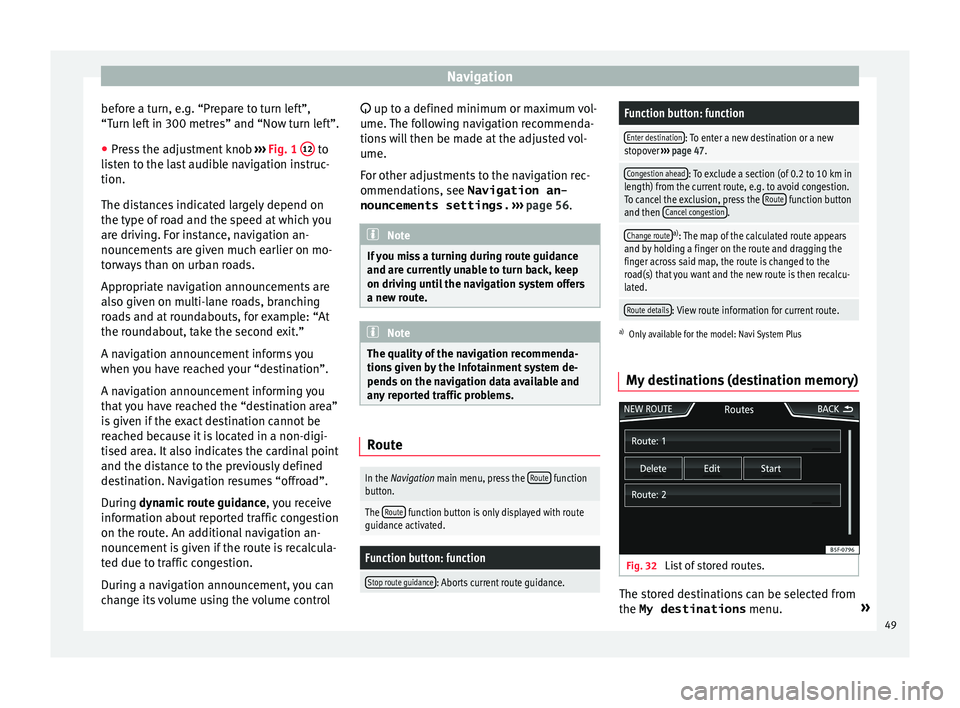
My destinations (destination memory) Fig. 32
List of stored routes. The stored destinations can be selected from
the My destinations
menu.»
49