ignition Seat Ibiza ST 2016 Owner's manual
[x] Cancel search | Manufacturer: SEAT, Model Year: 2016, Model line: Ibiza ST, Model: Seat Ibiza ST 2016Pages: 252, PDF Size: 5.56 MB
Page 23 of 252
The essentials
● Pu
sh the loc k
and release it from the an-
choring support.
››› in Safety instructions on page 73 Starting the vehicle
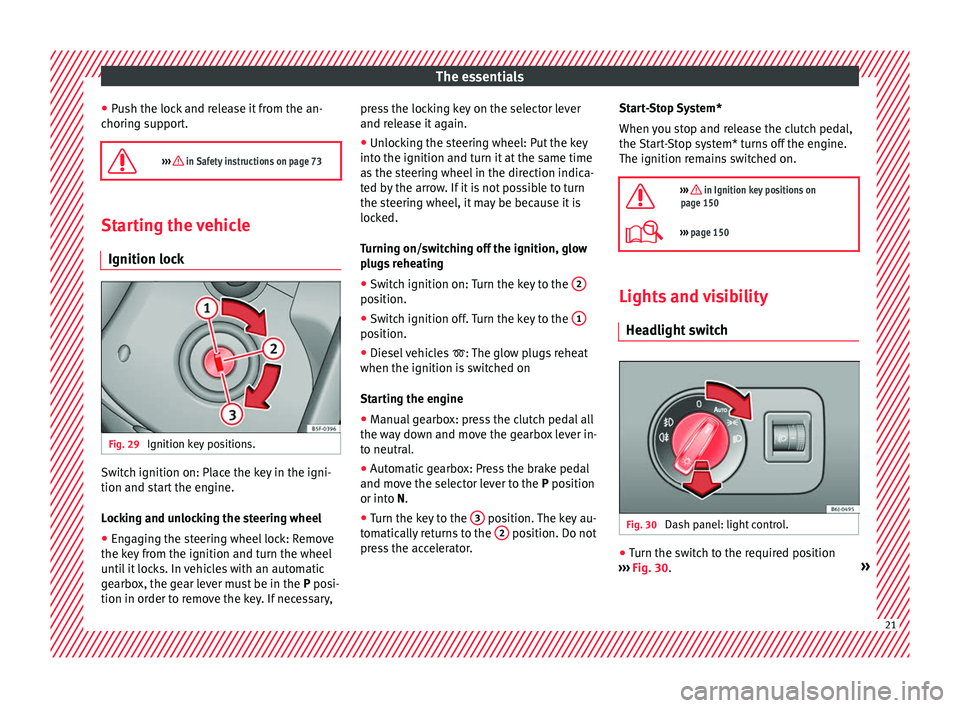
Ignition lock Fig. 29
Ignition key positions. Switch ignition on: Place the key in the igni-
tion and s
t
ar t
the engine.
Locking and unlocking the steering wheel
● Engaging the steering wheel lock: Remove
the key from the ignition and t
urn the wheel
until it locks. In vehicles with an automatic
gearbox, the gear lever must be in the P posi-
tion in order to remove the key. If necessary, press the locking key on the selector lever
and relea
se it again.
● Unlocking the steering wheel: Put the key
into the ignition and turn it at
the same time
as the steering wheel in the direction indica-
ted by the arrow. If it is not possible to turn
the steering wheel, it may be because it is
locked.
Turning on/switching off the ignition, glow
plugs reheating
● Switch ignition on: Turn the key to the 2 position.
●
Switch ignition off. Turn the key to the 1 position.
●
Diesel vehicles : The glo
w plug
s reheat
when the ignition is switched on
Starting the engine
● Manual gearbox: press the clutch pedal all
the way do
wn and move the gearbox lever in-
to neutral.
● Automatic gearbox: Press the brake pedal
and move the select
or lever to the P position
or into N.
● Turn the key to the 3 position. The key au-
t om
atic al
ly returns to the 2 position. Do not
pr e
ss
the accelerator. Start-Stop System*
When you st
op and release the clutch pedal,
the Start-Stop system* turns off the engine.
The ignition remains switched on.
››› in Ignition key positions on
page 150
››› page 150 Lights and visibility
He a
dlight sw
itch Fig. 30
Dash panel: light control. ●
Turn the switch to the required position
› ›
›
Fig. 30
. » 21
Page 24 of 252
The essentialsSym-
bolIgnition switch-
ed offIgnition is switch-
ed on
Fog lights, dipped
beam and side
lights off.Light off or daytime
driving light on.
The “Coming home”
and “Leaving
home” guide lights
may be switched
on.Automatic control of
dipped beam and day-
time running light.
Side light on.
Dipped beam head-
light offDipped beam switch-
ed on.
Front fog lights:
mov
e the switch to the
first position, from positions , or .
Rear fog light: move the switch completely
from positions , or .
Switching off fog lights: Push the switch or
turn it to the position.
››› in Switching lights on and off on
page 119
››› page 119 Turn signal and main beam lever
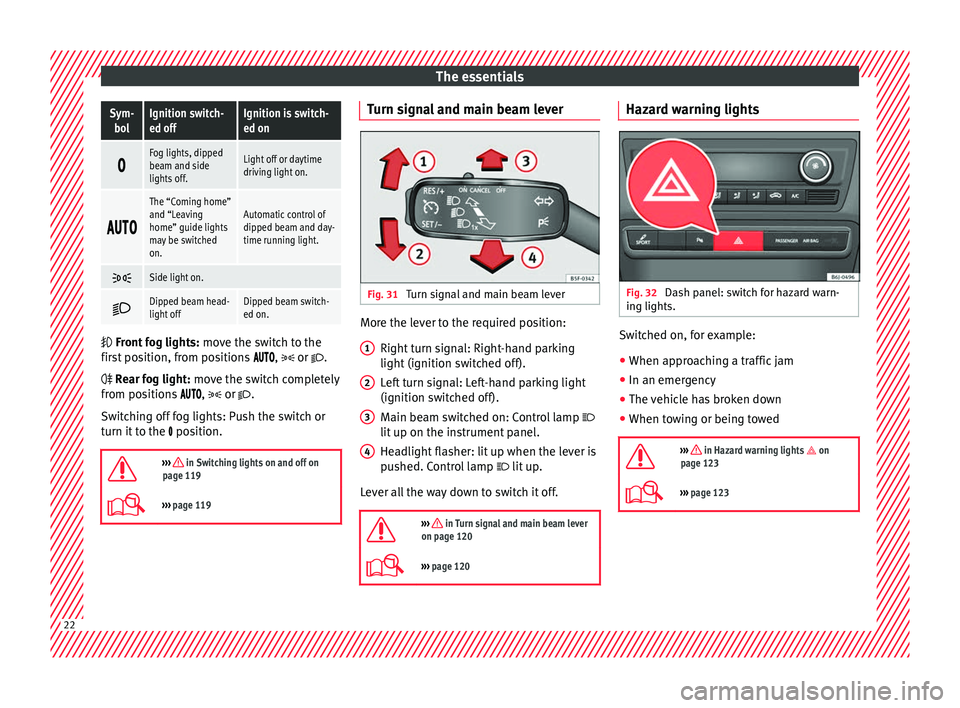
Fig. 31
Turn signal and main beam lever More the lever to the required position:
Right t
urn s ign
al: Right-hand parking
light (ignition switched off).
Left turn signal: Left-hand parking light
(ignition switched off).
Main beam switched on: Control lamp
lit up on the instrument panel.
Headlight flasher: lit up when the lever is
pushed. Control lamp lit up.
Lever all the way down to switch it off.
››› in Turn signal and main beam lever
on page 120
››› page 120 1
2
3
4 Hazard warning lights
Fig. 32
Dash panel: switch for hazard warn-
in g lights. Switched on, for example:
●
When approaching a traffic jam
● In an emergency
● The vehicle has broken down
● When towing or being towed
››› in Hazard warning lights on
page 123
››› page 123 22
Page 25 of 252
The essentials
Interior lights Fig. 33
Detail of headliner: front interior light-
in g.KnobFunction
Switches interior lights off.
Switches interior lights on.
Switches door contact control on (central po-
sition).
The interior lights come on automatically
when the vehicle is unlocked, a door is
opened or the key is removed from the igni-
tion.
The lights go off a few seconds after all the
doors are closed, the vehicle is locked or the
ignition is switched on.
KnobFunction
Turning the reading light on and off
›››
page 123 Windscreen wipers and window wiper
bla
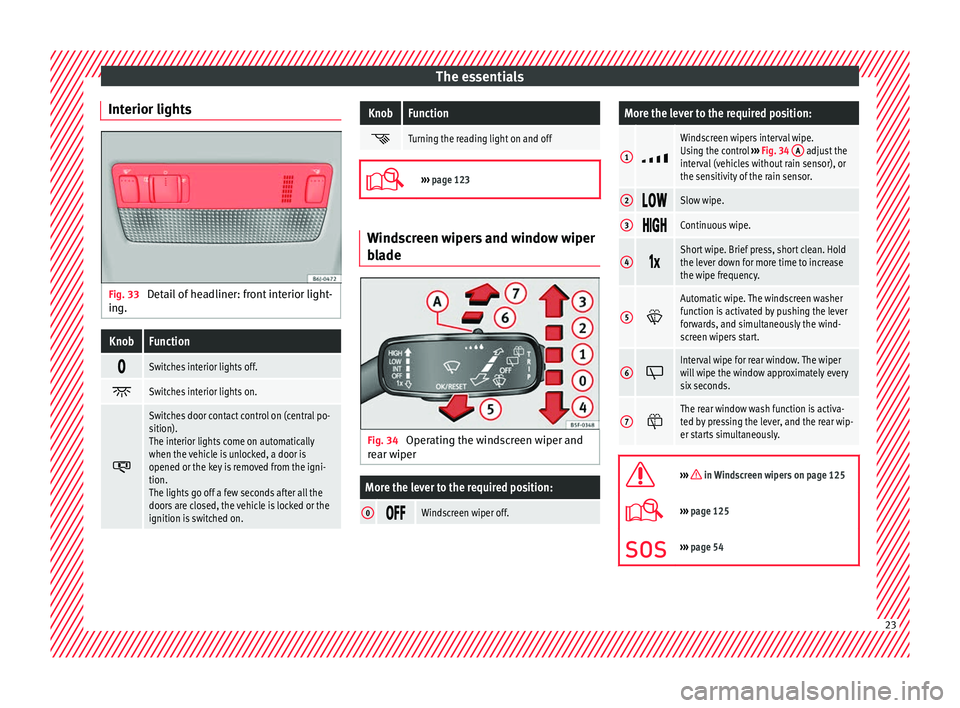
de Fig. 34
Operating the windscreen wiper and
r e
ar w iper
More the lever to the required position:
0 Windscreen wiper off.
More the lever to the required position:
1
Windscreen wipers interval wipe.
Using the control
››› Fig. 34 A adjust the
interval (vehicles without rain sensor), or
the sensitivity of the rain sensor.
2 Slow wipe.
3
Continuous wipe.
4
Short wipe. Brief press, short clean. Hold
the lever down for more time to increase
the wipe frequency.
5
Automatic wipe. The windscreen washer
function is activated by pushing the lever
forwards, and simultaneously the wind-
screen wipers start.
6
Interval wipe for rear window. The wiper
will wipe the window approximately every
six seconds.
7
The rear window wash function is activa-
ted by pressing the lever, and the rear wip-
er starts simultaneously.
››› in Windscreen wipers on page 125
›››
page 125
››› page 54 23
Page 26 of 252
The essentials
Easy Connect CAR menu settin g
s (Set
up)Fig. 35
Easy Connect: Main menu Fig. 36
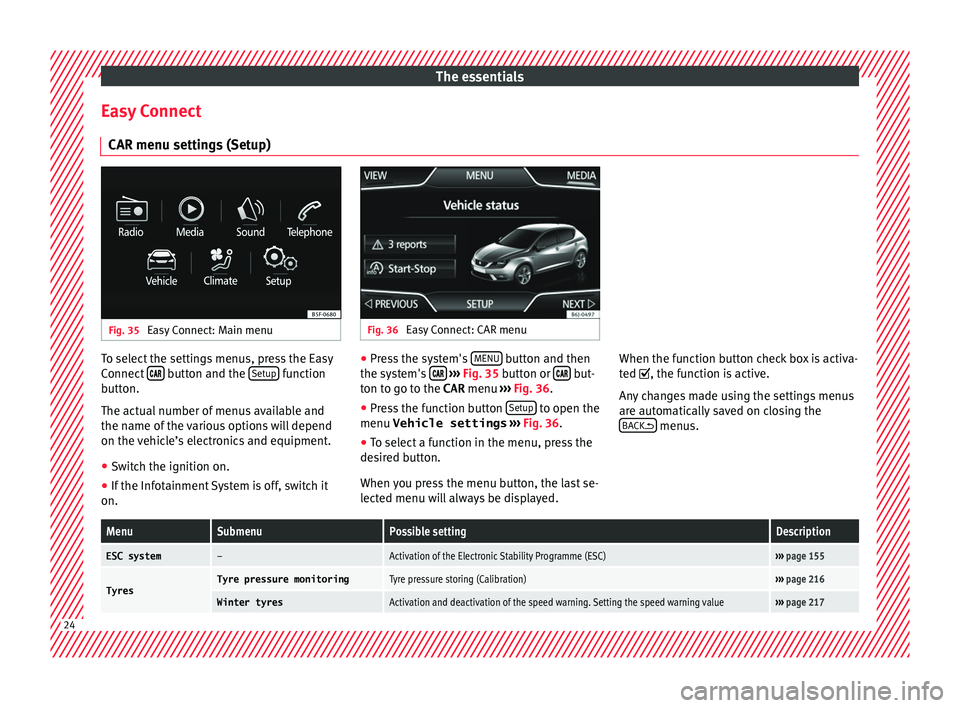
Easy Connect: CAR menu To select the settings menus, press the Easy
C
onnect
button and the
Set
up function
b utt
on.
The act ual
number of menus available and
the name of the various options will depend
on the vehicle’s electronics and equipment.
● Switch the ignition on.
● If the Infotainment System is off, switch it
on. ●
Press the system's MENU button and then
the sy s
tem's
› ››
Fig. 35
button or but-
t on t
o go t
o the CAR menu ››› Fig. 36.
● Press the function button Setup to open the
menu Vehicle settings › ›
›
Fig. 36
.
● To select a function in the menu, press the
desired b
utton.
When you press the menu button, the last se-
lected menu will always be displayed. When the function button check box is activa-
ted , the f
unction is active.
Any changes made using the settings menus
are automatically saved on closing the BACK menus.
MenuSubmenuPossible settingDescription
ESC system–Activation of the Electronic Stability Programme (ESC)›››
page 155
TyresTyre pressure monitoringTyre pressure storing (Calibration)››› page 216
Winter tyresActivation and deactivation of the speed warning. Setting the speed warning value››› page 217 24
Page 27 of 252
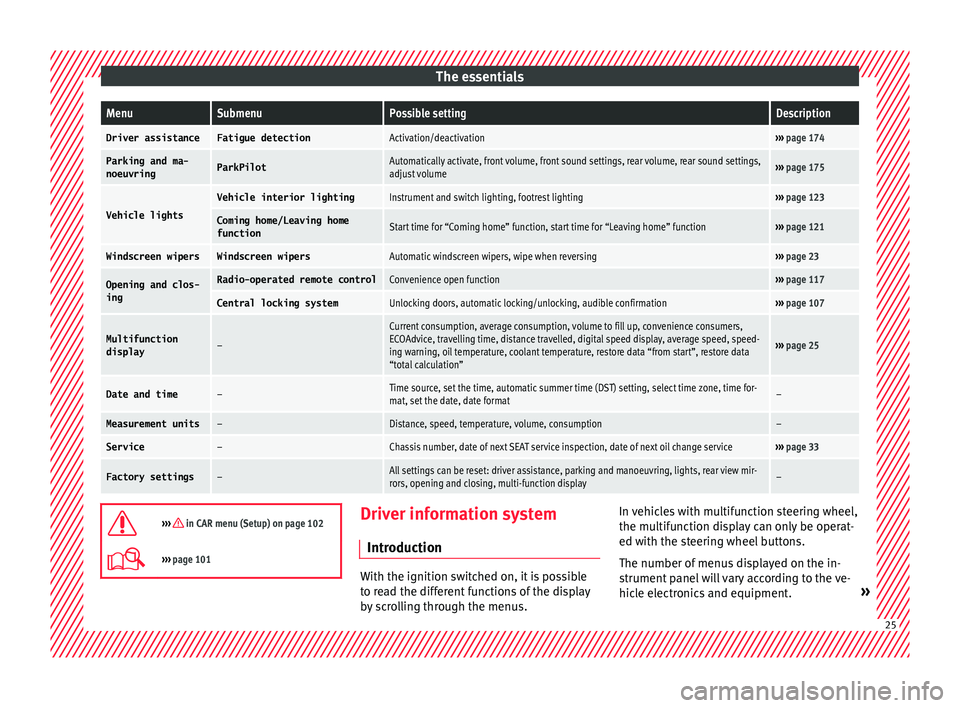
The essentialsMenuSubmenuPossible settingDescription
Driver assistanceFatigue detectionActivation/deactivation›››
page 174
Parking and ma-
noeuvringParkPilotAutomatically activate, front volume, front sound settings, rear volume, rear sound settings,
adjust volume››› page 175
Vehicle lights
Vehicle interior lightingInstrument and switch lighting, footrest lighting››› page 123
Coming home/Leaving home
functionStart time for “Coming home” function, start time for “Leaving home” function››› page 121
Windscreen wipersWindscreen wipersAutomatic windscreen wipers, wipe when reversing››› page 23
Opening and clos-
ingRadio-operated remote controlConvenience open function››› page 117
Central locking systemUnlocking doors, automatic locking/unlocking, audible confirmation››› page 107
Multifunction
display–
Current consumption, average consumption, volume to fill up, convenience consumers,
ECOAdvice, travelling time, distance travelled, digital speed display, average speed, speed-
ing warning, oil temperature, coolant temperature, restore data “from start”, restore data
“total calculation”
››› page 25
Date and time–Time source, set the time, automatic summer time (DST) setting, select time zone, time for-
mat, set the date, date format–
Measurement units–Distance, speed, temperature, volume, consumption–
Service–Chassis number, date of next SEAT service inspection, date of next oil change service››› page 33
Factory settings–All settings can be reset: driver assistance, parking and manoeuvring, lights, rear view mir-
rors, opening and closing, multi-function display–
››› in CAR menu (Setup) on page 102
›››
page 101 Driver information system
Intr oduction With the ignition switched on, it is possible
to re
a
d the different functions of the display
by scrolling through the menus. In vehicles with multifunction steering wheel,
the multifu
nction di
splay can only be operat-
ed with the steering wheel buttons.
The number of menus displayed on the in-
strument panel will vary according to the ve-
hicle electronics and equipment. » 25
Page 28 of 252
The essentials
A specialised workshop will be able to pro-
gr amme or modif
y a
dditional functions, ac-
cording to the vehicle equipment. SEAT rec-
ommends visiting a SEAT Official Service.
Some menu options can only be read when
the vehicle is at a standstill.
As long as a priority 1 warning is displayed, it
will not be possible to read the menus. Some
warning messages can be confirmed and
made to disappear with the windscreen wiper
lever button or the multifunction steering
wheel button.
The information system also provides the fol-
lowing information and displays (depending
on the vehicle's equipment):
Driving data ››› page 29
■ Vehicle status
■ MFD from departure
■ MFD from refuelling
■ MFD total calculation
Assist systems ››› table on page 27
■ Reverse (optional)
Navigation ››› Booklet Navigation system
Audio ››› Booklet Radio or ››› Booklet Naviga-
tion system
Telephone ››› Booklet Radio or ››› Book-
let Navigation system
Vehicle ››› table on page 27 WARNING
Any distraction may lead to an accident, with
the risk of injur
y.
● Do not operate the instrument panel con-
trols
when driving. Operating the instrument panel me-
nus
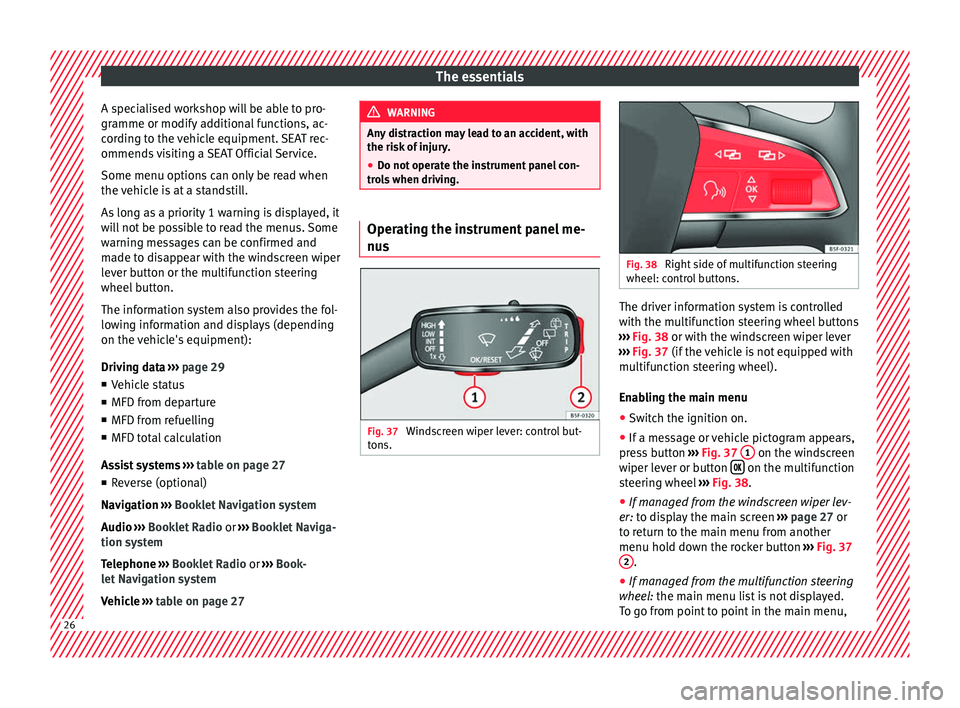
Fig. 37
Windscreen wiper lever: control but-
t on
s. Fig. 38
Right side of multifunction steering
wheel: contro l
buttons. The driver information system is controlled
w
ith the mu
ltifu
nction steering wheel buttons
››› Fig. 38 or with the windscreen wiper lever
››› Fig. 37 (if the vehicle is not equipped with
multifunction steering wheel).
Enabling the main menu
● Switch the ignition on.
● If a message or vehicle pictogram appears,
press
button ››› Fig. 37 1 on the windscreen
w iper l
ever or b
utton on the multifunction
s t
eerin g wheel
››› Fig. 38.
● If managed from the windscreen wiper lev-
er: to disp
lay the main screen ››› page 27 or
to return to the main menu from another
menu hold down the rocker button ››› Fig. 37
2 .
● If managed from the multifunction steering
wheel: the m
ain menu list is not displayed.
To go from point to point in the main menu, 26
Page 30 of 252
The essentials
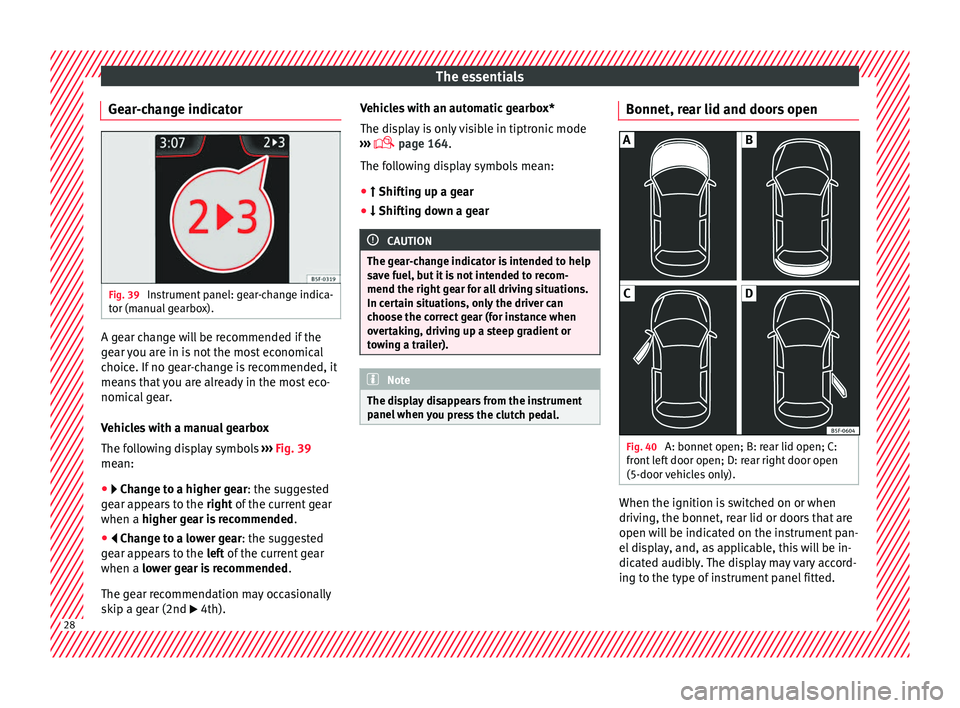
Gear-change indicator Fig. 39
Instrument panel: gear-change indica-
t or (m
anual g
earbox). A gear change will be recommended if the
g
e
ar y
ou are in is not the most economical
choice. If no gear-change is recommended, it
means that you are already in the most eco-
nomical gear.
Vehicles with a manual gearbox
The following display symbols ››› Fig. 39
mean:
● Change to a higher gear: the suggested
g e
ar appears to the right of the current gear
when a higher gear is recommended .
● Change to a lower gear: the suggested
ge
ar appears to the left of the current gear
when a lower gear is recommended .
The gear recommendation may occasionally
skip a gear (2nd 4th). Vehicles with an automatic gearbox*
The disp
l
ay is only visible in tiptronic mode
››› page 164.
The following display symbols mean:
● Shifting up a gear
● Shif
ting down a gear CAUTION
The gear-change indicator is intended to help
save f uel, b
ut it is not intended to recom-
mend the right gear for all driving situations.
In certain situations, only the driver can
choose the correct gear (for instance when
overtaking, driving up a steep gradient or
towing a trailer). Note
The display disappears from the instrument
panel when y
ou press the clutch pedal. Bonnet, rear lid and doors open
Fig. 40
A: bonnet open; B: rear lid open; C:
fr ont
lef
t door open; D: rear right door open
(5-door vehicles only). When the ignition is switched on or when
driv
in
g, the bonnet, r e
ar lid or doors that are
open will be indicated on the instrument pan-
el display, and, as applicable, this will be in-
dicated audibly. The display may vary accord-
ing to the type of instrument panel fitted. 28
Page 31 of 252
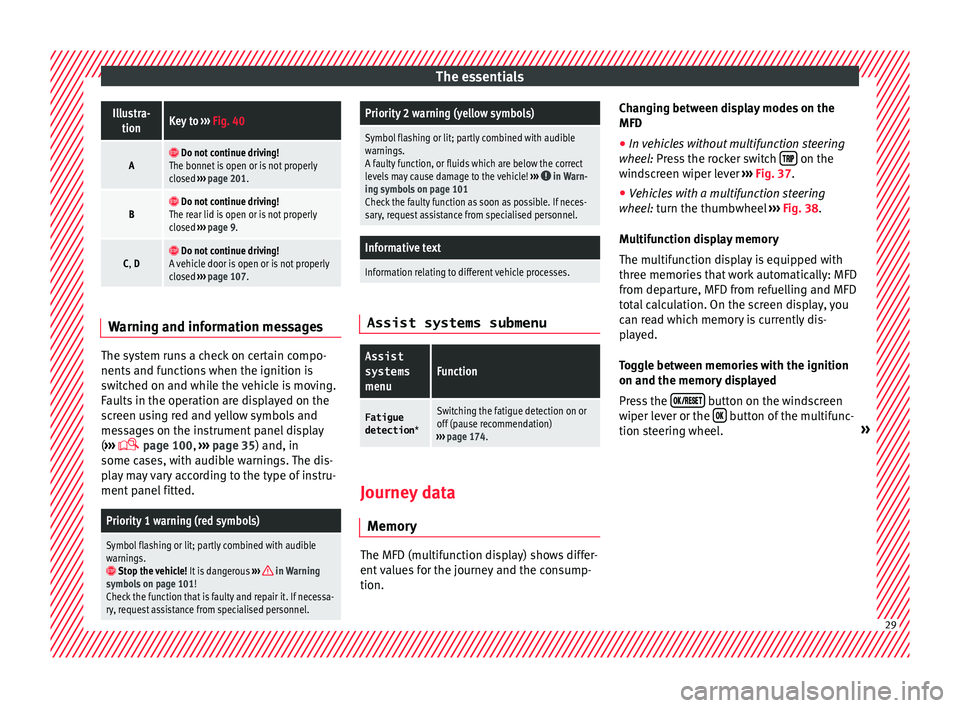
The essentialsIllustra-
tionKey to ››› Fig. 40
A Do not continue driving!
The bonnet is open or is not properly
closed ››› page 201.
B Do not continue driving!
The rear lid is open or is not properly
closed ››› page 9.
C, D Do not continue driving!
A vehicle door is open or is not properly
closed ››› page 107. Warning and information messages
The system runs a check on certain compo-
nents
and f
unction
s when the ignition is
switched on and while the vehicle is moving.
Faults in the operation are displayed on the
screen using red and yellow symbols and
messages on the instrument panel display
( ›››
page 100,
››› page 35) and, in
some cases, with audible warnings. The dis-
play may vary according to the type of instru-
ment panel fitted.
Priority 1 warning (red symbols)
Symbol flashing or lit; partly combined with audible
warnings.
Stop the vehicle! It is dangerous ››› in Warning
symbols on page 101!
Check the function that is faulty and repair it. If necessa-
ry, request assistance from specialised personnel.
Priority 2 warning (yellow symbols)
Symbol flashing or lit; partly combined with audible
warnings.
A faulty function, or fluids which are below the correct
levels may cause damage to the vehicle! ›››
in Warn-
ing symbols on page 101
Check the faulty function as soon as possible. If neces-
sary, request assistance from specialised personnel.
Informative text
Information relating to different vehicle processes. Assist systems submenu
Assist
systems
menuFunction
Fatigue
detection *Switching the fatigue detection on or
off (pause recommendation)
››› page 174. Journey data
M emor y The MFD (multifunction display) shows differ-
ent
v alue
s for the journey and the consump-
tion. Changing between display modes on the
MFD
● In vehicles without multifunction steering
wheel: Pr
ess the rocker switch on the
w ind
sc
reen wiper lever ››› Fig. 37.
● Vehicles with a multifunction steering
wheel: t
urn the thumbwheel ››› Fig. 38.
Multifunction display memory
The multifunction display is equipped with
three memories that work automatically: MFD
from departure, MFD from refuelling and MFD
total calculation. On the screen display, you
can read which memory is currently dis-
played.
Toggle between memories with the ignition
on and the memory displayed
Press the button on the windscreen
w iper l
ever or the button of the multifunc-
tion s t
eerin g wheel
. » 29
Page 32 of 252
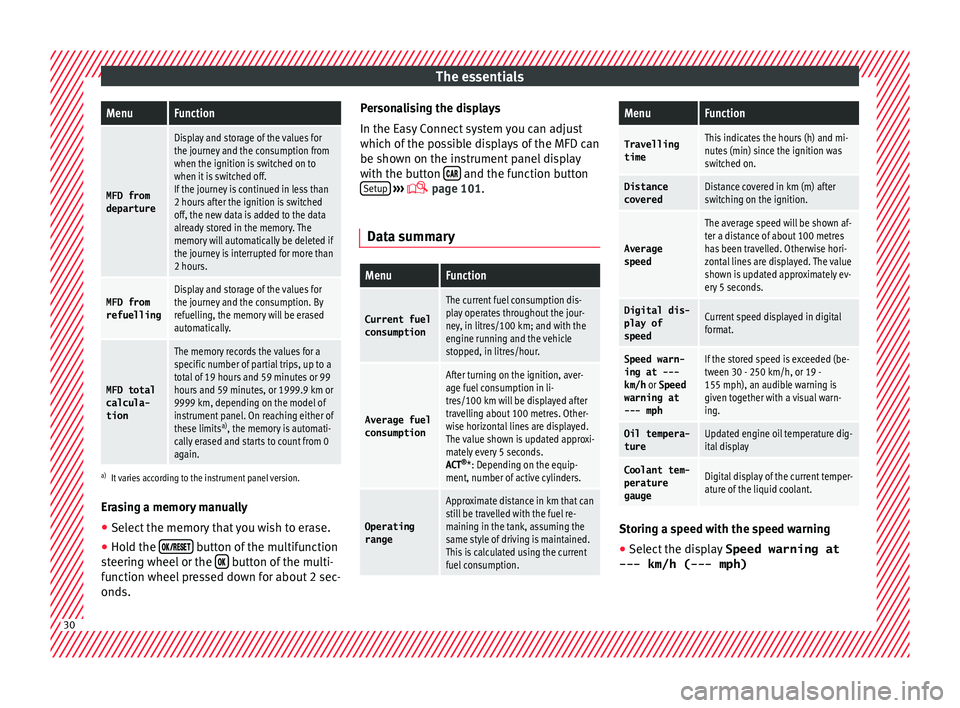
The essentialsMenuFunction
MFD from
departure
Display and storage of the values for
the journey and the consumption from
when the ignition is switched on to
when it is switched off.
If the journey is continued in less than
2 hours after the ignition is switched
off, the new data is added to the data
already stored in the memory. The
memory will automatically be deleted if
the journey is interrupted for more than
2 hours.
MFD from refuellingDisplay and storage of the values for
the journey and the consumption. By
refuelling, the memory will be erased
automatically.
MFD total
calcula-
tion
The memory records the values for a
specific number of partial trips, up to a
total of 19 hours and 59 minutes or 99
hours and 59 minutes, or 1999.9 km or
9999 km, depending on the model of
instrument panel. On reaching either of
these limits a)
, the memory is automati-
cally erased and starts to count from 0
again.
a) It varies according to the instrument panel version.
Erasing a memory manually
● Select the memory that you wish to erase.
● Hold the button of the multifunction
s t
eerin g wheel
or the button of the multi-
f u nction wheel
pr
essed down for about 2 sec-
onds. Personalising the displays
In the Easy C
onnect system you can adjust
which of the possible displays of the MFD can
be shown on the instrument panel display
with the button and the function button
Set up
› ››
p
age 101.
Dat a s
ummary
MenuFunction
Current fuel
consumption
The current fuel consumption dis-
play operates throughout the jour-
ney, in litres/100 km; and with the
engine running and the vehicle
stopped, in litres/hour.
Average fuelconsumption
After turning on the ignition, aver-
age fuel consumption in li-
tres/100 km will be displayed after
travelling about 100 metres. Other-
wise horizontal lines are displayed.
The value shown is updated approxi-
mately every 5 seconds.
ACT ®
*: Depending on the equip-
ment, number of active cylinders.
Operating range
Approximate distance in km that can
still be travelled with the fuel re-
maining in the tank, assuming the
same style of driving is maintained.
This is calculated using the current
fuel consumption.
MenuFunction
TravellingtimeThis indicates the hours (h) and mi-
nutes (min) since the ignition was
switched on.
Distance
coveredDistance covered in km (m) after
switching on the ignition.
Average
speed
The average speed will be shown af-
ter a distance of about 100 metres
has been travelled. Otherwise hori-
zontal lines are displayed. The value
shown is updated approximately ev-
ery 5 seconds.
Digital dis- play of
speedCurrent speed displayed in digital
format.
Speed warn-
ing at ---
km/h or Speed
warning at
--- mphIf the stored speed is exceeded (be-
tween 30 - 250 km/h, or 19 -
155 mph), an audible warning is
given together with a visual warn-
ing.
Oil tempera-
tureUpdated engine oil temperature dig-
ital display
Coolant tem-
perature
gaugeDigital display of the current temper-
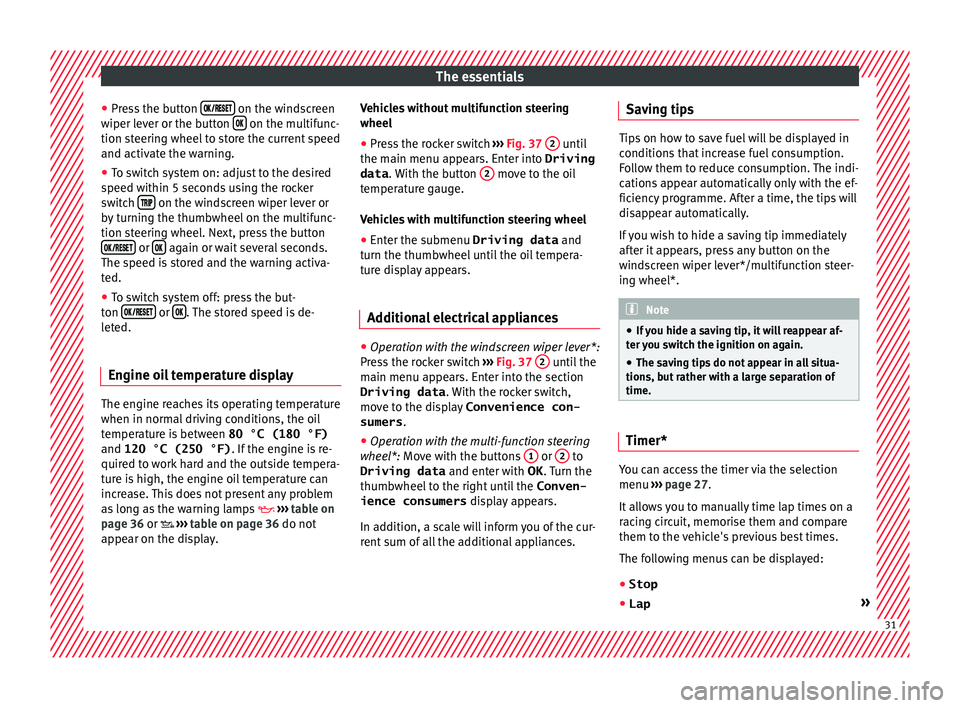
ature of the liquid coolant. Storing a speed with the speed warning
● Select the display Speed warning at
--- km/h (---
mph) 30
Page 33 of 252
The essentials
● Pr e
ss
the button on the windscreen
w iper l
ever or the b
utton on the multifunc-
tion s t
eerin g wheel
to store the current speed
and activate the warning.
● To switch system on: adjust to the desired
speed within 5 second
s using the rocker
switch on the windscreen wiper lever or
b y
t urnin
g the thumbwheel on the multifunc-
tion steering wheel. Next, press the button or
again or wait several seconds.
The s peed i
s s
tored and the warning activa-
ted.
● To switch system off: press the but-
ton or
. The stored speed is de-
l et
ed.
En gine oi
l temperature display The engine reaches its operating temperature
when in norm
al
driv in
g conditions, the oil
temperature is between 80 °C (180 °F)
and 120 °C (250 °F) . If the engine is re-
quired to work hard and the outside tempera-
ture is high, the engine oil temperature can
increase. This does not present any problem
as long as the warning lamps ›››
table on
page 36 or ›››
table on page 36 do not
appear on the display. Vehicles without multifunction steering
wheel
●
Press the rocker switch ››› Fig. 37
2 until
the m ain menu ap
pear
s. Enter into Driving
data . With the button 2 move to the oil
t emper
atur
e gauge.
Vehicles with multifunction steering wheel
● Enter the submenu Driving data and
turn the thumbwheel u
ntil the oil tempera-
ture display appears.
Additional electrical appliances ●
Operation with the windscreen wiper lever*:
Pr e
ss
the rocker switch ››› Fig. 37 2 until the
m ain menu ap
pear
s. Enter into the section
Driving data . With the rocker switch,
move to the display Convenience con-
sumers .
● Operation with the multi-function steering
wheel*: Mo
ve with the buttons 1 or
2 to
Driving data and enter w
ith OK
.
Turn the
thumbwheel to the right until the Conven-
ience consumers display appears.
In addition, a scale will inform you of the cur-
rent sum of all the additional appliances. Saving tips Tips on how to save fuel will be displayed in
conditions
th
at increase fuel consumption.
Follow them to reduce consumption. The indi-
cations appear automatically only with the ef-
ficiency programme. After a time, the tips will
disappear automatically.
If you wish to hide a saving tip immediately
after it appears, press any button on the
windscreen wiper lever*/multifunction steer-
ing wheel*. Note
● If y ou hide a s
aving tip, it will reappear af-
ter you switch the ignition on again.
● The saving tips do not appear in all situa-
tions, but r
ather with a large separation of
time. Timer*
You can access the timer via the selection
menu
››
›
p
age 27.
It allows you to manually time lap times on a
racing circuit, memorise them and compare
them to the vehicle's previous best times.
The following menus can be displayed:
● Stop
● Lap » 31