service Seat Leon 5D 2011 MEDIA SYSTEM 2.2
[x] Cancel search | Manufacturer: SEAT, Model Year: 2011, Model line: Leon 5D, Model: Seat Leon 5D 2011Pages: 112, PDF Size: 2.42 MB
Page 76 of 112
75
Navigation
Ending demonstration mode
As a general rule, the Demo mode should be switched off after use, other-
wise you will always have to select between virtual navigation or normal
navigation before starting navigation to a destination.
Normally, the demonstration mode automatically ends on completion of the
route guidance programme or when a new navigation destination (not de-
tour) is entered. When the vehicle starts to move, or when the unit is switch-
ed off, the demonstration mode ends.
If necessary, switch off the demonstration mode in the navigation setup
menu.
● Press the SETUP
unit button in one of the navigation menus.
● Untick the checkbox for the Demo mode function button.
Setup menu Navigation
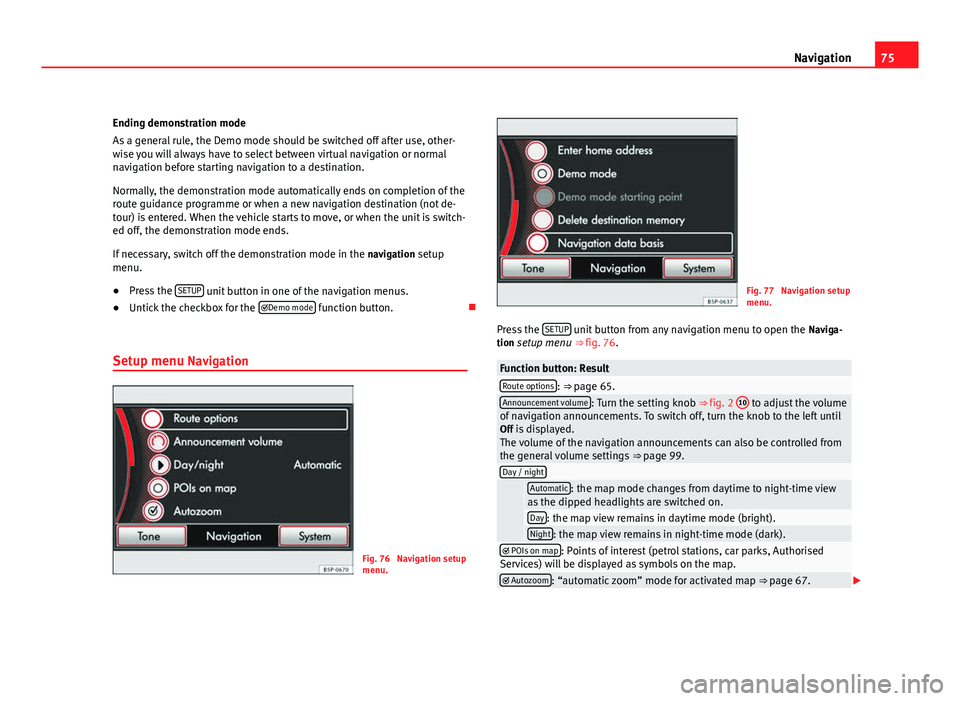
Fig. 76 Navigation setup
menu.
Fig. 77 Navigation setup
menu.
Press the SETUP
unit button from any navigation menu to open the
Naviga-
tion setup menu ⇒ fig. 76.
Function button: ResultRoute options: ⇒ page 65.Announcement volume: Turn the setting knob ⇒ fig. 2 10 to adjust the volume
of navigation announcements. To switch off, turn the knob to the left until
Off is displayed. The volume of the navigation announcements can also be controlled from
the general volume settings ⇒ page 99.
Day / night
Automatic: the map mode changes from daytime to night-time view
as the dipped headlights are switched on.
Day: the map view remains in daytime mode (bright).Night: the map view remains in night-time mode (dark). POIs on map: Points of interest (petrol stations, car parks, Authorised
Services) will be displayed as symbols on the map.
Autozoom: “automatic zoom” mode for activated map ⇒ page 67.
Page 78 of 112
77
Telephone control (Phone)
Telephone control (Phone) Introduction
Introduction
The telephone functions described below may be controlled using the radio
and navigation system, and by voice control, provided that there is a mobile
phone switched on and with the BT function on. In addition, the mobile
must be connected and paired via Bluetooth to the radio and navigation
system.
For the connection between the mobile phone and the radio and navigation
system, the mobile phone must have Bluetooth®
and it must be activated.
If no mobile phone is connected to the radio and navigation system, tele-
phone control from the navigator and voice control will not be available.
● Pair and connect the mobile phone to the radio and navigation system
⇒ page 80.
When the mobile phone has been paired with the navigation system, the
phone can be controlled via the navigation system and the multifunction
controls on the steering wheel using the vehicle instrument panel. Func-
tions available include making calls in hands-free mode, access to the mo-
bile phone book, access to the list of calls received, missed and recently di-
alled, and control of these functions using the voice recognition system.
The hands-free device means that the telephone can be used inside the ve-
hicle; the driver will not have to remove their hands from the steering wheel
nor will be distracted from traffic.
Please observe instructions concerning the use of mobile phones in vehi-
cles without an external aerial ⇒ page 79.
WARNING
Telephone calls and the use of the mobile phone pre-installation while
driving may distract the driver from the road and result in accident.
● You should always drive with due care and attention.
● Select volume settings that allow you to easily hear signals from out-
side the vehicle at all times, e.g. emergency service sirens.
● Your call may be cut off or you may be unable to make calls if you are
in an area with no mobile phone network coverage, an area where the
network is very weak or, in some cases, in a tunnel, garage or underpass.
This also means that no emergency calls can be made.
WARNING
If your mobile phone is loose and is not securely fastened, it could be
thrown around the vehicle interior in the event of sudden braking, sharp
movements or accident and cause injury to passengers.
● While the vehicle is in motion, always secure the mobile phone prop-
erly outside the airbag deployment zone.
WARNING
Mobile phones may affect the operation of pacemakers. Always maintain
a suitable distance between the phone and the pacemaker.
● Maintain a gap of roughly 20 centimetres between the aerials of the
mobile phone and the pacemaker, as mobile phones may affect the func-
tioning of pacemakers.
Page 79 of 112
78Telephone control (Phone)
WARNING (Continued)
● Do not keep mobile phones in breast pockets directly above pacemak-
ers.
● Switch off the mobile phone immediately if you suspect there may be
interference.
WARNING
An unfolded armrest may restrict the driver's movements causing a seri-
ous accident.
● While driving, the armrest should always be closed.
CAUTION
High speeds, poor weather or road conditions and the quality of reception
can all affect the quality of a telephone conversation in the vehicle.
Note
The instructions shown on the screen for each telephone menu will depend
on the mobile phone used. There may be variations.
Note
The SOS or emergency call function is not displayed on all appliances and is
not available in all countries even through the mobile phone operator.
Note
Please observe instructions for the use of the mobile phone and phone ac-
cessories, together with instructions referring to the use of headphones.
Note
You may experience problems with reception or your call may be cut off in
areas without network coverage.
Note
Most electronic devices are shielded against high-frequency signals. How-
ever, some electronic devices may not be shielded against radio frequency
signals from the telephone. This could lead to malfunction.
Note
The voice control system is only available in the following languages: Span-
ish, German, English, French, Italian, Portuguese, Czech, Russian and
Dutch. For other languages, the predefined language for the voice control
system will depend on the country in which the vehicle is sold. Please ask
the Technical Service to change the predefined language if required.
Areas with special regulations
Switch off the mobile phone and the pre-installation in areas with a high
risk of explosion. These areas are usually marked, although not always
clearly ⇒
in Introduction on page 77. For example:
● In the vicinity of chemical pipelines and tanks
● Below deck on board ships and ferries.
● In the proximity of vehicles that run on liquid gas (such as propane or
butane)
● Areas with chemical products or particles in the air, such as flour, dust
or metal powder.
● Any area in which the car engine must be switched off.
WARNING
Switch off your mobile phone in areas with a high risk of explosion! The
mobile phone can be automatically reconnected to the mobile phone net-
work if the Bluetooth connection is switched off for the pre-installation.
Page 104 of 112

Index
A
Address entry . . . . . . . . . . . . . . . . . . . . . . . . . . . 54
Adjusting the volume . . . . . . . . . . . . . . . . . . . . . 95
AM . . . . . . . . . . . . . . . . . . . . . . . . . . . . . . . . 15, 102
Anti-theft protectionCode . . . . . . . . . . . . . . . . . . . . . . . . . . . . . . . 10
Radio coding . . . . . . . . . . . . . . . . . . . . . . . . . 10
Areas with special regulations . . . . . . . . . . . . . 78
Automatic pairing . . . . . . . . . . . . . . . . . . . . . . . . 83
Autoscan MEDIA . . . . . . . . . . . . . . . . . . . . . . . . . . . . . . 40
RADIO . . . . . . . . . . . . . . . . . . . . . . . . . . . . . . 16
Autozoom . . . . . . . . . . . . . . . . . . . . . . . . . . . . . . 67
AUX . . . . . . . . . . . . . . . . . . . . . . . . . . . . . . . 34, 102 AUX-IN multimedia socket . . . . . . . . . . . . . . 34
AUX volume . . . . . . . . . . . . . . . . . . . . . . . . . 42
External audio source . . . . . . . . . . . . . . . . . 34
AUX-IN multimedia socket See: AUX . . . . . . . . . . . . . . . . . . . . . . . . . . . . 34
AUX 2 . . . . . . . . . . . . . . . . . . . . . . . . . . . . . . . . . . 35
AUX2 . . . . . . . . . . . . . . . . . . . . . . . . . . . . . . . . . . 35
AUX 2 External audio source . . . . . . . . . . . . . . . . . 35
Avoiding traffic . . . . . . . . . . . . . . . . . . . . . . . . . . 72
B
Balance . . . . . . . . . . . . . . . . . . . . . . . . . . . . . . . . 99 Base volume
Adjusting . . . . . . . . . . . . . . . . . . . . . . . . . . . 11
Mute function . . . . . . . . . . . . . . . . . . . . . . . . 11
Bass . . . . . . . . . . . . . . . . . . . . . . . . . . . . . . . . . . 99
Bluetooth Automatic pairing . . . . . . . . . . . . . . . . . . . . . 83
Bluetooth audio (external audio source) . . . . . 37
BT audio . . . . . . . . . . . . . . . . . . . . . . . . . . . . . . . 37
Button tone See: Confirmation tone . . . . . . . . . . . . . . . 100
C
Cabriolet models (ejecting CDs) . . . . . . . . . . . . 32
Call log . . . . . . . . . . . . . . . . . . . . . . . . . . . . . . . . 87
Car park search . . . . . . . . . . . . . . . . . . . . . . . . . . 57
CD eject in Cabriolet models . . . . . . . . . . . . . . . 32
CD mode See: MEDIA . . . . . . . . . . . . . . . . . . . . . . . . . . 32
Changing frequency band . . . . . . . . . . . . . . . . . 15
Changing station names . . . . . . . . . . . . . . . . . . 22
Checkbox – ticking and clearing . . . . . . . . . . . . 12
Code . . . . . . . . . . . . . . . . . . . . . . . . . . . . . . . . . . 10
Commands . . . . . . . . . . . . . . . . . . . . . . . . . . . . . 96
Confirmation tone Switching on and off . . . . . . . . . . . . . . . . . 100
Controls . . . . . . . . . . . . . . . . . . . . . . . . . . . . . . . . . 8
Coordinates . . . . . . . . . . . . . . . . . . . . . . . . . . . . 62 Cursor
See: "Enter mark" . . . . . . . . . . . . . . . . . . . . . 52
D
DAB . . . . . . . . . . . . . . . . . . . . . . . . . . . . . . . . . . . 24 Additional services . . . . . . . . . . . . . . . . . . . . 24
Additional stations from the main menu . . 25
Additional stations on the DAB station list . 27
Changing an ensemble . . . . . . . . . . . . . . . . 26
Changing station . . . . . . . . . . . . . . . . . . . . . 26
Changing stations . . . . . . . . . . . . . . . . . . . . 25
Channel . . . . . . . . . . . . . . . . . . . . . . . . . . . . . 24
Deleting station list . . . . . . . . . . . . . . . . . . . 27
Ensemble . . . . . . . . . . . . . . . . . . . . . . . . . . . 24
FM programme tracking . . . . . . . . . . . . . . . . 27
Incoming messages . . . . . . . . . . . . . . . . . . . 24
Main menu . . . . . . . . . . . . . . . . . . . . . . . . . . 25
Operation . . . . . . . . . . . . . . . . . . . . . . . . . . . 24
Programme tracking . . . . . . . . . . . . . . . . . . . 27
Radio text . . . . . . . . . . . . . . . . . . . . . . . . . . . 24
Selecting a station . . . . . . . . . . . . . . . . . . . . 26
SETUP . . . . . . . . . . . . . . . . . . . . . . . . . . . . . . 27
Station list . . . . . . . . . . . . . . . . . . . . . . . . . . 26
Switching incoming messages on or off . . . 27
Switching on . . . . . . . . . . . . . . . . . . . . . . . . . 25
Updating the station list . . . . . . . . . . . . . . . 27
Data, deleting See: Deleting . . . . . . . . . . . . . . . . . . . . . . . 100
Day or night design . . . . . . . . . . . . . . . . . . . . . 100
103
Index