phone Seat Leon 5D 2014 MEDIA SYSTEM PLUS - NAVI SYSTEM
[x] Cancel search | Manufacturer: SEAT, Model Year: 2014, Model line: Leon 5D, Model: Seat Leon 5D 2014Pages: 64, PDF Size: 1.71 MB
Page 51 of 64
Telephone management (PHONE)Redial but-
tonPress the button and the last number
dialled will be shown on the display. To
make a connection press the button
again
.
Call voice
mailbox Keep button number 1 pressed for ap-
proximately 2 seconds or press the button.
If you still have not saved the voice mail
number, enter the number and confirm it
with OK
.
A phone number that has already been
stored can be modified in the User pro-
file settings ››› page 51 menu.
Activating voice control
Enter a na-
tional dial-
ling codeWhen you enter a country code, instead
of the two first digits (for example,
“00”), you can enter the “+” symbol.
Keep the function button pressed
0
for
about 2 seconds to add the + symbol.
Breakdown
service call
Press the function button to obtain help
in the event of breakdown. For this the
network of SEAT dealerships is available
to you with their Mobile Service.
Information
call Press the function button to obtain infor-
mation on the SEAT brand and the addi-
tional services contracted related to traf-
fic and travel. Note
Breakdown service and information calls can
incur an additional cost on your telephone
bill. Phonebook (contacts) menu
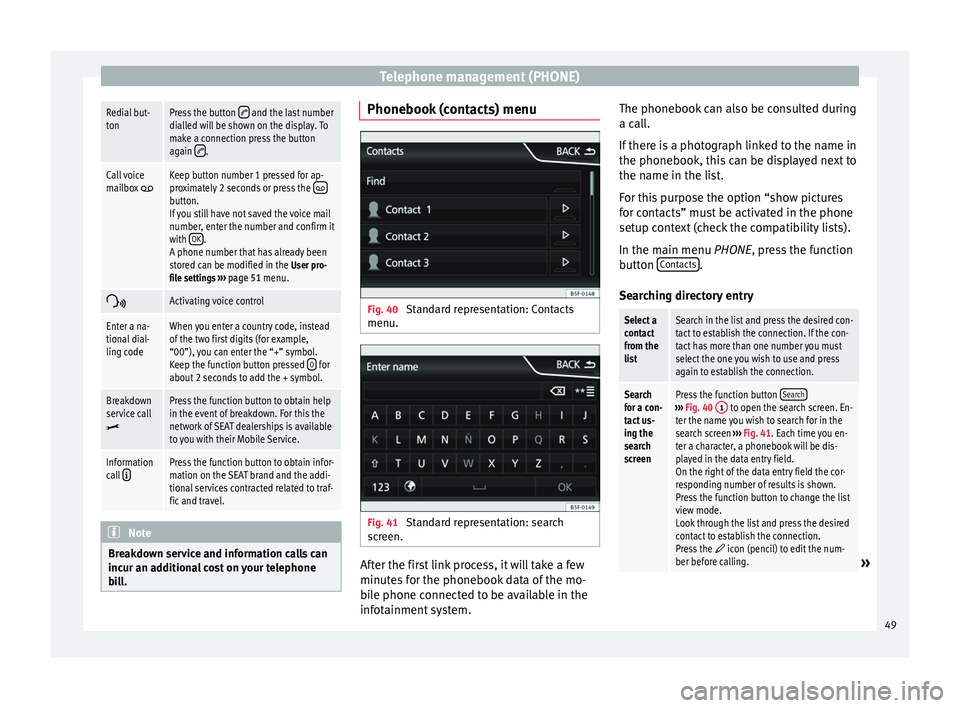
Fig. 40
Standard representation: Contacts
menu. Fig. 41
Standard representation: search
screen. After the first link process, it will take a few
minutes for the phonebook data of the mo-
bile phone connected to be available in the
infotainment system.The phonebook can also be consulted during
a call.
If there is a photograph linked to the name in
the phonebook, this can be displayed next to
the name in the list.
For this purpose the option “show pictures
for contacts” must be activated in the phone
setup context (check the compatibility lists).
In the main menu
PHONE
, press the function
b
utton Contacts .
Searching directory entry
Select a
contact
from the
listSearch in the list and press the desired con-
tact to establish the connection. If the con-
tact has more than one number you must
select the one you wish to use and press
again to establish the connection.
Search
for a con-
tact us-
ing the
search
screenPress the function button Search›››
Fig. 40 1 to open the search screen. En-
ter the name you wish to search for in the
search screen ››› Fig. 41. Each time you en-
ter a character, a phonebook will be dis-
played in the data entry field.
On the right of the data entry field the cor-
responding number of results is shown.
Press the function button to change the list
view mode.
Look through the list and press the desired
contact to establish the connection.
Press the
icon (pencil) to edit the num-
ber before calling.» 49
Page 52 of 64
Telephone management (PHONE)
Note
If you edit the number before calling, this will
only be used for the call and will not be stor-
ed in the phonebook. Call lists menu
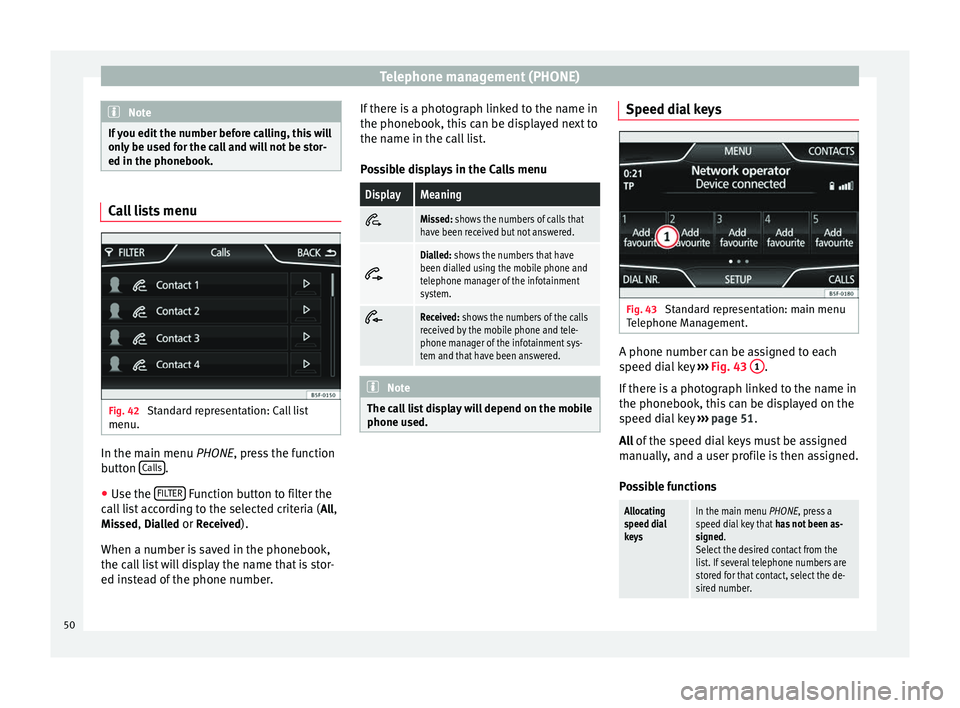
Fig. 42
Standard representation: Call list
menu. In the main menu
PHONE
, press the function
b
utton Calls .
● Use the FILTER Function button to filter the
call list according to the selected criteria ( All
,
Missed , Dialled
or Received
).
When a number is saved in the phonebook,
the call list will display the name that is stor-
ed instead of the phone number. If there is a photograph linked to the name in
the phonebook, this can be displayed next to
the name in the call list.
Possible displays in the Calls menu
DisplayMeaningMissed: shows the numbers of calls that
have been received but not answered.
Dialled: shows the numbers that have
been dialled using the mobile phone and
telephone manager of the infotainment
system.
Received: shows the numbers of the calls
received by the mobile phone and tele-
phone manager of the infotainment sys-
tem and that have been answered.
Note
The call list display will depend on the mobile
phone used. Speed dial keys
Fig. 43
Standard representation: main menu
Telephone Management. A phone number can be assigned to each
speed dial key
›››
Fig. 43 1 .
If there is a photograph linked to the name in
the phonebook, this can be displayed on the
speed dial key ›››
page 51.
All of the speed dial keys must be assigned
m anual
ly, and a user profile is then assigned.
Possible functions
Allocating
speed dial
keysIn the main menu PHONE, press a
speed dial key that has not been as-
signed.
Select the desired contact from the
list. If several telephone numbers are
stored for that contact, select the de-
sired number. 50
Page 53 of 64
Telephone management (PHONE)Editing speed
dial keys that
have been as-
signedIn the main menu PHONE, hold down a
speed dial key that
has been assigned
until the Contacts menu opens.
Select the desired contact from the
list. If several telephone numbers are
stored for that contact, select the de-
sired number.
To close the menu Contacts without
saving the modifications, press the
function button Back
.
Deleting
speed dial
keys that have
been assignedA phone number assigned to a speed
dial key can be erased in the menu
User profile setup/Manage favourites
››› page 51.
Establish a
connection
using the
speed dial
keysIn the main menu PHONE, briefly press
a speed dial key that has been as-
signed to establish the connection
with the phone number assigned to it. Telephone setup
In the main menu
PHONE
, press the Set
upfunction button.
Function button: effect
Select phone: select the telephone to be connected to the
infotainment system, or press Find phone to connect a
new device.
User profile setup: opens the menu User profile setup
››› page 51.
Function button: effect
Select ring tone: select a ring tone from the list of prede-
fined tones.
Bluetooth settings: opens the menu Bluetooth setup
››› page 51.
Invert call lists order: with the checkbox active, the call
list entries are inverted (the oldest entry is shown at the
top of the list).
Warning: do not forget your mobile phone: when you discon-
nect the ignition it will show the message “Please do not forget your mobile phone ”.
Show pictures for contacts: if there is a photograph stored
for a contact in the phonebook, this can be displayed on
the speed dial keys, in the call lists and in the phone-
book. Note
To check whether your mobile phone allows
images to be downloaded for your phone-
book, check the compatibility list. Bluetooth setup
In the main menu
PHONE, press the function
b utt
on Setup and then press
Bluetooth setup .
Function button: effect
Bluetooth: press to disconnect the Bluetooth in the
system.
Function button: effect
Visibility: activate and deactivate the Bluetooth “visibili-
ty” of the infotainment system using the function button
. To link a mobile phone to the infotainment system
the visibility must be activated. With the setting At start-up
, visibility is disabled after a certain time. If
you have an audio Bluetooth device active and playing,
the visibility is automatically set to “not visible”.
Name: when you open this option it opens a keyboard,
with which you can modify the default name of the de-
vice.
My devices: shows the devices linked to the system.
Find: looks for Bluetooth devices that are on and visible
within the working radius of the infotainment system.
The working radius is approximately 10 metres.
Audio/Bluetooth (A2DP): function button that activates
and deactivates the use of the radio as the Bluetooth re-
ceiver of the audio source. User profile setup
In the main menu
PHONE
, press the function
b
utton Setup and then press
User profile .
Function button: effect
Manage favourites: edit the speed dial keys.
Speed dial key assigned:
press to delete the as-
signed number.
Free speed dial key: press to assign a number from
the phonebook to the speed dial key in question.
» 51
Page 54 of 64
Telephone management (PHONE)Function button: effect
Mailbox number: entering or modifying the mailbox num-
ber.
Code: Enables you to enter a certain code. To make
calls with the predetermined code press the button
+0 in the menu Enter number, in Phonebook or in Calls
list.
Sort by: determine the order sequence of the phone-
book entries, by surname, first name, or by first name,
surname.
Import contacts: press to import the phonebook of the tel-
ephone connected, or to update a phonebook that has
already been imported.
Delete the profile of other users: delete all user profiles, or
one profile in particular. Note
Some telephones require a restart to down-
load the last contacts added again. 52
Page 58 of 64
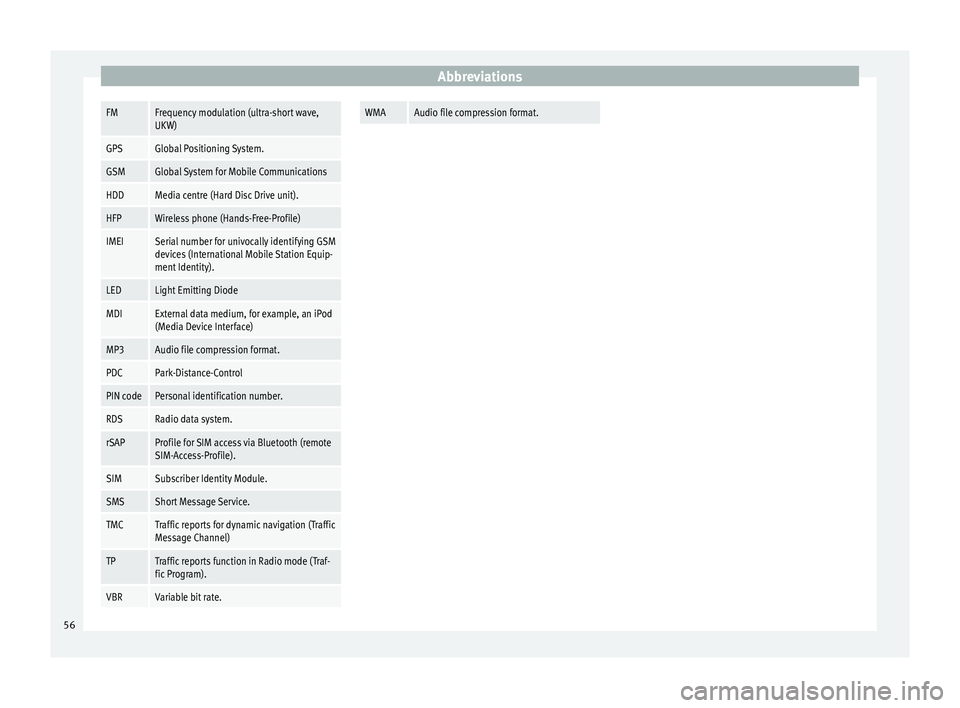
AbbreviationsFMFrequency modulation (ultra-short wave,
UKW)
GPSGlobal Positioning System.
GSMGlobal System for Mobile Communications
HDDMedia centre (Hard Disc Drive unit).
HFPWireless phone (Hands-Free-Profile)
IMEISerial number for univocally identifying GSM
devices (International Mobile Station Equip-
ment Identity).
LEDLight Emitting Diode
MDIExternal data medium, for example, an iPod
(Media Device Interface)
MP3Audio file compression format.
PDCPark-Distance-Control
PIN codePersonal identification number.
RDSRadio data system.
rSAPProfile for SIM access via Bluetooth (remote
SIM-Access-Profile).
SIMSubscriber Identity Module.
SMSShort Message Service.
TMCTraffic reports for dynamic navigation (Traffic
Message Channel)
TPTraffic reports function in Radio mode (Traf-
fic Program).
VBRVariable bit rate.
WMAAudio file compression format.
56
Page 59 of 64
Index
Index
A
AM . . . . . . . . . . . . . . . . . . . . . . . . . . . . . . . . . . . . . . 55
Automatic station storing . . . . . . . . . . . . . . . . . . . 15
Autostore . . . . . . . . . . . . . . . . . . . . . . . . . . . . . . . . 15
AUX . . . . . . . . . . . . . . . . . . . . . . . . . . . . . . . . . . 23, 55 AUX-IN multimedia socket . . . . . . . . . . . . . . . . . 23
External audio source . . . . . . . . . . . . . . . . . . . . . 23
AUX-IN multimedia socket See: AUX . . . . . . . . . . . . . . . . . . . . . . . . . . . . . . . 23
B Back . . . . . . . . . . . . . . . . . . . . . . . . . . . . . . . . . . . . 27
Balance . . . . . . . . . . . . . . . . . . . . . . . . . . . . . . . . . . 54
Base volume Change . . . . . . . . . . . . . . . . . . . . . . . . . . . . . . . . . 7
Mute . . . . . . . . . . . . . . . . . . . . . . . . . . . . . . . . . . . 7
Bass . . . . . . . . . . . . . . . . . . . . . . . . . . . . . . . . . . . . 54
Bluetooth . . . . . . . . . . . . . . . . . . . . . . . . . . . . . . . . 43
Bluetooth audio (external audio source) . . . . . . . 26
BT audio . . . . . . . . . . . . . . . . . . . . . . . . . . . . . . . . . 26
C
CAR . . . . . . . . . . . . . . . . . . . . . . . . . . . . . . . . . . . . . 39
CAR menu management . . . . . . . . . . . . . . . . . . . . . . . . . . . . 39
CD mode See: MEDIA . . . . . . . . . . . . . . . . . . . . . . . . . . . . . 22
Controls . . . . . . . . . . . . . . . . . . . . . . . . . . . . . . . . . . . 5
D
DAB . . . . . . . . . . . . . . . . . . . . . . . . . . . . . . . . . . . . . 12
DAB+ . . . . . . . . . . . . . . . . . . . . . . . . . . . . . . . . . . . . 12
Delayed switch-off . . . . . . . . . . . . . . . . . . . . . . . . . . 7 Destination
search for point of interest . . . . . . . . . . . . . . . . . 33
Destination memory . . . . . . . . . . . . . . . . . . . . . . . . 33
Digital radio DAB . . . . . . . . . . . . . . . . . . . . . . . . . . . . . . . . . . . 12
DAB+ . . . . . . . . . . . . . . . . . . . . . . . . . . . . . . . . . . 12
DMB audio . . . . . . . . . . . . . . . . . . . . . . . . . . . . . 12
DMB audio . . . . . . . . . . . . . . . . . . . . . . . . . . . . . . . 12
Dynamic navigation (TRAFFIC) . . . . . . . . . . . . . . . . 35
E
Explosion: places of risk Telephone . . . . . . . . . . . . . . . . . . . . . . . . . . . . . . 41
External audio source Bluetooth audio . . . . . . . . . . . . . . . . . . . . . . . . . 26
See: AUX . . . . . . . . . . . . . . . . . . . . . . . . . . . . . . . 23
F
Fader . . . . . . . . . . . . . . . . . . . . . . . . . . . . . . . . . . . . 54
FM . . . . . . . . . . . . . . . . . . . . . . . . . . . . . . . . . . . . . . 56
Forward . . . . . . . . . . . . . . . . . . . . . . . . . . . . . . . . . . 27
Function buttons see: function buttons . . . . . . . . . . . . . . . . . . . . . . 7
Function buttons (softkeys) . . . . . . . . . . . . . . . . . . . 7
Function buttons (virtual buttons) . . . . . . . . . . . . . 6
G Guide to the destination (Demo mode) . . . . . . . . 36
H
Hardkeys see: Unit buttons . . . . . . . . . . . . . . . . . . . . . . . . . 7
I
Introduction . . . . . . . . . . . . . . . . . . . . . . . . . . . . . . . 3 M
Main menu MEDIA . . . . . . . . . . . . . . . . . . . . . . . . . . . . . . . . . 21
NAV (navigation) . . . . . . . . . . . . . . . . . . . . . . . . . 30
RADIO . . . . . . . . . . . . . . . . . . . . . . . . . . . . . . . . . 10
Main Menu System . . . . . . . . . . . . . . . . . . . . . . . . . . . . . . . . . 53
MEDIA . . . . . . . . . . . . . . . . . . . . . . . . . . . . . . . . . . . 18 Audio data CD . . . . . . . . . . . . . . . . . . . . . . . . . . . 19
AUX-IN multimedia socket . . . . . . . . . . . . . . . . . 23
back . . . . . . . . . . . . . . . . . . . . . . . . . . . . . . . . . . . 27
bit rate . . . . . . . . . . . . . . . . . . . . . . . . . . . . . . . . . 19
Bluetooth audio . . . . . . . . . . . . . . . . . . . . . . . . . 26
CD mode . . . . . . . . . . . . . . . . . . . . . . . . . . . . . . . 22
changing the media source . . . . . . . . . . . . . . . . 22
changing tracks . . . . . . . . . . . . . . . . . . . . . . . . . 27
Display information . . . . . . . . . . . . . . . . . . . . . . 21
forward . . . . . . . . . . . . . . . . . . . . . . . . . . . . . . . . 27
instructions . . . . . . . . . . . . . . . . . . . . . . . . . . . . . 19
Main menu . . . . . . . . . . . . . . . . . . . . . . . . . . . . . 21
MP3 files . . . . . . . . . . . . . . . . . . . . . . . . . . . . . . . 19
playing order . . . . . . . . . . . . . . . . . . . . . . . . . . . . 20
Playlists . . . . . . . . . . . . . . . . . . . . . . . . . . . . . . . . 19
requirements . . . . . . . . . . . . . . . . . . . . . . . . . . . 19
selecting a track from the list . . . . . . . . . . . . . . 28
selecting tracks . . . . . . . . . . . . . . . . . . . . . . . . . 27
Setup . . . . . . . . . . . . . . . . . . . . . . . . . . . . . . . . . . 28
Unreadable CD . . . . . . . . . . . . . . . . . . . . . . . . . . 23
WMA files . . . . . . . . . . . . . . . . . . . . . . . . . . . . . . 19
MEDIA-IN . . . . . . . . . . . . . . . . . . . . . . . . . . . . . . . . . 24
MEDIA-IN multimedia interface . . . . . . . . . . . . . . . 24
Media sources . . . . . . . . . . . . . . . . . . . . . . . . . . . . 21
Medium wave . . . . . . . . . . . . . . . . . . . . . . . . . . . . . 55
Memory card (SD card) . . . . . . . . . . . . . . . . . . . . . 23
Midrange . . . . . . . . . . . . . . . . . . . . . . . . . . . . . . . . . 54
Mute . . . . . . . . . . . . . . . . . . . . . . . . . . . . . . . . . . . . . 7
57
Page 60 of 64
Index
N Navigation setup . . . . . . . . . . . . . . . . . . . . . . . . . . 37
NAV (navigation) destination memory . . . . . . . . . . . . . . . . . . . . . . 33
entering the destination . . . . . . . . . . . . . . . . . . 30
guide to the destination (Demo mode) . . . . . . . 36
main menu . . . . . . . . . . . . . . . . . . . . . . . . . . . . . 30
partially digitised areas . . . . . . . . . . . . . . . . . . . 29
point of interest . . . . . . . . . . . . . . . . . . . . . . . . . 33
route . . . . . . . . . . . . . . . . . . . . . . . . . . . . . . . . . . 32
selecting the destination . . . . . . . . . . . . . . . . . . 30
setup . . . . . . . . . . . . . . . . . . . . . . . . . . . . . . . . . . 37
split screen . . . . . . . . . . . . . . . . . . . . . . . . . . . . . 34
TMC . . . . . . . . . . . . . . . . . . . . . . . . . . . . . . . . . . . 35
view . . . . . . . . . . . . . . . . . . . . . . . . . . . . . . . . . . . 34
visual presentation of the map . . . . . . . . . . . . . 35
NAV (Navigation) . . . . . . . . . . . . . . . . . . . . . . . . . . 29 Area of navigation . . . . . . . . . . . . . . . . . . . . . . . 29
validity of the navigation data . . . . . . . . . . . . . . 29
O Operating instructions function buttons . . . . . . . . . . . . . . . . . . . . . . . . . . 7
Unit buttons . . . . . . . . . . . . . . . . . . . . . . . . . . . . . 7
verification boxes . . . . . . . . . . . . . . . . . . . . . . . . . 7
P Phone Introduction . . . . . . . . . . . . . . . . . . . . . . . . . . . . 40
PHONE Bluetooth setup . . . . . . . . . . . . . . . . . . . . . . . . . 51
Call lists menu . . . . . . . . . . . . . . . . . . . . . . . . . . 50
Enter number . . . . . . . . . . . . . . . . . . . . . . . . . . . 48
Linking and connecting to the infotainmentsystem . . . . . . . . . . . . . . . . . . . . . . . . . . . . . . . 42
Main menu . . . . . . . . . . . . . . . . . . . . . . . . . . . . . 47
Phonebook menu . . . . . . . . . . . . . . . . . . . . . . . . 49 Places with risk of explosion . . . . . . . . . . . . . . . 41
Places with special regulations . . . . . . . . . . . . . 41
Setup . . . . . . . . . . . . . . . . . . . . . . . . . . . . . . . . . . 51
Voice control . . . . . . . . . . . . . . . . . . . . . . . . . . . . 44
Places with special regulations . . . . . . . . . . . . . . . 41
Pop-up window . . . . . . . . . . . . . . . . . . . . . . . . . . . . . 7
Q
Quick Reference Guide . . . . . . . . . . . . . . . . . . . . . . . 3
R Radio . . . . . . . . . . . . . . . . . . . . . . . . . . . . . . . . . . . . 10
RADIO frequency bands . . . . . . . . . . . . . . . . . . . . . . . . . 14
Main menu . . . . . . . . . . . . . . . . . . . . . . . . . . . . . 10
RDS radio data services . . . . . . . . . . . . . . . . . . . 11
scan function (SCAN) . . . . . . . . . . . . . . . . . . . . . 15
selecting, adjusting and storing a station . . . . 14
Stored station buttons . . . . . . . . . . . . . . . . . . . . 13
RDS . . . . . . . . . . . . . . . . . . . . . . . . . . . . . . . . . . . . . 56 TP (Traffic Program) . . . . . . . . . . . . . . . . . . . 16, 17
Representation in these operating instructions . . . 7
Requirements for adaptor (MDI) . . . . . . . . . . . . . . . . . . . . . . . . . . . 24
CDs . . . . . . . . . . . . . . . . . . . . . . . . . . . . . . . . . . . 19
external data medium (MDI) . . . . . . . . . . . . . . . 24
memory cards . . . . . . . . . . . . . . . . . . . . . . . . . . . 19
SD cards . . . . . . . . . . . . . . . . . . . . . . . . . . . . . . . 19
Rotary/push knobs . . . . . . . . . . . . . . . . . . . . . . . . . 7
Rotary knobs . . . . . . . . . . . . . . . . . . . . . . . . . . . . . . . 6
S
Safety notes . . . . . . . . . . . . . . . . . . . . . . . . . . . . . . . 3
SCAN see scan function . . . . . . . . . . . . . . . . . . . . . . . . 15 Scan function (SCAN)
Radio mode . . . . . . . . . . . . . . . . . . . . . . . . . . . . . 15
SAT . . . . . . . . . . . . . . . . . . . . . . . . . . . . . . . . . . . . 15
SD card . . . . . . . . . . . . . . . . . . . . . . . . . . . . . . . . . . 23
Search for point of interest . . . . . . . . . . . . . . . . . . 33
settings (SETUP) Language . . . . . . . . . . . . . . . . . . . . . . . . . . . . . . 53
Settings (SETUP) Bluetooth . . . . . . . . . . . . . . . . . . . . . . . . . . . . . . 53
factory . . . . . . . . . . . . . . . . . . . . . . . . . . . . . . . . . 54
Keypad . . . . . . . . . . . . . . . . . . . . . . . . . . . . . . . . 53
screen settings . . . . . . . . . . . . . . . . . . . . . . . . . . 53
System . . . . . . . . . . . . . . . . . . . . . . . . . . . . . . . . . 53
Time and Date . . . . . . . . . . . . . . . . . . . . . . . . . . . 53
Unit . . . . . . . . . . . . . . . . . . . . . . . . . . . . . . . . . . . 53
voice command . . . . . . . . . . . . . . . . . . . . . . . . . 54
SETUP see: "Setup (SETUP)" . . . . . . . . . . . . . . . . . . . . . 53
Setup (SETUP) . . . . . . . . . . . . . . . . . . . . . . . . . . . . . 53 sound . . . . . . . . . . . . . . . . . . . . . . . . . . . . . . . . . 54
volume distribution . . . . . . . . . . . . . . . . . . . . . . 54
Softkeys see: function buttons . . . . . . . . . . . . . . . . . . . . . . 7
Sound distribution (Balance/Fader) . . . . . . . . . . . 54
Sound setup . . . . . . . . . . . . . . . . . . . . . . . . . . . . . . 54
Sound (treble/midrange/bass) . . . . . . . . . . . . . . . 54
Station search see scan function . . . . . . . . . . . . . . . . . . . . . . . . 15
Switch-on volume . . . . . . . . . . . . . . . . . . . . . . . . . . 54
Switching off . . . . . . . . . . . . . . . . . . . . . . . . . . . . . . . 7
Switching on . . . . . . . . . . . . . . . . . . . . . . . . . . . . . . . 7
T Telephone . . . . . . . . . . . . . . . . . . . . . . . . . . . . . . . . 40
Things to note AUX mode . . . . . . . . . . . . . . . . . . . . . . . . . . . . . . 24
Touchscreen . . . . . . . . . . . . . . . . . . . . . . . . . . . . . . . 7
58