infotainment Seat Leon 5D 2014 NAVI SYSTEM PLUS
[x] Cancel search | Manufacturer: SEAT, Model Year: 2014, Model line: Leon 5D, Model: Seat Leon 5D 2014Pages: 84, PDF Size: 2.08 MB
Page 16 of 84
Audio and Media Mode
Audio and Media Mode
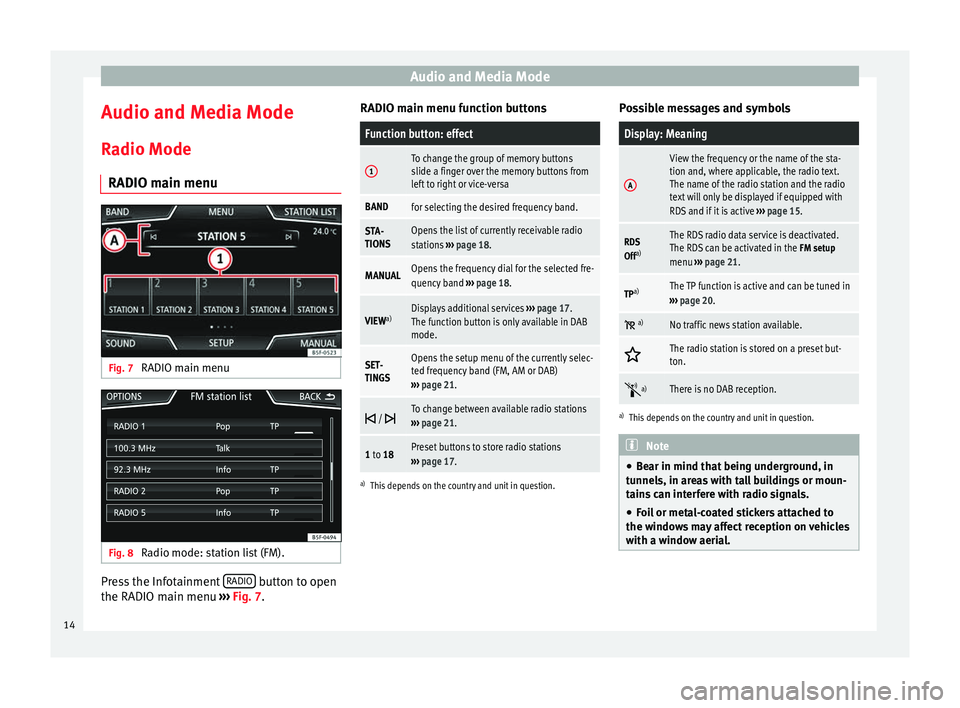
Radio Mode RADIO main menu Fig. 7
RADIO main menu Fig. 8
Radio mode: station list (FM). Press the Infotainment
RADIO button to open
the RADIO main menu ››› Fig. 7 . RADIO m
ain menu f unction buttons
Function button: effect
1To change the group of memory buttons
slide a finger over the memory buttons from
left to right or vice-versa
BANDfor selecting the desired frequency band.
STA-
TIONSOpens the list of currently receivable radio
stations
››› page 18.
MANUALOpens the frequency dial for the selected fre-
quency band ››› page 18.
VIEW a)Displays additional services
››› page 17.
The function button is only available in DAB
mode.
SET-
TINGSOpens the setup menu of the currently selec-
ted frequency band (FM, AM or DAB)
››› page 21.
/ To change between available radio stations
››› page 21.
1 to 18Preset buttons to store radio stations
››› page 17.
a)
This depends on the country and unit in question.
Possible messages and symbols
Display: Meaning
A
View the frequency or the name of the sta-
tion and, where applicable, the radio text.
The name of the radio station and the radio
text will only be displayed if equipped with
RDS and if it is active ››› page 15.
RDS
Off a)The RDS radio data service is deactivated.
The RDS can be activated in the
FM setup
menu ››› page 21.
TPa)The TP function is active and can be tuned in
››› page 20.
a)No traffic news station available.
The radio station is stored on a preset but-
ton.
a)There is no DAB reception.
a)
This depends on the country and unit in question. Note
● Bear in mind that being underground, in
tunnels, in areas with tall buildings or moun-
tains can interfere with radio signals.
● Foil or metal-coated stickers attached to
the windows may affect reception on vehicles
with a window aerial. 14
Page 18 of 84
Audio and Media Mode
Digital radio mode (DAB, DAB+ and
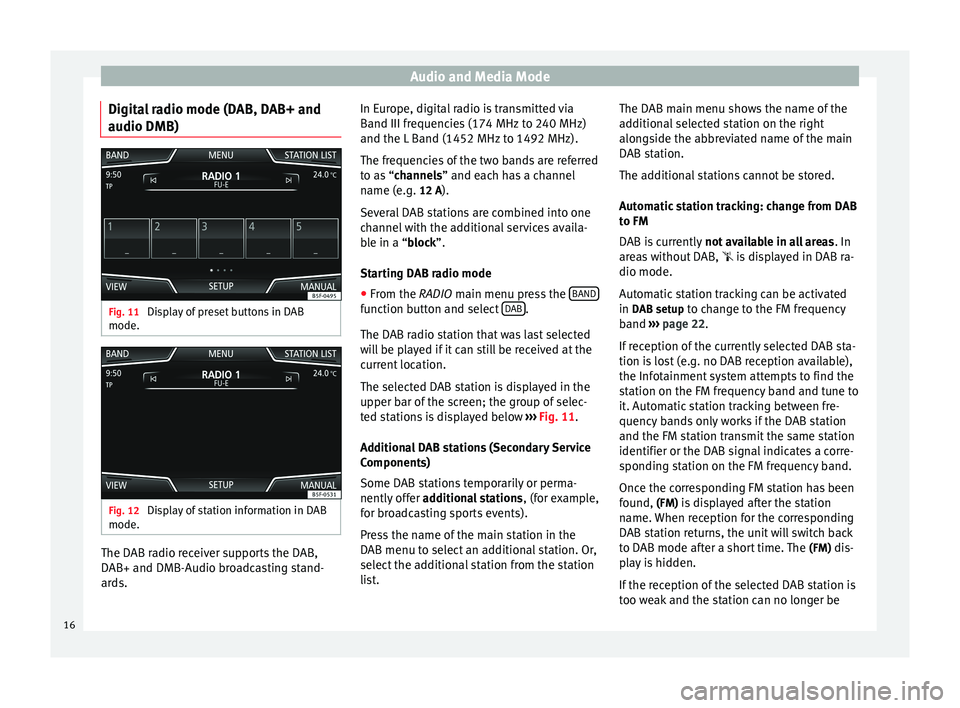
audio DMB) Fig. 11
Display of preset buttons in DAB
mode. Fig. 12
Display of station information in DAB
mode. The DAB radio receiver supports the DAB,
DAB+ and DMB-Audio broadcasting stand-
ards. In Europe, digital radio is transmitted via
Band III frequencies (174 MHz to 240 MHz)
and the L Band (1452 MHz to 1492 MHz).
The frequencies of the two bands are referred
to as “
channels
” and each has a channel
n
ame (e.g. 12 A).
Several DAB stations are combined into one
channel with the additional services availa-
ble in a “block”.
St
arting DAB radio mode
● From the
RADIO main menu press the BAND function button and select
DAB .
The DAB radio station that was last selected
will be played if it can still be received at the
current location.
The selected DAB station is displayed in the
upper bar of the screen; the group of selec-
ted stations is displayed below ››› Fig. 11 .
Ad dition
al DAB stations (Secondary Service
Components)
Some DAB stations temporarily or perma-
nently offer additional stations , (for example,
for broadcasting sports events).
Press the name of the main station in the
DAB menu to select an additional station. Or,
select the additional station from the station
list. The DAB main menu shows the name of the
additional selected station on the right
alongside the abbreviated name of the main
DAB station.
The additional stations cannot be stored.
Automatic station tracking: change from DAB
to FM
DAB is currently
not available in all areas . In
areas without DAB, is displayed in DAB ra-
dio mode.
Automatic station tracking can be activated
in DAB setup to change to the FM frequency
band ››› page 22.
If r
eception of the currently selected DAB sta-
tion is lost (e.g. no DAB reception available),
the Infotainment system attempts to find the
station on the FM frequency band and tune to
it. Automatic station tracking between fre-
quency bands only works if the DAB station
and the FM station transmit the same station
identifier or the DAB signal indicates a corre-
sponding station on the FM frequency band.
Once the corresponding FM station has been
found, (FM) is displayed after the station name. When reception for the corresponding
DAB station returns, the unit will switch back
to DAB mode after a short time. The (FM)
dis-
play is hidden.
If the reception of the selected DAB station is
too weak and the station can no longer be
16
Page 20 of 84

Audio and Media Mode
Note
Not all stations are stored in the database
and therefore it is not always possible to as-
sign logos automatically. Manually save station logos in the
saved station buttons
The station logos can be imported from a
compatible data medium (for example, mem-
ory card or memories with USB port).
● Press the function button Setup and then
Station logos .
● Press the station button where you wish to
store the logo of a station.
● Select the source where the logo is stored
(for example, SD card 1 ). We recommend sav-
ing logos in the memory unit’s root directory.
● Select the station logo.
● Repeat the process to assign other logos;
press the infotainment button RADIO to re-
turn to the RADIO main menu.
● If you wish to change the logo of a preset
button that already has one assigned to it, it
must first be deleted from the button in ques-
tion. Select, tune and store a station
Fig. 14
RADIO main menu Fig. 15
Radio mode: list of stations.Selecting stations
Select stations
with the arrow
buttonsPress either the function button or ››› Fig. 14.
This will change between available
stations ››› page 21.
Selecting stations
Selecting sta-
tions from the
station list
Press the Station
››› Fig. 14 function
button to open the station list.
Search through the list and press the
required station to select it.
To close the station list, press the BACK function button ››› Fig. 15.
The station list closes automatically
after a period of inactivity.
Manually tuning in a station frequency.
Viewing the fre-
quency dialPress the Manual function button
››› Fig. 14.
Changing the
frequency in
stepsTurn the setting knob.
OR: Press the + or – keys on the di-
al that appears on the screen.
Browsing the
frequency band
quickly
Press and hold one of the arrow but-
tons on the left of the multifunction
steering wheel. After releasing the ar-
row button, the unit automatically
tunes to the next available radio sta-
tion.
OR: Place your finger on the slider in
the frequency range and drag it to
move the button. 18
Page 23 of 84

Audio and Media Mode
is available. This procedure may take some
time, depending on the situation.
Incoming traffic announcement In active Audio mode, an incoming traffic an-
nouncement will play automatically.
During the traffic announcement, a pop-up
window is displayed and the radio changes,
depending on the case, to the traffic news
station (EON).
The media mode is paused and the volume is
adjusted to the preset level
›››
page 72.
The volume of the traffic announcement can
be modified with the volume control . The
adjusted volume setting will be applied to
subsequent announcements.
● Press the Cancel function button to end the
current traffic announcement. The TP function
remains switched on.
● OR: Press the D
e activate function button to
end the traffic announcement and disconnect
the TP function permanently.
Setup (FM, AM, DAB) FM setup
Select the
FM frequency band by pressing
the RADIO Infotainment button. OR: Press function button
››› Fig. 17 1 and
select the FM frequency band.
Pr e
ss the SETUP function button to open the
FM Setup menu.
Function button: effect
Sound: Sound setup ››› page 72.
Scan: Scan function (SCAN function). When the scan
function is active, all available stations on the current
frequency band are played in sequence for approximate-
ly 5 seconds each ››› page 19.
Traffic news station (TP): The TP function (traffic news sta-
tion monitoring) is active ››› page 20.
Delete presets: To delete all or some of the stored sta-
tions.
Delete all entries: All stored stations will be deleted.
To delete the stations one by one, press the preset
button for the desired station.
Station logos: To manually assign or delete the logos of
the stored stations on the preset buttons ››› page 18.
Radio text: Radio Text is active
››› page 15, Radio Text
(RDS).
Advanced setup: Setup of the RDS (radio data system).
Auto-save station logosa)
: Logos can be automatical-
ly assigned to the stations stored on the preset but-
tons if they are available in the Infotainment sys-
tem. Also see ››› page 18.
Function button: effect
Alternative frequency (AF): The automatic station
tracking by RDS is active. When the checkbox is
deactivated, automatic station tracking will be dis-
connected. The regional RDS
function button will be
inactive (grey colour).
Radio data system (RDS)a)
: The Radio Data System
(RDS) is deactivated ››› page 15. If the checkbox
is deactivated, the traffic news station functions
(TP), Radio Text, station name and programme type
will not be available.
Regional RDS: Setting automatic station tracking by
RDS ››› page 15.
Fixed: The unit only switches to alternative fre-
quencies for the selected station if the same
regional service is being broadcast.
Automatic: the unit always switches to the sta-
tion's frequency that currently offers the best
reception. As a result, regional programmes
may be interrupted.
a) This depends on the country and unit in question.
AM Setup
Select the AM
frequency band by pressing
the RADIO Infotainment button.
OR: Press function button
›
›
› Fig. 17 1 and
select the AM frequency band.
Pr e
ss the SETUP function button to open the
AM Setup menu.
»
21
Page 24 of 84
Audio and Media ModeFunction button: effect
Sound: Sound setup
››› page 72.
Scan: Scan function (SCAN function). When the scan
function is active, all available stations on the current
frequency band are played in sequence for approximate-
ly 5 seconds each ››› page 19.
Traffic news station (TP): The TP function (traffic news sta-
tion monitoring) is active ››› page 20.
Delete presets: To delete all or some of the stored sta-
tions.
Delete all entries: All stored stations will be deleted.
To delete the stations one by one, press the preset
button for the desired station.
Station logos: To assign the logos to the stations stored
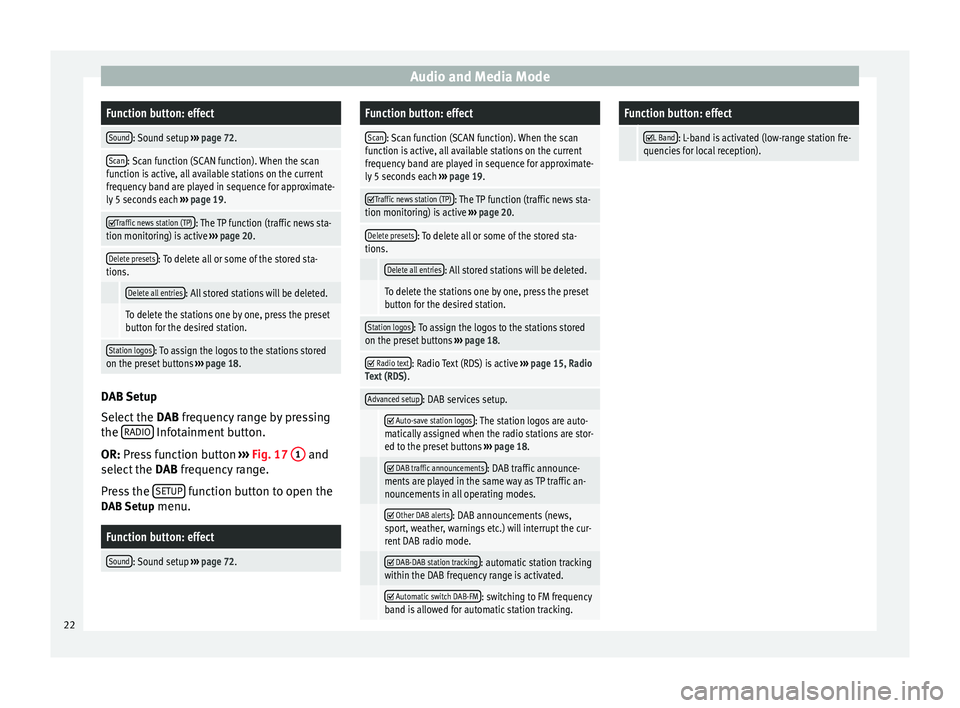
on the preset buttons ››› page 18. DAB Setup
Select the
DAB frequency range by pressing
the RADIO Infotainment button.
OR: Press function button
›
›
› Fig. 17 1 and
select the DAB frequency range.
Pr e
ss the SETUP function button to open the
DAB Setup menu.
Function button: effect
Sound: Sound setup ››› page 72.
Function button: effect
Scan: Scan function (SCAN function). When the scan
function is active, all available stations on the current
frequency band are played in sequence for approximate-
ly 5 seconds each ››› page 19.
Traffic news station (TP): The TP function (traffic news sta-
tion monitoring) is active ››› page 20.
Delete presets: To delete all or some of the stored sta-
tions.
Delete all entries: All stored stations will be deleted.
To delete the stations one by one, press the preset
button for the desired station.
Station logos: To assign the logos to the stations stored
on the preset buttons ››› page 18.
Radio text: Radio Text (RDS) is active
››› page 15, Radio
Text (RDS) .
Advanced setup: DAB services setup.
Auto-save station logos: The station logos are auto-
matically assigned when the radio stations are stor-
ed to the preset buttons ››› page 18.
DAB traffic announcements: DAB traffic announce-
ments are played in the same way as TP traffic an-
nouncements in all operating modes.
Other DAB alerts: DAB announcements (news,
sport, weather, warnings etc.) will interrupt the cur-
rent DAB radio mode.
DAB-DAB station tracking: automatic station tracking
within the DAB frequency range is activated.
Automatic switch DAB-FM: switching to FM frequency
band is allowed for automatic station tracking.
Function button: effect
L Band: L-band is activated (low-range station fre-
quencies for local reception). 22
Page 25 of 84
Audio and Media Mode
Media mode Introduction “Media sources
” are audio sources contain-
in
g audio files on various different data stor-
age devices (e.g. CD, memory card, external
MP3 player). These audio files can be played
by the Infotainment system via their corre-
sponding drives or audio input sockets (inter-
nal CD drive, memory card slot, AUX-IN multi-
media socket etc.). Copyright
Audio and video files on data storage devices
are usually protected by intellectual property
rights, as per the corresponding national and
international laws. Be aware of the current le-
gal provisions!
Additional information and warnings:
● Safety notes relating to the Infotainment
sy s
tem ››› page 3.
● Overview of the controls ››› page 5. ●
General operating instructions ››› page 6. Note
● MPEG-4 HE-AAC audio coding technology
and patents are licensed from Fraunhofer IIS.
● This product is subject to certain intellectu-
al property rights and copyrights owned by
the Microsoft Corporation. The use or distri-
bution of this type of technology outside this
product requires a licence from Microsoft or
an authorised Microsoft company. Requirements for data storage devices and files
Factory-fitted CD and DVD drives conform to
safety class 1 according to DIN IEC 76 (CO)
6/ VDE 0837.
The Infotainment system only accepts stand-
ard 12 cm CDs/DVDs and memory cards with
these dimensions: 32 mm x 24 mm x 2.1 mm
or 1.4 mm.
The supported file formats listed are collec-
tively referred to below as “audio files”. A CD
containing audio files of these types is refer-
red to as an “audio data CD”.
»
23
Page 29 of 84
Audio and Media ModeDisplay: Meaning
b)DAB not available
››› page 16.
a)
Gracenote ®
is a database available on the Infotainment sys-
tem hard drive that contains information on the tracks about dif-
ferent artists and albums. In order for the user to benefit from
the functions offered by Gracenote ®
, it is necessary for the
tracks to contain the artist and/or album data.
b) Depends on the market and unit in question.
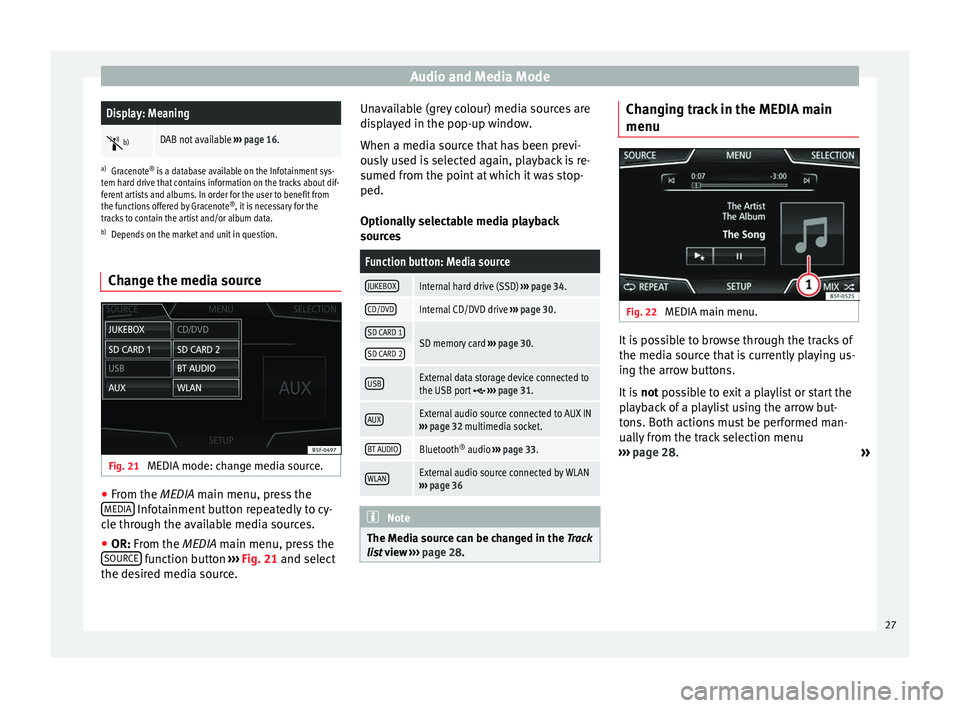
Change the media source Fig. 21
MEDIA mode: change media source. ●
From the MEDIA
main menu, press the
MEDIA Infotainment button repeatedly to cy-
cle through the available media sources.
● OR: From the
MEDIA
main menu, press the
SOURCE function button
›››
Fig. 21 and select
the de s
ired media source. Unavailable (grey colour) media sources are
displayed in the pop-up window.
When a media source that has been previ-
ously used is selected again, playback is re-
sumed from the point at which it was stop-
ped.
Optionally selectable media playback
sources
Function button: Media source
JUKEBOXInternal hard drive (SSD)
››› page 34.
CD/DVDInternal CD/DVD drive ››› page 30.
SD CARD 1SD memory card ››› page 30.SD CARD 2
USBExternal data storage device connected to
the USB port ››› page 31.
AUXExternal audio source connected to AUX IN
››› page 32 multimedia socket.
BT AUDIOBluetooth ®
audio ››› page 33.
WLANExternal audio source connected by WLAN
››› page 36 Note
The Media source can be changed in the Track
lis t
view ››› page 28. Changing track in the MEDIA main
menu
Fig. 22
MEDIA main menu. It is possible to browse through the tracks of
the media source that is currently playing us-
ing the arrow buttons.
It is
not possible to exit a playlist or start the
p l
ayback of a playlist using the arrow but-
tons. Both actions must be performed man-
ually from the track selection menu
››› page 28.
»
27
Page 32 of 84

Audio and Media Mode
Insert or eject a CD or DVD Fig. 27
Slots for data storage devices in the
glove compartment. The driver should refrain from operating the
unit while the vehicle is in motion. Insert or
change the data storage device before mov-
ing off!
The CD and DVD drive can play audio CDs
and DVDs and audio data CDs and DVDs.
Insert a CD or DVD
● Hold the CD or DVD with the printed side
facing up.
● Push the CD or DVD into the DVD slot
››› Fig. 27 3 to the point where it is drawn in
automatically.
● When the CD is inserted, playback will start
automatically. Eject a CD or DVD
In order to prevent theft, in convertible mod-
els, the ignition key must be in the ignition
lock to eject a CD or DVD (anti-theft protec-
tion).
●
Press button
1 .
● The CD or DVD in the drive will be ejected
and must be removed within approximately
10 seconds.
If the CD or DVD is not removed within the 10
seconds, it is automatically retracted for se-
curity reasons without activating the CD or
DVD mode.
Unreadable or defective CD or DVD
If the data on an inserted CD or DVD cannot
be read or a faulty CD or DVD is inserted, the
corresponding warning appears on screen.
Depending on the unit, unreadable CDs or
DVDs are ejected 3 times automatically and
inserted again to initiate another three at-
tempts before said message is displayed. Note
● Uneven road surfaces and strong vibrations
can cause playback to jump.
● When the temperature inside the unit is too
high, loading and playback of CDs and DVDs
is disabled. ●
If after inserting a number of different CDs
or DVDs and receiving the CD drive error every
time, contact a qualified workshop. Insert or eject a memory card
Only supported audio files are displayed and
played. Other files are ignored.
Inserting a memory card
Insert the compatible memory card, cut-off
corner first and with the label face up (con-
tacts face down), into one of the two slots
››› Fig. 27 2 , until properly inserted.
If a memory card cannot be inserted, make
sure it is positioned correctly and is compati-
ble with the unit.
Playback starts automatically if supported
audio files are stored on the memory card.
Removing a memory card
The inserted memory cards must be prepared
for removal.
● From the main Media menu, press the
SETUP button to open the Media Setup
menu
or press the Infotainment MENU button and
then press Setup to open the System setup
menu.
● Press the Remove safely function button. A
dropdown menu appears with three options:
30
Page 33 of 84

Audio and Media Mode
SD Card1, SD Card 2 and USB. After correctly
ejecting the memory card from the system,
the function button becomes inactive (grey
colour).
● Press the inserted memory card. The mem-
ory card “jumps” to the eject position.
● Remove the memory card.
Unreadable memory card
If a memory card is inserted and the data
cannot be read, the following warning ap-
pears: There are no playable files.
External data storage device
connected to USB port Depending on the equipment and the coun-
try, there may be a USB port in the glove box
(car instruction manual)
Audio files on an external data storage de-
vice connected to the USB port
can be
played and controlled via the Infotainment
system.
Where this manual refers to external data
storage devices, this means USB mass stor-
age devices containing supported audio
files, such as MP3 players, iPods™ and USB
sticks.
Only supported audio files are displayed and
played. Other files are ignored. Playback starts automatically if there are sup-
ported and readable audio files on the data
storage device.
Further operation of the external data medi-
um (changing track, selecting tracks and
playback modes) is described in the appro-
priate chapters of this manual
››› page 23.
Notes and restrictions
Compatibility with Apple™ devices and other
media players depends on the unit.
The USB port supplies the usual USB volt-
age of 5 volts for a USB connection.
External hard disks with a capacity greater
than 32 GB must be reformatted for the
FAT32 file system in some circumstances. You
will find the necessary software and informa-
tion on the Internet.
Take into account all other instructions and
limitations regarding requirements for media
sources ››› page 23 . R
equir ements
Compatible data me-
diaReadable files and for-
mats
Data storage device with
specification compliant
with USB 2.0.
Data storage device
FAT16 (< 2 GB) or FAT32 (> 2 GB) file system.
iPods™ a)
, iPads™ a)
and
iPhones™ a)
from differ-
ent generations.
MTP players with the
“PlaysForSure” or “Ready-
ForVista” trademarks.– MP3 files (.mp3) with bit
rates of between
32 and 320 kbit/s or with
variable transfer rates.
– WMA files(.wma) up to
9.2 mono/stereo without
copy protection.
– AAC files
(.m4a, .m4b, .mp4
and .aac).
– Playlists in M3U, PLS,
ASX and WPL formats.
– Playlists must not exceed
20 kB or more than 1000
entries.
– File names and paths
must not exceed 256 char-
acters.
Read and bear in mind the manufacturer's instruction
manual for the external data storage device.
a) iPod™, iPad™ and iPhone™ are registered trademarks of Ap-
ple Inc.
iPod™, iPad™ and iPhone™
Depending on the country and the equip-
ment, iPods™, iPads™ or iPhones™ can be
connected using the device's USB cable to
the USB port
of the vehicle and used as
audio sources.
After connecting an iPod™, iPad™ or
iPhone™, the specific list views of the iPod »
31
Page 34 of 84
Audio and Media Mode
are displayed in the upper selection level
( Playlists,
Ar
ti sts, Albums, Tracks,
P
odcasts etc.).
Files cannot be imported from an iPod™,
iPa
d™ or an iPhone™.
Possible error messages after connecting an
external data storage device
Error mes-
sageCauseProcedure
The device is
not compati-
bleThe external
data carrier
cannot be
played or com-
munication is
not possible
with the adapt-
er cable being
used.Check the connec-
tion and make sure
the external data
medium is working
correctly.
If possible, update
the data storage de-
vice software.
The device
does not workCommunication
fault.Check the connec-
tion and make sure
the external data
medium is working
correctly.
Due to the large number of different data storage devi-
ces and various iPod™, iPad™ and iPhone™ genera-
tions available, it is not possible to guarantee fault-free
operation of all functions described here. Disconnecting
Any connected data storage devices
must be
prepared before their disconnection in order
to remove them. ●
From the main Media menu, press the
SETUP button to open the
Media Setup
menu
or pr e
ss the Infotainment MENU button and
then press Setup to open the System setup
menu.
● Press the Remove safely function button. A
dropdown menu appears with three options:
SD Card1, SD Card 2 and USB. After correctly
ejecting the data storage device from the sys-
tem, the function button becomes inactive
(grey colour).
● Now the data storage device can be discon-
nected. Note
● Do not connect an external media player at
the same time to play music via Bluetooth ®
and via the USB port with the Infotain-
ment system, as this could cause playback
limitations.
● If the external player is an Apple device™,
it cannot be simultaneously connected by
USB and by Bluetooth.
● If a connected device is not recognised, dis-
connect all the connected devices and try
connecting the device again.
● Do not use memory card adaptors, USB ex-
tension cords or USB hubs! External audio source connected to
the AUX-IN multimedia socket
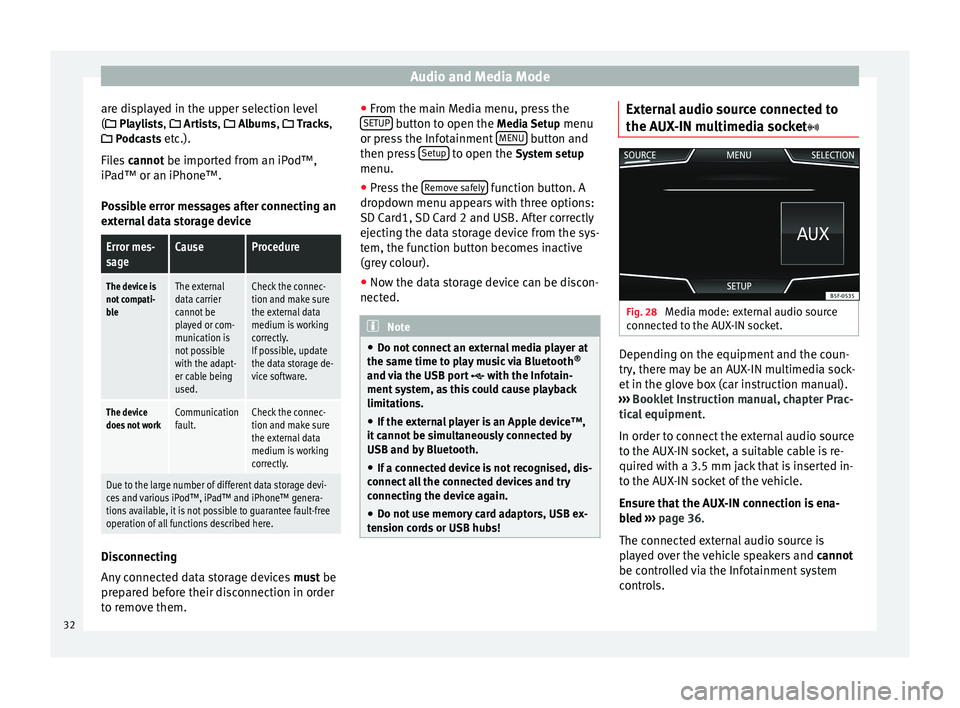
Fig. 28
Media mode: external audio source
connected to the AUX-IN socket. Depending on the equipment and the coun-
try, there may be an AUX-IN multimedia sock-
et in the glove box (car instruction manual).
››› Booklet Instruction manual, chapter Prac-
tical equipment .
In order to connect the external audio source
to the AUX-IN socket, a suitable cable is re-
quired with a 3.5 mm jack that is inserted in-
to the AUX-IN socket of the vehicle.
Ensure that the AUX-IN connection is ena-
bled
›
›› p
age 36.
The connected external audio source is
played over the vehicle speakers and cannot
be controlled via the Infotainment system
controls.
32