infotainment Seat Leon SC 2014 NAVI SYSTEM PLUS
[x] Cancel search | Manufacturer: SEAT, Model Year: 2014, Model line: Leon SC, Model: Seat Leon SC 2014Pages: 84, PDF Size: 2.08 MB
Page 49 of 84

NavigationFunction button: effect
Satellite data: current vehicle position in coordinates and
GPS status (satellite reception).
a) This function button is only displayed with route guidance ac-
tivated.
Press the function button to deactivate the
split screen.
Map display Fig. 40
Messages and function buttons on
the map display. Function buttons and messages on the map
display.
To activate function buttons
and , press
function button .
Function button: effect
To select automatic scaling. If the function is
active, the symbol is displayed in blue.
Current altitude indicator.
View map scale. Turn the setup button to mod-
ify the scale of the map.
To change the orientation of the map (north-
facing or direction of travel). This function is
only available in 2D mode.
To centre the vehicle position on the map.
To centre the destination on the map. This
function button is only displayed if
Display
destination on map is selected ››› page 46.
Briefly zooms in on the map. After a few sec-
onds, it automatically returns to the last selec-
ted scale.
Traffic reports and dynamic route
guidance (TRAFFIC)
The Infotainment system constantly receives
traffic reports (TMC/TMCpro) in the back-
ground, provided a TMC traffic news station
can be received at the current location. The
station being listened to does not have to be
the traffic news station.
TMC traffic reports are displayed on the map
with symbols
››› page 48, Traffic reports on
map (selection) and are required for dynamic r
out
e guidance
››› page 47, Dynamic route
guidance
.
List of available traffic reports
● Press the TRAFFIC button on the Infotain-
ment system to display a list of the current
traffic reports.
● Press the OPTIONS function button and
then select All or Route.
Function button: effect
All: This will display all the traffic reports received.
Route: This will display the traffic reports received that
affect the calculated route. Dynamic route guidance
In order for dynamic route guidance to func-
tion,
Dynamic route
must be activated in the
route options ›››
page 49.
If during route guidance a traffic report is re-
ceived that affects the route being travelled,
an alternative route will be searched for if the
Infotainment system calculates that time can
be saved.
If it calculates that time will not be saved us-
ing the alternative route, it will continue on
the route with the traffic congestion. An an-
nouncement will be made in each case. »
47
Page 50 of 84
Navigation
Shortly before arriving at the announced con-
gested traffic, it will be announced once
again.
Avoiding congestion by following the instruc-
tions of a traffic report does not always save
time as the alternate roads may be at a
standstill. The quality of the dynamic route
guidance depends on the information con-
tained in the traffic reports.
The remainder of the route to be travelled
may be manually excluded to cause a new
route calculation ››› page 43.
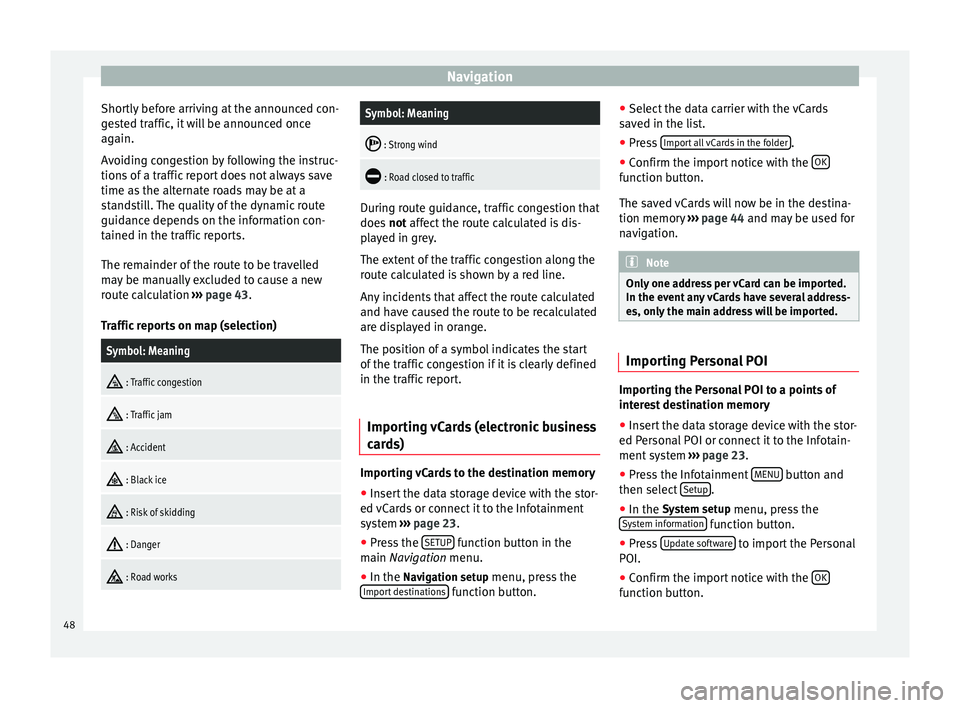
Traffic reports on map (selection)Symbol: Meaning
: Traffic congestion
: Traffic jam
: Accident
: Black ice
: Risk of skidding
: Danger
: Road works
Symbol: Meaning
: Strong wind
: Road closed to traffic
During route guidance, traffic congestion that
does
not affect the route calculated is dis-
p l
ayed in grey.
The extent of the traffic congestion along the
route calculated is shown by a red line.
Any incidents that affect the route calculated
and have caused the route to be recalculated
are displayed in orange.
The position of a symbol indicates the start
of the traffic congestion if it is clearly defined
in the traffic report.
Importing vCards (electronic business
cards) Importing vCards to the destination memory
● Insert the data storage device with the stor-
ed vCards or connect it to the Infotainment
system ›››
page 23 .
● Pr e
ss the SETUP function button in the
main Navigation
menu.
● In the Nav
igation setup menu, press the
Import destinations function button.●
Select the data carrier with the vCards
saved in the list.
● Press Import all vCards in the folder .
● Confirm the import notice with the OK function button.
The saved vCards will now be in the destina-
tion memory
››› page 44 and may be used for
n av
igation. Note
Only one address per vCard can be imported.
In the event any vCards have several address-
es, only the main address will be imported. Importing Personal POI
Importing the Personal POI to a points of
interest destination memory
● Insert the data storage device with the stor-
ed Personal POI or connect it to the Infotain-
ment system ›››
page 23 .
● Pr e
ss the Infotainment MENU button and
then select Setup .
● In the System setup
menu, press the
System information function button.
● Press Update software to import the Personal
POI.
● Confirm the import notice with the OK function button.
48
Page 51 of 84

Navigation
The stored Personal POI are now in the points
of interest destination memory ››› page 45
and can be used for navigation purposes.
The stored Personal POI can be deleted in the
Navigation Setup menu ››› page 49.
Navigation with images Fig. 41
Images main menu. Selecting an image and starting route
guidance
Bear in mind the requirements and formats of
the compatible images
››› page 23.
● Insert the data storage device with the stor-
ed images or connect it to the Infotainment
system.
● Press the Infotainment system MENU but-
ton and then select Images .●
Press the SOURCE
››› Fig. 41 function button
and sel ect
the data storage device where the
images are stored.
● Select the desired image.
● If the image displayed was taken using GPS
localisation, the function button will ap-
pear. Press to start route guidance.
Road sign indicators The road sign indicators must be active in the
Navigation Setup menu ››› page 49.
If road signs for the road being travelled are
stored in the navigation data, the system can
show them on the map display (e.g. a speed
restriction).
Please bear in mind how recent the naviga-
tion data is and the limitations of the system
››› page 40
!
R out
e guidance in demo mode If demo mode is activated in the
Setup Navi-
gation menu ›››
page 49 , an additional pop-
up w indo
w opens when you start route guid-
ance.
● Pressing the Demo mode function button
starts a “virtual route guidance” to the desti-
nation you have entered. ●
If you press the Normal function button, a
“real route guidance” starts.
The sequence of events and the operations in
virtual route guidance are similar to those in
real route guidance.
Virtual route guidance is repeated when you
reach the fictitious destination and always
starts again from the starting point if not
aborted beforehand.
If the starting point for demo mode has been
defined manually in the Setup Navigation
menu, virtual route guidance will start from
the position set.
A manually entered starting point is overwrit-
ten with the current vehicle location if the ve-
hicle moves off. Note
Disable demo mode after use, otherwise you
will be prompted to choose between virtual
and normal route guidance each time you
start route guidance. Navigation setup
●
Press the SETUP function button in the
main Navigation
menu.
Function button: effect
Route options: To make adjustments to route calculation.» 49
Page 54 of 84
CAR menu
CAR menu Introduction to managing the
CAR menu Car menu By pressing the “CAR” infotainment button
you will access its main menu with the follow-
ing options:
● VIEW
● MINIPLAYER (Radio and Media function)
● PREVIOUS-NEXT (to change screen)
● SETUP ›››
Booklet Instruction Manual,
chapter System setup (CAR)
With the function button View you can access
the following information:
● OFFROAD*
● CONSUMERS
● DRIVING DATA
● ECOTRAINER*
● VEHICLE STATUS Offroad*
Fig. 42
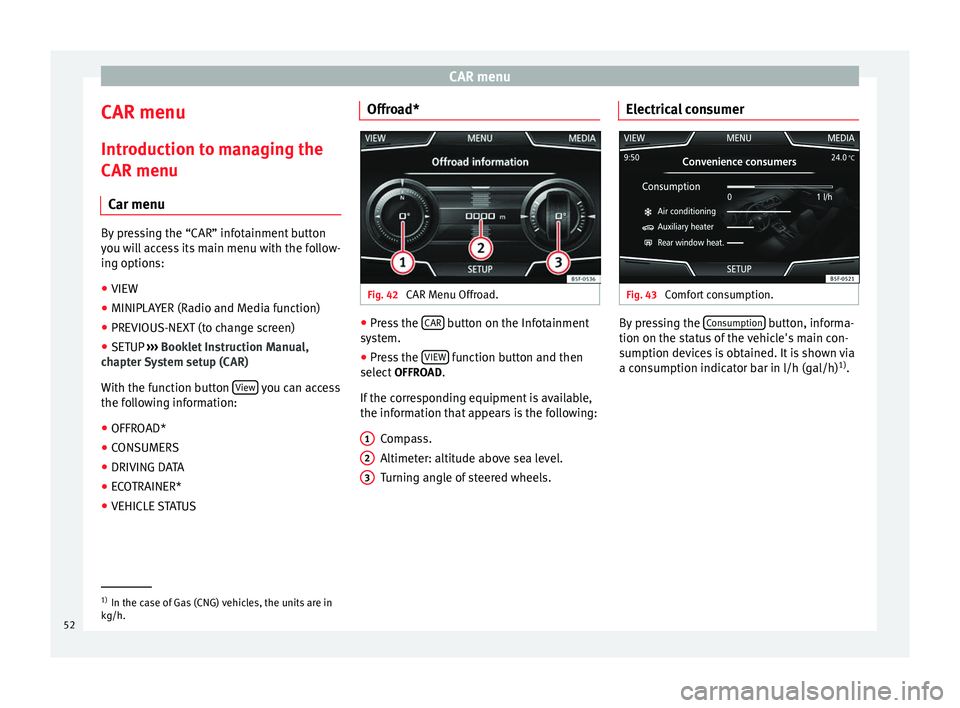
CAR Menu Offroad. ●
Press the CAR button on the Infotainment
system.
● Press the VIEW function button and then
select OFFROAD.
If the corresponding equipment is available,
the information that appears is the following: Compass.
Altimeter: altitude above sea level.
Turning angle of steered wheels.
1 2
3 Electrical consumer
Fig. 43
Comfort consumption. By pressing the
Consumption button, informa-
tion on the status of the vehicle's main con-
sumption devices is obtained. It is shown via
a consumption indicator bar in l/h (gal/h) 1)
. 1)
In the case of Gas (CNG) vehicles, the units are in
kg/h.
52
Page 55 of 84

CAR menu
Driving data Fig. 44
Trip data. The onboard computer is equipped with 3
memories that work automatically. In these
memories you can see the distance travelled,
average speed, time passed, average con-
sumption and autonomy of the vehicle.
1. Since start
Indicates and stores the values of the journey
completed and the consumption from when
the ignition is switched on to when it is
switched off.
2. Since refuel
Display and storage of the values for the jour-
ney and the consumption. By refuelling, the
memory will be erased automatically. 3. Long-term
The memory records the values for a specific
number of partial trips, up to a total of 19
hours and 59 minutes or 99 hours and 59 mi-
nutes, or 1999.9 km (or miles) for 9999 km
(or miles), depending on the model of instru-
ment panel.
When one of these values is reached (de-
pending on the version of the instrument
panel), the memory is automatically deleted
and it starts counting from 0 again.
Ecotrainer* Fig. 45
CAR Menu Ecotrainer. Fig. 46
Driving style symbols. Open ECOTRAINER menu
● With the vehicle stopped, press the CAR button on the Infotainment system.
● Press the VIEW function button and then
select ECOTRAINER.
If the corresponding equipment is available,
the ECOTRAINER will provide information on
driving style. The information on driving style
is only evaluated and displayed when mov-
ing forward.
∅ ECO points: Driving style display
Thi s
indicates the driving style since starting
the vehicle on a scale of 0 to 100. The higher
the score displayed, the more efficient the
driving style. To see more information, press
the display. It shows statistics for the last 30
minutes of driving since starting the vehicle. »
53
Page 58 of 84
Telephone management system (PHONE)
Telephone management
system (PHONE)
Introduction to the telephone
management system General information The Telephone functions described below
can be used through the Infotainment system
if there is a mobile telephone connected to it
via Bluetooth
®
››› page 58
.
In or der f
or the mobile telephone to be able
to connect to the Infotainment system the tel-
ephone must be equipped with Bluetooth®
.
If there is no mobile telephone connected to
the Infotainment system, the telephone man-
agement system will not be available.
The instructions shown on the screen for the
telephone menus will depend on the mobile
telephone used. There may be variations.
Only use compatible Bluetooth ®
devices. For
further information on compatible Blue-
tooth ®
products, ask your nearest SEAT deal-
er or check on the internet.
Use the instruction manual of the mobile tel-
ephone and of any accessories.
If you detect any strange behaviour between
your mobile telephone and the Infotainment system, restart your mobile by switching it off
and on again.
You may experience poor reception or may be
cut off in areas where the signal is weak.
Most electronic devices are shielded against
HF (high-frequency) signals. In any case, the
electronic equipment may not be protected
from the HF signals of the telephone man-
agement system. This may cause interfer-
ence.
WARNING
Speaking by telephone and operating the mo-
bile telephone whilst driving can distract you
from the road and cause an accident.
● Always drive carefully and responsibly.
● Select volume settings that allow you to
easily hear signals from outside the vehicle
at all times (e.g. emergency services sirens
and horns).
● In areas of little or no coverage or, in some
cases, in a tunnel, garage or underpass, your
call may be cut off and you may not be able to
make even emergency calls. WARNING
If a mobile telephone is not secured or is in-
correctly secured in the vehicle, it could move
around the passenger compartment in the
event of a sudden driving manoeuvre or emer-
gency stop, resulting in injury. ●
While the vehicle is in motion, always se-
cure the mobile telephone properly outside
the airbag deployment zone. WARNING
Mobile telephones may interfere with and al-
ter the correct operation of pacemakers if
they are carried directly over them.
● Maintain a minimum distance of at least
20 centimetres between the aerials of the
mobile telephone and the pacemaker, as mo-
bile phones may affect the functioning of
pacemakers.
● Do not carry your switched on mobile tele-
phone in your breast pocket directly over the
pacemaker.
● If you suspect interference, switch off the
mobile telephone immediately. WARNING
If the centre armrest is open, it may obstruct
the driver's arm movements, which could
cause an accident and severe injuries.
● Always keep the armrest closed while the
vehicle is in motion. CAUTION
High speeds, poor weather or road conditions
and the quality of reception can all affect the
quality of a telephone conversation in the ve-
hicle. 56
Page 60 of 84
Telephone management system (PHONE)
Pair and connect a mobile telephone
to the Infotainment system In order to manage a mobile telephone via
the Infotainment system, it is necessary to
pair both devices
once.
F or
your safety, we recommend you make the
link when the vehicle is stationary. In some
countries it is not possible to perform the
pairing with the vehicle running.
Conditions
You must guarantee the following setup in
the mobile phone and the infotainment sys-
tem:
● The ignition must be switched on.
● Where necessary, disconnect the headset
from the connected telephone.
● The Bluetooth ®
fu
nction of the mobile tele-
phone and the Infotainment system must be
active as well as visibility.
● The
keypad lock on the mobile telephone
must be deactivated.
● The notification and key tones on the mo-
bile telephone must be disconnected.
Follow instructions in the manual for the mo-
bile telephone.
After turning on the ignition, the visibility of
the
Bluetooth ®
function activates. During the pairing process it is necessary to
enter data via the mobile telephone's key-
pad. To do so, the mobile telephone must be
ready.
Starting mobile telephone pairing
● Make sure the mobile device is active and
visible.
● Press the PHONE button on the Infotain-
ment system.
● Press the Find telephone function button.
OR:
● Press the PHONE button on the Infotain-
ment system.
● Press the Setup function button.
● Press the Select telephone function button
and then Find telephone .
OR: ● Press the PHONE unit button.
● Press the Setup function button.
● Press the Bluetooth function button.
● Press the Find devices function button.
As soon as the search is completed, the
names of the Bluetooth ®
devices found are
displayed on-screen.
● Activate the mobile telephone to be paired
on the list of Bluetooth ®
devices found. The Infotainment system and the mobile tele-
phone can connect. To finalise the connec-
tion between both devices, it may be neces-
sary to enter more data on the mobile tele-
phone and the on the Infotainment system.
● If necessary, confirm pairing on the mobile
telephone.
Depending on the mobile telephone:
● Enter and confirm your PIN code, as shown
on the Infotainment system display.
OR:
● Make the connection from the mobile de-
vice itself (ensure that the visibility of the In-
fotainment system in the menu Telephone setup >
BT setup is active). The
search process can take up to 1 minute. On
the screen the system will dynamically up-
date the names of the bluetooth devices
found.
● Select the infotainment system or the mo-
bile phone to which you want to connect from
the list of Bluetooth devices found. The info-
tainment system and the mobile phone will
now be connected to each other. In certain
circumstances, it is possible that to finish the
connection between the two devices, you
must enter additional data in the mobile
phone and infotainment system.
● If necessary, confirm the link to the mobile
phone.
58
Page 61 of 84
Telephone management system (PHONE)
● Use your mobile phone to enter and con-
firm your PIN code, as indicated in the dis-
play of the infotainment system.
OR:
● Compare the PIN code shown on the dis-
play of the Infotainment system with that
shown on the mobile phone. If they match,
confirm on both
devices.
When p
airing has been completed correctly,
the
PHONE main menu is displayed and the
phonebook; call lists stored on the mobile
telephone are automatically loaded. The du-
ration of the loading process depends on the
amount of data stored on the mobile phone.
After loading, the data will be available on
the Infotainment system.
Pairing and connection of mobile telephones
You can pair up to 20 mobile telephones to
the Infotainment system, but there can only
be two mobile phones simultaneously con-
nected as hands-free, and a third device as
BT audio at any time.
When the Infotainment system is switched
on, it automatically connects to the last con-
nected mobile phone. If it is not possible to
connect to this mobile phone, the telephone
management system will try to automatically
connect to the next mobile phone on the list
of paired devices. The maximum range of the Bluetooth
®
con-
nection is approx. 10 metres. The active
Bluetooth ®
connection disconnects if this
distance is exceeded. The connection is auto-
matically re-established as soon as the de-
vic
e is once again within Bluetooth ®
range.
If the maximum number of paired devices is
reached and you wish to pair another one to
the system, it will automatically replace the
one used least recently. If you wish to replace
it with another one, the user must erase it be-
forehand. To do so:
● Press the Setup button on the device while
in telephone mode.
● Press the function button Bluetooth setup .
● Activate the Paired devices function button.
● In the list of paired devices, press the function button next to the mobile phone to
be deleted and then press
Delete to confirm
the process.
Description of the telephone
management system Introduction Some functions and setup can only be per-
formed when the vehicle is stopped and are
not available on all mobile telephones.With the help of the telephone manager, up
to 3 mobile telephones can be connected to
the Infotainment system via the Bluetooth
profiles (for example, one used as a Blue-
tooth-audio player and/or another two as
hands-free telephones).
Note
● Using a mobile phone inside the vehicle
may provoke noise in the speakers.
● Some networks may not recognise all lan-
guage characters or offer all services. 59
Page 62 of 84
Telephone management system (PHONE)
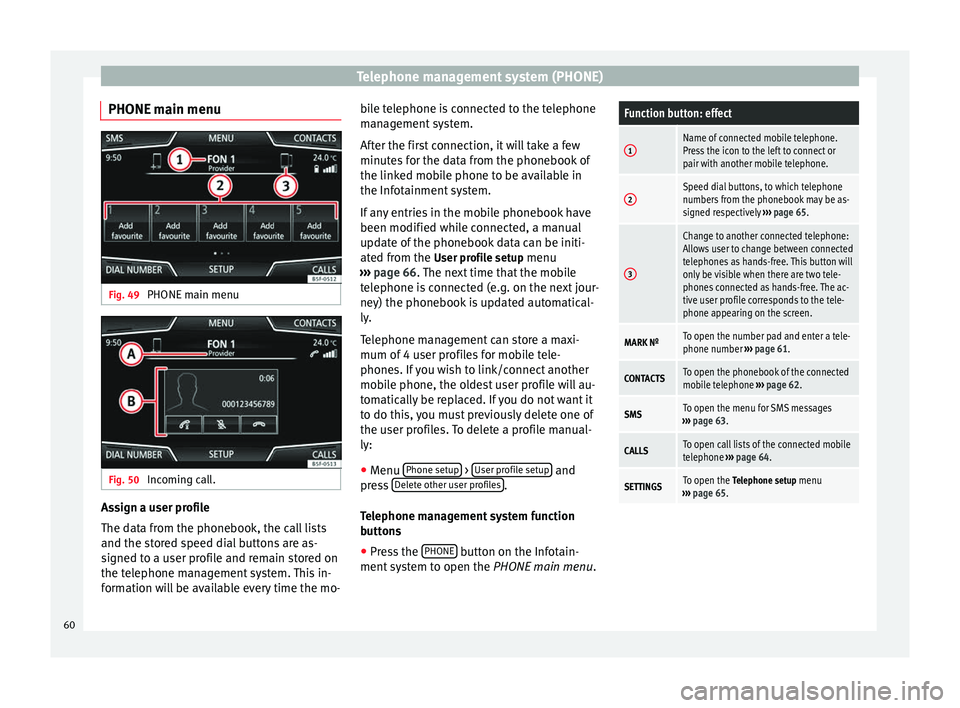
PHONE main menu Fig. 49
PHONE main menu Fig. 50
Incoming call. Assign a user profile
The data from the phonebook, the call lists
and the stored speed dial buttons are as-
signed to a user profile and remain stored on
the telephone management system. This in-
formation will be available every time the mo- bile telephone is connected to the telephone
management system.
After the first connection, it will take a few
minutes for the data from the phonebook of
the linked mobile phone to be available in
the Infotainment system.
If any entries in the mobile phonebook have
been modified while connected, a manual
update of the phonebook data can be initi-
ated from the
User profile setup menu
› ›
› page 66. The next time that the mobile
tel
ephone is connected (e.g. on the next jour-
ney) the phonebook is updated automatical-
ly.
Telephone management can store a maxi-
mum of 4 user profiles for mobile tele-
phones. If you wish to link/connect another
mobile phone, the oldest user profile will au-
tomatically be replaced. If you do not want it
to do this, you must previously delete one of
the user profiles. To delete a profile manual-
ly:
● Menu Phone setup >
User profile setup and
press Delete other user profiles .
Telephone management system function
buttons ● Press the PHONE button on the Infotain-
ment system to open the PHONE main menu.
Function button: effect
1Name of connected mobile telephone.
Press the icon to the left to connect or
pair with another mobile telephone.
2Speed dial buttons, to which telephone
numbers from the phonebook may be as-
signed respectively ››› page 65.
3
Change to another connected telephone:
Allows user to change between connected
telephones as hands-free. This button will
only be visible when there are two tele-
phones connected as hands-free. The ac-
tive user profile corresponds to the tele-
phone appearing on the screen.
MARK NºTo open the number pad and enter a tele-
phone number ››› page 61.
CONTACTSTo open the phonebook of the connected
mobile telephone ››› page 62.
SMSTo open the menu for SMS messages
››› page 63.
CALLSTo open call lists of the connected mobile
telephone ››› page 64.
SETTINGSTo open the Telephone setup menu
››› page 65. 60
Page 64 of 84
Telephone management system (PHONE)Possible functions
a)
Prefix func-
tion
Enter the telephone number with-
out the prefix and press the function button. The prefix stored
in the User profile setup menu
››› page 66 is automatically
placed before the entered number
and the call is made.
Enter the country
code
To enter a country code, instead of
the first two digits (international
access code e.g. “00”) you can en-
ter the character “+”.
Press the 0 button for approx. 2
seconds to add the +.
Breakdown serv-
ice call Press the function button to obtain
help in the event of breakdown.
For this the network of SEAT deal-
erships is available to you with
their Mobile Service.
Information call Press the function button to obtain
information on the SEAT brand and
the additional services contracted
related to traffic and travel.
a)
The function button is only displayed when the prefix function
is activated in the User profile setup menu ››› page 66. Note
Breakdown service and information calls can
incur an additional cost on your telephone
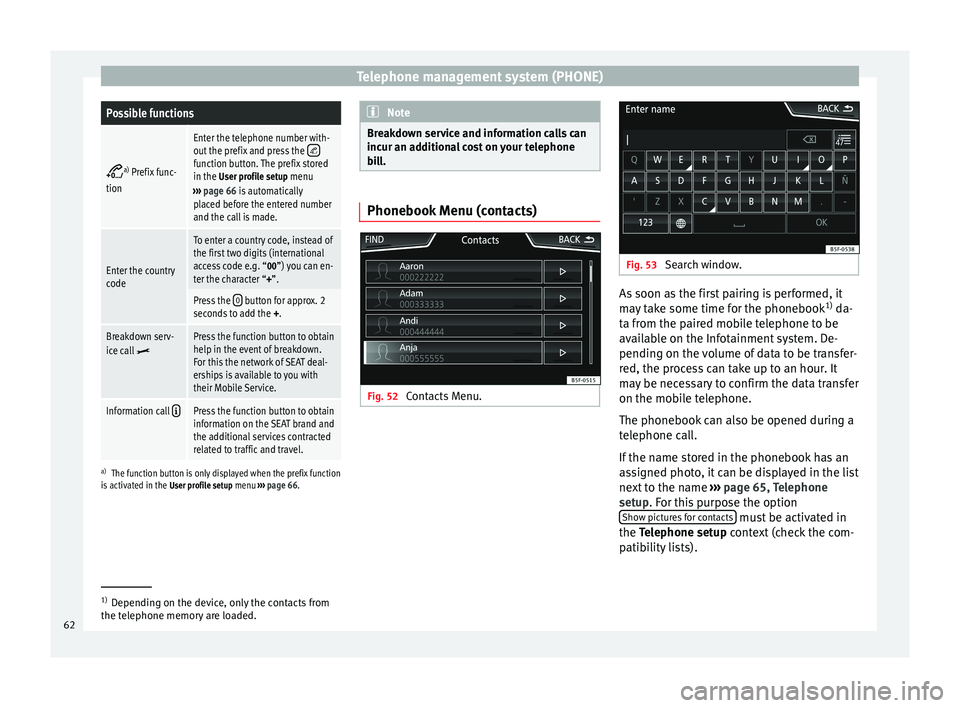
bill. Phonebook Menu (contacts)
Fig. 52
Contacts Menu. Fig. 53
Search window. As soon as the first pairing is performed, it
may take some time for the phonebook
1)
da-
ta from the paired mobile telephone to be
available on the Infotainment system. De-
pending on the volume of data to be transfer-
red, the process can take up to an hour. It
may be necessary to confirm the data transfer
on the mobile telephone.
The phonebook can also be opened during a
telephone call.
If the name stored in the phonebook has an
assigned photo, it can be displayed in the list
next to the name ››› page 65, Telephone
setup . For this purpose the option
Sho w pict
ures for contacts must be activated in
the Telephone setup
context (check the com-
p
atibility lists). 1)
Depending on the device, only the contacts from
the telephone memory are loaded.
62