phone SKODA KODIAQ 2016 1.G Owner's Guide
[x] Cancel search | Manufacturer: SKODA, Model Year: 2016, Model line: KODIAQ, Model: SKODA KODIAQ 2016 1.GPages: 344, PDF Size: 58.96 MB
Page 127 of 344
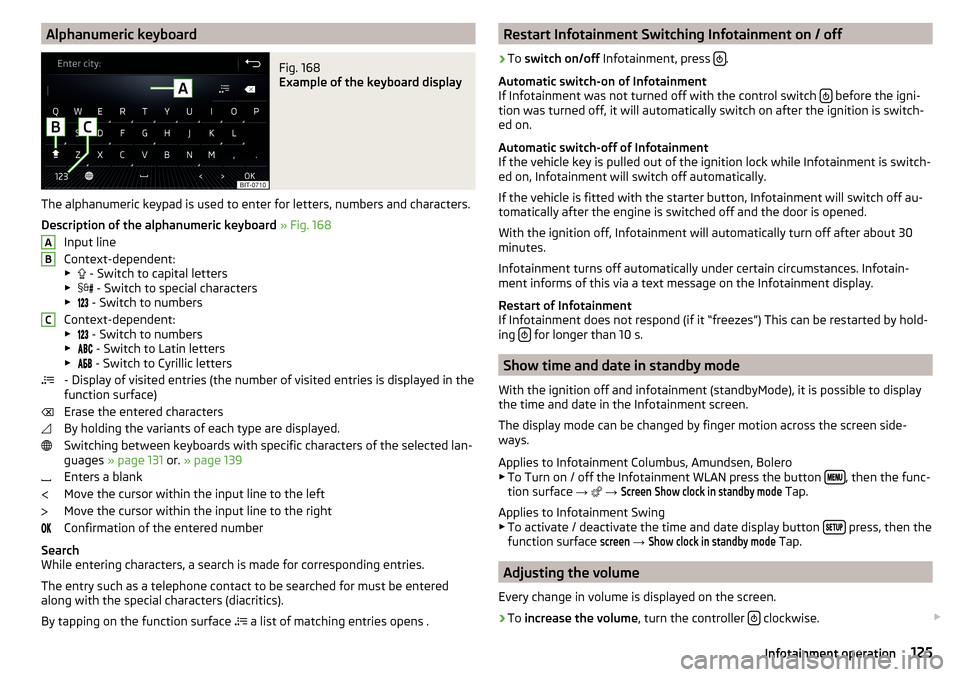
Alphanumeric keyboardFig. 168
Example of the keyboard display
The alphanumeric keypad is used to enter for letters, numbers and characters.
Description of the alphanumeric keyboard » Fig. 168
Input line
Context-dependent: ▶ - Switch to capital letters
▶ - Switch to special characters
▶ - Switch to numbers
Context-dependent: ▶ - Switch to numbers
▶ - Switch to Latin letters
▶ - Switch to Cyrillic letters
- Display of visited entries (the number of visited entries is displayed in the
function surface)
Erase the entered characters
By holding the variants of each type are displayed. Switching between keyboards with specific characters of the selected lan-
guages » page 131 or. » page 139
Enters a blank
Move the cursor within the input line to the left
Move the cursor within the input line to the right
Confirmation of the entered number
Search
While entering characters, a search is made for corresponding entries.
The entry such as a telephone contact to be searched for must be entered
along with the special characters (diacritics).
By tapping on the function surface a list of matching entries opens .
ABCRestart Infotainment Switching Infotainment on / off›
To
switch on/off Infotainment, press .
Automatic switch-on of Infotainment
If Infotainment was not turned off with the control switch
before the igni-
tion was turned off, it will automatically switch on after the ignition is switch-
ed on.
Automatic switch-off of Infotainment
If the vehicle key is pulled out of the ignition lock while Infotainment is switch-
ed on, Infotainment will switch off automatically.
If the vehicle is fitted with the starter button, Infotainment will switch off au-
tomatically after the engine is switched off and the door is opened.
With the ignition off, Infotainment will automatically turn off after about 30
minutes.
Infotainment turns off automatically under certain circumstances. Infotain-
ment informs of this via a text message on the Infotainment display.
Restart of Infotainment
If Infotainment does not respond (if it “freezes”) This can be restarted by hold-
ing
for longer than 10 s.
Show time and date in standby mode
With the ignition off and infotainment (standbyMode), it is possible to display
the time and date in the Infotainment screen.
The display mode can be changed by finger motion across the screen side-
ways.
Applies to Infotainment Columbus, Amundsen, Bolero
▶ To Turn on / off the Infotainment WLAN press the button
, then the func-
tion surface →
→
Screen
Show clock in standby mode
Tap.
Applies to Infotainment Swing ▶ To activate / deactivate the time and date display button
press, then the
function surface
screen
→
Show clock in standby mode
Tap.
Adjusting the volume
Every change in volume is displayed on the screen.
›
To increase the volume , turn the controller clockwise.
125Infotainment operation
Page 128 of 344
›To
reduce volume , turn the controller anticlockwise.›To
mute , turn the controller to the left to 0.›
or:
press the button (applies to Infotainment Swing).
The following symbol appears on the screen when the sound is muted
,
If, at the time of muting, sound is played from the source in the Media menu,
then the playback is interrupted (pause) 1)
.
CAUTION
■ High volumes can cause sound resonance in the vehicle.■When changing or connecting an audio source, this may cause sudden
changes in volume. Reduce the volume before changing or connecting an au-
dio source.
Electronic voice amplification for driver and passenger
Applies to Infotainment Columbus, Amundsen, Bolero.
The voice enhancer allows transmission of the driver's and passenger's voice
on the speakers in the rear.
The volume of the voice can gain by pressing the button
and tapping the
functional face
→
Voice enhancer
be adjusted.
Infotainment menus
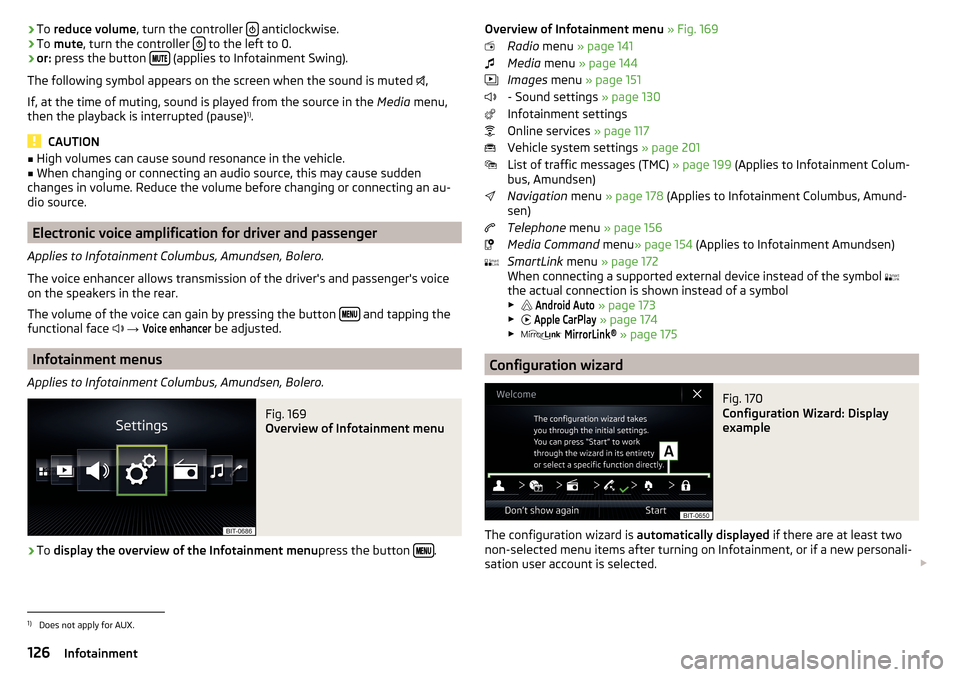
Applies to Infotainment Columbus, Amundsen, Bolero.
Fig. 169
Overview of Infotainment menu
›
To display the overview of the Infotainment menu press the button .
Overview of Infotainment menu
» Fig. 169
Radio menu » page 141
Media menu » page 144
Images menu » page 151
- Sound settings » page 130
Infotainment settings
Online services » page 117
Vehicle system settings » page 201
List of traffic messages (TMC) » page 199 (Applies to Infotainment Colum-
bus, Amundsen)
Navigation menu » page 178 (Applies to Infotainment Columbus, Amund-
sen)
Telephone menu » page 156
Media Command menu» page 154 (Applies to Infotainment Amundsen)
SmartLink menu » page 172
When connecting a supported external device instead of the symbol
the actual connection is shown instead of a symbol ▶ Android Auto
» page 173
▶
Apple CarPlay
» page 174
▶
MirrorLink®
» page 175
Configuration wizard
Fig. 170
Configuration Wizard: Display
example
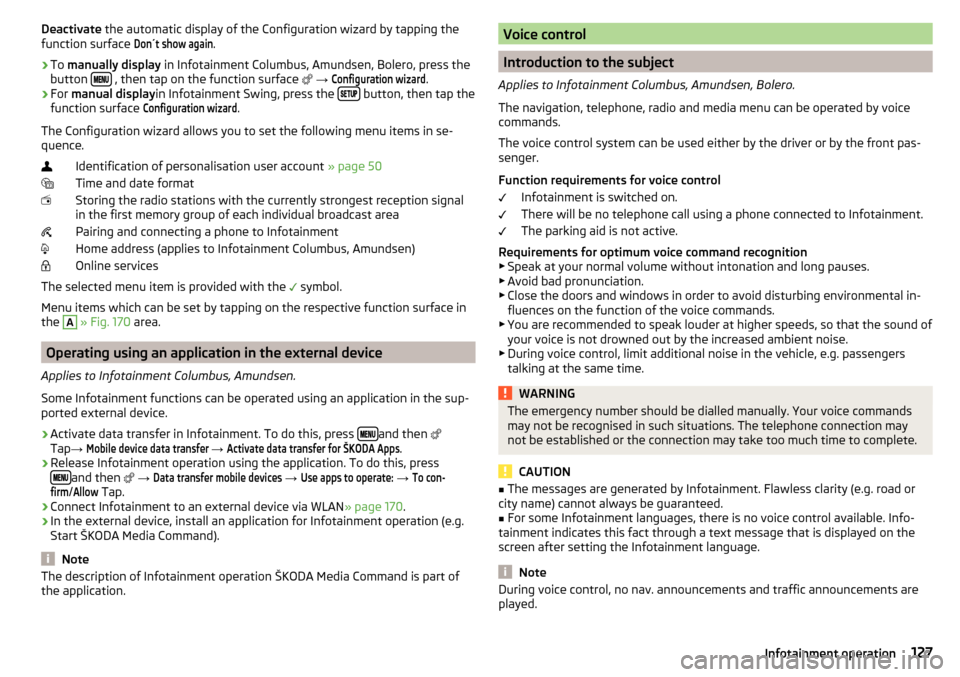
The configuration wizard is automatically displayed if there are at least two
non-selected menu items after turning on Infotainment, or if a new personali-
sation user account is selected.
1)
Does not apply for AUX.
126Infotainment
Page 129 of 344
Deactivate the automatic display of the Configuration wizard by tapping the
function surface Don´t show again
.›
To manually display in Infotainment Columbus, Amundsen, Bolero, press the
button , then tap on the function surface
→
Configuration wizard
.
›
For manual display in Infotainment Swing, press the button, then tap the
function surface
Configuration wizard
.
The Configuration wizard allows you to set the following menu items in se-
quence.
Identification of personalisation user account » page 50
Time and date format
Storing the radio stations with the currently strongest reception signal
in the first memory group of each individual broadcast area
Pairing and connecting a phone to Infotainment
Home address (applies to Infotainment Columbus, Amundsen)
Online services
The selected menu item is provided with the symbol.
Menu items which can be set by tapping on the respective function surface in the
A
» Fig. 170 area.
Operating using an application in the external device
Applies to Infotainment Columbus, Amundsen.
Some Infotainment functions can be operated using an application in the sup-
ported external device.
›
Activate data transfer in Infotainment. To do this, press and then
Tap →
Mobile device data transfer
→
Activate data transfer for ŠKODA Apps
.
›
Release Infotainment operation using the application. To do this, press
and then
→
Data transfer mobile devices
→
Use apps to operate:
→
To con-firm
/
Allow
Tap.
›
Connect Infotainment to an external device via WLAN » page 170.
›
In the external device, install an application for Infotainment operation (e.g.
Start ŠKODA Media Command).
Note
The description of Infotainment operation ŠKODA Media Command is part of
the application.Voice control
Introduction to the subject
Applies to Infotainment Columbus, Amundsen, Bolero.
The navigation, telephone, radio and media menu can be operated by voice
commands.
The voice control system can be used either by the driver or by the front pas-
senger.
Function requirements for voice control Infotainment is switched on.
There will be no telephone call using a phone connected to Infotainment.
The parking aid is not active.
Requirements for optimum voice command recognition
▶ Speak at your normal volume without intonation and long pauses.
▶ Avoid bad pronunciation.
▶ Close the doors and windows in order to avoid disturbing environmental in-
fluences on the function of the voice commands.
▶ You are recommended to speak louder at higher speeds, so that the sound of
your voice is not drowned out by the increased ambient noise.
▶ During voice control, limit additional noise in the vehicle, e.g. passengers
talking at the same time.
WARNINGThe emergency number should be dialled manually. Your voice commands
may not be recognised in such situations. The telephone connection may
not be established or the connection may take too much time to complete.
CAUTION
■ The messages are generated by Infotainment. Flawless clarity (e.g. road or
city name) cannot always be guaranteed.■
For some Infotainment languages, there is no voice control available. Info-
tainment indicates this fact through a text message that is displayed on the
screen after setting the Infotainment language.
Note
During voice control, no nav. announcements and traffic announcements are
played.127Infotainment operation
Page 131 of 344
Not recognising a voice command
If a voice command is not detected three times in succession from Infotain-
ment, then the voice control is stopped.
Correction of a voice command input
A voice command can be corrected, modified or re-entered by pressing the
button
or the button
on the multifunction steering wheel. However,
this is only possible as long as the symbol
appears on the screen.
You do not have to wait until the voice command is recognised by Infotain-
ment.
Voice commands can be used anytime during voice control
Voice commandOperation“ Back ”Return to the previous menu“Help ”reproducing and displaying possible voice com-
mands
Voice commands that can be used while browsing the list entries
Voice commandOperation“ Next page ”
Browse menu / list / directory
“Previous page ”“First page ”“Last page ”
Additional Information
Navigation - applies to Infotainment Columbus
If the set Infotainment language matches with the language of the currently
selected country when entering the destination, then the destination address
is entered in one step .
The voice command “ Navigate” and immediately the city, street and street
number (if it is included in the navigation data) Interest (POI) or a contact with
the previously stored address, can be issued.
Navigation - applies to Infotainment Amundsen
To the destination, you are first required to issue the command “enter ad-
dress” and then follow Infotainment instructions.
You can say the house number and a further additional address in the form of
a number where necessary. Infotainment will then offer the number combina-
tion it has found if the house number and the further address supplement,
where appropriate, exists in the street entered.
It is not necessary to spell city and street names if the entered destination is
located in a country that has no voice control available for the language.
Navigation - activated online services
When activated online services ŠKODA Connect » page 117 a POI search online
by Pronouncing “ Search Online POI ” possible.
Radio
In order for a radio station can be selected using voice command, the station
must be stored in the list of available stations » page 142 or in the preset list
» page 143 .
Updating the Infotainment software
Fig. 173
Available software updates on
the ŠKODA websites
The software update ensures optimum operation of Infotainment (e.g. Com-
patibility with new phones).
Current information on Infotainment compatibility can be found on the follow-
ing ŠKODA Internet pages. This is carried out by reading the QR code » Fig. 173
or after entering the following address into the web browser.
http://go.skoda.eu/updateportal
Applies to Infotainment Columbus, Amundsen, Bolero
▶ To determine the software version , press the
button, then tap on the
System information function surface Tap on
→
System information
.
▶ To start the software update , press the button, then tap on the system
information function surface
→
system information
→
Update software
Tap.
129Infotainment operation
Page 133 of 344
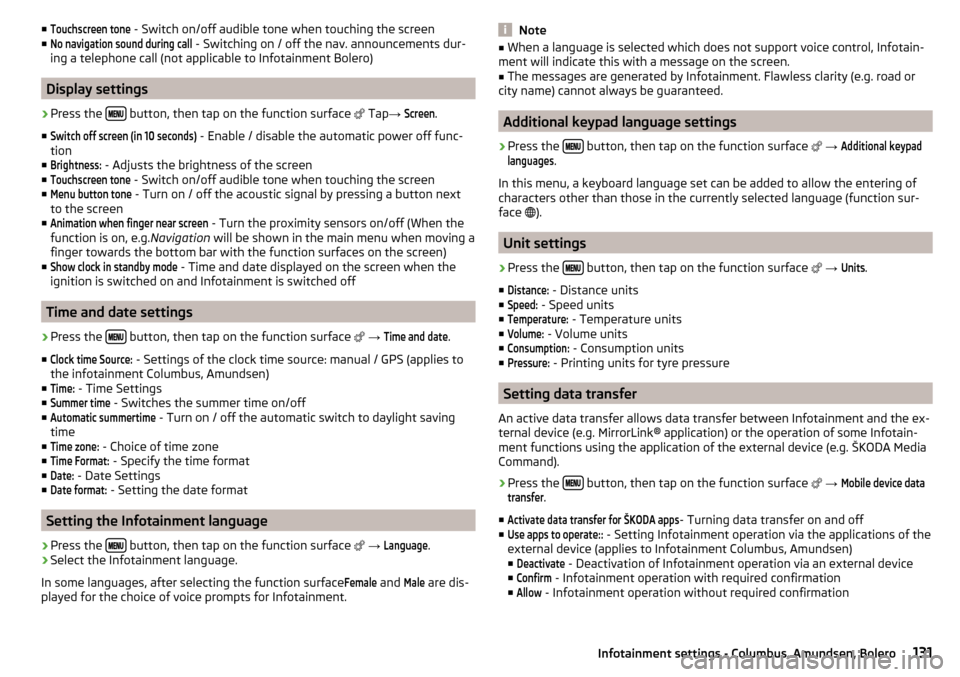
■Touchscreen tone - Switch on/off audible tone when touching the screen
■No navigation sound during call
- Switching on / off the nav. announcements dur-
ing a telephone call (not applicable to Infotainment Bolero)
Display settings
›
Press the button, then tap on the function surface
Tap →
Screen
.
■
Switch off screen (in 10 seconds)
- Enable / disable the automatic power off func-
tion
■
Brightness:
- Adjusts the brightness of the screen
■
Touchscreen tone
- Switch on/off audible tone when touching the screen
■
Menu button tone
- Turn on / off the acoustic signal by pressing a button next
to the screen
■
Animation when finger near screen
- Turn the proximity sensors on/off (When the
function is on, e.g. Navigation will be shown in the main menu when moving a
finger towards the bottom bar with the function surfaces on the screen)
■
Show clock in standby mode
- Time and date displayed on the screen when the
ignition is switched on and Infotainment is switched off
Time and date settings
›
Press the button, then tap on the function surface
→
Time and date
.
■
Clock time Source:
- Settings of the clock time source: manual / GPS (applies to
the infotainment Columbus, Amundsen)
■
Time:
- Time Settings
■
Summer time
- Switches the summer time on/off
■
Automatic summertime
- Turn on / off the automatic switch to daylight saving
time
■
Time zone:
- Choice of time zone
■
Time Format:
- Specify the time format
■
Date:
- Date Settings
■
Date format:
- Setting the date format
Setting the Infotainment language
›
Press the button, then tap on the function surface
→
Language
.
›
Select the Infotainment language.
In some languages, after selecting the function surface
Female
and
Male
are dis-
played for the choice of voice prompts for Infotainment.
Note■ When a language is selected which does not support voice control, Infotain-
ment will indicate this with a message on the screen.■
The messages are generated by Infotainment. Flawless clarity (e.g. road or
city name) cannot always be guaranteed.
Additional keypad language settings
›
Press the button, then tap on the function surface
→
Additional keypadlanguages
.
In this menu, a keyboard language set can be added to allow the entering of
characters other than those in the currently selected language (function sur-
face ).
Unit settings
›
Press the button, then tap on the function surface
→
Units
.
■
Distance:
- Distance units
■
Speed:
- Speed units
■
Temperature:
- Temperature units
■
Volume:
- Volume units
■
Consumption:
- Consumption units
■
Pressure:
- Printing units for tyre pressure
Setting data transfer
An active data transfer allows data transfer between Infotainment and the ex-
ternal device (e.g. MirrorLink® application) or the operation of some Infotain-
ment functions using the application of the external device (e.g. ŠKODA Media
Command).
›
Press the button, then tap on the function surface
→
Mobile device datatransfer
.
■
Activate data transfer for ŠKODA apps
- Turning data transfer on and off
■
Use apps to operate::
- Setting Infotainment operation via the applications of the
external device (applies to Infotainment Columbus, Amundsen) ■
Deactivate
- Deactivation of Infotainment operation via an external device
■
Confirm
- Infotainment operation with required confirmation
■
Allow
- Infotainment operation without required confirmation
131Infotainment settings - Columbus, Amundsen, Bolero
Page 135 of 344
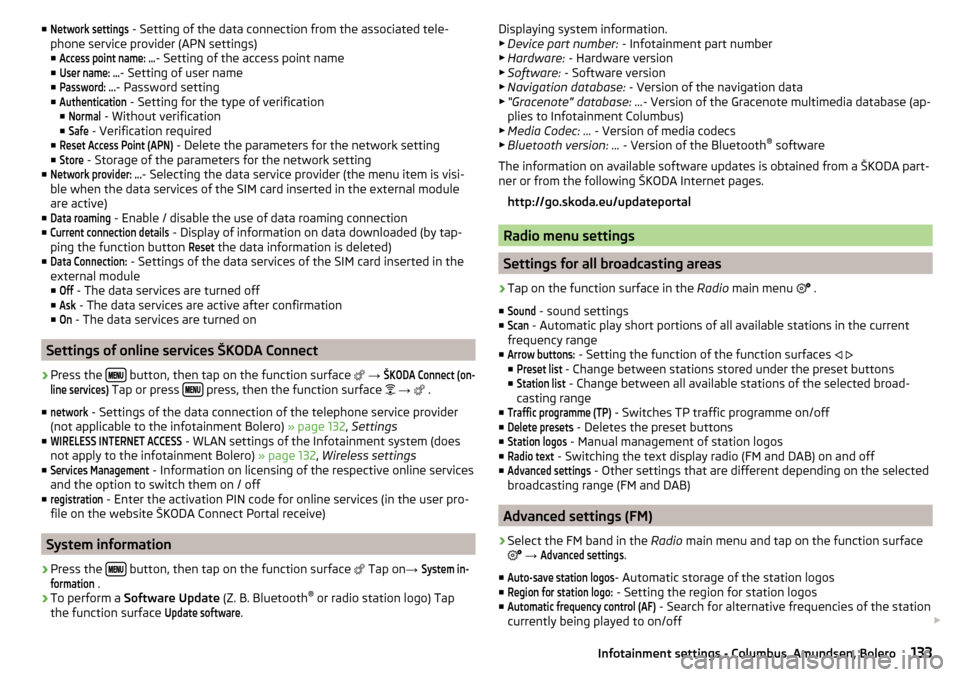
■Network settings - Setting of the data connection from the associated tele-
phone service provider (APN settings) ■Access point name: ...
- Setting of the access point name
■
User name: …
- Setting of user name
■
Password: ...
- Password setting
■
Authentication
- Setting for the type of verification
■
Normal
- Without verification
■
Safe
- Verification required
■
Reset Access Point (APN)
- Delete the parameters for the network setting
■
Store
- Storage of the parameters for the network setting
■
Network provider: ...
- Selecting the data service provider (the menu item is visi-
ble when the data services of the SIM card inserted in the external module
are active)
■
Data roaming
- Enable / disable the use of data roaming connection
■
Current connection details
- Display of information on data downloaded (by tap-
ping the function button
Reset
the data information is deleted)
■
Data Connection:
- Settings of the data services of the SIM card inserted in the
external module
■
Off
- The data services are turned off
■
Ask
- The data services are active after confirmation
■
On
- The data services are turned on
Settings of online services ŠKODA Connect
›
Press the button, then tap on the function surface
→
ŠKODA Connect (on-line services)
Tap or press press, then the function surface
→
.
■
network
- Settings of the data connection of the telephone service provider
(not applicable to the infotainment Bolero) » page 132, Settings
■
WIRELESS INTERNET ACCESS
- WLAN settings of the Infotainment system (does
not apply to the infotainment Bolero) » page 132, Wireless settings
■
Services Management
- Information on licensing of the respective online services
and the option to switch them on / off
■
registration
- Enter the activation PIN code for online services (in the user pro-
file on the website ŠKODA Connect Portal receive)
System information
›
Press the button, then tap on the function surface
Tap on
→
System in-formation
.
›
To perform a Software Update (Z. B. Bluetooth®
or radio station logo) Tap
the function surface
Update software
.
Displaying system information.
▶ Device part number: - Infotainment part number
▶ Hardware: - Hardware version
▶ Software: - Software version
▶ Navigation database: - Version of the navigation data
▶ “Gracenote” database: ... - Version of the Gracenote multimedia database (ap-
plies to Infotainment Columbus)
▶ Media Codec: ... - Version of media codecs
▶ Bluetooth version: ... - Version of the Bluetooth ®
software
The information on available software updates is obtained from a ŠKODA part-
ner or from the following ŠKODA Internet pages.
http://go.skoda.eu/updateportal
Radio menu settings
Settings for all broadcasting areas
›
Tap on the function surface in the Radio main menu
.
■
Sound
- sound settings
■
Scan
- Automatic play short portions of all available stations in the current
frequency range
■
Arrow buttons:
- Setting the function of the function surfaces
■
Preset list
- Change between stations stored under the preset buttons
■
Station list
- Change between all available stations of the selected broad-
casting range
■
Traffic programme (TP)
- Switches TP traffic programme on/off
■
Delete presets
- Deletes the preset buttons
■
Station logos
- Manual management of station logos
■
Radio text
- Switching the text display radio (FM and DAB) on and off
■
Advanced settings
- Other settings that are different depending on the selected
broadcasting range (FM and DAB)
Advanced settings (FM)
›
Select the FM band in the Radio main menu and tap on the function surface
→
Advanced settings
.
■
Auto-save station logos
- Automatic storage of the station logos
■
Region for station logo:
- Setting the region for station logos
■
Automatic frequency control (AF)
- Search for alternative frequencies of the station
currently being played to on/off
133Infotainment settings - Columbus, Amundsen, Bolero
Page 136 of 344
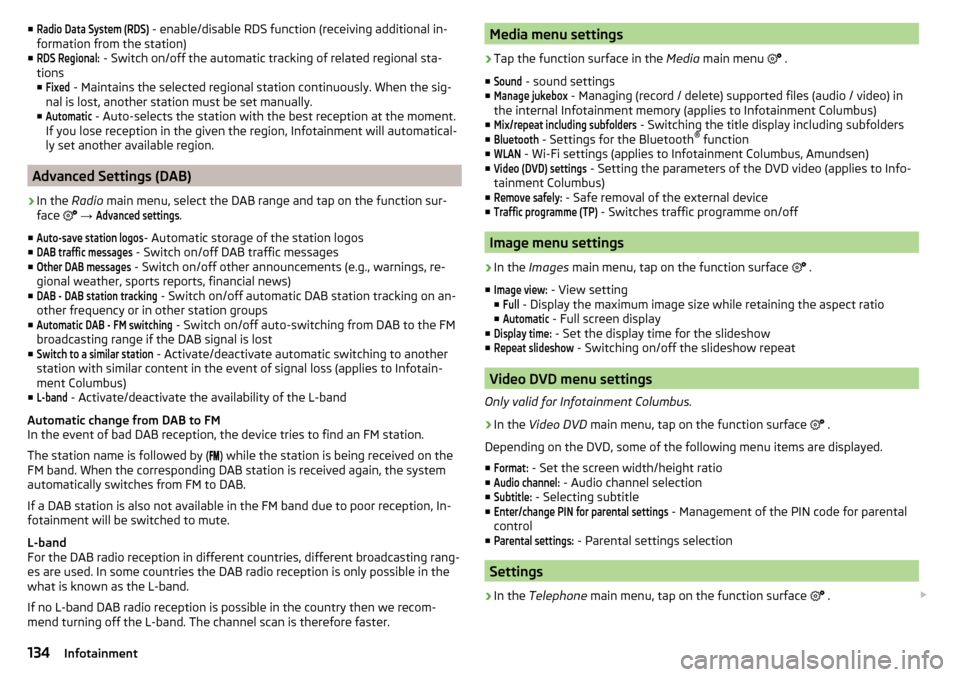
■Radio Data System (RDS) - enable/disable RDS function (receiving additional in-
formation from the station)
■RDS Regional:
- Switch on/off the automatic tracking of related regional sta-
tions
■
Fixed
- Maintains the selected regional station continuously. When the sig-
nal is lost, another station must be set manually.
■
Automatic
- Auto-selects the station with the best reception at the moment.
If you lose reception in the given the region, Infotainment will automatical-
ly set another available region.
Advanced Settings (DAB)
›
In the Radio main menu, select the DAB range and tap on the function sur-
face
→
Advanced settings
.
■
Auto-save station logos
- Automatic storage of the station logos
■
DAB traffic messages
- Switch on/off DAB traffic messages
■
Other DAB messages
- Switch on/off other announcements (e.g., warnings, re-
gional weather, sports reports, financial news)
■
DAB - DAB station tracking
- Switch on/off automatic DAB station tracking on an-
other frequency or in other station groups
■
Automatic DAB - FM switching
- Switch on/off auto-switching from DAB to the FM
broadcasting range if the DAB signal is lost
■
Switch to a similar station
- Activate/deactivate automatic switching to another
station with similar content in the event of signal loss (applies to Infotain-
ment Columbus)
■
L-band
- Activate/deactivate the availability of the L-band
Automatic change from DAB to FM
In the event of bad DAB reception, the device tries to find an FM station.
The station name is followed by ( ) while the station is being received on the
FM band. When the corresponding DAB station is received again, the system
automatically switches from FM to DAB.
If a DAB station is also not available in the FM band due to poor reception, In-
fotainment will be switched to mute.
L-band
For the DAB radio reception in different countries, different broadcasting rang-
es are used. In some countries the DAB radio reception is only possible in the
what is known as the L-band.
If no L-band DAB radio reception is possible in the country then we recom-
mend turning off the L-band. The channel scan is therefore faster.
Media menu settings›
Tap the function surface in the Media main menu
.
■
Sound
- sound settings
■
Manage jukebox
- Managing (record / delete) supported files (audio / video) in
the internal Infotainment memory (applies to Infotainment Columbus)
■
Mix/repeat including subfolders
- Switching the title display including subfolders
■
Bluetooth
- Settings for the Bluetooth ®
function
■
WLAN
- Wi-Fi settings (applies to Infotainment Columbus, Amundsen)
■
Video (DVD) settings
- Setting the parameters of the DVD video (applies to Info-
tainment Columbus)
■
Remove safely:
- Safe removal of the external device
■
Traffic programme (TP)
- Switches traffic programme on/off
Image menu settings
›
In the Images main menu, tap on the function surface
.
■
Image view:
- View setting
■
Full
- Display the maximum image size while retaining the aspect ratio
■
Automatic
- Full screen display
■
Display time:
- Set the display time for the slideshow
■
Repeat slideshow
- Switching on/off the slideshow repeat
Video DVD menu settings
Only valid for Infotainment Columbus.
›
In the Video DVD main menu, tap on the function surface
.
Depending on the DVD, some of the following menu items are displayed.
■
Format:
- Set the screen width/height ratio
■
Audio channel:
- Audio channel selection
■
Subtitle:
- Selecting subtitle
■
Enter/change PIN for parental settings
- Management of the PIN code for parental
control
■
Parental settings:
- Parental settings selection
Settings
›
In the Telephone main menu, tap on the function surface
.
134Infotainment
Page 137 of 344
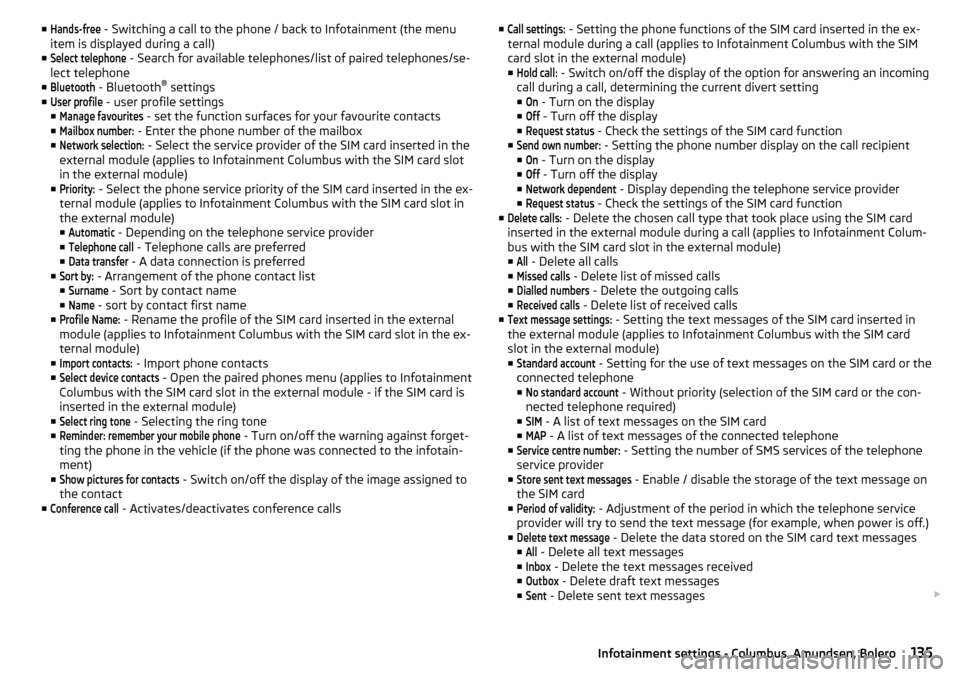
■Hands-free - Switching a call to the phone / back to Infotainment (the menu
item is displayed during a call)
■Select telephone
- Search for available telephones/list of paired telephones/se-
lect telephone
■
Bluetooth
- Bluetooth ®
settings
■
User profile
- user profile settings
■
Manage favourites
- set the function surfaces for your favourite contacts
■
Mailbox number:
- Enter the phone number of the mailbox
■
Network selection:
- Select the service provider of the SIM card inserted in the
external module (applies to Infotainment Columbus with the SIM card slot
in the external module)
■
Priority:
- Select the phone service priority of the SIM card inserted in the ex-
ternal module (applies to Infotainment Columbus with the SIM card slot in
the external module)
■
Automatic
- Depending on the telephone service provider
■
Telephone call
- Telephone calls are preferred
■
Data transfer
- A data connection is preferred
■
Sort by:
- Arrangement of the phone contact list
■
Surname
- Sort by contact name
■
Name
- sort by contact first name
■
Profile Name:
- Rename the profile of the SIM card inserted in the external
module (applies to Infotainment Columbus with the SIM card slot in the ex- ternal module)
■
Import contacts:
- Import phone contacts
■
Select device contacts
- Open the paired phones menu (applies to Infotainment
Columbus with the SIM card slot in the external module - if the SIM card is
inserted in the external module)
■
Select ring tone
- Selecting the ring tone
■
Reminder: remember your mobile phone
- Turn on/off the warning against forget-
ting the phone in the vehicle (if the phone was connected to the infotain-
ment)
■
Show pictures for contacts
- Switch on/off the display of the image assigned to
the contact
■
Conference call
- Activates/deactivates conference calls
■Call settings: - Setting the phone functions of the SIM card inserted in the ex-
ternal module during a call (applies to Infotainment Columbus with the SIM
card slot in the external module)
■Hold call:
- Switch on/off the display of the option for answering an incoming
call during a call, determining the current divert setting
■
On
- Turn on the display
■
Off
- Turn off the display
■
Request status
- Check the settings of the SIM card function
■
Send own number:
- Setting the phone number display on the call recipient
■
On
- Turn on the display
■
Off
- Turn off the display
■
Network dependent
- Display depending the telephone service provider
■
Request status
- Check the settings of the SIM card function
■
Delete calls:
- Delete the chosen call type that took place using the SIM card
inserted in the external module during a call (applies to Infotainment Colum-
bus with the SIM card slot in the external module) ■
All
- Delete all calls
■
Missed calls
- Delete list of missed calls
■
Dialled numbers
- Delete the outgoing calls
■
Received calls
- Delete list of received calls
■
Text message settings:
- Setting the text messages of the SIM card inserted in
the external module (applies to Infotainment Columbus with the SIM card
slot in the external module) ■
Standard account
- Setting for the use of text messages on the SIM card or the
connected telephone
■
No standard account
- Without priority (selection of the SIM card or the con-
nected telephone required)
■
SIM
- A list of text messages on the SIM card
■
MAP
- A list of text messages of the connected telephone
■
Service centre number:
- Setting the number of SMS services of the telephone
service provider
■
Store sent text messages
- Enable / disable the storage of the text message on
the SIM card
■
Period of validity:
- Adjustment of the period in which the telephone service
provider will try to send the text message (for example, when power is off.)
■
Delete text message
- Delete the data stored on the SIM card text messages
■
All
- Delete all text messages
■
Inbox
- Delete the text messages received
■
Outbox
- Delete draft text messages
■
Sent
- Delete sent text messages
135Infotainment settings - Columbus, Amundsen, Bolero
Page 138 of 344
■Telephone interface “Business” - Turn on / off the phone function of the external
module (applies to Infotainment Columbus with the SIM card slot in the ex-
ternal module)
■Use SIM card only for data connection
- Switch on - Activating only the data serv-
ices / Switch off - Activating the data and telephone services of the SIM card
inserted in the external module (applies to Infotainment Columbus with the
SIM card slot in the external module)
■
Network:
- Setting the phone network provider of the SIM card inserted in the
external module (applies to Infotainment Columbus with the SIM card slot in
the external module) » page 132
■
PIN settings:
- Setting the PIN code of the SIM card inserted in the external
module (applies to Infotainment Columbus with the SIM card slot in the ex-
ternal module)
■
Automatic PIN entry
- Activate/deactivate storage of the SIM card PIN code
■
Change PIN
- Change the PIN code of the SIM card
■
Add PIN 2
- Enter the second PIN code of the SIM card (when the function
Automatic PIN entry
is on or when the SIM card supports another telephone
service provider)
■
Forward calls
- Setting forwarding of incoming calls (valid for Infotainment Co-
lumbus with the SIM card slot in the external module) ■
All calls
- Forward all incoming calls
■
If engaged
- Forwarding incoming calls during a telephone call
■
If not available
- Forwarding the incoming calls when the vehicle is outside
the reach of the telephone service provider signal
■
If no answer
- Redirecting incoming calls when the incoming call is not an-
swered
SmartLink menu settings
›
In the SmartLink main menu, tap on the function surface
.
■
Activate data transfer for ŠKODA apps
- Turning data transfer on and off for ŠKODA
applications
■ MirrorLink® - Settings of the system MirrorLink ®
■
Screen orientation:
- Setting the screen orientation
■
Landscape
- Width display
■
Portrait
- Height display
■
Rotated 180 degrees
- Turn on / off the 180 ° inversion
■
Allow MirrorLink® notification to be shown
- Turn on / off the display of messages
of Mirror link ®
applications on the Infotainment screen
Navigation menu settings
Route options
›
In the Navigation main menu, tap the function surface
Tap on →
route op-tions
.
■
Suggest 3 alternative routes
- Switch on/off the menu for alternative routes (eco-
nomical, fast, short)
■
Route:
- Setting the preferred route
■
Most frequent routes
- Show/hide the menu of the most frequent routes in the
split screen
■
Dynamic route
- Switch on/off dynamic route recalculation due to TMC traffic
reports
■
Avoid motorways
- Switch on/off the non-use of motorways in the route cal-
culation
■
Avoid ferries and motorail trains
- Switch on/off the non-use of ferries and mo-
torail trains in the route calculation
■
Avoid toll roads
- Switch on/off use of toll roads for route calculation
■
Avoid tunnels
- Switch on/off use of tunnels for route calculation
■
Avoid routes requiring toll stickers
- Switch use of routes requiring toll stickers
on/off for route calculation
■
Show available toll stickers
- Selection of countries for which a valid toll sticker is
required (routes requiring toll stickers are used for route calculation)
■
Include trailer
- Turn on / off the setting to take a trailer into account for
route calculation » page 193
Map
›
In the Navigation main menu, tap the function surface
Tap on
→
Map
.
■
Show road signs
- Switch on/off the display of traffic signs
■
Lane guidance
- Display of lane guidance on/off
■
Google Earth™ settings
- Enable / disable the display of special destinations in
the map Google Earth ™
■
Information on POIs
- Enable / disable the display of information on POIs
■
Information on businesses
- Enable / disable the display of information on busi-
nesses
■
Wikipedia information
- Turn on / off the display of the Wikipedia information
■
Show favourites
- Switch on/off the display of favourites
136Infotainment
Page 139 of 344
■Show POIs - Switch on/off the display of POIs
■Select categories for POIs
- Selection of the displayed category POIs
■
Show brands for POIs
- Switch on/off the company logos available for the POIs
shown
■
Traffic flow settings
- Setting the display of a traffic obstruction received from
online traffic ■
Display free-moving traffic
- Enable / disable the display of routes with free-
moving transport
■
See jam
- Enable / disable the display of routes with heavy traffic
■
Display traffic disruptions
- Enable / disable the display of routes with a traffic
incident
Manage memory
›
In the Navigation main menu, tap the function surface
→
Manage memory
.
■
Sort Contacts:
- Setting the arrangement of the phonebook
■
By surname
- Sorting by the contact surname
■
By first name
- Sorting by the contact first name
■
Define home address
- Enter the home address
■
Delete My POIs
- Deleting own POI categories (Personal POI)
■
Update "My POIs" (SD/USB)
- Import / update your own POI categories (Personal
POI)
■
Retrieve "My POIs" (online)
- Online import / update of the user profile on the
website ŠKODA Connect Portal started own POI categories
■
Import destinations (SD/USB)
- Import destinations in vCard format
■
Delete user data
- Delete user data (by pressing the function surface
Delete
and
confirm the deletion) ■
Last destinations
- Delete the last destinations
■
Dest. memory
- Delete the stored destinations
■
Online dests
- Delete the stored online dests
■
Routes
- Delete saved routes
■
My points of interest (Personal POI)
- Delete the custom POIs
■
Entered cities
- Delete the history of places already entered via the address
■
Home address
- Delete the stored home address
■
Flagged destination
- Delete the flagged destination
■
Waypoints
- Delete item in the Waypoint mode menu (applies to Infotain-
ment Columbus)
■
Most frequent routes
- Delete the most travelled routes
nav. announcements›
In the Navigation main menu, tap the function surface
→
Nav. announce-ments
.
■
Volume
- Volume control of the nav. announcements
■
Entertainment fading (nav. announce.)
- Setting the fading of the audio volume (e.g.
radio volume.) with nav. announcements
■
Nav. announcements:
- Setting the playback method of nav. announcements
■
Comprehensive
- All nav. announcements
■
Brief
- Short nav. announcements
■
Congestion only
- Only nav. announcements when a route is changed
■
No navigation sound during call
- Activate/ deactivate non-playback of nav. an-
nouncements during a telephone call
■
Note: “My POIs”
- Turn on/off an audible indication when approaching a custom
POI (if supported by the imported custom POI) (applies to Infotainment Co-
lumbus)
Top speeds
›
In the Navigation main menu, tap the function surface
→
Top speeds
.
The maximum speed limits for the current country are displayed.
When
Note: national border crossed
» page 138 , Advanced settings function is
turned on, the country-specific speed limits are displayed when crossing inter-
national borders.
Fuel options
›
In the Navigation main menu, tap the function surface
→
Fuel options
.
■
Select preferred fuel station
- Select your preferred fuel station brand (the selec-
ted station brand will be displayed in the first three positions of the list)
■
Fuel warning
-Turn on- / Off the display of a warning message with the option
to visit the nearest petrol station when the fuel level reaches the reserve
area
Version information
›
In the Navigation main menu, tap the function surface
Tap
→
Version infor-mation
.
137Infotainment settings - Columbus, Amundsen, Bolero