window SKODA KODIAQ 2016 1.G Owner's Guide
[x] Cancel search | Manufacturer: SKODA, Model Year: 2016, Model line: KODIAQ, Model: SKODA KODIAQ 2016 1.GPages: 344, PDF Size: 58.96 MB
Page 114 of 344
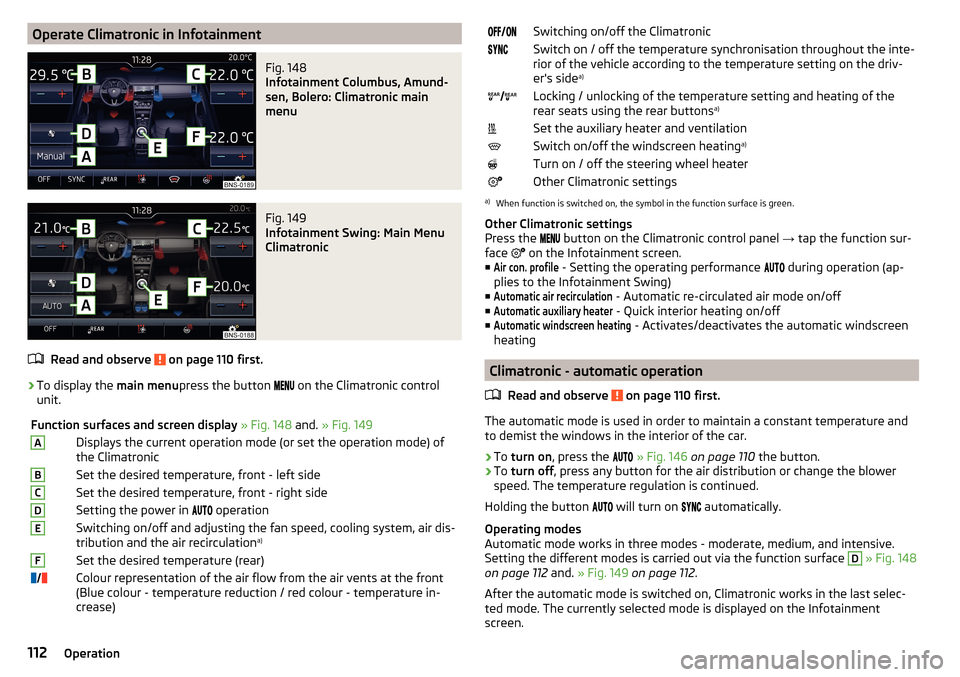
Operate Climatronic in InfotainmentFig. 148
Infotainment Columbus, Amund-
sen, Bolero: Climatronic main
menu
Fig. 149
Infotainment Swing: Main Menu
Climatronic
Read and observe on page 110 first.
›
To display the main menupress the button
on the Climatronic control
unit.
Function surfaces and screen display » Fig. 148 and. » Fig. 149ADisplays the current operation mode (or set the operation mode) of
the ClimatronicBSet the desired temperature, front - left sideCSet the desired temperature, front - right sideDSetting the power in operationESwitching on/off and adjusting the fan speed, cooling system, air dis-
tribution and the air recirculation a)FSet the desired temperature (rear)
Colour representation of the air flow from the air vents at the front
(Blue colour - temperature reduction / red colour - temperature in-
crease)Switching on/off the ClimatronicSwitch on / off the temperature synchronisation throughout the inte-
rior of the vehicle according to the temperature setting on the driv-
er's side a)
Locking / unlocking of the temperature setting and heating of the
rear seats using the rear buttons a)Set the auxiliary heater and ventilationSwitch on/off the windscreen heating
a)Turn on / off the steering wheel heaterOther Climatronic settingsa)
When function is switched on, the symbol in the function surface is green.
Other Climatronic settings
Press the button on the Climatronic control panel
→ tap the function sur-
face on the Infotainment screen.
■
Air con. profile
- Setting the operating performance during operation (ap-
plies to the Infotainment Swing)
■
Automatic air recirculation
- Automatic re-circulated air mode on/off
■
Automatic auxiliary heater
- Quick interior heating on/off
■
Automatic windscreen heating
- Activates/deactivates the automatic windscreen
heating
Climatronic - automatic operation
Read and observe
on page 110 first.
The automatic mode is used in order to maintain a constant temperature andto demist the windows in the interior of the car.
›
To turn on , press the
» Fig. 146 on page 110 the button.
›
To turn off , press any button for the air distribution or change the blower
speed. The temperature regulation is continued.
Holding the button will turn on
automatically.
Operating modes
Automatic mode works in three modes - moderate, medium, and intensive.
Setting the different modes is carried out via the function surface
D
» Fig. 148
on page 112 and. » Fig. 149 on page 112 .
After the automatic mode is switched on, Climatronic works in the last selec-
ted mode. The currently selected mode is displayed on the Infotainment
screen.
112Operation
Page 115 of 344
Air distribution controlRead and observe
on page 110 first.
The recirculation mode prevents contaminated outside air getting into the In-terior of the vehicle. In recirculated air mode air is sucked out of the interior of
the vehicle and then fed back into the interior.
›
To switch on , press the
button. The warning light below the button lights
up.
›
To switch off , press the
button again. The warning light below the button
goes out.
Heating and manual air conditioning system
If the air distribution control is set to position when the recirculation modes
is switched on, the recirculated-air mode is switched off. By pressing the
button, the air recirculation also in this position can be switched on again.
When the cooling system (button ) is switched on and the temperature reg-
ulator is “turned” to the left, the recirculated-air mode is switched on.
Climatronic
The Climatronic can have a sensor that measures the air recirculation mode and automatically turns on if there is an increased concentration of pollutants
in the incoming air.
When the pollutant concentration decreases to the normal level, the recircula-
ted air mode is automatically switched off.
Automatically switch on / off the air recirculation function can be set in the In-
fotainment screen. by pressing the button on the Climatronic and by sub-
sequently pressing the function surfaces
→
Automatic air recirculation
. Auto-
matic power on / off function at a temperature above 2 ° C.
A shut-off of the air recirculation function is carried out by pressing the
button, possibly depending on the moisture conditions in the vehicle interior.
WARNINGThe air recirculation cannot be switched on for a longer period of time be-
cause there is no supply of fresh air from the outside. “Stale air” may result
in fatigue in the driver and occupants, reduce attention levels and also
cause the windows to mist up. As soon as the windows mist up, turn the air
recirculation mode off immediately - there is a risk of accident!CAUTIONWe recommend not smoking in the vehicle when the recirculating air operation
is switched on. The smoke sucked from inside the vehicle is deposited on the
evaporator of the air conditioner. This produces a permanent odour when the
air conditioning system is operating which can only be eliminated through con-
siderable effort and expense (replacement of compressor).
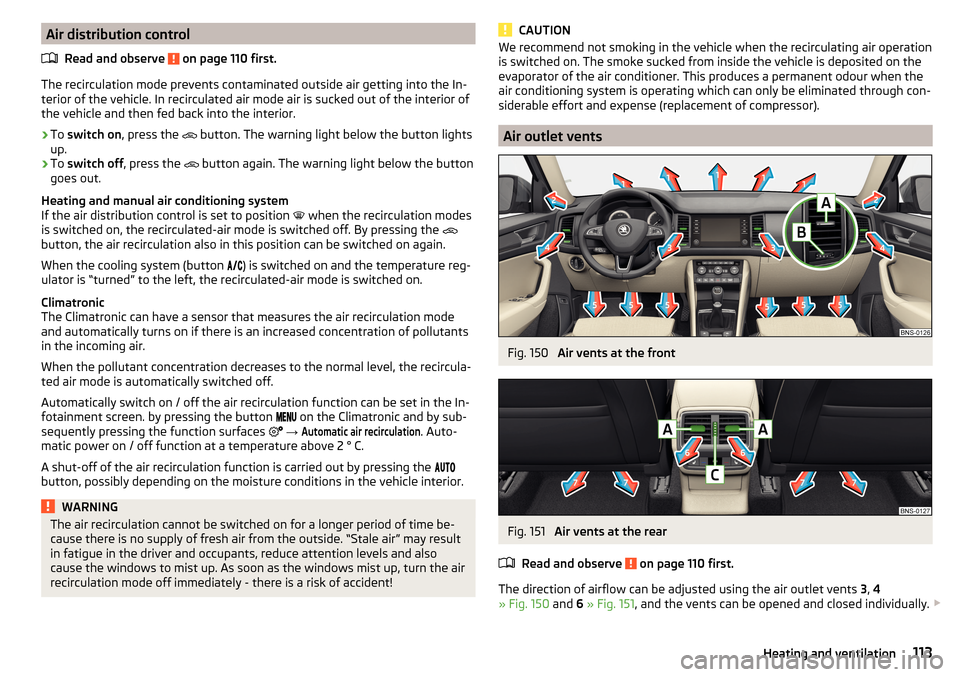
Air outlet vents
Fig. 150
Air vents at the front
Fig. 151
Air vents at the rear
Read and observe
on page 110 first.
The direction of airflow can be adjusted using the air outlet vents 3, 4
» Fig. 150 and 6 » Fig. 151 , and the vents can be opened and closed individually.
113Heating and ventilation
Page 117 of 344
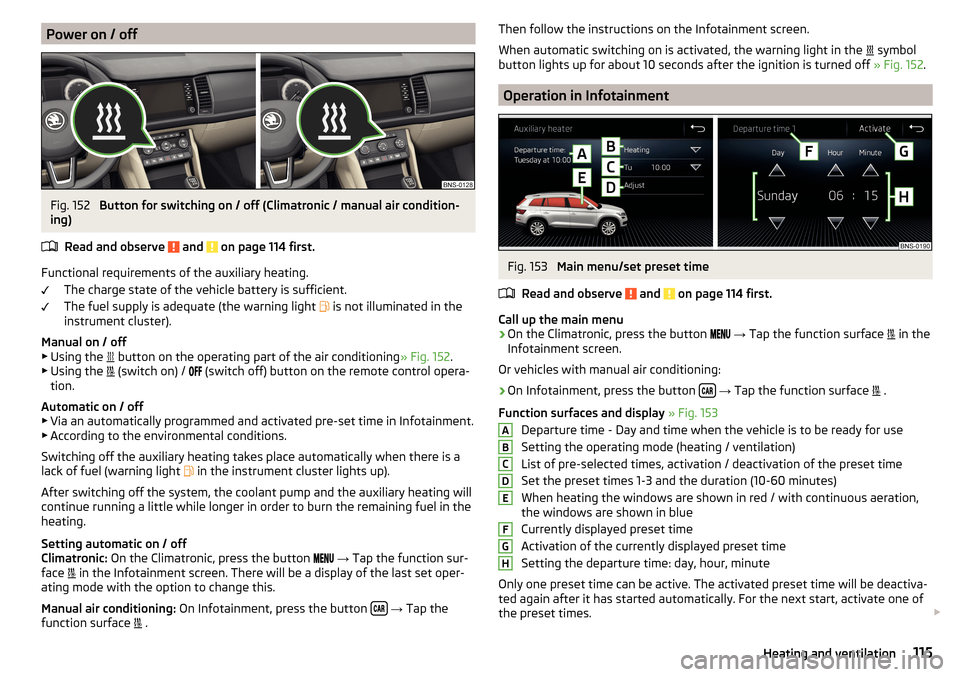
Power on / offFig. 152
Button for switching on / off (Climatronic / manual air condition-
ing)
Read and observe
and on page 114 first.
Functional requirements of the auxiliary heating. The charge state of the vehicle battery is sufficient.
The fuel supply is adequate (the warning light is not illuminated in the
instrument cluster).
Manual on / off ▶ Using the button on the operating part of the air conditioning
» Fig. 152.
▶ Using the (switch on) /
(switch off) button on the remote control opera-
tion.
Automatic on / off ▶ Via an automatically programmed and activated pre-set time in Infotainment.
▶ According to the environmental conditions.
Switching off the auxiliary heating takes place automatically when there is a
lack of fuel (warning light in the instrument cluster lights up).
After switching off the system, the coolant pump and the auxiliary heating will
continue running a little while longer in order to burn the remaining fuel in the
heating.
Setting automatic on / off
Climatronic: On the Climatronic, press the button
→ Tap the function sur-
face in the Infotainment screen. There will be a display of the last set oper-
ating mode with the option to change this.
Manual air conditioning: On Infotainment, press the button
→ Tap the
function surface .
Then follow the instructions on the Infotainment screen.
When automatic switching on is activated, the warning light in the
symbol
button lights up for about 10 seconds after the ignition is turned off » Fig. 152.
Operation in Infotainment
Fig. 153
Main menu/set preset time
Read and observe
and on page 114 first.
Call up the main menu
›
On the Climatronic, press the button
→ Tap the function surface
in the
Infotainment screen.
Or vehicles with manual air conditioning:
›
On Infotainment, press the button
→ Tap the function surface
.
Function surfaces and display » Fig. 153
Departure time - Day and time when the vehicle is to be ready for use
Setting the operating mode (heating / ventilation)
List of pre-selected times, activation / deactivation of the preset time Set the preset times 1-3 and the duration (10-60 minutes)
When heating the windows are shown in red / with continuous aeration,
the windows are shown in blue
Currently displayed preset time
Activation of the currently displayed preset time
Setting the departure time: day, hour, minute
Only one preset time can be active. The activated preset time will be deactiva-
ted again after it has started automatically. For the next start, activate one of
the preset times.
ABCDEFGH115Heating and ventilation
Page 126 of 344

Infotainment operation
Infotainment operation
Operation principles and screen areas
Fig. 166
Screen area / screen display
Description of the display » Fig. 166
Status line with time and outdoor temperature data and other information
Information and the operation of the current menu
Function surfaces of the current menu
Identification of the current menu
Return to the higher-level menu
Sliding regulator
Menu item with “Checkbox” ▶ - Function is switched on
▶ - Function is switched off
Open a sub menu of the menu item with the “pop-up window”
Functional surfaces
The screen areas which confirm a function or a menu are called “ function sur-
faces ”.
▶ White text - the surface is active and thus selectable
▶ Grey text - the surface is inactive and therefore not selectable
▶ Green frame - currently selected surface
Selecting menu/menu item/function
▶ By moving your finger across the screen in the desired direction (applies to
Infotainment Columbus, Amundsen, Bolero).
▶ Turning the knob ,
ABCDEFGHConfirm menu/menu item/function
▶ By tapping on the function surface.
▶ By pressing the knob
,
Returning to higher-level menu ▶ By tapping on the function surface
,
▶ By tapping on the screen outside of the “pop-up window”.
▶ By pressing the corresponding button next to the screen (e.g. in the menu
Media , by pressing the
button).
Select the menu item / function value ▶ - Selected menu item / function value
▶ - Deselected menu item / function value
Set value ▶ By tapping on the function surface or
the bottom of the screen.
▶ By touching or moving your finger over the scale.
▶ Turning the knob ,
Note
Depending on the equipment fitted, Infotainment can be operated using the
buttons on the multifunction steering wheel. Further information » page 45.
Operating the menus
Fig. 167
Operating the menus
Operating the menus » Fig. 167
Enlargement / reduction of the menu window
Browse the menu- List entries Open / close the menu window
Close the menu window
A 124Infotainment
Page 129 of 344
Deactivate the automatic display of the Configuration wizard by tapping the
function surface Don´t show again
.›
To manually display in Infotainment Columbus, Amundsen, Bolero, press the
button , then tap on the function surface
→
Configuration wizard
.
›
For manual display in Infotainment Swing, press the button, then tap the
function surface
Configuration wizard
.
The Configuration wizard allows you to set the following menu items in se-
quence.
Identification of personalisation user account » page 50
Time and date format
Storing the radio stations with the currently strongest reception signal
in the first memory group of each individual broadcast area
Pairing and connecting a phone to Infotainment
Home address (applies to Infotainment Columbus, Amundsen)
Online services
The selected menu item is provided with the symbol.
Menu items which can be set by tapping on the respective function surface in the
A
» Fig. 170 area.
Operating using an application in the external device
Applies to Infotainment Columbus, Amundsen.
Some Infotainment functions can be operated using an application in the sup-
ported external device.
›
Activate data transfer in Infotainment. To do this, press and then
Tap →
Mobile device data transfer
→
Activate data transfer for ŠKODA Apps
.
›
Release Infotainment operation using the application. To do this, press
and then
→
Data transfer mobile devices
→
Use apps to operate:
→
To con-firm
/
Allow
Tap.
›
Connect Infotainment to an external device via WLAN » page 170.
›
In the external device, install an application for Infotainment operation (e.g.
Start ŠKODA Media Command).
Note
The description of Infotainment operation ŠKODA Media Command is part of
the application.Voice control
Introduction to the subject
Applies to Infotainment Columbus, Amundsen, Bolero.
The navigation, telephone, radio and media menu can be operated by voice
commands.
The voice control system can be used either by the driver or by the front pas-
senger.
Function requirements for voice control Infotainment is switched on.
There will be no telephone call using a phone connected to Infotainment.
The parking aid is not active.
Requirements for optimum voice command recognition
▶ Speak at your normal volume without intonation and long pauses.
▶ Avoid bad pronunciation.
▶ Close the doors and windows in order to avoid disturbing environmental in-
fluences on the function of the voice commands.
▶ You are recommended to speak louder at higher speeds, so that the sound of
your voice is not drowned out by the increased ambient noise.
▶ During voice control, limit additional noise in the vehicle, e.g. passengers
talking at the same time.
WARNINGThe emergency number should be dialled manually. Your voice commands
may not be recognised in such situations. The telephone connection may
not be established or the connection may take too much time to complete.
CAUTION
■ The messages are generated by Infotainment. Flawless clarity (e.g. road or
city name) cannot always be guaranteed.■
For some Infotainment languages, there is no voice control available. Info-
tainment indicates this fact through a text message that is displayed on the
screen after setting the Infotainment language.
Note
During voice control, no nav. announcements and traffic announcements are
played.127Infotainment operation
Page 143 of 344
■Hands-free - Switching a call to the phone / back to Infotainment (the menu
item is displayed during a call)
■Select telephone
- Search for available telephones/list of paired telephones/se-
lect telephone
■
Find
- search for available phones
■
Bluetooth
- Bluetooth ®
settings
■
User profile
- user profile settings
■
Manage favourites
- set the function surfaces for your favourite contacts
■
Sort by:
- Arrangement of the phone contact list
■
Surname
- Sort by contact name
■
Name
- sort by contact first name
■
Import contacts
- Import phone contacts
■
Select ring tone
- Selecting the ring tone
■
Reminder: remember your mobile phone
- Turn on/off the warning against forget-
ting the phone in the vehicle (if the phone was connected to the Infotain-
ment)
■
Simultan. calls
Simultaneous calls - enable/disable the option to hold two con-
current calls
SmartLink menu settings
›
In the SmartLink main menu, tap on the function surface
.
■
Activate data transfer for ŠKODA apps
- Turning data transfer on and off for ŠKODA
applications
■ MirrorLink® - Settings of the system MirrorLink ®
■
Allow Bluetooth automatic pairing
- Turn on / off option, which is to be connected
external device via Bluetooth ®
to pair and connect to
■
Allow MirrorLink® notification to be shown
- Turn on / off the display of messages
of Mirror link ®
applications on the Infotainment screen
Radio
service
Introduction to the subject
Infotainment allows analogue radio reception of FM and AM frequency ranges
as well as DAB digital radio reception.
CAUTION
■ For vehicles with window antennas do not stick foil or metal coated stickers
to the window - Radio signal reception could be affected.■
Car parks, tunnels, tall buildings or mountains can interfere with the radio
signal even causing it to fail completely.
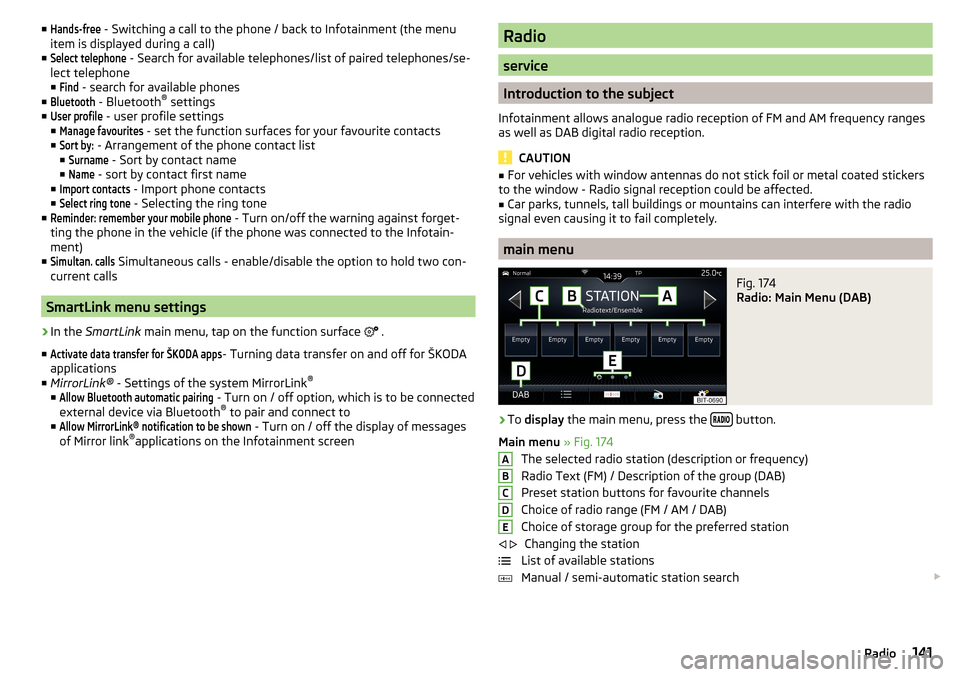
main menu
Fig. 174
Radio: Main Menu (DAB)
›
To display the main menu, press the button.
Main menu » Fig. 174
The selected radio station (description or frequency)
Radio Text (FM) / Description of the group (DAB)
Preset station buttons for favourite channels
Choice of radio range (FM / AM / DAB) Choice of storage group for the preferred station Changing the station
List of available stations
Manual / semi-automatic station search
ABCDE
141Radio
Page 152 of 344
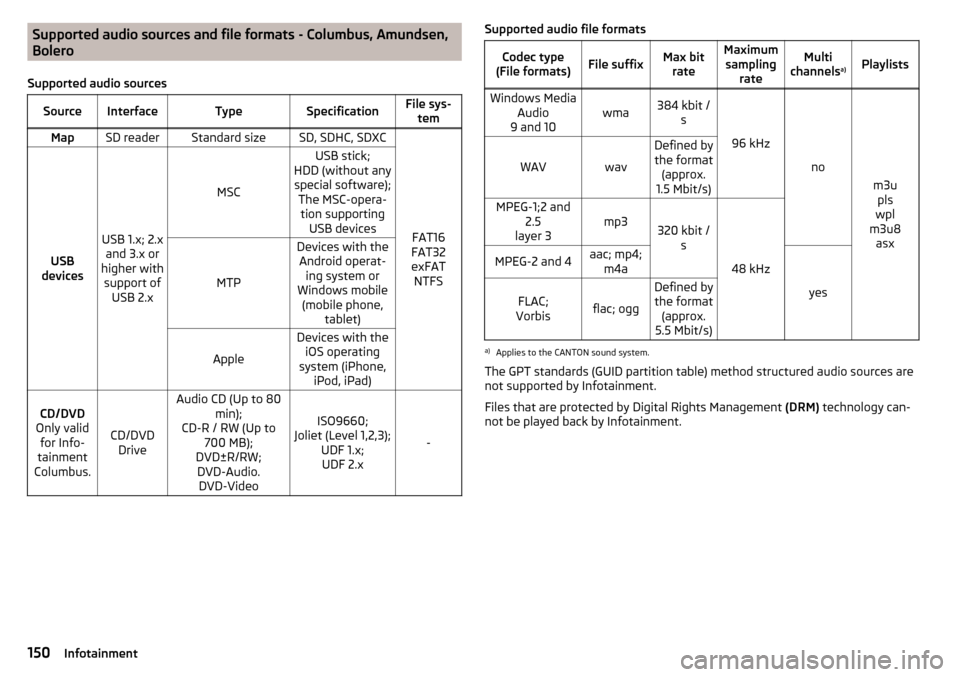
Supported audio sources and file formats - Columbus, Amundsen,
Bolero
Supported audio sourcesSourceInterfaceTypeSpecificationFile sys- temMapSD readerStandard sizeSD, SDHC, SDXC
FAT16
FAT32
exFAT NTFSUSB
devices
USB 1.x; 2.x and 3.x or
higher with support of USB 2.x
MSC
USB stick;
HDD (without any special software); The MSC-opera-tion supporting USB devices
MTP
Devices with theAndroid operat- ing system or
Windows mobile (mobile phone, tablet)
Apple
Devices with theiOS operating
system (iPhone, iPod, iPad)CD/DVD
Only valid for Info-
tainment
Columbus.
CD/DVD Drive
Audio CD (Up to 80 min);
CD-R / RW (Up to 700 MB);
DVD±R/RW; DVD-Audio. DVD-Video
ISO9660;
Joliet (Level 1,2,3); UDF 1.x;UDF 2.x
-
Supported audio file formatsCodec type
(File formats)File suffixMax bit rateMaximumsampling rateMulti
channels a)PlaylistsWindows Media
Audio
9 and 10wma384 kbit / s
96 kHz
no
m3upls
wpl
m3u8 asx
WAVwav
Defined bythe format (approx.
1.5 Mbit/s)MPEG-1;2 and 2.5
layer 3mp3320 kbit / s
48 kHz
MPEG-2 and 4aac; mp4;m4a
yes
FLAC;
Vorbisflac; ogg
Defined by the format (approx.
5.5 Mbit/s)a)
Applies to the CANTON sound system.
The GPT standards (GUID partition table) method structured audio sources are
not supported by Infotainment.
Files that are protected by Digital Rights Management (DRM) technology can-
not be played back by Infotainment.
150Infotainment
Page 153 of 344
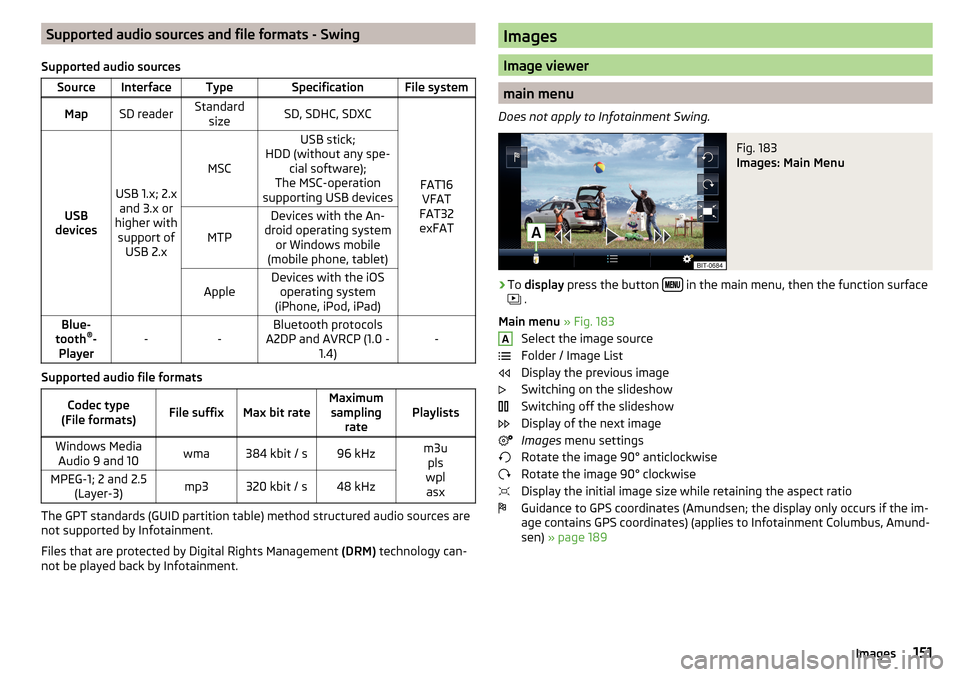
Supported audio sources and file formats - Swing
Supported audio sourcesSourceInterfaceTypeSpecificationFile systemMapSD readerStandard sizeSD, SDHC, SDXC
FAT16VFAT
FAT32
exFATUSB
devices
USB 1.x; 2.x and 3.x or
higher with support of USB 2.x
MSC
USB stick;
HDD (without any spe- cial software);
The MSC-operation
supporting USB devices
MTP
Devices with the An-
droid operating system or Windows mobile
(mobile phone, tablet)AppleDevices with the iOS operating system
(iPhone, iPod, iPad)Blue-
tooth ®
-
Player--Bluetooth protocols
A2DP and AVRCP (1.0 - 1.4)-
Supported audio file formats
Codec type
(File formats)File suffixMax bit rateMaximum sampling ratePlaylistsWindows MediaAudio 9 and 10wma384 kbit / s96 kHzm3u pls
wpl asxMPEG-1; 2 and 2.5 (Layer-3)mp3320 kbit / s48 kHz
The GPT standards (GUID partition table) method structured audio sources are
not supported by Infotainment.
Files that are protected by Digital Rights Management (DRM) technology can-
not be played back by Infotainment.
Images
Image viewer
main menu
Does not apply to Infotainment Swing.
Fig. 183
Images: Main Menu
›
To display press the button in the main menu, then the function surface
.
Main menu » Fig. 183
Select the image source
Folder / Image List
Display the previous image
Switching on the slideshow
Switching off the slideshow
Display of the next image
Images menu settings
Rotate the image 90° anticlockwise
Rotate the image 90° clockwise
Display the initial image size while retaining the aspect ratio
Guidance to GPS coordinates (Amundsen; the display only occurs if the im-
age contains GPS coordinates) (applies to Infotainment Columbus, Amund-
sen) » page 189
A151Images
Page 183 of 344
Google Street View™
control indicator
The Google Street View ™
Display can be controlled in one of two ways.OperationActionMoving the display in the de-
sired directionPressing the function area » Fig. 221 - Change the direction of viewDrag your finger over the screen in the re-
quired directionIncrease / decrease the displayTurning the knob left / right
Completion of the display
Pressing the function area or. Turning the knob to the left at maximum
display
The orientation of the Google Street View ™
Indicator with respect to the cardi-
nal points by means of the symbol 1)
.
Note
■ In the Google Earth ™
Display is possible no insertion of the symbols of the POI
categories.■
When driving through a tunnel changes the 3D representation of the Google
Earth ™
Card automatically in the 2D display.
■
The speed of Google Earth ™
- as Google Street View ™
Indicator depends on
the Internet connection speed.
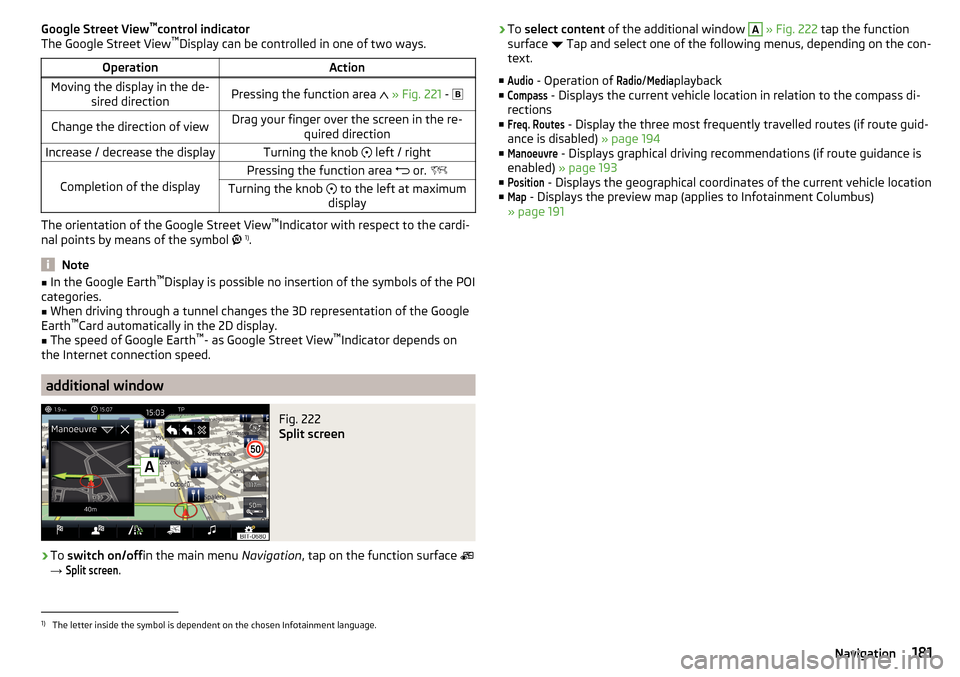
additional window
Fig. 222
Split screen
›
To switch on/off in the main menu Navigation, tap on the function surface
→
Split screen
.
› To
select content of the additional window A » Fig. 222 tap the function
surface Tap and select one of the following menus, depending on the con-
text.
■Audio
- Operation of
Radio
/
Media
playback
■
Compass
- Displays the current vehicle location in relation to the compass di-
rections
■
Freq. Routes
- Display the three most frequently travelled routes (if route guid-
ance is disabled) » page 194
■
Manoeuvre
- Displays graphical driving recommendations (if route guidance is
enabled) » page 193
■
Position
- Displays the geographical coordinates of the current vehicle location
■
Map
- Displays the preview map (applies to Infotainment Columbus)
» page 191
1)
The letter inside the symbol is dependent on the chosen Infotainment language.
181Navigation
Page 199 of 344

Main menuFig. 244
Waypoint: Main Menu
›
In the Navigation main menu, tap the function surface
→
Waypoint mode
.
The Waypoint mode menu is displayed » Fig. 244.
Any ongoing route guidance is terminated after the selection of this waypoint
mode menu.
Description of the function surfaces
A
» Fig. 244
Context-dependent:
▶ No route guidance is taking place - Start recording a waypoint tour/
display saved waypoint tour management/ exit Waypoint mode
▶ A waypoint tour is being recorded - Recording a waypoint tour / man-
ually adjust waypoint / exit Waypoint modemenu
▶ Route guidance is taking place Stop route guidance / skip the next
waypoint /exit Waypoint mode menu
Setting the map display / show / hide the additional window / switch on / off the display of special destinations on the map
Operation of
Radio
/
Media
playback
Setting Navigation is not available in the Waypoint mode menu
Record waypointsFig. 245
Recording a waypoint tour
Start recording a waypoint tour
▶ In the Waypoint mode main menu, tap on the function surface
→
Recordwaypoint tour
.
Select one of the following recording types. ■
Select on map
- Enter destination on the map and start recording waypoints
■
Start recording
- Start recording waypoints without entering a destination
Recording a waypoint tour
After starting the recording of a waypoint tour the following contextual infor-
mation may be displayed » Fig. 245.
Automatically set waypoints
Manually set waypoints
Split screen
Waypoints
with the number of already set waypoints / maxi-
mum number of waypoints
Add waypoint manually
▶ In the Waypoint mode main menu, tap on the function surface
→
Add way-point manually
.
Stop recording
▶ In the Waypoint mode main menu, tap on the function surface
→
Stop re-cording
.
The recording also stops when the waypoint mode menu is exited.
The recorded waypoints are merged to a waypoint tour and stored in the way-
point memory after completion of the recording.
The recording cannot be continued once it has been stopped. A new recording must be started.
ABC197Navigation