manual radio set SKODA KODIAQ 2016 1.G Owner's Manual
[x] Cancel search | Manufacturer: SKODA, Model Year: 2016, Model line: KODIAQ, Model: SKODA KODIAQ 2016 1.GPages: 344, PDF Size: 58.96 MB
Page 4 of 344
Table of Contents
Liability for defects and ŠKODA warranty for
new cars5
Printed Owner's Manual
7
Online Owner's Manual
8
Notes
9
Structure of the Owner´s Manual and further
information
10
Abbreviations
Safety
Passive Safety
12
General information
12
Correct and safe seated position
12
emergency call
14
Seat belts
15
Using seat belts
15
Inertia reel and belt tensioners
18
Airbag system
19
Description of the airbag system
19
Airbag deactivation
22
Transporting children safely
23
Child seat
23
Fastening systems
27
Operation
Cockpit
31
Overview
30
Instruments and warning lights
32
Instrument cluster
32
Warning lights
33Information system43Driver information system43
Operation of the information system
45
Driving data (Multifunction display)
46
MAXI DOT display
48
Service interval display
49
Personalization
50
Unlocking and opening
52
Unlocking and locking
52
Anti-theft alarm system
57
Manually operated tailgate
58
Electric boot lid
59
Window operation
61
Panoramic tilt / slide sunroof
63
Lights and visibility
65
Light
65
Interior lighting
71
Viisibility
72
Windscreen wipers and washers
73
Rear view mirror
75
Seats and head restraints
78
Front seats
78
Rear seats
80
Headrests
83
Seat heating and ventilation
85
Heated steering wheel
86
Practical features
87
Interior equipment
87
Electrical sockets
96
Ashtray and cigarette lighter
98
Tablet holder
99Transport of cargo100Luggage compartment100
Variable loading floor in the luggage
compartment (Estate)
106
Transportation on the roof rack
108
Heating and ventilation
109
Heating, manual air conditioning system,
Climatronic
109
Auxiliary heating (auxiliary heating and
ventilation)
114
Online services ŠKODA Connect
117
Introductory information
117
Care Connect-Services
118
infotainment online-Services
118
Infotainment
Introductory information
120
Important information
120
Infotainment Overview
121
Infotainment operation
124
Infotainment operation
124
Voice control
127
Updating the Infotainment software
129
Infotainment settings - Columbus, Amundsen,
Bolero
130
Infotainment system settings
130
Radio menu settings
133
Media menu settings
134
Image menu settings
134
Video DVD menu settings
134
Settings
134
SmartLink menu settings
136
Navigation menu settings
1362Table of Contents
Page 5 of 344
Infotainment settings - Swing138Infotainment system settings138
Radio menu settings
140
Media menu settings
140
Import contactsTelephone menu settings
140
SmartLink menu settings
141
Radio
141
service
141
Media
144
service
144
Audio sources
146
Images
151
Image viewer
151
Video DVD
153
video player
153
Media Command
154
Operation
154
Telephone
156
Introductory information
156
Pairing and connecting
159
Use the SIM card in the external module
162
rSAP
163
Telephone functions
164
Text messages (SMS)
168
Hotspot (WLAN) and data connection
170
Hotspot (WLAN)
170
Data Connection
171
SmartLink
172
Introductory information
172
Android Auto
173
Apple CarPlay
174
MirrorLink®
175
application ŠKODA One App
176Navigation 178Introductory information178
Search for destination and enter
182
Import your own goals
187
Map
189
Route guidance
192
Route
194
Waypoint mode
196
Traffic reports
199
Vehicle systems
201
CAR - Vehicle settings
201
Driving
Starting-off and Driving
202
Starting and stopping the engine
202
START-STOP-System
204
Brakes and Parking
206
Manual gear changing and pedals
208
Automatic transmission
209
Running in the engine and economical
driving
212
Avoiding damage to your vehicle
213
Assist systems
215
General information
215
Braking and stabilisation systems
215
OFF ROAD mode
218
Parking aid (ParkPilot)
220
Rear traffic alert and wizard for “Blind
spot”Monitoring
224
Rear View Camera
227
Area View (AreaView)
230
Park Assist
233
Trailer manoeuvring assistant (Trailer Assist)
237
Cruise Control System
239
Speed limiter
241
Adaptive Cruise Control (ACC)
243Front Assist248Select the driving mode (Driving Mode
Selection)251
Proactive passenger protection (Crew Protect
Assist)
253
Spurhalteassistent (Lane Assist)
254
Traffic jam assistant
256
Assistant for emergencies
257
Traffic sign recognition
257
Fatigue detection
259
Tyre pressure monitoring
260
Towing device and trailer
261
Hitch
261
Using hitch
263
General Maintenance
Care and maintenance
266
Service work, adjustments and technical
alterations
266
Service intervals
268
Cleaning and care
270
Inspecting and replenishing
274
Fuel
274
AdBlue ®
and its refilling
277
Engine compartment
278
Engine oil
280
Coolant
281
Brake fluid
282
Vehicle battery
283
Wheels
285
Wheels and tyres
285
Operating in winter conditions
2883Table of Contents
Page 53 of 344
NoteVehicles with the personalisation function are provided with three vehicle
keys.
Overview of some personalized functions
Read and observe
on page 50 first.
▶Driving mode - the last selected mode, mode setting
Individual
▶Setting the electrically adjustable driver's seat.
▶ Exterior mirror adjustment.
▶ Assistance systems - Lane Assist, parking aid (Park Pilot).
▶ Light - ambient lighting, convenience turn signal, COMING HOME / LEAVING
HOME.
▶ Climatronic - temperature in each individual area, fan speed, recirculation
mode.
▶ Infotainment settings - brightness level of the screen, keyboard arrange-
ment.
▶ Radio - sound settings, station sorting.
▶ Media - shuffle / repeat title, selected video format.
▶ Voice control - acoustic signals.
▶ Navigation - home address, alternative routes, recommended route, remind-
er of the lack of fuel.
Note
The scope of the personalisation functions is dependent on the type of Info-
tainment package.
Setting the personalization
Read and observe
on page 50 first.
›
On Infotainment, press the button, then tap the function surface
→
Personalisation
.
The following menu items are displayed.
Personalisation
Active
- activate/deactivate the personalisation
Select a user account
A list of user accounts with the option to manage user accounts and to switch
to another account.
■ - Account management with the following options:
■Rename user account
- rename the user account (not applicable to the
Guest
account)
■
Copy settings to another account
- copy the settings of an active user account to
another user account
■
Reset user account
- reset the selected user account to factory settings
Adjusting ■
Key assignment:
- options for assigning the vehicle key to the user account:
■
Manual
- detected vehicle key must be assigned to the active user account
manually
■
Automatic
- detected vehicle key automatically assigned to a different ac-
count of the active user account
■
Assign vehicle key to current user account
- manual assignment of the detected ve-
hicle key to the active user account - follow the instructions on the Infotain-
ment screen
■
Reset all
- reset the personalisation and the user accounts to factory settings
51Information system
Page 129 of 344
Deactivate the automatic display of the Configuration wizard by tapping the
function surface Don´t show again
.›
To manually display in Infotainment Columbus, Amundsen, Bolero, press the
button , then tap on the function surface
→
Configuration wizard
.
›
For manual display in Infotainment Swing, press the button, then tap the
function surface
Configuration wizard
.
The Configuration wizard allows you to set the following menu items in se-
quence.
Identification of personalisation user account » page 50
Time and date format
Storing the radio stations with the currently strongest reception signal
in the first memory group of each individual broadcast area
Pairing and connecting a phone to Infotainment
Home address (applies to Infotainment Columbus, Amundsen)
Online services
The selected menu item is provided with the symbol.
Menu items which can be set by tapping on the respective function surface in the
A
» Fig. 170 area.
Operating using an application in the external device
Applies to Infotainment Columbus, Amundsen.
Some Infotainment functions can be operated using an application in the sup-
ported external device.
›
Activate data transfer in Infotainment. To do this, press and then
Tap →
Mobile device data transfer
→
Activate data transfer for ŠKODA Apps
.
›
Release Infotainment operation using the application. To do this, press
and then
→
Data transfer mobile devices
→
Use apps to operate:
→
To con-firm
/
Allow
Tap.
›
Connect Infotainment to an external device via WLAN » page 170.
›
In the external device, install an application for Infotainment operation (e.g.
Start ŠKODA Media Command).
Note
The description of Infotainment operation ŠKODA Media Command is part of
the application.Voice control
Introduction to the subject
Applies to Infotainment Columbus, Amundsen, Bolero.
The navigation, telephone, radio and media menu can be operated by voice
commands.
The voice control system can be used either by the driver or by the front pas-
senger.
Function requirements for voice control Infotainment is switched on.
There will be no telephone call using a phone connected to Infotainment.
The parking aid is not active.
Requirements for optimum voice command recognition
▶ Speak at your normal volume without intonation and long pauses.
▶ Avoid bad pronunciation.
▶ Close the doors and windows in order to avoid disturbing environmental in-
fluences on the function of the voice commands.
▶ You are recommended to speak louder at higher speeds, so that the sound of
your voice is not drowned out by the increased ambient noise.
▶ During voice control, limit additional noise in the vehicle, e.g. passengers
talking at the same time.
WARNINGThe emergency number should be dialled manually. Your voice commands
may not be recognised in such situations. The telephone connection may
not be established or the connection may take too much time to complete.
CAUTION
■ The messages are generated by Infotainment. Flawless clarity (e.g. road or
city name) cannot always be guaranteed.■
For some Infotainment languages, there is no voice control available. Info-
tainment indicates this fact through a text message that is displayed on the
screen after setting the Infotainment language.
Note
During voice control, no nav. announcements and traffic announcements are
played.127Infotainment operation
Page 135 of 344
■Network settings - Setting of the data connection from the associated tele-
phone service provider (APN settings) ■Access point name: ...
- Setting of the access point name
■
User name: …
- Setting of user name
■
Password: ...
- Password setting
■
Authentication
- Setting for the type of verification
■
Normal
- Without verification
■
Safe
- Verification required
■
Reset Access Point (APN)
- Delete the parameters for the network setting
■
Store
- Storage of the parameters for the network setting
■
Network provider: ...
- Selecting the data service provider (the menu item is visi-
ble when the data services of the SIM card inserted in the external module
are active)
■
Data roaming
- Enable / disable the use of data roaming connection
■
Current connection details
- Display of information on data downloaded (by tap-
ping the function button
Reset
the data information is deleted)
■
Data Connection:
- Settings of the data services of the SIM card inserted in the
external module
■
Off
- The data services are turned off
■
Ask
- The data services are active after confirmation
■
On
- The data services are turned on
Settings of online services ŠKODA Connect
›
Press the button, then tap on the function surface
→
ŠKODA Connect (on-line services)
Tap or press press, then the function surface
→
.
■
network
- Settings of the data connection of the telephone service provider
(not applicable to the infotainment Bolero) » page 132, Settings
■
WIRELESS INTERNET ACCESS
- WLAN settings of the Infotainment system (does
not apply to the infotainment Bolero) » page 132, Wireless settings
■
Services Management
- Information on licensing of the respective online services
and the option to switch them on / off
■
registration
- Enter the activation PIN code for online services (in the user pro-
file on the website ŠKODA Connect Portal receive)
System information
›
Press the button, then tap on the function surface
Tap on
→
System in-formation
.
›
To perform a Software Update (Z. B. Bluetooth®
or radio station logo) Tap
the function surface
Update software
.
Displaying system information.
▶ Device part number: - Infotainment part number
▶ Hardware: - Hardware version
▶ Software: - Software version
▶ Navigation database: - Version of the navigation data
▶ “Gracenote” database: ... - Version of the Gracenote multimedia database (ap-
plies to Infotainment Columbus)
▶ Media Codec: ... - Version of media codecs
▶ Bluetooth version: ... - Version of the Bluetooth ®
software
The information on available software updates is obtained from a ŠKODA part-
ner or from the following ŠKODA Internet pages.
http://go.skoda.eu/updateportal
Radio menu settings
Settings for all broadcasting areas
›
Tap on the function surface in the Radio main menu
.
■
Sound
- sound settings
■
Scan
- Automatic play short portions of all available stations in the current
frequency range
■
Arrow buttons:
- Setting the function of the function surfaces
■
Preset list
- Change between stations stored under the preset buttons
■
Station list
- Change between all available stations of the selected broad-
casting range
■
Traffic programme (TP)
- Switches TP traffic programme on/off
■
Delete presets
- Deletes the preset buttons
■
Station logos
- Manual management of station logos
■
Radio text
- Switching the text display radio (FM and DAB) on and off
■
Advanced settings
- Other settings that are different depending on the selected
broadcasting range (FM and DAB)
Advanced settings (FM)
›
Select the FM band in the Radio main menu and tap on the function surface
→
Advanced settings
.
■
Auto-save station logos
- Automatic storage of the station logos
■
Region for station logo:
- Setting the region for station logos
■
Automatic frequency control (AF)
- Search for alternative frequencies of the station
currently being played to on/off
133Infotainment settings - Columbus, Amundsen, Bolero
Page 136 of 344
■Radio Data System (RDS) - enable/disable RDS function (receiving additional in-
formation from the station)
■RDS Regional:
- Switch on/off the automatic tracking of related regional sta-
tions
■
Fixed
- Maintains the selected regional station continuously. When the sig-
nal is lost, another station must be set manually.
■
Automatic
- Auto-selects the station with the best reception at the moment.
If you lose reception in the given the region, Infotainment will automatical-
ly set another available region.
Advanced Settings (DAB)
›
In the Radio main menu, select the DAB range and tap on the function sur-
face
→
Advanced settings
.
■
Auto-save station logos
- Automatic storage of the station logos
■
DAB traffic messages
- Switch on/off DAB traffic messages
■
Other DAB messages
- Switch on/off other announcements (e.g., warnings, re-
gional weather, sports reports, financial news)
■
DAB - DAB station tracking
- Switch on/off automatic DAB station tracking on an-
other frequency or in other station groups
■
Automatic DAB - FM switching
- Switch on/off auto-switching from DAB to the FM
broadcasting range if the DAB signal is lost
■
Switch to a similar station
- Activate/deactivate automatic switching to another
station with similar content in the event of signal loss (applies to Infotain-
ment Columbus)
■
L-band
- Activate/deactivate the availability of the L-band
Automatic change from DAB to FM
In the event of bad DAB reception, the device tries to find an FM station.
The station name is followed by ( ) while the station is being received on the
FM band. When the corresponding DAB station is received again, the system
automatically switches from FM to DAB.
If a DAB station is also not available in the FM band due to poor reception, In-
fotainment will be switched to mute.
L-band
For the DAB radio reception in different countries, different broadcasting rang-
es are used. In some countries the DAB radio reception is only possible in the
what is known as the L-band.
If no L-band DAB radio reception is possible in the country then we recom-
mend turning off the L-band. The channel scan is therefore faster.
Media menu settings›
Tap the function surface in the Media main menu
.
■
Sound
- sound settings
■
Manage jukebox
- Managing (record / delete) supported files (audio / video) in
the internal Infotainment memory (applies to Infotainment Columbus)
■
Mix/repeat including subfolders
- Switching the title display including subfolders
■
Bluetooth
- Settings for the Bluetooth ®
function
■
WLAN
- Wi-Fi settings (applies to Infotainment Columbus, Amundsen)
■
Video (DVD) settings
- Setting the parameters of the DVD video (applies to Info-
tainment Columbus)
■
Remove safely:
- Safe removal of the external device
■
Traffic programme (TP)
- Switches traffic programme on/off
Image menu settings
›
In the Images main menu, tap on the function surface
.
■
Image view:
- View setting
■
Full
- Display the maximum image size while retaining the aspect ratio
■
Automatic
- Full screen display
■
Display time:
- Set the display time for the slideshow
■
Repeat slideshow
- Switching on/off the slideshow repeat
Video DVD menu settings
Only valid for Infotainment Columbus.
›
In the Video DVD main menu, tap on the function surface
.
Depending on the DVD, some of the following menu items are displayed.
■
Format:
- Set the screen width/height ratio
■
Audio channel:
- Audio channel selection
■
Subtitle:
- Selecting subtitle
■
Enter/change PIN for parental settings
- Management of the PIN code for parental
control
■
Parental settings:
- Parental settings selection
Settings
›
In the Telephone main menu, tap on the function surface
.
134Infotainment
Page 142 of 344
Radio menu settings
Settings for all broadcasting areas
›
Tap on the function surface in the Radio main menu
.
■
Scan
- Automatic play short portions of all available stations in the current
frequency range
■
Arrow buttons:
- Setting the function of the function surfaces
■
Presets
- Switch between stations stored under the preset buttons
■
Stations
- Switch between all available stations of the selected broadcasting
range
■
Traffic programme (TP)
- Switches traffic programme on/off
■
Radio text
- Switching the text display radio (FM and DAB) on and off
■
Station list:
- Sort types of radio stations in the station list (FM)
■
Group
- Sort by transmitted program type
■
Alphabetically
- Alphabetically order according to station name
■
Station logos
- Manual management of station logos
■
Delete presets
- Delete the stations stored under preset buttons
■
Advanced settings
- Other settings that are different depending on the selected
broadcasting range (FM and DAB)
Advanced settings (FM)
›
Select the FM band in the Radio main menu and tap on the function surface
→
Advanced settings
.
■
RDS Regional:
- Switch on/off the automatic tracking of related regional sta-
tions
■
Automatic
- Auto-selects the station with the best reception at the moment.
If you lose reception in the given the region, Infotainment will automatical-
ly set another available region.
■
Fixed
- Maintains the selected regional station continuously. When the sig-
nal is lost, another station must be set manually.
■
Automatic frequency control (AF)
- Search for alternative frequencies of the station
currently being played to on/off
■
Radio Data System (RDS)
- enable/disable RDS function (receiving additional in-
formation from the station) 1)
■Station list: - Sort types of radio stations in the station list
■Group
- Sort by transmitted program type
■
Alphabet
- Alphabetically order according to station name
Advanced Settings (DAB)
›
In the Radio main menu, select the DAB range and tap on the function sur-
face
→
Advanced settings
.
■
DAB traffic messages
- Turn on / off DAB messages
■
Other DAB messages
- Switch on/off other announcements (e.g., warnings, re-
gional weather, sports reports, financial news)
■
DAB station tracking
- Switch on/off automatic DAB station tracking on another
frequency or in other station groups
■
Aut. DAB - FM switching
- switches on/off auto-switching from DAB to the FM
frequency band if the DAB signal is lost
Automatic change from DAB to FM
In the event of bad DAB reception, the device tries to find an FM station.
The station name is followed by ( ) while the station is being received on the
FM band. When the corresponding DAB station is received again, the system
automatically switches from FM to DAB.
If a DAB station is also not available in the FM band due to poor reception, In-
fotainment will be switched to mute.
Media menu settings
›
Tap the function surface in the Media main menu
.
■
Sound
- sound settings
■
Mix/repeat including subfolders
- Switching the title display including subfolders
■
Bluetooth
- Settings for the Bluetooth ®
function
■
Traffic programme (TP)
- Switches traffic programme on/off
■
Activate AUX
- Enables / disables the AUX input
■
Remove safely:
- Safe removal of the external device
Import contactsTelephone menu settings
›
In the Telephone main menu, tap on the function surface
.
1)
Only valid for some countries.
140Infotainment
Page 143 of 344
■Hands-free - Switching a call to the phone / back to Infotainment (the menu
item is displayed during a call)
■Select telephone
- Search for available telephones/list of paired telephones/se-
lect telephone
■
Find
- search for available phones
■
Bluetooth
- Bluetooth ®
settings
■
User profile
- user profile settings
■
Manage favourites
- set the function surfaces for your favourite contacts
■
Sort by:
- Arrangement of the phone contact list
■
Surname
- Sort by contact name
■
Name
- sort by contact first name
■
Import contacts
- Import phone contacts
■
Select ring tone
- Selecting the ring tone
■
Reminder: remember your mobile phone
- Turn on/off the warning against forget-
ting the phone in the vehicle (if the phone was connected to the Infotain-
ment)
■
Simultan. calls
Simultaneous calls - enable/disable the option to hold two con-
current calls
SmartLink menu settings
›
In the SmartLink main menu, tap on the function surface
.
■
Activate data transfer for ŠKODA apps
- Turning data transfer on and off for ŠKODA
applications
■ MirrorLink® - Settings of the system MirrorLink ®
■
Allow Bluetooth automatic pairing
- Turn on / off option, which is to be connected
external device via Bluetooth ®
to pair and connect to
■
Allow MirrorLink® notification to be shown
- Turn on / off the display of messages
of Mirror link ®
applications on the Infotainment screen
Radio
service
Introduction to the subject
Infotainment allows analogue radio reception of FM and AM frequency ranges
as well as DAB digital radio reception.
CAUTION
■ For vehicles with window antennas do not stick foil or metal coated stickers
to the window - Radio signal reception could be affected.■
Car parks, tunnels, tall buildings or mountains can interfere with the radio
signal even causing it to fail completely.
main menu
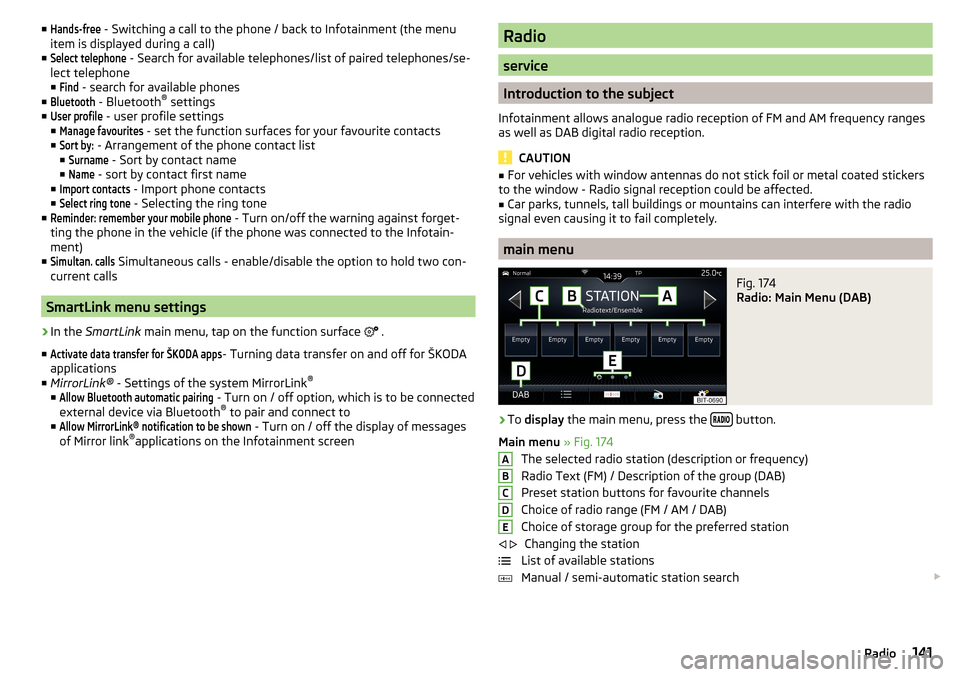
Fig. 174
Radio: Main Menu (DAB)
›
To display the main menu, press the button.
Main menu » Fig. 174
The selected radio station (description or frequency)
Radio Text (FM) / Description of the group (DAB)
Preset station buttons for favourite channels
Choice of radio range (FM / AM / DAB) Choice of storage group for the preferred station Changing the station
List of available stations
Manual / semi-automatic station search
ABCDE
141Radio
Page 145 of 344
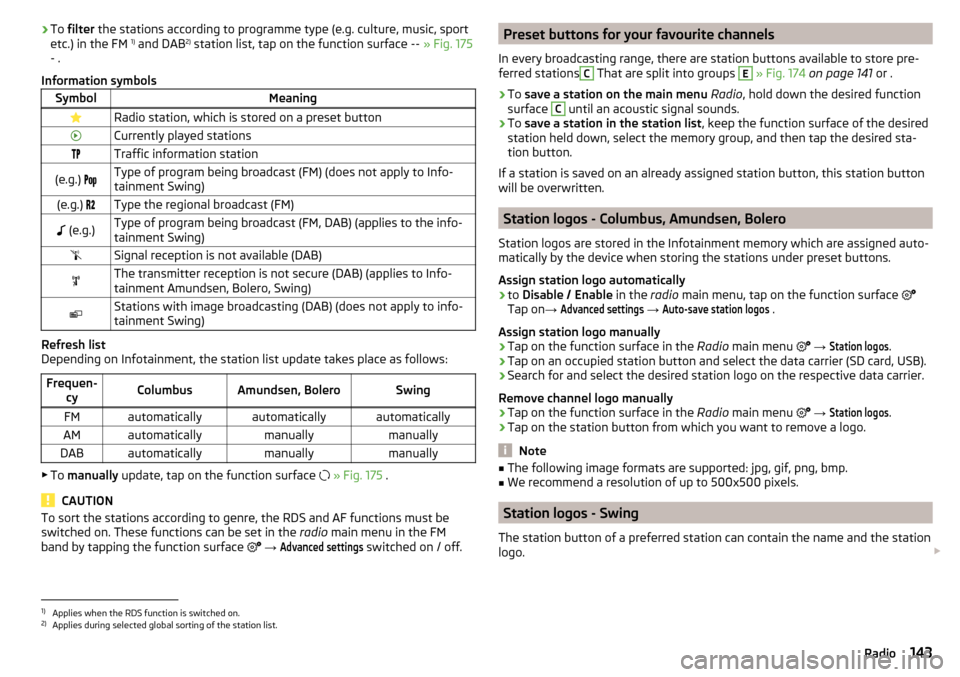
›To
filter the stations according to programme type (e.g. culture, music, sport
etc.) in the FM 1)
and DAB 2)
station list, tap on the function surface -- » Fig. 175
- .
Information symbolsSymbolMeaningRadio station, which is stored on a preset buttonCurrently played stationsTraffic information station(e.g.) Type of program being broadcast (FM) (does not apply to Info-
tainment Swing)(e.g.) Type the regional broadcast (FM) (e.g.)Type of program being broadcast (FM, DAB) (applies to the info-
tainment Swing)Signal reception is not available (DAB)The transmitter reception is not secure (DAB) (applies to Info-
tainment Amundsen, Bolero, Swing)Stations with image broadcasting (DAB) (does not apply to info-
tainment Swing)
Refresh list
Depending on Infotainment, the station list update takes place as follows:
Frequen- cyColumbusAmundsen, BoleroSwingFMautomaticallyautomaticallyautomaticallyAMautomaticallymanuallymanuallyDABautomaticallymanuallymanually
▶To manually update, tap on the function surface
» Fig. 175 .
CAUTION
To sort the stations according to genre, the RDS and AF functions must be
switched on. These functions can be set in the radio main menu in the FM
band by tapping the function surface
→ Advanced settings
switched on / off.
Preset buttons for your favourite channels
In every broadcasting range, there are station buttons available to store pre-
ferred stationsC
That are split into groups
E
» Fig. 174 on page 141 or .
›
To save a station on the main menu Radio , hold down the desired function
surface
C
until an acoustic signal sounds.
›
To save a station in the station list , keep the function surface of the desired
station held down, select the memory group, and then tap the desired sta-
tion button.
If a station is saved on an already assigned station button, this station button will be overwritten.
Station logos - Columbus, Amundsen, Bolero
Station logos are stored in the Infotainment memory which are assigned auto- matically by the device when storing the stations under preset buttons.
Assign station logo automatically
›
to Disable / Enable in the radio main menu, tap on the function surface
Tap on →
Advanced settings
→
Auto-save station logos
.
Assign station logo manually
›
Tap on the function surface in the Radio main menu
→
Station logos
.
›
Tap on an occupied station button and select the data carrier (SD card, USB).
›
Search for and select the desired station logo on the respective data carrier.
Remove channel logo manually
›
Tap on the function surface in the Radio main menu
→
Station logos
.
›
Tap on the station button from which you want to remove a logo.
Note
■
The following image formats are supported: jpg, gif, png, bmp.■We recommend a resolution of up to 500x500 pixels.
Station logos - Swing
The station button of a preferred station can contain the name and the station
logo.
1)
Applies when the RDS function is switched on.
2)
Applies during selected global sorting of the station list.
143Radio
Page 181 of 344
To complete the update of the navigation data, is the ignition for at least. Off
30 min.
Navigation data and POI categories Import / Update online
Fig. 218
Menu for importing / updating
the navigation data and POI cat-
egories
When activated online services infotainment online » page 118 it is possible
Navigation data download / update (applies to the infotainment Columbus) or
POI categories download.
▶ In the Navigation main menu, tap the function surface
→
version information
→
Update (online)
→
Recall
Tap.
or
▶ Press the
button, then tap on the function surface
→
.
There is a menu for importing / updating the navigation data and POI catego-
ries displayed » Fig. 218,
▶ Tap the function surface Tap and select one of the following menus, de-
pending on the context.
■
All
- Import all the available navigation data
■
Favourites
- Import of navigation data preferably countries / regions (applies to
the infotainment Columbus)
■
My POIs
- Import of the user profile on the website ŠKODA Connect Portal cre-
ated POI category » page 188
■
Map update
- Import of available for the countries / regions navigation data
(valid for the infotainment Columbus) » page 178, Update navigation data
online
▶ Tap the function surface
Retrieve
and confirm the deletion.
During the upgrade process, infotainment is usable without limitation.
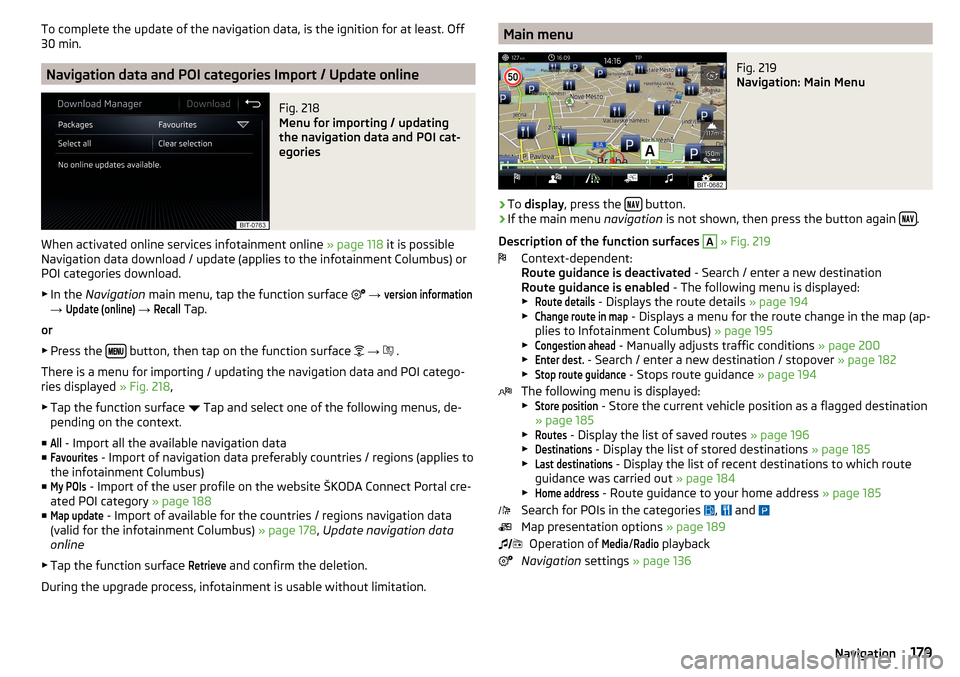
Main menuFig. 219
Navigation: Main Menu
›
To display , press the button.
›
If the main menu
navigation is not shown, then press the button again .
Description of the function surfaces
A
» Fig. 219
Context-dependent:
Route guidance is deactivated - Search / enter a new destination
Route guidance is enabled - The following menu is displayed:
▶
Route details
- Displays the route details » page 194
▶
Change route in map
- Displays a menu for the route change in the map (ap-
plies to Infotainment Columbus) » page 195
▶
Congestion ahead
- Manually adjusts traffic conditions » page 200
▶
Enter dest.
- Search / enter a new destination / stopover » page 182
▶
Stop route guidance
- Stops route guidance » page 194
The following menu is displayed:
▶
Store position
- Store the current vehicle position as a flagged destination
» page 185
▶
Routes
- Display the list of saved routes » page 196
▶
Destinations
- Display the list of stored destinations » page 185
▶
Last destinations
- Display the list of recent destinations to which route
guidance was carried out » page 184
▶
Home address
- Route guidance to your home address » page 185
Search for POIs in the categories ,
and
Map presentation options » page 189
Operation of
Media
/
Radio
playback
Navigation settings » page 136
179Navigation