lock SKODA OCTAVIA 2008 2.G / (1Z) Columbus Navigation System Manual
[x] Cancel search | Manufacturer: SKODA, Model Year: 2008, Model line: OCTAVIA, Model: SKODA OCTAVIA 2008 2.G / (1Z)Pages: 75, PDF Size: 3.54 MB
Page 60 of 75
Selector key NAV (Navigation)
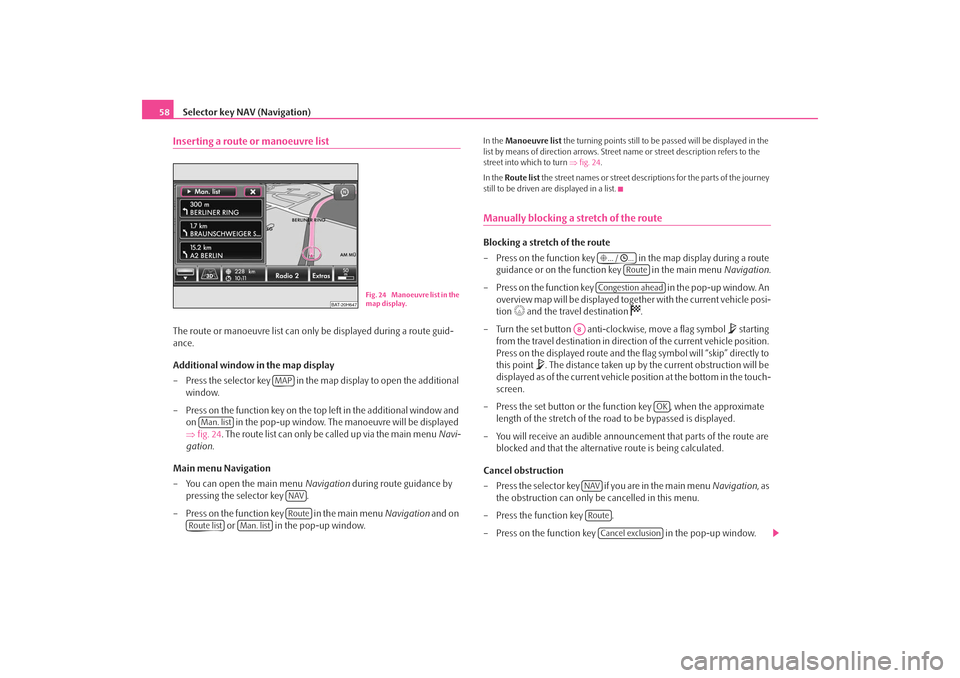
58Inserting a route or manoeuvre listThe route or manoeuvre list can only be displayed during a route guid-
ance.
Additional window in the map display
– Press the selector key in the ma p display to open the additional
window.
– Press on the function key on the top left in the additional window and on in the pop-up window. The manoeuvre will be displayed
⇒fig. 24 . The route list can only be called up via the main menu Navi-
gation .
Main menu Navigation
– You can open the main menu Navigation during route guidance by
pressing the selector key .
– Press on the function key in the main menu Navigation and on
or in the pop-up window.
In the Manoeuvre list the turning points still to be passed will be displayed in the
list by means of direction arrows. Street name or street description refers to the
street into which to turn ⇒fig. 24 .
In the Route list the street names or street descriptions for the parts of the journey
still to be driven are displayed in a list.Manually blocking a stretch of the routeBlocking a stretch of the route
– Press on the function key in the map display during a route guidance or on the function key in the main menu Navigation.
– Press on the function key in the pop-up window. An
overview map will be displayed together with the current vehicle posi-
tion
and the travel destination
.
– Turn the set button anti-clockwise, move a flag symbol
starting
from the travel destination in direct ion of the current vehicle position.
Press on the displayed route and the flag symbol will “skip” directly to
this point
. The distance taken up by the current obstruction will be
displayed as of the current vehicle po sition at the bottom in the touch-
screen.
– Press the set button or the function key , when the approximate length of the stretch of the ro ad to be bypassed is displayed.
– You will receive an audible announcement that parts of the route are blocked and that the alternative route is being calculated.
Cancel obstruction
– P re s s t h e s e l e c t o r key if y o u a re i n t h e m a in m en u Navigation, as
the obstruction can only be cancelled in this menu.
– Press the function key .
– Press on the function key in the pop-up window.
BAT-20H647
Fig. 24 Manoeuvre list in the
map display.
MAP
Man. list
NAVRoute
Route list
Man. list
... / ...
Route
Congestion ahead
A8
OK
NAVRoute
Cancel exclusion
s2u4.6.book Page 58 Wednesday, August 13, 2008 7:57 AM
Page 62 of 75
Range selector key MAP
60Range selector key MAPMap displayBy pressing the selector key you can move from any menu into the map
display.
Pressing the selector key will open or close an additional window in the map
display, where further informatio n can be displayed and selected ⇒page 63,
“Additional window in the map display”.
During route guidance the map display will differ in some points from the “normal”
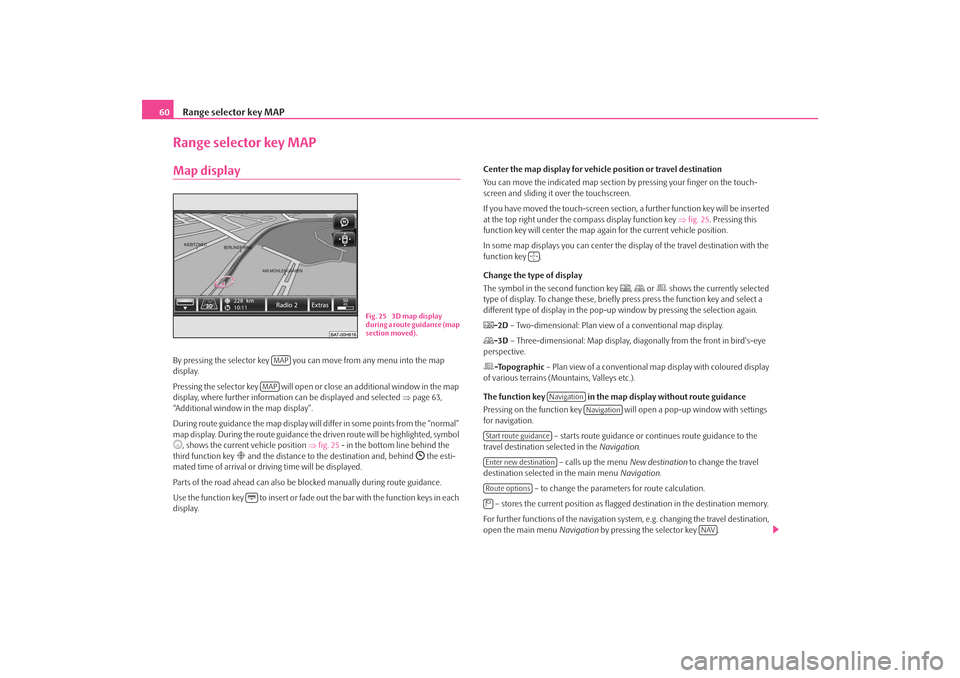
map display. During the route guidance the driven route will be highlighted, symbol , shows the current vehicle position ⇒fig. 25 - in the bottom line behind the
third function key
and the distance to the destination and, behind
the esti-
mated time of arrival or dr iving time will be displayed.
Parts of the road ahead can also be blocked manually during route guidance.
Use the function key to insert or fade out the bar with the function keys in each
display. Center the map display for vehicle
position or travel destination
You can move the indicated map section by pressing your finger on the touch-
screen and sliding it over the touchscreen.
If you have moved the touch-screen section, a further function key will be inserted
at the top right under the co mpass display function key ⇒fig. 25 . Pressing this
function key will center the map ag ain for the current vehicle position.
In some map displays you can center the di splay of the travel destination with the
function key .
Change the type of display
The symbol in the second function key
, or shows the currently selected
type of display. To change these, briefl y press press the function key and select a
different type of display in the pop-up window by pressing the selection again.
-2D – Two-dimensional: Plan view of a conventional map display.-3D – Three-dimensional: Map display, diagonally from the front in bird's-eye
perspective.-Topographic – Plan view of a conventional map display with coloured display
of various terrains (M ountains, Valleys etc.).
The function key in the map display without route guidance
Pressing on the function key will open a pop-up window with settings
for navigation.
– starts route guidance or continues route guidance to the
travel destination selected in the Navigation.
– calls up the menu New destination to change the travel
destination selected in the main menu Navigation.
– to change the parameters for route calculation.
– stores the current position as flagged destination in the destination memory.
For further functions of the navigation system, e.g. changing the travel destination,
open the main menu Navigation by pressing the selector key .
Fig. 25 3D map display
during a route guidance (map
section moved).
MAPMAP
Navigation
Navigation
Start route guidanceEnter new destinationRoute options
NAV
s2u4.6.book Page 60 Wednesday, August 13, 2008 7:57 AM
Page 63 of 75
Range selector key MAP61
The function key in the map display during a route guidance
Pressing the function key ⇒page 60, fig. 25 will open a pop-up window
with set-ups for route guidance.
– stops route guidance at the current position. The route guid-
ance can be continued at any time by pressing the function key and .
– calls up the menu New destination in order to enter a stop-
over destination to be approached during current route guidance.
– for manual entry of a route block.
– to change the parameters for route calculation.
– stores the current position as flagged destination in the destination memory.
For further functions of the navigation, open the main menu Navigation by
pressing the selector key .
Control media source
The function key displays the currently selected media source (here the
radio station “Radio 2”). To control the selected media source, briefly press the
function key and select a station (radio mo de) or title (media mode) by pressing the
selection in the pop-up window.
Radio mode: The six station keys of the main menu RADIO are faded in.
Media mode: The title name and the function keys for controlling the current
media source are faded in.
Function keys
Pressing the function key will open a pop-up window for further set-ups and
displays.
– shows the currently selected travel destination in the map
display in the main menu Navigation. Use the function key on the right under the
compass display to center the ma p again on the vehicle position.
– will change between day and night design. – will open the additional window. The additional window can be
opened or closed in the map displa y by pressing the selector key . – during route guidance, when driving and turning on roads with
more than one lane, a small additional window with lane recommendations will be
inserted in the map. A tick in the checkbox
indicates that the function is switched
on.
Scale modification and display
Pressing the function key with the display of the currently selected map dimension
at the bottom right will insert further functi on keys for changing the map detail and
the map scale. If not used, these function keys fade out again after five seconds.
– briefly switches the map display to the overview display (large scale). After a
few seconds it will switch back automatica lly to the last selected zoom display
(smaller scale).
or – to zoom in or out of the map, i.e.changing the map scale. Alternatively,
move the sliding regulator
within the scale.
– switches to the overview map with start and finish point during route guid-
ance.
– for switching on the autozoom during a route guidance. If “Autozoom” is
active, the map scale will change automa tically depending on the driven route
(Motorway trip: small map scale - City center: large map scale). The switched-on
Autozoom is displayed in the scale display by
. Press again to switch off or
manually change the scale with the set button .
Display favourite symbol
A favourite category can be dete rmined for stored destinations.
Favourite destinations are displayed in the map, depending on set-up, with their
assigned favourite symbol.
... / ...
... / ...
Stop route guidance
Navigation
Start route guidanceAdd intermed. dest.Congestion aheadRoute options
NAV
Radio 2Extras
Extras
Destination viewDay/NightSplit screen
MAP
Symbol
Description
Infrastructure
Private
Restaurant
Lane guidance+
-
-
A8
s2u4.6.book Page 61 Wednesday, August 13, 2008 7:57 AM
Page 66 of 75
Selector key PHONE
64Selector key PHONEOverviewMain menu PHONEConnect your mobile phone with th e mobile phone program according
to the instruction manual a pplicable to your vehicle.
– Press the selector key to call up the main menu PHONE.After the connection process, it will take a few minutes until the phone book data
of the mobile phone connected to the radio unit is available.
Function keys in the main menu PHONE
–Take calls, establish or hold. After pressing the call list, the selected phone
numbers are displayed in the main menu PHONE.
–End conversation or reject call. – establishes a connection to a an em ergency number after further confirma-
tion. This function is also possible wi thout a connected mobile phone. It is,
however, necessary that a connection ca n be established via a mobile phone
company.
and to – Shortcut keys; these can be allocated
to, in each case, one number.
– opens the number block for entering a call number. – opens a pop-up window for selecting a call list. Only call lists of missed,
dialed or accepted calls from the mo bile phone preparation program can be
displayed.
and – switches off the microphone during a conver-
sation. Conversations held inside the vehi cles cannot be heard by the other party
when the microphone is switched off.
– opens the phone book of the connected mobile phone for selecting a call
number.
Enter call numberEnter a number and select
– Press on the function key in the main menu PHONE, in order to
open the number block for entering a call number.
– Press an inserted number key to accept the corresponding number in the entry line.
– You can delete the characters in the entry line from right to left by pressing the function key .
– Press function key when the desired call number is indicated in the entry line. The connection to the entered call number is established.You can select the character “+” instead of the first two digits (for example “ 00”)
when entering a country code. For this step, hold the function key with the little
triangle “
” pressed until a pop-up window with the function keys and fades
in. Accept the desired character into the en try line – the pop-up window will close.
If no entries are entered, the pop-up wi ndow will close automatically after a few
seconds.
The special keys “Stars” and “Rhombus” have the same function as those on
a phone keypad. These characters are prim arily needed when transmitting sound
signals during a call.
Phone bookOpening the phone book
– Press on the function key in the bottom right in the main menu PHONE , in order to open the phone book.
PHONE
SOSVoice mailbox
Memory 2
Memory 6
[:::]CallsExtras
Switch off microphone
[:::]
00
+
*
#
s2u4.6.book Page 64 Wednesday, August 13, 2008 7:57 AM
Page 71 of 75
Index69
Index
AAudio
Audio menu . . . . . . . . . . . . . . . . . . . . . . . . . . . . . . 25
Change audio source . . . . . . . . . . . . . . . . . . . . . . 25
Changing track . . . . . . . . . . . . . . . . . . . . . . . . . . . . 25
Title list . . . . . . . . . . . . . . . . . . . . . . . . . . . . . . . . . . . 25
Audio mode Repeat track/folder . . . . . . . . . . . . . . . . . . . . . . . . 26CCDeject . . . . . . . . . . . . . . . . . . . . . . . . . . . . . . . . . . . . . 24
insert . . . . . . . . . . . . . . . . . . . . . . . . . . . . . . . . . . . . 24
CD mode CD not legible . . . . . . . . . . . . . . . . . . . . . . . . . . . . 22
Center map . . . . . . . . . . . . . . . . . . . . . . . . . . . . . . . . . . 60
Code . . . . . . . . . . . . . . . . . . . . . . . . . . . . . . . . . . . . . . . . . . 9
Control elements . . . . . . . . . . . . . . . . . . . . . . . . . . . . . . . 3DDestination entry Coordinates entry . . . . . . . . . . . . . . . . . . . . . . . . . 45
Destination on map . . . . . . . . . . . . . . . . . . . . . . . 44
Special destinations . . . . . . . . . . . . . . . . . . . . . . . 43
Destination memory . . . . . . . . . . . . . . . . . . . . . . . . . . 46 Delete . . . . . . . . . . . . . . . . . . . . . . . . . . . . . . . . . . . . 47 Destinations
Edit . . . . . . . . . . . . . . . . . . . . . . . . . . . . . . . . . . . 46, 47
Store . . . . . . . . . . . . . . . . . . . . . . . . . . . . . . . . . . . . . 46
store . . . . . . . . . . . . . . . . . . . . . . . . . . . . . . . . . . . . . 47
Driving recommendations . . . . . . . . . . . . . . . . . . . . 56
DTMF key tones . . . . . . . . . . . . . . . . . . . . . . . . . . . . . . 67
EEPG - Program guide . . . . . . . . . . . . . . . . . . . . . . . . . 36
External sources . . . . . . . . . . . . . . . . . . . . . . . . . . . . . . 28GGeneral information . . . . . . . . . . . . . . . . . . . . . . . . . . . . 3HHDD Editing audio data . . . . . . . . . . . . . . . . . . . . . . . . . 30LLast destinationscarry out . . . . . . . . . . . . . . . . . . . . . . . . . . . . . . . . . 46
store . . . . . . . . . . . . . . . . . . . . . . . . . . . . . . . . . . . . . 46
MMain menuPHONE . . . . . . . . . . . . . . . . . . . . . . . . . . . . . . . . . . 64
Set-ups (SETUP) . . . . . . . . . . . . . . . . . . . . . . . . . . 12
MAP Map display . . . . . . . . . . . . . . . . . . . . . . . . . . . . . . 60
Map Location display . . . . . . . . . . . . . . . . . . . . . . . . . . 63
Set-ups . . . . . . . . . . . . . . . . . . . . . . . . . . . . . . . . . . 13
MP3 . . . . . . . . . . . . . . . . . . . . . . . . . . . . . . . . . . . . . . . . . 26
MP3 Operation Return folder . . . . . . . . . . . . . . . . . . . . . . . . . . . . . 14
MP3 operation Playing sequence of the titles . . . . . . . . . . . . . . 27NNavigation . . . . . . . . . . . . . . . . . . . . . . . . . . . . . . . . . . . 38Destination address . . . . . . . . . . . . . . . . . . . . . . . 42
Destination entry . . . . . . . . . . . . . . . . . . . . . . . . . 42
Determine route options . . . . . . . . . . . . . . . . . . 41
main menu . . . . . . . . . . . . . . . . . . . . . . . . . . . . . . . 40
Manoeuvre list . . . . . . . . . . . . . . . . . . . . . . . . . . . . 58
Manually block . . . . . . . . . . . . . . . . . . . . . . . . . . . 58
New destination . . . . . . . . . . . . . . . . . . . . . . . . . . 42
Route list . . . . . . . . . . . . . . . . . . . . . . . . . . . . . . . . . 58
Set flagged destination . . . . . . . . . . . . . . . . . . . . 40
Store destinations . . . . . . . . . . . . . . . . . . . . . . . . . 46
s2u4.6.book Page 69 Wednesday, August 13, 2008 7:57 AM