light SKODA OCTAVIA 2016 3.G / (5E) Repair Manual
[x] Cancel search | Manufacturer: SKODA, Model Year: 2016, Model line: OCTAVIA, Model: SKODA OCTAVIA 2016 3.G / (5E)Pages: 324, PDF Size: 48.85 MB
Page 125 of 324
■Touchscreen tone - Switch on/off audible tone when touching the screen
■No navigation sound during call
- Switching on / off the nav. announcements dur-
ing a telephone call (not applicable to Infotainment Bolero)
Display settings
›
Press the button, then tap on the function surface
Tap →
Screen
.
■
Switch off screen (in 10 seconds)
- Enable / disable the automatic power off func-
tion
■
Brightness:
- Adjusts the brightness of the screen
■
Touchscreen tone
- Switch on/off audible tone when touching the screen
■
Animation when finger near screen
- Turn the proximity sensors on/off (When the
function is on, e.g. Navigation will be shown in the main menu when moving a
finger towards the bottom bar with the function surfaces on the screen)
■
Show clock in standby mode
- Time and date displayed on the screen when the
ignition is switched on and Infotainment is switched off
Time and date settings
›
Press the button, then tap on the function surface
→
Time and date
.
■
Clock time source:
- Setting the time source: Manual / GPS (applies to Infotain-
ment Columbus, Amundsen)
■
Time:
- Time settings
■
Summer time
- Switches the summer time setting on/off (applies to Infotain-
ment Columbus, Amundsen)
■
Automatic summertime
- Turn on / off the automatic switch to daylight saving
time
■
Time zone:
- Choice of time zone
■
Time format:
- Specify the time format
■
Date:
- Date settings
■
Date format:
- Setting the date format
Setting the Infotainment language
›
Press the button, then tap on the function surface
→
Language
.
›
Select the Infotainment language.
In some languages, after selecting the function surface
Female
and
Male
are dis-
played for the choice of voice prompts for Infotainment.
Note■ When a language is selected which does not support voice control, Infotain-
ment will indicate this with a message on the screen.■
The messages are generated by Infotainment. Flawless clarity (e.g. road or
city name) cannot always be guaranteed.
Additional keypad language settings
›
Press the button, then tap on the function surface
→
Additional keypadlanguages
.
In this menu, a keyboard language set can be added to allow the entering of
characters other than those in the currently selected language (function sur-
face ).
Unit settings
›
Press the button, then tap on the function surface
→
Units
.
■
Distance:
- Distance units
■
Speed:
- Speed units
■
Temperature:
- Temperature units
■
Volume:
- Volume units
■
Consumption:
- Consumption units
■
CNG consump.:
- CNG consumption units
■
Pressure:
- Pressure units for tire pressure
Setting data transfer
An active data transfer allows data transfer between Infotainment and the ex-
ternal device (e.g. MirrorLink ®
application) or the operation of some Infotain-
ment functions using the application of the external device (e.g. ŠKODA Media
Command).
›
Press the button, then tap on the function surface
→
Mobile device datatransfer
.
■
Activate data transfer for ŠKODA apps
- Turning data transfer on and off
■
Use apps to operate::
- Setting Infotainment operation via the applications of the
external device (applies to Infotainment Columbus)
■
Deactivate
- Deactivation of Infotainment operation via an external device
■
Confirm
- Infotainment operation with required confirmation
■
Allow
- Infotainment operation without required confirmation
123Infotainment settings - Columbus, Amundsen, Bolero
Page 132 of 324
Infotainment settings - Swing
Infotainment system settings
Sound settings
›
Press the button.
■
Volume
- Volume settings
■
Max. switch-on volume.
- Sets the maximum volume when Infotainment is
turned on
■
Message
- Adjustment of traffic announcements volume (TP)
■
Speed-dependent volume adjustment
- Volume increases as speed increases
■
Entert. Fading
- Lowers the audio volume (e.g. radio volume) with activated
parking aid
■
AUX volume
- Sets the volume for the device connected through AUX
■
BT audio:
- Volume setting of the device connected via Bluetooth ®
audio pro-
file
■
Balance - Fader
- Sets the balance between left and right, front and rear
■
Bass - Mid - Treble
- Setting the equaliser
■
Confirmation tone
- Switch on/off audible tone when touching the screen
Display settings
›
Press the button, then tap the function surface
Screen
.
■
Switch off screen (in 10 seconds)
- Enable / disable the automatic power off func-
tion 1)
■
Brightness:
- Adjusts the brightness of the screen
■
Confirmation tone
- Switch on/off audible tone when touching the screen
■
Show clock in standby mode
- Time and date displayed on the screen when the
ignition is switched on and Infotainment is switched off
Time and date settings
›
Press the button, then tap the function surface
Time and date
.
■
Time:
- Time settings
■
Time format:
- Specify the time format
■
Summer time
- Switches the summer setting on/off
■Automatic summer time - Switch on/off the automatic switch to daylight saving
time
■Date:
- Date settings
■
Date format:
- Setting the date format
Setting the Infotainment language
›
Press the button, then tap the function surface
Language
.
›
Select the Infotainment language.
Additional keypad language settings
›
Press the
button, then tap the function surface
Additional keypad languages
.
In this menu, a keyboard language set can be added to allow the entering of
characters other than those in the currently selected language.
Unit settings
›
Press the button, then tap the function surface
Units
.
■
Distance:
- Distance units
■
Speed:
- Speed units
■
Temperature:
- Temperature units
■
Volume:
- Volume units
■
Consumption:
- Fuel units
■
CNG consump.:
- CNG consumption units
■
Pressure:
- Pressure units for tire pressure
Safe removal of the data source
›
Press the button, then tap the function surface
Remove SD card safely
/
Re-move USB Safely
.
The appropriate message concerning the safe removal of the source is dis-
played in the screen.
Now the external source can be removed or separated.
1)
Infotainment turns the screen off when no touch screen is performed or none of the keys are pressed /
rotated for more than 10 seconds.
130Infotainment
Page 178 of 324
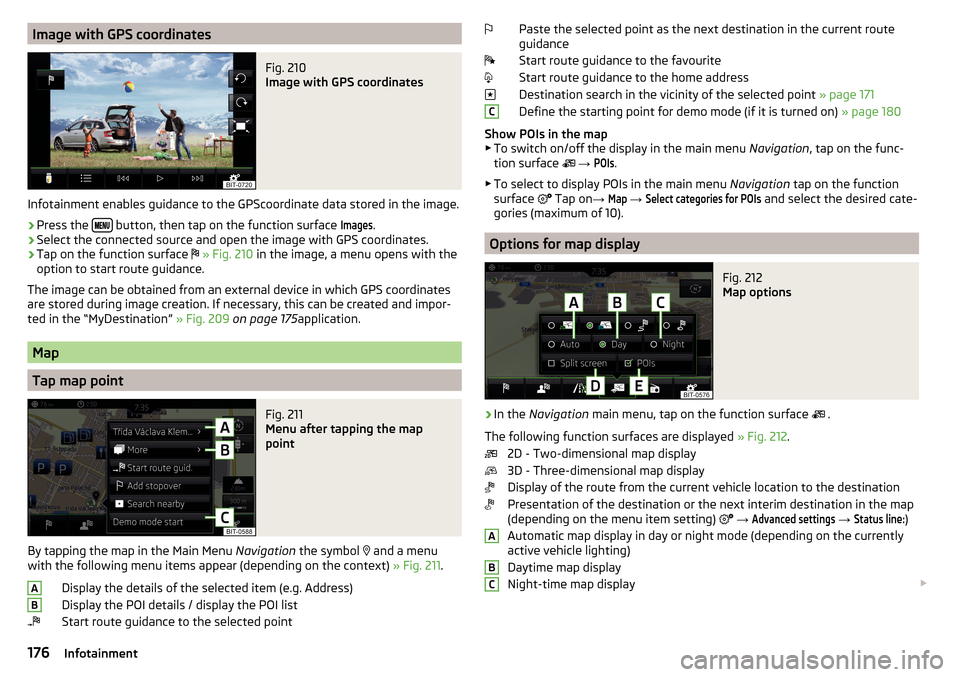
Image with GPS coordinatesFig. 210
Image with GPS coordinates
Infotainment enables guidance to the GPScoordinate data stored in the image.
›
Press the button, then tap on the function surface
Images
.
›
Select the connected source and open the image with GPS coordinates.
›
Tap on the function surface
» Fig. 210 in the image, a menu opens with the
option to start route guidance.
The image can be obtained from an external device in which GPS coordinates are stored during image creation. If necessary, this can be created and impor-
ted in the “MyDestination” » Fig. 209 on page 175 application.
Map
Tap map point
Fig. 211
Menu after tapping the map
point
By tapping the map in the Main Menu Navigation the symbol
and a menu
with the following menu items appear (depending on the context) » Fig. 211.
Display the details of the selected item (e.g. Address)
Display the POI details / display the POI list
Start route guidance to the selected point
ABPaste the selected point as the next destination in the current route
guidance
Start route guidance to the favourite
Start route guidance to the home address
Destination search in the vicinity of the selected point » page 171
Define the starting point for demo mode (if it is turned on) » page 180
Show POIs in the map ▶ To switch on/off the display in the main menu Navigation, tap on the func-
tion surface
→ POIs
.
▶ To select to display POIs in the main menu Navigation tap on the function
surface Tap on
→
Map
→
Select categories for POIs
and select the desired cate-
gories (maximum of 10).
Options for map display
Fig. 212
Map options
›
In the Navigation main menu, tap on the function surface
.
The following function surfaces are displayed » Fig. 212.
2D - Two-dimensional map display
3D - Three-dimensional map display
Display of the route from the current vehicle location to the destination
Presentation of the destination or the next interim destination in the map
(depending on the menu item setting)
→
Advanced settings
→
Status line:
)
Automatic map display in day or night mode (depending on the currently
active vehicle lighting)
Daytime map display
Night-time map display
CABC176Infotainment
Page 179 of 324
Switching on / off of the split screen display » page 171
Switching on/ off of the selected POI categories display » page 176, Tap
map point
If the map scale of the 2D Map or 3D Map is greater than 10 km (5 miles), then
the map is automatically displayed as 2D and aligned in the direction of north.
If the scale is increased beyond this value, then the map is switched back to
the original representation.
Map scale
Fig. 213
Function surfaces for the map
scale change
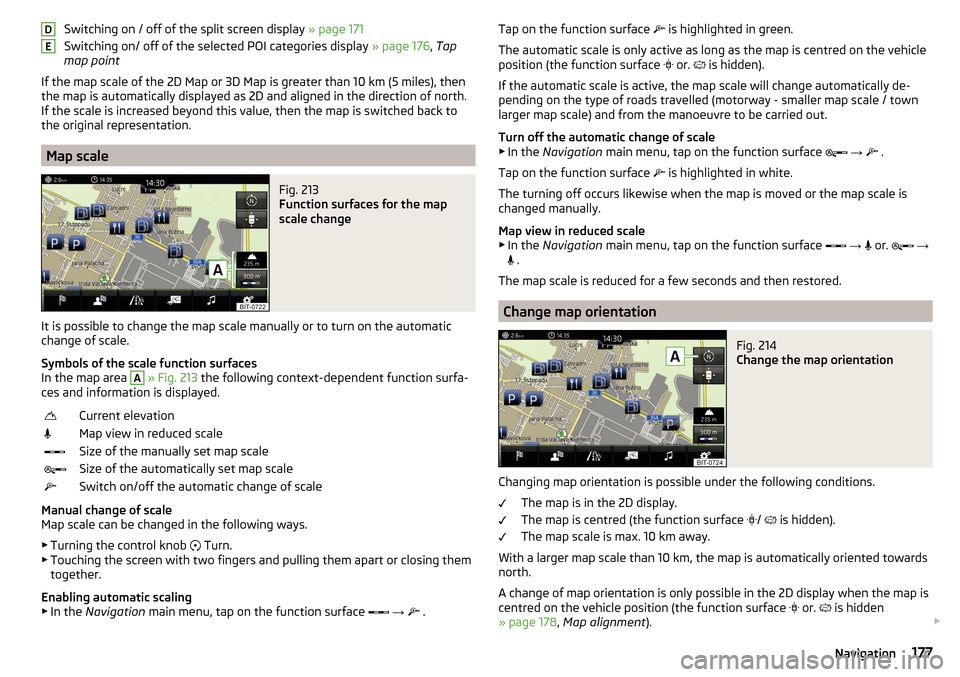
It is possible to change the map scale manually or to turn on the automatic
change of scale.
Symbols of the scale function surfaces
In the map area
A
» Fig. 213 the following context-dependent function surfa-
ces and information is displayed.
Current elevationMap view in reduced scaleSize of the manually set map scaleSize of the automatically set map scaleSwitch on/off the automatic change of scale
Manual change of scale
Map scale can be changed in the following ways.
▶ Turning the control knob Turn.
▶ Touching the screen with two fingers and pulling them apart or closing them
together.
Enabling automatic scaling
▶ In the Navigation main menu, tap on the function surface
→
.
DETap on the function surface
is highlighted in green.
The automatic scale is only active as long as the map is centred on the vehicle position (the function surface
or. is hidden).
If the automatic scale is active, the map scale will change automatically de-
pending on the type of roads travelled (motorway - smaller map scale / town larger map scale) and from the manoeuvre to be carried out.
Turn off the automatic change of scale
▶ In the Navigation main menu, tap on the function surface
→
.
Tap on the function surface
is highlighted in white.
The turning off occurs likewise when the map is moved or the map scale is
changed manually.
Map view in reduced scale ▶ In the Navigation main menu, tap on the function surface
→
or.
→
.
The map scale is reduced for a few seconds and then restored.
Change map orientation
Fig. 214
Change the map orientation
Changing map orientation is possible under the following conditions. The map is in the 2D display.
The map is centred (the function surface /
is hidden).
The map scale is max. 10 km away.
With a larger map scale than 10 km, the map is automatically oriented towards
north.
A change of map orientation is only possible in the 2D display when the map is
centred on the vehicle position (the function surface or.
is hidden
» page 178 , Map alignment ).
177Navigation
Page 182 of 324
Calculate the most economical route with shortest travelling time and
distance travelled – the route is highlighted green
Calculate the fastest route to the destination, even if a detour is nec-
essary - the route is highlighted in red
Calculate the shortest route to the destination, even if a longer travel-
ling time is required - the route is highlighted in orange
In the function surfaces of the alternative routes, information on the route
length and the estimated travel time and the following symbols are displayed
(applies to Infotainment Columbus).
Use of a toll motorway
Use of a train / ferry
Using a toll tunnel
Use of a toll road
Using a vignette duty highway
It is possible to select an already calculated alternative route before the calcu- lation of the remaining routes is completed.
Selecting the type of route will start route guidance.
If no route selection is made within 30 s after the calculation of all routes, the
route guidance is automatically started according to the preferred route type.
Route calculation for the trailer
When driving with a trailer or any other accessory connected to the trailer
socket, we recommend that you switch on the trailer recognition, if necessary
to set the maximum speed for towing a trailer.
›
For calculating the route for towing a trailer, tap the function surface in the
main navigation menu
→
Route options
→
.
Demo mode
The Demo mode provides a travel simulation to the entered destination. The
function offers the option to travel through the calculated route “virtually”.
When the Demo mode is turned on, a menu for route guidance in the Demo
mode or in normal operation is displayed before the start of route guidance.
›
To switch on/off in the main menu Navigation, tap on the function surface
Tap →
Advanced settings
→
Demo mode
.
When the DemoMode is switched on, the route starting point can be defined.
ABC› In the
Navigation main menu, tap on the function surface Tap → Advancedsettings
→
Define demo mode starting point
.›
Define the starting point by entering the address or the current vehicle posi-
tion.
›
The demo mode starting point can also be set as long as the demo mode is
turned on by tap the desired map location and the menu item
Start Demo Mode
is selected » page 176, Tap map point .
Graphical driving recommendations
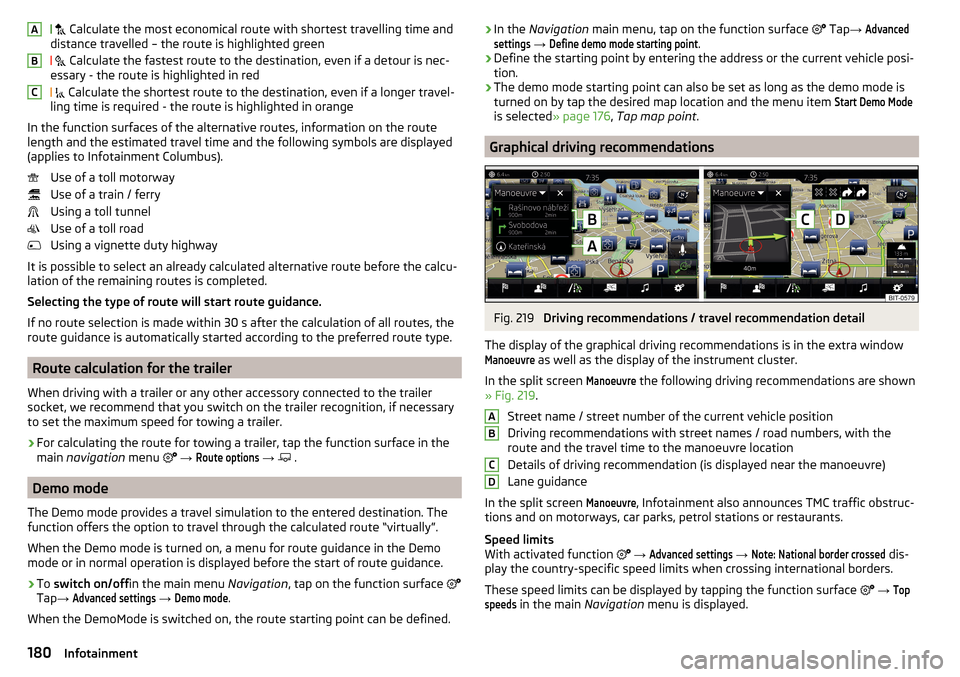
Fig. 219
Driving recommendations / travel recommendation detail
The display of the graphical driving recommendations is in the extra window
Manoeuvre
as well as the display of the instrument cluster.
In the split screen
Manoeuvre
the following driving recommendations are shown
» Fig. 219 .
Street name / street number of the current vehicle position
Driving recommendations with street names / road numbers, with the
route and the travel time to the manoeuvre location
Details of driving recommendation (is displayed near the manoeuvre)
Lane guidance
In the split screen
Manoeuvre
, Infotainment also announces TMC traffic obstruc-
tions and on motorways, car parks, petrol stations or restaurants.
Speed limits
With activated function
→
Advanced settings
→
Note: National border crossed
dis-
play the country-specific speed limits when crossing international borders.
These speed limits can be displayed by tapping the function surface
→
Topspeeds
in the main Navigation menu is displayed.
ABCD180Infotainment
Page 190 of 324
Driving
Starting-off and Driving
Starting and stopping the engine
Introduction
This chapter contains information on the following subjects:
Electronic immobiliser and steering lock
188
Switch on/off ignition
189
Starting / stopping the engine
189
Problems with the engine start - vehicles with starter button
190
Depending on equipment fitted, it is possible to switch the ignition on/off and
start/stop the engine with the key in the ignition or using the starter button .
WARNING■
Never switch off the engine before the vehicle is stationary – risk of acci-
dent!■
While driving with the engine stopped the ignition must always be
switched on. Otherwise, the steering may lock - danger of an accident!
■
Do not withdraw the ignition key from the ignition lock until the vehicle
has come to a stop » page 193, Parking . Otherwise, the steering may lock -
danger of an accident!
■
Never leave the vehicle unattended with the engine running - there is a
risk of theft etc!
■
Never (e.g. in garages) run the engine in a closed place - there is a risk of
poisoning and death!
CAUTION
■ Only start the engine when the engine and the vehicle are stationary - there
is a risk of starter and engine damage!■
Do not push-start the engine – There is a risk of damaging the engine and
the catalytic converter! The battery from another vehicle can be used as a
jump-start aid.
■
On vehicles with the starter button, pay attention to where the key is loca-
ted. The system can recognize the valid key, even if it has been accidentally
left on the vehicle roof - there is danger of loss or damage to the key!
NoteDo not warm up the engine while the vehicle is stationary. If possible, start
your journey as soon as the engine has started. Through this, the engine rea-
ches its operating temperature faster.
Electronic immobiliser and steering lock
Read and observe
and on page 188 first.
The electronic immobiliser (hereinafter referred to as immobiliser) makes the
theft or unauthorised use of your vehicle more difficult.
Immobiliser
The immobiliser allows the engine to start provided an original vehicle key only
is used.
Malfunction of the immobiliser
If a component in the immobiliser key fails, it is not possible to start the en-
gine. A corresponding message appears in the display of the instrument clus-
ter to explain the immobiliser is active.
To start, use the other vehicle key or seek help from a specialist garage.
Steering lock - locking
›
On vehicles with ignition lock, remove the key and turn the steering wheel
until the steering lock engages.
›
On vehicles with a starter button, switch off the ignition and open the driv-
er's door. If the driver's door is opened and the ignition is switched off after-
wards, the steering is only locked automatically after the vehicle has been
locked.
Steering lock - unlock
›
On vehicles with ignition lock, insert the key into the ignition and turn on the
ignition. If this is not possible, then move the steering wheel slightly back
and forth, as a result of which the steering lock should unlock.
›
On vehicles with starter button, get into the vehicle and close the driver's
door. Under certain circumstances, the steering lock can be unlocked only
when the ignition is switched on or the engine is started.
WARNINGNever let the vehicle roll with locked steering lock - there is a risk of acci-
dent!188Driving
Page 191 of 324
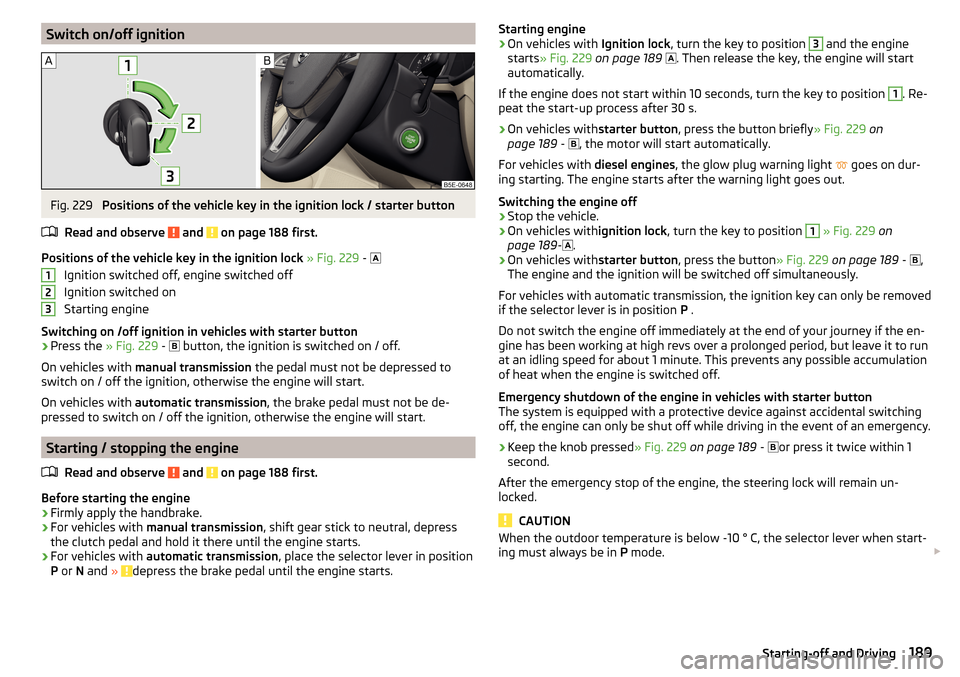
Switch on/off ignitionFig. 229
Positions of the vehicle key in the ignition lock / starter button
Read and observe
and on page 188 first.
Positions of the vehicle key in the ignition lock » Fig. 229 -
Ignition switched off, engine switched off
Ignition switched on
Starting engine
Switching on /off ignition in vehicles with starter button
›
Press the » Fig. 229 -
button, the ignition is switched on / off.
On vehicles with manual transmission the pedal must not be depressed to
switch on / off the ignition, otherwise the engine will start.
On vehicles with automatic transmission , the brake pedal must not be de-
pressed to switch on / off the ignition, otherwise the engine will start.
Starting / stopping the engine
Read and observe
and on page 188 first.
Before starting the engine
›
Firmly apply the handbrake.
›
For vehicles with manual transmission , shift gear stick to neutral, depress
the clutch pedal and hold it there until the engine starts.
›
For vehicles with automatic transmission , place the selector lever in position
P or N and » depress the brake pedal until the engine starts.
123Starting engine›On vehicles with Ignition lock, turn the key to position 3 and the engine
starts » Fig. 229 on page 189
. Then release the key, the engine will start
automatically.
If the engine does not start within 10 seconds, turn the key to position 1
. Re-
peat the start-up process after 30 s.
›
On vehicles with starter button, press the button briefly » Fig. 229 on
page 189 -
, the motor will start automatically.
For vehicles with diesel engines, the glow plug warning light
goes on dur-
ing starting. The engine starts after the warning light goes out.
Switching the engine off
›
Stop the vehicle.
›
On vehicles with ignition lock, turn the key to position
1
» Fig. 229 on
page 189 -
.
›
On vehicles with
starter button, press the button » Fig. 229 on page 189 -
,
The engine and the ignition will be switched off simultaneously.
For vehicles with automatic transmission, the ignition key can only be removed
if the selector lever is in position P .
Do not switch the engine off immediately at the end of your journey if the en-
gine has been working at high revs over a prolonged period, but leave it to run
at an idling speed for about 1 minute. This prevents any possible accumulation
of heat when the engine is switched off.
Emergency shutdown of the engine in vehicles with starter button
The system is equipped with a protective device against accidental switching
off, the engine can only be shut off while driving in the event of an emergency.
›
Keep the knob pressed » Fig. 229 on page 189 -
or press it twice within 1
second.
After the emergency stop of the engine, the steering lock will remain un-
locked.
CAUTION
When the outdoor temperature is below -10 ° C, the selector lever when start-
ing must always be in P mode. 189Starting-off and Driving
Page 192 of 324
Note■The engine running noises may be louder at first for a short time after start-
ing the cold engine.■
You should not switch on any major electrical components during the heat-
ing period, otherwise the vehicle battery will be drained unnecessarily.
■
After switching off the ignition, the radiator fan may (also intermittently)
continue to operate for approx. 10 minutes.
Problems with the engine start - vehicles with starter button
Fig. 230
Starting the engine - press the
button with the key
Read and observe and on page 188 first.
If no engine start is possible and the display of the instrument cluster shows a
message that the key could not be detected by the system or there is a system
fault, then try to start the engine as follows.
›
Press the starter button with the key » Fig. 230.
If the engine does not start, the help of a specialist garage is required.
CAUTION
The key may not be detected by the system if the battery in the key is running
out of charge or the signal fails (strong electromagnetic field) or is shielded
(e.g. in an aluminium case).
START-STOPsystem
Introduction
This chapter contains information on the following subjects:
Operation
190
manually activate/deactivate system
191The START STOP system (hereinafter referred to as the system) reduces CO 2
emissions and harmful emissions, and saves fuel.
If the system determine that the engine is not needed when the vehicle stops
or is at a standstill (e.g. at the traffic lights), it turns off the engine and starts it
again when moving off.
The system function depends on many factors. Some of them are down to the
driver, the others are systemic and can neither be influenced nor identified.
Therefore the system may react differently in situations which seem identi-
cal from the driver's perspective.
The system is automatically activated every time the ignition is switched on
(even where this has previously been manually deactivated with the button ).
Note
If the engine has stopped due to the system, the ignition remains on.
Operation
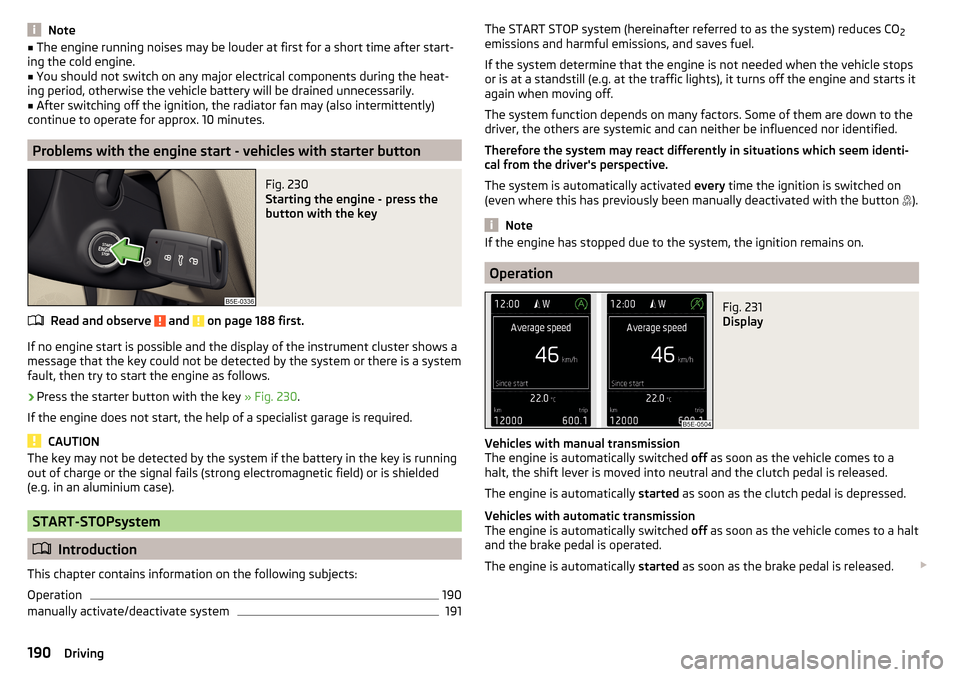
Fig. 231
Display
Vehicles with manual transmission
The engine is automatically switched off as soon as the vehicle comes to a
halt, the shift lever is moved into neutral and the clutch pedal is released.
The engine is automatically started as soon as the clutch pedal is depressed.
Vehicles with automatic transmission
The engine is automatically switched off as soon as the vehicle comes to a halt
and the brake pedal is operated.
The engine is automatically started as soon as the brake pedal is released.
190Driving
Page 193 of 324
Conditions for the system function
The following conditions must be met for the system to function correctly.
The driver's door is closed.
The driver has fastened the seat belt.
The driving speed was higher than 4 km.h after the last stop.
System status
The system status is shown in the display when the vehicle comes to a halt
» Fig. 231 .
The engine is automatically switched off; when the vehicle moves off, the
ignition process will be automatically initiated.
The engine is not automatically switched off.
The engine does not shut down when the vehicle stops, if e.g. the following
applies.
▶ The engine temperature for the proper function of the system has not yet
been reached.
▶ The charge state of the vehicle battery is too low.
▶ The current consumption is too high.
▶ High air conditioning or heating output (high fan speed, big difference be-
tween the desired and actual interior temperature).
If the engine has shut down automatically but the system detects that the en- gine is required to run (e.g. if the brake pedal is pressed repeatedly) then the
system automatically starts up the engine.
More information about the current system status can be displayed in infotain-
ment screen, in the
→
→
Veh. status
menu.
If there is a system fault , the following message will appear in the display of
the instrument cluster. Seek help from a specialist garage.
Note
■ If the driver's seat belt is removed for more than 30 seconds or the driver's
door is opened after the engine has switched off automatically, the engine will
have to be restarted manually.■
No automatic engine shut-down takes place when a vehicle with automatic
transmission is moving at low speed (e.g. during a traffic jam) and remains sta-
tionary after pressing the brake pedal lightly. Automatic engine shut-down
takes place if you press the brake pedal down with more force.
■
For vehicles with automatic transmission there is no automatic engine shut-
down when the system detects a manoeuvring action due to a large steering
angle.
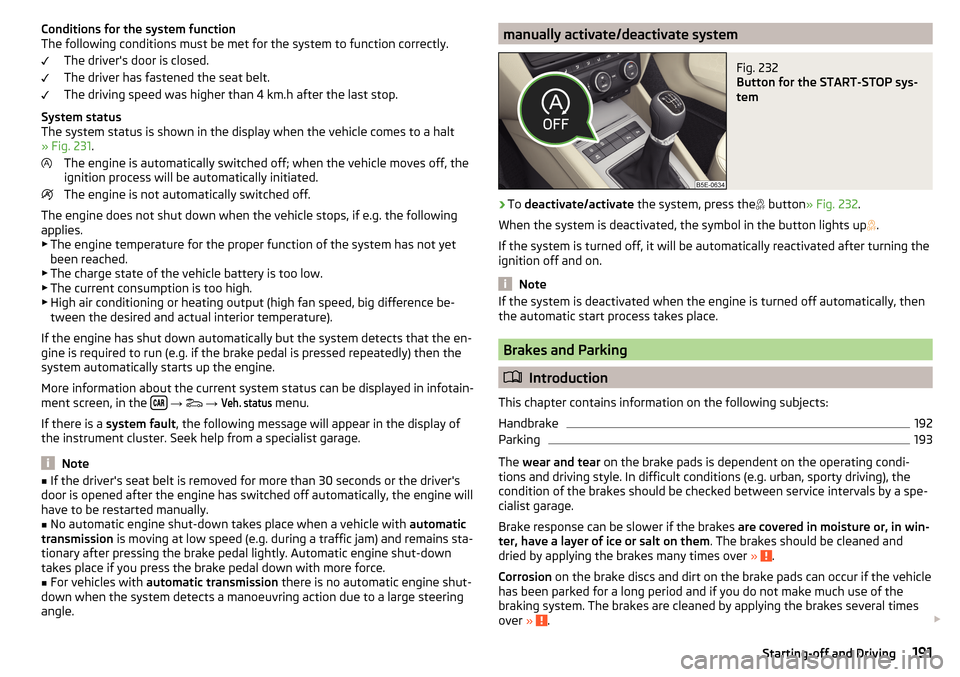
manually activate/deactivate systemFig. 232
Button for the START-STOP sys-
tem
›
To deactivate/activate the system, press the
button
» Fig. 232 .
When the system is deactivated, the symbol in the button lights up .
If the system is turned off, it will be automatically reactivated after turning the
ignition off and on.
Note
If the system is deactivated when the engine is turned off automatically, then
the automatic start process takes place.
Brakes and Parking
Introduction
This chapter contains information on the following subjects:
Handbrake
192
Parking
193
The wear and tear on the brake pads is dependent on the operating condi-
tions and driving style. In difficult conditions (e.g. urban, sporty driving), the
condition of the brakes should be checked between service intervals by a spe-
cialist garage.
Brake response can be slower if the brakes are covered in moisture or, in win-
ter, have a layer of ice or salt on them . The brakes should be cleaned and
dried by applying the brakes many times over »
.
Corrosion on the brake discs and dirt on the brake pads can occur if the vehicle
has been parked for a long period and if you do not make much use of the
braking system. The brakes are cleaned by applying the brakes several times
over »
.
191Starting-off and Driving
Page 194 of 324
Before negotiating a long or steep gradient , reduce speed and shift down a
gear. As a result, the braking effect of the engine will be used, reducing the
load on the brakes. If, nevertheless, there is a need for additional braking, it
should be carried out at intervals.
Emergency braking warning - If it is necessary to brake hard, the system may
cause the brake lights to automatically flash, to alert the traffic behind.
New brake pads must first be““run in”” because these do not initially have the
best possible braking effect. Drive especially carefully for the first 200 km or
so.
If the brake fluid level is too low, it can cause faults in the braking system ;
the warning light will light up in the instrument cluster » page 33
,
Braking
system . If the warning light does not light up, yet the stopping distance is per-
ceived to be longer than before, the driving style should be adapted in view of
the unknown cause of the problem, and braking kept to a minimum - seek the
help of a specialist garage without delay.
The brake booster increases the pressure generated with the brake pedal. The
brake booster only operates when the engine is running.WARNING■ Greater physical effort for braking is required when the engine is switch-
ed off – risk of accident!■
During the braking procedure on a vehicle with manual transmission,
when the vehicle is in gear and at low revs, press the clutch pedal. Other-
wise, the functionality of the brake system may be impaired – risk of acci-
dent!
■
Do not depress the brake pedal, if there is no requirement to slow down.
This causes the brakes to overheat and can also result in a longer braking
distance and excessive wear - There is a risk of an accident!
■
Only brake for the purpose of drying and cleaning the brake discs if the
traffic conditions permit this. Do not place any other road users in jeopardy.
■
Recommendations for new brake pads should be followed.
■
When stopping and parking, the parking brake should always be applied
firmly, otherwise the vehicle could move off - There is a risk of an accident!
■
If a front spoiler, full wheel trim, etc. is mounted retrospectively, it must
be ensured that the air supply to the front wheel brakes is not reduced.
Otherwise, the front brakes could be in danger of overheating – There is a
risk of an accident!
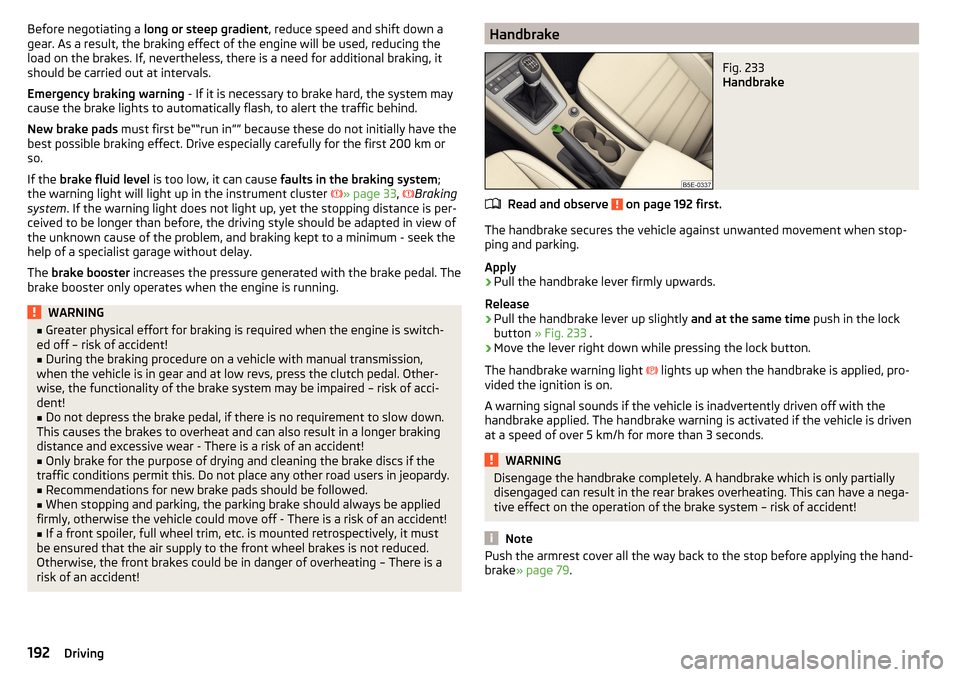
HandbrakeFig. 233
Handbrake
Read and observe on page 192 first.
The handbrake secures the vehicle against unwanted movement when stop- ping and parking.
Apply
›
Pull the handbrake lever firmly upwards.
Release
›
Pull the handbrake lever up slightly and at the same time push in the lock
button » Fig. 233 .
›
Move the lever right down while pressing the lock button.
The handbrake warning light lights up when the handbrake is applied, pro-
vided the ignition is on.
A warning signal sounds if the vehicle is inadvertently driven off with the
handbrake applied. The handbrake warning is activated if the vehicle is driven
at a speed of over 5 km/h for more than 3 seconds.
WARNINGDisengage the handbrake completely. A handbrake which is only partially
disengaged can result in the rear brakes overheating. This can have a nega-
tive effect on the operation of the brake system – risk of accident!
Note
Push the armrest cover all the way back to the stop before applying the hand-
brake » page 79 .192Driving