wheel SKODA SUPERB 2011 Owner´s Manual
[x] Cancel search | Manufacturer: SKODA, Model Year: 2011, Model line: SUPERB, Model: SKODA SUPERB 2011Pages: 252, PDF Size: 16.33 MB
Page 127 of 252
Phone Phonebook
A phone phonebook is part of the hands-free system. This phone phonebook
can be used depending on the type of mobile phone.
After the telephone's first connection to the hands-free system, the phone
book from the phone and the SIM card loads into the hands-free memory.
Each time the telephone has established a new connection with the hands-
free system, an update of the relevant phone book is performed. The updating
can take a few minutes. During this period, the available phone book is the one
stored at the previous update. Newly stored telephone numbers are only
shown after the updating has ended.
The update is interrupted if a telephone event (e.g. incoming or outgoing call,
voice control dialogue) occurs during the updating procedure. After the tele-
phone event has ended, the updating starts anew.
GSM II
The internal phonebook provides 2,500 free memory locations. Each contact
can contain up to 4 numbers.
On vehicles fitted with the Columbus navigation system, a maximum of 1,200
telephone contacts are shown on the display of this appliance.
If the number of loaded contacts exceeds 2,500, the phone book is not com-
plete.
GSM III
The internal phonebook provides 2000 free memory locations. Each contact
can contain up to 5 numbers.
On vehicles fitted with the Columbus navigation system, a maximum of 1000
telephone contacts are shown on the display of this appliance.
If the mobile phone's telephone book has more than 2,000 contacts, the fol- lowing message will appear in the MAXI DOTdisplay:
Phone book not fully loadedUniversal telephone preinstallation GSM II
Introduction
This chapter contains information on the following subjects:
Connecting the mobile phone to the hands-free system
124
Telephone operation in the MAXI DOT display
125
The universal telephone preinstallation GSM II comprises the following func- tions.
› Phone Phonebook
» page 124.
› Convenience operation of the telephone via the multifunction steering
wheel » page 122 .
› Telephone operation in the MAXI DOT display
» page 122.
› Voice control of the telephone
» page 131.
› Music playback from the telephone or other multimedia units
» page 134.
All communication between a mobile phone and your vehicle's hands-free sys-
tem is established with the help of Bluetooth ®
technology.
Note
The following guidelines must be observed » page 121, Mobile phones and
two-way radio systems .
Connecting the mobile phone to the hands-free system
To connect a mobile phone with the hands-free system, the two devices must
be paired. Detailed information on this is provided in the operating instructions
for your mobile phone.
The following steps must be carried out for the connection.
›
Activate Bluetooth ®
and the visibility of your mobile phone on your tele-
phone.
›
Switch on the ignition.
›
Select the Phone - New user menu in the MAXI DOT display and wait until
the hands-free system has completed the search.
›
Select the phone you wish to connect from the list of units found.
›
Confirm the PIN 1)
.
1)
Depending on the Bluetooth®
version on the mobile phone, an automatically generated 6-digit PIN (SSP)
is either displayed, or the PIN 1234 has to be entered manually.
124Operation
Page 128 of 252
›If the hands-free system announces (as standard
SKODA_BT) on the display
of the mobile phone, enter the PIN 1)
within 30 seconds and wait, until the
connection is established 2)
.›
To finish pairing, confirm the creation of the new user profile in the MAXI
DOT display.
If there is no free space available to create a new user profile, delete an exist-
ing user profile.
During the connecting procedure, no other mobile phone may be connected
with the hands-free system.
Up to four mobile phones can be paired with the hands-free system, whereby
only one mobile phone can communicate with the hands-free system.
The visibility of the hands-free system is automatically switched off 3 minutes
after the ignition is switched on and is also deactivated when the mobile
phone has connected to the hands-free system.
Restoring the visibility of the hands-free system
If you have not managed to connect your mobile phone with the hands-free
system within 3 minutes of switching on the ignition, the visibility of the
hands-free system can be re-established for 3 minutes in the following ways.
› By turning the ignition off and on.
› By turning voice control off and on.
› In the
Bluetooth - Visibility menu in the MAXI DOT display.
Creating a connection with an already paired mobile phone
After switching on the ignition, the connection is automatically established for the already paired mobile phone 2)
. Check on your mobile phone if the automatic
connection has been established.
Disconnecting the connection
› By withdrawing the ignition key.
› By disconnecting the hands-free system in the mobile phone.
› By disconnecting the user in the
Bluetooth - Users menu item in the MAXI
DOT display.
Solving connection problems
If the hands-free system reports No paired phone found, check the operating
status of the mobile phone.
› Is the mobile phone switched on?
› Is the PIN code entered?
› Is Bluetooth ®
active?
› Is the visibility of the mobile phone active?
› Has the mobile phone already been paired with the hands-free system?
Telephone operation in the MAXI DOT display
The following menu items can be selected from the Phone menu.
■ Phone book
■ Dial number 3)
■ Call register
■ Voice mailbox
■ Bluetooth 3)
■ Settings 4)
■ Back
Phone book
The Phone book menu item lists the contacts downloaded from the telephone
memory and the mobile phone SIM card.
Dial number
Any telephone number can be entered in the Dial number menu item. The re-
quired numbers must be selected one after the other using adjustment wheel
and confirmed by pressing the adjustment wheel. You can select digits 0 - 9,
symbols ,
, #
and the Cancel, Call and Delete functions.
1)
Depending on the Bluetooth®
version on the mobile phone, an automatically generated 6-digit PIN (SSP)
is either displayed, or the PIN 1234 has to be entered manually.
2)
Some mobile phones have a menu, in which the authorisation for establishing a Bluetooth ®
connection
is completed by inputting a code. If the authorisation input is required, it must always be performed
when re-establishing the Bluetooth connection.
3)
On vehicles fitted with the Amundsen+ navigation system, this function can be accessed via the naviga-
tion system menu; refer to the » Operating instructions for the Amundsen+ navigation system .
4)
This function is not available in vehicles fitted with the Amundsen+ navigation system.
125Communication and multimedia
Page 129 of 252
Call register
The following menu items can be selected in the Call register menu item.
■ Missed calls - List of missed calls
■ Dialled nos. - List of dialled numbers
■ Received calls - list of received calls
Voice mailbox
In the Voice mailbox menu item, you can set the number of the voice mailbox 1)
and then dial the number.
Bluetooth
The following menu items can be selected from the Bluetooth menu item.
■ User - Overview of the stored telephones
■ New user - Search for new mobile phones in reception range
■ Visibility - Switches on the visibility of the hands-free system for other devi-
ces
■ Media player - Playback via Bluetooth ®
■ Active device - Connected device
■ Paired devices - List of paired devices
■ Find - Device search
■ Phone name - option to change the name of the phone (default SKODA_BT)
Settings
The following menu items can be selected from the Settings menu item.
■ Phone book - Phonebook
■ Update 1)
- Update the phone book
■ List - Arrange the entries in the phone book
■ Surname - Arrange according to surname
■ Surname - Sort by contact name
■ Ring tone - Ring tone setting
Back
Return to the telephone's basic menu.Universal telephone preinstallation GSM IIl
Introduction
This chapter contains information on the following subjects:
Connecting the phone to the hands-free system
127
Telephone operation in the MAXI DOT display
128
Internet connection via Bluetooth ®
129
The universal telephone preinstallation GSM III comprises the following func-
tions.
› Phone Phonebook
» page 124.
› Convenience operation via the multifunction steering wheel
» page 122.
› Telephone operation in the MAXI DOT display
» page 128.
› Voice control of the telephone
» page 131.
› Music playback from the telephone or other multimedia units
» page 134.
› Internet connection
» page 129.
› Display of SMS messages
» page 128.
All communication between a telephone and the hands-free system of your vehicle can only be established with the help of the following profiles of Blue-
tooth ®
technology.
rSAP - Remote SIM access profile
After connecting the telephone with the hands-free system via the rSAP pro-
file, the telephone deregisters from the GSM network, and communication
with the network is only enabled by the hands-free system via the vehicle's
external aerial. In the telephone only the interface for Bluetooth ®
remains ac-
tive. In this case, you can only use the mobile phone to disconnect from the
hands-free system, deactivate the Bluetooth ®
connection or dial the emergen-
cy number 112 (only valid in some countries).
HFP - Hands Free Profile
After connecting the telephone with the hands-free system via the HFP pro-
file, the telephone continues to use its GSM module and the internal antenna
to communicate with the GSM network.
1)
On vehicles fitted with the Amundsen+ navigation system, this function can be accessed via the naviga-
tion system menu; refer to the » Operating instructions for the Amundsen+ navigation system .
126Operation
Page 131 of 252

Telephone operation in the MAXI DOT display
If no phone is connected to the hands-free system, the message No paired
phone found appears along with the following menu items when the Phone
menu is selected. ■ Help - This menu item appears when no paired phone is stored in the memo-
ry of the hands-free system.
■ Connect - This menu item appears when one or more paired phones are stor-
ed in the memory of the hands-free system.
■ New user - New phone
■ Media player - Media player
■ Active device - Connected device
■ Paired devices - List of paired devices
■ Find - Device search
■ Visibility - Visibility on/off
■ SOS - Emergency call
If a telephone is paired with the hands-free system, the following menu items
can be selected in the Phone menu.
Phone book
The Phone book menu item lists the contacts downloaded from the telephone
memory and the mobile phone SIM card.
The following functions are available for each phone contact.
■ Display telephone number
■ Voice tag - Voice tag for the contact
■ Play - Play a voice tag
■ Record - Record a voice contact
Dial number
Any telephone number can be entered in the Dial number menu item. The re-
quired numbers must be selected one after the other using adjustment wheel
and confirmed by pressing the adjustment wheel. You can select digits 0 - 9,
symbols +,
, #
and the Delete, Call and Back functions.
Call register
The following menu items can be selected in the Call register menu item.
■ Missed calls - List of missed calls
■ Received calls - list of received calls■
Dialled nos. - List of dialled numbers
■ Delete lists - Delete call registers
Voice mailbox
In the Voice mailbox menu item, you can set or save the number of the voice
mailbox and then dial the number. The required numbers must be selected one
after the other using adjustment wheel and confirmed by pressing the adjust-
ment wheel. You can select digits 0 - 9, symbols +,
, # and the Delete, Call ,
Store and Back functions.
Messages 1)
A list of received text messages is displayed in the Messages menu item. After
calling a message, the following functions appear. ■ Show - Display text message
■ Read - The system reads out the selected text message through the vehi-
cle's speakers
■ Send time - Display message send time
■ Call back - Dial the phone number of the sender of the text message
■ Copy - Copy the received text message to the SIM card of your mobile phone
■ Delete - Delete the message
Bluetooth
The following menu items can be selected from the Bluetooth menu item.
■ User - Overview of the stored telephones
■ Connect - Connection with the telephone
■ Disconnect - Disconnection of telephone
■ Rename - Rename the telephone
■ Delete - Delete the telephone
■ New user - Search for new mobile phones that are in the reception range
■ Visibility - Switches on the visibility of the hands-free system for other devi-
ces
■ Media player - Media player
■ Active device - Connected device
■ Paired devices - List of paired devices
■ Connect - Connection with the device
■ Rename - Rename the device
■ Delete - Delete the device
■ Authorisation - Authorise the device 1)
Only applies when connecting the telephone to the hands-free system via the rSAP profile.
128Operation
Page 135 of 252
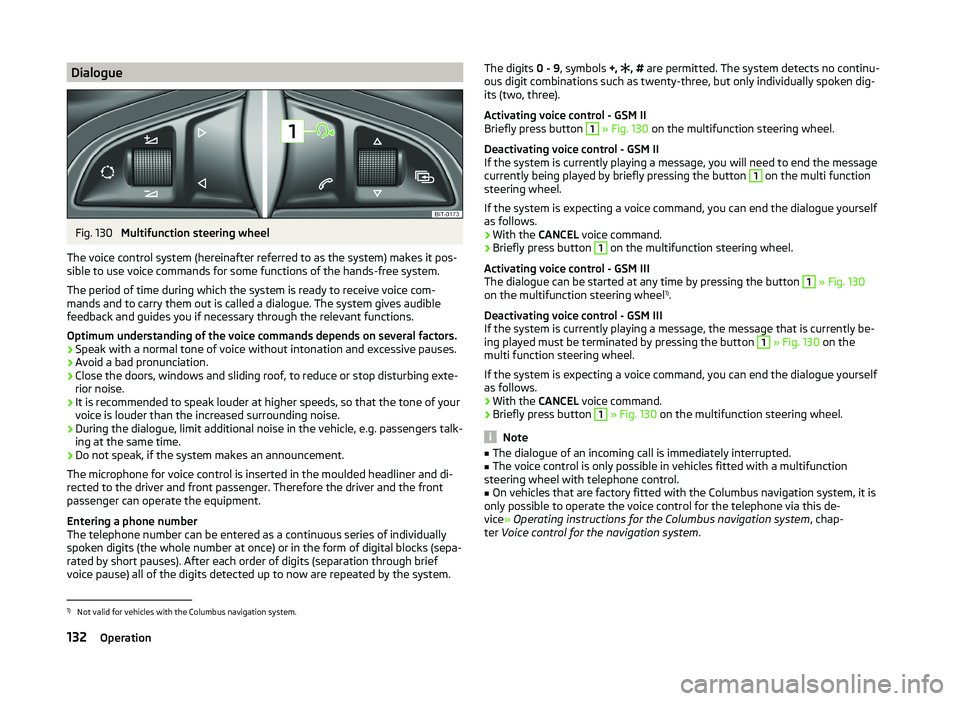
DialogueFig. 130
Multifunction steering wheel
The voice control system (hereinafter referred to as the system) makes it pos-
sible to use voice commands for some functions of the hands-free system.
The period of time during which the system is ready to receive voice com-
mands and to carry them out is called a dialogue. The system gives audible
feedback and guides you if necessary through the relevant functions.
Optimum understanding of the voice commands depends on several factors. › Speak with a normal tone of voice without intonation and excessive pauses.
› Avoid a bad pronunciation.
› Close the doors, windows and sliding roof, to reduce or stop disturbing exte-
rior noise.
› It is recommended to speak louder at higher speeds, so that the tone of your
voice is louder than the increased surrounding noise.
› During the dialogue, limit additional noise in the vehicle, e.g. passengers talk-
ing at the same time.
› Do not speak, if the system makes an announcement.
The microphone for voice control is inserted in the moulded headliner and di- rected to the driver and front passenger. Therefore the driver and the front
passenger can operate the equipment.
Entering a phone number
The telephone number can be entered as a continuous series of individually
spoken digits (the whole number at once) or in the form of digital blocks (sepa-
rated by short pauses). After each order of digits (separation through brief
voice pause) all of the digits detected up to now are repeated by the system.
The digits 0 - 9, symbols +, , # are permitted. The system detects no continu-
ous digit combinations such as twenty-three, but only individually spoken dig-
its (two, three).
Activating voice control - GSM II
Briefly press button 1
» Fig. 130 on the multifunction steering wheel.
Deactivating voice control - GSM II
If the system is currently playing a message, you will need to end the message
currently being played by briefly pressing the button
1
on the multi function
steering wheel.
If the system is expecting a voice command, you can end the dialogue yourself
as follows.
› With the
CANCEL voice command.
› Briefly press button
1
on the multifunction steering wheel.
Activating voice control - GSM III
The dialogue can be started at any time by pressing the button
1
» Fig. 130
on the multifunction steering wheel 1)
.
Deactivating voice control - GSM III
If the system is currently playing a message, the message that is currently be-
ing played must be terminated by pressing the button
1
» Fig. 130 on the
multi function steering wheel.
If the system is expecting a voice command, you can end the dialogue yourself
as follows.
› With the
CANCEL voice command.
› Briefly press button
1
» Fig. 130 on the multifunction steering wheel.
Note
■
The dialogue of an incoming call is immediately interrupted.■The voice control is only possible in vehicles fitted with a multifunction
steering wheel with telephone control.■
On vehicles that are factory fitted with the Columbus navigation system, it is
only possible to operate the voice control for the telephone via this de-
vice » Operating instructions for the Columbus navigation system , chap-
ter Voice control for the navigation system .
1)
Not valid for vehicles with the Columbus navigation system.
132Operation
Page 137 of 252
Multimedia
Introduction
This chapter contains information on the following subjects:
Music playback via Bluetooth ®
134
Operating the radio and navigation system on the multifunction steering
wheel
134
AUX- and MDIinputs
135
CD changer
136
DVD-preinstallation
136
Music playback via Bluetooth ®
The universal telephone preinstallation makes it possible to play back music
via Bluetooth ®
from devices such as MP3 players, mobile phones or notebooks.
To ensure the music can be played back via Bluetooth ®
, you must first pair the
device with the hands-free system in the Phone - Bluetooth - Media player
menu.
The music playback process is performed on the connected device.
The universal telephone preinstallation GSM II ensures that the music played
back via the hands-free system can be controlled with the remote con-
trol » page 133 , Voice commands - GSM II .
Note
The device being connected must support the Bluetooth ®
A2DP profile; refer
to the operating instructions for the relevant device being connected.
Operating the radio and navigation system on the multifunction steering wheel
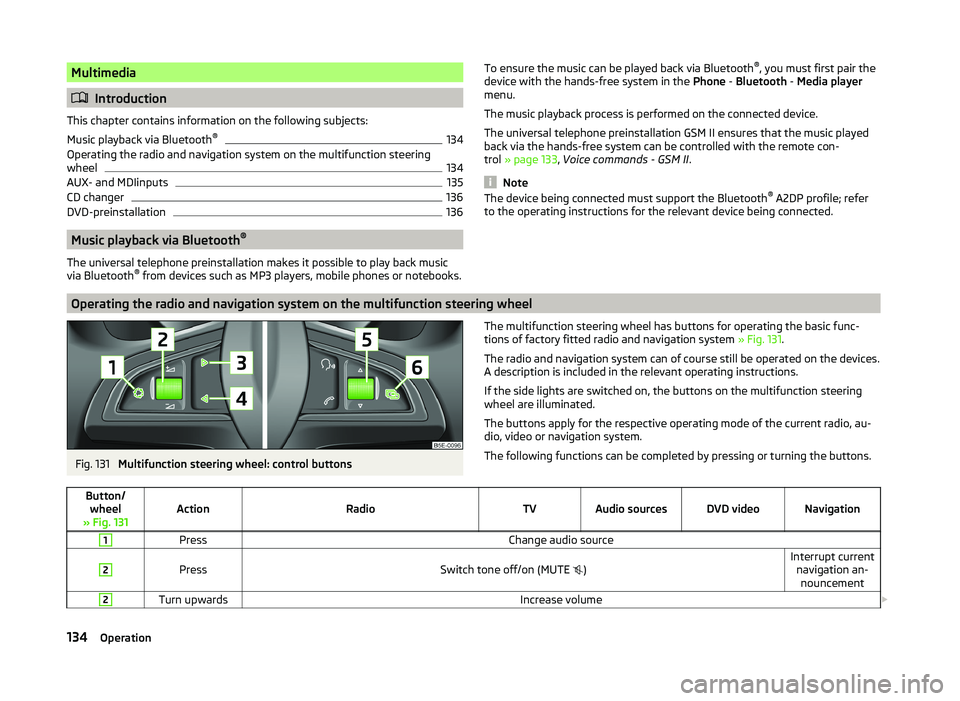
Fig. 131
Multifunction steering wheel: control buttons
The multifunction steering wheel has buttons for operating the basic func-
tions of factory fitted radio and navigation system » Fig. 131.
The radio and navigation system can of course still be operated on the devices. A description is included in the relevant operating instructions.
If the side lights are switched on, the buttons on the multifunction steering wheel are illuminated.
The buttons apply for the respective operating mode of the current radio, au-
dio, video or navigation system.
The following functions can be completed by pressing or turning the buttons.Button/ wheel
» Fig. 131ActionRadioTVAudio sourcesDVD videoNavigation
1PressChange audio source2
PressSwitch tone off/on (MUTE
)Interrupt current
navigation an-nouncement2Turn upwardsIncrease volume 134Operation
Page 138 of 252
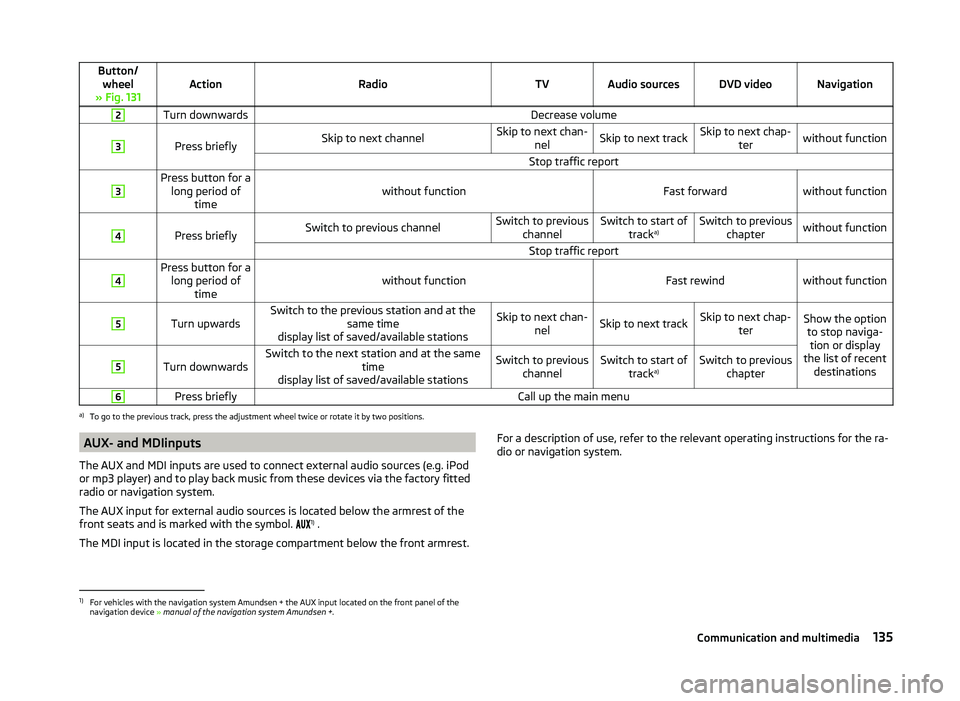
Button/wheel
» Fig. 131ActionRadioTVAudio sourcesDVD videoNavigation
2Turn downwardsDecrease volume3
Press brieflySkip to next channelSkip to next chan- nelSkip to next trackSkip to next chap- terwithout functionStop traffic report3Press button for along period of timewithout functionFast forwardwithout function
4
Press brieflySwitch to previous channelSwitch to previous channelSwitch to start of tracka)Switch to previous
chapterwithout functionStop traffic report4Press button for along period of timewithout functionFast rewindwithout function
5
Turn upwardsSwitch to the previous station and at the same time
display list of saved/available stationsSkip to next chan- nelSkip to next trackSkip to next chap- terShow the optionto stop naviga-tion or display
the list of recent destinations5
Turn downwardsSwitch to the next station and at the same time
display list of saved/available stationsSwitch to previous channelSwitch to start of tracka)Switch to previous
chapter6Press brieflyCall up the main menua)
To go to the previous track, press the adjustment wheel twice or rotate it by two positions.
AUX- and MDIinputs
The AUX and MDI inputs are used to connect external audio sources (e.g. iPod
or mp3 player) and to play back music from these devices via the factory fitted
radio or navigation system.
The AUX input for external audio sources is located below the armrest of the
front seats and is marked with the symbol. 1)
.
The MDI input is located in the storage compartment below the front armrest.For a description of use, refer to the relevant operating instructions for the ra-
dio or navigation system.1)
For vehicles with the navigation system Amundsen + the AUX input located on the front panel of the
navigation device » manual of the navigation system Amundsen + .
135Communication and multimedia
Page 142 of 252
Electronic immobilizerRead and observe
and on page 138 first.
An electronic chip is integrated in the head of the key. The immobiliser is deac-
tivated with the aid of this chip when the key is inserted in the ignition lock.
The electronic immobiliser is automatically activated when the ignition key is
withdrawn from the lock.
The engine will not start if a non-authorized ignition key is used.
The following message is shown in the instrument cluster display. Immobilizer active.
IMMOBILIZER
Ignition Switch
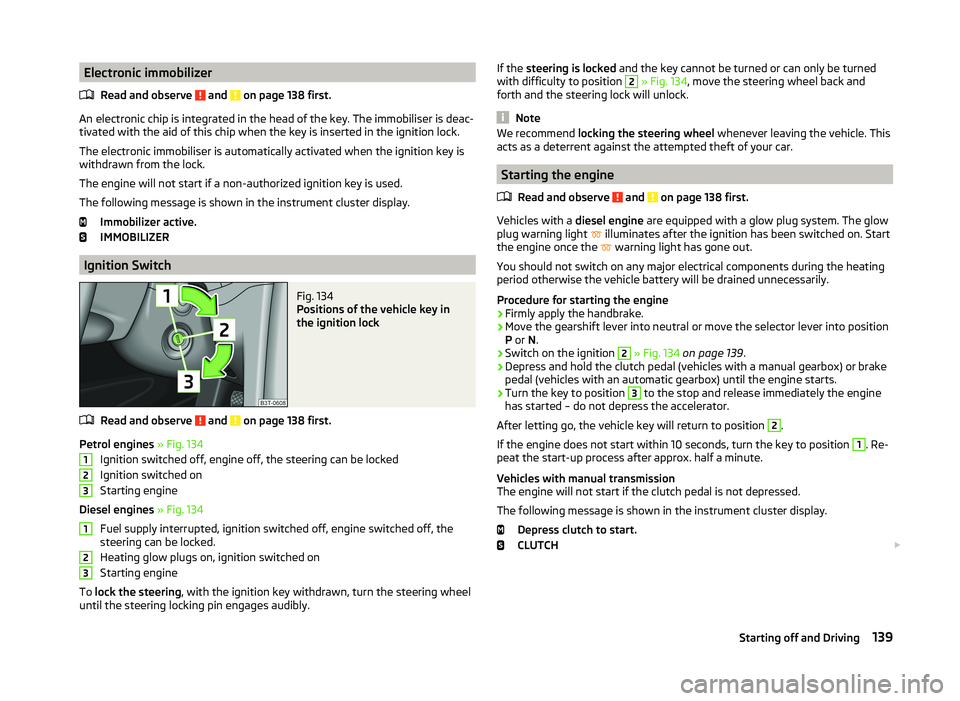
Fig. 134
Positions of the vehicle key in
the ignition lock
Read and observe and on page 138 first.
Petrol engines » Fig. 134
Ignition switched off, engine off, the steering can be locked
Ignition switched on
Starting engine
Diesel engines » Fig. 134
Fuel supply interrupted, ignition switched off, engine switched off, the
steering can be locked.
Heating glow plugs on, ignition switched on
Starting engine
To lock the steering , with the ignition key withdrawn, turn the steering wheel
until the steering locking pin engages audibly.
123123If the steering is locked and the key cannot be turned or can only be turned
with difficulty to position 2 » Fig. 134 , move the steering wheel back and
forth and the steering lock will unlock.
Note
We recommend locking the steering wheel whenever leaving the vehicle. This
acts as a deterrent against the attempted theft of your car.
Starting the engine
Read and observe
and on page 138 first.
Vehicles with a diesel engine are equipped with a glow plug system. The glow
plug warning light illuminates after the ignition has been switched on. Start
the engine once the warning light has gone out.
You should not switch on any major electrical components during the heating
period otherwise the vehicle battery will be drained unnecessarily.
Procedure for starting the engine
›
Firmly apply the handbrake.
›
Move the gearshift lever into neutral or move the selector lever into position
P or N.
›
Switch on the ignition
2
» Fig. 134 on page 139 .
›
Depress and hold the clutch pedal (vehicles with a manual gearbox) or brake
pedal (vehicles with an automatic gearbox) until the engine starts.
›
Turn the key to position
3
to the stop and release immediately the engine
has started – do not depress the accelerator.
After letting go, the vehicle key will return to position
2
.
If the engine does not start within 10 seconds, turn the key to position
1
. Re-
peat the start-up process after approx. half a minute.
Vehicles with manual transmission
The engine will not start if the clutch pedal is not depressed.
The following message is shown in the instrument cluster display. Depress clutch to start.
CLUTCH
139Starting off and Driving
Page 144 of 252
CAUTION■Avoid high engine revolutions, full throttle and high engine loads before the
engine has reached its operating temperature – risk of damaging the engine!■
Do not switch the engine off immediately at the end of your journey after the
engine has been operated over a prolonged period at high loads but leave it to
run at an idling speed for about 1 minute. This prevents any possible accumula-
tion of heat when the engine is switched off.
For the sake of the environment
Do not warm up the engine while the vehicle is stationary. If possible, start
your journey as soon as the engine has started. Through this the engine rea-
ches its operating temperature more rapidly and the pollutant emissions are
lower.
Note
■ The system is protected against inadvertently switching off the engine while
driving, this means that the engine can only be switched off in an emergen-
cy » page 143 .■
After switching off the ignition, the radiator fan can intermittently continue
to operate for approx. 10 minutes.
■
Under certain circumstances (e.g. after switching off the ignition and opening
the driver's door), the steering is enabled only when the ignition is switched on
or the engine is started.
Steering lock / unlock
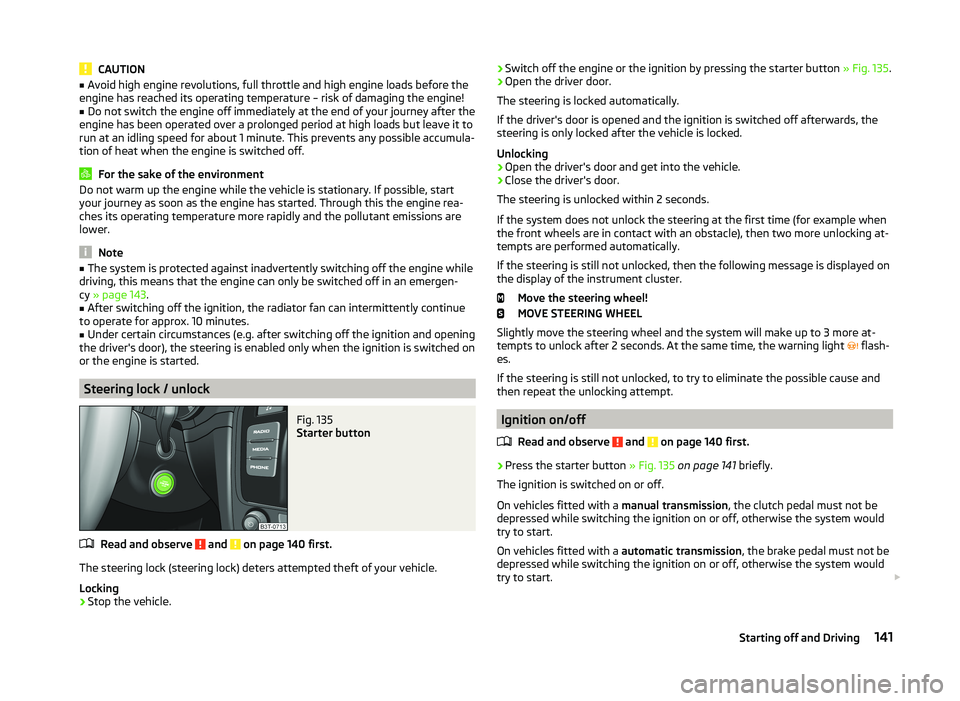
Fig. 135
Starter button
Read and observe and on page 140 first.
The steering lock (steering lock) deters attempted theft of your vehicle.
Locking
›
Stop the vehicle.
› Switch off the engine or the ignition by pressing the starter button
» Fig. 135.›Open the driver door.
The steering is locked automatically.
If the driver's door is opened and the ignition is switched off afterwards, the
steering is only locked after the vehicle is locked.
Unlocking›
Open the driver's door and get into the vehicle.
›
Close the driver's door.
The steering is unlocked within 2 seconds.
If the system does not unlock the steering at the first time (for example when
the front wheels are in contact with an obstacle), then two more unlocking at-
tempts are performed automatically.
If the steering is still not unlocked, then the following message is displayed on the display of the instrument cluster.
Move the steering wheel!
MOVE STEERING WHEEL
Slightly move the steering wheel and the system will make up to 3 more at-
tempts to unlock after 2 seconds. At the same time, the warning light flash-
es.
If the steering is still not unlocked, to try to eliminate the possible cause and
then repeat the unlocking attempt.
Ignition on/off
Read and observe
and on page 140 first.
›
Press the starter button » Fig. 135 on page 141 briefly.
The ignition is switched on or off.
On vehicles fitted with a manual transmission, the clutch pedal must not be
depressed while switching the ignition on or off, otherwise the system would
try to start.
On vehicles fitted with a automatic transmission, the brake pedal must not be
depressed while switching the ignition on or off, otherwise the system would
try to start.
141Starting off and Driving
Page 149 of 252
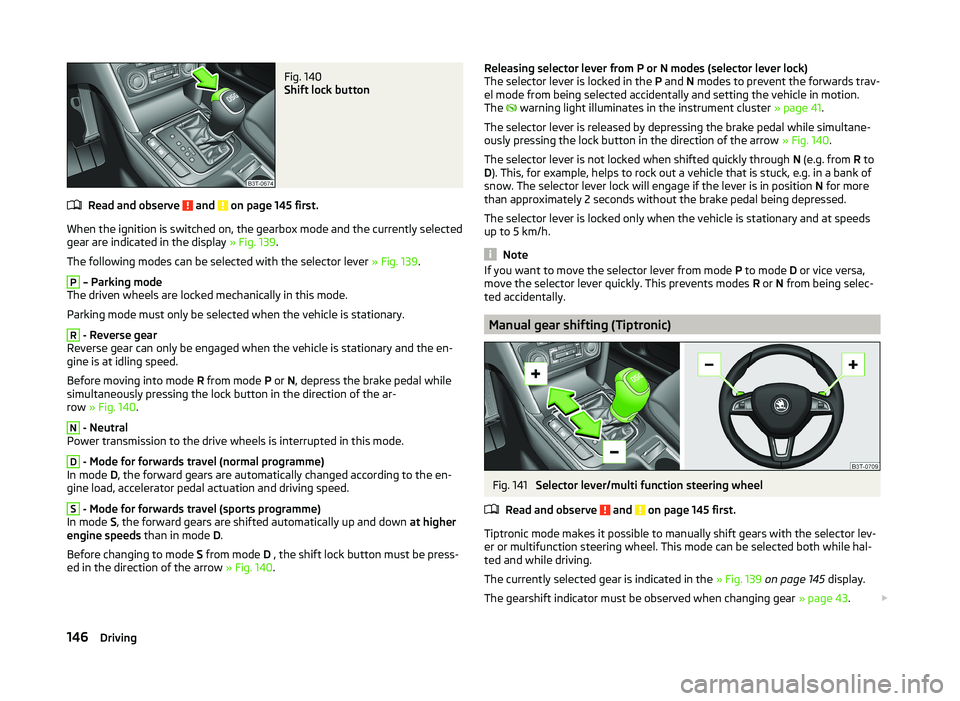
Fig. 140
Shift lock button
Read and observe and on page 145 first.
When the ignition is switched on, the gearbox mode and the currently selectedgear are indicated in the display » Fig. 139.
The following modes can be selected with the selector lever » Fig. 139.
P
– Parking mode
The driven wheels are locked mechanically in this mode.
Parking mode must only be selected when the vehicle is stationary.
R
- Reverse gear
Reverse gear can only be engaged when the vehicle is stationary and the en-
gine is at idling speed.
Before moving into mode R from mode P or N, depress the brake pedal while
simultaneously pressing the lock button in the direction of the ar-
row » Fig. 140 .
N
- Neutral
Power transmission to the drive wheels is interrupted in this mode.
D
- Mode for forwards travel (normal programme)
In mode D, the forward gears are automatically changed according to the en-
gine load, accelerator pedal actuation and driving speed.
S
- Mode for forwards travel (sports programme)
In mode S, the forward gears are shifted automatically up and down at higher
engine speeds than in mode D.
Before changing to mode S from mode D , the shift lock button must be press-
ed in the direction of the arrow » Fig. 140.
Releasing selector lever from P or N modes (selector lever lock)
The selector lever is locked in the P and N modes to prevent the forwards trav-
el mode from being selected accidentally and setting the vehicle in motion.
The
warning light illuminates in the instrument cluster » page 41.
The selector lever is released by depressing the brake pedal while simultane-
ously pressing the lock button in the direction of the arrow » Fig. 140.
The selector lever is not locked when shifted quickly through N (e.g. from R to
D ). This, for example, helps to rock out a vehicle that is stuck, e.g. in a bank of
snow. The selector lever lock will engage if the lever is in position N for more
than approximately 2 seconds without the brake pedal being depressed.
The selector lever is locked only when the vehicle is stationary and at speeds
up to 5 km/h.
Note
If you want to move the selector lever from mode P to mode D or vice versa,
move the selector lever quickly. This prevents modes R or N from being selec-
ted accidentally.
Manual gear shifting (Tiptronic)
Fig. 141
Selector lever/multi function steering wheel
Read and observe
and on page 145 first.
Tiptronic mode makes it possible to manually shift gears with the selector lev-
er or multifunction steering wheel. This mode can be selected both while hal-
ted and while driving.
The currently selected gear is indicated in the » Fig. 139 on page 145 display.
The gearshift indicator must be observed when changing gear » page 43.
146Driving