audio SKODA YETI 2014 1.G / 5L Bolero Car Radio Manual
[x] Cancel search | Manufacturer: SKODA, Model Year: 2014, Model line: YETI, Model: SKODA YETI 2014 1.G / 5LPages: 64, PDF Size: 5.42 MB
Page 5 of 64
Table of Contents
Operating Instructions3
Notes
4
Declaration of conformity
5
Abbreviations
Familiarization with the unit
Introductory information
7
Important notes
7
Equipment overview
7
Unit operation
10
Operation on the device screen
10
Operation via the buttons / wheels on the multifunction steering wheel / operating
lever
11
voice control
14
Device Settings
18
Menu Sound
18
Menu Setup
18
Radio
22
Operation
22
Settings
26
Media
28
Operation
28
Audio sources
30
Pictures
35
Image viewer
35
Communication
37
Telephone
37
Pair
41
Connection
44
Dial telephone number
46Telephone functions49Text messages (SMS)50
MirrorLink ™
53
Index
2Table of Contents
Page 9 of 64
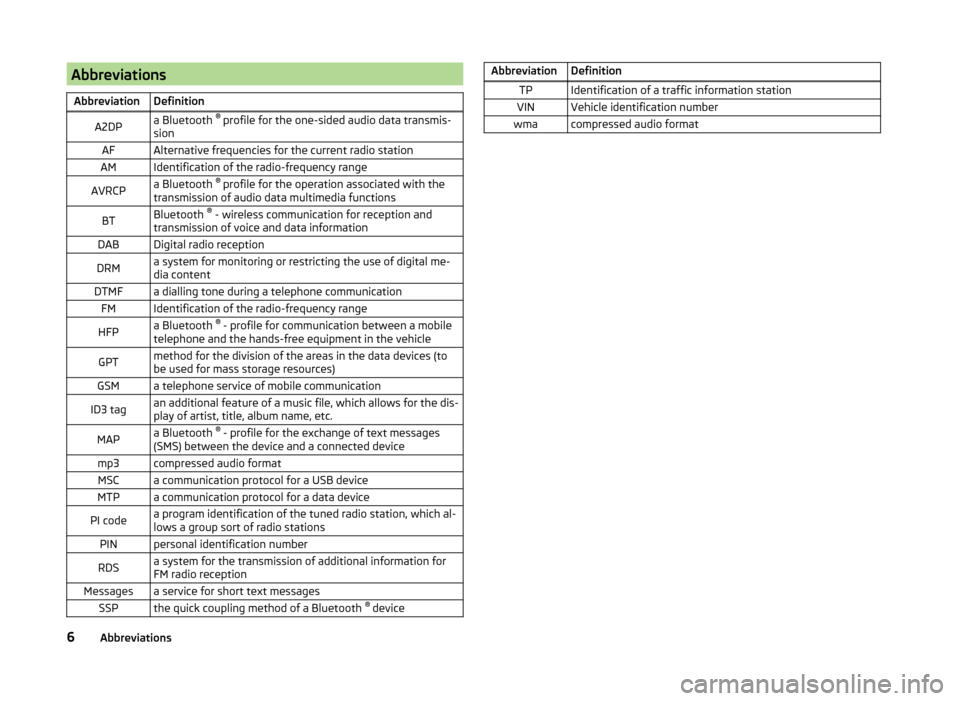
AbbreviationsAbbreviationDefinitionA2DPa Bluetooth ®
profile for the one-sided audio data transmis-
sionAFAlternative frequencies for the current radio stationAMIdentification of the radio-frequency rangeAVRCPa Bluetooth ®
profile for the operation associated with the
transmission of audio data multimedia functionsBTBluetooth ®
- wireless communication for reception and
transmission of voice and data informationDABDigital radio receptionDRMa system for monitoring or restricting the use of digital me-
dia contentDTMFa dialling tone during a telephone communicationFMIdentification of the radio-frequency rangeHFPa Bluetooth ®
- profile for communication between a mobile
telephone and the hands-free equipment in the vehicleGPTmethod for the division of the areas in the data devices (to
be used for mass storage resources)GSMa telephone service of mobile communicationID3 tagan additional feature of a music file, which allows for the dis-
play of artist, title, album name, etc.MAPa Bluetooth ®
- profile for the exchange of text messages
(SMS) between the device and a connected devicemp3compressed audio formatMSCa communication protocol for a USB deviceMTPa communication protocol for a data devicePI codea program identification of the tuned radio station, which al-
lows a group sort of radio stationsPINpersonal identification numberRDSa system for the transmission of additional information for
FM radio receptionMessagesa service for short text messagesSSPthe quick coupling method of a Bluetooth ®
deviceAbbreviationDefinitionTPIdentification of a traffic information stationVINVehicle identification numberwmacompressed audio format6Abbreviations
Page 15 of 64
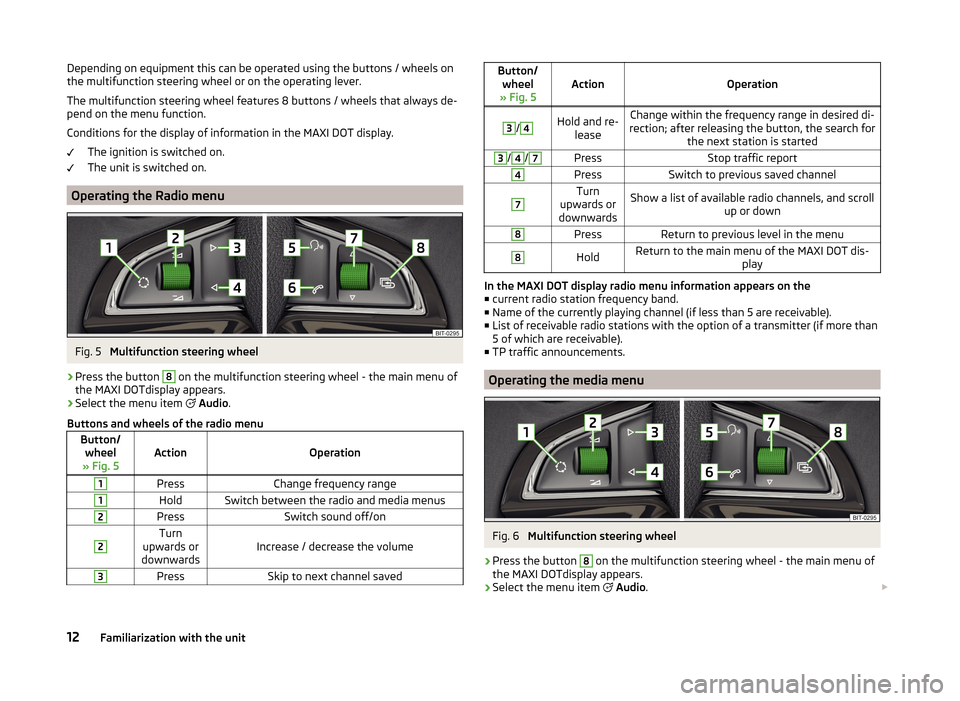
Depending on equipment this can be operated using the buttons / wheels on
the multifunction steering wheel or on the operating lever.
The multifunction steering wheel features 8 buttons / wheels that always de-
pend on the menu function.
Conditions for the display of information in the MAXI DOT display. The ignition is switched on.
The unit is switched on.
Operating the Radio menu
Fig. 5
Multifunction steering wheel
›
Press the button
8
on the multifunction steering wheel - the main menu of
the MAXI DOTdisplay appears.
›
Select the menu item
Audio .
Buttons and wheels of the radio menu
Button/ wheel
» Fig. 5ActionOperation
1PressChange frequency range1HoldSwitch between the radio and media menus2PressSwitch sound off/on2Turn
upwards or
downwardsIncrease / decrease the volume
3PressSkip to next channel savedButton/ wheel
» Fig. 5ActionOperation
3
/
4Hold and re- leaseChange within the frequency range in desired di-
rection; after releasing the button, the search for the next station is started3/4/7PressStop traffic report4PressSwitch to previous saved channel7Turn
upwards or
downwardsShow a list of available radio channels, and scroll up or down8PressReturn to previous level in the menu8HoldReturn to the main menu of the MAXI DOT dis- play
In the MAXI DOT display radio menu information appears on the■ current radio station frequency band.
■ Name of the currently playing channel (if less than 5 are receivable).
■ List of receivable radio stations with the option of a transmitter (if more than
5 of which are receivable).
■ TP traffic announcements.
Operating the media menu
Fig. 6
Multifunction steering wheel
›
Press the button
8
on the multifunction steering wheel - the main menu of
the MAXI DOTdisplay appears.
›
Select the menu item
Audio .
12Familiarization with the unit
Page 16 of 64
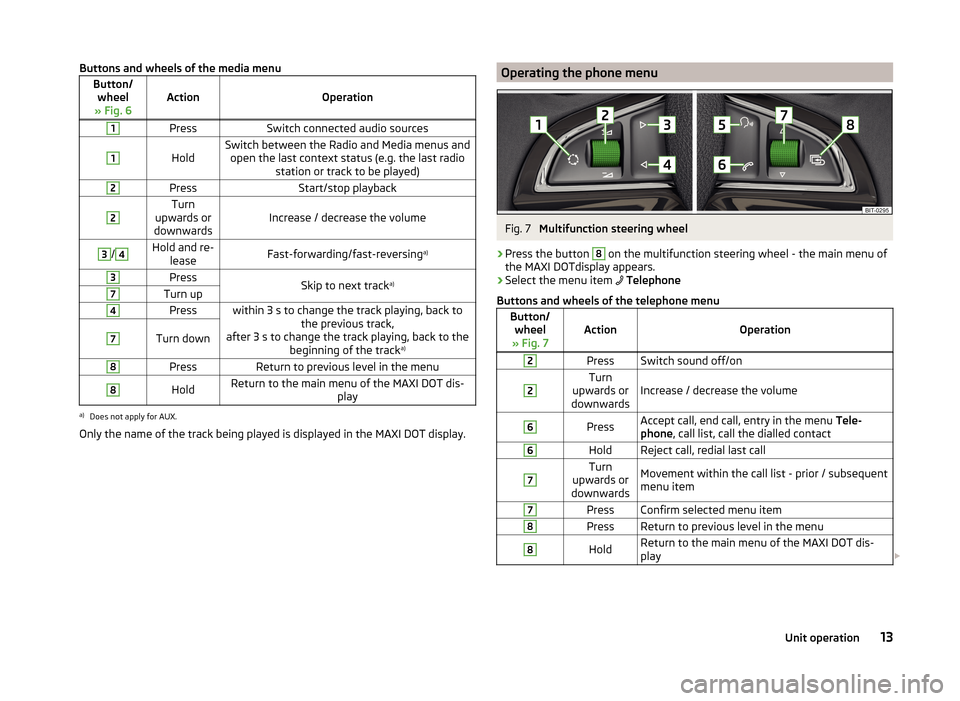
Buttons and wheels of the media menuButton/wheel
» Fig. 6ActionOperation
1PressSwitch connected audio sources1
HoldSwitch between the Radio and Media menus and open the last context status (e.g. the last radio station or track to be played)2PressStart/stop playback2Turn
upwards or
downwardsIncrease / decrease the volume
3/4Hold and re- leaseFast-forwarding/fast-reversing a)3PressSkip to next tracka)7Turn up4Presswithin 3 s to change the track playing, back to
the previous track,
after 3 s to change the track playing, back to the beginning of the track a)7Turn down8PressReturn to previous level in the menu8HoldReturn to the main menu of the MAXI DOT dis-
playa)
Does not apply for AUX.
Only the name of the track being played is displayed in the MAXI DOT display.
Operating the phone menuFig. 7
Multifunction steering wheel
›
Press the button
8
on the multifunction steering wheel - the main menu of
the MAXI DOTdisplay appears.
›
Select the menu item
Telephone
Buttons and wheels of the telephone menu
Button/ wheel
» Fig. 7ActionOperation
2PressSwitch sound off/on2Turn
upwards or
downwardsIncrease / decrease the volume
6PressAccept call, end call, entry in the menu Tele-
phone , call list, call the dialled contact6HoldReject call, redial last call7Turn
upwards or
downwardsMovement within the call list - prior / subsequent
menu item7PressConfirm selected menu item8PressReturn to previous level in the menu8HoldReturn to the main menu of the MAXI DOT dis-
play 13Unit operation
Page 21 of 64
Device Settings
Menu Sound
Introduction
This chapter contains information on the following subjects:
Sound settings
18
First and foremost, pay attention to the safety instructions » page 7 , Impor-
tant notes .
This chapter covers the sound setting of the device and the volume setting of
the connected equipment.
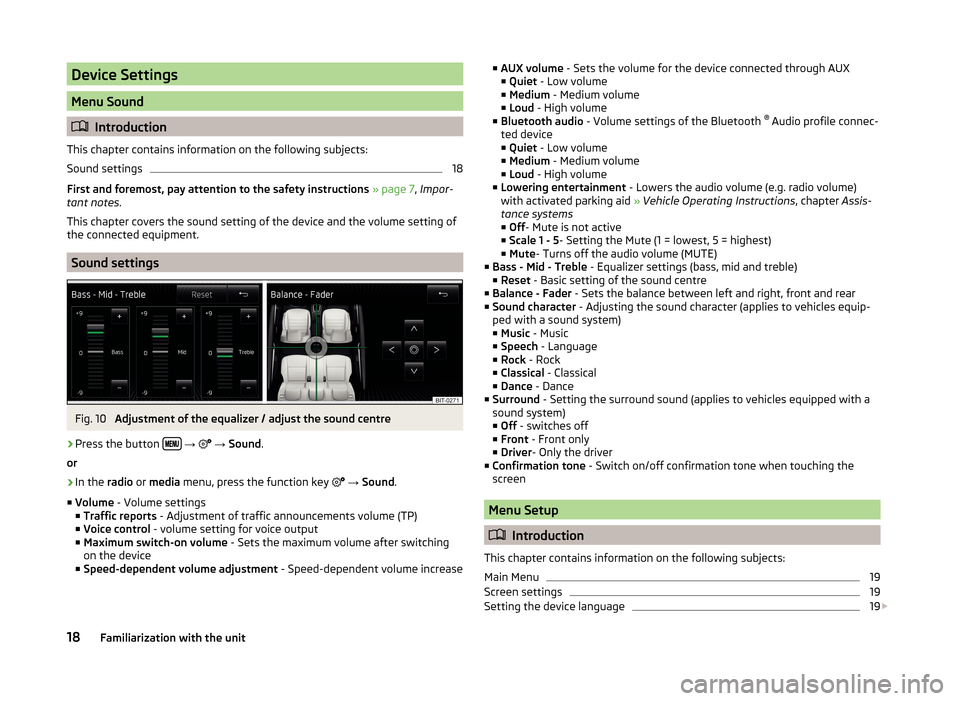
Sound settings
Fig. 10
Adjustment of the equalizer / adjust the sound centre
›
Press the button
→
→ Sound .
or
›
In the radio or media menu, press the function key
→ Sound .
■ Volume - Volume settings
■ Traffic reports - Adjustment of traffic announcements volume (TP)
■ Voice control - volume setting for voice output
■ Maximum switch-on volume - Sets the maximum volume after switching
on the device
■ Speed-dependent volume adjustment - Speed-dependent volume increase
■
AUX volume - Sets the volume for the device connected through AUX
■ Quiet - Low volume
■ Medium - Medium volume
■ Loud - High volume
■ Bluetooth audio - Volume settings of the Bluetooth ®
Audio profile connec-
ted device ■ Quiet - Low volume
■ Medium - Medium volume
■ Loud - High volume
■ Lowering entertainment - Lowers the audio volume (e.g. radio volume)
with activated parking aid » Vehicle Operating Instructions , chapter Assis-
tance systems ■ Off - Mute is not active
■ Scale 1 - 5 - Setting the Mute (1 = lowest, 5 = highest)
■ Mute - Turns off the audio volume (MUTE)
■ Bass - Mid - Treble - Equalizer settings (bass, mid and treble)
■ Reset - Basic setting of the sound centre
■ Balance - Fader - Sets the balance between left and right, front and rear
■ Sound character - Adjusting the sound character (applies to vehicles equip-
ped with a sound system)
■ Music - Music
■ Speech - Language
■ Rock - Rock
■ Classical - Classical
■ Dance - Dance
■ Surround - Setting the surround sound (applies to vehicles equipped with a
sound system)
■ Off - switches off
■ Front - Front only
■ Driver - Only the driver
■ Confirmation tone - Switch on/off confirmation tone when touching the
screen
Menu Setup
Introduction
This chapter contains information on the following subjects:
Main Menu
19
Screen settings
19
Setting the device language
19
18Familiarization with the unit
Page 22 of 64
Keyboard settings19Additional keypad language settings20
Voice control settings
20
Data transmission of mobile devices
20
Safe removal of the audio source
20
Restore factory settings
20
Bluetooth®
settings
20
System Information
21
First and foremost, pay attention to the safety instructions » page 7 , Impor-
tant notes .
This chapter covers the device settings.
Main Menu
The basic parameters for the unit can be set from the Main menu.
Call up the main menu
›
Press the button
→
.
■ Screen - Screen settings » page 19
■ Language - Set the unit language » page 19
■ Keypad: - Keypad display for text entry » page 19
■ More keypad languages - Enables you to enter characters other than those
available for the selected language » page 20
■ Mobile device data transfer - Setting the data transmission to connected ex-
ternal devices » page 20
■ Voice control - Voice control settings » page 20
■ Remove safely - safe removal of the connected audio source or data me-
dia » page 20
■ Factory settings - Restore to factory settings » page 20
■ Bluetooth - Settings for the Bluetooth ®
function » page 20
■ System information - Displays system information » page 21
■ Copyright - Information on licences and copyrights are only available in the
English language
Screen settings
›
Press the button
→
→ Screen .
■
Switch off screen (in 10 seconds) - Activate/deactivate the display
■ Brightness: - Adjusts the brightness of the screen
■ Brightest - brightest level
■ Brighter - brighter level
■ Medium - medium level
■ Darker - darker level
■ Darkest - darkest level
■ Confirmation tone - Switch on/off confirmation tone when touching the
screen
■ Animation when finger near screen - Switch on/off the proximity sensors
(suppression of some function keys)
■ Show clock in standby mode - Time and date displayed on the screen when
the ignition is switched on and the unit is switched off
Setting the device language
The device offers the possibility to select the device communication language
independent of the language setting in the MAXI DOT display; » Vehicle Oper-
ating Instructions , chapter MAXI DOT display .
›
Press the function key Automatic, the device language is set according to
the language setting in the instrument cluster.
For some languages, pressing the function key Female or Male selects the
voice type for acoustic messages of the device.
The messages are generated by the device. The flawless clarity (e.g. road or
city name) cannot always be guaranteed.
Note
■ The correct display of country-specific characters (e.g. ID3 tag information)
cannot always be guaranteed.■
For some languages, there is no voice control available. In this regard, an ap-
propriate warning message appears on the device screen.
Keyboard settings
›
Press the button
→
→ Keypad: .
You can choose between two types of keyboard character arrange-
ment » page 11 , Alphanumeric with keyboard .
■ ABC - Keyboard characters in alphabetical order
■ QWERTZ - Keyboard characters in QWERTZ or QWERTY system
19Device Settings
Page 23 of 64
Additional keypad language settings›
Press the button
→
→ More keypad languages .
In this menu, the keyboard character arrangement for the chosen language
can be selected, and with this the option for fast entry of the characters used
in the selected language.
It is then possible to swap between the languages in the input screen showing
a keyboard by pressing the function keys
» page 11 .
Voice control settings
›
Press the button
→
→ Voice control .
■ Dialogue style: - Setting the message style
■ Long - The device plays unabridged audible messages
■ Short - The device shortens some audible messages or substitutes them
with an acoustic signal
■ Display available commands - Switch on/off the menus containing basic
voice commands when voice control is activated
■ Voice control session start tone - Switch on/off the audible signal that is
output when voice control is activated
■ Voice control session end tone - Switch on/off the audible signal that is out-
put when voice control ends
■ Input tone in voice dialogue - Switch on/off the audible signal for voice con-
trol input
Note
For some languages, there is no voice control available. In this regard, an ap-
propriate warning message appears on the device screen.
Data transmission of mobile devices
›
Press the button
→
→ Mobile device data transfer .
The activated function enables transmission of vehicle data for applications in
connected devices (e.g. MirrorLink ™
Applications).
■ Activate data transfer for apps - Turning the data transfer on and off
Safe removal of the audio source›
Press the button
→
→ Remove safely .
■ SD card - Safe removal of the SD storage card
■ USB - Safe removal of the USB source
Restore factory settings
›
Press the button
→
→ Factory settings .
■ Reset all settings and data - menu to restore all settings
■ Restore factory settings - Reset all factory settings
■ Reset individual settings/data - menu for the recovery of individual settings
■ Sound - Reset default settings for sound
■ Radio - Reset default settings for radio
■ Telephone - Reset default settings for phone
■ Media - Reset default settings for media
■ Voice control - Restore the voice control
■ System - Reset the system default settings
■ MirrorLink ™
- Reset settings on the MirrorLink ™
- function
Bluetooth ®
settings
›
Press the button
→
→ Bluetooth .
■ Bluetooth - Switch on/off Bluetooth ®
function
■ Visibility: - Switch on/off the visibility of the Bluetooth ®
device for other de-
vices
■ Visible - Visibility is always on
■ Hidden - Visibility is off
■ Name: - Open the input screen with keyboard - Change the device name
■ Paired devices - Display the list of paired Bluetooth ®
devices; connect or de-
lete a paired device; delete the list of paired devices ■ Delete all - Delete all paired Bluetooth ®
devices
■ - Delete the paired Bluetooth ®
device
■ Find devices - Searches for available external devices with enabled Blue-
tooth ®
functions and activated visibility
■ Bluetooth audio (A2DP/AVRCP) - Switch on/off the connection option for
Bluetooth ®
profiles A2DP or AVRCP 1)
1)
A2DP or AVRCP are Bluetooth
®
profiles that support multimedia functions.
20Familiarization with the unit
Page 31 of 64

Media
Operation
Introduction
This chapter contains information on the following subjects:
Main menu
28
Playback
28
Folder / track list - Browser
29
Multimedia database
30
Settings
30
First and foremost, pay attention to the safety instructions » page 7 , Impor-
tant notes .
The device allows you to play audio files from different media and connected
devices (hereinafter referred to only as “audio sources)” » page 30.
Main menu
Fig. 14
Media: Main menu
Call up the main menu
›
Press the button.
Main Menu - Information and function keys
Title or possibly artist name, album name
Playback timeline with a slider 1)
(shows details of the playing time and re-
maining playing time of the track)
Selected audio source / display of the album image
Select the audio source » page 31
Folder / title list 2)
» page 29 / Multimedia Database 2)
» page 30
Menu settings Media » page 30
Description of function keys of the menu Media for playback » page 28, Play-
back .
Note
■
The name of the artist, the album and the title of the file being played are
displayed on the screen if the information is stored on the audio source as an
ID3 tag. If no ID3 tag is available, only the file name is displayed.■
The remaining playback time indicated does not correspond to the actual re-
maining playback time for titles with variable bitrates (VBR).
Playback
The device plays the titles in alphabetical order.
Operating modes
OperationActionPlay / PausePress
Play the previous title
Press (within 3 seconds after the
start of the track playback)Finger movement to the right of the screen area A
» Fig. 14 on
page 28 (Within 3 seconds after the
start of the track playback)
ABCD1)
The display playback time axis is not supported by some audio sources.
2)
For some connected audio sources, the function key is inactive.
28Familiarization with the unit
Page 32 of 64
OperationAction
Plays the current track from the start
Press after about 3 seconds after
the start of the title playback.Finger movement to the right of the screen area A
» Fig. 14 on
page 28 (After 3 seconds from the
start of the track playback)Fast-reverse within the titlePress and hold
Play the next title
Press Finger movement to the left of the
screen area A
» Fig. 14 on page 28Fast-forward within the titlePress and hold Switch on and off the repeat title play-
back from the current album or folderPress Switch on/off the repeat title playbackPress Switch on and off the random track
playback from the current album or folderPress
The movement within the track is possible by finger touching the timeline 1)
B
» Fig. 14
on page 28 .
By finger touching in the area
C
» Fig. 14 on page 28 displays a menu of al-
bums. Movement within the menu can be performed by moving a finger across
the screen to the right or left or by turning the controller
2
» Fig. 1 on page 7 .2)
Note
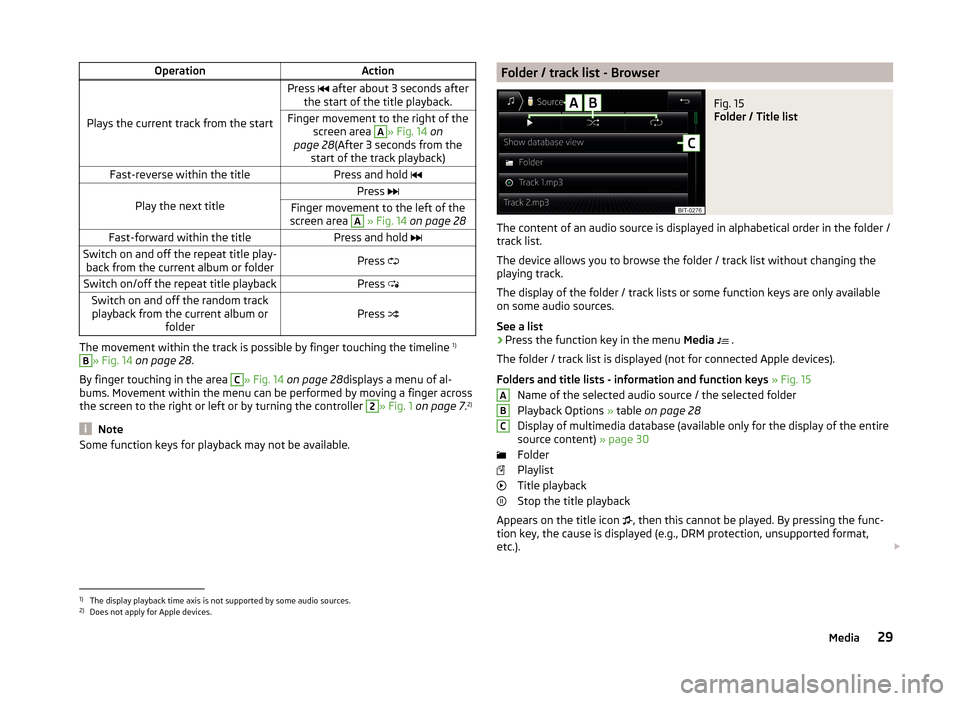
Some function keys for playback may not be available.Folder / track list - BrowserFig. 15
Folder / Title list
The content of an audio source is displayed in alphabetical order in the folder /
track list.
The device allows you to browse the folder / track list without changing the
playing track.
The display of the folder / track lists or some function keys are only available
on some audio sources.
See a list
›
Press the function key in the menu Media
.
The folder / track list is displayed (not for connected Apple devices).
Folders and title lists - information and function keys » Fig. 15
Name of the selected audio source / the selected folder
Playback Options » table on page 28
Display of multimedia database (available only for the display of the entire
source content) » page 30
Folder
Playlist
Title playback
Stop the title playback
Appears on the title icon , then this cannot be played. By pressing the func-
tion key, the cause is displayed (e.g., DRM protection, unsupported format,
etc.).
ABC1)
The display playback time axis is not supported by some audio sources.
2)
Does not apply for Apple devices.
29Media
Page 33 of 64
In the area Athe display shows the selected audio source, and possibly the
audio source folder. Movement within the folder is done by pressing the func-
tion key for the folder.
By pressing one of the function keys for playback B
the playback starts and at
the same time the menu Media » Fig. 15 is displayed.
Note
■
In the folders and title lists a directory max. of 1000 entries is displayed de-
pending on the date of creation. The entries are arranged alphabetically.■
The scanning speed of the folder / track list depends on the connection
speed and volume of data.
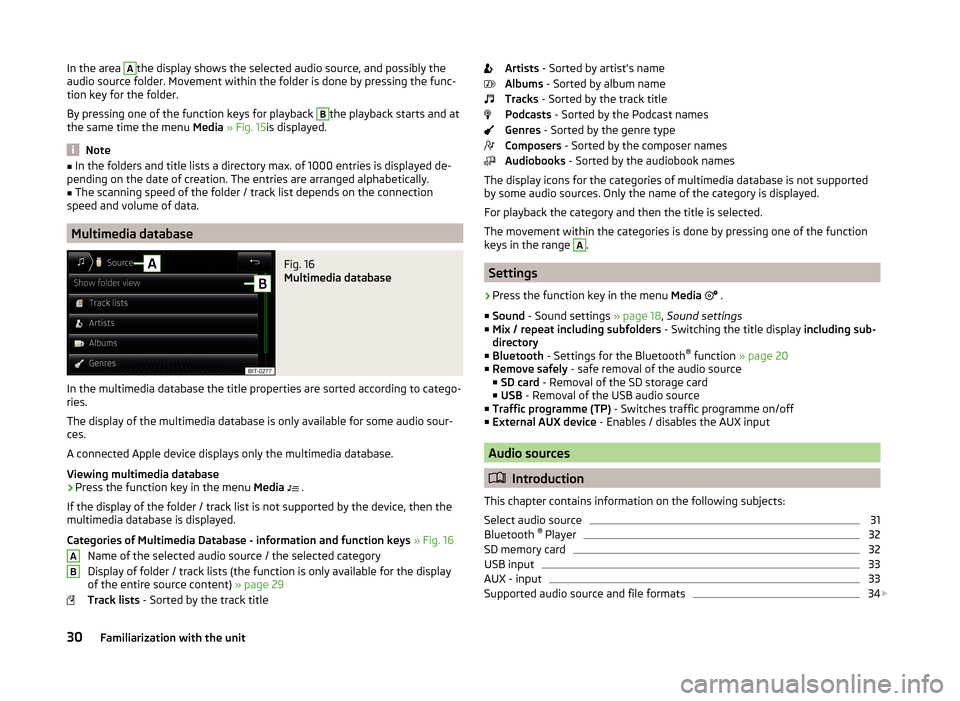
Multimedia database
Fig. 16
Multimedia database
In the multimedia database the title properties are sorted according to catego-
ries.
The display of the multimedia database is only available for some audio sour-
ces.
A connected Apple device displays only the multimedia database.
Viewing multimedia database
›
Press the function key in the menu Media
.
If the display of the folder / track list is not supported by the device, then the
multimedia database is displayed.
Categories of Multimedia Database - information and function keys » Fig. 16
Name of the selected audio source / the selected category
Display of folder / track lists (the function is only available for the display
of the entire source content) » page 29
Track lists - Sorted by the track title
ABArtists - Sorted by artist's name
Albums - Sorted by album name
Tracks - Sorted by the track title
Podcasts - Sorted by the Podcast names
Genres - Sorted by the genre type
Composers - Sorted by the composer names
Audiobooks - Sorted by the audiobook names
The display icons for the categories of multimedia database is not supported by some audio sources. Only the name of the category is displayed.
For playback the category and then the title is selected.
The movement within the categories is done by pressing one of the function
keys in the range A
.
Settings
›
Press the function key in the menu Media
.
■ Sound - Sound settings » page 18, Sound settings
■ Mix / repeat including subfolders - Switching the title display including sub-
directory
■ Bluetooth - Settings for the Bluetooth ®
function » page 20
■ Remove safely - safe removal of the audio source
■ SD card - Removal of the SD storage card
■ USB - Removal of the USB audio source
■ Traffic programme (TP) - Switches traffic programme on/off
■ External AUX device - Enables / disables the AUX input
Audio sources
Introduction
This chapter contains information on the following subjects:
Select audio source
31
Bluetooth ®
Player
32
SD memory card
32
USB input
33
AUX - input
33
Supported audio source and file formats
34
30Familiarization with the unit