transmission SKODA YETI 2014 1.G / 5L Bolero Car Radio Manual
[x] Cancel search | Manufacturer: SKODA, Model Year: 2014, Model line: YETI, Model: SKODA YETI 2014 1.G / 5LPages: 64, PDF Size: 5.42 MB
Page 9 of 64
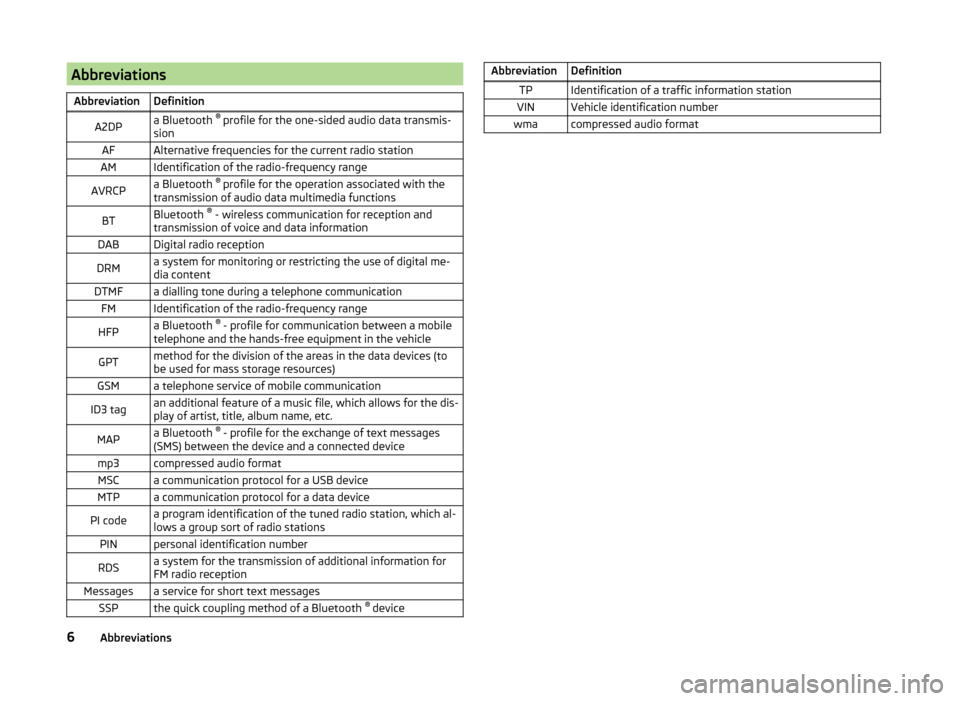
AbbreviationsAbbreviationDefinitionA2DPa Bluetooth ®
profile for the one-sided audio data transmis-
sionAFAlternative frequencies for the current radio stationAMIdentification of the radio-frequency rangeAVRCPa Bluetooth ®
profile for the operation associated with the
transmission of audio data multimedia functionsBTBluetooth ®
- wireless communication for reception and
transmission of voice and data informationDABDigital radio receptionDRMa system for monitoring or restricting the use of digital me-
dia contentDTMFa dialling tone during a telephone communicationFMIdentification of the radio-frequency rangeHFPa Bluetooth ®
- profile for communication between a mobile
telephone and the hands-free equipment in the vehicleGPTmethod for the division of the areas in the data devices (to
be used for mass storage resources)GSMa telephone service of mobile communicationID3 tagan additional feature of a music file, which allows for the dis-
play of artist, title, album name, etc.MAPa Bluetooth ®
- profile for the exchange of text messages
(SMS) between the device and a connected devicemp3compressed audio formatMSCa communication protocol for a USB deviceMTPa communication protocol for a data devicePI codea program identification of the tuned radio station, which al-
lows a group sort of radio stationsPINpersonal identification numberRDSa system for the transmission of additional information for
FM radio receptionMessagesa service for short text messagesSSPthe quick coupling method of a Bluetooth ®
deviceAbbreviationDefinitionTPIdentification of a traffic information stationVINVehicle identification numberwmacompressed audio format6Abbreviations
Page 22 of 64
Keyboard settings19Additional keypad language settings20
Voice control settings
20
Data transmission of mobile devices
20
Safe removal of the audio source
20
Restore factory settings
20
Bluetooth®
settings
20
System Information
21
First and foremost, pay attention to the safety instructions » page 7 , Impor-
tant notes .
This chapter covers the device settings.
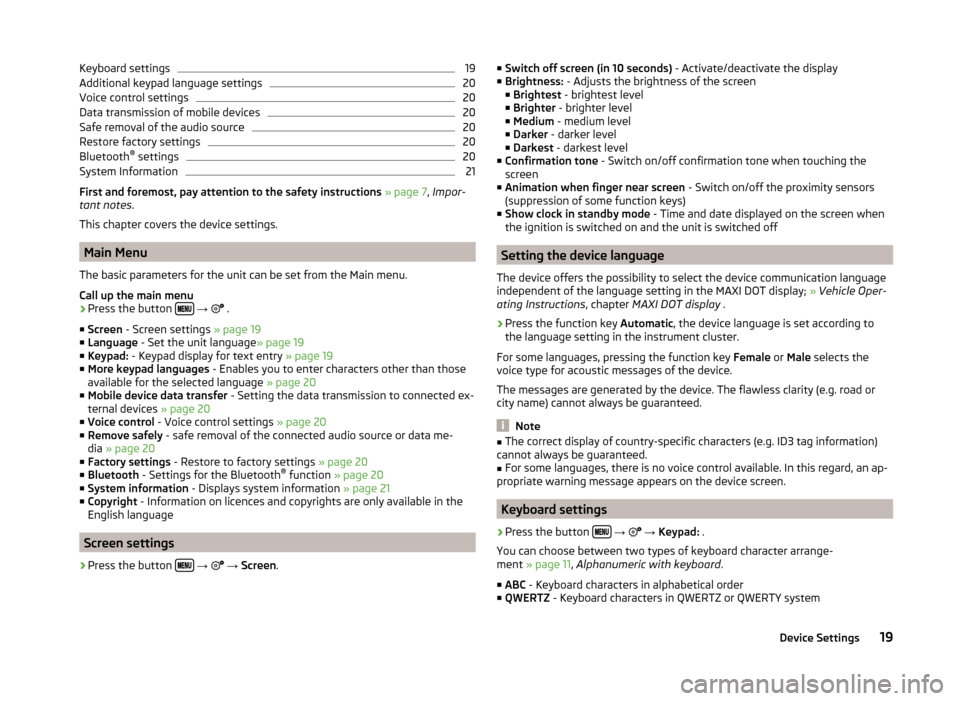
Main Menu
The basic parameters for the unit can be set from the Main menu.
Call up the main menu
›
Press the button
→
.
■ Screen - Screen settings » page 19
■ Language - Set the unit language » page 19
■ Keypad: - Keypad display for text entry » page 19
■ More keypad languages - Enables you to enter characters other than those
available for the selected language » page 20
■ Mobile device data transfer - Setting the data transmission to connected ex-
ternal devices » page 20
■ Voice control - Voice control settings » page 20
■ Remove safely - safe removal of the connected audio source or data me-
dia » page 20
■ Factory settings - Restore to factory settings » page 20
■ Bluetooth - Settings for the Bluetooth ®
function » page 20
■ System information - Displays system information » page 21
■ Copyright - Information on licences and copyrights are only available in the
English language
Screen settings
›
Press the button
→
→ Screen .
■
Switch off screen (in 10 seconds) - Activate/deactivate the display
■ Brightness: - Adjusts the brightness of the screen
■ Brightest - brightest level
■ Brighter - brighter level
■ Medium - medium level
■ Darker - darker level
■ Darkest - darkest level
■ Confirmation tone - Switch on/off confirmation tone when touching the
screen
■ Animation when finger near screen - Switch on/off the proximity sensors
(suppression of some function keys)
■ Show clock in standby mode - Time and date displayed on the screen when
the ignition is switched on and the unit is switched off
Setting the device language
The device offers the possibility to select the device communication language
independent of the language setting in the MAXI DOT display; » Vehicle Oper-
ating Instructions , chapter MAXI DOT display .
›
Press the function key Automatic, the device language is set according to
the language setting in the instrument cluster.
For some languages, pressing the function key Female or Male selects the
voice type for acoustic messages of the device.
The messages are generated by the device. The flawless clarity (e.g. road or
city name) cannot always be guaranteed.
Note
■ The correct display of country-specific characters (e.g. ID3 tag information)
cannot always be guaranteed.■
For some languages, there is no voice control available. In this regard, an ap-
propriate warning message appears on the device screen.
Keyboard settings
›
Press the button
→
→ Keypad: .
You can choose between two types of keyboard character arrange-
ment » page 11 , Alphanumeric with keyboard .
■ ABC - Keyboard characters in alphabetical order
■ QWERTZ - Keyboard characters in QWERTZ or QWERTY system
19Device Settings
Page 23 of 64
Additional keypad language settings›
Press the button
→
→ More keypad languages .
In this menu, the keyboard character arrangement for the chosen language
can be selected, and with this the option for fast entry of the characters used
in the selected language.
It is then possible to swap between the languages in the input screen showing
a keyboard by pressing the function keys
» page 11 .
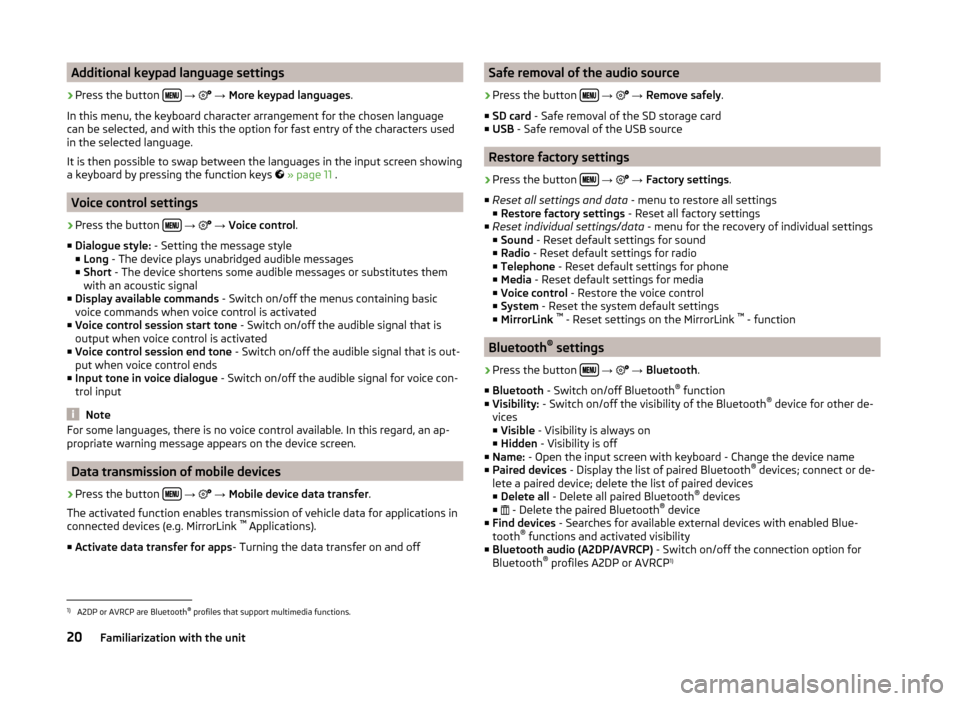
Voice control settings
›
Press the button
→
→ Voice control .
■ Dialogue style: - Setting the message style
■ Long - The device plays unabridged audible messages
■ Short - The device shortens some audible messages or substitutes them
with an acoustic signal
■ Display available commands - Switch on/off the menus containing basic
voice commands when voice control is activated
■ Voice control session start tone - Switch on/off the audible signal that is
output when voice control is activated
■ Voice control session end tone - Switch on/off the audible signal that is out-
put when voice control ends
■ Input tone in voice dialogue - Switch on/off the audible signal for voice con-
trol input
Note
For some languages, there is no voice control available. In this regard, an ap-
propriate warning message appears on the device screen.
Data transmission of mobile devices
›
Press the button
→
→ Mobile device data transfer .
The activated function enables transmission of vehicle data for applications in
connected devices (e.g. MirrorLink ™
Applications).
■ Activate data transfer for apps - Turning the data transfer on and off
Safe removal of the audio source›
Press the button
→
→ Remove safely .
■ SD card - Safe removal of the SD storage card
■ USB - Safe removal of the USB source
Restore factory settings
›
Press the button
→
→ Factory settings .
■ Reset all settings and data - menu to restore all settings
■ Restore factory settings - Reset all factory settings
■ Reset individual settings/data - menu for the recovery of individual settings
■ Sound - Reset default settings for sound
■ Radio - Reset default settings for radio
■ Telephone - Reset default settings for phone
■ Media - Reset default settings for media
■ Voice control - Restore the voice control
■ System - Reset the system default settings
■ MirrorLink ™
- Reset settings on the MirrorLink ™
- function
Bluetooth ®
settings
›
Press the button
→
→ Bluetooth .
■ Bluetooth - Switch on/off Bluetooth ®
function
■ Visibility: - Switch on/off the visibility of the Bluetooth ®
device for other de-
vices
■ Visible - Visibility is always on
■ Hidden - Visibility is off
■ Name: - Open the input screen with keyboard - Change the device name
■ Paired devices - Display the list of paired Bluetooth ®
devices; connect or de-
lete a paired device; delete the list of paired devices ■ Delete all - Delete all paired Bluetooth ®
devices
■ - Delete the paired Bluetooth ®
device
■ Find devices - Searches for available external devices with enabled Blue-
tooth ®
functions and activated visibility
■ Bluetooth audio (A2DP/AVRCP) - Switch on/off the connection option for
Bluetooth ®
profiles A2DP or AVRCP 1)
1)
A2DP or AVRCP are Bluetooth
®
profiles that support multimedia functions.
20Familiarization with the unit
Page 26 of 64
SymbolMeaning AF Alternative frequency is switched off (FM)Signal is not available (DAB)
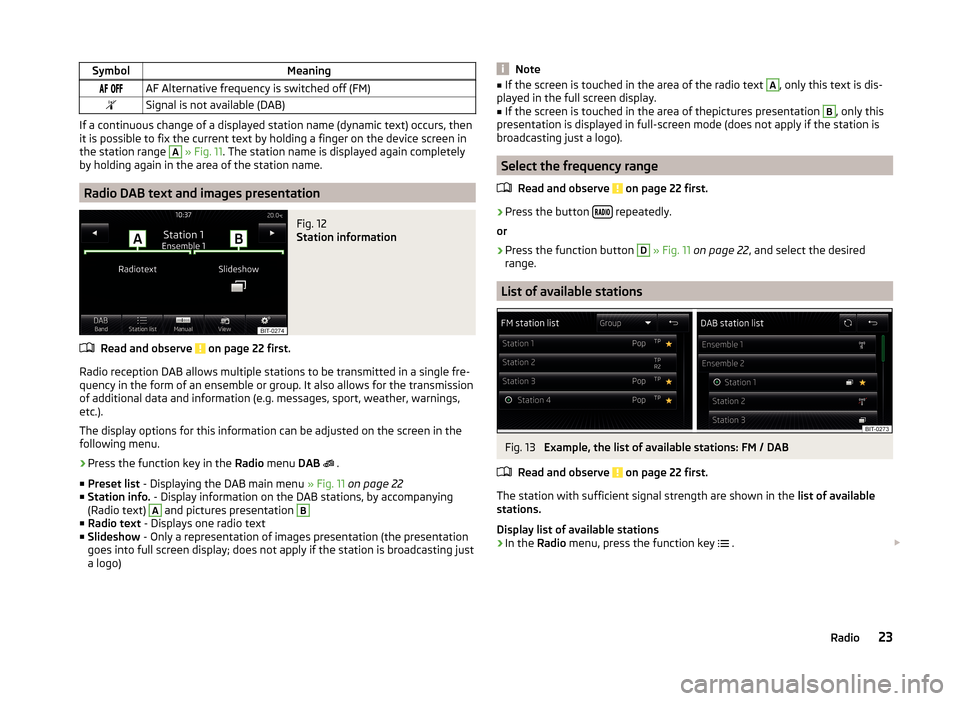
If a continuous change of a displayed station name (dynamic text) occurs, then
it is possible to fix the current text by holding a finger on the device screen in
the station range
A
» Fig. 11 . The station name is displayed again completely
by holding again in the area of the station name.
Radio DAB text and images presentation
Fig. 12
Station information
Read and observe on page 22 first.
Radio reception DAB allows multiple stations to be transmitted in a single fre- quency in the form of an ensemble or group. It also allows for the transmission
of additional data and information (e.g. messages, sport, weather, warnings,
etc.).
The display options for this information can be adjusted on the screen in the
following menu.
›
Press the function key in the Radio menu DAB
.
■ Preset list - Displaying the DAB main menu » Fig. 11 on page 22
■ Station info. - Display information on the DAB stations, by accompanying
(Radio text)
A
and pictures presentation
B
■ Radio text - Displays one radio text
■ Slideshow - Only a representation of images presentation (the presentation
goes into full screen display; does not apply if the station is broadcasting just
a logo)
Note■ If the screen is touched in the area of the radio text A, only this text is dis-
played in the full screen display.■
If the screen is touched in the area of thepictures presentation
B
, only this
presentation is displayed in full-screen mode (does not apply if the station is
broadcasting just a logo).
Select the frequency range
Read and observe
on page 22 first.
›
Press the button repeatedly.
or
›
Press the function button
D
» Fig. 11 on page 22 , and select the desired
range.
List of available stations
Fig. 13
Example, the list of available stations: FM / DAB
Read and observe
on page 22 first.
The station with sufficient signal strength are shown in the list of available
stations.
Display list of available stations
›
In the Radio menu, press the function key
.
23Radio
Page 40 of 64
■Display time: - Set the display time for the slideshow
■ 5 s
■ 10 s
■ 15 s
■ 30 s
■ Repeat slide show - Switching on/off the picture presentation - repeatCommunication
Telephone
Introduction
This chapter contains information on the following subjects:
Main menu
38
Main / additional phone
39
Bluetooth ®
- connection profile
39
Settings
40
Problems with telephone functions
40
First and foremost, pay attention to the safety instructions » page 7 , Impor-
tant notes .
Up to 2 telephones can be connected via Bluetooth ®
profile HFP and at the
same time one of them can also be connected with the audio profile A2DP or
AVRCP. Therefore the functions of both telephones can be operated via the
device.
The device allows you to work with text messages (SMS) of the connected tel-
ephone (a telephone support and a connection via the MAP profile are re-
quired).
ŠKODA permits the operation of telephones and two-way radio systems with a
professionally installed external aerial and a maximum transmission power of
up to 10 watts.
Please ask at a specialist workshop about installing and operating telephones
and two-way radio systems that have a transmission power of more than 10 W.
WARNING■ The national regulations for using a mobile phone in a vehicle must be
observed.■
No objects such as mobile telephone mounts, etc. must be attached to
the covers of the airbag modules or be located within their immediate vicin-
ity.
37Communication
Page 59 of 64
Index
A
Additional keyboard languages
20
Additional telephone39
Alphanumeric with keyboard11
AM22
Anti-theft protection7
Audio Media
28
Radio22
Audio source30
AUX33
B
Bluetooth Settings
20
Switch on/off20
Update21
Visibility20
Bluetooth - profile39
Bluetooth Player32
Breakdown service46
C
Call list Call list
49
Communication37
Component protection7
Conditions for coupling42
Conference call50
Connect device connected to a telephone
45
connected to two telephones45
more options of the telephone search45
no telephone connected45
Control lever14
Coupled device connected to a telephone42
connected to two telephones43
more options of the telephone search43
Couple device no telephone connected
42
Couple telephone Telephone to the device
43
D
DAB
22
Additional information23
Radio text and pictures presentation23
Settings26
Data transmission of mobile devices20
Delete the telephone from the list of paired de- vices
44
Description of the device7
Device connect to the telephone
44
Disconnection46
Pair with your telephone41
Device language19
Device menu Radio
22
Device menus Device Settings
18, 19
Media28
MirrorLink53
Pictures35
Sound18
Telephone37
Device operation Control lever
14
Device screen10
MAXI DOT display11
Multi-function steering wheel12
Multifunction steering wheel13
device screen keyboard
11
Device screen19
Area10
important information8
Maintenance8
Operation10
Dial telephone number46
Digital radio reception26
DTMF49
F
Factory settings
20
File formats Media
34
File Formats Pictures
36
FM22
Settings26
Frequency range23
See main menu22
Function keys10
Function problems MirrorLink
54
Telephone40
I
Images Display
36
Select source36
Settings36
Supported file formats36
Image viewer35
Important notes7
Info service46
Input screen with keyboard11
Introductory information7
K
keyboard
11
Keyboard19
56Index
Page 60 of 64
L
Language characters
20
List of available stations
23
of telephone contacts47
With folder / track list29
M
Main menu Media
28
MirrorLink54
Radio22
SMS51
Telephone38
Main telephone39
MAXI DOT display Media
12
Operation11
Phone13
Radio12
media voice control
14
Media28
Audio source30
AUX33
Bluetooth Audio32
Browser29
File formats34
Foreword28
List29
Main menu28
Multi-function steering wheel12
Multimedia database30
Operation28
Playback28
Requirements and limitations34
safe removal of the signal source20
SD memory card32
Select audio source31
Settings30
supported file formats34
supported sources34
USB33
MirrorLink53
Connection conditions53
Data transmission20
Function problems54
Operation54
Settings54
Start function53
Multi-function steering wheel Media
12
Radio12
Multi-media AUX
33
Multifunction steering wheel Phone
13
Multimedia USB
33
Multimedia database30
Mute9
O
Operation Media
28
MirrorLink54
Pictures35
Radio22
Telephone38
P
Pair device Pairing confirmation
44
Pair the telephone with your device
41
Phone Multifunction steering wheel
13
Pictures35
Operation35
safe removal of the signal source20
Playback Media28
R
radio voice control
14
Radio22
DAB settings26
FM - settings26
Frequency range23
List of available stations23
Main menu22
Multi-function steering wheel12
Operation22
Preface22
Save station24
Search for station24
Select station24
Settings26
Station Logo25
Traffic programme (TP)25
Radio station Logo
25
Save station24
Search for station24
Select station24
Radio station logo25
S
Safe removal of the signal source
20
Save radio station24
Screen see device screen
8
Screen display10
SD memory card32
Select frequency range See main menu
22
Select radio station See main menu
22
57Index