battery SKODA YETI 2014 1.G / 5L Bolero Car Radio Manual
[x] Cancel search | Manufacturer: SKODA, Model Year: 2014, Model line: YETI, Model: SKODA YETI 2014 1.G / 5LPages: 64, PDF Size: 5.42 MB
Page 11 of 64
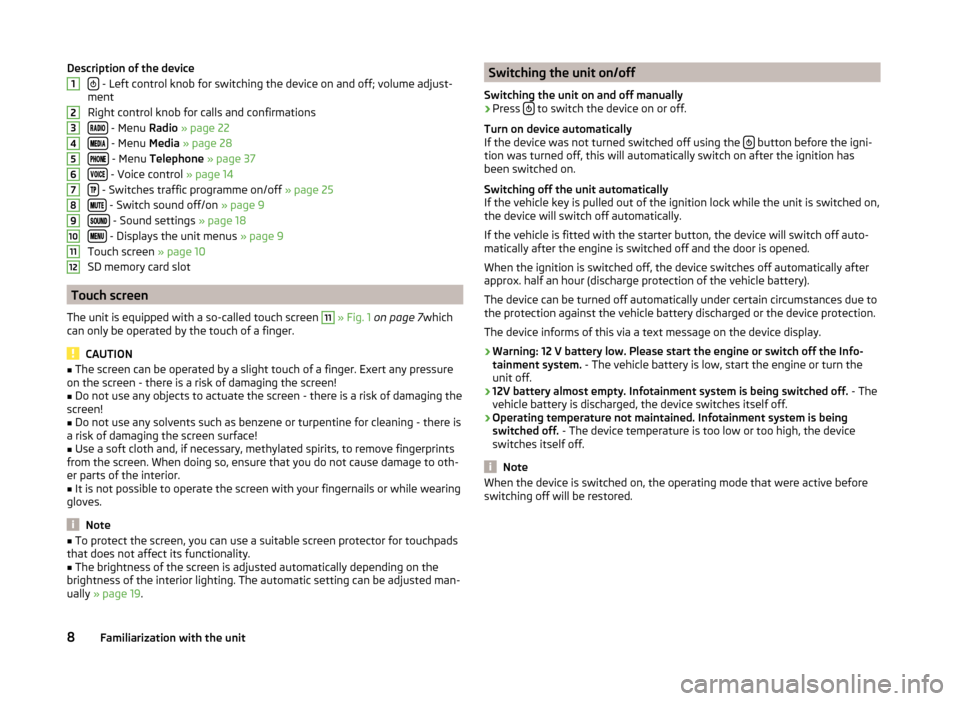
Description of the device
- Left control knob for switching the device on and off; volume adjust-
ment
Right control knob for calls and confirmations
- Menu Radio » page 22
- Menu Media » page 28
- Menu Telephone » page 37
- Voice control » page 14
- Switches traffic programme on/off » page 25
- Switch sound off/on » page 9
- Sound settings » page 18
- Displays the unit menus » page 9
Touch screen » page 10
SD memory card slot
Touch screen
The unit is equipped with a so-called touch screen
11
» Fig. 1 on page 7 which
can only be operated by the touch of a finger.
CAUTION
■ The screen can be operated by a slight touch of a finger. Exert any pressure
on the screen - there is a risk of damaging the screen!■
Do not use any objects to actuate the screen - there is a risk of damaging the
screen!
■
Do not use any solvents such as benzene or turpentine for cleaning - there is
a risk of damaging the screen surface!
■
Use a soft cloth and, if necessary, methylated spirits, to remove fingerprints
from the screen. When doing so, ensure that you do not cause damage to oth-
er parts of the interior.
■
It is not possible to operate the screen with your fingernails or while wearing
gloves.
Note
■ To protect the screen, you can use a suitable screen protector for touchpads
that does not affect its functionality.■
The brightness of the screen is adjusted automatically depending on the
brightness of the interior lighting. The automatic setting can be adjusted man-
ually » page 19 .
123456789101112Switching the unit on/off
Switching the unit on and off manually›
Press to switch the device on or off.
Turn on device automatically
If the device was not turned switched off using the
button before the igni-
tion was turned off, this will automatically switch on after the ignition has
been switched on.
Switching off the unit automatically
If the vehicle key is pulled out of the ignition lock while the unit is switched on,
the device will switch off automatically.
If the vehicle is fitted with the starter button, the device will switch off auto-
matically after the engine is switched off and the door is opened.
When the ignition is switched off, the device switches off automatically after
approx. half an hour (discharge protection of the vehicle battery).
The device can be turned off automatically under certain circumstances due to
the protection against the vehicle battery discharged or the device protection.
The device informs of this via a text message on the device display.
› Warning: 12 V battery low. Please start the engine or switch off the Info-
tainment system. - The vehicle battery is low, start the engine or turn the
unit off.
› 12V battery almost empty. Infotainment system is being switched off.
- The
vehicle battery is discharged, the device switches itself off.
› Operating temperature not maintained. Infotainment system is being
switched off. - The device temperature is too low or too high, the device
switches itself off.
Note
When the device is switched on, the operating mode that were active before
switching off will be restored.8Familiarization with the unit
Page 17 of 64
Menu functions in the phone MAXI DOT displayCall typeMenu itemOperation
Incoming
AnswerAccepting a call RejectReject call IgnoreMute the ringerOutgoing CancelEnd call
Current
EndEnding a call Mic. off / Mic. onSwitch off/on microphone
Private / Hands-free
Handsfree equipment switch off/
on
(Voice playback using the phone / device)
Symbols in the MAXI DOT display
Charge status of the telephone battery 1)
Signal strength 1)
A telephone is connected to the unit
Missed calls (if there are several missed calls, the number of calls is shown
next to the symbol)
Roaming (in front of the mobile network provider name) 1)
Call list
In the menu Telephone only the call list can be displayed and used 1)
.
If the call list includes no entries, the following message appears in the MAXI
DOT display No entries available.
The following symbols are displayed next to each entry in the call list. Incoming call
Outgoing call
Missed call
Operate with the control lever buttonsFig. 8
Buttons on the control lever
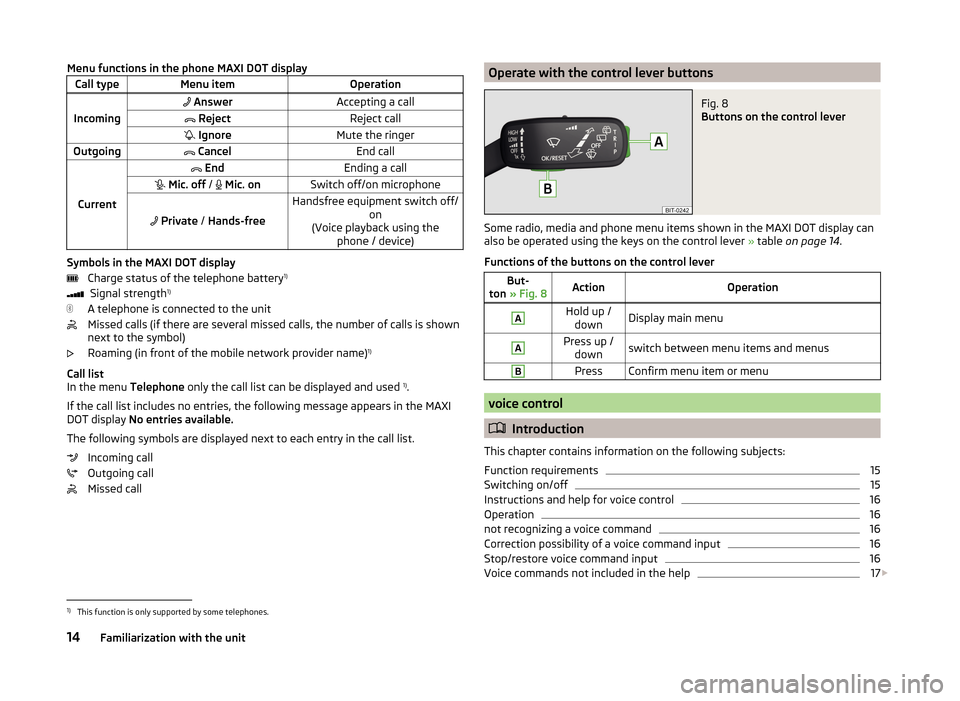
Some radio, media and phone menu items shown in the MAXI DOT display can
also be operated using the keys on the control lever » table on page 14 .
Functions of the buttons on the control lever
But-
ton » Fig. 8ActionOperationAHold up /
downDisplay main menuAPress up / downswitch between menu items and menusBPressConfirm menu item or menu
voice control
Introduction
This chapter contains information on the following subjects:
Function requirements
15
Switching on/off
15
Instructions and help for voice control
16
Operation
16
not recognizing a voice command
16
Correction possibility of a voice command input
16
Stop/restore voice command input
16
Voice commands not included in the help
17
1)
This function is only supported by some telephones.
14Familiarization with the unit
Page 42 of 64
Symbols in the displaySymbolMeaningCharge status of the telephone batterya)Signal strength of the mobile wireless connection a)Active roaming (before the name of the mobile network
provider) a)Missed callCurrent callIncoming SMS
a)a)
This function is only supported by some telephones.
Main / additional phone
Read and observe
and on page 37 first.
Up to 2 telephones can be connected via Bluetooth ®
profile HFP and at the
same time one of them can be connected with the audio profile A2DP or
AVRCP. Therefore the functions of the telephones can be operated via the de-
vice.
One of the telephones can be set as main telephone, the other telephone as
an additional telephone.
Main telephone
The main telephone provides the ability to perform the following functions de-
pending on the type of the connected telephone.
› Acceptance of the incoming call
› Direct entry of a telephone number
› Dial a number from the contact list 1)
› List of telephone contacts / import telephone contacts 1)
› Call list 1)
› Dial the breakdown number 2)
› Dial the info number 2)
› Conference call
› Management of text messages (SMS) 1)
The name of the device connected to the telephone as a main telephone is
displayed in the function key B» Fig. 21 on page 38 .
Additional telephone
The additional telephone offers you the opportunity to accept or reject the in-
coming call (when a telephone call is performed by the main telephone).
The name of the device connected to the telephone as an additional tele-
phone is displayed in the function key C
» Fig. 21 on page 38 .
Change the main telephone to an additional phone › Press the function key
C
» Fig. 21 on page 38 with the name of the addi-
tional telephone.
The functions of the main and additional telephones are switched with each
other.
Note
The contact list is valid for the main telephone. If the incoming call is accepted
by the additional telephone and you find the telephone number in the contact
list of the main telephone, then the caller details (e.g. name, image, etc.) is dis-
played instead of the number.
Bluetooth ®
- connection profile
Fig. 22
List of paired devices - Bluetooth
® profiles
Read and observe and on page 37 first.
Profile types
With the device several telephones can be paired, but only two telephones can
actively be using the Bluetooth ®
profile HFP and at the same time only one
telephone can be connected via the Bluetooth ®
profile A2DP or AVRCP .
1)
This function is only supported by some telephones.
2)
The function is only available for some countries.
39Communication
Page 56 of 64
MirrorLink ™
Introduction
This chapter contains information on the following subjects:
Connection conditions
53
Start function
53
Operation
54
Settings
54
Function problems
54
First and foremost, pay attention to the safety instructions » page 7 , Impor-
tant notes .
MirrorLink ™
provides a function for the operation of some installed applica-
tions in the communication facility (e.g. telephone, hereinafter referred to only
as facility) by using the device.
Using this function is only for specially designed and certified applications. For
reasons of safety, the operation of some applications while driving is limited or
not possible (function keys of the applications are inactive).
WARNING■ No objects such as mobile telephone mounts, etc. must be attached to
the covers of the airbag modules or be located within their immediate vicin-
ity.■
Never leave communication facility in the deployment area of an airbag,
on a seat, on the dash panel or in another area, from which it can be
thrown during a sudden braking manoeuvre, an accident or a collision -
there is a risk of injury. There are storage compartments with lids and if
necessary there is the multimedia storage compartments to hold this » Ve-
hicle owner's manual , chapter Transport and practical equipment .
CAUTION
■
MirrorLink ™
Applications that use a mobile data connection, are dependent
on the quality of the signal supplied by your telephone service provider. ŠKODA
accepts no responsibility for the transmitted data volume.■
An intensive use of the function MirrorLink ™
and the work associated with
applications (e.g., GPS, mobile data, fully-backlit display and the like.) can lead
to battery discharge of the connected facility.
Connection conditions
Read and observe
and on page 53 first.
The connection between the facility and the device using the function
MirrorLink ™
is operational under the following conditions.
The ignition is switched on.
The facility supports the function MirrorLink ™
and contains applications
that support this feature.
The display of the equipment is unlocked.
The facility is connected to the USB input » Fig. 19 on page 33 .
Note
Before connecting the MirrorLink - Functions, unlock the device screen. While
using the function the display may automatically darken or the screen com-
pletely turns off.
Start function
Read and observe
and on page 53 first.
›
Press the button
→
™
→ Selection .
A list of the facilities connected to the USB input is displayed.
›
Select one of the MirrorLink ™
function supporting facilities.
If the facility is separated from the USB cable and the ignition is not off, it au- tomatically reconnects when a new connection to the device is made.
Note
■ If the facility is connected by means of the function MirrorLink ™
, it cannot be
used as a USB audio source Media menu.■
The list of available facilities and applications, which support the MirrorLink ™
function, can be seed in the ŠKODA Internet pages www.infotainment.skoda-
auto.com
53Communication