service SKODA YETI 2014 1.G / 5L Bolero Car Radio Manual
[x] Cancel search | Manufacturer: SKODA, Model Year: 2014, Model line: YETI, Model: SKODA YETI 2014 1.G / 5LPages: 64, PDF Size: 5.42 MB
Page 9 of 64
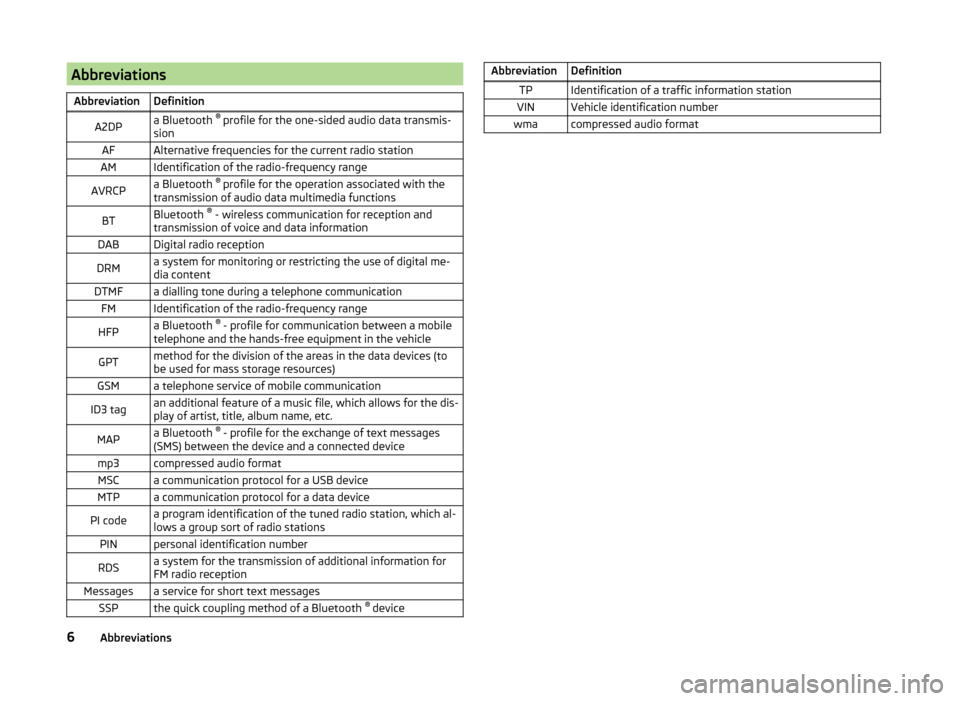
AbbreviationsAbbreviationDefinitionA2DPa Bluetooth ®
profile for the one-sided audio data transmis-
sionAFAlternative frequencies for the current radio stationAMIdentification of the radio-frequency rangeAVRCPa Bluetooth ®
profile for the operation associated with the
transmission of audio data multimedia functionsBTBluetooth ®
- wireless communication for reception and
transmission of voice and data informationDABDigital radio receptionDRMa system for monitoring or restricting the use of digital me-
dia contentDTMFa dialling tone during a telephone communicationFMIdentification of the radio-frequency rangeHFPa Bluetooth ®
- profile for communication between a mobile
telephone and the hands-free equipment in the vehicleGPTmethod for the division of the areas in the data devices (to
be used for mass storage resources)GSMa telephone service of mobile communicationID3 tagan additional feature of a music file, which allows for the dis-
play of artist, title, album name, etc.MAPa Bluetooth ®
- profile for the exchange of text messages
(SMS) between the device and a connected devicemp3compressed audio formatMSCa communication protocol for a USB deviceMTPa communication protocol for a data devicePI codea program identification of the tuned radio station, which al-
lows a group sort of radio stationsPINpersonal identification numberRDSa system for the transmission of additional information for
FM radio receptionMessagesa service for short text messagesSSPthe quick coupling method of a Bluetooth ®
deviceAbbreviationDefinitionTPIdentification of a traffic information stationVINVehicle identification numberwmacompressed audio format6Abbreviations
Page 41 of 64
WARNING (Continued)■Never leave a telephone in the deployment area of an airbag, on a seat,
on the dash panel or in another area, from which it can be thrown during a
sudden braking manoeuvre, an accident or a collision - there is a risk of in-
jury. There are storage compartments with lids and if necessary there is the
multimedia storage compartments to hold this » Vehicle owner's manual ,
chapter Transport and practical equipment .■
Before transport of the vehicle by air, the Bluetooth ®
function must be
switched off by a specialist company.
CAUTION
■ In areas with no signal and possibly in tunnels, garages and subways a tele-
phone conversation can be interrupted and no telephone connection can be
established - not even in an emergency!■
We recommend that mobile phones and two-way radio systems be installed
in the a vehicle by a specialist workshop.
■
Most modern electronic equipment is shielded from RF signals. In exceptional
cases, electronic equipment may not be shielded against the RF signals and
telephone service may be disrupted.
Note
■ The range of the telephone connection to the device using the Bluetooth ®
profile is limited to the vehicle interior. The range is dependent on local fac-
tors, e.g. obstacles between the devices and mutual interferences with other
devices. If your telephone is in a jacket pocket, for example, this can lead to
difficulties when establishing a connection with the device or transferring da-
ta.■
The functionality of the telephone is dependent on the telephone service op-
erator and the telephone being used. Further information is available from the
telephone service operator or can be taken from the telephone manual.
■
In some countries the connection via the Bluetooth ®
function, may be limi-
ted. Further information can be obtained from local authorities.
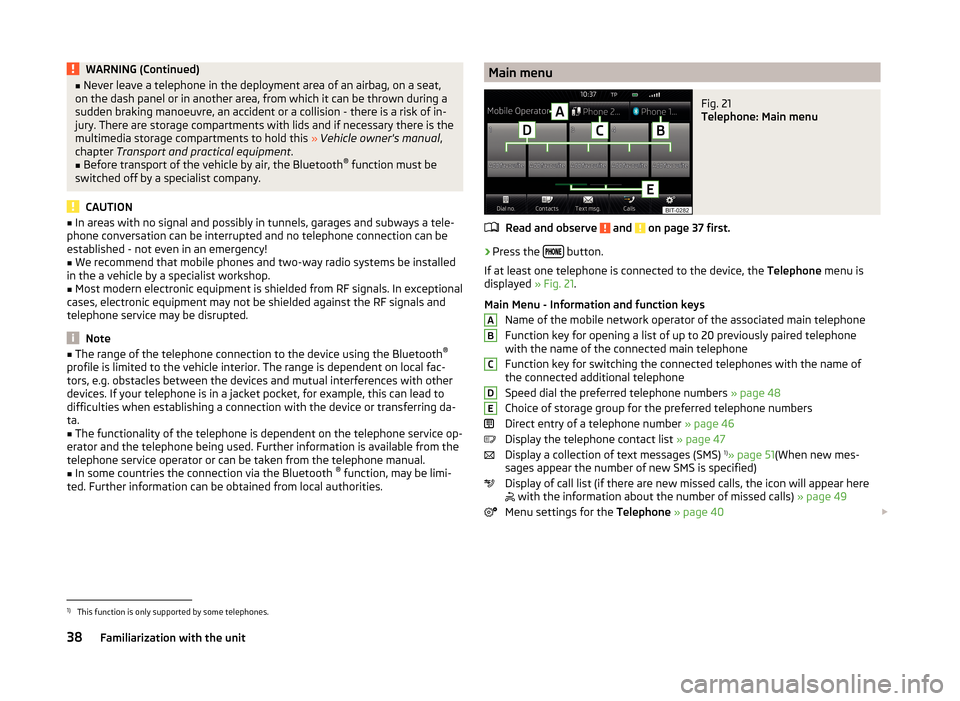
Main menuFig. 21
Telephone: Main menu
Read and observe and on page 37 first.
›
Press the button.
If at least one telephone is connected to the device, the Telephone menu is
displayed » Fig. 21.
Main Menu - Information and function keys Name of the mobile network operator of the associated main telephone
Function key for opening a list of up to 20 previously paired telephone
with the name of the connected main telephone
Function key for switching the connected telephones with the name of
the connected additional telephone
Speed dial the preferred telephone numbers » page 48
Choice of storage group for the preferred telephone numbers
Direct entry of a telephone number » page 46
Display the telephone contact list » page 47
Display a collection of text messages (SMS) 1)
» page 51 (When new mes-
sages appear the number of new SMS is specified)
Display of call list (if there are new missed calls, the icon will appear here
with the information about the number of missed calls)
» page 49
Menu settings for the Telephone » page 40
ABCDE1)
This function is only supported by some telephones.
38Familiarization with the unit
Page 44 of 64
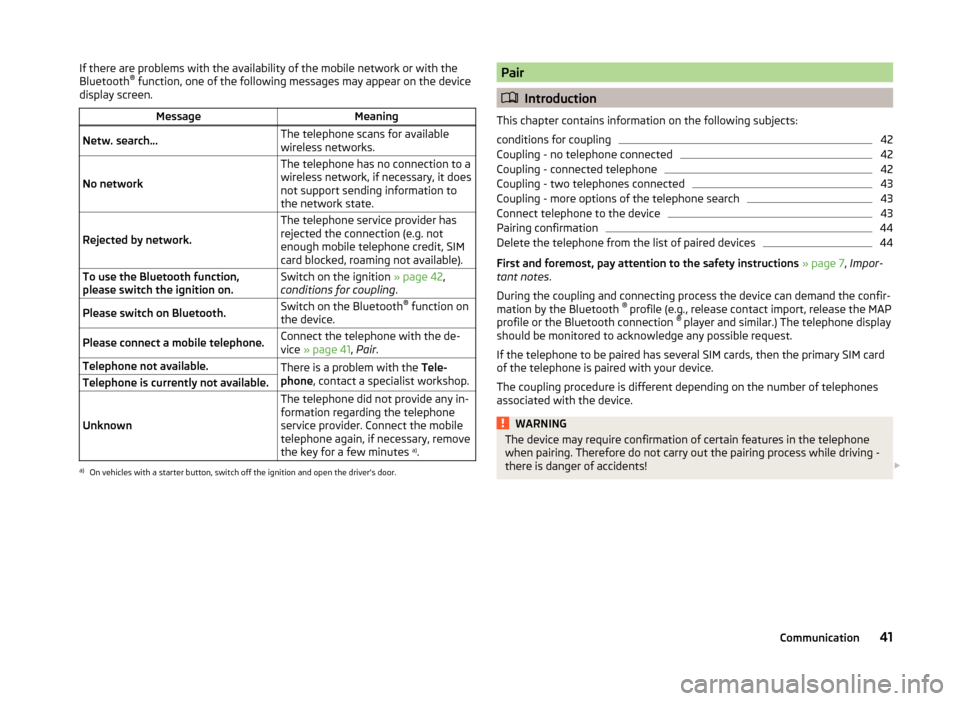
If there are problems with the availability of the mobile network or with the
Bluetooth ®
function, one of the following messages may appear on the device
display screen.MessageMeaningNetw. search…The telephone scans for available
wireless networks.
No network
The telephone has no connection to a
wireless network, if necessary, it does
not support sending information to
the network state.
Rejected by network.
The telephone service provider has
rejected the connection (e.g. not
enough mobile telephone credit, SIM
card blocked, roaming not available).To use the Bluetooth function,
please switch the ignition on.Switch on the ignition » page 42,
conditions for coupling .Please switch on Bluetooth.Switch on the Bluetooth ®
function on
the device.Please connect a mobile telephone.Connect the telephone with the de-
vice » page 41 , Pair .Telephone not available.There is a problem with the Tele-
phone , contact a specialist workshop.Telephone is currently not available.
Unknown
The telephone did not provide any in-
formation regarding the telephone
service provider. Connect the mobile
telephone again, if necessary, remove
the key for a few minutes a)
.a)
On vehicles with a starter button, switch off the ignition and open the driver's door.
Pair
Introduction
This chapter contains information on the following subjects:
conditions for coupling
42
Coupling - no telephone connected
42
Coupling - connected telephone
42
Coupling - two telephones connected
43
Coupling - more options of the telephone search
43
Connect telephone to the device
43
Pairing confirmation
44
Delete the telephone from the list of paired devices
44
First and foremost, pay attention to the safety instructions » page 7 , Impor-
tant notes .
During the coupling and connecting process the device can demand the confir-
mation by the Bluetooth ®
profile (e.g., release contact import, release the MAP
profile or the Bluetooth connection ®
player and similar.) The telephone display
should be monitored to acknowledge any possible request.
If the telephone to be paired has several SIM cards, then the primary SIM card
of the telephone is paired with your device.
The coupling procedure is different depending on the number of telephones
associated with the device.
WARNINGThe device may require confirmation of certain features in the telephone
when pairing. Therefore do not carry out the pairing process while driving -
there is danger of accidents! 41Communication
Page 50 of 64
›Press the function key
, connection starts.
› Press the function key
- connection starts with the area code.
Search for a contact in the list The input screen » Fig. 23 also functions as an alphanumeric keypad that you
can use to search for contacts in the phonebook.
For example, if you enter 32, the unit will display contacts with the letter se-
quence DA, FA, EB, etc.
On the right side next to the numerical keyboard a list of contacts found from
the directory appears according to the lettered specified. By pressing the cor-
responding function key for the respective contact, dialling is started or the
contact details are displayed if the telephone contact has several telephone
numbers.
Enter prefix
Entering the prefix into the input line can be done in one of two ways.
› Enter the characters or numbers of the prefix (e.g.
or enter 00 or similar).
› Enter the telephone number and press the function key
(the connection
with the prefix starts).
The prefix may, for example be used for international calls, telephone calls via
a virtual telephone service provider or distinguishing between business and
private calls and similar.
If the contact number contains a prefix, pressing the function key causes a
further prefix to be added before the number and the connection starts. The
telephone number contains at this time two prefixes and a telephone call is
not initiated.
Dialling breakdown and info numbers
› Press the function key
Breakdn. call , breakdown number is dialled.
A breakdown service will then be called when your vehicle breaks down.
› Press the function key
Info. call
the Info number is dialled.
An information service can be called when information regarding the products
and services of the ŠKODA brand are required.
The breakdown and info numbers are free of charge. Charges are only made
for a telephone call in accordance with the fare conditions of your telephone
service provider.
If no Breakdown or Info. call can be made, then a ŠKODA service partner
should be consulted.The breakdown and info numbers are set country-specific at the factory. If you
want to change the preset numbers, then consult a ŠKODA service partner.
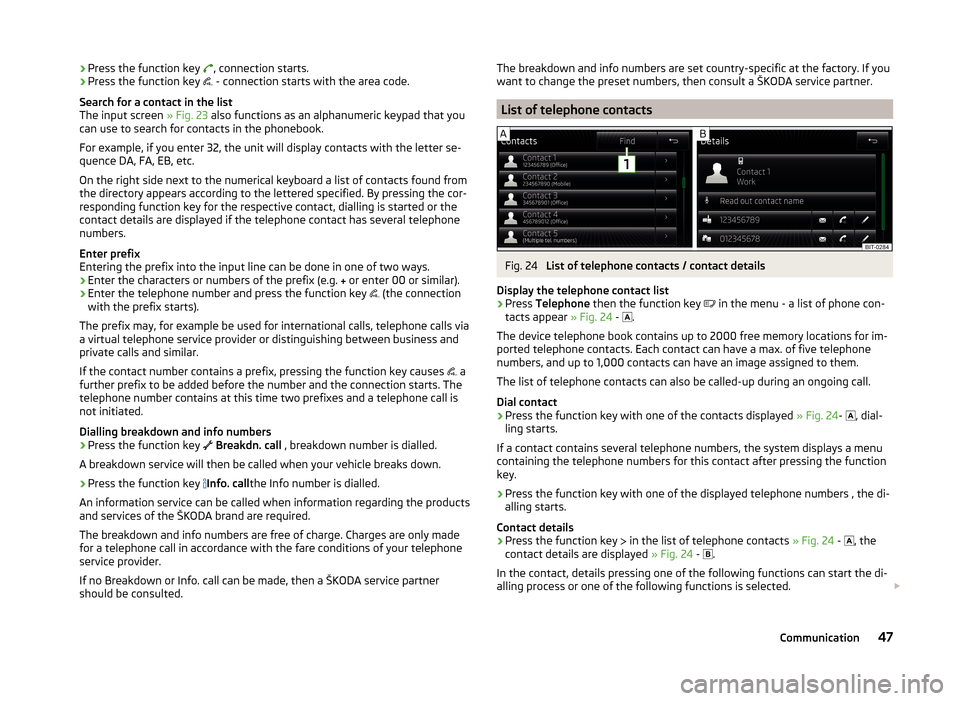
List of telephone contacts
Fig. 24
List of telephone contacts / contact details
Display the telephone contact list
›
Press Telephone then the function key
in the menu - a list of phone con-
tacts appear » Fig. 24 -
.
The device telephone book contains up to 2000 free memory locations for im-
ported telephone contacts. Each contact can have a max. of five telephone
numbers, and up to 1,000 contacts can have an image assigned to them.
The list of telephone contacts can also be called-up during an ongoing call.
Dial contact
›
Press the function key with one of the contacts displayed » Fig. 24-
, dial-
ling starts.
If a contact contains several telephone numbers, the system displays a menu
containing the telephone numbers for this contact after pressing the function
key.
›
Press the function key with one of the displayed telephone numbers , the di-
alling starts.
Contact details
›
Press the function key in the list of telephone contacts
» Fig. 24 -
, the
contact details are displayed » Fig. 24 -
.
In the contact, details pressing one of the following functions can start the di-
alling process or one of the following functions is selected.
47Communication
Page 56 of 64
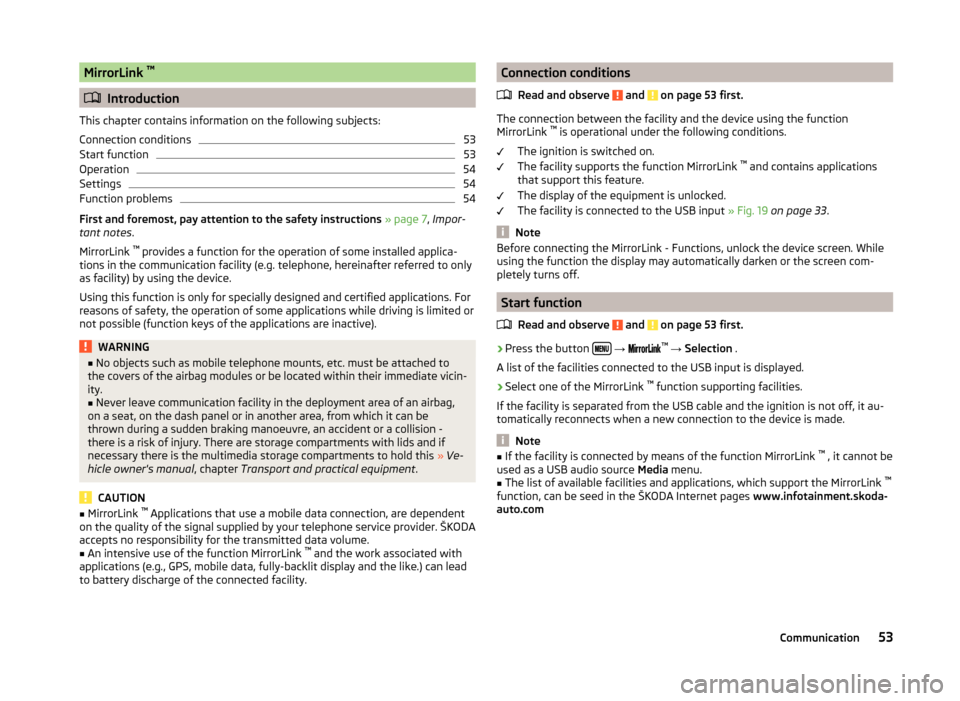
MirrorLink ™
Introduction
This chapter contains information on the following subjects:
Connection conditions
53
Start function
53
Operation
54
Settings
54
Function problems
54
First and foremost, pay attention to the safety instructions » page 7 , Impor-
tant notes .
MirrorLink ™
provides a function for the operation of some installed applica-
tions in the communication facility (e.g. telephone, hereinafter referred to only
as facility) by using the device.
Using this function is only for specially designed and certified applications. For
reasons of safety, the operation of some applications while driving is limited or
not possible (function keys of the applications are inactive).
WARNING■ No objects such as mobile telephone mounts, etc. must be attached to
the covers of the airbag modules or be located within their immediate vicin-
ity.■
Never leave communication facility in the deployment area of an airbag,
on a seat, on the dash panel or in another area, from which it can be
thrown during a sudden braking manoeuvre, an accident or a collision -
there is a risk of injury. There are storage compartments with lids and if
necessary there is the multimedia storage compartments to hold this » Ve-
hicle owner's manual , chapter Transport and practical equipment .
CAUTION
■
MirrorLink ™
Applications that use a mobile data connection, are dependent
on the quality of the signal supplied by your telephone service provider. ŠKODA
accepts no responsibility for the transmitted data volume.■
An intensive use of the function MirrorLink ™
and the work associated with
applications (e.g., GPS, mobile data, fully-backlit display and the like.) can lead
to battery discharge of the connected facility.
Connection conditions
Read and observe
and on page 53 first.
The connection between the facility and the device using the function
MirrorLink ™
is operational under the following conditions.
The ignition is switched on.
The facility supports the function MirrorLink ™
and contains applications
that support this feature.
The display of the equipment is unlocked.
The facility is connected to the USB input » Fig. 19 on page 33 .
Note
Before connecting the MirrorLink - Functions, unlock the device screen. While
using the function the display may automatically darken or the screen com-
pletely turns off.
Start function
Read and observe
and on page 53 first.
›
Press the button
→
™
→ Selection .
A list of the facilities connected to the USB input is displayed.
›
Select one of the MirrorLink ™
function supporting facilities.
If the facility is separated from the USB cable and the ignition is not off, it au- tomatically reconnects when a new connection to the device is made.
Note
■ If the facility is connected by means of the function MirrorLink ™
, it cannot be
used as a USB audio source Media menu.■
The list of available facilities and applications, which support the MirrorLink ™
function, can be seed in the ŠKODA Internet pages www.infotainment.skoda-
auto.com
53Communication
Page 59 of 64
Index
A
Additional keyboard languages
20
Additional telephone39
Alphanumeric with keyboard11
AM22
Anti-theft protection7
Audio Media
28
Radio22
Audio source30
AUX33
B
Bluetooth Settings
20
Switch on/off20
Update21
Visibility20
Bluetooth - profile39
Bluetooth Player32
Breakdown service46
C
Call list Call list
49
Communication37
Component protection7
Conditions for coupling42
Conference call50
Connect device connected to a telephone
45
connected to two telephones45
more options of the telephone search45
no telephone connected45
Control lever14
Coupled device connected to a telephone42
connected to two telephones43
more options of the telephone search43
Couple device no telephone connected
42
Couple telephone Telephone to the device
43
D
DAB
22
Additional information23
Radio text and pictures presentation23
Settings26
Data transmission of mobile devices20
Delete the telephone from the list of paired de- vices
44
Description of the device7
Device connect to the telephone
44
Disconnection46
Pair with your telephone41
Device language19
Device menu Radio
22
Device menus Device Settings
18, 19
Media28
MirrorLink53
Pictures35
Sound18
Telephone37
Device operation Control lever
14
Device screen10
MAXI DOT display11
Multi-function steering wheel12
Multifunction steering wheel13
device screen keyboard
11
Device screen19
Area10
important information8
Maintenance8
Operation10
Dial telephone number46
Digital radio reception26
DTMF49
F
Factory settings
20
File formats Media
34
File Formats Pictures
36
FM22
Settings26
Frequency range23
See main menu22
Function keys10
Function problems MirrorLink
54
Telephone40
I
Images Display
36
Select source36
Settings36
Supported file formats36
Image viewer35
Important notes7
Info service46
Input screen with keyboard11
Introductory information7
K
keyboard
11
Keyboard19
56Index
Page 61 of 64
Select sourceImages36
Media31
Settings Additional keyboard languages
20
Bluetooth20
DAB26
Device18, 19
Device language19
Device screen19
FM26
Images36
Keyboard19
Language19
Manage favourites48
Media30
MirrorLink54
Radio26
Restore factory settings20
Software Update21
Sound18
System Information21
Telephone40
User profile48
Voice control20
Volume9
Setup18
SMS51
new51
Operation50
received52
Software Update21
Sound18
Station See main menu
22
Status line10
Switching the unit off8
Switching the unit on8
T
telephone conditions for coupling
42
voice control14
Telephone37
Additional telephone39
Bluetooth - profile39
Breakdown service46
Call list49
Conference call50
Connection - a connected telephone 45
Connection - more options of the telephone search
45
Connection - no telephone connected 45
Connection - two telephones connected 45
Connect telephone to the device43
connect to the device44
Coupling - connected telephone 42
Coupling - more options of the telephone search
43
Coupling - no telephone connected 42
Coupling - two telephones connected 43
Delete the telephone from the list of paired devices
44
Dial telephone number46
Disconnection46
Enter telephone number46
Function problems40
Functions49
Info service46
Main menu38
Main telephone39
Operation38
Pairing confirmation44
Settings40
Speed dialling a telephone number48
Telephone book47
Telephone conversation49
Telephone number prefix46
Text messages (SMS)50, 51
Telephone book47
Telephone conversation49
Telephone functions49
Telephone number46
Telephone number prefix46
Text messages50, 51
new51
received52
Touch screen8
Traffic programme (TP)25
U
Unit menus
9
Unit operation10
USB33
V
Voice control
14
commands17
Function requirements15
not recognizing a voice command16
Operation16
Settings20
Stop/restore input/16
switching on/off15
Voice command input correction16
Volume9
Volume setting9
58Index