pairing phone SKODA YETI 2014 1.G / 5L Bolero Car Radio Manual
[x] Cancel search | Manufacturer: SKODA, Model Year: 2014, Model line: YETI, Model: SKODA YETI 2014 1.G / 5LPages: 64, PDF Size: 5.42 MB
Page 35 of 64

If the main and the additional telephones » page 39are connected to the de-
vice the audio source appears after selection BT Audio a menu for selecting
the Bluetooth ®
Player.
Bluetooth ®
Player
Read and observe
and on page 31 first.
The unit allows audio files of a connected Bluetooth ®
player to play using the
A2DP and AVRCP audio profile.
›
For connecting follow the same instructions as for pairing the device with a
telephone » page 41.
If an Apple device is connected as a Bluetooth ®
player, and this is connected
to the USB input, then the Bluetooth ®
connection is dropped.
The following warning message appears in the device screen Bluetooth-Audio
(A2DP) ... Connection cancelled.
Note
■
We recommend setting the maximum output level of the Bluetooth ®
Play-
er » page 18 , Sound settings .■
Some operator options via the device may not be supported and are depend-
ent on the Bluetooth ®
player being used.
SD memory card
Fig. 18
SD memory card slot
Read and observe and on page 31 first.
The SD memory card slot
12
is located on the front of the device » Fig. 1 on
page 7 .
Inserting an SD memory card›Push the SD memory card into the available slot with the cut edge upwards
until it “locks into place”.
The play function will start automatically. The playlists are not played auto-
matically and must be manually started from the folders and title lists.
Removing an SD memory card›
Press the button
→ Remove safely SD card .
›
Press the inserted SD memory card. The SD memory card “jumps” into the
eject position.
After popping out the SD memory card, playback will start from the last played
audio source. If this source is not available, the device switches to the Radio
menu.
Unreadable SD memory card
If there are no readable files on the SD memory card nothing will play.
Due to differing quality requirements from different card manufacturers, it is
not always possible to guarantee the playback from SD memory cards.
It may not be possible to play some or all files on the SD memory card, or pos-
sibly their playback may be limited.
CAUTION
Use only SD memory cards with a standard size. When using smaller SD cards
with the adapter the SD memory card can fall out of the adapter while driving
due to vehicle vibrations.32Familiarization with the unit
Page 44 of 64
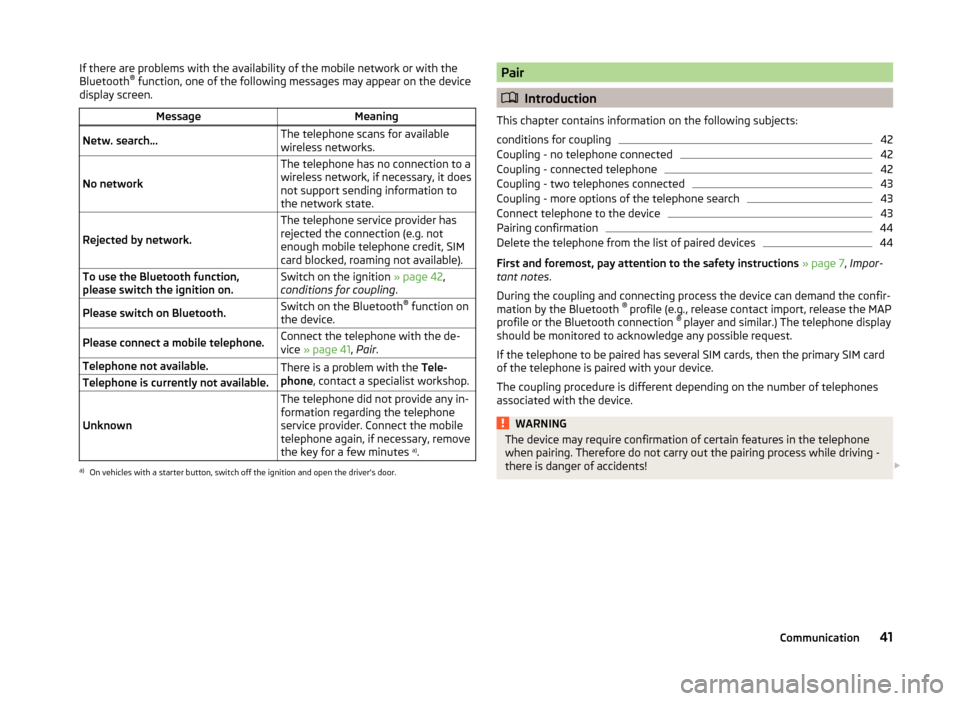
If there are problems with the availability of the mobile network or with the
Bluetooth ®
function, one of the following messages may appear on the device
display screen.MessageMeaningNetw. search…The telephone scans for available
wireless networks.
No network
The telephone has no connection to a
wireless network, if necessary, it does
not support sending information to
the network state.
Rejected by network.
The telephone service provider has
rejected the connection (e.g. not
enough mobile telephone credit, SIM
card blocked, roaming not available).To use the Bluetooth function,
please switch the ignition on.Switch on the ignition » page 42,
conditions for coupling .Please switch on Bluetooth.Switch on the Bluetooth ®
function on
the device.Please connect a mobile telephone.Connect the telephone with the de-
vice » page 41 , Pair .Telephone not available.There is a problem with the Tele-
phone , contact a specialist workshop.Telephone is currently not available.
Unknown
The telephone did not provide any in-
formation regarding the telephone
service provider. Connect the mobile
telephone again, if necessary, remove
the key for a few minutes a)
.a)
On vehicles with a starter button, switch off the ignition and open the driver's door.
Pair
Introduction
This chapter contains information on the following subjects:
conditions for coupling
42
Coupling - no telephone connected
42
Coupling - connected telephone
42
Coupling - two telephones connected
43
Coupling - more options of the telephone search
43
Connect telephone to the device
43
Pairing confirmation
44
Delete the telephone from the list of paired devices
44
First and foremost, pay attention to the safety instructions » page 7 , Impor-
tant notes .
During the coupling and connecting process the device can demand the confir-
mation by the Bluetooth ®
profile (e.g., release contact import, release the MAP
profile or the Bluetooth connection ®
player and similar.) The telephone display
should be monitored to acknowledge any possible request.
If the telephone to be paired has several SIM cards, then the primary SIM card
of the telephone is paired with your device.
The coupling procedure is different depending on the number of telephones
associated with the device.
WARNINGThe device may require confirmation of certain features in the telephone
when pairing. Therefore do not carry out the pairing process while driving -
there is danger of accidents! 41Communication
Page 45 of 64
Note■During the pairing process the option in the telephone to remember the
password for the next automatic connection can be selected 1)
.■
During the pairing process, some telephones require a confirmation regard-
ing the connection of Bluetooth ®
Profile A2DP and AVRCP.
■
The maximum number of paired phones is 20 Coupling a new telephone after
reaching the maximum number causes the telephone that has not been cou-
pled for the longest time to be automatically replaced.
conditions for coupling
Read and observe
on page 41 first.
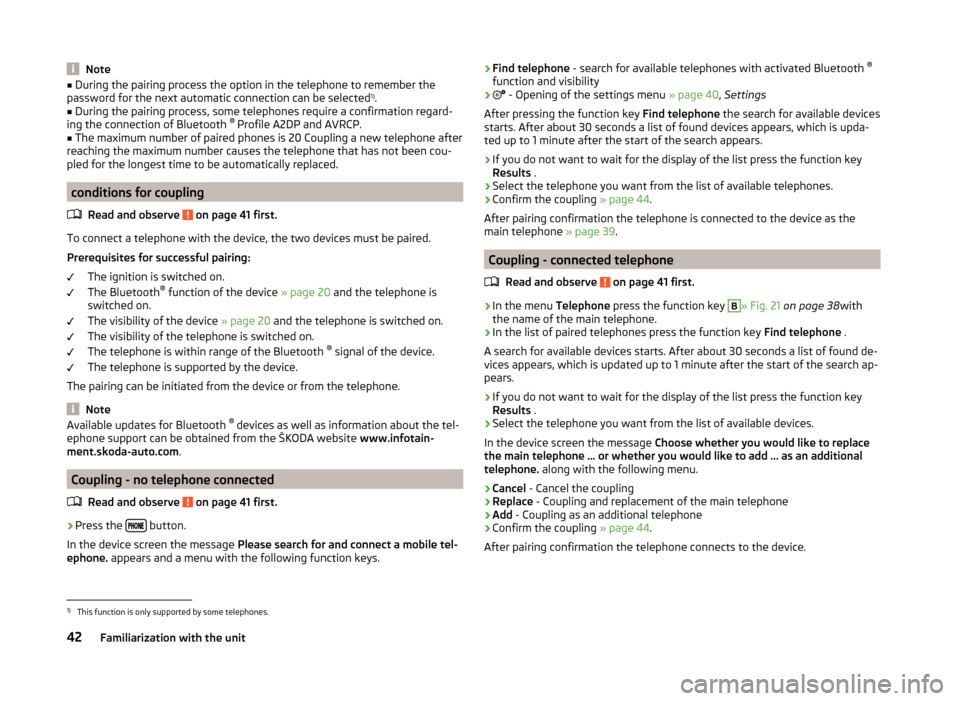
To connect a telephone with the device, the two devices must be paired.
Prerequisites for successful pairing: The ignition is switched on.
The Bluetooth ®
function of the device » page 20 and the telephone is
switched on.
The visibility of the device » page 20 and the telephone is switched on.
The visibility of the telephone is switched on.
The telephone is within range of the Bluetooth ®
signal of the device.
The telephone is supported by the device.
The pairing can be initiated from the device or from the telephone.
Note
Available updates for Bluetooth ®
devices as well as information about the tel-
ephone support can be obtained from the ŠKODA website www.infotain-
ment.skoda-auto.com .
Coupling - no telephone connected
Read and observe
on page 41 first.
›
Press the button.
In the device screen the message Please search for and connect a mobile tel-
ephone. appears and a menu with the following function keys.
›Find telephone
- search for available telephones with activated Bluetooth ®
function and visibility›
- Opening of the settings menu » page 40, Settings
After pressing the function key Find telephone the search for available devices
starts. After about 30 seconds a list of found devices appears, which is upda-
ted up to 1 minute after the start of the search appears.
›
If you do not want to wait for the display of the list press the function key
Results .
›
Select the telephone you want from the list of available telephones.
›
Confirm the coupling » page 44.
After pairing confirmation the telephone is connected to the device as the
main telephone » page 39.
Coupling - connected telephone
Read and observe
on page 41 first.
›
In the menu Telephone press the function key
B
» Fig. 21 on page 38 with
the name of the main telephone.
›
In the list of paired telephones press the function key Find telephone .
A search for available devices starts. After about 30 seconds a list of found de-
vices appears, which is updated up to 1 minute after the start of the search ap-
pears.
›
If you do not want to wait for the display of the list press the function key
Results .
›
Select the telephone you want from the list of available devices.
In the device screen the message Choose whether you would like to replace
the main telephone … or whether you would like to add … as an additional
telephone. along with the following menu.
›
Cancel - Cancel the coupling
›
Replace - Coupling and replacement of the main telephone
›
Add - Coupling as an additional telephone
›
Confirm the coupling » page 44.
After pairing confirmation the telephone connects to the device.
1)
This function is only supported by some telephones.
42Familiarization with the unit
Page 46 of 64
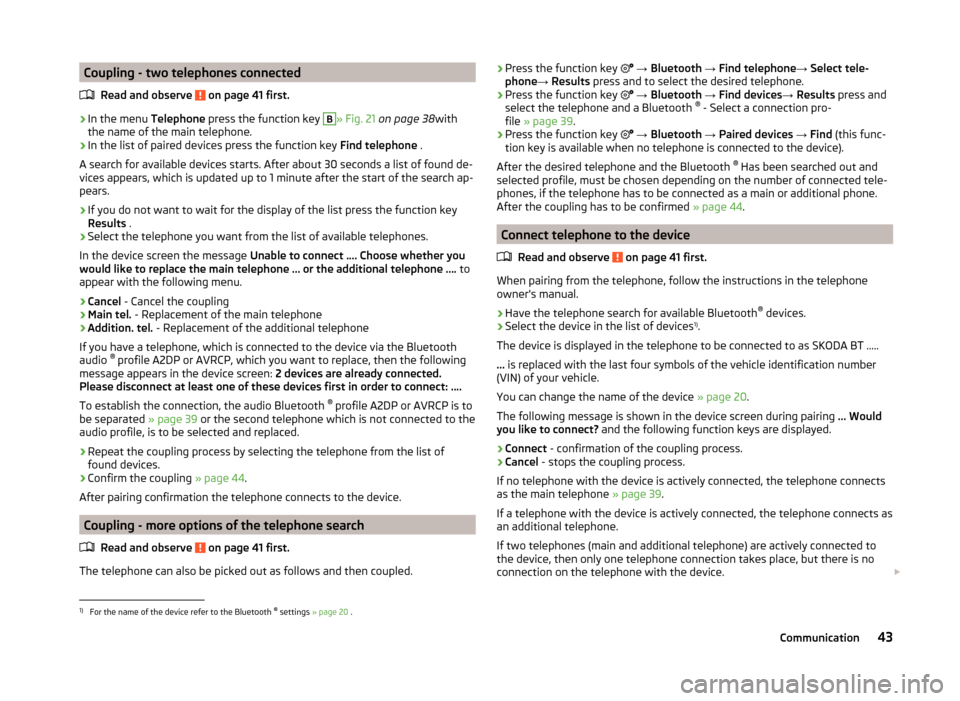
Coupling - two telephones connectedRead and observe
on page 41 first.
›
In the menu Telephone press the function key
B
» Fig. 21 on page 38 with
the name of the main telephone.
›
In the list of paired devices press the function key Find telephone .
A search for available devices starts. After about 30 seconds a list of found de-
vices appears, which is updated up to 1 minute after the start of the search ap-
pears.
›
If you do not want to wait for the display of the list press the function key
Results .
›
Select the telephone you want from the list of available telephones.
In the device screen the message Unable to connect …. Choose whether you
would like to replace the main telephone … or the additional telephone …. to
appear with the following menu.
›
Cancel - Cancel the coupling
›
Main tel. - Replacement of the main telephone
›
Addition. tel. - Replacement of the additional telephone
If you have a telephone, which is connected to the device via the Bluetooth
audio ®
profile A2DP or AVRCP, which you want to replace, then the following
message appears in the device screen: 2 devices are already connected.
Please disconnect at least one of these devices first in order to connect: ….
To establish the connection, the audio Bluetooth ®
profile A2DP or AVRCP is to
be separated » page 39 or the second telephone which is not connected to the
audio profile, is to be selected and replaced.
›
Repeat the coupling process by selecting the telephone from the list of
found devices.
›
Confirm the coupling » page 44.
After pairing confirmation the telephone connects to the device.
Coupling - more options of the telephone search
Read and observe
on page 41 first.
The telephone can also be picked out as follows and then coupled.
›Press the function key
→ Bluetooth → Find telephone → Select tele-
phone → Results press and to select the desired telephone.›
Press the function key
→ Bluetooth → Find devices → Results press and
select the telephone and a Bluetooth ®
- Select a connection pro-
file » page 39 .
›
Press the function key
→ Bluetooth → Paired devices → Find (this func-
tion key is available when no telephone is connected to the device).
After the desired telephone and the Bluetooth ®
Has been searched out and
selected profile, must be chosen depending on the number of connected tele-
phones, if the telephone has to be connected as a main or additional phone.
After the coupling has to be confirmed » page 44.
Connect telephone to the device
Read and observe
on page 41 first.
When pairing from the telephone, follow the instructions in the telephone
owner's manual.
›
Have the telephone search for available Bluetooth ®
devices.
›
Select the device in the list of devices 1)
.
The device is displayed in the telephone to be connected to as SKODA BT .....
... is replaced with the last four symbols of the vehicle identification number
(VIN) of your vehicle.
You can change the name of the device » page 20.
The following message is shown in the device screen during pairing ... Would
you like to connect? and the following function keys are displayed.
›
Connect - confirmation of the coupling process.
›
Cancel - stops the coupling process.
If no telephone with the device is actively connected, the telephone connects as the main telephone » page 39.
If a telephone with the device is actively connected, the telephone connects as
an additional telephone.
If two telephones (main and additional telephone) are actively connected to
the device, then only one telephone connection takes place, but there is no
connection on the telephone with the device.
1)
For the name of the device refer to the Bluetooth ®
settings » page 20 .
43Communication
Page 47 of 64
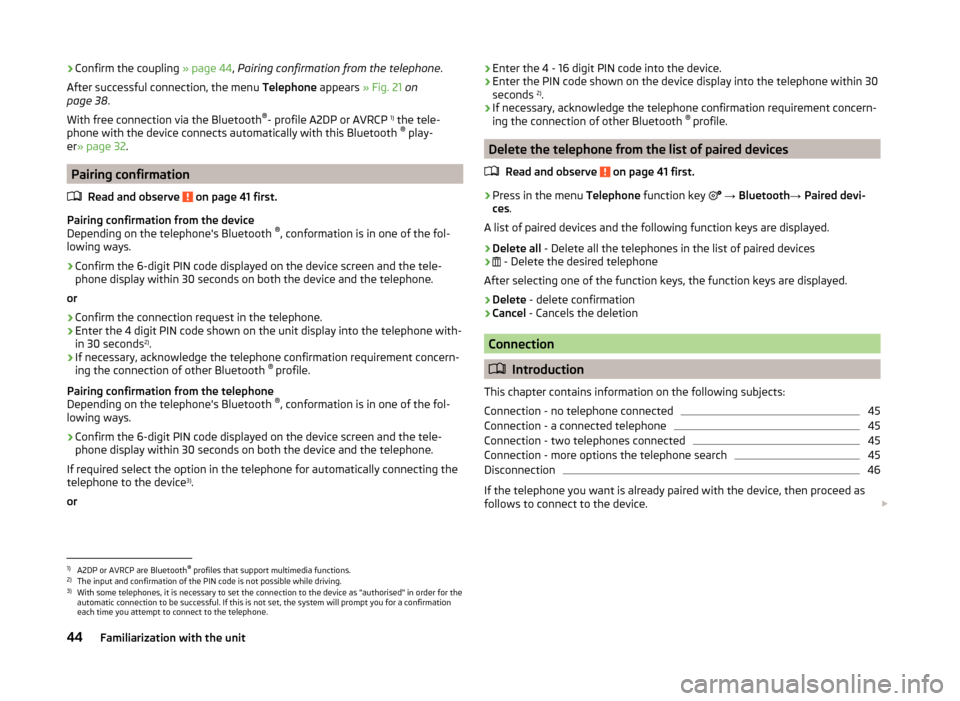
›Confirm the coupling
» page 44, Pairing confirmation from the telephone .
After successful connection, the menu Telephone appears » Fig. 21 on
page 38 .
With free connection via the Bluetooth ®
- profile A2DP or AVRCP 1)
the tele-
phone with the device connects automatically with this Bluetooth ®
play-
er » page 32 .
Pairing confirmation
Read and observe
on page 41 first.
Pairing confirmation from the device
Depending on the telephone's Bluetooth ®
, conformation is in one of the fol-
lowing ways.
› Confirm the 6-digit PIN code displayed on the device screen and the tele-
phone display within 30 seconds on both the device and the telephone.
or
› Confirm the connection request in the telephone.
› Enter the 4 digit PIN code shown on the unit display into the telephone with-
in 30 seconds 2)
.
› If necessary, acknowledge the telephone confirmation requirement concern-
ing the connection of other Bluetooth ®
profile.
Pairing confirmation from the telephone
Depending on the telephone's Bluetooth ®
, conformation is in one of the fol-
lowing ways.
› Confirm the 6-digit PIN code displayed on the device screen and the tele-
phone display within 30 seconds on both the device and the telephone.
If required select the option in the telephone for automatically connecting the
telephone to the device 3)
.
or
› Enter the 4 - 16 digit PIN code into the device.
› Enter the PIN code shown on the device display into the telephone within 30
seconds 2)
.
› If necessary, acknowledge the telephone confirmation requirement concern-
ing the connection of other Bluetooth ®
profile.
Delete the telephone from the list of paired devices
Read and observe
on page 41 first.
›
Press in the menu Telephone function key
→ Bluetooth → Paired devi-
ces .
A list of paired devices and the following function keys are displayed.
› Delete all
- Delete all the telephones in the list of paired devices
›
- Delete the desired telephone
After selecting one of the function keys, the function keys are displayed.
› Delete
- delete confirmation
› Cancel
- Cancels the deletion
Connection
Introduction
This chapter contains information on the following subjects:
Connection - no telephone connected
45
Connection - a connected telephone
45
Connection - two telephones connected
45
Connection - more options the telephone search
45
Disconnection
46
If the telephone you want is already paired with the device, then proceed as
follows to connect to the device.
1)
A2DP or AVRCP are Bluetooth®
profiles that support multimedia functions.
2)
The input and confirmation of the PIN code is not possible while driving.
3)
With some telephones, it is necessary to set the connection to the device as "authorised" in order for the
automatic connection to be successful. If this is not set, the system will prompt you for a confirmation
each time you attempt to connect to the telephone.
44Familiarization with the unit
Page 48 of 64
Check that the conditions for a successful pairing and the connection of the
telephone to the device is possible » page 42, conditions for coupling .
Connection - no telephone connected
After pressing the button
the message
Please search for and connect a
mobile telephone. appears in the device screen and a menu with the following
function keys.
›
Find telephone - Search for available devices
›
- Opening of the settings menu » page 40, Settings
After pressing the function key Find telephone the search for available devices
starts. After about 30 seconds a list of found devices appears, which is upda-
ted up to 1 minute after the start of the search appears.
›
The function key Results is to be pressed if you do not want to wait for the
display of the list.
›
Select a previously paired telephone from the list of available telephones.
The selected telephone connects to the device as the main tele-
phone » page 39 .
Connection - a connected telephone
›
In the Telephone menu press the button
B
» Fig. 21 on page 38 with the
name of the main telephone.
›
Select the telephone you want from the list of paired telephones or if the de-
sired telephone from the list does not exist, press the function key Find tele-
phone . Then select the desired telephone from the list of found devices.
In the device screen the message Choose whether you would like to replace
the main telephone … or whether you would like to add … as an additional
telephone. appears along with the following menu
›
Cancel - Cancel the connection
›
Replace - Connection and replacement of the main telephone
›
Add - Connection as an additional phone
The telephone connects to the device.
Connection - two telephones connected
›
In the Telephone menu press the button
B
» Fig. 21 on page 38 with the
name of the main telephone.
› Select the telephone you want from the list of paired telephones or if the de-
sired telephone from the list does not exist, press the function key Find tele-
phone . Then select the desired telephone from the list of found devices.
In the device screen the message Unable to connect …. Choose whether you
would like to replace the main telephone … or the additional telephone …. to
appear with the following menu.›
Cancel - Cancel the connection
›
Main tel. - Connection and replacement of the main telephone
›
Addition. tel. - Connection and replacement of the additional telephone
If you have a telephone, which is connected to the device via the Bluetooth
audio ®
profile A2DP or AVRCP, which you want to replace, then the following
message appears in the device screen: 2 devices are already connected.
Please disconnect at least one of these devices first in order to connect: ….
To establish the connection, the audio Bluetooth ®
profile A2DP or AVRCP is to
be separated » page 39 or the second telephone which is not connected to the
audio profile, is to be selected and replaced.
›
The connection process must be repeated by selecting the telephone from
the list of found devices.
The telephone connects to the device.
Connection - more options the telephone search
The telephone can be selected from among the available paired telephones as
follows.
›
Press the function key
→ Bluetooth → Select telephone and select the
desired phone.
›
Press the function key
→ Bluetooth → Find devices → Results press and
select the telephone and a Bluetooth ®
- Select a connection pro-
file » page 39 .
›
Press the function key
→ Bluetooth → Paired devices and select the tel-
ephone and a Bluetooth ®
- connection profile » page 39.
After the desired telephone and the Bluetooth ®
Has been searched out and
selected profile, must be chosen depending on the number of connected tele-
phones, if the telephone has to be connected as a main or additional phone.
45Communication
Page 60 of 64
L
Language characters
20
List of available stations
23
of telephone contacts47
With folder / track list29
M
Main menu Media
28
MirrorLink54
Radio22
SMS51
Telephone38
Main telephone39
MAXI DOT display Media
12
Operation11
Phone13
Radio12
media voice control
14
Media28
Audio source30
AUX33
Bluetooth Audio32
Browser29
File formats34
Foreword28
List29
Main menu28
Multi-function steering wheel12
Multimedia database30
Operation28
Playback28
Requirements and limitations34
safe removal of the signal source20
SD memory card32
Select audio source31
Settings30
supported file formats34
supported sources34
USB33
MirrorLink53
Connection conditions53
Data transmission20
Function problems54
Operation54
Settings54
Start function53
Multi-function steering wheel Media
12
Radio12
Multi-media AUX
33
Multifunction steering wheel Phone
13
Multimedia USB
33
Multimedia database30
Mute9
O
Operation Media
28
MirrorLink54
Pictures35
Radio22
Telephone38
P
Pair device Pairing confirmation
44
Pair the telephone with your device
41
Phone Multifunction steering wheel
13
Pictures35
Operation35
safe removal of the signal source20
Playback Media28
R
radio voice control
14
Radio22
DAB settings26
FM - settings26
Frequency range23
List of available stations23
Main menu22
Multi-function steering wheel12
Operation22
Preface22
Save station24
Search for station24
Select station24
Settings26
Station Logo25
Traffic programme (TP)25
Radio station Logo
25
Save station24
Search for station24
Select station24
Radio station logo25
S
Safe removal of the signal source
20
Save radio station24
Screen see device screen
8
Screen display10
SD memory card32
Select frequency range See main menu
22
Select radio station See main menu
22
57Index
Page 61 of 64
Select sourceImages36
Media31
Settings Additional keyboard languages
20
Bluetooth20
DAB26
Device18, 19
Device language19
Device screen19
FM26
Images36
Keyboard19
Language19
Manage favourites48
Media30
MirrorLink54
Radio26
Restore factory settings20
Software Update21
Sound18
System Information21
Telephone40
User profile48
Voice control20
Volume9
Setup18
SMS51
new51
Operation50
received52
Software Update21
Sound18
Station See main menu
22
Status line10
Switching the unit off8
Switching the unit on8
T
telephone conditions for coupling
42
voice control14
Telephone37
Additional telephone39
Bluetooth - profile39
Breakdown service46
Call list49
Conference call50
Connection - a connected telephone 45
Connection - more options of the telephone search
45
Connection - no telephone connected 45
Connection - two telephones connected 45
Connect telephone to the device43
connect to the device44
Coupling - connected telephone 42
Coupling - more options of the telephone search
43
Coupling - no telephone connected 42
Coupling - two telephones connected 43
Delete the telephone from the list of paired devices
44
Dial telephone number46
Disconnection46
Enter telephone number46
Function problems40
Functions49
Info service46
Main menu38
Main telephone39
Operation38
Pairing confirmation44
Settings40
Speed dialling a telephone number48
Telephone book47
Telephone conversation49
Telephone number prefix46
Text messages (SMS)50, 51
Telephone book47
Telephone conversation49
Telephone functions49
Telephone number46
Telephone number prefix46
Text messages50, 51
new51
received52
Touch screen8
Traffic programme (TP)25
U
Unit menus
9
Unit operation10
USB33
V
Voice control
14
commands17
Function requirements15
not recognizing a voice command16
Operation16
Settings20
Stop/restore input/16
switching on/off15
Voice command input correction16
Volume9
Volume setting9
58Index