start stop button SKODA YETI 2014 1.G / 5L Bolero Car Radio Manual
[x] Cancel search | Manufacturer: SKODA, Model Year: 2014, Model line: YETI, Model: SKODA YETI 2014 1.G / 5LPages: 64, PDF Size: 5.42 MB
Page 15 of 64
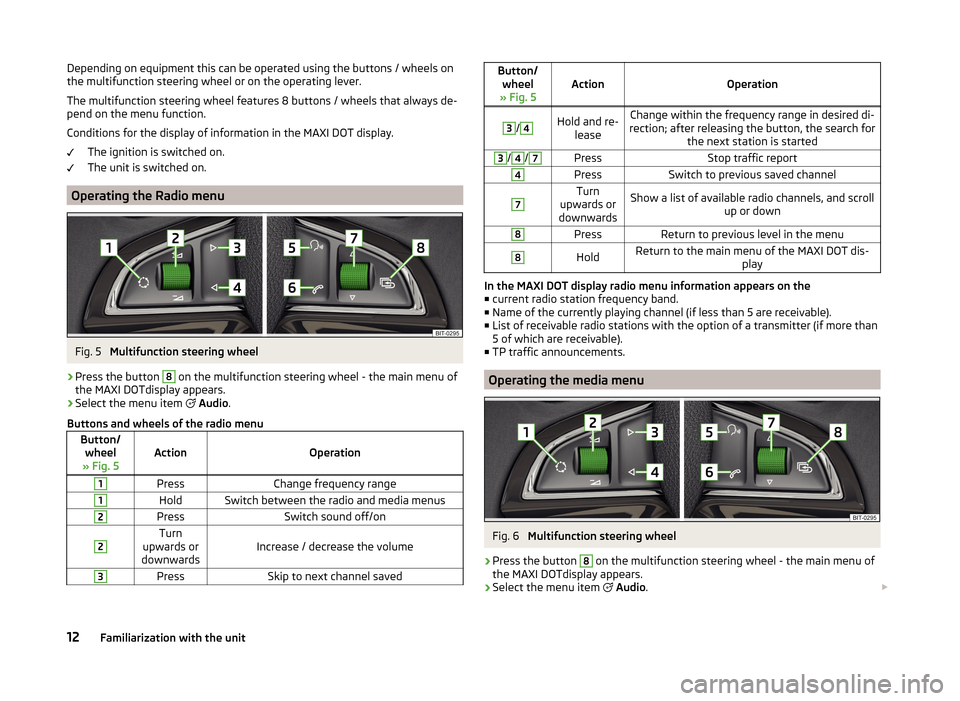
Depending on equipment this can be operated using the buttons / wheels on
the multifunction steering wheel or on the operating lever.
The multifunction steering wheel features 8 buttons / wheels that always de-
pend on the menu function.
Conditions for the display of information in the MAXI DOT display. The ignition is switched on.
The unit is switched on.
Operating the Radio menu
Fig. 5
Multifunction steering wheel
›
Press the button
8
on the multifunction steering wheel - the main menu of
the MAXI DOTdisplay appears.
›
Select the menu item
Audio .
Buttons and wheels of the radio menu
Button/ wheel
» Fig. 5ActionOperation
1PressChange frequency range1HoldSwitch between the radio and media menus2PressSwitch sound off/on2Turn
upwards or
downwardsIncrease / decrease the volume
3PressSkip to next channel savedButton/ wheel
» Fig. 5ActionOperation
3
/
4Hold and re- leaseChange within the frequency range in desired di-
rection; after releasing the button, the search for the next station is started3/4/7PressStop traffic report4PressSwitch to previous saved channel7Turn
upwards or
downwardsShow a list of available radio channels, and scroll up or down8PressReturn to previous level in the menu8HoldReturn to the main menu of the MAXI DOT dis- play
In the MAXI DOT display radio menu information appears on the■ current radio station frequency band.
■ Name of the currently playing channel (if less than 5 are receivable).
■ List of receivable radio stations with the option of a transmitter (if more than
5 of which are receivable).
■ TP traffic announcements.
Operating the media menu
Fig. 6
Multifunction steering wheel
›
Press the button
8
on the multifunction steering wheel - the main menu of
the MAXI DOTdisplay appears.
›
Select the menu item
Audio .
12Familiarization with the unit
Page 16 of 64
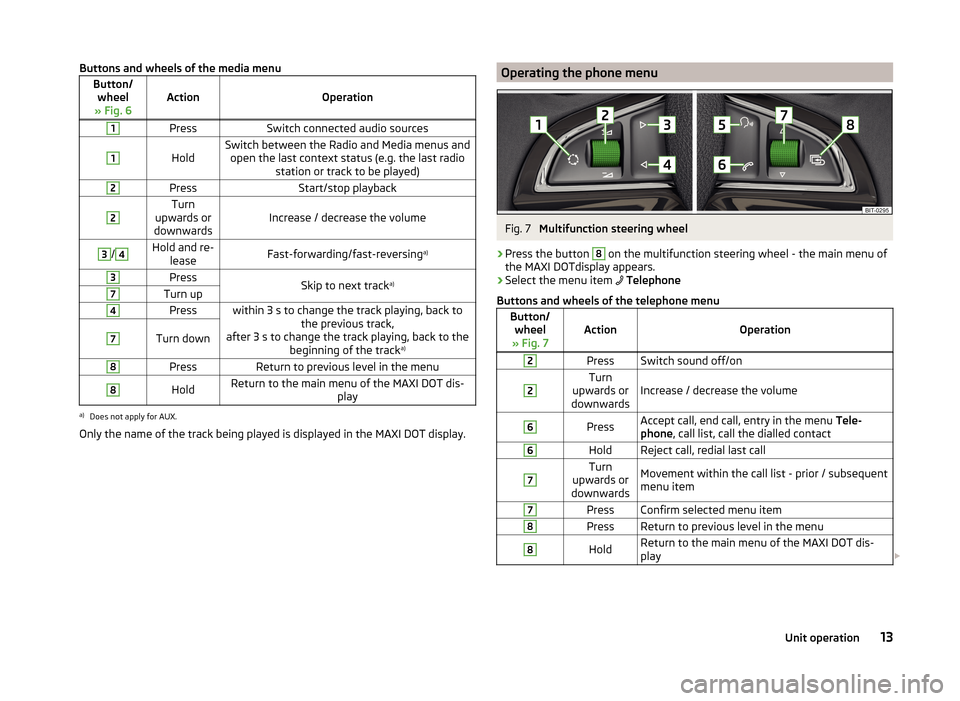
Buttons and wheels of the media menuButton/wheel
» Fig. 6ActionOperation
1PressSwitch connected audio sources1
HoldSwitch between the Radio and Media menus and open the last context status (e.g. the last radio station or track to be played)2PressStart/stop playback2Turn
upwards or
downwardsIncrease / decrease the volume
3/4Hold and re- leaseFast-forwarding/fast-reversing a)3PressSkip to next tracka)7Turn up4Presswithin 3 s to change the track playing, back to
the previous track,
after 3 s to change the track playing, back to the beginning of the track a)7Turn down8PressReturn to previous level in the menu8HoldReturn to the main menu of the MAXI DOT dis-
playa)
Does not apply for AUX.
Only the name of the track being played is displayed in the MAXI DOT display.
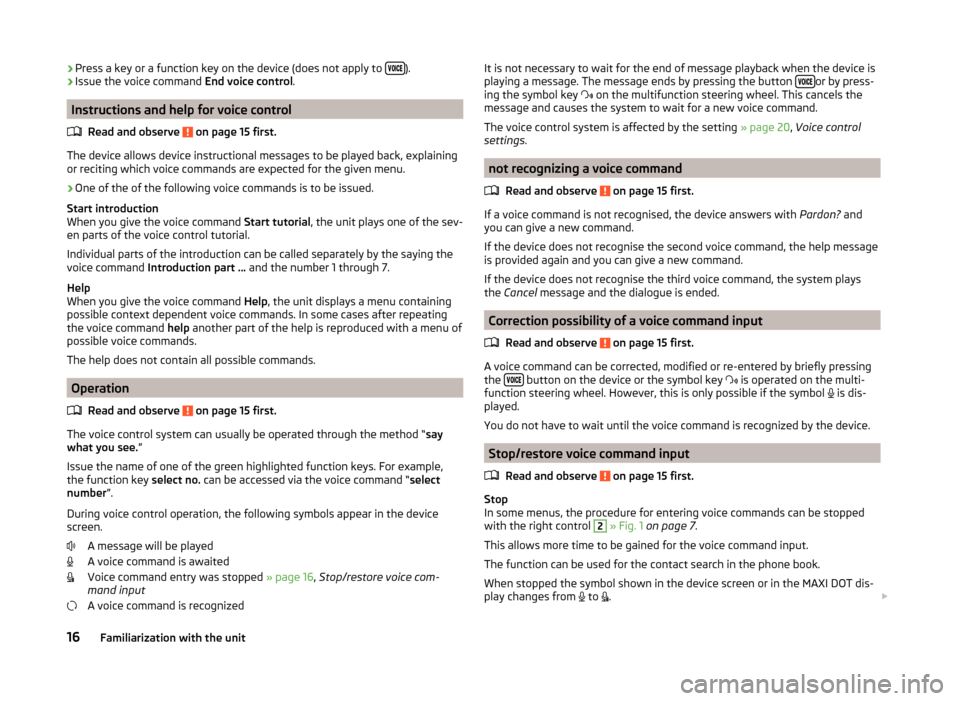
Operating the phone menuFig. 7
Multifunction steering wheel
›
Press the button
8
on the multifunction steering wheel - the main menu of
the MAXI DOTdisplay appears.
›
Select the menu item
Telephone
Buttons and wheels of the telephone menu
Button/ wheel
» Fig. 7ActionOperation
2PressSwitch sound off/on2Turn
upwards or
downwardsIncrease / decrease the volume
6PressAccept call, end call, entry in the menu Tele-
phone , call list, call the dialled contact6HoldReject call, redial last call7Turn
upwards or
downwardsMovement within the call list - prior / subsequent
menu item7PressConfirm selected menu item8PressReturn to previous level in the menu8HoldReturn to the main menu of the MAXI DOT dis-
play 13Unit operation
Page 19 of 64
›Press a key or a function key on the device (does not apply to
).›Issue the voice command
End voice control.
Instructions and help for voice control
Read and observe
on page 15 first.
The device allows device instructional messages to be played back, explainingor reciting which voice commands are expected for the given menu.
›
One of the of the following voice commands is to be issued.
Start introduction
When you give the voice command Start tutorial, the unit plays one of the sev-
en parts of the voice control tutorial.
Individual parts of the introduction can be called separately by the saying the
voice command Introduction part ... and the number 1 through 7.
Help
When you give the voice command Help, the unit displays a menu containing
possible context dependent voice commands. In some cases after repeating
the voice command help another part of the help is reproduced with a menu of
possible voice commands.
The help does not contain all possible commands.
Operation
Read and observe
on page 15 first.
The voice control system can usually be operated through the method “ say
what you see. ”
Issue the name of one of the green highlighted function keys. For example,
the function key select no. can be accessed via the voice command “ select
number ”.
During voice control operation, the following symbols appear in the device
screen.
A message will be played
A voice command is awaited
Voice command entry was stopped » page 16, Stop/restore voice com-
mand input
A voice command is recognized
It is not necessary to wait for the end of message playback when the device is
playing a message. The message ends by pressing the button or by press-
ing the symbol key
on the multifunction steering wheel. This cancels the
message and causes the system to wait for a new voice command.
The voice control system is affected by the setting » page 20, Voice control
settings .
not recognizing a voice command
Read and observe
on page 15 first.
If a voice command is not recognised, the device answers with Pardon? and
you can give a new command.
If the device does not recognise the second voice command, the help message
is provided again and you can give a new command.
If the device does not recognise the third voice command, the system plays
the Cancel message and the dialogue is ended.
Correction possibility of a voice command input
Read and observe
on page 15 first.
A voice command can be corrected, modified or re-entered by briefly pressing
the button on the device or the symbol key
is operated on the multi-
function steering wheel. However, this is only possible if the symbol is dis-
played.
You do not have to wait until the voice command is recognized by the device.
Stop/restore voice command input
Read and observe
on page 15 first.
Stop
In some menus, the procedure for entering voice commands can be stopped with the right control
2
» Fig. 1 on page 7 .
This allows more time to be gained for the voice command input.
The function can be used for the contact search in the phone book.
When stopped the symbol shown in the device screen or in the MAXI DOT dis-
play changes from to
.
16Familiarization with the unit
Page 27 of 64
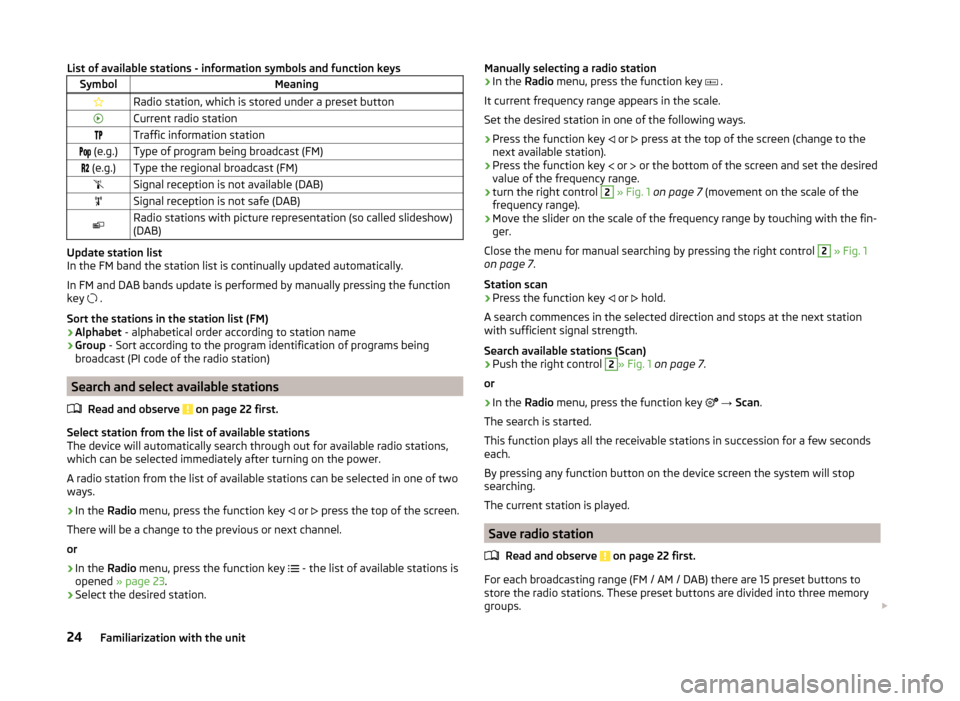
List of available stations - information symbols and function keysSymbolMeaningRadio station, which is stored under a preset buttonCurrent radio stationTraffic information station (e.g.)Type of program being broadcast (FM) (e.g.)Type the regional broadcast (FM)Signal reception is not available (DAB)Signal reception is not safe (DAB)Radio stations with picture representation (so called slideshow)
(DAB)
Update station list
In the FM band the station list is continually updated automatically.
In FM and DAB bands update is performed by manually pressing the function
key .
Sort the stations in the station list (FM) › Alphabet
- alphabetical order according to station name
› Group
- Sort according to the program identification of programs being
broadcast (PI code of the radio station)
Search and select available stations
Read and observe
on page 22 first.
Select station from the list of available stations
The device will automatically search through out for available radio stations,
which can be selected immediately after turning on the power.
A radio station from the list of available stations can be selected in one of two
ways.
›
In the Radio menu, press the function key
or
press the top of the screen.
There will be a change to the previous or next channel.
or
›
In the Radio menu, press the function key
- the list of available stations is
opened » page 23 .
›
Select the desired station.
Manually selecting a radio station›In the Radio menu, press the function key .
It current frequency range appears in the scale.
Set the desired station in one of the following ways.›
Press the function key
or
press at the top of the screen (change to the
next available station).
›
Press the function key
or
or the bottom of the screen and set the desired
value of the frequency range.
›
turn the right control
2
» Fig. 1 on page 7 (movement on the scale of the
frequency range).
›
Move the slider on the scale of the frequency range by touching with the fin-
ger.
Close the menu for manual searching by pressing the right control
2
» Fig. 1
on page 7 .
Station scan
›
Press the function key or
hold.
A search commences in the selected direction and stops at the next station with sufficient signal strength.
Search available stations (Scan)
›
Push the right control
2
» Fig. 1 on page 7 .
or
›
In the Radio menu, press the function key
→ Scan .
The search is started.
This function plays all the receivable stations in succession for a few seconds
each.
By pressing any function button on the device screen the system will stop
searching.
The current station is played.
Save radio station
Read and observe
on page 22 first.
For each broadcasting range (FM / AM / DAB) there are 15 preset buttons to
store the radio stations. These preset buttons are divided into three memory
groups.
24Familiarization with the unit
Page 51 of 64
›
Read out contact name - Reads the contact name using the device gener-
ated voice›
- Opens the menu for sending a text message (SMS) 1)
» page 51
›
- Start of the connection with the prefix (the symbol is displayed only with
active preset function in the settings)
›
- Opens the menu for editing the telephone number of the contact before
dialling
Find contact
›
Press the function key
1
» Fig. 24 -
, the keyboard opens for the contact
search in the telephone book » page 11, Alphanumeric with keyboard .
›
Select the contact from the list of imported phone contacts.
›
Press the function key with the retrieved contact, connection starts. The
contact details appear if the telephone contact has several telephone num-
bers.
Load list
Upon first connection of the main telephone with the device, the device be-
gins to download the telephone book from the telephone and from the SIM
card 2)
into the device memory 3)
. Depending on the number of contacts, the im-
ages and the type of telephone this may take several minutes to complete.
The number of contacts imported can be checked in the menu point Import
contacts » page 40 , Settings .
During the import numbers - xxxx / yyyy - are shown representing the number
of currently imported contacts into the device memory / number of contacts in
the phone.
If the imported list of telephone contacts from the telephone contains more
than 2000 contacts, loading is stopped and the message Contacts not com-
pletely imported. appears on the screen. Only the already downloaded con-
tacts will be available.
Depending on the telephone, contact images for the first 1000 contacts are
imported at the same time.
If an error occurs while loading the list, the following message appears: Import
failed. Please try again and check whether the BT device … allows connec-
tions.
Refresh list
Each time the telephone has established a new connection with the device,
the relevant telephone contacts will be updated.
During the update, the list which was stored after the last completed update
will be available. Newly stored telephone numbers are only shown after the
updating has ended.
The update can be done manually » page 40, Settings by pressing the function
key Import contacts .
Note
The contact list is valid for the main telephone. If the incoming call is accepted
by the additional telephone and you find the telephone number in the contact
list of the main telephone, then the caller details (e.g. name, image, etc.) is dis-
played instead of the number.
Speed dialling a telephone number
You can use the speed dial function keys
D
» Fig. 21 on page 38 to dial previ-
ously assigned telephone numbers instantly.
There are 10 function keys for speed dialling available in the memory groups.
Assigning a telephone number
›
In the menu Telephone press a non-assigned function key for the speed dial
D
» Fig. 21 on page 38 .
or
›
In the menu
→ User profile → Manage favourites press a non-assigned
function key for speed dialling.
The unit displays the telephone book.
›
Tap the function button of the desired telephone contact, if necessary, tap
one of the contact numbers.
The selected telephone number is assigned to a function key for speed dial-
ling.
1)
The icon appears at about the MAP profile associated telephones.
2)
Some telephones do not support downloading of contacts from the SIM card.
3)
With some telephones a confirmation for importing contacts to the device is required.
48Familiarization with the unit