change wheel SKODA YETI 2014 1.G / 5L Bolero Car Radio Manual
[x] Cancel search | Manufacturer: SKODA, Model Year: 2014, Model line: YETI, Model: SKODA YETI 2014 1.G / 5LPages: 64, PDF Size: 5.42 MB
Page 15 of 64
Depending on equipment this can be operated using the buttons / wheels on
the multifunction steering wheel or on the operating lever.
The multifunction steering wheel features 8 buttons / wheels that always de-
pend on the menu function.
Conditions for the display of information in the MAXI DOT display. The ignition is switched on.
The unit is switched on.
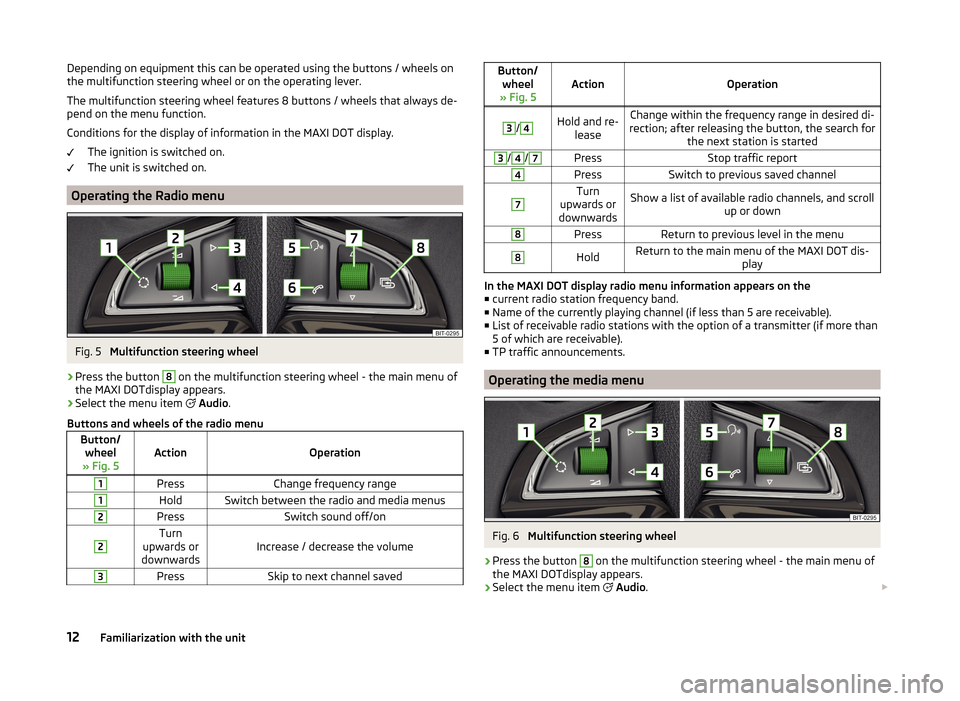
Operating the Radio menu
Fig. 5
Multifunction steering wheel
›
Press the button
8
on the multifunction steering wheel - the main menu of
the MAXI DOTdisplay appears.
›
Select the menu item
Audio .
Buttons and wheels of the radio menu
Button/ wheel
» Fig. 5ActionOperation
1PressChange frequency range1HoldSwitch between the radio and media menus2PressSwitch sound off/on2Turn
upwards or
downwardsIncrease / decrease the volume
3PressSkip to next channel savedButton/ wheel
» Fig. 5ActionOperation
3
/
4Hold and re- leaseChange within the frequency range in desired di-
rection; after releasing the button, the search for the next station is started3/4/7PressStop traffic report4PressSwitch to previous saved channel7Turn
upwards or
downwardsShow a list of available radio channels, and scroll up or down8PressReturn to previous level in the menu8HoldReturn to the main menu of the MAXI DOT dis- play
In the MAXI DOT display radio menu information appears on the■ current radio station frequency band.
■ Name of the currently playing channel (if less than 5 are receivable).
■ List of receivable radio stations with the option of a transmitter (if more than
5 of which are receivable).
■ TP traffic announcements.
Operating the media menu
Fig. 6
Multifunction steering wheel
›
Press the button
8
on the multifunction steering wheel - the main menu of
the MAXI DOTdisplay appears.
›
Select the menu item
Audio .
12Familiarization with the unit
Page 16 of 64
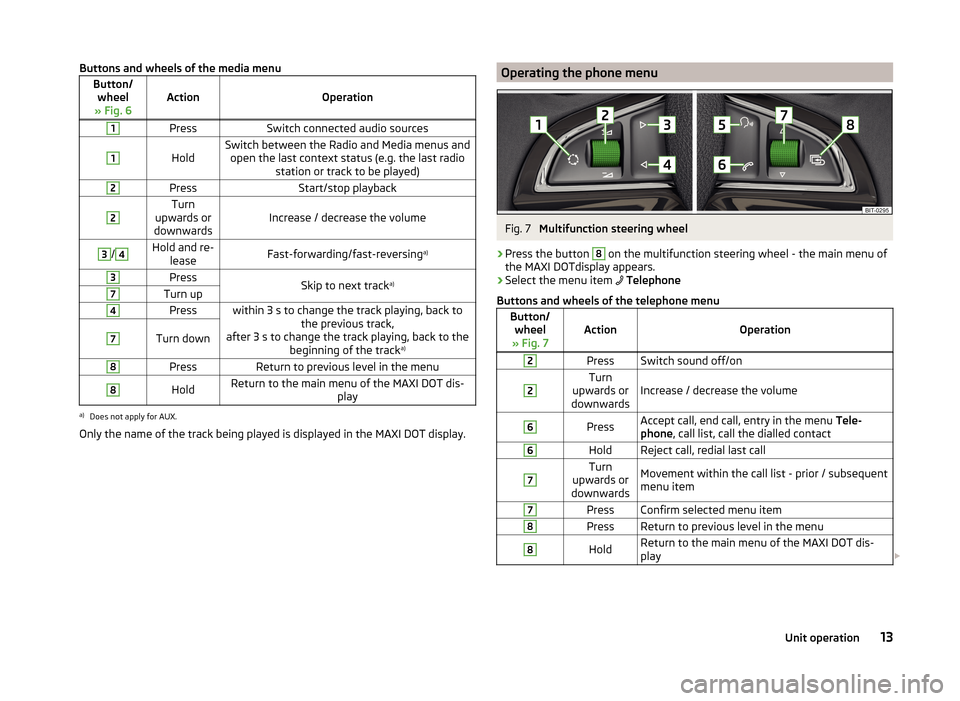
Buttons and wheels of the media menuButton/wheel
» Fig. 6ActionOperation
1PressSwitch connected audio sources1
HoldSwitch between the Radio and Media menus and open the last context status (e.g. the last radio station or track to be played)2PressStart/stop playback2Turn
upwards or
downwardsIncrease / decrease the volume
3/4Hold and re- leaseFast-forwarding/fast-reversing a)3PressSkip to next tracka)7Turn up4Presswithin 3 s to change the track playing, back to
the previous track,
after 3 s to change the track playing, back to the beginning of the track a)7Turn down8PressReturn to previous level in the menu8HoldReturn to the main menu of the MAXI DOT dis-
playa)
Does not apply for AUX.
Only the name of the track being played is displayed in the MAXI DOT display.
Operating the phone menuFig. 7
Multifunction steering wheel
›
Press the button
8
on the multifunction steering wheel - the main menu of
the MAXI DOTdisplay appears.
›
Select the menu item
Telephone
Buttons and wheels of the telephone menu
Button/ wheel
» Fig. 7ActionOperation
2PressSwitch sound off/on2Turn
upwards or
downwardsIncrease / decrease the volume
6PressAccept call, end call, entry in the menu Tele-
phone , call list, call the dialled contact6HoldReject call, redial last call7Turn
upwards or
downwardsMovement within the call list - prior / subsequent
menu item7PressConfirm selected menu item8PressReturn to previous level in the menu8HoldReturn to the main menu of the MAXI DOT dis-
play 13Unit operation
Page 19 of 64
›Press a key or a function key on the device (does not apply to
).›Issue the voice command
End voice control.
Instructions and help for voice control
Read and observe
on page 15 first.
The device allows device instructional messages to be played back, explainingor reciting which voice commands are expected for the given menu.
›
One of the of the following voice commands is to be issued.
Start introduction
When you give the voice command Start tutorial, the unit plays one of the sev-
en parts of the voice control tutorial.
Individual parts of the introduction can be called separately by the saying the
voice command Introduction part ... and the number 1 through 7.
Help
When you give the voice command Help, the unit displays a menu containing
possible context dependent voice commands. In some cases after repeating
the voice command help another part of the help is reproduced with a menu of
possible voice commands.
The help does not contain all possible commands.
Operation
Read and observe
on page 15 first.
The voice control system can usually be operated through the method “ say
what you see. ”
Issue the name of one of the green highlighted function keys. For example,
the function key select no. can be accessed via the voice command “ select
number ”.
During voice control operation, the following symbols appear in the device
screen.
A message will be played
A voice command is awaited
Voice command entry was stopped » page 16, Stop/restore voice com-
mand input
A voice command is recognized
It is not necessary to wait for the end of message playback when the device is
playing a message. The message ends by pressing the button or by press-
ing the symbol key
on the multifunction steering wheel. This cancels the
message and causes the system to wait for a new voice command.
The voice control system is affected by the setting » page 20, Voice control
settings .
not recognizing a voice command
Read and observe
on page 15 first.
If a voice command is not recognised, the device answers with Pardon? and
you can give a new command.
If the device does not recognise the second voice command, the help message
is provided again and you can give a new command.
If the device does not recognise the third voice command, the system plays
the Cancel message and the dialogue is ended.
Correction possibility of a voice command input
Read and observe
on page 15 first.
A voice command can be corrected, modified or re-entered by briefly pressing
the button on the device or the symbol key
is operated on the multi-
function steering wheel. However, this is only possible if the symbol is dis-
played.
You do not have to wait until the voice command is recognized by the device.
Stop/restore voice command input
Read and observe
on page 15 first.
Stop
In some menus, the procedure for entering voice commands can be stopped with the right control
2
» Fig. 1 on page 7 .
This allows more time to be gained for the voice command input.
The function can be used for the contact search in the phone book.
When stopped the symbol shown in the device screen or in the MAXI DOT dis-
play changes from to
.
16Familiarization with the unit