steering SKODA YETI 2014 1.G / 5L Bolero Car Radio Manual
[x] Cancel search | Manufacturer: SKODA, Model Year: 2014, Model line: YETI, Model: SKODA YETI 2014 1.G / 5LPages: 64, PDF Size: 5.42 MB
Page 5 of 64
Table of Contents
Operating Instructions3
Notes
4
Declaration of conformity
5
Abbreviations
Familiarization with the unit
Introductory information
7
Important notes
7
Equipment overview
7
Unit operation
10
Operation on the device screen
10
Operation via the buttons / wheels on the multifunction steering wheel / operating
lever
11
voice control
14
Device Settings
18
Menu Sound
18
Menu Setup
18
Radio
22
Operation
22
Settings
26
Media
28
Operation
28
Audio sources
30
Pictures
35
Image viewer
35
Communication
37
Telephone
37
Pair
41
Connection
44
Dial telephone number
46Telephone functions49Text messages (SMS)50
MirrorLink ™
53
Index
2Table of Contents
Page 14 of 64
Alphanumeric with keyboardFig. 4
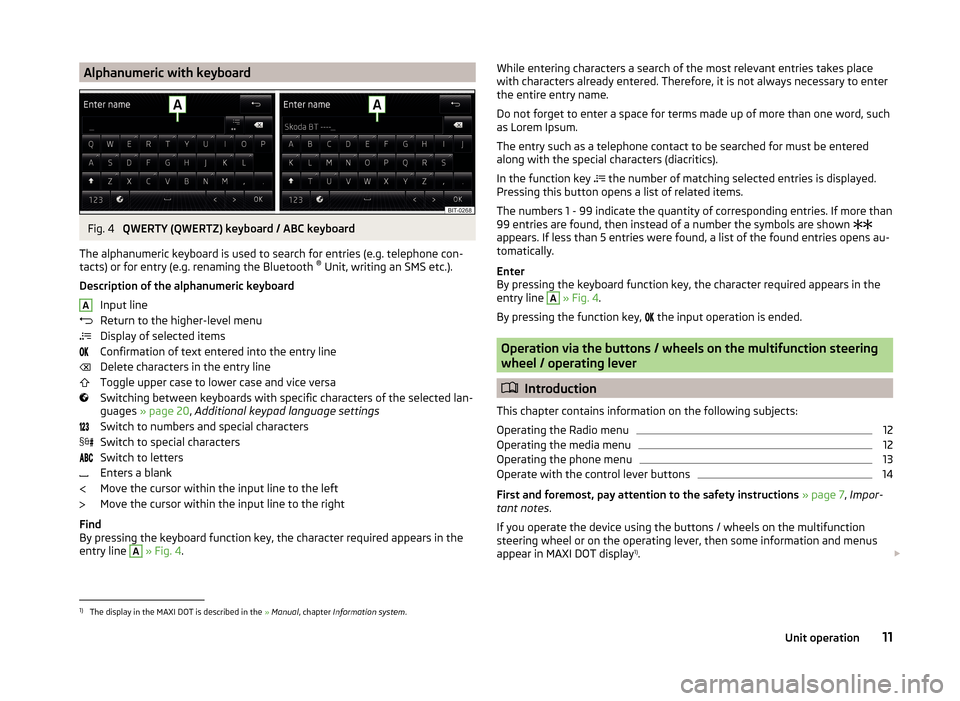
QWERTY (QWERTZ) keyboard / ABC keyboard
The alphanumeric keyboard is used to search for entries (e.g. telephone con-
tacts) or for entry (e.g. renaming the Bluetooth ®
Unit, writing an SMS etc.).
Description of the alphanumeric keyboard Input line
Return to the higher-level menu
Display of selected items
Confirmation of text entered into the entry line
Delete characters in the entry line
Toggle upper case to lower case and vice versa
Switching between keyboards with specific characters of the selected lan-
guages » page 20 , Additional keypad language settings
Switch to numbers and special characters
Switch to special characters
Switch to letters
Enters a blank
Move the cursor within the input line to the left
Move the cursor within the input line to the right
Find
By pressing the keyboard function key, the character required appears in the
entry line
A
» Fig. 4 .
AWhile entering characters a search of the most relevant entries takes place
with characters already entered. Therefore, it is not always necessary to enter
the entire entry name.
Do not forget to enter a space for terms made up of more than one word, such
as Lorem Ipsum.
The entry such as a telephone contact to be searched for must be entered
along with the special characters (diacritics).
In the function key
the number of matching selected entries is displayed.
Pressing this button opens a list of related items.
The numbers 1 - 99 indicate the quantity of corresponding entries. If more than 99 entries are found, then instead of a number the symbols are shown
appears. If less than 5 entries were found, a list of the found entries opens au-
tomatically.
Enter
By pressing the keyboard function key, the character required appears in the
entry line A
» Fig. 4 .
By pressing the function key, the input operation is ended.
Operation via the buttons / wheels on the multifunction steering
wheel / operating lever
Introduction
This chapter contains information on the following subjects:
Operating the Radio menu
12
Operating the media menu
12
Operating the phone menu
13
Operate with the control lever buttons
14
First and foremost, pay attention to the safety instructions » page 7 , Impor-
tant notes .
If you operate the device using the buttons / wheels on the multifunction
steering wheel or on the operating lever, then some information and menus
appear in MAXI DOT display 1)
.
1)
The display in the MAXI DOT is described in the
» Manual , chapter Information system .
11Unit operation
Page 15 of 64
Depending on equipment this can be operated using the buttons / wheels on
the multifunction steering wheel or on the operating lever.
The multifunction steering wheel features 8 buttons / wheels that always de-
pend on the menu function.
Conditions for the display of information in the MAXI DOT display. The ignition is switched on.
The unit is switched on.
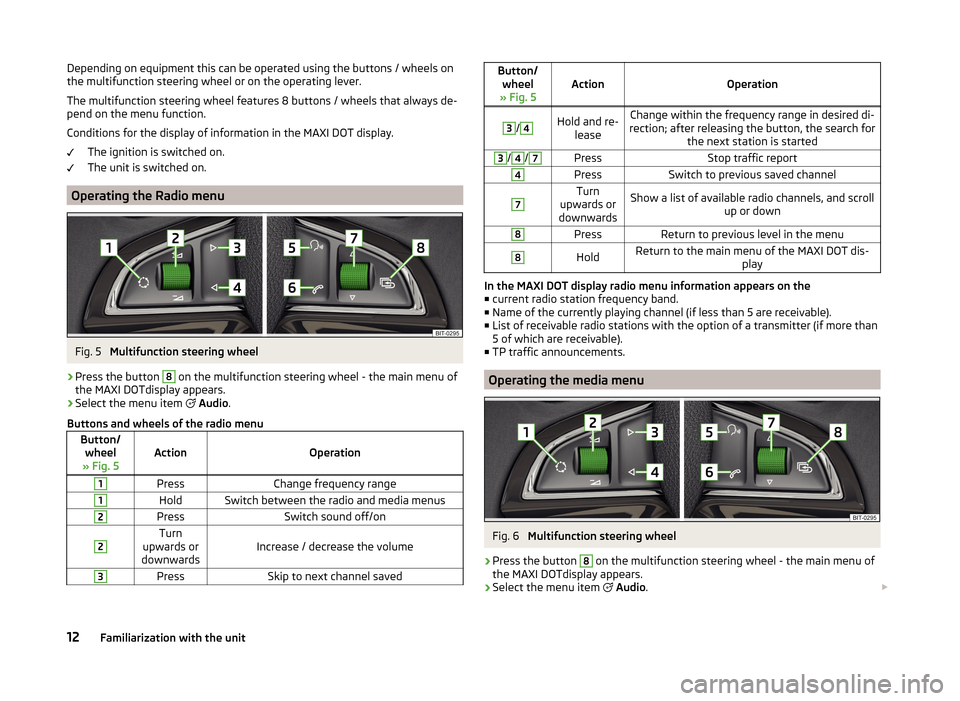
Operating the Radio menu
Fig. 5
Multifunction steering wheel
›
Press the button
8
on the multifunction steering wheel - the main menu of
the MAXI DOTdisplay appears.
›
Select the menu item
Audio .
Buttons and wheels of the radio menu
Button/ wheel
» Fig. 5ActionOperation
1PressChange frequency range1HoldSwitch between the radio and media menus2PressSwitch sound off/on2Turn
upwards or
downwardsIncrease / decrease the volume
3PressSkip to next channel savedButton/ wheel
» Fig. 5ActionOperation
3
/
4Hold and re- leaseChange within the frequency range in desired di-
rection; after releasing the button, the search for the next station is started3/4/7PressStop traffic report4PressSwitch to previous saved channel7Turn
upwards or
downwardsShow a list of available radio channels, and scroll up or down8PressReturn to previous level in the menu8HoldReturn to the main menu of the MAXI DOT dis- play
In the MAXI DOT display radio menu information appears on the■ current radio station frequency band.
■ Name of the currently playing channel (if less than 5 are receivable).
■ List of receivable radio stations with the option of a transmitter (if more than
5 of which are receivable).
■ TP traffic announcements.
Operating the media menu
Fig. 6
Multifunction steering wheel
›
Press the button
8
on the multifunction steering wheel - the main menu of
the MAXI DOTdisplay appears.
›
Select the menu item
Audio .
12Familiarization with the unit
Page 16 of 64
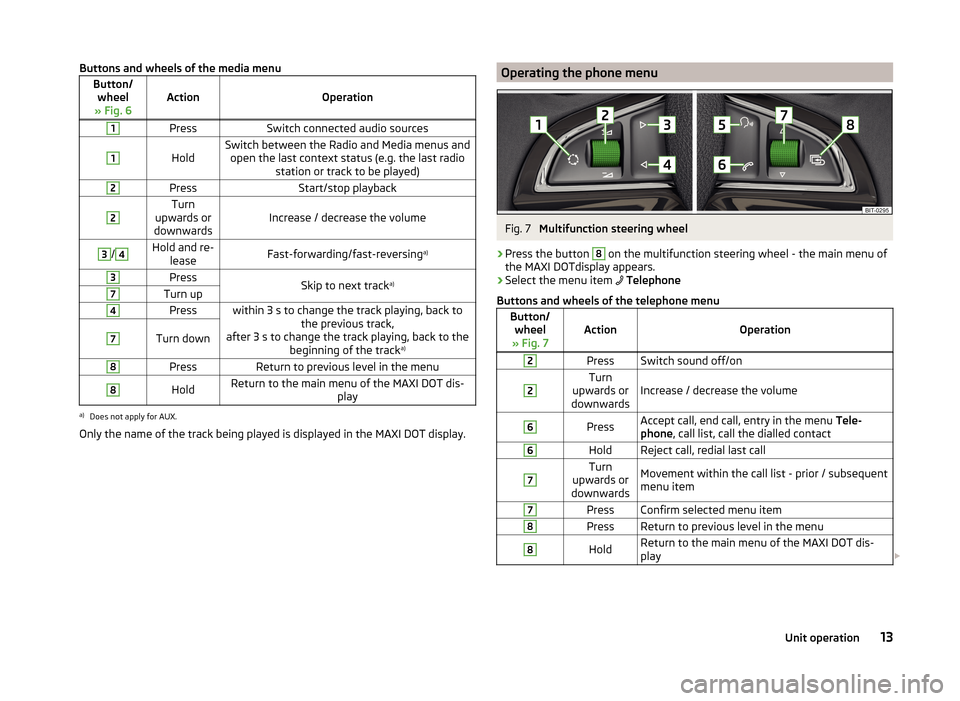
Buttons and wheels of the media menuButton/wheel
» Fig. 6ActionOperation
1PressSwitch connected audio sources1
HoldSwitch between the Radio and Media menus and open the last context status (e.g. the last radio station or track to be played)2PressStart/stop playback2Turn
upwards or
downwardsIncrease / decrease the volume
3/4Hold and re- leaseFast-forwarding/fast-reversing a)3PressSkip to next tracka)7Turn up4Presswithin 3 s to change the track playing, back to
the previous track,
after 3 s to change the track playing, back to the beginning of the track a)7Turn down8PressReturn to previous level in the menu8HoldReturn to the main menu of the MAXI DOT dis-
playa)
Does not apply for AUX.
Only the name of the track being played is displayed in the MAXI DOT display.
Operating the phone menuFig. 7
Multifunction steering wheel
›
Press the button
8
on the multifunction steering wheel - the main menu of
the MAXI DOTdisplay appears.
›
Select the menu item
Telephone
Buttons and wheels of the telephone menu
Button/ wheel
» Fig. 7ActionOperation
2PressSwitch sound off/on2Turn
upwards or
downwardsIncrease / decrease the volume
6PressAccept call, end call, entry in the menu Tele-
phone , call list, call the dialled contact6HoldReject call, redial last call7Turn
upwards or
downwardsMovement within the call list - prior / subsequent
menu item7PressConfirm selected menu item8PressReturn to previous level in the menu8HoldReturn to the main menu of the MAXI DOT dis-
play 13Unit operation
Page 18 of 64
First and foremost, pay attention to the safety instructions » page 7 , Impor-
tant notes .
Some equipment functions can be operated by using voice commands. Thus,
the use of the device is accelerated and increased comfort while driving.
The voice control system can be used with the following menus.
› Radio
› Media
› Telephone
The voice control system can be used either by the driver or by the front pas-
senger.WARNINGDo not use the voice control function in an emergency or when under
stress. Your voice commands may not be recognized in such situations. The
telephone connection may not be established or the connection may take
too much time to complete. The emergency number should be dialled man-
ually!
Function requirements
Read and observe
on page 15 first.
Function requirements for voice control. The unit is switched on.
No phone call is in progress.
The parking aid is not active.
Requirements for optimum voice command recognition.
› The voice commands are only be spoken when the device screen or in the
MAXI DOT display the symbol
is displayed.
› Speak with a normal tone of voice without intonation and excessive pauses.
› Avoid a bad pronunciation.
› Close the doors, windows and sliding roof, in order to avoid disturbing envi-
ronmental influences on the function of the voice commands.
› It is recommended to speak louder at higher speeds, so that the tone of your
voice is louder than the increased surrounding noise.
› During voice control, limit additional noise in the vehicle, e.g. passengers
talking at the same time.
CAUTIONFor some languages, there is no voice control available. This device indicates
this fact through a text message that is displayed after setting the device lan-
guage screen » page 19.
Note
■
During voice control, no traffic announcements are played.■Some voice commands must be spelled out when pronouncing depending on
the selected language of communication, such as the Source Selection “ SD”
card .
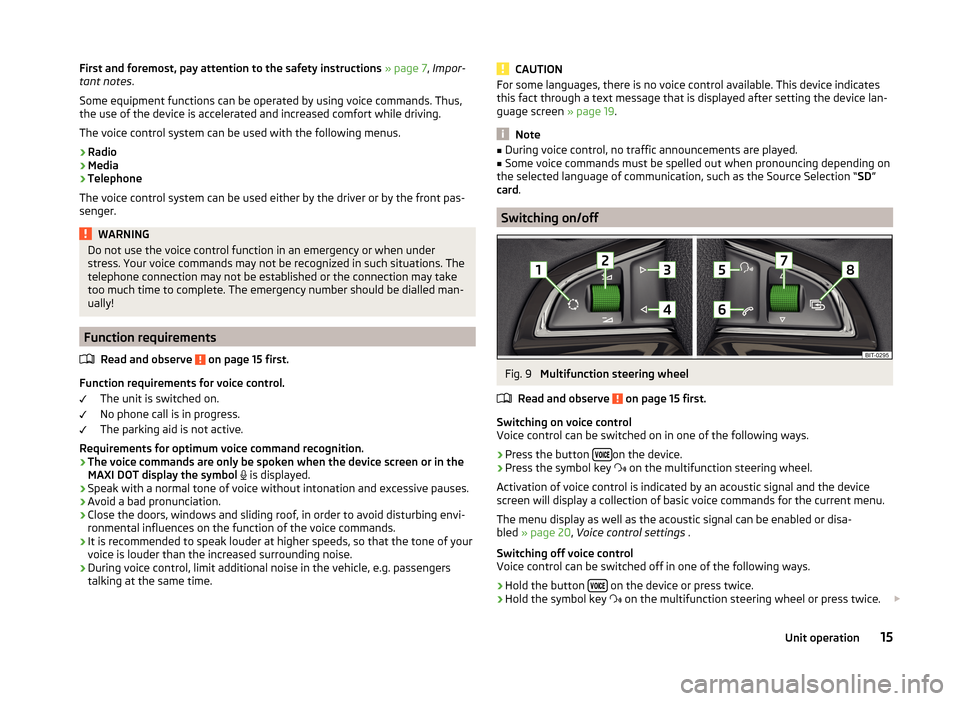
Switching on/off
Fig. 9
Multifunction steering wheel
Read and observe
on page 15 first.
Switching on voice control
Voice control can be switched on in one of the following ways.
›
Press the button on the device.
›
Press the symbol key
on the multifunction steering wheel.
Activation of voice control is indicated by an acoustic signal and the device
screen will display a collection of basic voice commands for the current menu.
The menu display as well as the acoustic signal can be enabled or disa-
bled » page 20 , Voice control settings .
Switching off voice control
Voice control can be switched off in one of the following ways.
›
Hold the button on the device or press twice.
›
Hold the symbol key
on the multifunction steering wheel or press twice.
15Unit operation
Page 19 of 64
›Press a key or a function key on the device (does not apply to
).›Issue the voice command
End voice control.
Instructions and help for voice control
Read and observe
on page 15 first.
The device allows device instructional messages to be played back, explainingor reciting which voice commands are expected for the given menu.
›
One of the of the following voice commands is to be issued.
Start introduction
When you give the voice command Start tutorial, the unit plays one of the sev-
en parts of the voice control tutorial.
Individual parts of the introduction can be called separately by the saying the
voice command Introduction part ... and the number 1 through 7.
Help
When you give the voice command Help, the unit displays a menu containing
possible context dependent voice commands. In some cases after repeating
the voice command help another part of the help is reproduced with a menu of
possible voice commands.
The help does not contain all possible commands.
Operation
Read and observe
on page 15 first.
The voice control system can usually be operated through the method “ say
what you see. ”
Issue the name of one of the green highlighted function keys. For example,
the function key select no. can be accessed via the voice command “ select
number ”.
During voice control operation, the following symbols appear in the device
screen.
A message will be played
A voice command is awaited
Voice command entry was stopped » page 16, Stop/restore voice com-
mand input
A voice command is recognized
It is not necessary to wait for the end of message playback when the device is
playing a message. The message ends by pressing the button or by press-
ing the symbol key
on the multifunction steering wheel. This cancels the
message and causes the system to wait for a new voice command.
The voice control system is affected by the setting » page 20, Voice control
settings .
not recognizing a voice command
Read and observe
on page 15 first.
If a voice command is not recognised, the device answers with Pardon? and
you can give a new command.
If the device does not recognise the second voice command, the help message
is provided again and you can give a new command.
If the device does not recognise the third voice command, the system plays
the Cancel message and the dialogue is ended.
Correction possibility of a voice command input
Read and observe
on page 15 first.
A voice command can be corrected, modified or re-entered by briefly pressing
the button on the device or the symbol key
is operated on the multi-
function steering wheel. However, this is only possible if the symbol is dis-
played.
You do not have to wait until the voice command is recognized by the device.
Stop/restore voice command input
Read and observe
on page 15 first.
Stop
In some menus, the procedure for entering voice commands can be stopped with the right control
2
» Fig. 1 on page 7 .
This allows more time to be gained for the voice command input.
The function can be used for the contact search in the phone book.
When stopped the symbol shown in the device screen or in the MAXI DOT dis-
play changes from to
.
16Familiarization with the unit
Page 20 of 64
Restore
The procedure for voice command input can be restarted in one of the follow-
ing ways.
› by pressing the function key
.
› By pressing the
button on the device.
› By pressing the symbol key
on the multifunction steering wheel.
Voice commands not included in the help
Read and observe
on page 15 first.
This chapter discusses some voice commands, which are not included in thehelp topics.
The voice commands allow working with lists or describe the function keys
with symbols that have no screen texts.
All menus
Voice commandOperationBackReturn to the previous menu Next page
Scroll through the menu / list / direc-
tory
Previous pageFirst pageLast page
Menu Radio
Voice commandOperationNext stationNearest station in the selected fre-
quency rangePrevious stationPrevious station in the selected fre-
quency range
Scan switch on
Switch on the search for available
stations » page 24
(The search is ended by pressing the
key
on the unit or the button
on the multifunction steering wheel)
Switch on traffic reportsSwitching on/off the traffic pro-
gramme (TP)Switch off traffic reportsMenu MediaVoice commandOperationPlaybackPlayback BreakBreak Previous trackPlayback the previous song Next trackPlayback the next song Play all againSwitch on/off the repeat track play-
back from the current album or folder
Play a song againSwitch on/off the repeat track play-
back Switch off repeat modeSwitch off Album / Folder / Track re-
peatRandom playbackSwitch on / off the random track play-
back for the current album / folder Switch off random playback17Unit operation
Page 59 of 64
Index
A
Additional keyboard languages
20
Additional telephone39
Alphanumeric with keyboard11
AM22
Anti-theft protection7
Audio Media
28
Radio22
Audio source30
AUX33
B
Bluetooth Settings
20
Switch on/off20
Update21
Visibility20
Bluetooth - profile39
Bluetooth Player32
Breakdown service46
C
Call list Call list
49
Communication37
Component protection7
Conditions for coupling42
Conference call50
Connect device connected to a telephone
45
connected to two telephones45
more options of the telephone search45
no telephone connected45
Control lever14
Coupled device connected to a telephone42
connected to two telephones43
more options of the telephone search43
Couple device no telephone connected
42
Couple telephone Telephone to the device
43
D
DAB
22
Additional information23
Radio text and pictures presentation23
Settings26
Data transmission of mobile devices20
Delete the telephone from the list of paired de- vices
44
Description of the device7
Device connect to the telephone
44
Disconnection46
Pair with your telephone41
Device language19
Device menu Radio
22
Device menus Device Settings
18, 19
Media28
MirrorLink53
Pictures35
Sound18
Telephone37
Device operation Control lever
14
Device screen10
MAXI DOT display11
Multi-function steering wheel12
Multifunction steering wheel13
device screen keyboard
11
Device screen19
Area10
important information8
Maintenance8
Operation10
Dial telephone number46
Digital radio reception26
DTMF49
F
Factory settings
20
File formats Media
34
File Formats Pictures
36
FM22
Settings26
Frequency range23
See main menu22
Function keys10
Function problems MirrorLink
54
Telephone40
I
Images Display
36
Select source36
Settings36
Supported file formats36
Image viewer35
Important notes7
Info service46
Input screen with keyboard11
Introductory information7
K
keyboard
11
Keyboard19
56Index
Page 60 of 64
L
Language characters
20
List of available stations
23
of telephone contacts47
With folder / track list29
M
Main menu Media
28
MirrorLink54
Radio22
SMS51
Telephone38
Main telephone39
MAXI DOT display Media
12
Operation11
Phone13
Radio12
media voice control
14
Media28
Audio source30
AUX33
Bluetooth Audio32
Browser29
File formats34
Foreword28
List29
Main menu28
Multi-function steering wheel12
Multimedia database30
Operation28
Playback28
Requirements and limitations34
safe removal of the signal source20
SD memory card32
Select audio source31
Settings30
supported file formats34
supported sources34
USB33
MirrorLink53
Connection conditions53
Data transmission20
Function problems54
Operation54
Settings54
Start function53
Multi-function steering wheel Media
12
Radio12
Multi-media AUX
33
Multifunction steering wheel Phone
13
Multimedia USB
33
Multimedia database30
Mute9
O
Operation Media
28
MirrorLink54
Pictures35
Radio22
Telephone38
P
Pair device Pairing confirmation
44
Pair the telephone with your device
41
Phone Multifunction steering wheel
13
Pictures35
Operation35
safe removal of the signal source20
Playback Media28
R
radio voice control
14
Radio22
DAB settings26
FM - settings26
Frequency range23
List of available stations23
Main menu22
Multi-function steering wheel12
Operation22
Preface22
Save station24
Search for station24
Select station24
Settings26
Station Logo25
Traffic programme (TP)25
Radio station Logo
25
Save station24
Search for station24
Select station24
Radio station logo25
S
Safe removal of the signal source
20
Save radio station24
Screen see device screen
8
Screen display10
SD memory card32
Select frequency range See main menu
22
Select radio station See main menu
22
57Index