radio SKODA YETI 2014 1.G / 5L User Guide
[x] Cancel search | Manufacturer: SKODA, Model Year: 2014, Model line: YETI, Model: SKODA YETI 2014 1.G / 5LPages: 248, PDF Size: 29.49 MB
Page 116 of 248
Communication and multimedia
General information
Introduction
This chapter contains information on the following subjects:
Validity of the information
113
Mobile phones and two-way radio systems
113
Validity of the information
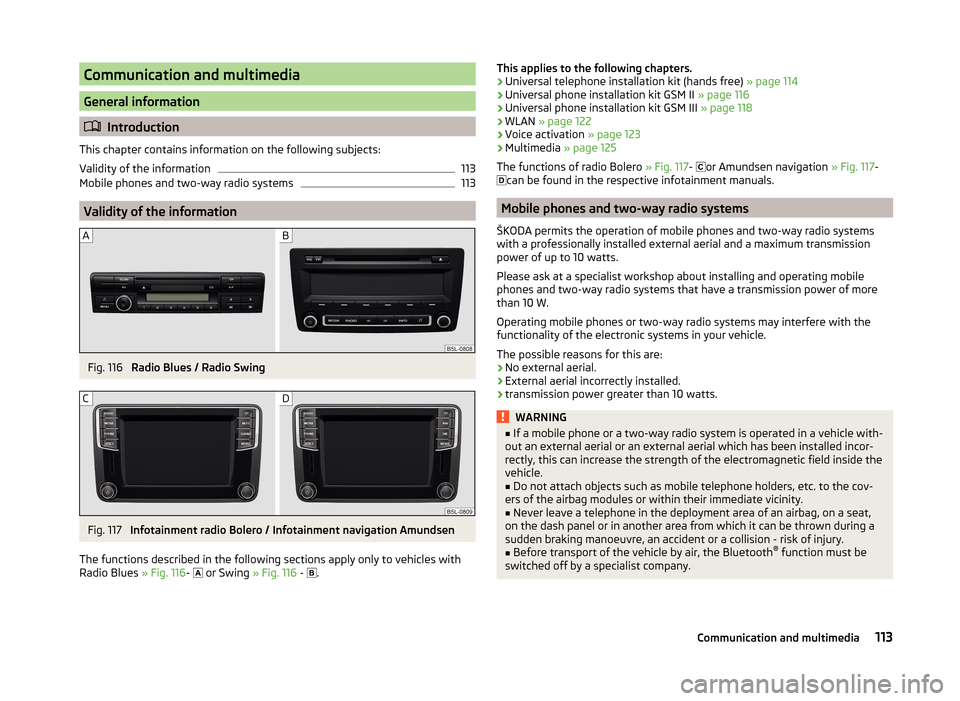
Fig. 116
Radio Blues / Radio Swing
Fig. 117
Infotainment radio Bolero / Infotainment navigation Amundsen
The functions described in the following sections apply only to vehicles with
Radio Blues » Fig. 116-
or Swing » Fig. 116 -
.
This applies to the following chapters.
› Universal telephone installation kit (hands free)
» page 114
› Universal phone installation kit GSM II
» page 116
› Universal phone installation kit GSM III
» page 118
› WLAN
» page 122
› Voice activation
» page 123
› Multimedia
» page 125
The functions of radio Bolero » Fig. 117-
or Amundsen navigation » Fig. 117-
can be found in the respective infotainment manuals.
Mobile phones and two-way radio systems
ŠKODA permits the operation of mobile phones and two-way radio systems
with a professionally installed external aerial and a maximum transmission
power of up to 10 watts.
Please ask at a specialist workshop about installing and operating mobile
phones and two-way radio systems that have a transmission power of more
than 10 W.
Operating mobile phones or two-way radio systems may interfere with the
functionality of the electronic systems in your vehicle.
The possible reasons for this are: › No external aerial.
› External aerial incorrectly installed.
› transmission power greater than 10 watts.
WARNING■
If a mobile phone or a two-way radio system is operated in a vehicle with-
out an external aerial or an external aerial which has been installed incor-
rectly, this can increase the strength of the electromagnetic field inside the
vehicle.■
Do not attach objects such as mobile telephone holders, etc. to the cov-
ers of the airbag modules or within their immediate vicinity.
■
Never leave a telephone in the deployment area of an airbag, on a seat,
on the dash panel or in another area from which it can be thrown during a
sudden braking manoeuvre, an accident or a collision - risk of injury.
■
Before transport of the vehicle by air, the Bluetooth ®
function must be
switched off by a specialist company.
113Communication and multimedia
Page 117 of 248

Universal telephone preinstallation (hands free)
Introduction
This chapter applies only to vehicles with universal phone installation kit GSM II or GSM III.
This chapter contains information on the following subjects:
Operating the phone on the multifunction steering wheel
114
Symbols in the MAXI DOT display
115
Phone Phonebook
116WARNING■ Concentrate fully at all times on your driving! As the driver you are fully
responsible for the operation of your vehicle. Only use the hands-free sys-
tem to the extent that you are in full control of your vehicle in any traffic
situation.■
The national regulations for using a mobile phone in a vehicle must be
observed.
CAUTION
■ In areas with no signal and sometimes in tunnels, garages or subways tele-
phone conversations can be interrupted and telephone connections cannot be
established - even in an emergency!■
We recommend that the installation of mobile phones and two-way radio
systems in a vehicle be carried out by a specialist garage.
Note■ Not all mobile phones that enable Bluetooth ®
communication are compatible
with the universal telephone preinstallation GSM II or GSM III. Ask a ŠKODA
partner or visit the ŠKODA website www.infotainment.skoda-auto.com to find
out whether your phone is compatible with universal telephone installation kit
GSM II or GSM III.■
The range of the telephone connection to the device using the Bluetooth ®
profile is limited to the vehicle interior. The range is dependent on local fac-
tors, e.g. obstacles between the devices and mutual interferences with other
devices. If your telephone is in a jacket pocket, for example, this can lead to
difficulties when establishing a connection with the device or transferring da-
ta.
■
The functionality of the telephone is dependent on the telephone service op-
erator and the telephone being used. Further information is available from the
telephone service operator or can be found in the telephone manual.
■
In some countries the connection via the Bluetooth ®
function, may be limi-
ted. Further information can be obtained from local authorities.
Operating the phone on the multifunction steering wheel
Fig. 118
Multifunction steering wheel: Control buttons for the telephone
Read and observe and on page 114 first.
There are buttons in the steering wheel for easy operation of the basic func- tions of the phone » Fig. 118 so that the driver is distracted from the traffic as
little as possible when using the phone.
This applies only if your vehicle has been equipped with the universal tele-
phone preinstallation at the factory.
The buttons operate the functions for the operating mode of the current tele-
phone.
If the side lights are switched on, the buttons on the multifunction steering
wheel are illuminated.
114Using the system
Page 119 of 248

Phone PhonebookRead and observe
and on page 114 first.
A phone phonebook is part of the hands-free system. This phone phonebook
can be used depending on the type of mobile phone.
After the telephone's first connection to the hands-free system, the phone
book from the phone and the SIM card loads into the hands-free memory.
Each time the telephone has established a new connection with the hands-
free system, an update of the relevant phone book is performed. The updating
can take a few minutes. During this period, the available phone book is the one
stored at the previous update. Newly stored telephone numbers are only
shown after the updating has ended.
The update is interrupted if a telephone event (e.g. incoming or outgoing call, voice control dialogue) occurs during the updating procedure. After the tele-
phone event has ended, the updating starts anew.
GSM II
The internal phonebook provides 2 500 free memory locations. Each contact
can contain up to 4 numbers.
If the number of contacts loaded exceeds 2 500, the phone book is not com-
plete.
GSM III
The internal phonebook provides 2 000 free memory locations. Each contact
can contain up to 5 numbers.
If the mobile phone's telephone book has more than 2,000 contacts, the fol- lowing message will appear in the MAXI DOTdisplay:
Phone book not fully loaded
Universal telephone preinstallation GSM II
Introduction
Only vehicles with Blues or Swing radios can have the GSM II universal phone
installation kit.
This chapter contains information on the following subjects:
Connecting the mobile phone to the hands-free system
116
Telephone operation in the MAXI DOT display
117
The GSM II universal phone pre-installation offers comfort controls of the mo- bile phone via the multifunction steering wheel or the factory installed voice
command system.
The universal telephone preinstallation GSM II comprises the following func-
tions.
› Phone Phonebook
» page 116.
› Convenience operation of the telephone via the multifunction steering
wheel » page 114 .
› Telephone operation in the MAXI DOT display
» page 117.
› Voice control of the telephone
» page 123.
› Music playback from the telephone or other multimedia units
» page 125.
All communication between a mobile phone and your vehicle's hands-free sys-
tem is established with the help of Bluetooth ®
technology.
Note
The following guidelines must be observed » page 113, Mobile phones and
two-way radio systems .
Connecting the mobile phone to the hands-free system
To connect a mobile phone with the hands-free system, the two devices must
be paired. Detailed information on this is provided in the operating instructions
for your mobile phone.
The following steps must be carried out for the connection.
›
Activate Bluetooth ®
and the visibility of your mobile phone on your tele-
phone.
116Using the system
Page 121 of 248
Call register
The following menu items can be selected in the Call register menu item.
■ Missed calls - List of missed calls
■ Dialled numbers - List of dialled numbers
■ Received calls - list of received calls
Voice mailbox
In the Voice mailbox menu item, you can set the number of the voice mailbox
and then dial the number.
Bluetooth
The following menu items can be selected from the Bluetooth menu item.
■ User - Overview of the stored telephones
■ New user - Search for new mobile phones that are in the reception range
■ Visibility - Switches on the visibility of the hands-free system for other devi-
ces
■ Media player - Playback via Bluetooth ®
■ Active device - Connected device
■ Connected devices - List of paired devices
■ Search - Device search
■ Phone name - option to change the name of the phone (default SKODA_BT)
Settings
The following menu items can be selected from the Settings menu item.
■ Phone book - Phonebook
■ Update - Update the phone book
■ List - Arrange the entries in the phone book
■ Surname - Arrange according to surname
■ Surname - Sorted by contact name
■ Ring tone - Ring tone setting
Back
Return in the Start menu of the telephone.Universal telephone preinstallation GSM IIl
Introduction
Only vehicles with the Blues and Swing radios can have the GSM II universal
phone installation kit.
This chapter contains information on the following subjects:
Connecting the phone to the hands-free system
119
Telephone operation in the MAXI DOT display
119
Internet connection via Bluetooth ®
121
The GSM II universal phone installation kit offers comfort controls of the mo-
bile phone via the multifunction steering wheel or the factory installed voice
command system.
The universal telephone pre-installation GSM III comprises the following func-
tions.
› Phone Phonebook
» page 116.
› Convenience operation via the multifunction steering wheel
» page 114.
› Telephone operation in the MAXI DOT display
» page 119.
› Voice control of the telephone
» page 123.
› Music playback from the telephone or other multimedia units
» page 125.
› Internet connection
» page 121.
› Display of SMS messages
» page 120.
All communication between a telephone and the hands-free system of your vehicle can only be established with the help of the following profiles of Blue-
tooth ®
technology.
rSAP - Remote SIM access profile
After connecting the telephone with the hands-free system via the rSAP pro-
file, the telephone deregisters from the GSM network, and communication
with the network is only enabled by the hands-free system via the vehicle's
external aerial. In the telephone only the interface for Bluetooth ®
remains ac-
tive. In this case, you can only use the mobile phone to disconnect from the
hands-free system, deactivate the Bluetooth ®
connection or dial the emergen-
cy number 112 (only valid in some countries).
HFP - Hands Free Profile
After connecting the telephone with the hands-free system via the HFP pro-
file, the telephone continues to use its GMS module and the internal antenna
to communicate with the GSM network.
118Using the system
Page 122 of 248
NoteThe following guidelines must be observed » page 113, Mobile phones and
two-way radio systems .
Connecting the phone to the hands-free system
To connect a mobile phone with the hands-free system, it is necessary to in-
terconnect the telephone and hands-free system. Detailed information on this
is provided in the operating instructions for your mobile phone. The following
steps must be carried out for the connection.
Connecting the telephone with the hands-free system via the rSAP profile
›
Activate Bluetooth ®
and the visibility of your mobile phone on your tele-
phone. For certain mobile phones it is necessary to switch on first the rSAP
function.
›
Switch on the ignition.
›
Select the Phone - New user menu in the MAXI DOT display and wait until
the hands-free system has completed the search.
›
Select the phone you wish to connect from the list of units found.
›
Confirm the PIN 1)
.
›
If your SIM card is blocked by a PIN code, enter the PIN code for the SIM card
in your phone. The telephone connects to the hands-free system (during the
first connection you can only enter the PIN code in the MAXI DOT display when the vehicle is stationary, as this is the only situation when you can
choose whether the PIN code should be stored).
›
To save a new user, follow the instructions in the Maxi DOT display.
›
Reconfirm the rSAP command on your mobile phone to download the tele-
phone book and the identification data from the SIM card into the hands-free
system.
Connecting the telephone with the hands-free system via the HPP profile
›
Activate Bluetooth ®
and the visibility of your mobile phone on your tele-
phone.
›
Switch on the ignition.
›
Select the Phone - New user menu in the MAXI DOT display and wait until
the hands-free system has completed the search.
›
Select the phone you wish to connect from the list of units found.
›
Confirm the PIN 1)
.
› Follow the instructions on the MAXI DOT display and the mobile phone to
store a new user or to download the telephone book and identification data
from the SIM card into the hands-free system.
The telephone primarily connects via the rSAP profile.
If the PIN code was stored, the telephone is automatically detected and con- nected with the hands-free system the next time the ignition is switched on.
Check your mobile phone to see whether this automatic connection has been
established.
Disconnecting the connection
› By removing the key from the ignition lock (the connection is disconnected
during a telephone call).
› By disconnecting the hands-free system in the mobile phone.
› Select the user by disconnecting the user in the Maxi DOT display in the
Bluetooth - User menu option - Disconnect.
Note
■
In the memory of the hands-free system, up to three users can be stored,
whereby the hands-free system can only communicate actively with one user.
If a connection is established with a fourth mobile phone, one of the users
must be deleted.■
When connecting to the hands-free system, follow the instructions on your
mobile phone.
Telephone operation in the MAXI DOT display
If no phone is connected to the hands-free system, the message No paired
phone found appears along with the following menu items when the Phone
menu is selected. ■ Help - This menu item appears when no paired phone is stored in the memo-
ry of the hands-free system.
■ Connect - This menu item appears when one or more paired phones are stor-
ed in the memory of the hands-free system.
■ New user - New phone
1)
Depending on the Bluetooth®
version on the mobile phone, an automatically generated 6-digit PIN (SSP)
will either be displayed, or a 16-digit code displayed in the MAXI DOTdisplay will need to be entered into
your mobile phone and confirmed within 30 seconds by following the instructions on your mobile phone
display.
119Communication and multimedia
Page 128 of 248
Voice commandActionMUSICPlay music from the mobile phone or another
paired device.FURTHER OPTIONSAfter this command the system offers additional
context-dependent commands.SETTINGSSelection for setting Bluetooth ®
, dialogue etc.CANCELThe dialogue is ended.
If a voice command is not detected, the system answers with “ Pardon?”, and a
new entry can be made. After the 2nd error the system repeats the aid. After
the 3rd attempt the answer “ Cancelled” is given and the dialogue is ended.
Store voice recording of a contact
If automatic name recognition does not work reliably for some contacts, you
can choose to save your own voice tag for the contact in the Phone book -
Voice tag - Record menu item.
Your own voice tag can also be saved using the voice command in the FUR-
THER OPTIONS menu.
Voice commands - GSM III
Basic voice commands
Voice commandActionHELPAfter this command the system repeats all possible
commands.CALL NAMEAfter this command, a name can be entered to es-
tablish a connection with the requested party.DIAL NUMBERAfter this command, a telephone number can be
entered to establish a connection with the reques-
ted party.REDIALThe last selected telephone number is selected.READ ADDRESSBOOKThe system reads out contacts from the telephone
book.READ MESSAGESThe system reads the messages which were re-
ceived while the telephone was connected to the
control unit.SHORT DIALOGUEThe help is significantly reduced (good operating
knowledge provided).Voice commandActionLONG DIALOGUEThe help is not reduced (suitable for beginners).CANCELThe dialogue is ended.
If the system does not recognise the command, it repeats the first part of the
help thus enabling a new entry to be completed. After the 2nd error the sys-
tem repeats the second part of the aid. After the 3rd attempt the answer “ Can-
celled ” is given and the dialogue is ended.
Store voice recording of a contact
If automatic name recognition does not work reliably for some contacts, you
can choose to save your own voice tag for the contact in the Phone book -
Voice tag - Record menu item.
Your own voice tag can also be saved using the voice command in the FUR-
THER OPTIONS menu.
Multimedia
Introduction
This chapter contains information on the following subjects:
Music playback via Bluetooth ®
125
Operating the radio and audio sources from the multifunction steering
wheel
126
AUX, USB and MDI inputs
127
CD change
128
DVD-preinstallation
128
Music playback via Bluetooth ®
This chapter applies only to vehicles with the GSM II or GSM III universal phone
installation kit.
The universal telephone preinstallation makes it possible to play back music
via Bluetooth ®
from devices such as MP3 players, mobile phones or notebooks.
To ensure that music can be played via Bluetooth ®
, you must first pair the de-
vice with the hands-free system in the Phone - Bluetooth - Media player
menu.
The music playback process is performed on the connected device.
125Communication and multimedia
Page 129 of 248
The GSM II universal telephone installation kit allows music played back via the
hands-free system to be controlled via voice command » page 124, Voice com-
mands - GSM II .NoteThe device being connected must support the Bluetooth ®
A2DP profile; refer
to the operating instructions for the relevant device being connected.
Operating the radio and audio sources from the multifunction steering wheel
The following information applies only for vehicles with Blues and Swing.radios.
Fig. 120
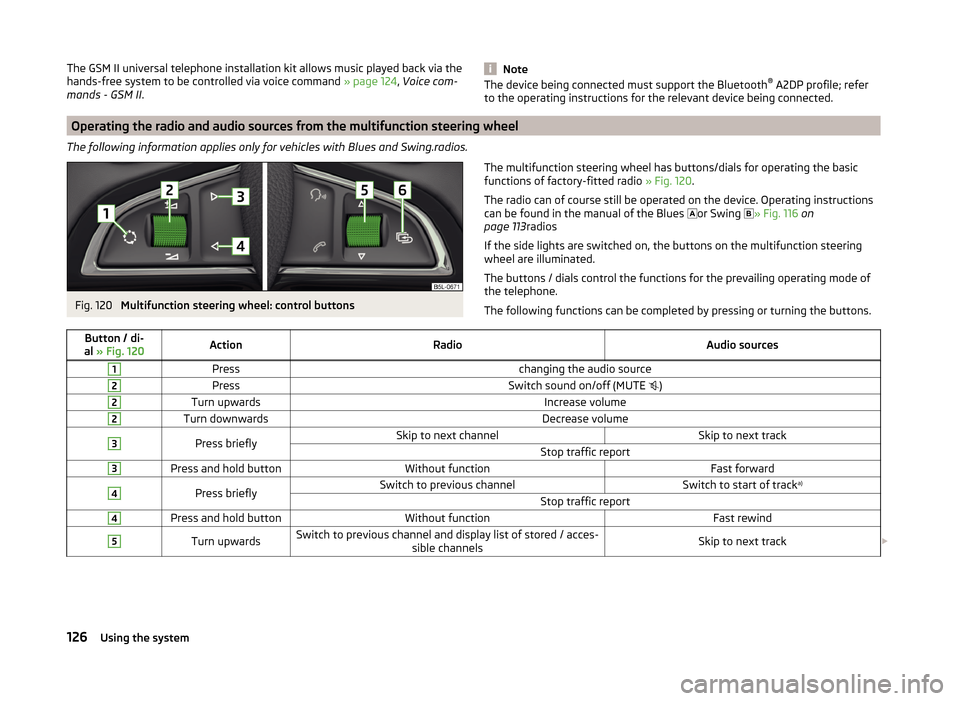
Multifunction steering wheel: control buttons
The multifunction steering wheel has buttons/dials for operating the basic
functions of factory-fitted radio » Fig. 120.
The radio can of course still be operated on the device. Operating instructions can be found in the manual of the Blues
or Swing
» Fig. 116 on
page 113 radios
If the side lights are switched on, the buttons on the multifunction steering
wheel are illuminated.
The buttons / dials control the functions for the prevailing operating mode of
the telephone.
The following functions can be completed by pressing or turning the buttons.Button / di-
al » Fig. 120ActionRadioAudio sources1Presschanging the audio source2PressSwitch sound on/off (MUTE )2Turn upwardsIncrease volume2Turn downwardsDecrease volume3Press brieflySkip to next channelSkip to next trackStop traffic report3Press and hold buttonWithout functionFast forward4Press brieflySwitch to previous channelSwitch to start of track a)Stop traffic report4Press and hold buttonWithout functionFast rewind5Turn upwardsSwitch to previous channel and display list of stored / acces-
sible channelsSkip to next track 126Using the system
Page 130 of 248
Button / di-
al » Fig. 120ActionRadioAudio sources5Turn downwardsSwitch to previous channel and display list of stored / acces-
sible channelsSwitch to start of tracka)6Press brieflyCall up the main menua)
To go to the previous track, press the adjustment wheel twice or rotate it by two positions.
AUX, USB and MDI inputsFig. 121
AUX input under the armrest
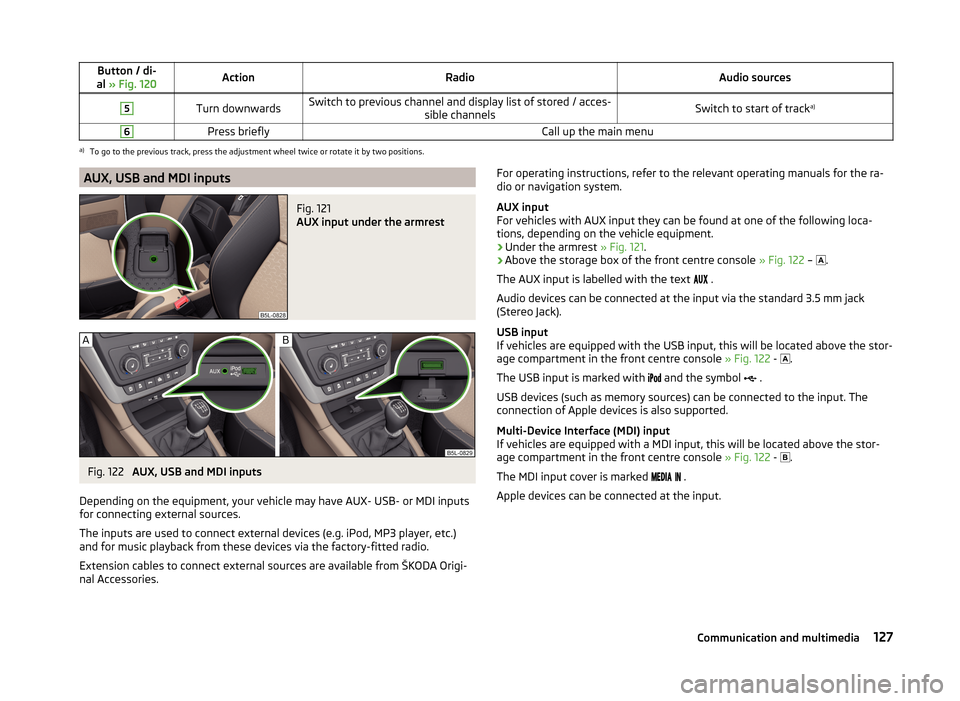
Fig. 122
AUX, USB and MDI inputs
Depending on the equipment, your vehicle may have AUX- USB- or MDI inputs
for connecting external sources.
The inputs are used to connect external devices (e.g. iPod, MP3 player, etc.)
and for music playback from these devices via the factory-fitted radio.
Extension cables to connect external sources are available from ŠKODA Origi- nal Accessories.
For operating instructions, refer to the relevant operating manuals for the ra-
dio or navigation system.
AUX input
For vehicles with AUX input they can be found at one of the following loca-
tions, depending on the vehicle equipment.
› Under the armrest
» Fig. 121.
› Above the storage box of the front centre console
» Fig. 122 –
.
The AUX input is labelled with the text
.
Audio devices can be connected at the input via the standard 3.5 mm jack
(Stereo Jack).
USB input
If vehicles are equipped with the USB input, this will be located above the stor-
age compartment in the front centre console » Fig. 122 -
.
The USB input is marked with
and the symbol
.
USB devices (such as memory sources) can be connected to the input. The
connection of Apple devices is also supported.
Multi-Device Interface (MDI) input
If vehicles are equipped with a MDI input, this will be located above the stor-
age compartment in the front centre console » Fig. 122 -
.
The MDI input cover is marked
.
Apple devices can be connected at the input.127Communication and multimedia
Page 131 of 248
CD change
The following information applies only for vehicles with Blues and Swing.ra-
dios.Fig. 123
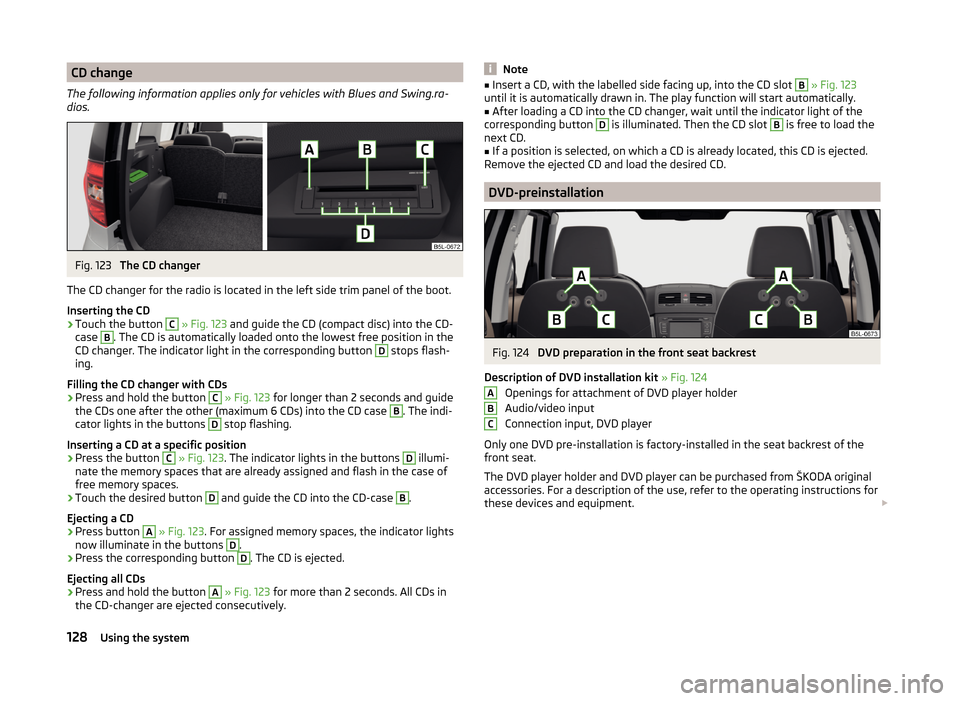
The CD changer
The CD changer for the radio is located in the left side trim panel of the boot.
Inserting the CD
›
Touch the button
C
» Fig. 123 and guide the CD (compact disc) into the CD-
case
B
. The CD is automatically loaded onto the lowest free position in the
CD changer. The indicator light in the corresponding button
D
stops flash-
ing.
Filling the CD changer with CDs
›
Press and hold the button
C
» Fig. 123 for longer than 2 seconds and guide
the CDs one after the other (maximum 6 CDs) into the CD case
B
. The indi-
cator lights in the buttons
D
stop flashing.
Inserting a CD at a specific position
›
Press the button
C
» Fig. 123 . The indicator lights in the buttons
D
illumi-
nate the memory spaces that are already assigned and flash in the case of
free memory spaces.
›
Touch the desired button
D
and guide the CD into the CD-case
B
.
Ejecting a CD
›
Press button
A
» Fig. 123 . For assigned memory spaces, the indicator lights
now illuminate in the buttons
D
.
›
Press the corresponding button
D
. The CD is ejected.
Ejecting all CDs
›
Press and hold the button
A
» Fig. 123 for more than 2 seconds. All CDs in
the CD-changer are ejected consecutively.
Note■ Insert a CD, with the labelled side facing up, into the CD slot B » Fig. 123
until it is automatically drawn in. The play function will start automatically.■
After loading a CD into the CD changer, wait until the indicator light of the
corresponding button
D
is illuminated. Then the CD slot
B
is free to load the
next CD.
■
If a position is selected, on which a CD is already located, this CD is ejected.
Remove the ejected CD and load the desired CD.
DVD-preinstallation
Fig. 124
DVD preparation in the front seat backrest
Description of DVD installation kit » Fig. 124
Openings for attachment of DVD player holder
Audio/video input
Connection input, DVD player
Only one DVD pre-installation is factory-installed in the seat backrest of the
front seat.
The DVD player holder and DVD player can be purchased from ŠKODA original
accessories. For a description of the use, refer to the operating instructions for
these devices and equipment.
ABC128Using the system
Page 149 of 248
For vehicles with manual transmission, the speed is maintained as follows.
› 1 gear - approx. 8 1)
- 30 km/h
› 2 gear - approx. 13 1 )
- 30 km/h
› 3 gear - approx. 22 1 )
- 30 km/h
› Reverse gear - approx. 9 1 )
- 30 km/h
› Neutral for driving forwards - as well as driving backwards - approx. 2 - 30
km/h
On vehicles with automatic transmission, the speed is maintained as follows.
› Position D, S, R or Tiptronic (for 1st, 2nd or 3rd gear) - approx. 2 - 30 km / h;
› Neutral for driving forwards - as well as reversing - approx. 2 - 30 km/hWARNINGFor the correct operation of the assistant the road surface must be suffi-
ciently adherent. The assistant cannot properly fulfil its function on slushy
soil due to physical reasons (e.g. ice or mud). - there is a risk of an accident!
Note
During an active intervention of the assistant, the brake lights do not light up.
TCSOFF ROAD
Read and observe
and on page 145 first.
The ASR OFF ROAD makes starting and driving on an unpaved surface easier
as it partially allows wheel-spin.
Note
When disabled, the TCS » Fig. 133 on page 143 OFF ROAD mode works without
the support of the TCS OFF ROAD.
EDS OFF ROAD
Read and observe
and on page 145 first.
The EDS supports OFF ROAD vehicle traction when driving on a surface withdifferent grip under the drive wheels or when driving over bumps.
A spinning wheel or wheels are braked earlier and with more force than with
the intervention of the standard EDS system.
ABS OFF ROAD
Read and observe
and on page 145 first.
The ABS OFF ROAD supports the driver when braking on an unpaved surface
such as gravel, snow, etc.
The system generated by a controlled locking of the wheels braked wheel be-
fore a “wedge” of piled material, which shortens the braking distance.
The system is only available, if the front wheels are in the straight-ahead posi-
tion.
The system operates at speeds of up to 50 km/h.
Start-Off Assistant 2)
Read and observe
and on page 145 first.
The Start-Off assistant assists the driver when setting off, such as on a steep
slope or on a slippery surface. When the driver presses the accelerator, the
maximum engine speed is electronically limited so that a gentle approach is
possible.
Parking aid
Introduction
This chapter contains information on the following subjects:
Function
147
Shown in the infotainment display
148
Activation/deactivation
148
The parking aid (hereinafter referred to only as system) draws attention via
acoustic signals or the Infotainment- or radio display 3)
when manoeuvring
around obstacles in the vicinity of the vehicle.
1)
The indicated values represent the average of the lower speed limits if a gear is engaged (depending on
the type of gearbox or engine).
2)
Only for vehicles with a petrol engine and manual transmission.
3)
Description of the display on the radio display » Radio instruction manual .
146Driving