ignition SKODA YETI 2017 Owner´s Manual
[x] Cancel search | Manufacturer: SKODA, Model Year: 2017, Model line: YETI, Model: SKODA YETI 2017Pages: 200, PDF Size: 28.93 MB
Page 38 of 200
Fuel reserveRead and observe
on page 31 first.
illuminates – the fuel level in the fuel tank is at the reserve level (approxi-
mately 9 litres).
An audible signal sounds as a warning. ▶ Please refuel » page 139.
Note
The text in the display goes out after refuelling and driving a short distance.
Airbag system
Read and observe
on page 31 first.
System fault
lights up - there is a fault in the airbag system.
Error: Airbag
▶
Seek help from a specialist garage.
The front passenger airbag has been disabled with the key switch
illuminates for around 4 seconds after the ignition has been switched on.
One of the airbags or a belt tensioner has been disabled by the diagnostic
tool
illuminates for around 4 seconds after the ignition is switched on and then
flashes for approximately 12 seconds.
Airbag / belt tensioner deactivated.WARNINGWhen a fault in the airbag system occurs, there is a risk of the system not
being triggered in the event of an accident. Therefore, this must be
checked immediately by a specialized garage.
Tyre pressure
Read and observe
on page 31 first.
Change of tyre pressure values
lights up - there was a pressure change in one of the tyres.
An audible signal sounds as a warning.
▶ Immediately reduce speed and avoid sudden steering and braking manoeu-
vres.
▶ Stop the vehicle, turn the ignition off and check the tyres and their inflation
pressures » page 151.
▶ Correct the tyre pressure, if necessary or replace the affected wheel
» page 155 or use the repair kit » page 159.
▶ Save the tyre pressure values in the system » page 123.
System fault
flashes for approximately 1 minute and remains lit – there may be a fault in
the tyre pressure monitoring system.
▶ Stop the vehicle, turn the ignition off and start the engine again.
If the warning light flashes again after the engine has started, there is a
system error.
▶ Continued driving is possible with appropriate caution. Seek assistance from
a specialist garage immediately.
Disconnecting the vehicle battery
If the vehicle's battery has been disconnected and reconnected, the indicator
light comes on after switching on the ignition.
The warning light should go out after driving a short distance.
If, after a short drive, the indicator light does not go out, there is a system er-
ror.
▶ Continued driving is possible with appropriate caution. Seek assistance from
a specialist garage immediately.
Other incidents
The following reasons can explain the warning light being illuminated.
▶ The vehicle is loaded on one side. Distribute the load evenly.
▶ The wheels of one axle are loaded more heavily (e.g. when towing a trailer or
when driving uphill or downhill).
▶ Snow chains are mounted.
▶ A wheel has been changed.
CAUTION
Under certain circumstances (e.g. sporty style of driving, wintry or unpaved
roads) the warning light can be delayed or does not light up at all.36Using the system
Page 40 of 200
Information system
Driver information system
Introduction
This chapter contains information on the following subjects:
Display in the instrument cluster
38
Setting the time
39
Display of the second speedometer
39
Display of AdBlue range
39
Gear recommendation
39
Display in the instrument cluster
Fig. 21
Display types: MAXI DOT / segment display
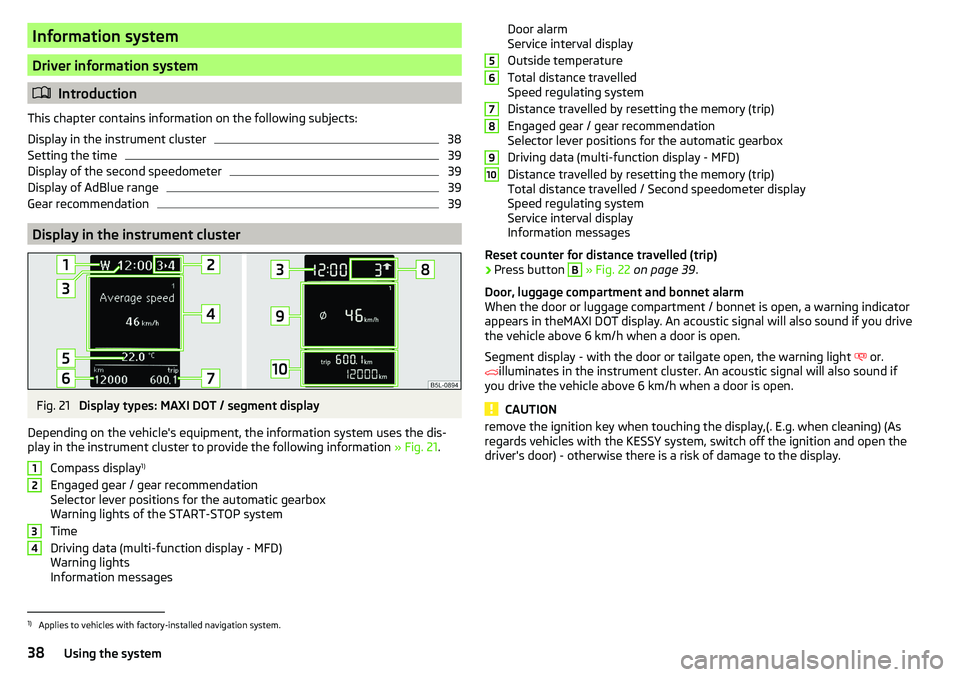
Depending on the vehicle's equipment, the information system uses the dis- play in the instrument cluster to provide the following information » Fig. 21.
Compass display 1)
Engaged gear / gear recommendation
Selector lever positions for the automatic gearbox
Warning lights of the START-STOP system
Time
Driving data (multi-function display - MFD)
Warning lights
Information messages
1234Door alarm
Service interval display
Outside temperature
Total distance travelled
Speed regulating system
Distance travelled by resetting the memory (trip)
Engaged gear / gear recommendation
Selector lever positions for the automatic gearbox
Driving data (multi-function display - MFD)
Distance travelled by resetting the memory (trip)
Total distance travelled / Second speedometer display
Speed regulating system
Service interval display
Information messages
Reset counter for distance travelled (trip)›
Press button
B
» Fig. 22 on page 39 .
Door, luggage compartment and bonnet alarm
When the door or luggage compartment / bonnet is open, a warning indicator appears in theMAXI DOT display. An acoustic signal will also sound if you drive
the vehicle above 6 km/h when a door is open.
Segment display - with the door or tailgate open, the warning light or.
illuminates in the instrument cluster. An acoustic signal will also sound if
you drive the vehicle above 6 km/h when a door is open.
CAUTION
remove the ignition key when touching the display,(. E.g. when cleaning) (As
regards vehicles with the KESSY system, switch off the ignition and open the
driver's door) - otherwise there is a risk of damage to the display.56789101)
Applies to vehicles with factory-installed navigation system.
38Using the system
Page 43 of 200
Multifunction display (MFD)
Introduction
This chapter contains information on the following subjects:
Information overview
41
Warning when exceeding the set speed
41
Memory
42
The driving data is displayed in the multifunction display when is ignition is
switched on. After the ignition is switched on, the function that was last selec-
ted before switching off the ignition is displayed.
If vehicles with MAXI DOTdisplay do not show the driving data after switching
on the ignition, select the menu item
MFD
in the main menu and confirm
» page 42 , MAXI DOT display .
On vehicles with a MAXI DOT display, there is an option to fade out the units
and some of the information » page 43, Menu item
Settings
.
Note
If the display of the second speed is activated in mph, the current speed is not
indicated in km/h on the display.
Information overview
Overview of driving data (depending on the vehicle equipment fitted).
Exterior temperature - For vehicles with a MAXI DOT display this information
is always shown.
Driving time - driving time since last clearing the memory.
Current fuel consumption - when the vehicle is stationary or moving slowly,
the fuel consumption is displayed in l/h (in models in some countries the fol-
lowing appears --,- km/l).
Average fuel consumption - is calculated continuously since the last clearing
of the memory. After erasing the memory, no data will appear for the first 300
m driven.
Range - drive distance in km which can be covered with the existing tank ca-
pacity and with the same driving style. If you drive more efficiently this value
can increase.
AdBlue ®
range - drive distance in km which can be covered with the existing
AdBlue ®
tank capacity and with the same driving style. If you drive more effi-
ciently this value can increase.
Distance driven - distance driven since the memory was last cleared.
Average speed - value constantly recalculated, for distance since last clearing
the memory. After erasing the memory, no data will appear for the first 300 m
driven.
Current Speed - digital speedometer.
Oil temperature - if the temperature is lower than 50 °C or if there is a fault in
the system for checking the oil temperature, the
symbols are displayed.
Warning when the preset speed is exceeded - allows the setting of a speed
limit where, if exceeded, an acoustic warning signal and a warning message
appears on the display of the instrument cluster.
Warning when exceeding the set speed
The system offers the possibility to set a speed limit beyond which an acoustic
warning signal will sound and the following warning message (MAXI DOT Dis-
play) and the symbol appears in the display of the instrument cluster.
Adjust the speed limit while the vehicle is stationary
›
Select the menu item
Speed warning
at ( ) or
(
) and confirm.
›
Set the desired speed limit.
›
Confirm the set value, or wait several seconds; your settings will be saved
automatically.
Adjusting the speed limit while the vehicle is moving
›
Select the menu item
Speed warning
at ( ) or
(
) and confirm.
›
Drive at the desired speed.
›
Confirm the current speed as the speed limit.
The set speed limit can be manually adjusted later if needed.
Reset speed limit
›
Select the menu item
Speed warning
at ( ) or
(
) and confirm.
›
By confirming the speed stored in the memory, the speed limit is reset.
The set driving mode remains stored even after switching the ignition on and
off.
41Information system
Page 44 of 200
MemoryFig. 26
Multi-function display - memory display
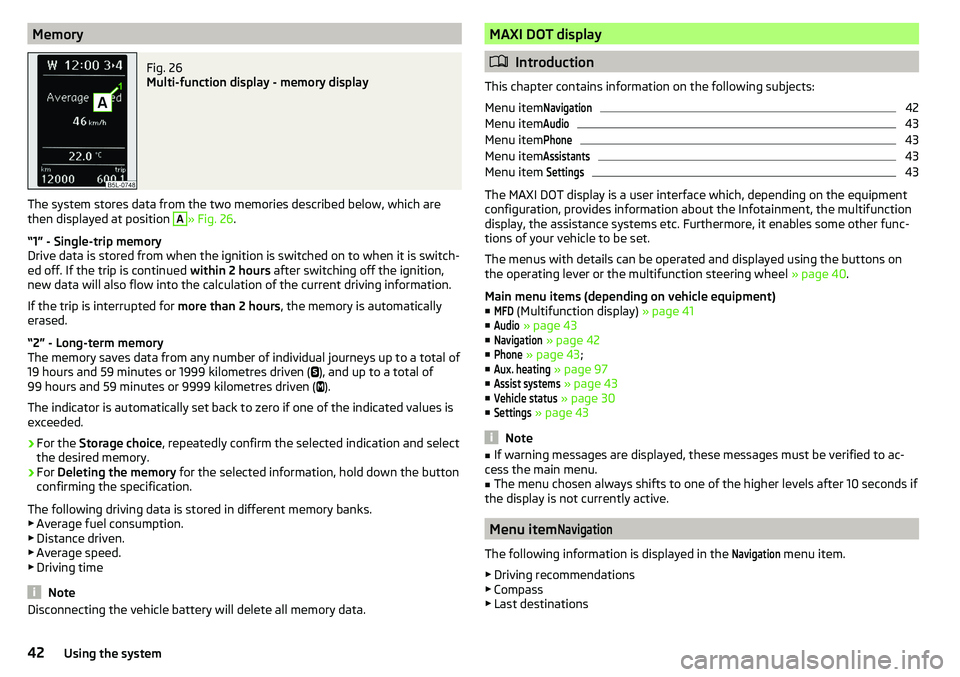
The system stores data from the two memories described below, which are
then displayed at position
A
» Fig. 26 .
“1” - Single-trip memory
Drive data is stored from when the ignition is switched on to when it is switch-
ed off. If the trip is continued within 2 hours after switching off the ignition,
new data will also flow into the calculation of the current driving information.
If the trip is interrupted for more than 2 hours, the memory is automatically
erased.
“2” - Long-term memory
The memory saves data from any number of individual journeys up to a total of
19 hours and 59 minutes or 1999 kilometres driven ( ), and up to a total of
99 hours and 59 minutes or 9999 kilometres driven ( ).
The indicator is automatically set back to zero if one of the indicated values is
exceeded.
›
For the Storage choice , repeatedly confirm the selected indication and select
the desired memory.
›
For Deleting the memory for the selected information, hold down the button
confirming the specification.
The following driving data is stored in different memory banks.
▶ Average fuel consumption.
▶ Distance driven.
▶ Average speed.
▶ Driving time
Note
Disconnecting the vehicle battery will delete all memory data.MAXI DOT display
Introduction
This chapter contains information on the following subjects:
Menu item
Navigation42
Menu item
Audio43
Menu item
Phone43
Menu item
Assistants43
Menu item
Settings43
The MAXI DOT display is a user interface which, depending on the equipment
configuration, provides information about the Infotainment, the multifunction
display, the assistance systems etc. Furthermore, it enables some other func-
tions of your vehicle to be set.
The menus with details can be operated and displayed using the buttons on
the operating lever or the multifunction steering wheel » page 40.
Main menu items (depending on vehicle equipment) ■
MFD
(Multifunction display) » page 41
■
Audio
» page 43
■
Navigation
» page 42
■
Phone
» page 43 ;
■
Aux. heating
» page 97
■
Assist systems
» page 43
■
Vehicle status
» page 30
■
Settings
» page 43
Note
■
If warning messages are displayed, these messages must be verified to ac-
cess the main menu.■
The menu chosen always shifts to one of the higher levels after 10 seconds if
the display is not currently active.
Menu item
Navigation
The following information is displayed in the
Navigation
menu item.
▶ Driving recommendations
▶ Compass
▶ Last destinations
42Using the system
Page 46 of 200
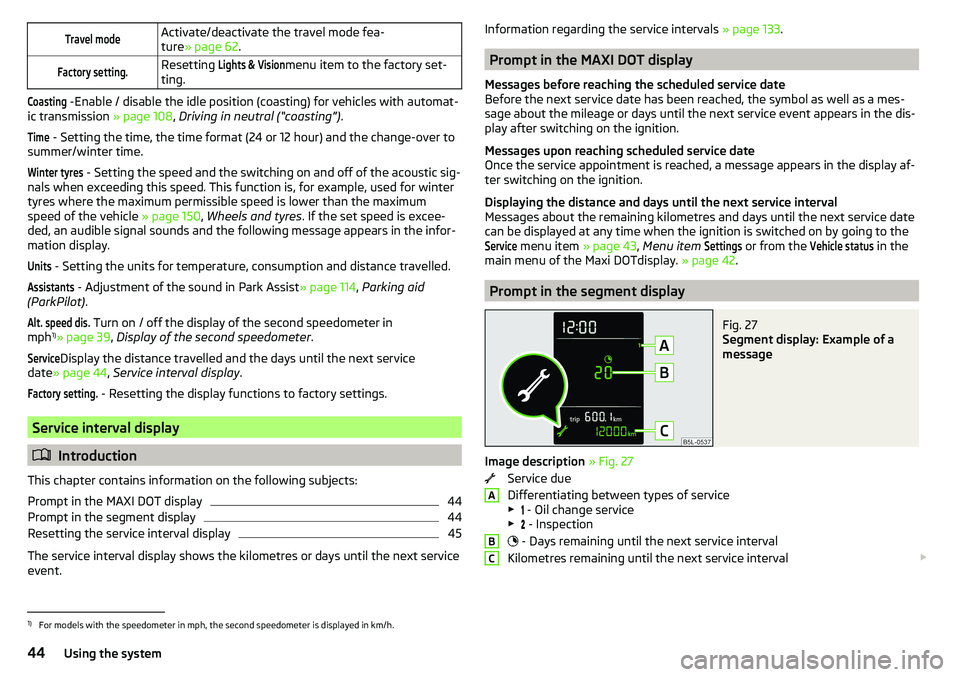
Travel modeActivate/deactivate the travel mode fea-
ture » page 62 .Factory setting.Resetting Lights & Visionmenu item to the factory set-
ting.Coasting
-Enable / disable the idle position (coasting) for vehicles with automat-
ic transmission » page 108, Driving in neutral (“coasting”) .
Time
- Setting the time, the time format (24 or 12 hour) and the change-over to
summer/winter time.
Winter tyres
- Setting the speed and the switching on and off of the acoustic sig-
nals when exceeding this speed. This function is, for example, used for winter
tyres where the maximum permissible speed is lower than the maximum
speed of the vehicle » page 150, Wheels and tyres . If the set speed is excee-
ded, an audible signal sounds and the following message appears in the infor-
mation display.
Units
- Setting the units for temperature, consumption and distance travelled.
Assistants
- Adjustment of the sound in Park Assist » page 114, Parking aid
(ParkPilot) .
Alt. speed dis.
Turn on / off the display of the second speedometer in
mph 1)
» page 39 , Display of the second speedometer .
Service
Display the distance travelled and the days until the next service
date » page 44 , Service interval display .
Factory setting.
- Resetting the display functions to factory settings.
Service interval display
Introduction
This chapter contains information on the following subjects:
Prompt in the MAXI DOT display
44
Prompt in the segment display
44
Resetting the service interval display
45
The service interval display shows the kilometres or days until the next service
event.
Information regarding the service intervals » page 133.
Prompt in the MAXI DOT display
Messages before reaching the scheduled service date
Before the next service date has been reached, the symbol as well as a mes-
sage about the mileage or days until the next service event appears in the dis-
play after switching on the ignition.
Messages upon reaching scheduled service date
Once the service appointment is reached, a message appears in the display af-
ter switching on the ignition.
Displaying the distance and days until the next service interval
Messages about the remaining kilometres and days until the next service date can be displayed at any time when the ignition is switched on by going to the
Service
menu item » page 43, Menu item
Settings
or from the
Vehicle status
in the
main menu of the Maxi DOTdisplay. » page 42.
Prompt in the segment display
Fig. 27
Segment display: Example of a
message
Image description » Fig. 27
Service due
Differentiating between types of service
▶ - Oil change service
▶ - Inspection
- Days remaining until the next service interval
Kilometres remaining until the next service interval
ABC1)
For models with the speedometer in mph, the second speedometer is displayed in km/h.
44Using the system
Page 47 of 200
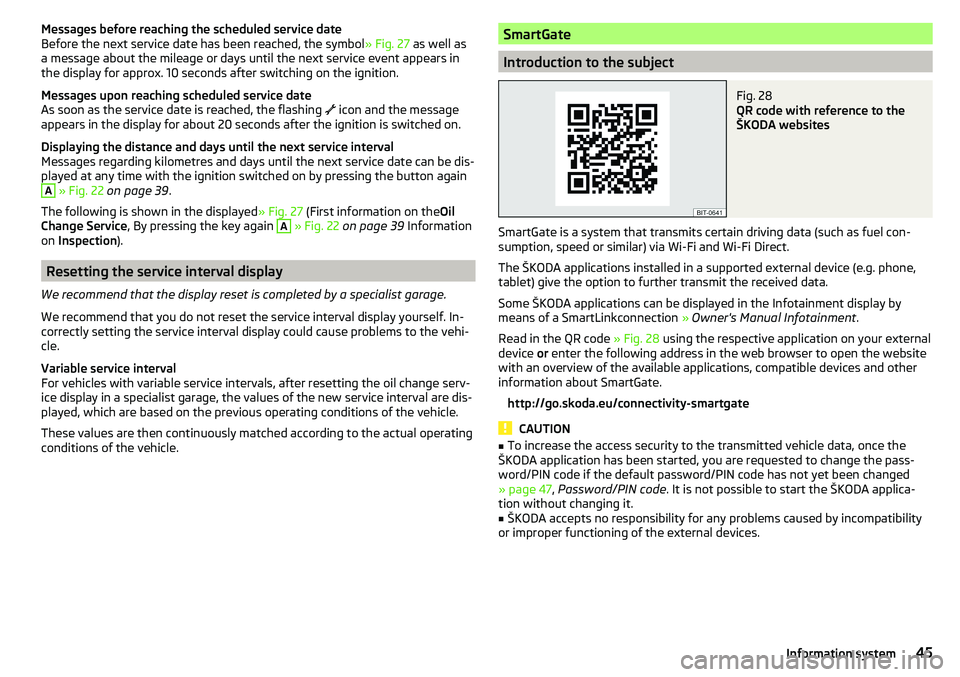
Messages before reaching the scheduled service date
Before the next service date has been reached, the symbol » Fig. 27 as well as
a message about the mileage or days until the next service event appears in
the display for approx. 10 seconds after switching on the ignition.
Messages upon reaching scheduled service date
As soon as the service date is reached, the flashing
icon and the message
appears in the display for about 20 seconds after the ignition is switched on.
Displaying the distance and days until the next service interval
Messages regarding kilometres and days until the next service date can be dis-
played at any time with the ignition switched on by pressing the button againA
» Fig. 22 on page 39 .
The following is shown in the displayed » Fig. 27 (First information on the Oil
Change Service , By pressing the key again
A
» Fig. 22 on page 39 Information
on Inspection ).
Resetting the service interval display
We recommend that the display reset is completed by a specialist garage.
We recommend that you do not reset the service interval display yourself. In-
correctly setting the service interval display could cause problems to the vehi-
cle.
Variable service interval
For vehicles with variable service intervals, after resetting the oil change serv-
ice display in a specialist garage, the values of the new service interval are dis-
played, which are based on the previous operating conditions of the vehicle.
These values are then continuously matched according to the actual operating
conditions of the vehicle.
SmartGate
Introduction to the subject
Fig. 28
QR code with reference to the
ŠKODA websites
SmartGate is a system that transmits certain driving data (such as fuel con-
sumption, speed or similar) via Wi-Fi and Wi-Fi Direct.
The ŠKODA applications installed in a supported external device (e.g. phone,
tablet) give the option to further transmit the received data.
Some ŠKODA applications can be displayed in the Infotainment display by
means of a SmartLinkconnection » Owner's Manual Infotainment .
Read in the QR code » Fig. 28 using the respective application on your external
device or enter the following address in the web browser to open the website
with an overview of the available applications, compatible devices and other
information about SmartGate.
http://go.skoda.eu/connectivity-smartgate
CAUTION
■ To increase the access security to the transmitted vehicle data, once the
ŠKODA application has been started, you are requested to change the pass-
word/PIN code if the default password/PIN code has not yet been changed
» page 47 , Password/PIN code . It is not possible to start the ŠKODA applica-
tion without changing it.■
ŠKODA accepts no responsibility for any problems caused by incompatibility
or improper functioning of the external devices.
45Information system
Page 48 of 200

connection to SmartGate using Wi-Fi
This type of connection is intended for external devices running Android and
iOS operating systems.
Connecting to an Android external device›
Switch on the ignition.
›
Switch on Wi-Fi in the external device that is to be connected and search for
available Wi-Fi networks (see Owner's Manual for the external device).
›
In the menu of the detected networks, select the “SmartGate_...” 1)
menu item.
›
Enter the password (vehicle identification number using uppercase let-
ters » page 47 ).
›
In the external device that is to be connected to, start the SmartGate appli-
cation.
›
Then follow the instructions in the manual, which is included in the
SmartGate application.
With SmartGate, a maximum of four external devices can be connected simul-
taneously using Wi-Fi, with as many launched ŠKODA applications as required.
Connecting to an external iOS device
›
Switch on the ignition.
›
Switch on Wi-Fi in the external device that is to be connected and search for
available Wi-Fi networks (see Owner's Manual for the external device).
›
In the menu of the detected networks, select the “SmartGate_...” 1 )
menu item.
›
Enter the password (vehicle identification number using uppercase let-
ters » page 47 ).
With SmartGate, a maximum of four external devices can be connected simul-
taneously using Wi-Fi. In these external devices, up to four ŠKODA applications
can be started simultaneously.
Disconnection
The connection can be switched off in one of the following ways.
›
Switch off the ignition for longer than 5 seconds (for vehicles with a starter
button, switch off the engine and open the driver's door).
›
End the connection in the SmartGate application.
›
Switch off Wi-Fi in the connected external device.
Automatic connection
If the communication device has already had a connection with SmartGate,
then the connection is automatically restored under the following conditions.
The ignition is switched on.
Wi-Fi is switched on in the external device that is to be connected to.
The external device that is to be connected to stores the password re-
quired for the connection check.
Connection to SmartGate using Wi-Fi direct
This type of connection is intended for external devices running the Android
operating system.
Connection set-up
›
Switch on the ignition.
›
In the external device that is to be connected to, start the SmartGate appli- cation.
›
In the application, change the connection type to Wi-Fi direct.
›
Then follow the instructions in the manual, which is included in the
SmartGate application.
The password for the connection to SmartGate _... 1 )
includes the last six digits
of the vehicle identification number » page 47.
With SmartGate, a maximum of two external devices can be connected simul-
taneously using Wi-Fi direct, with as many launched ŠKODA applications as re-
quired.
If you want to connect to SmartGate in a different vehicle, you must make a
new connection in the SmartGate application.
Disconnection
The connection can be switched off in one of the following ways.
›
Switch off the ignition for longer than 5 seconds (for vehicles with a starter
button, switch off the engine and open the driver's door).
›
End the connection in the SmartGate application.
›
Switch off Wi-Fi in the connected external device.
Automatic connection
If the external device once had a connection with SmartGate, then the connec-
tion is automatically restored after the ignition is started.
1)
The last 6 characters of the VIN vehicle identification number of your vehicle are displayed at position ....
46Using the system
Page 50 of 200
WARNING■Never leave the key in the vehicle when you exit the vehicle. Unauthor-
ised persons (e.g. children) could lock the car, turn on the ignition or start
the engine - There is risk of injury and accidents!■
When leaving the vehicle, never leave people who are not completely in-
dependent, such as children, unattended in the vehicle. These individuals
might not be able to exit the vehicle by themselves or to help themselves.
Can be fatal at very high or very low temperatures!
CAUTION
■ Each key contains electronic components; therefore it must be protected
against moisture and severe shocks.■
Keep the key grooves clean. Impurities (textile fibres, dust etc.) have a nega-
tive effect on the functionality of the locking cylinder and ignition lock.
Unlock / lock using key and lock
Fig. 29
Left side of the vehicle: Turning
the key for unlocking and locking
the vehicle
Read and observe and on page 48 first.
Unlocking/locking the vehicle with the key » Fig. 29
Unlocking the vehicle
Locking the vehicle
CAUTION
If the locking cylinder is provided with a cap, the cap must be removed before-
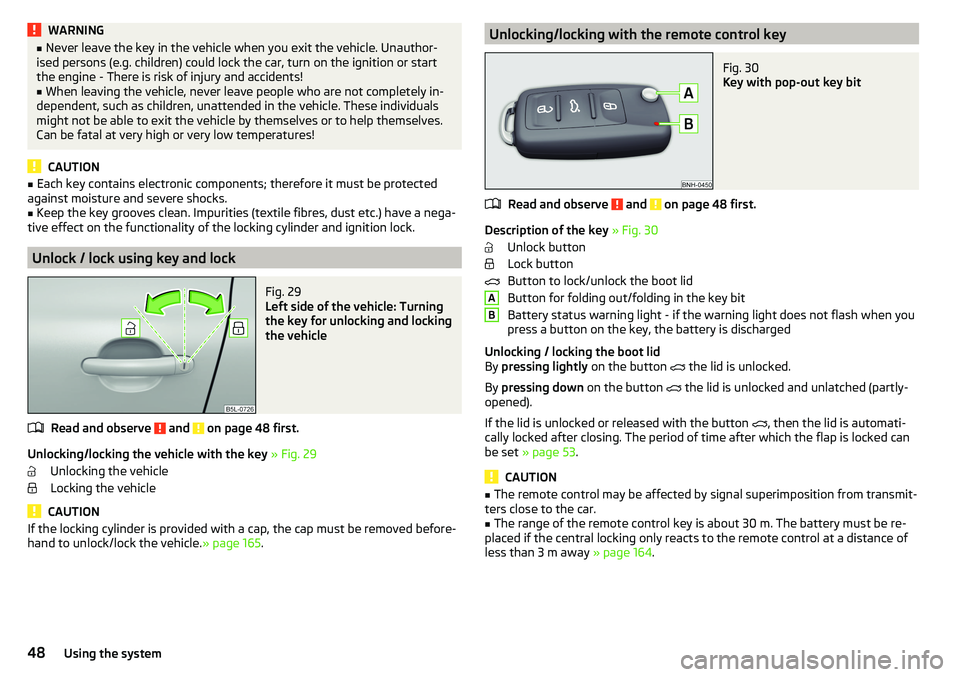
hand to unlock/lock the vehicle. » page 165.Unlocking/locking with the remote control keyFig. 30
Key with pop-out key bit
Read and observe and on page 48 first.
Description of the key » Fig. 30
Unlock button
Lock button
Button to lock/unlock the boot lid
Button for folding out/folding in the key bit
Battery status warning light - if the warning light does not flash when you
press a button on the key, the battery is discharged
Unlocking / locking the boot lid
By pressing lightly on the button
the lid is unlocked.
By pressing down on the button
the lid is unlocked and unlatched (partly-
opened).
If the lid is unlocked or released with the button , then the lid is automati-
cally locked after closing. The period of time after which the flap is locked can
be set » page 53 .
CAUTION
■
The remote control may be affected by signal superimposition from transmit-
ters close to the car.■
The range of the remote control key is about 30 m. The battery must be re-
placed if the central locking only reacts to the remote control at a distance of
less than 3 m away » page 164.
AB48Using the system
Page 51 of 200

Unlocking/locking - KESSYFig. 31
Vehicle unlocking / vehicle locking
Read and observe
and on page 48 first.
The KESSY system (Keyless Entry Start Exit System) enables unlocking and
locking of the vehicle without actively using the remote control key.
›
Grip the door handle to unlock » Fig. 31 -
the vehicle.
›
Touch the sensor on the door handle with your finger to
lock » Fig. 31 -
the
vehicle.
When unlocking/locking the vehicle, the key must be at a maximum distance
of approximately 1.5 m from the front door handle.
Information on locking
On vehicles fitted with automatic gearbox, the selector lever must be moved
into the position P before unlocking.
The vehicle cannot be locked from the outside if the ignition has not been
turned off.
After locking the vehicle, it is not possible to unlock it within the next 2 sec-
onds by touching the door handle. This can be used to check whether the vehi-
cle is locked.
Protection against inadvertently locking the key in the vehicle
If one of the doors is closed after locking the vehicle and the key with which
the vehicle was locked remains in the passenger compartment, the vehicle is
automatically unlocked. After automatically unlocking, the turn signal lights
will flash four times. If no door is opened within 45 seconds, the vehicle is au-
tomatically locked again.
If the boot lid is closed after locking the vehicle and the key with which the vehicle was locked remains in the luggage compartment, the lid is automatical-
ly unlatched (partially opened). After automatically unlocking, the turn signal
lights will flash four times. The boot lid remains unlatched (partially opened);
the other doors remain locked.
CAUTION
Some types of gloves can affect the unlocking or locking device via the sen-
sors in the door handle.
Vehicle locking / unlocking with the central locking button
Fig. 32
Central locking button
Read and observe and on page 48 first.
Conditions for the locking/unlocking using the central locking button.
The vehicle is not locked from the outside.
None of the doors are open.
›
To lock , press the
button in the area » Fig. 32.
Locking is displayed in the button by the illumination of the
symbol.
›
To unlock , press the button in the area
.
The following applies after locking. ▶ Opening the doors and the boot lid from the outside is not possible.
▶ The doors can be unlocked and opened from the inside by a single pull on the
opening lever of the respective door.
WARNINGDoors locked from the inside make it difficult for rescuers to get into the
vehicle in an emergency – risk to life!49Unlocking and opening
Page 52 of 200

SafeLockRead and observe
and on page 48 first.
SafeLock prevents opening the doors from inside as well as window operation.
This makes an attempted break-in to the vehicle more difficult.
Activating
SafeLock is activated when the vehicle is locked from the outside.
This function is pointed out by the following message on the display of the in-
strument cluster after the ignition is switched off.
Check SAFELOCK! Log book!CHECK DEADLOCK
Activation display
When SafeLock is activated, the warning light in the driver's door flashes for 2
seconds in rapid succession, then starts to flash at longer intervals.
Deactivating
▶ By locking twice within 2 seconds.
▶ or: by deactivating the interior monitor and the towing protection
» page 52 .
The warning light in the driver door flashes rapidly for about 2 seconds, then
goes out and starts to flash at longer intervals after about 30 seconds.
If the vehicle is locked and the safe securing system is switched off, the door
can be opened separately from the inside by a single pull on opening lever.
The Safelock system switches back on when the vehicle is locked.
WARNINGIf the car is locked and the safe securing system activated, no people must
remain in the car as it will then not be possible to either unlock a door or
open a window from the inside. The locked doors make it more difficult for
rescuers to get into the vehicle in an emergency – risk to life!
Individual settings
Read and observe
and on page 48 first.
The following central locking functions can be individually set via the MAXI
DOT display » page 43, Menu item
Settings
.
All doors
The function allows you to unlock all doors, the boot lid and the fuel filler flap.
Single door
The function allows you to unlock only the driver's door and the fuel filler flap
with the radio remote control. KESSY allows the unlocking of a single door
which is in the vicinity of the key, as well as the fuel filler flap. The other doors
and the boot lid are only unlocked once the door handle is unlocked or
touched.
Doors on a vehicle side
This function enables you to unlock both doors on the driver's side and the
fuel filler flap with the radio remote control unit. KESSY allows the unlocking of
both doors which are in the vicinity of the key, as well as the fuel filler flap. The
other doors and the boot lid are only unlocked once the door handle is un-
locked or touched.
Automatic locking/unlocking
This function enables the locking of all doors and the boot lid from a speed of
15 km / h. Opening the doors and the boot lid from the outside is not possible.
The renewed unlocking of the doors and the boot lid is carried out when the
ignition key is removed or when the door is opened from inside (depending on
the individual setting for the central locking system).
Opening/closing a door
Fig. 33
Door handle/door opening lever:
Read and observe
and on page 48 first.
›
To open from the outside , unlock the vehicle and pull the door handle
A
in
the direction of arrow » Fig. 33.
50Using the system